# Purchases & Sales

<figure><img src="https://687823928-files.gitbook.io/~/files/v0/b/gitbook-x-prod.appspot.com/o/spaces%2FlRf1QqJGoevCQqGbfI80%2Fuploads%2Fgit-blob-50d1ad845ea1cb707bb30571f9a4170a72468711%2F%E1%84%80%E1%85%AE%E1%84%86%E1%85%A2%E1%84%86%E1%85%B5%E1%86%BE%E1%84%91%E1%85%A1%E1%86%AB%E1%84%86%E1%85%A2.png?alt=media" alt=""><figcaption></figcaption></figure>

***

## Key Highlights

* **Order Management:** Create and manage purchase orders and sales orders.
* **Status Tracking:** Monitor order progress with clear status labels.
* **Invoicing**: Send invoices to partners via email or export to PDF for printing.
* **Bundled Items:** Simplify grouped items by creating bundles.
* **Custom Pricing**: Set custom prices for specific orders, and apply taxes/discounts.
* **Returns Management:** Manage returns and refunds for specific orders.
* **Sales Reports**: Analyze your sales data with detailed reports.

{% hint style="warning" %} <mark style="color:blue;">Purchases & Sales</mark> are different from <mark style="color:blue;">Inventory Transactions</mark> (Stock In, Out, Adjust, Move). Both features help manage inventory quantities, but they serve different purposes.

* Use **Purchases & Sales** when you need purchase or sales records, pricing, or invoices.
* Use **Transactions** for quick internal updates that don’t require any documents.
  {% endhint %}

***

## Purchases

Go to <mark style="color:blue;">**`Purchases & Sales`**</mark> > <mark style="color:blue;">**`Purchases`**</mark> to create and manage purchase orders.

{% embed url="<https://customer-0jrbilsa8yt3k758.cloudflarestream.com/a4f50b31fd0a4695abdbd0194037ca52/iframe?autoplay=true&controls=false&letterboxColor=transparent&loop=true&muted=true&poster=https://customer-0jrbilsa8yt3k758.cloudflarestream.com/a4f50b31fd0a4695abdbd0194037ca52/thumbnails/thumbnail.jpg?height=1080&preload=true>" %}

### Purchase Order Status

* **Draft**: Order has been saved but hasn’t been sent to the supplier yet.
* **Ordered:** Order has been placed with the supplier.
* **Partially Received:** Some items have arrived, but others are still pending.
* **Received:** All items in the order have been received.

{% hint style="info" %}
When you create a PO, it’s immediately reflected in your <mark style="color:blue;">**`Sales Reports`**</mark> (except for drafts).
{% endhint %}

Inventory is updated *only* after the purchase order is created **and** the *Stock In* process is completed.

* **Draft** or **Ordered** → No inventory change
* **Partially Received** or **Received** → Inventory updated

{% hint style="success" %}
**Note**: Order numbers are generated in sequence (e.g., PO-000107, PO-000108, …)
{% endhint %}

***

## **Sales**

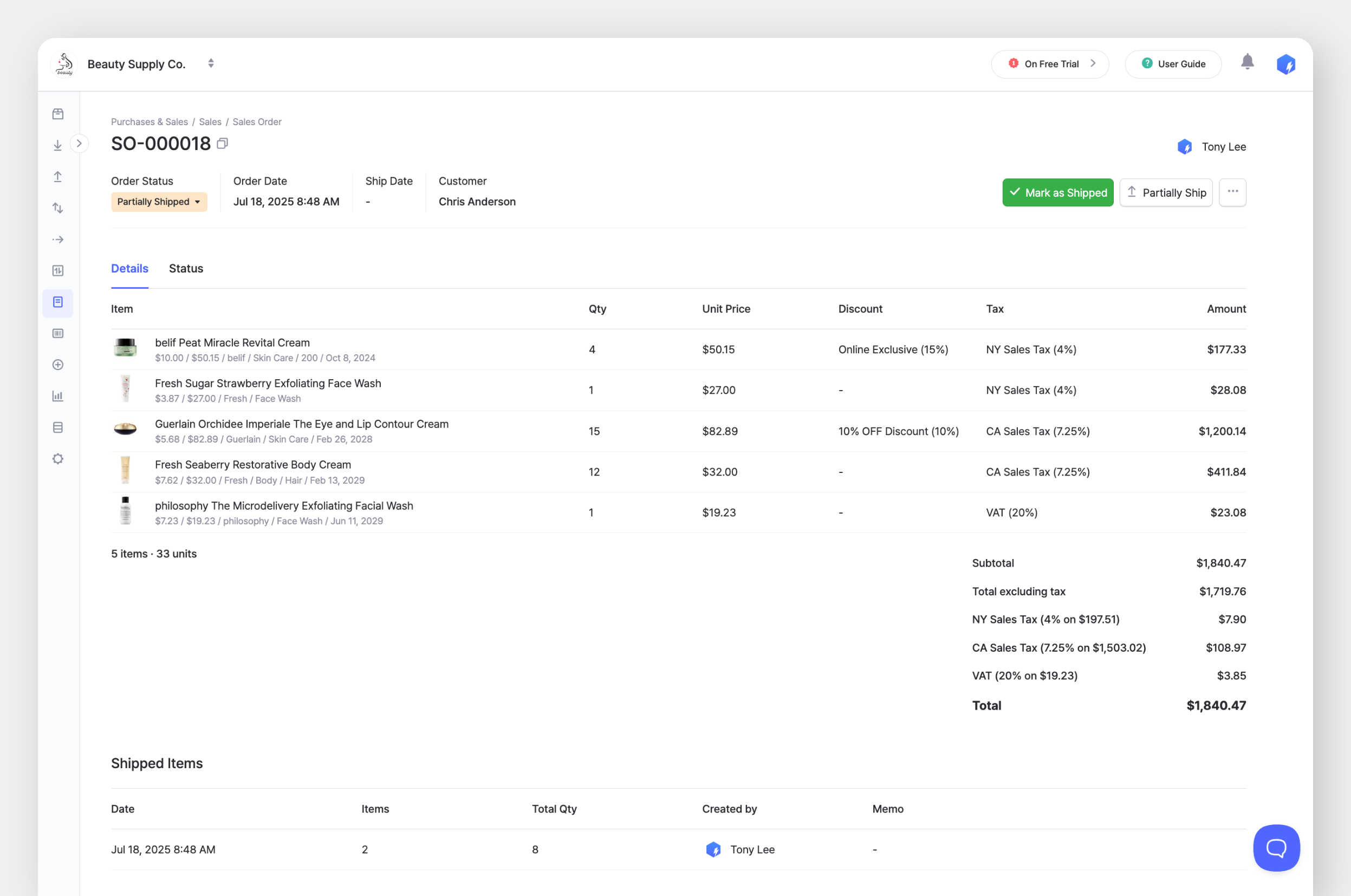
Go to <mark style="color:blue;">**`Purchases & Sales`**</mark> > <mark style="color:blue;">**`Sales`**</mark> to create and manage sales orders.

<figure><img src="https://687823928-files.gitbook.io/~/files/v0/b/gitbook-x-prod.appspot.com/o/spaces%2FlRf1QqJGoevCQqGbfI80%2Fuploads%2Fgit-blob-d6bfaf222efb8b8135ced4040a4fbd8e54b10e07%2Fsales-order-web.png?alt=media" alt=""><figcaption></figcaption></figure>

### Sales Order Status

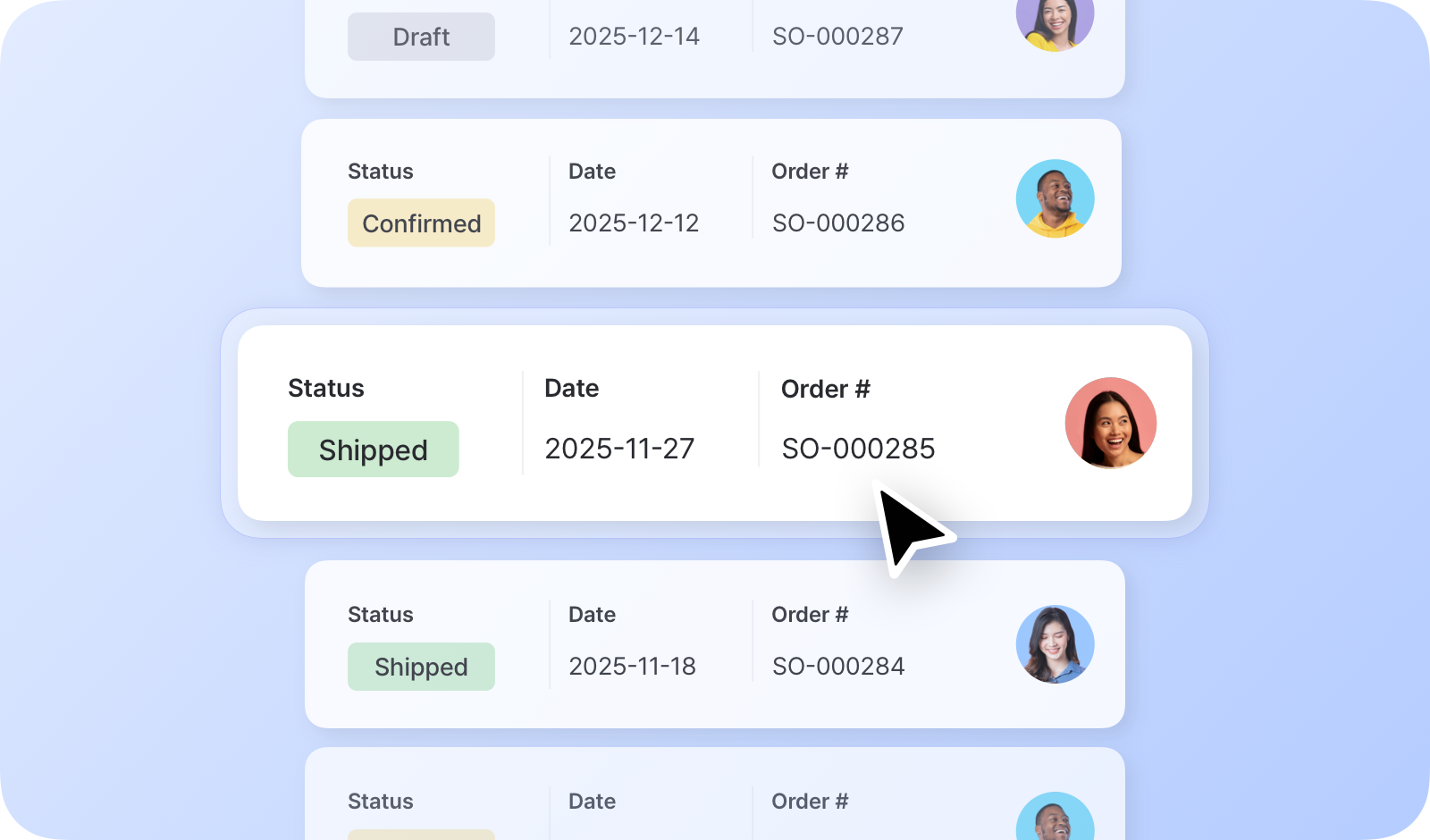
* **Draft**: Order has been saved but not confirmed.
* **Confirmed:** Order is confirmed, but items haven’t been shipped yet.
* **Partially Shipped:** Some items have been shipped; others are still pending.
* **Shipped:** All items have been shipped and delivered to the customer.

{% hint style="success" %}
**Pro Tip:** Use BoxHero's [Sales Reports](https://www.boxhero.io/docs/key-features/purchase-and-sales/sales-reports) to:

* Track key metrics like sales price, quantity, and profit
* Analyze sales performance over a selected date range
* Identify trends and pricing opportunities
  {% endhint %}

***

## Returns

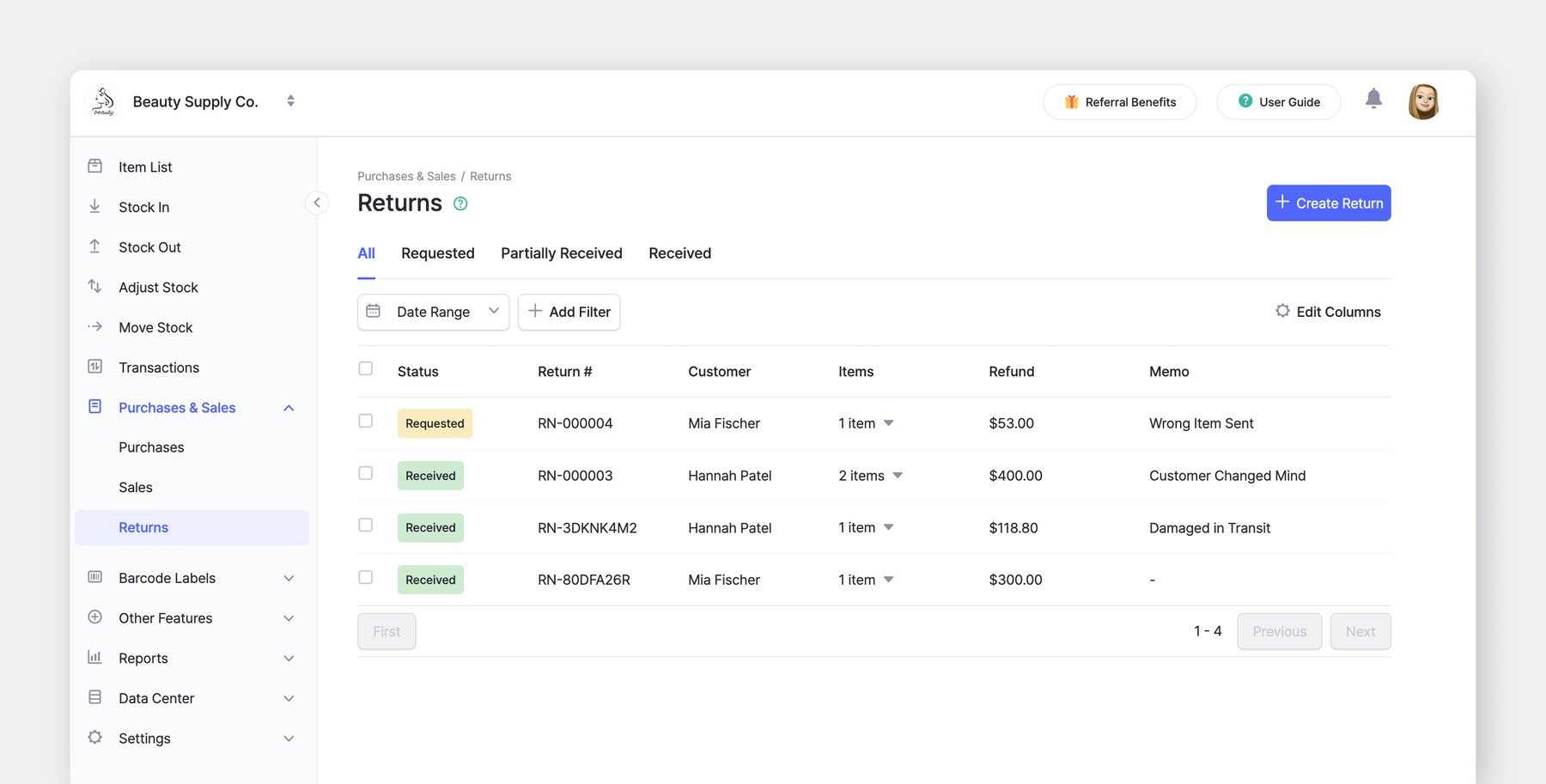
You can streamline customer returns by linking them directly to your original sales orders.

<figure><img src="https://687823928-files.gitbook.io/~/files/v0/b/gitbook-x-prod.appspot.com/o/spaces%2FlRf1QqJGoevCQqGbfI80%2Fuploads%2Fgit-blob-01d1c7d8edafd4f5441dfdfff395969bcc21ace0%2Fframeit_2026-03-11T14-41-39.jpg?alt=media" alt=""><figcaption></figcaption></figure>

### Return Status

* **Requested**: The return request has been initiated, but the items have not yet arrived at the location.
* **Partially Received:** Some items from the original sales order have arrived, while others are still pending.
* **Received:** All items in the return have been physically received and added back into inventory.

#### Option 1: Create a Return by Order Number

Use this method if you have the customer's receipt or invoice handy.

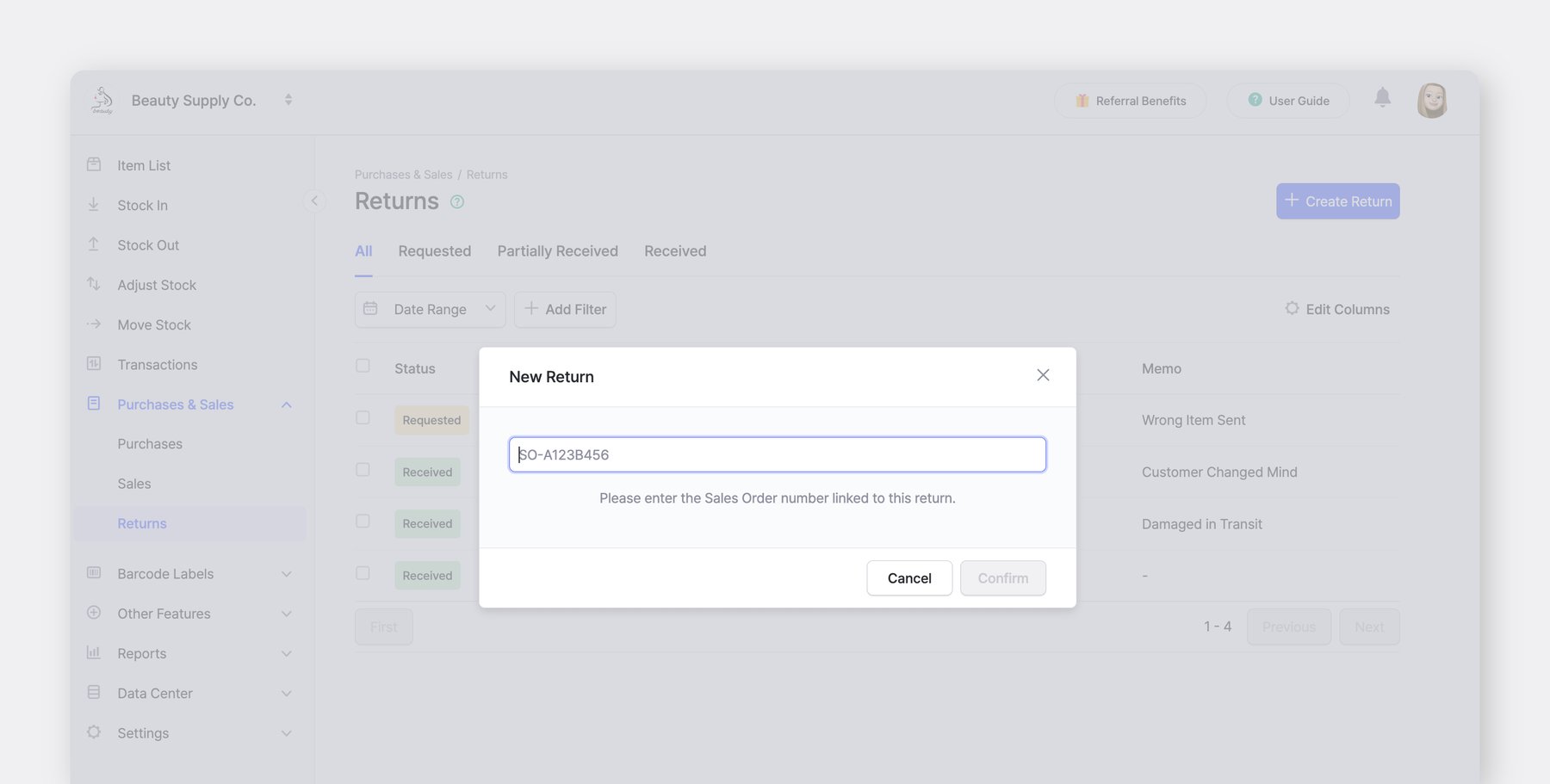
1. Navigate to <mark style="color:blue;">**`Purchases & Sales`**</mark> > <mark style="color:blue;">**`Returns`**</mark> in the side navigation bar.
2. Click **+ Create Return**.
3. Enter the **Sales Order Number** in the search field. The system will automatically pull up the original item details.
4. Select the items being returned and save the order.

<figure><img src="https://687823928-files.gitbook.io/~/files/v0/b/gitbook-x-prod.appspot.com/o/spaces%2FlRf1QqJGoevCQqGbfI80%2Fuploads%2Fgit-blob-8b0e8b75c47f88970ed60f6df0708e6c5dc311ab%2Fframeit_2026-03-11T14-41-44.jpg?alt=media" alt=""><figcaption></figcaption></figure>

#### Option 2: Create a Return from the Sales List

Use this method if you need to browse for the original transaction first.

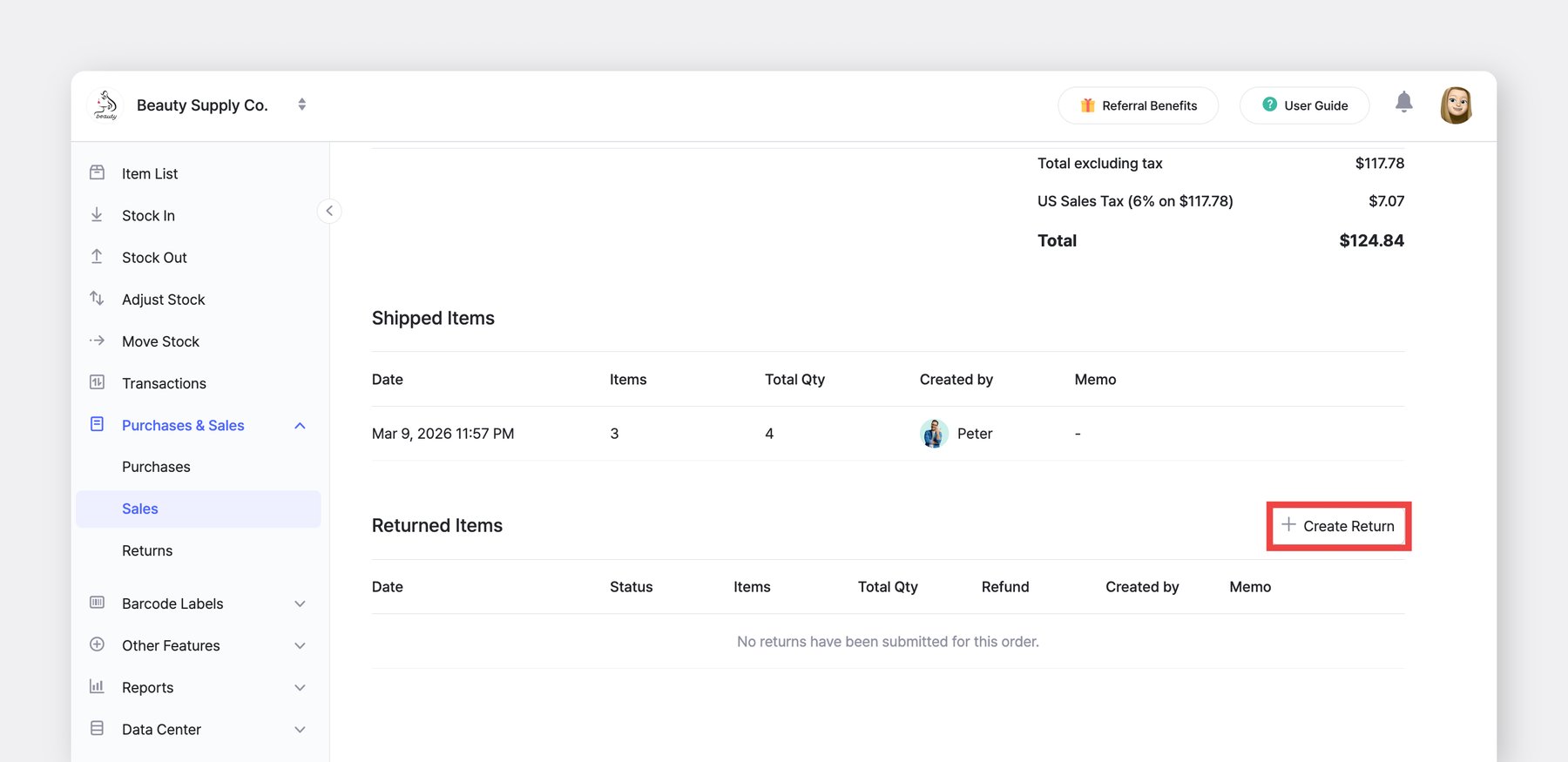
1. Go to <mark style="color:blue;">**`Purchases & Sales`**</mark> > <mark style="color:blue;">**`Sales`**</mark> and locate the specific order the customer wants to return.
2. Click on the order to open the **Details** view.
3. Click the **+ Create Return** button under the "*Returned Items*" section.

<figure><img src="https://687823928-files.gitbook.io/~/files/v0/b/gitbook-x-prod.appspot.com/o/spaces%2FlRf1QqJGoevCQqGbfI80%2Fuploads%2Fgit-blob-823b75c04be79e7917e3e6173f3a136af221d232%2Fframeit_2026-03-11T14-26-23.jpg?alt=media" alt=""><figcaption></figcaption></figure>

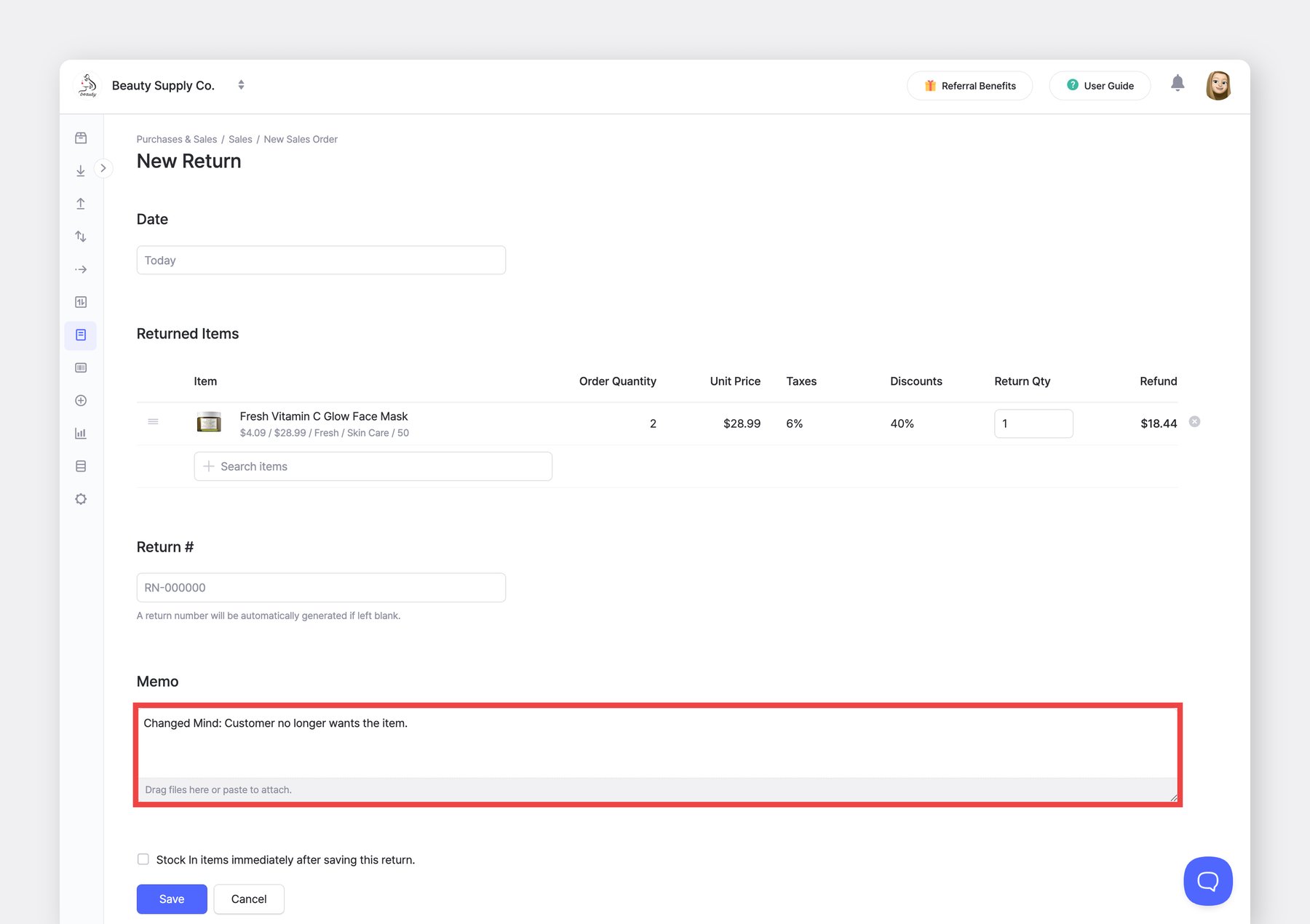
*(Optional)* Enter the return details in the memo field for better tracking and communication with your team.

<figure><img src="https://687823928-files.gitbook.io/~/files/v0/b/gitbook-x-prod.appspot.com/o/spaces%2FlRf1QqJGoevCQqGbfI80%2Fuploads%2Fgit-blob-e68886b629563d2cf1dd670ae7d41771588dc341%2Fframeit_2026-03-11T14-29-15.jpg?alt=media" alt=""><figcaption></figcaption></figure>

For a detailed guide on the <mark style="color:blue;">**`Returns`**</mark> feature, check out our blog:

{% embed url="<https://www.boxhero.io/en/blog/update-returns-and-refunds>" %}

***

## Order Settings

You can send your orders via email, print them, or save them as PDFs.

* Add or edit supplier and customer information in <mark style="color:blue;">**`Data Center`**</mark> > <mark style="color:blue;">**`Partners`**</mark>.
* Update your company information in <mark style="color:blue;">**`Settings`**</mark> > <mark style="color:blue;">**`Team`**</mark>.

<figure><img src="https://687823928-files.gitbook.io/~/files/v0/b/gitbook-x-prod.appspot.com/o/spaces%2FlRf1QqJGoevCQqGbfI80%2Fuploads%2Fgit-blob-57fc0403e16ae915e561238e542e4d311b4c04a5%2F00%20copy%20121.png?alt=media" alt=""><figcaption></figcaption></figure>

### A. Print Layout

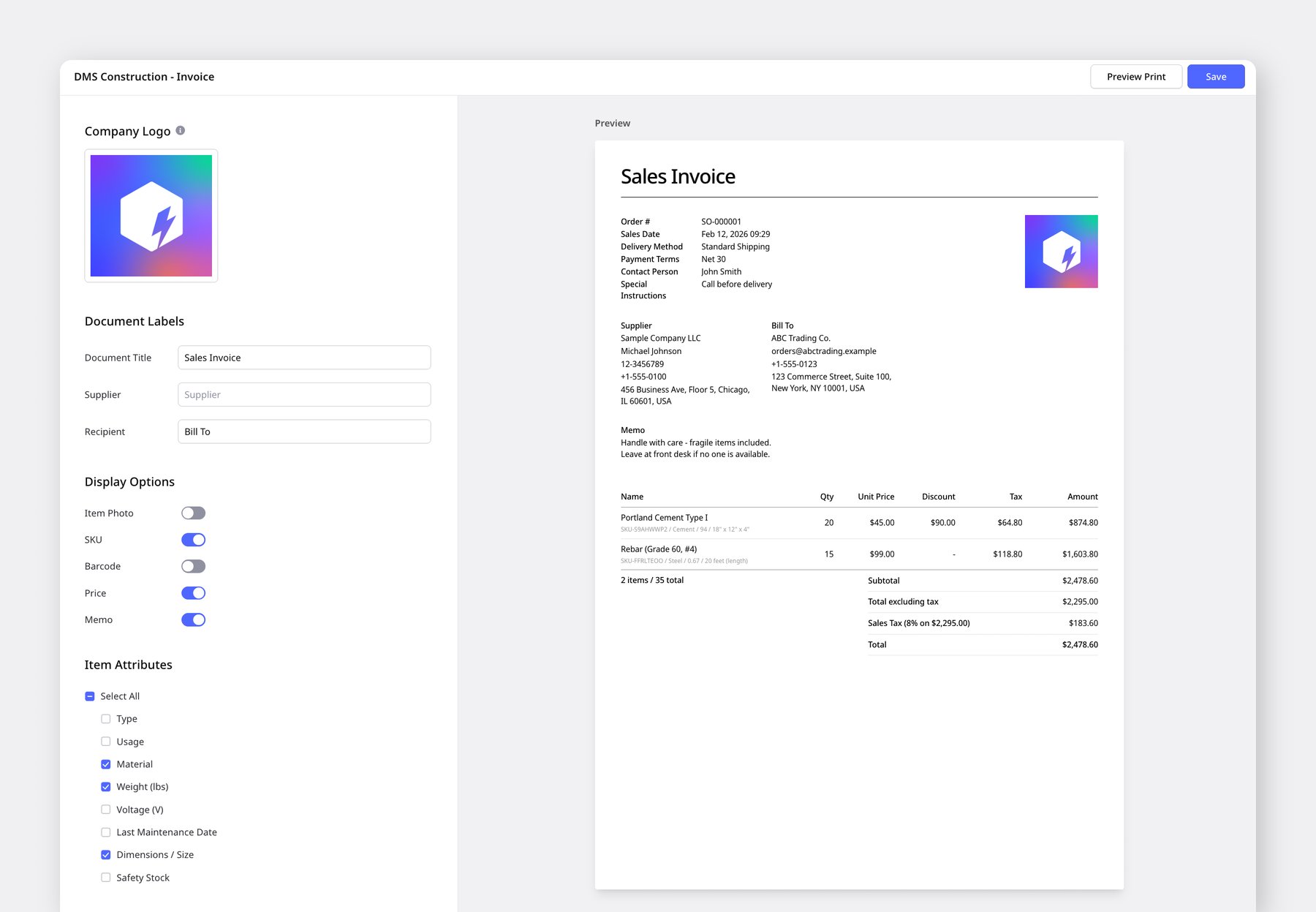
Customize what information appears on your purchase orders and sales invoices. You can set different layout templates for each document type.

Go to: <mark style="color:blue;">**`Settings`**</mark> > <mark style="color:blue;">**`Orders`**</mark> > <mark style="color:blue;">**`Print Layout`**</mark>&#x20;

{% embed url="<https://www.boxhero.io/en/blog/custom-print-layouts>" %}

#### **Layout Settings**

* **Company Logo —** Add your brand image to the top right of the document.
* **Document Labels —** Change the terms shown on the document.
  * Document Title *(Purchase Order, Invoice, Packing Slip, Delivery Note)*
  * Supplier *(Vendor, Seller, From)*
  * Recipient *(Customer, Bill To, Ship To, Buyer)*
* **Display Options —** Choose which fields to include on the document.
  * Available options: *Item photos, SKU, Barcode, Pricing, Memo*
* **Item Attributes**: Select which item attributes to display in the item details section of the document.

<figure><img src="https://687823928-files.gitbook.io/~/files/v0/b/gitbook-x-prod.appspot.com/o/spaces%2FlRf1QqJGoevCQqGbfI80%2Fuploads%2Fgit-blob-375ea41b4010cdee6b90afa63d7ab38e49ce9246%2Fframeit_2026-02-12T14-30-16.jpg?alt=media" alt=""><figcaption></figcaption></figure>

### B. Custom Fields

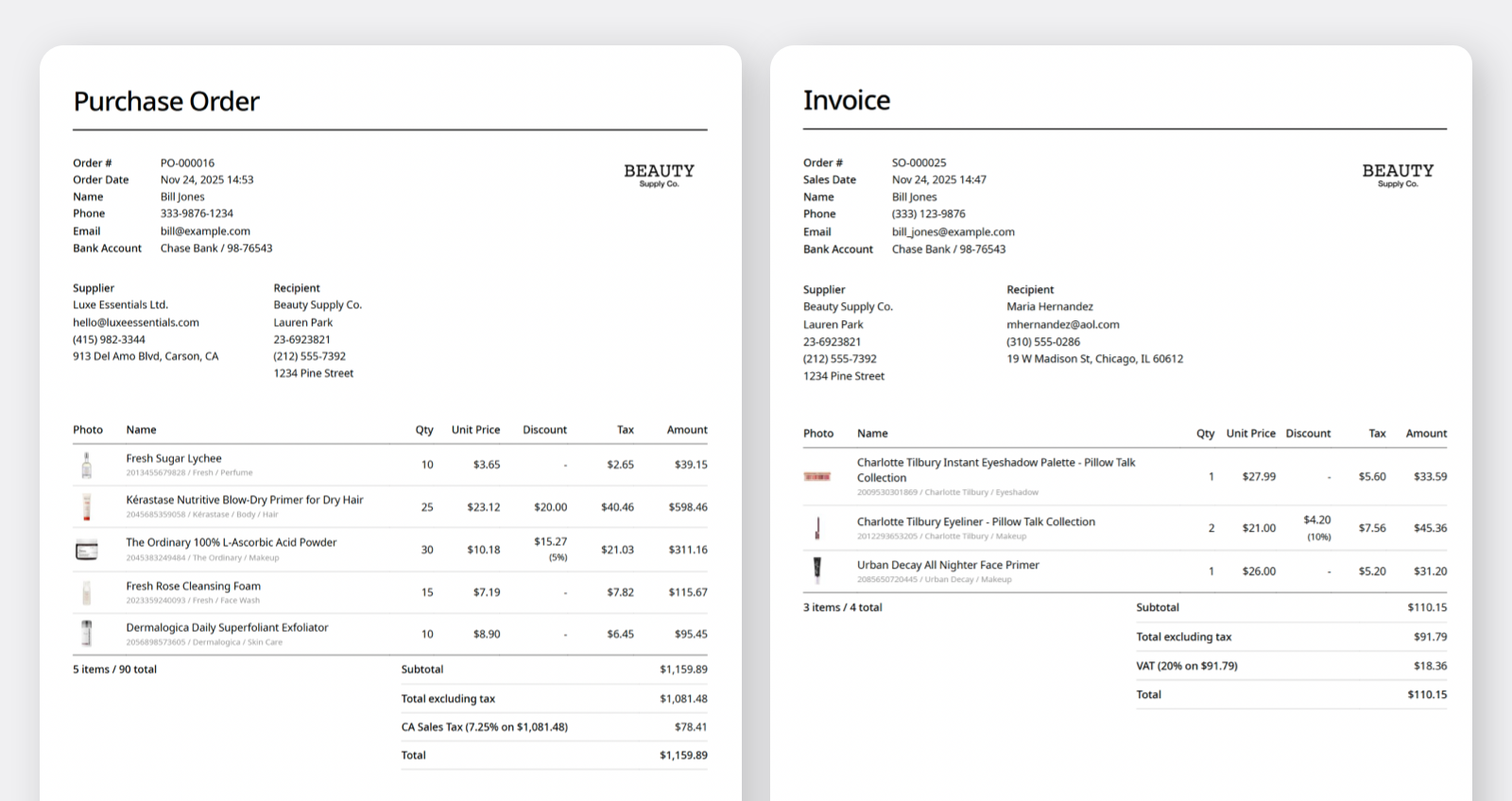
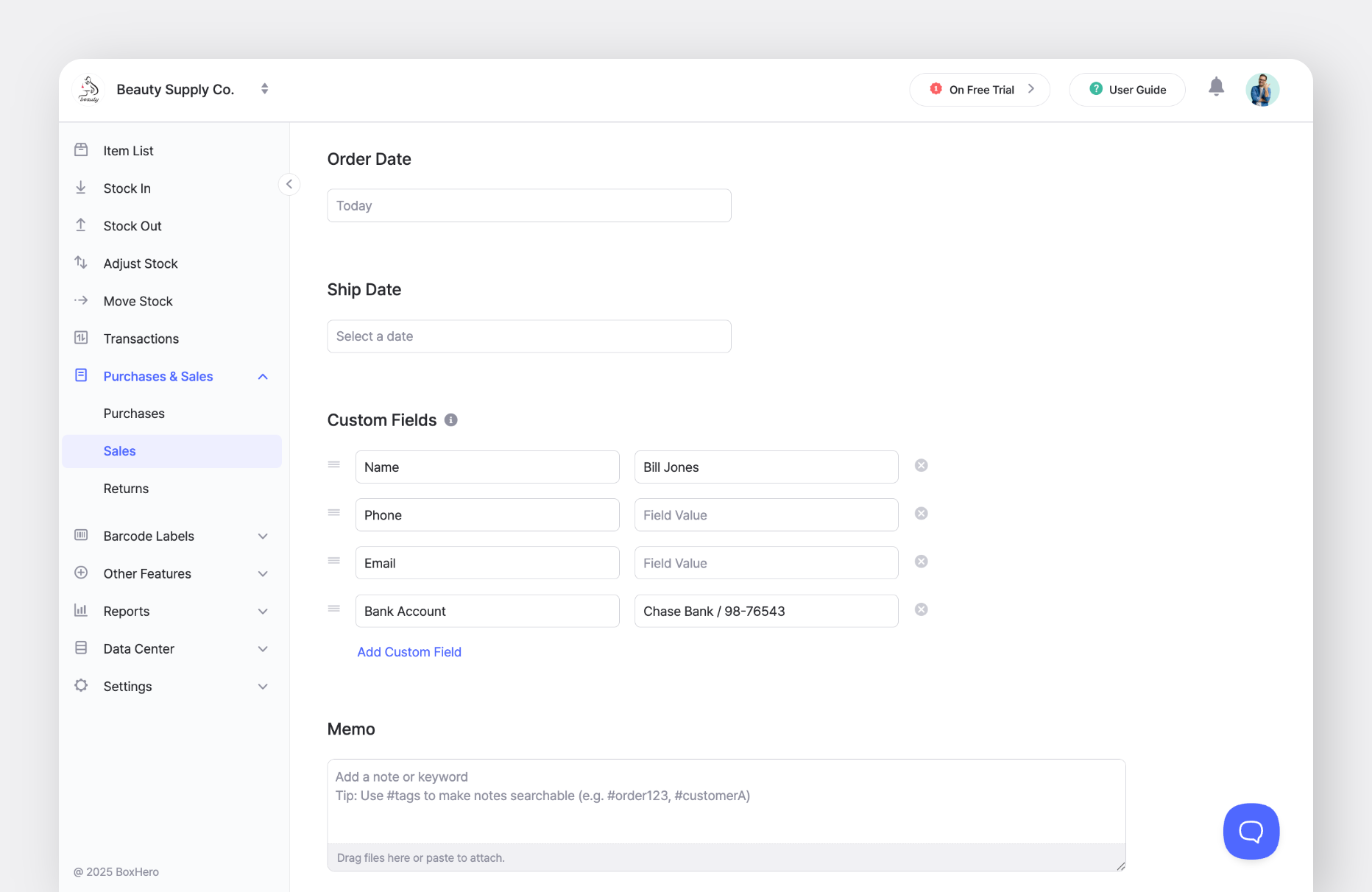
If you need additional fields such as a contact person's email address or bank account details, you can add [**custom fields**](https://www.boxhero.io/en/blog/custom-fields-for-purchases-sales) while creating a purchase order or sales order.

<figure><img src="https://687823928-files.gitbook.io/~/files/v0/b/gitbook-x-prod.appspot.com/o/spaces%2FlRf1QqJGoevCQqGbfI80%2Fuploads%2Fgit-blob-6701ab0fe9fe3526bfd06f7a55207f3ec3cb734c%2FSales%20Order_Custom%20Fields%20Section.png?alt=media" alt=""><figcaption></figcaption></figure>

If you frequently use the same fields, save them as a **template**.

Go to: <mark style="color:blue;">**`Settings`**</mark> > <mark style="color:blue;">**`Purchases & Sales`**</mark> > <mark style="color:blue;">**`Custom Fields`**</mark> to add a new custom field, and any saved fields and their values will appear automatically whenever you create a new order.

<figure><img src="https://687823928-files.gitbook.io/~/files/v0/b/gitbook-x-prod.appspot.com/o/spaces%2FlRf1QqJGoevCQqGbfI80%2Fuploads%2Fgit-blob-7bdcbaa5787030a99572856888f9dcbc7ce86451%2FOrders_Custom%20Fields%20(1).png?alt=media" alt=""><figcaption><p>In this example, <strong>Name</strong>: "<em>Bill Jones</em>" and <strong>Bank</strong> <strong>Account</strong>: "<em>Chase Bank / 98-7654</em>3" are saved as custom field values.</p></figcaption></figure>

{% hint style="warning" %}
Custom field settings apply at the **team level**, so all team members will see the same fields. Make sure to set the default values only for information that should be shared across the team.
{% endhint %}

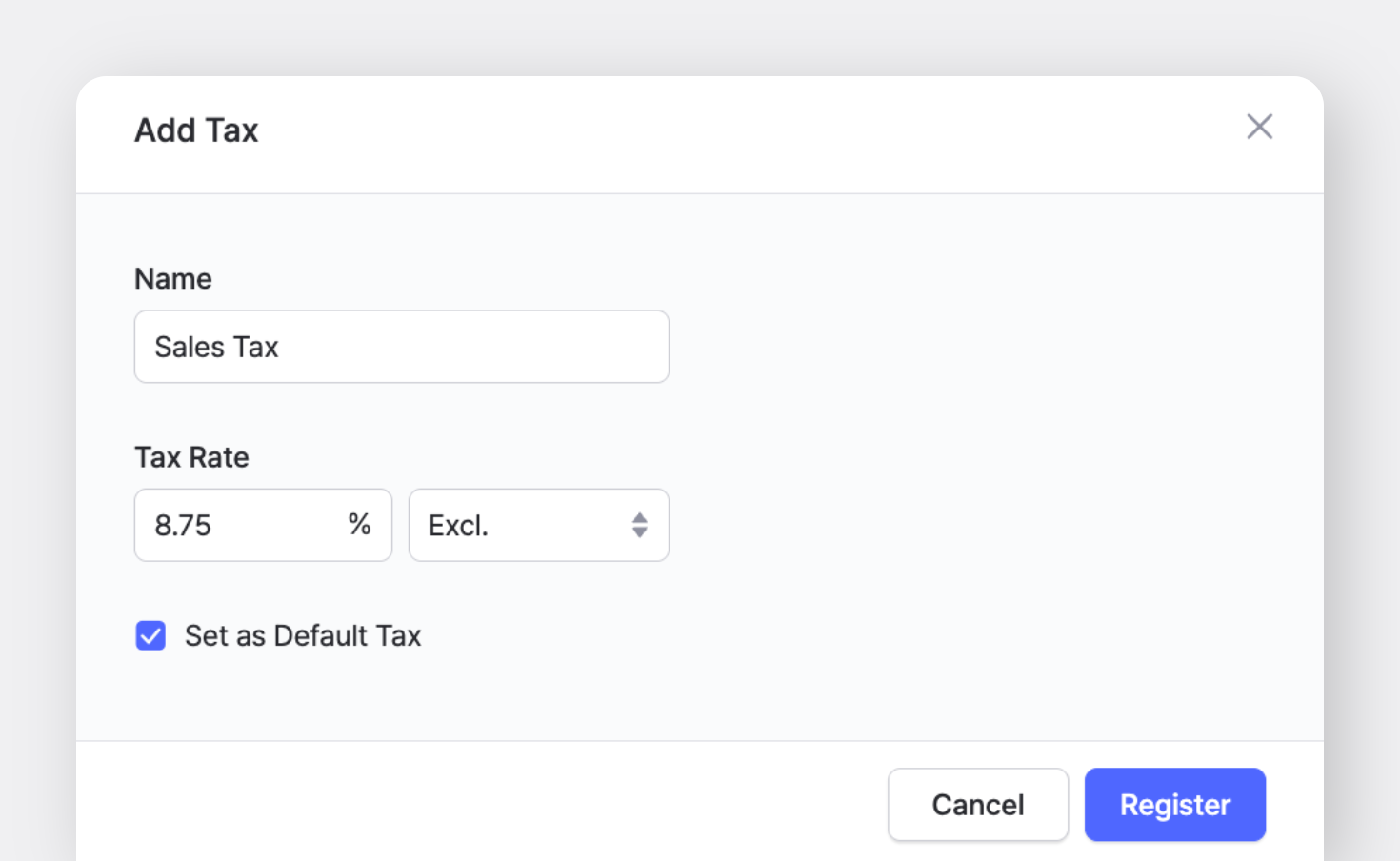
### C. Taxes

You can apply taxes to your orders and choose how they’re calculated:

* **Inclusive:** The tax is already included in the item price.
* **Exclusive:** The tax is added on top of the item price.

<figure><img src="https://687823928-files.gitbook.io/~/files/v0/b/gitbook-x-prod.appspot.com/o/spaces%2FlRf1QqJGoevCQqGbfI80%2Fuploads%2Fgit-blob-5e05d533ac037727566e2bd79c8cf5365f33cd62%2Fboxhero-tax-default-tax.png?alt=media" alt=""><figcaption></figcaption></figure>

{% hint style="success" %}
If you regularly apply the same tax rate to your orders, you can set it as the **default**.
{% endhint %}

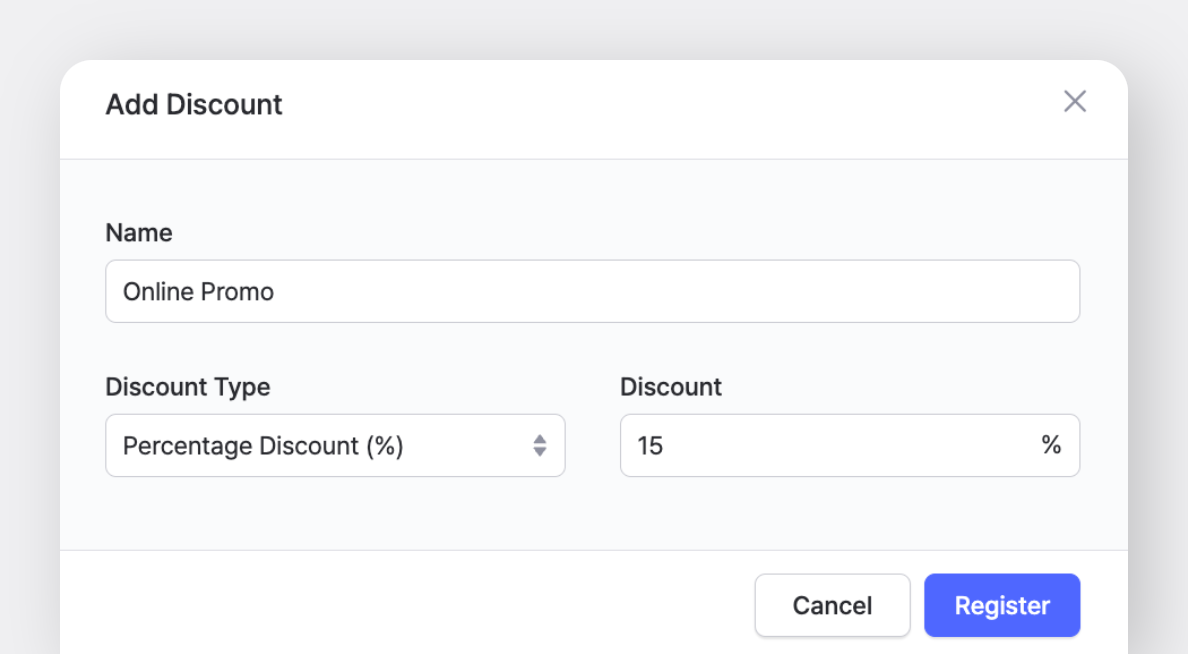
### D. Discounts

You can also apply discounts to your orders:

* **Percentage Discount** (e.g., 10% off)
* **Fixed Discount** (e.g., $5 off)

<figure><img src="https://687823928-files.gitbook.io/~/files/v0/b/gitbook-x-prod.appspot.com/o/spaces%2FlRf1QqJGoevCQqGbfI80%2Fuploads%2Fgit-blob-9deb549905be950f79cb794f27dc23e5ef29ae7a%2Fdiscount.png?alt=media" alt=""><figcaption></figcaption></figure>

{% hint style="warning" %}
**Note**: When *both* taxes and discounts are applied, **discounts are calculated first**, followed by taxes.
{% endhint %}

***

## Price Lists

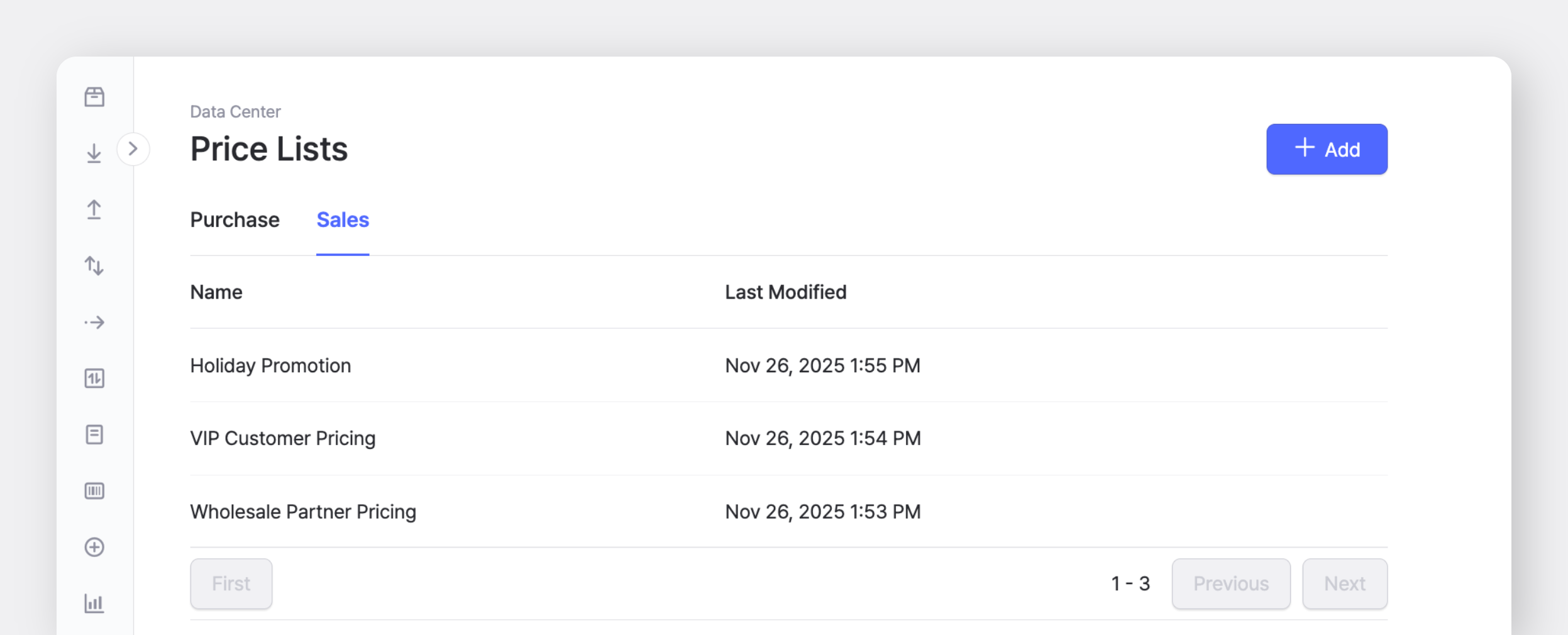
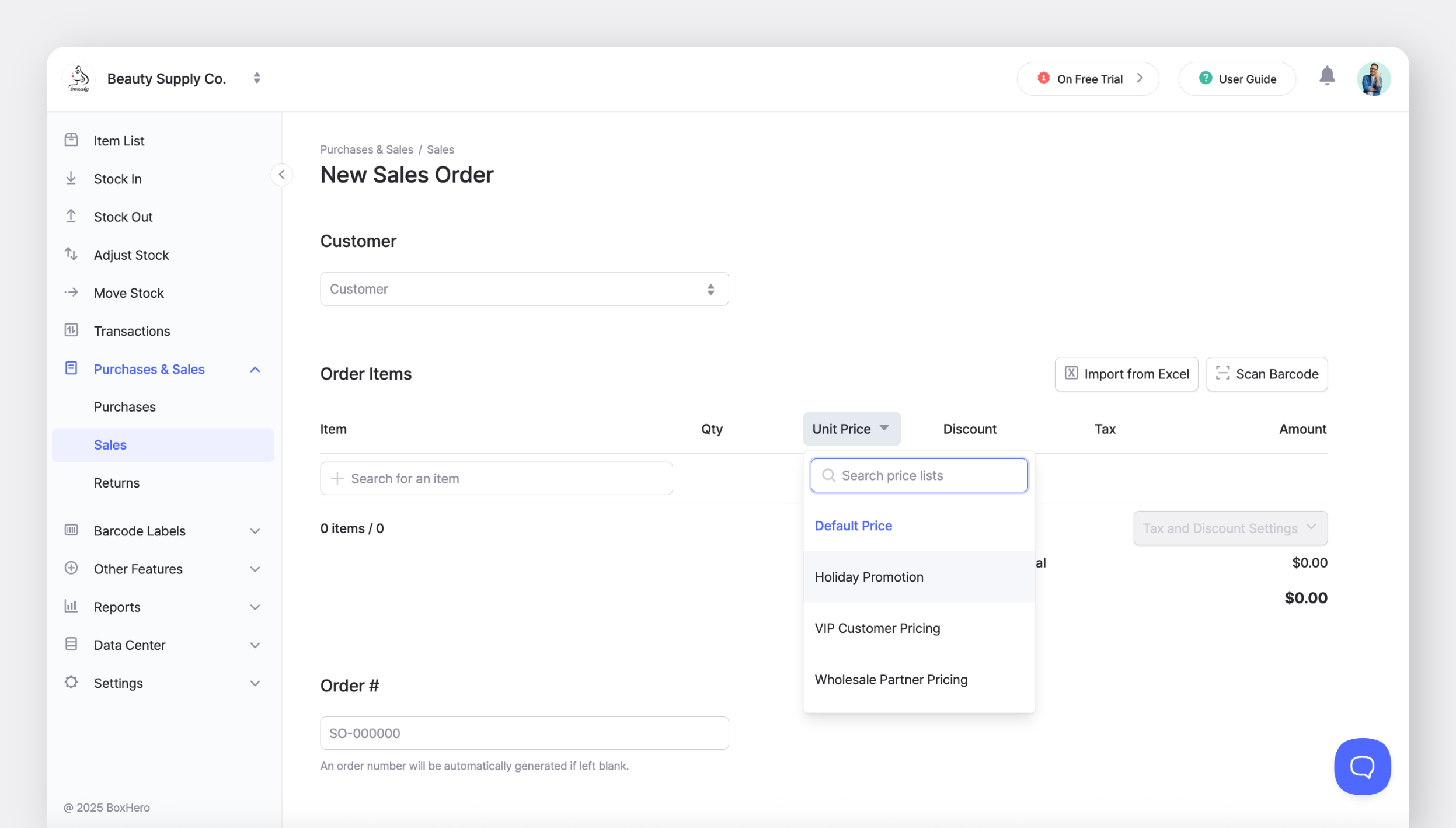
[Price lists](https://www.boxhero.io/en/blog/price-lists) let you save different prices for specific clients, promotions, or special agreements. Along with your default cost and sale price, you can create additional price sets and apply them when you create a purchase order or sales order.

<figure><img src="https://687823928-files.gitbook.io/~/files/v0/b/gitbook-x-prod.appspot.com/o/spaces%2FlRf1QqJGoevCQqGbfI80%2Fuploads%2Fgit-blob-73b62f5a5352ebce2d2d593f4067456810442c12%2Fprice-lists-sales.png?alt=media" alt=""><figcaption></figcaption></figure>

You can create a price list under <mark style="color:blue;">**`Data Center`**</mark> > <mark style="color:blue;">**`Price Lists`**</mark>.

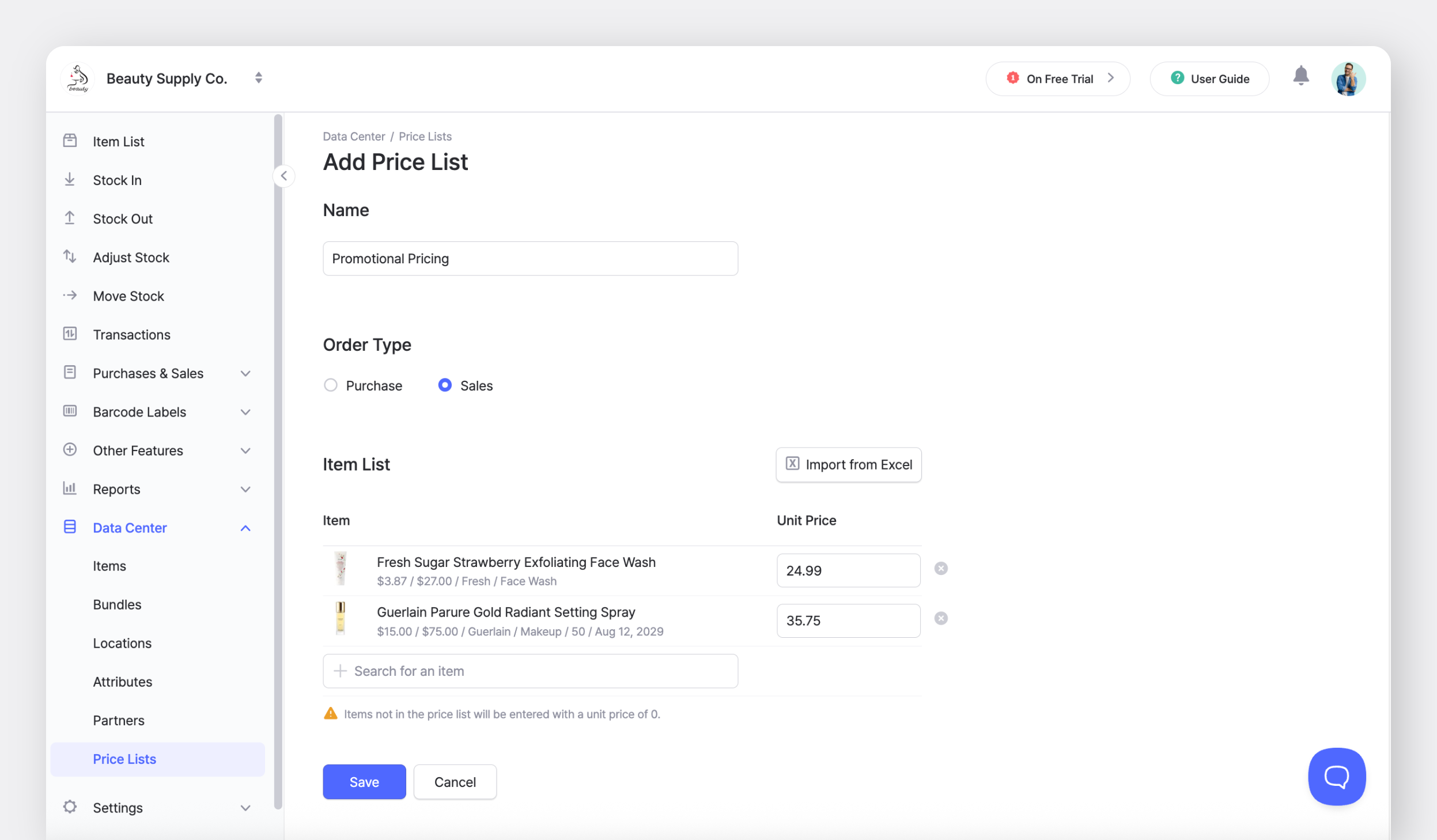
Price lists can be set up separately for purchase and sales types. Add item prices manually or upload them all at once using an Excel file.

<figure><img src="https://687823928-files.gitbook.io/~/files/v0/b/gitbook-x-prod.appspot.com/o/spaces%2FlRf1QqJGoevCQqGbfI80%2Fuploads%2Fgit-blob-2f8dcd4756bccac1bc05a12090df596bbef22c93%2Fadd-price-list.png?alt=media" alt=""><figcaption></figcaption></figure>

{% hint style="info" %}
**Note:** Items *not* included in the selected price list will show a unit price of 0 when the list is applied to a new order.
{% endhint %}

When you create an order, click on the <mark style="color:blue;">**`Unit Price`**</mark> field to choose a price list. If you switch to another price list while editing, the unit prices will update based on the one you selected.

<figure><img src="https://687823928-files.gitbook.io/~/files/v0/b/gitbook-x-prod.appspot.com/o/spaces%2FlRf1QqJGoevCQqGbfI80%2Fuploads%2Fgit-blob-7a8b6ea36ca598a50704bc274dfa834394ff6ce2%2Fselect-price-list.png?alt=media" alt=""><figcaption></figcaption></figure>

{% hint style="success" %}
If you want to see an item’s default cost or sale price while creating an order, you can adjust your display settings.

Go to <mark style="color:blue;">**`Settings`**</mark> > <mark style="color:blue;">**`Team`**</mark>, and under <mark style="color:blue;">**`Display Settings`**</mark>, choose **Cost, Price, All Attributes**. This shows the item’s registered prices along with all of its attributes.
{% endhint %}

***

## Frequently Asked Questions (FAQ)

### I updated an order, but the item quantity didn’t change.

**I**f the order already has **Stock In** or **Stock Out** records, updating the order itself won’t change inventory levels. To update item quantities, you also need to edit the related <mark style="color:blue;">**`Stock In`**</mark> or <mark style="color:blue;">**`Stock Out`**</mark> transactions.

### What's the difference between Purchases & Sales and Inventory Transactions?

<table><thead><tr><th width="164.328125"></th><th>Purchases &#x26; Sales</th><th>Inventory Transactions</th></tr></thead><tbody><tr><td><strong>Workflow</strong></td><td>Create an order (<strong>P.O.</strong> or <strong>S.O.</strong>) first, then process it upon shipment or arrival.</td><td>Update stock levels immediately by selecting an item and entering the quantity.</td></tr><tr><td><strong>Method</strong></td><td>Link inventory changes to specific orders for better tracking.</td><td>Use <strong>Stock In</strong> for <em>arrivals</em> and <strong>Stock</strong> <strong>Out</strong> for <em>shipments</em>.</td></tr><tr><td><strong>Purpose</strong></td><td>Order management with real-time inventory updates.</td><td>Manual stock adjustments and simple quantity levels.</td></tr></tbody></table>

### How do I select a location in an order?

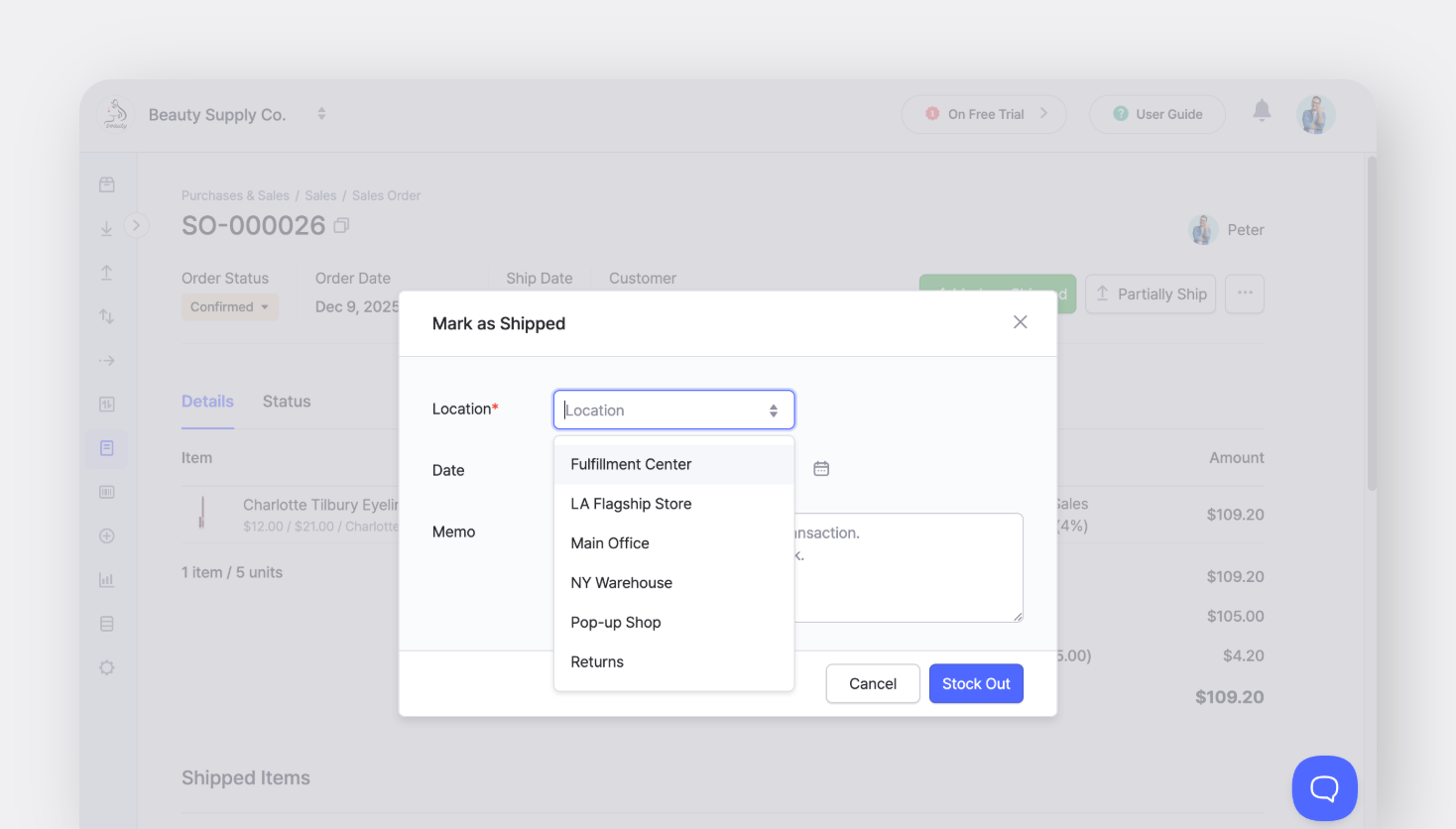
You don’t choose a location while creating the order. Locations are selected when the items are *received* or *shipped* via inventory transactions (i.e. **Stock In** and **Stock Out**).

<figure><img src="https://687823928-files.gitbook.io/~/files/v0/b/gitbook-x-prod.appspot.com/o/spaces%2FlRf1QqJGoevCQqGbfI80%2Fuploads%2Fgit-blob-d7bffb17754f1a6b9caaba1c6c36a5ce4922f0d2%2Fselect%20shipping%20location%20in%20sales%20order.png?alt=media" alt=""><figcaption></figcaption></figure>

### If I update an item’s cost or sale price, will it change the amounts in existing orders?

No, updating item prices does *not* change any orders that have already been created. Existing orders keep their original prices.

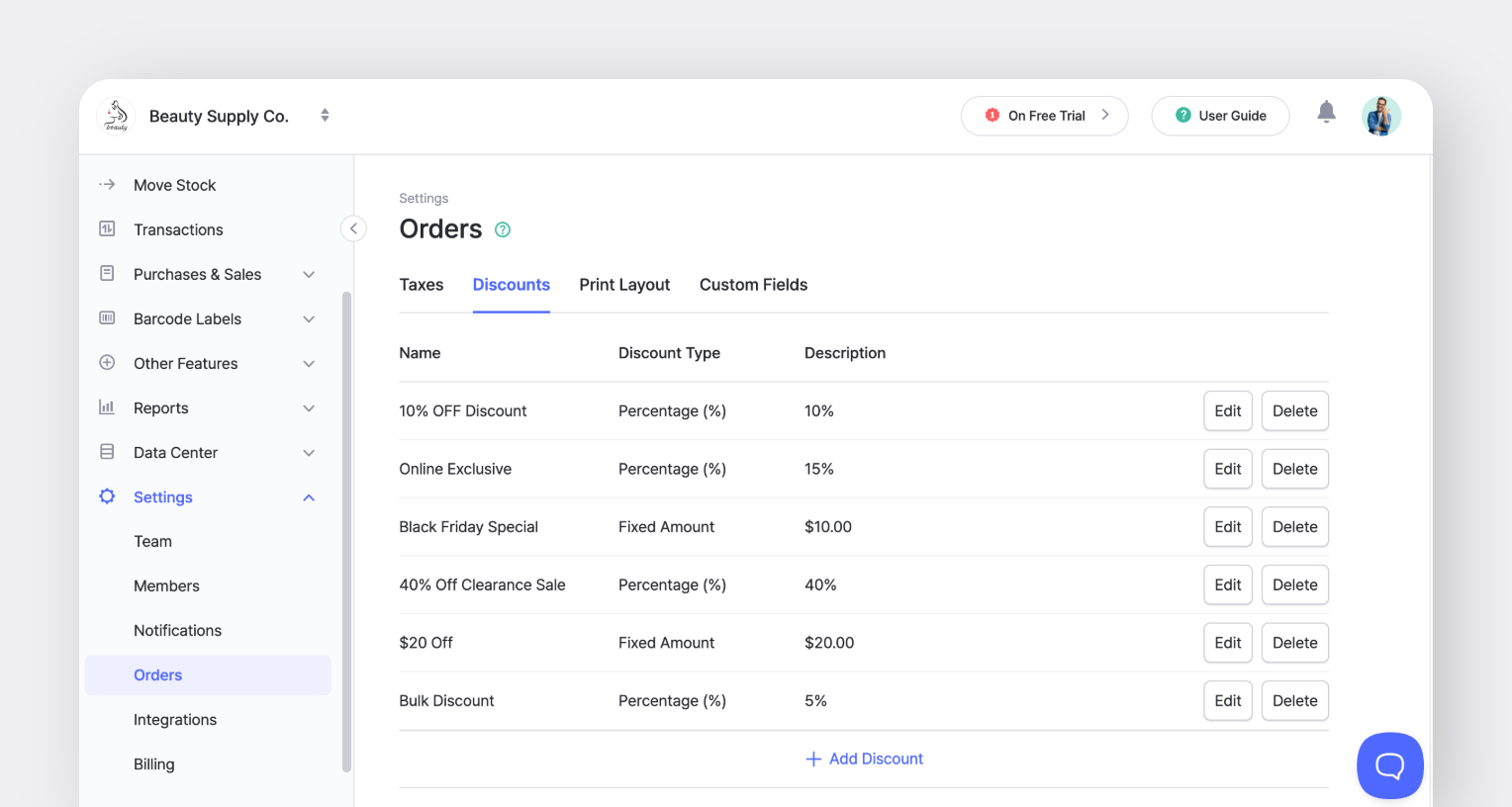
### How do I delete tax or discount options?

You can manage tax and discount options under <mark style="color:blue;">**`Settings`**</mark> > <mark style="color:blue;">**`Orders`**</mark>.

<figure><img src="https://687823928-files.gitbook.io/~/files/v0/b/gitbook-x-prod.appspot.com/o/spaces%2FlRf1QqJGoevCQqGbfI80%2Fuploads%2Fgit-blob-f3ff58b53da05ea223073d504494cce32c0634df%2Fboxhero%20settings%20orders%20discounts.png?alt=media" alt="BoxHero Order Settings > Taxes &#x26; Discounts"><figcaption></figcaption></figure>

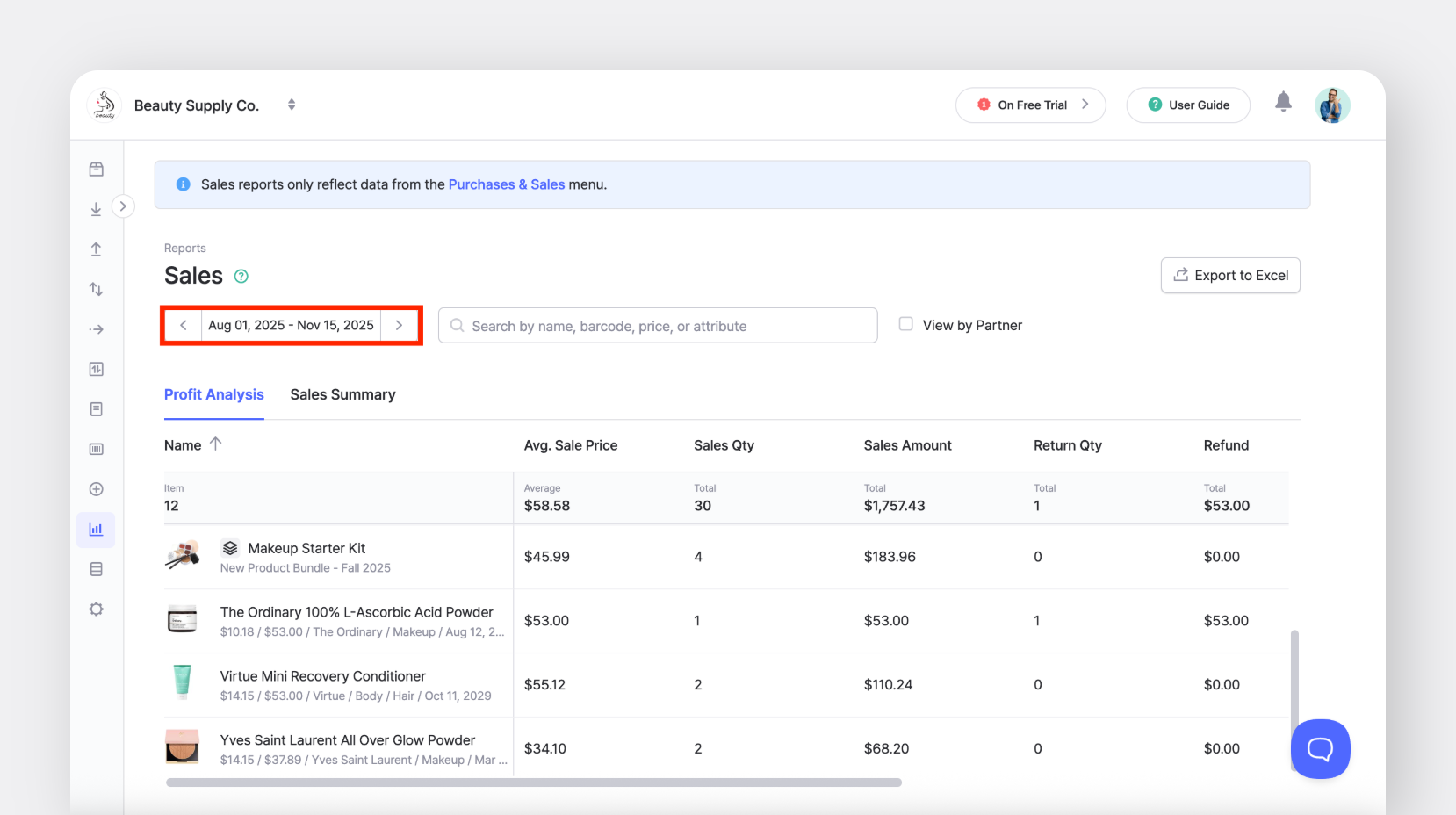
### Why aren't returned items showing in my Sales Report?

Returns are reflected in your <mark style="color:blue;">**`Reports`**</mark> > <mark style="color:blue;">**`Sales`**</mark> based on the *return date*. Make sure the return date falls within the date range you’re viewing.

<figure><img src="https://687823928-files.gitbook.io/~/files/v0/b/gitbook-x-prod.appspot.com/o/spaces%2FlRf1QqJGoevCQqGbfI80%2Fuploads%2Fgit-blob-1479cb26a62e7ee5b1bdd911ba6cbdd4dd7e4556%2Fboxhero-sales%20report-date%20range.png?alt=media" alt="BoxHero Sales Report with Date Range Highlighted"><figcaption></figcaption></figure>


---

# Agent Instructions: Querying This Documentation

If you need additional information that is not directly available in this page, you can query the documentation dynamically by asking a question.

Perform an HTTP GET request on the current page URL with the `ask` query parameter:

```
GET https://www.boxhero.io/docs/key-features/purchase-and-sales.md?ask=<question>
```

The question should be specific, self-contained, and written in natural language.
The response will contain a direct answer to the question and relevant excerpts and sources from the documentation.

Use this mechanism when the answer is not explicitly present in the current page, you need clarification or additional context, or you want to retrieve related documentation sections.