# Inventory Transactions

<figure><img src="https://687823928-files.gitbook.io/~/files/v0/b/gitbook-x-prod.appspot.com/o/spaces%2FlRf1QqJGoevCQqGbfI80%2Fuploads%2Fgit-blob-2570d955f569a92c2bd2234540c411a7ee1dbc33%2F%E1%84%8C%E1%85%A2%E1%84%80%E1%85%A9%E1%84%80%E1%85%AA%E1%86%AB%E1%84%85%E1%85%B5.png?alt=media" alt=""><figcaption></figcaption></figure>

***

## Types of Inventory Transactions

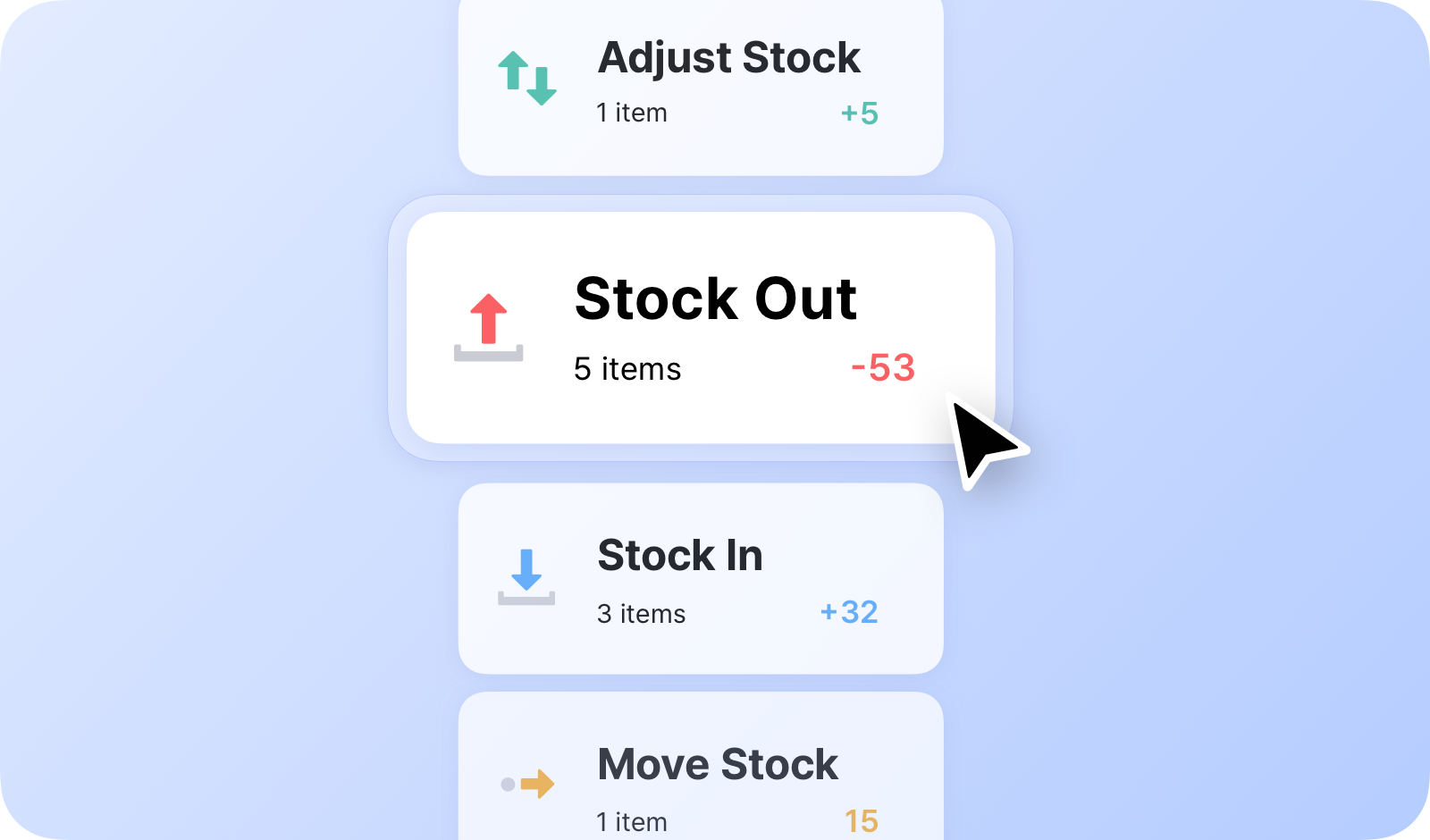
You can manage your inventory quantities with BoxHero’s four key inventory transactions:

* **Stock In**: Record items entering your inventory.
* **Stock Out**: Record items leaving your inventory.
* **Adjust Stock**: Modify inventory quantities for reasons like damage or loss.
* **Move Stock**: Transfer inventory between locations.

{% embed url="<https://customer-0jrbilsa8yt3k758.cloudflarestream.com/5bb921546f874b48abf70669252a6203/iframe?autoplay=true&controls=false&letterboxColor=transparent&loop=true&muted=true&poster=https://customer-0jrbilsa8yt3k758.cloudflarestream.com/5bb921546f874b48abf70669252a6203/thumbnails/thumbnail.jpg?height=1080&preload=true>" %}

***

## Stock In

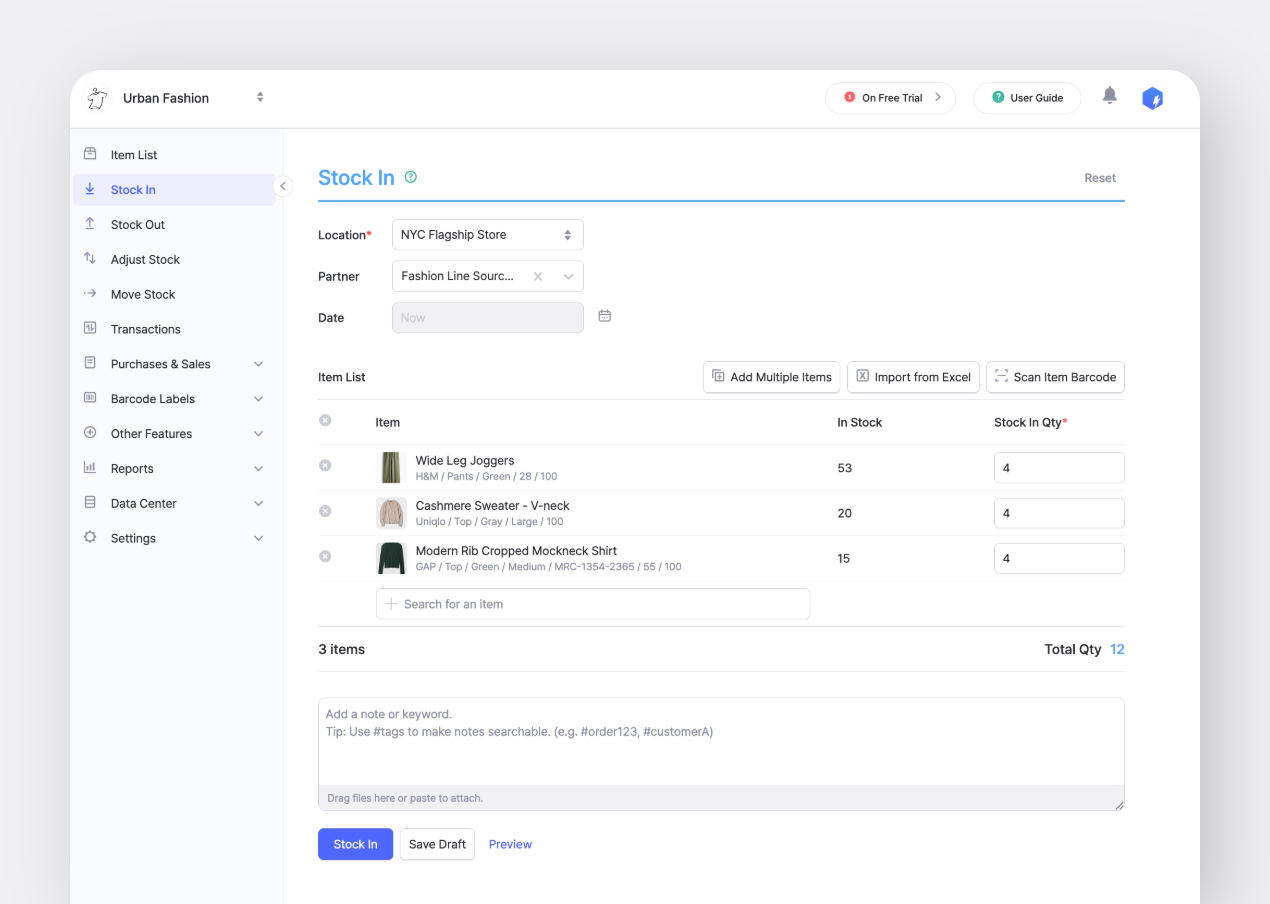
Use the <mark style="color:blue;">**`Stock In`**</mark> menu to add incoming inventory, such as new purchases or returned items.

<figure><img src="https://687823928-files.gitbook.io/~/files/v0/b/gitbook-x-prod.appspot.com/o/spaces%2FlRf1QqJGoevCQqGbfI80%2Fuploads%2Fgit-blob-5418a141a5bcedec176b19ced34fc42bccc1b66f%2Fboxhero-stock-in-web-ui.png?alt=media" alt=""><figcaption></figcaption></figure>

{% hint style="success" %}
**Pro Tip**: Use ***hashtags*** in the memo field to helps distinguish specific transactions in your team's history.
{% endhint %}

## Stock Out

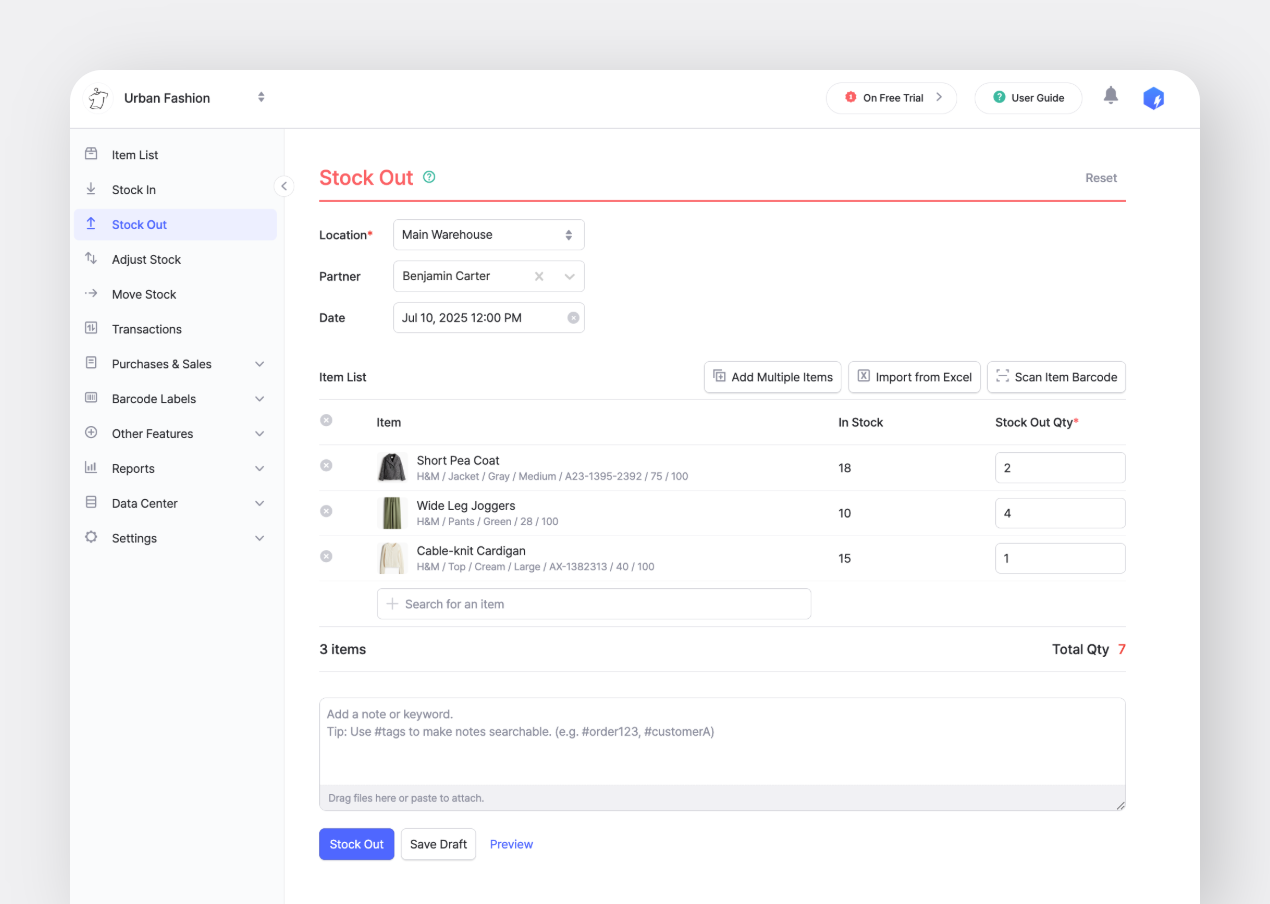
Use the <mark style="color:blue;">**`Stock Out`**</mark> menu to record outgoing inventory, like sales, shipments, or disposals.

<figure><img src="https://687823928-files.gitbook.io/~/files/v0/b/gitbook-x-prod.appspot.com/o/spaces%2FlRf1QqJGoevCQqGbfI80%2Fuploads%2Fgit-blob-8832fceb714b0681c77101ff471926eb7e9ef8a4%2Fboxhero-stock-out-web-ui.png?alt=media" alt=""><figcaption></figcaption></figure>

***

## How to Update Item Quantity

### A. Select Each Item

Choose an inventory transaction of your choice and choose a location, select specific items, and enter their quantities. For quick access, you can also ***filter*** items using keywords.

{% embed url="<https://customer-0jrbilsa8yt3k758.cloudflarestream.com/6e816d0018904cc0add821024197b9b8/iframe?autoplay=true&controls=false&letterboxColor=transparent&loop=true&muted=true&poster=https://customer-0jrbilsa8yt3k758.cloudflarestream.com/6e816d0018904cc0add821024197b9b8/thumbnails/thumbnail.jpg?height=1080&preload=true>" %}

### B. Edit Items via Excel

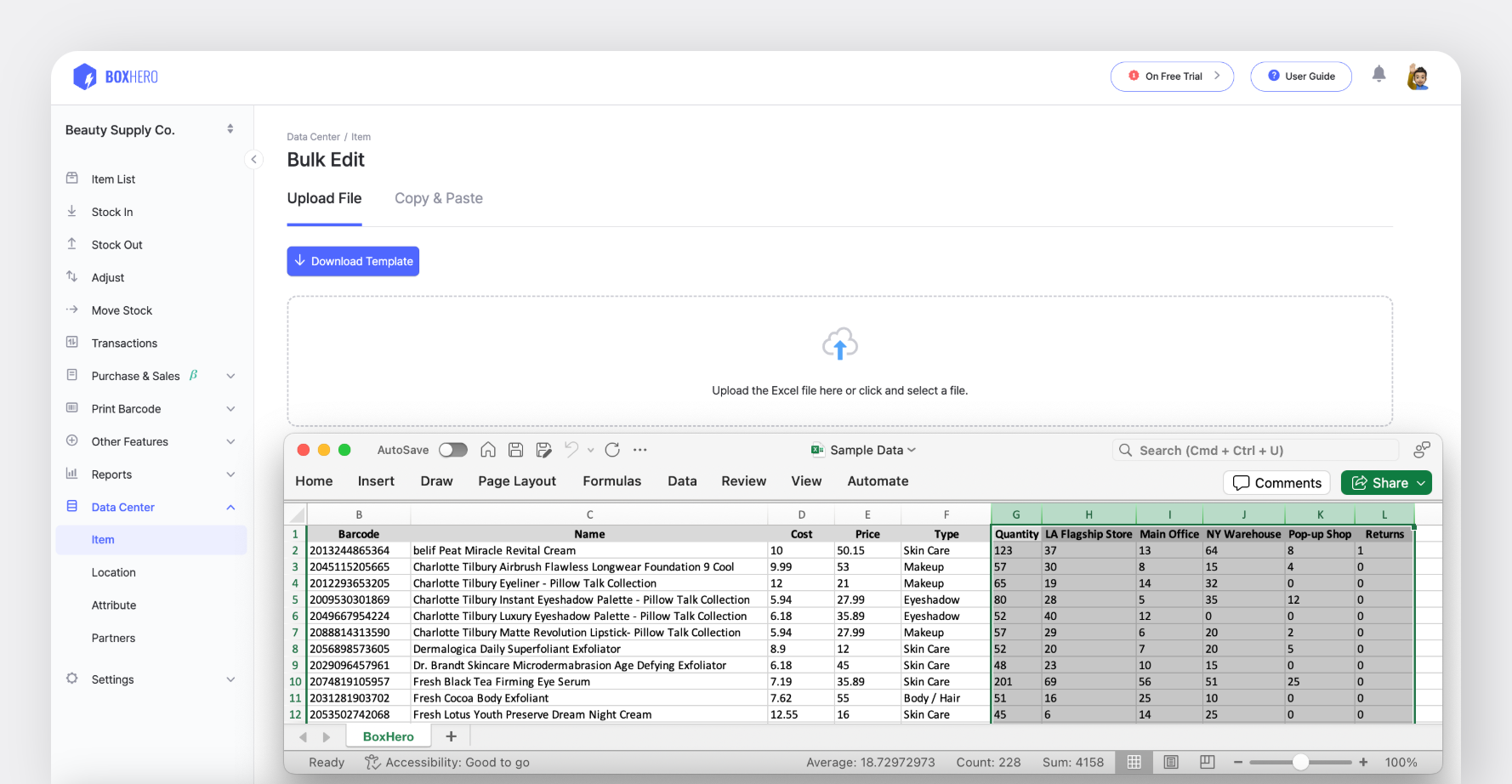
You can upload an Excel file to update inventory for multiple items at once. Make sure the [Excel file](https://www.boxhero.io/en/blog/import-excel-boxhero-guide) has separate columns for **SKU** and **item quantity**.

<figure><img src="https://687823928-files.gitbook.io/~/files/v0/b/gitbook-x-prod.appspot.com/o/spaces%2FlRf1QqJGoevCQqGbfI80%2Fuploads%2Fgit-blob-46d8e352c3a0acbbc6a52fe2d00e0184dbd18f63%2Fbulk-edit-quantity.png?alt=media" alt=""><figcaption></figcaption></figure>

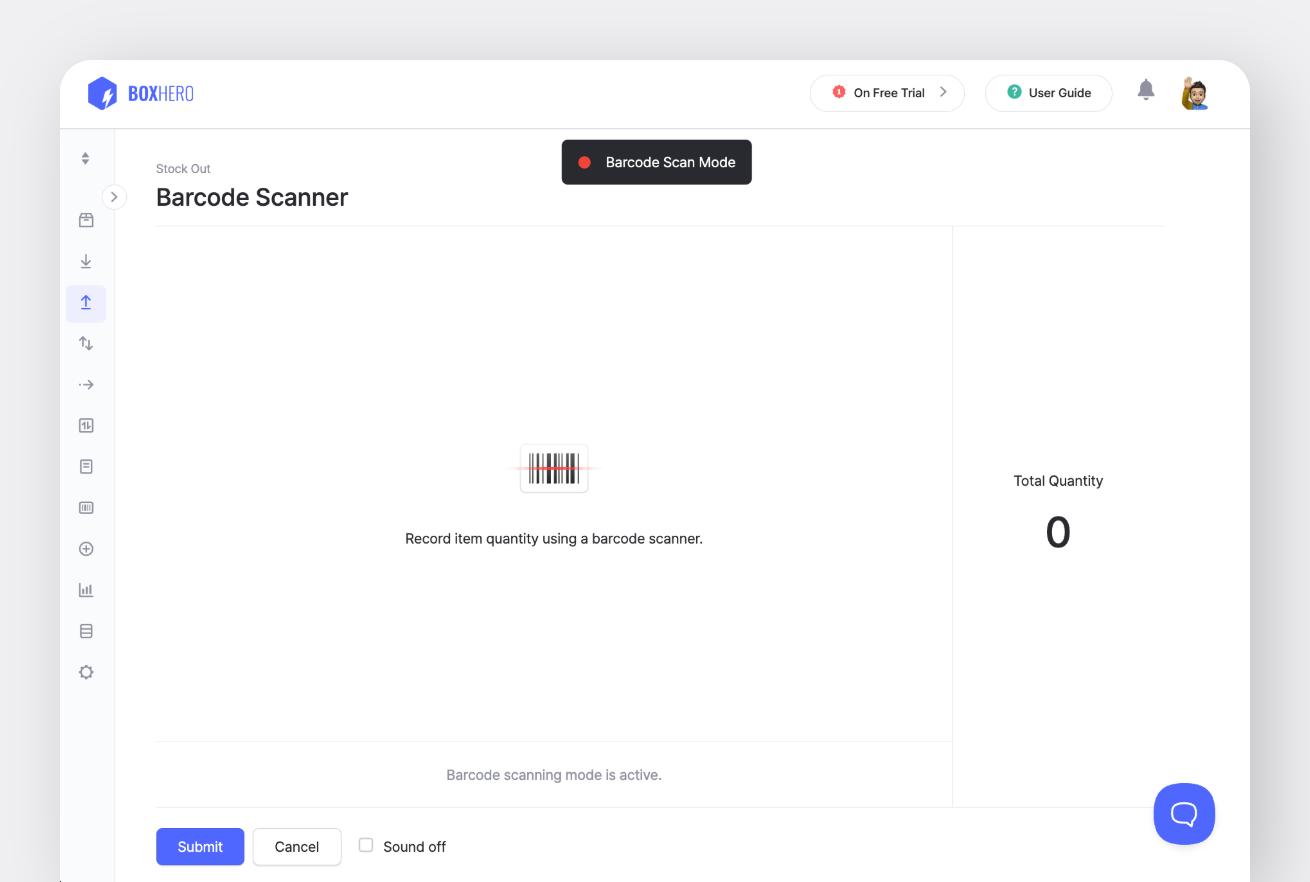
### C. Use a Barcode Scanner

Scan barcodes to select items for <mark style="color:blue;">**`Stock In`**</mark>/<mark style="color:blue;">**`Stock Out`**</mark> transactions.

{% content-ref url="scan-barcode" %}
[scan-barcode](https://www.boxhero.io/docs/key-features/scan-barcode)
{% endcontent-ref %}

<figure><img src="https://687823928-files.gitbook.io/~/files/v0/b/gitbook-x-prod.appspot.com/o/spaces%2FlRf1QqJGoevCQqGbfI80%2Fuploads%2Fgit-blob-cfa9d1efe30a8c188dd879598da94f5a27319589%2Fbarcode-scan-stockout.png?alt=media" alt=""><figcaption></figcaption></figure>

### D. Save Draft

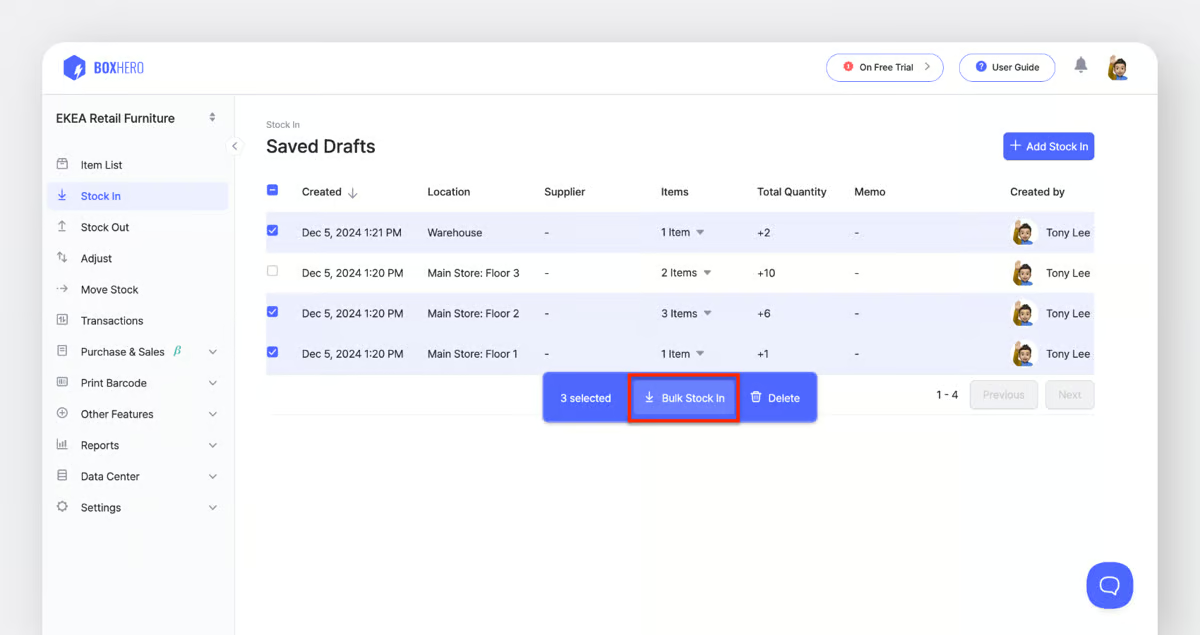
You can save your inventory transactions as *drafts* before finalizing them. Drafts are listed and easy to find when you open the <mark style="color:blue;">**`Stock In`**</mark>/<mark style="color:blue;">**`Stock Out`**</mark> menu.

You can also choose to ignore drafts and create new transactions at any time.

<figure><img src="https://687823928-files.gitbook.io/~/files/v0/b/gitbook-x-prod.appspot.com/o/spaces%2FlRf1QqJGoevCQqGbfI80%2Fuploads%2Fgit-blob-00a798a88ff3f89c4a50b7fd809e2c38d39087eb%2Fsaved-drafts.avif?alt=media" alt=""><figcaption></figcaption></figure>

{% hint style="info" %}
If you have multiple saved drafts, you can process several items at once.
{% endhint %}

***

## Adjust Stock

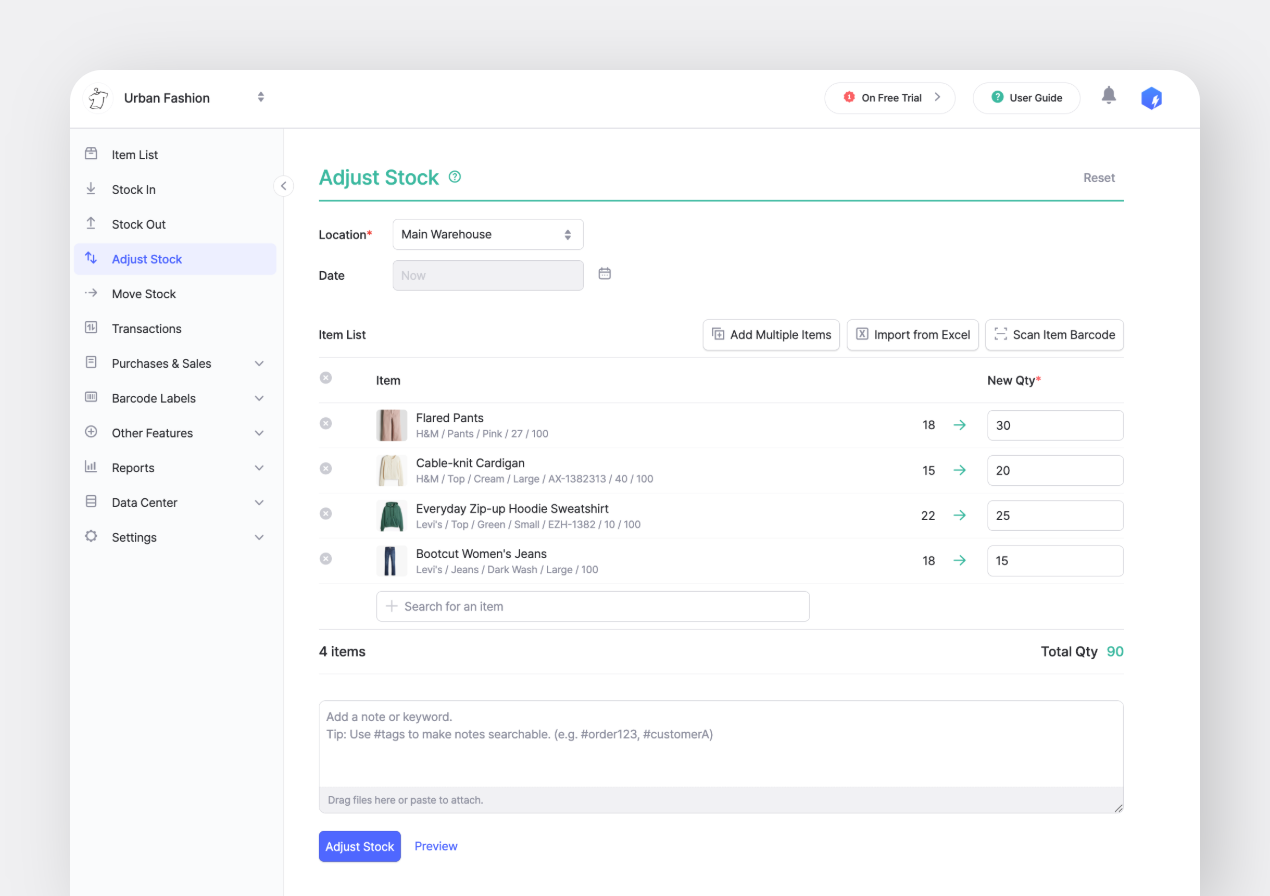
Use the <mark style="color:blue;">**`Adjust Stock`**</mark> menu to update stock counts to correct errors or reflect changes like damaged or lost items.

<figure><img src="https://687823928-files.gitbook.io/~/files/v0/b/gitbook-x-prod.appspot.com/o/spaces%2FlRf1QqJGoevCQqGbfI80%2Fuploads%2Fgit-blob-314b167e5ad1963ae2441af252d43e8e00820989%2Fboxhero-adjust-stock-web-ui.png?alt=media" alt=""><figcaption></figcaption></figure>

{% hint style="success" %}
**Note:** You can *attach files* (such as photos or invoice copies) along with your notes in the [memo field](https://www.boxhero.io/en/blog/boxhero-memo-field-hashtags-and-attachments).
{% endhint %}

***

## Move Stock

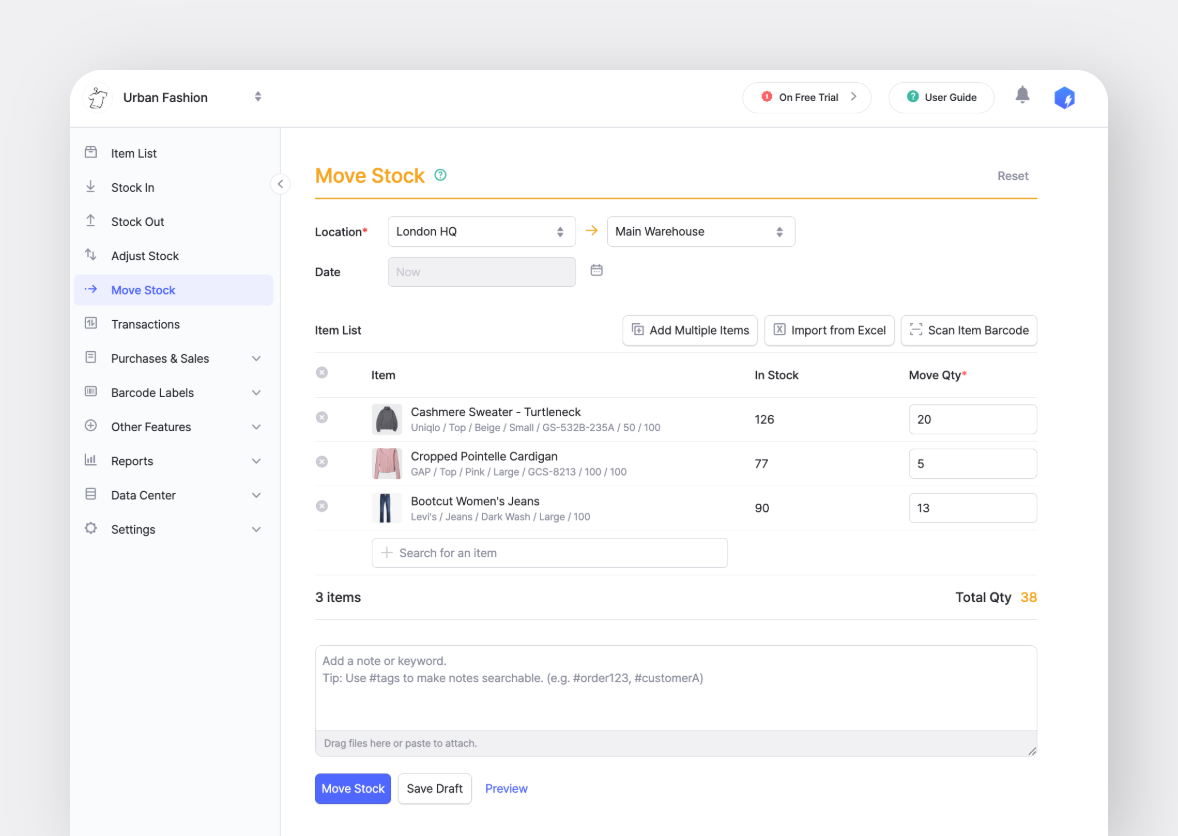
Use the <mark style="color:blue;">**`Move Stock`**</mark> menu to transfer inventory between one or more locations.

<figure><img src="https://687823928-files.gitbook.io/~/files/v0/b/gitbook-x-prod.appspot.com/o/spaces%2FlRf1QqJGoevCQqGbfI80%2Fuploads%2Fgit-blob-982e1a158d90cc5da4a33e4d5d8c0f249bc3a98f%2Fboxhero-move-stock-web-ui.png?alt=media" alt=""><figcaption></figcaption></figure>

{% hint style="warning" %}
**Note**: Make sure to set up your locations in the <mark style="color:blue;">**`Data Center`**</mark> first.
{% endhint %}

***

## Transactions

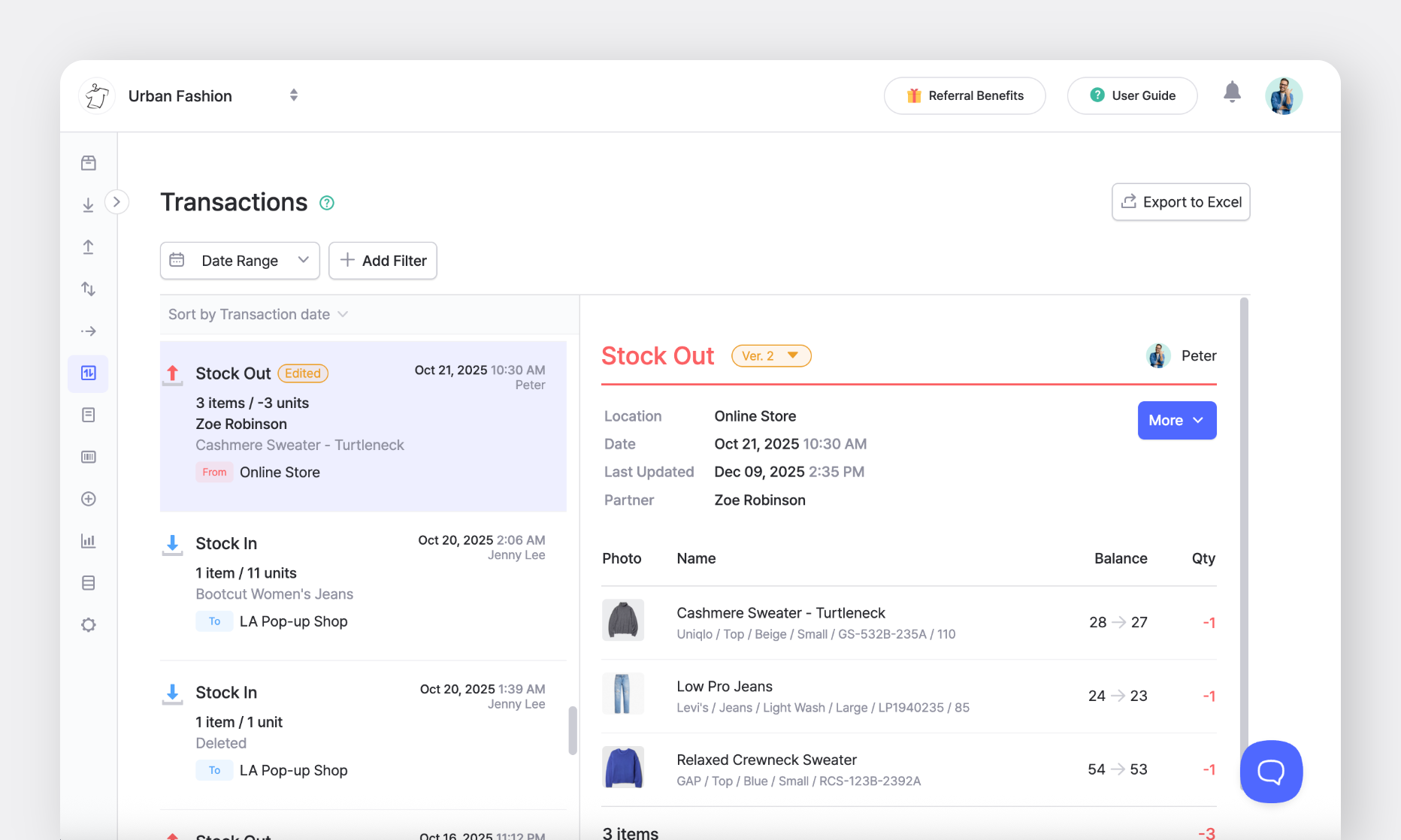
Any changes to your inventory quantity made through the four inventory transactions (*Stock In, Stock Out, Adjust Stock, Move Stock*) will be recorded in the <mark style="color:blue;">**`Transactions`**</mark> menu. Here, you can view the complete history of all past inventory activities.

### A. Filter Transactions

To find specific transactions, select the **applicable date range** or add other **filters** (e.g., transaction type, partner, location).

<figure><img src="https://687823928-files.gitbook.io/~/files/v0/b/gitbook-x-prod.appspot.com/o/spaces%2FlRf1QqJGoevCQqGbfI80%2Fuploads%2Fgit-blob-b32db243509fd6b5521b5b01666bdab62cb09e8a%2Ftransactions-filterby-type.png?alt=media" alt=""><figcaption><p>Add a filter by Transaction Type (e.g. Stock In)</p></figcaption></figure>

<figure><img src="https://687823928-files.gitbook.io/~/files/v0/b/gitbook-x-prod.appspot.com/o/spaces%2FlRf1QqJGoevCQqGbfI80%2Fuploads%2Fgit-blob-62a357a0024ee6004b27c3d14e6ba653b9d9c43d%2Ftransactions-filterby-editstatus.png?alt=media" alt=""><figcaption><p>Add a filter by Edit Status (e.g. Deleted)</p></figcaption></figure>

### B. Print Transactions

You can print your inventory transactions by clicking <mark style="color:blue;">**`More`**</mark> > <mark style="color:blue;">**`Print Summary`**</mark> or <mark style="color:blue;">**`Download PDF`**</mark>.

<figure><img src="https://687823928-files.gitbook.io/~/files/v0/b/gitbook-x-prod.appspot.com/o/spaces%2FlRf1QqJGoevCQqGbfI80%2Fuploads%2Fgit-blob-4dd543f2e1e83ab12b52349b8bc6bd9cfc4e80c3%2Fboxhero-tx-more-options%20(1).png?alt=media" alt=""><figcaption></figcaption></figure>

### C. Delete Transactions

If a transaction is incorrect, you can modify or delete it.\ <mark style="color:blue;">**`Transactions`**</mark> > <mark style="color:blue;">**`More`**</mark> > <mark style="color:blue;">**`Edit or Delete`**</mark>.

### D. Edit Transactions

An updated transaction will be marked with an orange badge labeled **"Edited"** and will also display its **version number**.

<figure><img src="https://687823928-files.gitbook.io/~/files/v0/b/gitbook-x-prod.appspot.com/o/spaces%2FlRf1QqJGoevCQqGbfI80%2Fuploads%2Fgit-blob-b4fb0a014c879f44e3373177c640fe83b3dace9b%2Fboxhero-tx-edit-versions.png?alt=media" alt=""><figcaption></figcaption></figure>

{% hint style="danger" %}
Changes made to past records will update your *current inventory levels*, so please proceed carefully.
{% endhint %}

***

## Frequently Asked Questions (FAQ)

### How do I handle returned items?

Please modify the existing <mark style="color:blue;">**`Stock Out`**</mark> transaction or use the <mark style="color:blue;">**`Adjust Stock`**</mark> menu to update inventory levels.

### Can I record a transaction for a past date?

Yes, when creating a <mark style="color:blue;">**`Stock In`**</mark>/<mark style="color:blue;">**`Stock Out`**</mark> transaction, you can select a past date.

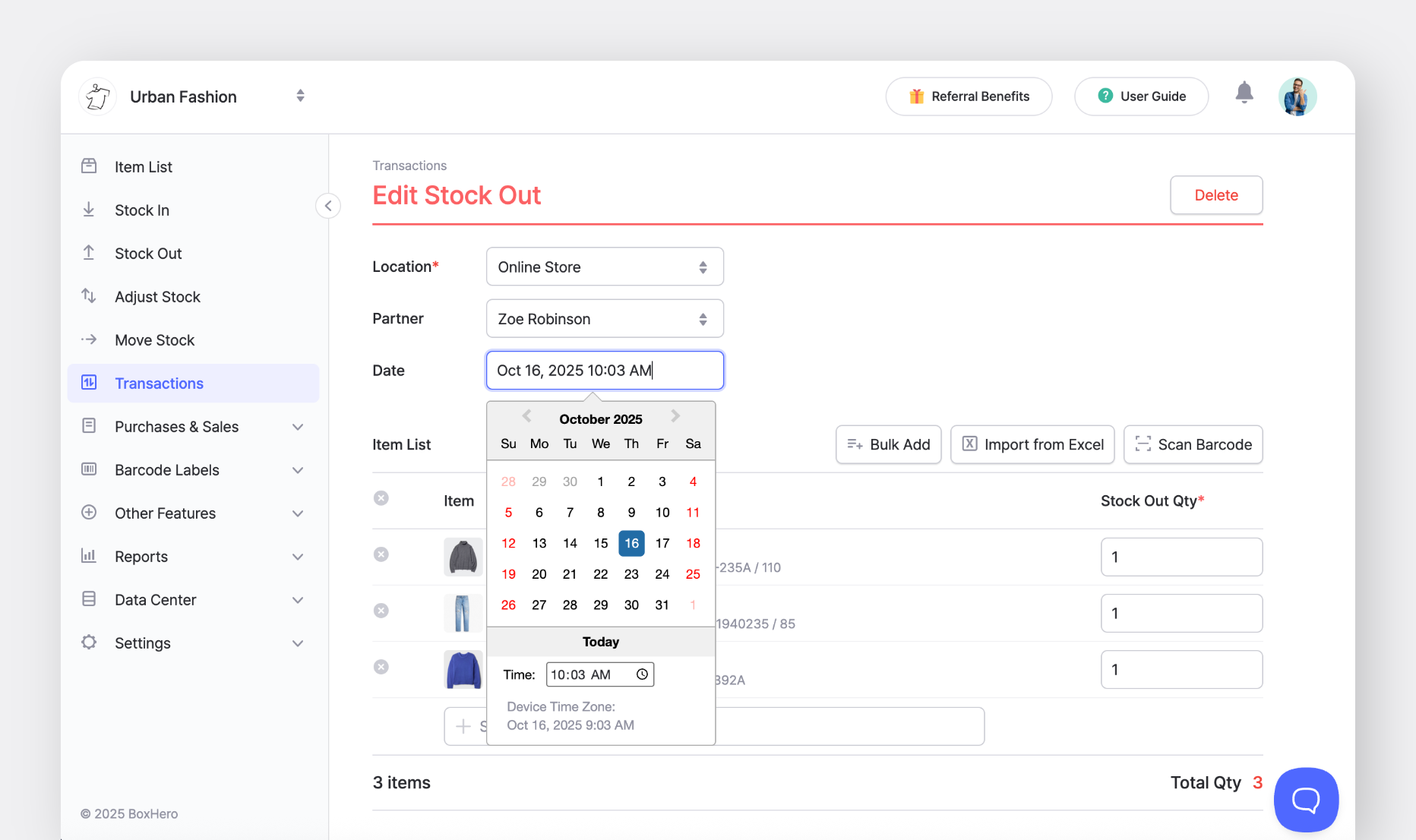
### Can I edit the date of an existing transaction?

Yes, go to <mark style="color:blue;">**`Transactions`**</mark> > Select the transaction > <mark style="color:blue;">**`More`**</mark> > <mark style="color:blue;">**`Edit or Delete`**</mark>.\
Then, change the date and save.

<figure><img src="https://687823928-files.gitbook.io/~/files/v0/b/gitbook-x-prod.appspot.com/o/spaces%2FlRf1QqJGoevCQqGbfI80%2Fuploads%2Fgit-blob-de0eb3602555ea794829e73c792135c1c742e163%2Fboxhero-tx-edit-tx.png?alt=media" alt=""><figcaption></figcaption></figure>

### I want to reset my transaction history.

Please contact [Support](https://www.boxhero.io/docs/resources/contact) for assistance.


---

# Agent Instructions: Querying This Documentation

If you need additional information that is not directly available in this page, you can query the documentation dynamically by asking a question.

Perform an HTTP GET request on the current page URL with the `ask` query parameter:

```
GET https://www.boxhero.io/docs/key-features/tx.md?ask=<question>
```

The question should be specific, self-contained, and written in natural language.
The response will contain a direct answer to the question and relevant excerpts and sources from the documentation.

Use this mechanism when the answer is not explicitly present in the current page, you need clarification or additional context, or you want to retrieve related documentation sections.