# ZEBRA ZD230D
***
{% hint style="success" %}
**프린터 세팅**과 **인쇄 설정**을 순서대로 진행하세요.
{% endhint %}
## 1. 프린터 세팅
{% stepper %}
{% step %}
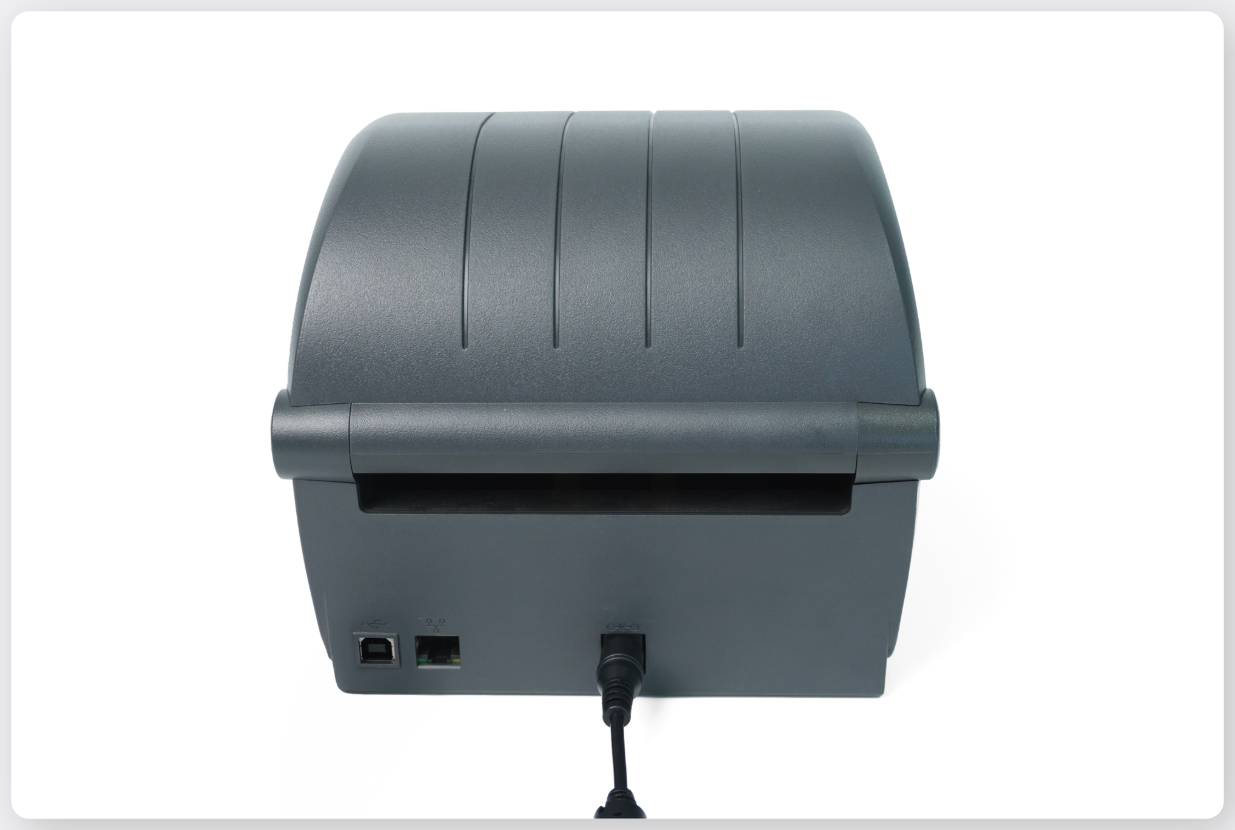
프린터에 **전원 케이블**을 연결합니다.
{% endstep %}
{% step %}
전원 버튼을 누르고 상태 LED가 **초록색**으로 바뀔 때까지 기다려주세요.
{% endstep %}
{% step %}
프린터 양쪽에 있는 **노란색 버튼**을 당기며 커버를 엽니다.
{% endstep %}
{% step %}
미디어 홀더 사이에 **라벨 용지**를 장착합니다.
{% endstep %}
{% step %}
**급지 버튼(FEED)**을 눌러 용지가 정상적으로 나오는지 확인해 주세요.
{% endstep %}
{% endstepper %}
***
## 2. 인쇄 설정
프린터 세팅이 완료되면, 사용하실 인쇄 방식을 선택한 후 다음 단계를 진행해 주세요.
{% content-ref url="zebra-zd230d/zd230d-pc" %}
[zd230d-pc](https://www.boxhero.io/docs/documentation/ko/device-setup/barcode-printer/zebra-zd230d/zd230d-pc)
{% endcontent-ref %}
{% content-ref url="zebra-zd230d/zd230d-mobile" %}
[zd230d-mobile](https://www.boxhero.io/docs/documentation/ko/device-setup/barcode-printer/zebra-zd230d/zd230d-mobile)
{% endcontent-ref %}
---
# Agent Instructions: Querying This Documentation
If you need additional information that is not directly available in this page, you can query the documentation dynamically by asking a question.
Perform an HTTP GET request on the current page URL with the `ask` query parameter:
```
GET https://www.boxhero.io/docs/documentation/ko/device-setup/barcode-printer/zebra-zd230d.md?ask=
```
The question should be specific, self-contained, and written in natural language.
The response will contain a direct answer to the question and relevant excerpts and sources from the documentation.
Use this mechanism when the answer is not explicitly present in the current page, you need clarification or additional context, or you want to retrieve related documentation sections.
.png?alt=media)
.png?alt=media)
.png?alt=media)
.png?alt=media)