# รายการธุรกรรมสินค้าคงคลัง

<figure><img src="/files/64f82e7eac530b574994c34b97a4fb7f02c08208" alt=""><figcaption></figcaption></figure>

***

## ประเภทของธุรกรรมสินค้าคงคลัง

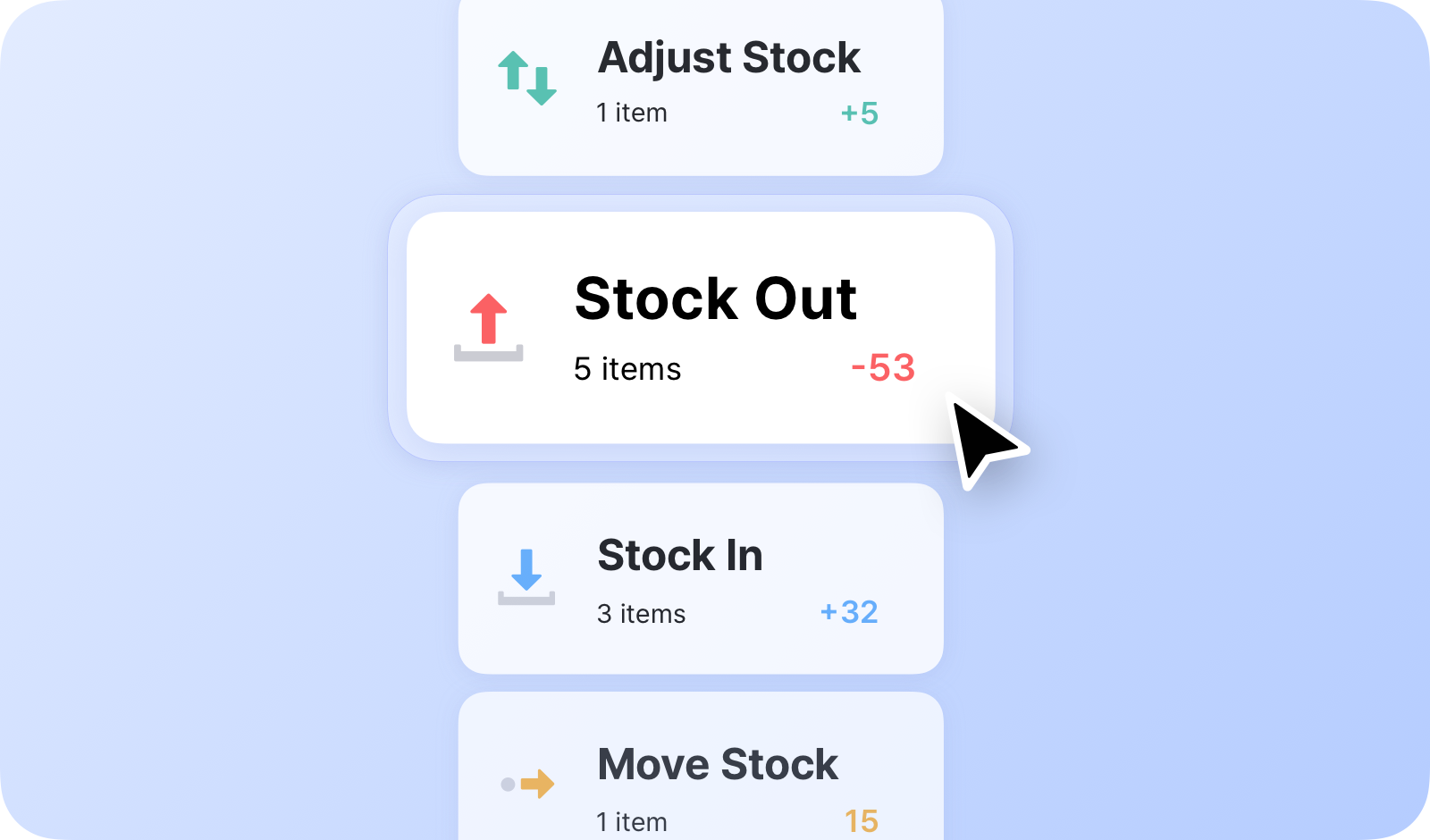
คุณสามารถจัดการปริมาณสินค้าคงคลังของคุณด้วยธุรกรรมสินค้าคงคลังหลัก 4 แบบของ BoxHero:

* **รับเข้า**: บันทึกรายการที่เข้ามาในสินค้าคงคลังของคุณ
* **ตัดออก**: บันทึกรายการที่ออกจากสินค้าคงคลังของคุณ
* **ปรับสต็อก**: ปรับเปลี่ยนปริมาณสินค้าคงคลังด้วยเหตุผลต่างๆ เช่น ชำรุดหรือสูญหาย
* **ย้ายสต็อก**: โอนสินค้าคงคลังระหว่างสถานที่

{% embed url="<https://customer-0jrbilsa8yt3k758.cloudflarestream.com/5bb921546f874b48abf70669252a6203/iframe?autoplay=true&controls=false&letterboxColor=transparent&loop=true&muted=true&poster=https://customer-0jrbilsa8yt3k758.cloudflarestream.com/5bb921546f874b48abf70669252a6203/thumbnails/thumbnail.jpg?height=1080&preload=true>" %}

***

## รับเข้า

ใช้ <mark style="color:$primary;">`รับเข้า`</mark> เมนูเพื่อเพิ่มสินค้าคงคลังขาเข้า เช่น การซื้อใหม่หรือสินค้าที่ส่งคืน

<figure><img src="/files/12e56b74d56260f3a4fea0cabac00307816e6256" alt=""><figcaption></figcaption></figure>

{% hint style="success" %}
**เคล็ดลับ**: ใช้ ***แฮชแท็ก*** ในช่องบันทึกเพื่อช่วยแยกแยะธุรกรรมเฉพาะในประวัติของทีมคุณ
{% endhint %}

## ตัดออก

ใช้ <mark style="color:$primary;">`ตัดออก`</mark> เมนูเพื่อบันทึกสินค้าคงคลังขาออก เช่น การขาย การจัดส่ง หรือการจำหน่าย

<figure><img src="/files/438befd8dccea84a92ba55d4f2760de191b367d7" alt=""><figcaption></figcaption></figure>

***

## วิธีอัปเดตจำนวนสินค้า

### ก. เลือกแต่ละรายการ

เลือกธุรกรรมสินค้าคงคลังที่ต้องการและเลือกสถานที่ จากนั้นเลือกรายการที่ต้องการและป้อนจำนวน สำหรับการเข้าถึงอย่างรวดเร็ว คุณยังสามารถ ***กรอง*** รายการด้วยคีย์เวิร์ดได้

{% embed url="<https://customer-0jrbilsa8yt3k758.cloudflarestream.com/6e816d0018904cc0add821024197b9b8/iframe?autoplay=true&controls=false&letterboxColor=transparent&loop=true&muted=true&poster=https://customer-0jrbilsa8yt3k758.cloudflarestream.com/6e816d0018904cc0add821024197b9b8/thumbnails/thumbnail.jpg?height=1080&preload=true>" %}

### ข. แก้ไขรายการผ่าน Excel

คุณสามารถอัปโหลดไฟล์ Excel เพื่ออัปเดตสินค้าคงคลังหลายรายการพร้อมกันได้ โปรดตรวจสอบว่า [ไฟล์ Excel](/docs/documentation/th/concepts/items.md#add-items-via-excel) มีคอลัมน์แยกสำหรับ **SKU** และ **จำนวนสินค้า**.

<figure><img src="/files/ed3ef3a489ecb54a2765d33ce07395381563f62d" alt=""><figcaption></figcaption></figure>

### ค. ใช้เครื่องสแกนบาร์โค้ด

สแกนบาร์โค้ดเพื่อเลือกรายการสำหรับ <mark style="color:$primary;">`รับเข้า`</mark>/<mark style="color:$primary;">`ตัดออก`</mark> ธุรกรรม

{% content-ref url="/pages/6aeff6cc8e20bfd738c910d765c980239b43d588" %}
[การสแกนบาร์โค้ด](/docs/documentation/th/key-features/scan-barcode.md)
{% endcontent-ref %}

<figure><img src="/files/c893abdc358988907ee9d0b0184d41dc61f3e196" alt=""><figcaption></figcaption></figure>

### ง. บันทึกฉบับร่าง

คุณสามารถบันทึกธุรกรรมสินค้าคงคลังของคุณเป็น *ฉบับร่าง* ก่อนสรุปผล ฉบับร่างจะแสดงรายการและค้นหาได้ง่ายเมื่อคุณเปิด <mark style="color:$primary;">`รับเข้า`</mark>/<mark style="color:$primary;">`ตัดออก`</mark> เมนู

คุณยังสามารถเลือกไม่ใช้ฉบับร่างและสร้างธุรกรรมใหม่ได้ทุกเมื่อ

<figure><img src="/files/822cee69415621fdfce32bd1ecf6229c1eea3c9c" alt=""><figcaption></figcaption></figure>

{% hint style="info" %}
หากคุณมีฉบับร่างที่บันทึกไว้หลายรายการ คุณสามารถดำเนินการกับหลายรายการพร้อมกันได้
{% endhint %}

***

## ปรับสต็อก

ใช้ <mark style="color:$primary;">`ปรับสต็อก`</mark> เมนูเพื่ออัปเดตจำนวนสต็อกเพื่อแก้ไขข้อผิดพลาดหรือสะท้อนการเปลี่ยนแปลง เช่น สินค้าชำรุดหรือสูญหาย

<figure><img src="/files/05f8f31631cf10490d2f28016505aa825c96d863" alt=""><figcaption></figcaption></figure>

{% hint style="success" %}
**หมายเหตุ:** คุณสามารถ *แนบไฟล์* (เช่น รูปถ่ายหรือสำเนาใบแจ้งหนี้) พร้อมกับบันทึกของคุณใน [ช่องบันทึก](https://www.boxhero.io/en/blog/boxhero-memo-field-hashtags-and-attachments).
{% endhint %}

***

## ย้ายสต็อก

ใช้ <mark style="color:$primary;">`ย้ายสต็อก`</mark> เมนูเพื่อโอนสินค้าคงคลังระหว่างสถานที่หนึ่งหรือหลายแห่ง

<figure><img src="/files/abfe462523a6ec898d210810479d8ee9db6370b9" alt=""><figcaption></figcaption></figure>

{% hint style="warning" %}
**หมายเหตุ**: โปรดตั้งค่าสถานที่ของคุณใน <mark style="color:$primary;">`Data Center`</mark> ก่อน
{% endhint %}

***

## ธุรกรรม

การเปลี่ยนแปลงปริมาณสินค้าคงคลังของคุณที่ทำผ่านธุรกรรมสินค้าคงคลังทั้งสี่แบบ (*รับเข้า ตัดออก ปรับสต็อก ย้ายสต็อก*) จะถูกบันทึกไว้ใน <mark style="color:$primary;">`ธุรกรรม`</mark> เมนู ที่นี่คุณสามารถดูประวัติทั้งหมดของกิจกรรมสินค้าคงคลังที่ผ่านมาได้

### ก. กรองธุรกรรม

เพื่อค้นหาธุรกรรมเฉพาะ ให้เลือก **ช่วงวันที่ที่เกี่ยวข้อง** หรือเพิ่ม **ตัวกรอง** อื่นๆ (เช่น ประเภทธุรกรรม, คู่ค้า, สถานที่)

<figure><img src="/files/aca1c309a035b731a853dd098346bd696a638081" alt=""><figcaption><p>เพิ่มตัวกรองตามประเภทธุรกรรม (เช่น รับเข้า)</p></figcaption></figure>

<figure><img src="/files/7bd7588249f2959bb64da9a29fcef653774ac45b" alt=""><figcaption><p>เพิ่มตัวกรองตามสถานะการแก้ไข (เช่น ถูกลบ)</p></figcaption></figure>

### ข. พิมพ์ธุรกรรม

คุณสามารถพิมพ์ธุรกรรมสินค้าคงคลังของคุณได้โดยคลิก <mark style="color:$primary;">`เพิ่มเติม`</mark> > <mark style="color:$primary;">`พิมพ์สรุป`</mark> หรือ <mark style="color:$primary;">`ดาวน์โหลด PDF`</mark>.

<figure><img src="/files/90731efca789b3a65cf54743f6b7446a3dc625e4" alt=""><figcaption></figcaption></figure>

### ค. ลบธุรกรรม

หากธุรกรรมไม่ถูกต้อง คุณสามารถแก้ไขหรือลบได้\ <mark style="color:$primary;">`ธุรกรรม`</mark> > <mark style="color:$primary;">`เพิ่มเติม`</mark> > <mark style="color:$primary;">`แก้ไขหรือลบ`</mark>.

### ง. แก้ไขธุรกรรม

ธุรกรรมที่อัปเดตแล้วจะถูกทำเครื่องหมายด้วยป้ายสีส้มที่ระบุว่า **"แก้ไขแล้ว"** และจะแสดง **หมายเลขเวอร์ชัน**.

<figure><img src="/files/5411e053177b323baa4adf4d580666436ddb40f0" alt=""><figcaption></figcaption></figure>

{% hint style="danger" %}
การเปลี่ยนแปลงที่ทำกับบันทึกย้อนหลังจะอัปเดต *ระดับสินค้าคงคลังปัจจุบัน*ของคุณ ดังนั้นโปรดดำเนินการอย่างระมัดระวัง
{% endhint %}

***

**มีคำถามเกี่ยวกับธุรกรรมหรือไม่?** ดูคำถามที่พบบ่อยของเรา:

{% content-ref url="/spaces/sc1B0M6CMvBQDLW3fpLH/pages/222714a856e983c986472deca11473a8dabf4677" %}
[การเคลื่อนไหวของสต็อก](/docs/faq/th/and-1/stock-movements.md)
{% endcontent-ref %}

{% content-ref url="/spaces/sc1B0M6CMvBQDLW3fpLH/pages/86543c6e89d3b919700f4895b29ab5f4f066cad2" %}
[ประวัติธุรกรรม](/docs/faq/th/and-1/transaction-history.md)
{% endcontent-ref %}


---

# Agent Instructions: Querying This Documentation

If you need additional information that is not directly available in this page, you can query the documentation dynamically by asking a question.

Perform an HTTP GET request on the current page URL with the `ask` query parameter:

```
GET https://www.boxhero.io/docs/documentation/th/key-features/tx.md?ask=<question>
```

The question should be specific, self-contained, and written in natural language.
The response will contain a direct answer to the question and relevant excerpts and sources from the documentation.

Use this mechanism when the answer is not explicitly present in the current page, you need clarification or additional context, or you want to retrieve related documentation sections.