Troubleshooting
Resolve common issues with barcode printing and scanning, including misalignment, scan failures, and print quality problems.
How do I set up barcode scanning in BoxHero?
Section titled “How do I set up barcode scanning in BoxHero?”To start scanning barcodes:
- Connect a Bluetooth-enabled barcode scanner, or
- Use your phone camera through the BoxHero mobile app.
The app will automatically detect and read barcodes once connected.
Why are my barcodes printing in red?
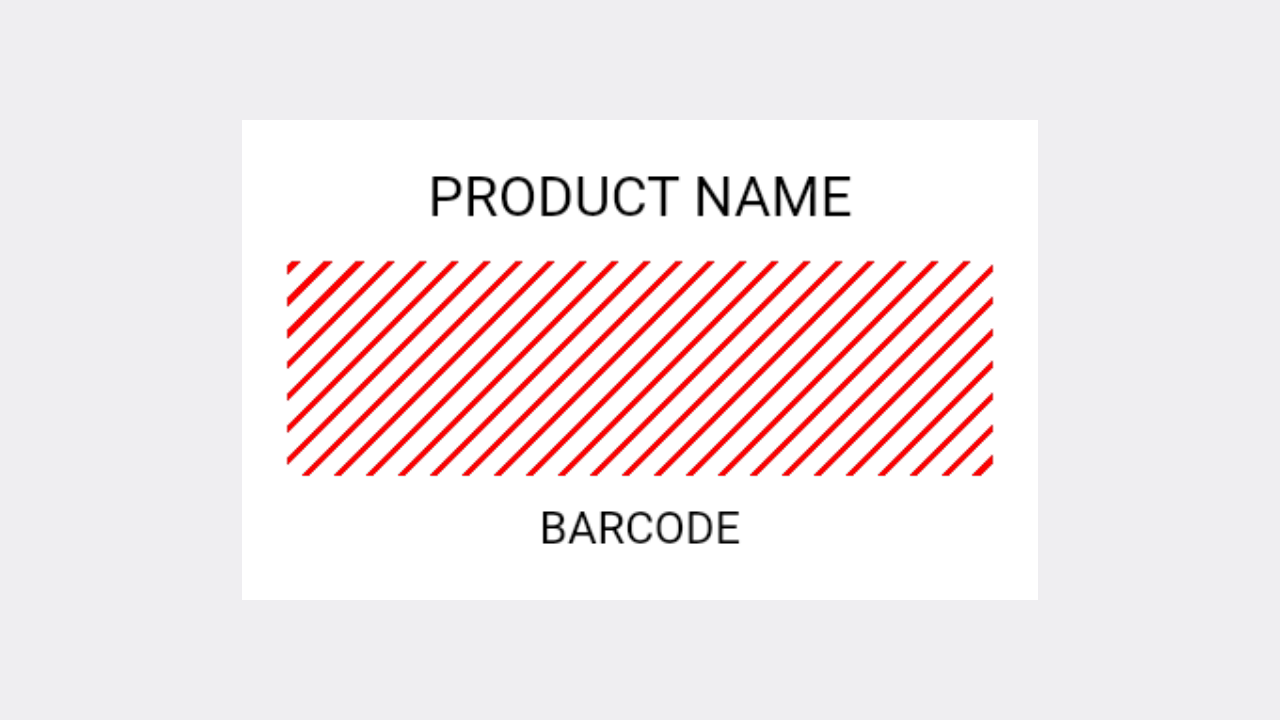
Section titled “Why are my barcodes printing in red?”A red outline in the barcode area usually means the item doesn't have a barcode assigned. Add a valid barcode to the item and try printing again.
If a barcode is already assigned, check whether it contains any special characters — barcodes must contain only numbers or letters.
My labels are misaligned. How do I fix this?
Section titled “My labels are misaligned. How do I fix this?”If your labels are printing in the wrong position (e.g., shifted, sideways, or at a 90-degree angle), try these steps in order.
- Make sure the label paper is loaded correctly and aligned inside the printer.
- Confirm that the label size you selected in BoxHero matches the actual label sheet or roll you're using.
- Check your printer settings:
- For standard printers, make sure the label sheet is inserted in the correct orientation — if it's upside down or reversed, the print position may shift.
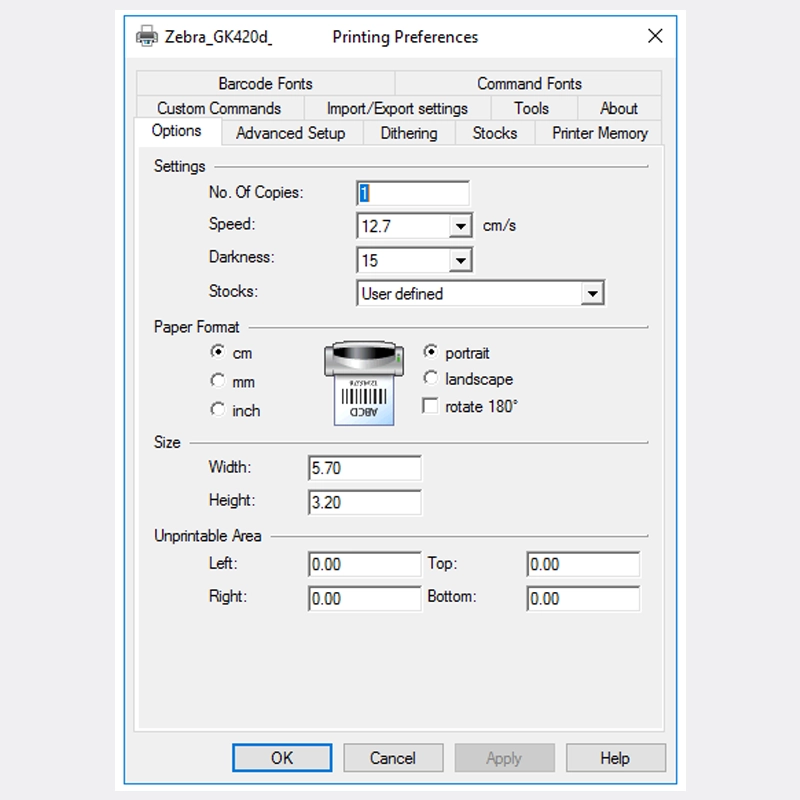
- For thermal printers, verify that the correct paper size is configured in your system's printer settings (Control Panel > Bluetooth & Devices > Printers & Scanners > Printing Preferences).
Can I print labels in landscape orientation?
Section titled “Can I print labels in landscape orientation?”Yes, using a custom design:
- Go to
Barcode Labels>Print Items>Add>Create Custom Design. - Select Thermal Label and enter the label's actual width and height. For example, for a 50 × 30 mm label, enter a width of 50 mm and a height of 30 mm.
- When the blank label appears, select the Rotate 90° option on the right.
- Add text, barcodes, and other elements.
- Click
Savein the top-right corner. Labels will print in landscape orientation.
Can I skip labels I've already used on a label sheet?
Section titled “Can I skip labels I've already used on a label sheet?”Yes. When printing on label sheets (such as Avery or Formtec), add blank cells so printing starts from the first unused label.
Can I print labels for items I just received?
Section titled “Can I print labels for items I just received?”Yes. After completing a Stock In, click Print Labels in the pop-up that appears. If you've closed the pop-up, go to Transactions, select the entry, and click More > Print Labels.
My barcode won't scan after printing.
Section titled “My barcode won't scan after printing.”Check whether the barcode printed clearly without smudging, fading, or distortion. If it looks blurry, try adjusting the print darkness and turning off dithering in your printer settings.
If you're using an external scanner, try scanning the barcode into a text editor like Notepad. The barcode number should appear followed by an automatic line break. If it doesn't, check your scanner's manual to enable the Enter key suffix.
My print preview looks different from actual print.
Section titled “My print preview looks different from actual print.”Make sure the label size selected in BoxHero and the paper size in your printer settings both match your actual label dimensions. For thermal printers, the paper size must also be set at the system level in your OS printer preferences.
My labels print blank or cut off.
Section titled “My labels print blank or cut off.”Check that media is loaded correctly and the label format in BoxHero matches your actual paper. For thermal printers, turn off dithering in your printer driver — this is a common cause of blank or faded output.
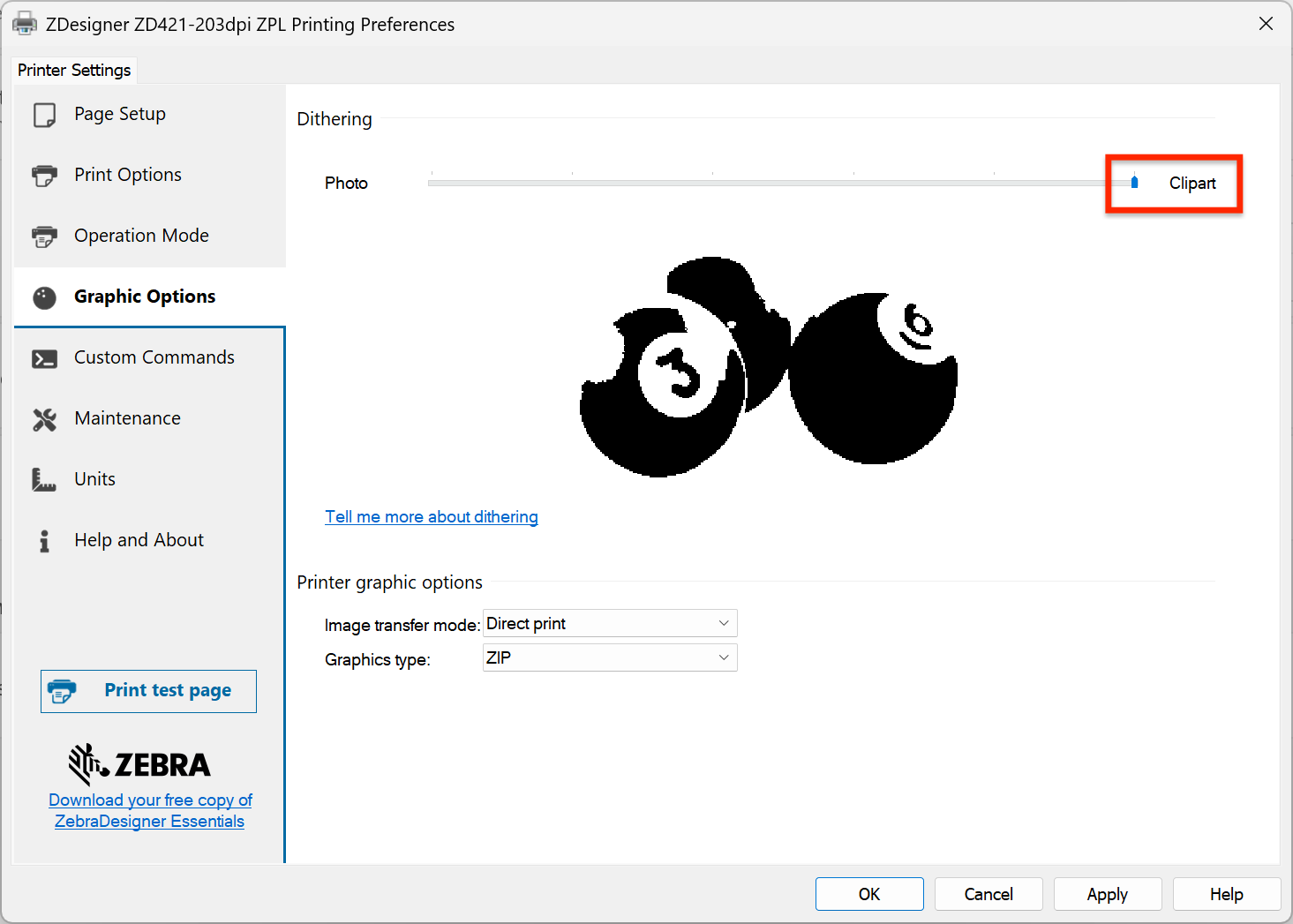
- On Zebra drivers, set dithering to "Clipart" under Graphic Options > Dithering.
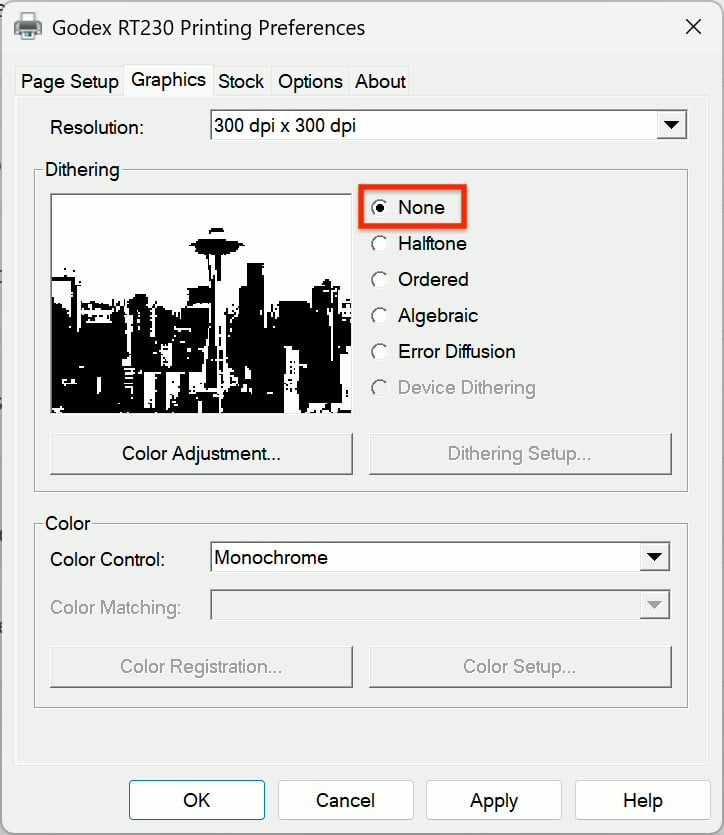
- On BarTender drivers, set it to "None" under the Graphics tab > Dithering. If labels are cut off, the paper size in your system's printer settings likely doesn't match the roll you're using.