Get low stock alert notifications directly via the mobile app.
***
## How to Set Up
{% stepper %}
{% step %}
#### Set Safety Stock
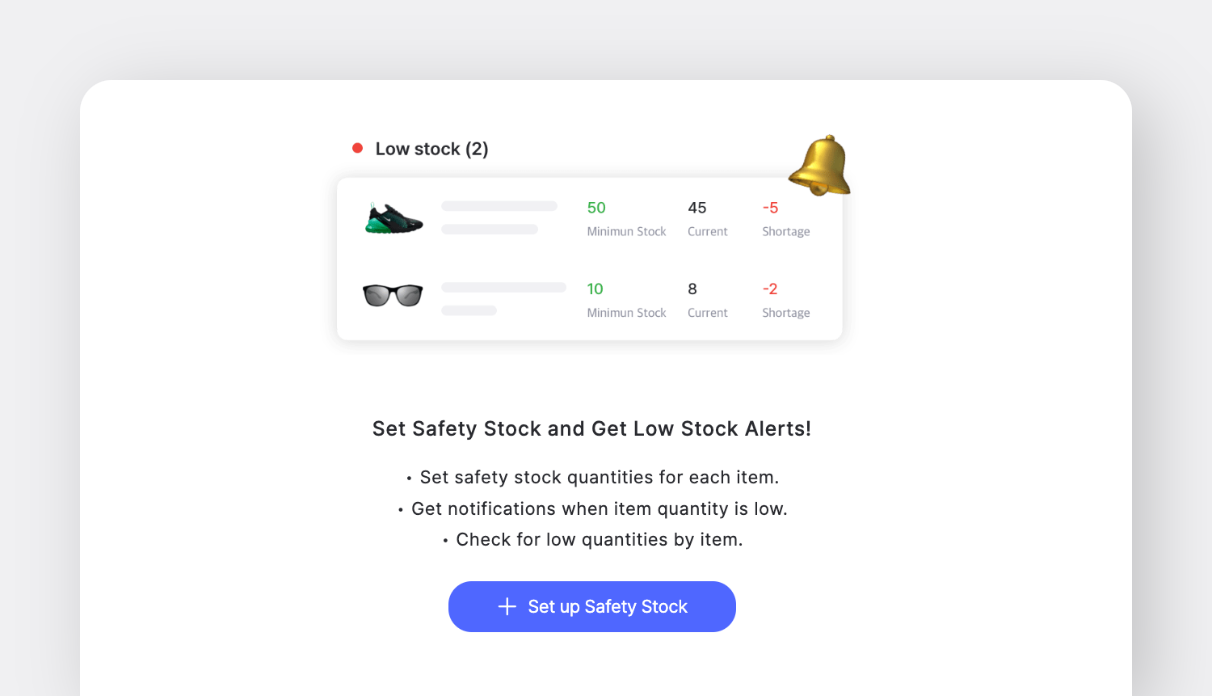
**Safety stock** is the minimum quantity of an item you want to keep in stock to avoid stockouts. You can set this up to monitor your inventory levels.
* Go to **`Other Features`** > **`Low Stock Alerts`**.
* Click **`Set up Safety Stock`**.
{% endstep %}
{% step %}
#### Configure by Location
Customize safety stock settings: You can manage multiple warehouses or locations by setting alerts based on inventory levels in each specific site.
* **All Locations**: Sums inventory across all sites
* **Specific Location**: Tracks individual site levels
{% endstep %}
{% step %}
#### Enter Quantities
After adding the Safety Stock Attribute, click on **`Edit Quantity`** to to enter the desired amount of safety stock for each item.
To **bulk edit** safety stock quantities via **Excel**:
* Navigate to **`Data Center`** > **`Items`** > **`Import from Excel`**.
* Choose **`Bulk Edit`** to download your existing data into Excel.
* Map the “Safety Stock” column and upload the file with your safety stock data back to BoxHero.
{% hint style="info" %}
If you set the **safety stock** to **0**, you’ll get a notification when the item is out of stock.
{% endhint %}
{% endstep %}
{% step %}
#### Monitor Low Stock Items
After setting safety stock quantities, you can easily check for items with low stock.
{% endstep %}
{% step %}
#### Set Up Notifications
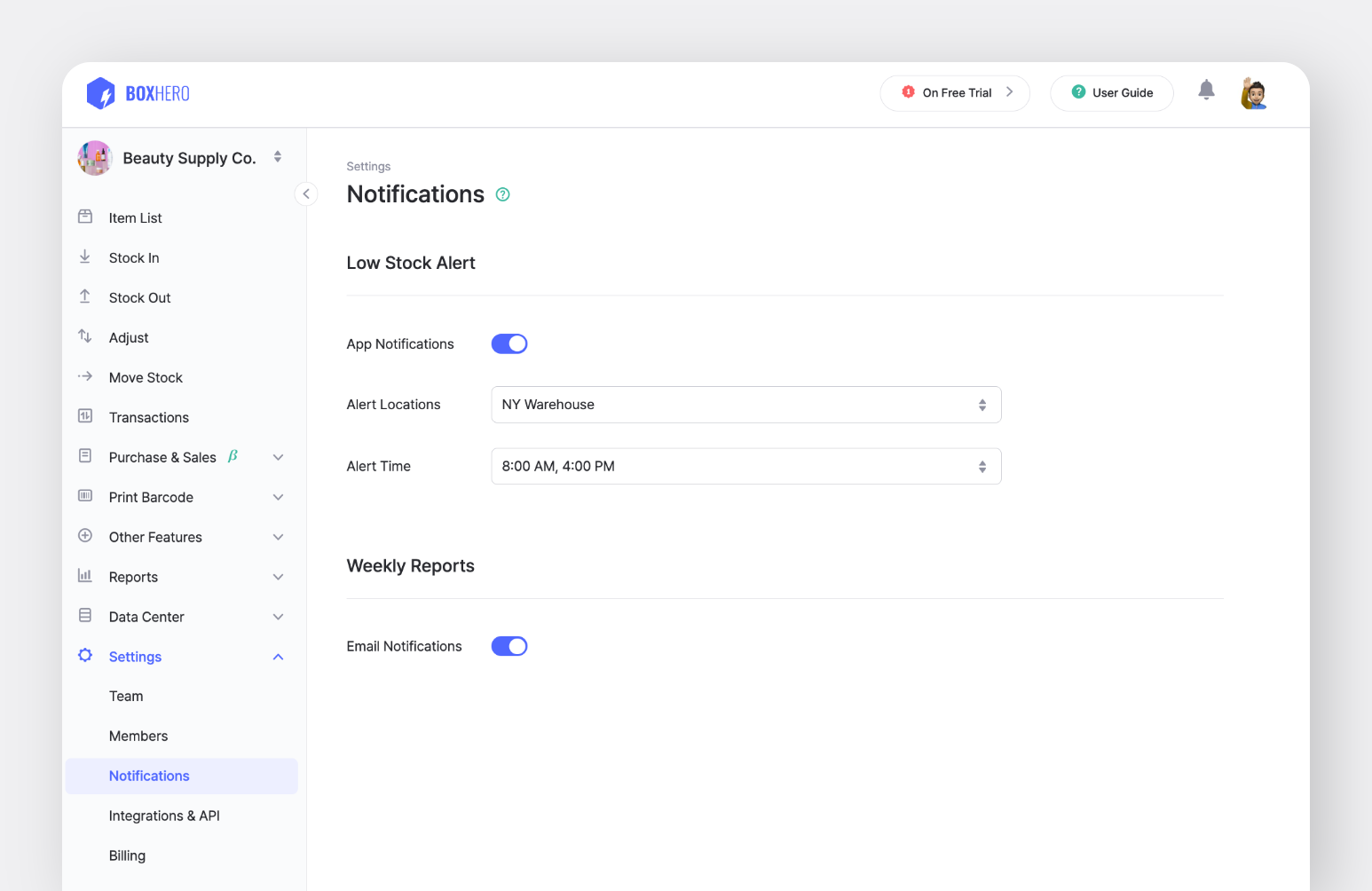
To receive alerts when stock falls below the safety stock quantities, you must enable notifications in your user settings.
* Go to **`Settings`** > **`Notifications`**.
* Under **Low Stock Alerts**, toggle the **App Notification** to ON.
* Select **Alert Locations**: You can choose to receive alerts for all locations or specific locations.
* Set **Alert Time**: Set the time you want to receive alerts.
{% hint style="success" %}
Each user can set their own preferences for receiving low stock notifications.
{% endhint %}
{% endstep %}
{% endstepper %}
***
## Frequently Asked Questions (FAQs)
### Can I receive low stock alerts on my desktop?
Currently, low stock alerts are only available via the mobile app. Please make sure your mobile device settings are enabled to receive notifications.
### What does “Near Low Stock” mean?
* **Low Stock**: Your inventory level has reached or dropped below the set safety stock level.
* **Near Low stock**: Your inventory is at or below **1.2 times** the safety stock level. It’s an early warning before you hit critical stock levels.
{% hint style="info" %}
**Note**: If you set the safety stock quantity to **0**, you will receive a notification when the stock is completely out of stock.
{% endhint %}
### Why am I not getting notifications?
Make sure App Notifications are enabled in **`Settings`** > **`Notifications`**, and also allowed in your device settings. On iOS or Android, check that notifications for the BoxHero app are turned on.
{% hint style="warning" %}
If **Do Not Disturb** or **Focus mode** is active, it may block alerts.
{% endhint %}
.png?alt=media)
.png?alt=media)
.png?alt=media)
.png?alt=media)