Is Your Inventory Data Ready for AI Shopping Assistants?

Black Friday is November 27 this year, and many shoppers will start their holiday lists by typing a request into ChatGPT, Gemini, or Perplexity instead of a search bar. During last year's holiday season, traffic to U.S. retail sites from generative AI tools rose 693.4% year over year, and those visitors converted 31% more often than shoppers from other sources, according to Adobe's 2025 holiday AI traffic data.
That growth started from a small base, and AI referrals are still a minor share of most stores' traffic. But these shoppers arrive ready to buy. By the time they click through to your store, ChatGPT has already matched your product to their request and checked whether your store lists it as in stock.
These tools work as AI shopping assistants: they recommend products when a shopper asks a question (e.g., "a flannel shirt under $60"). Some can also complete the purchase inside the chat, which is called agentic commerce.
To decide what to recommend, they read the product feed your store sends to Google, marketplaces, and AI platforms. The feed lists each item's title, price, GTIN, and availability, which is built from your inventory records.
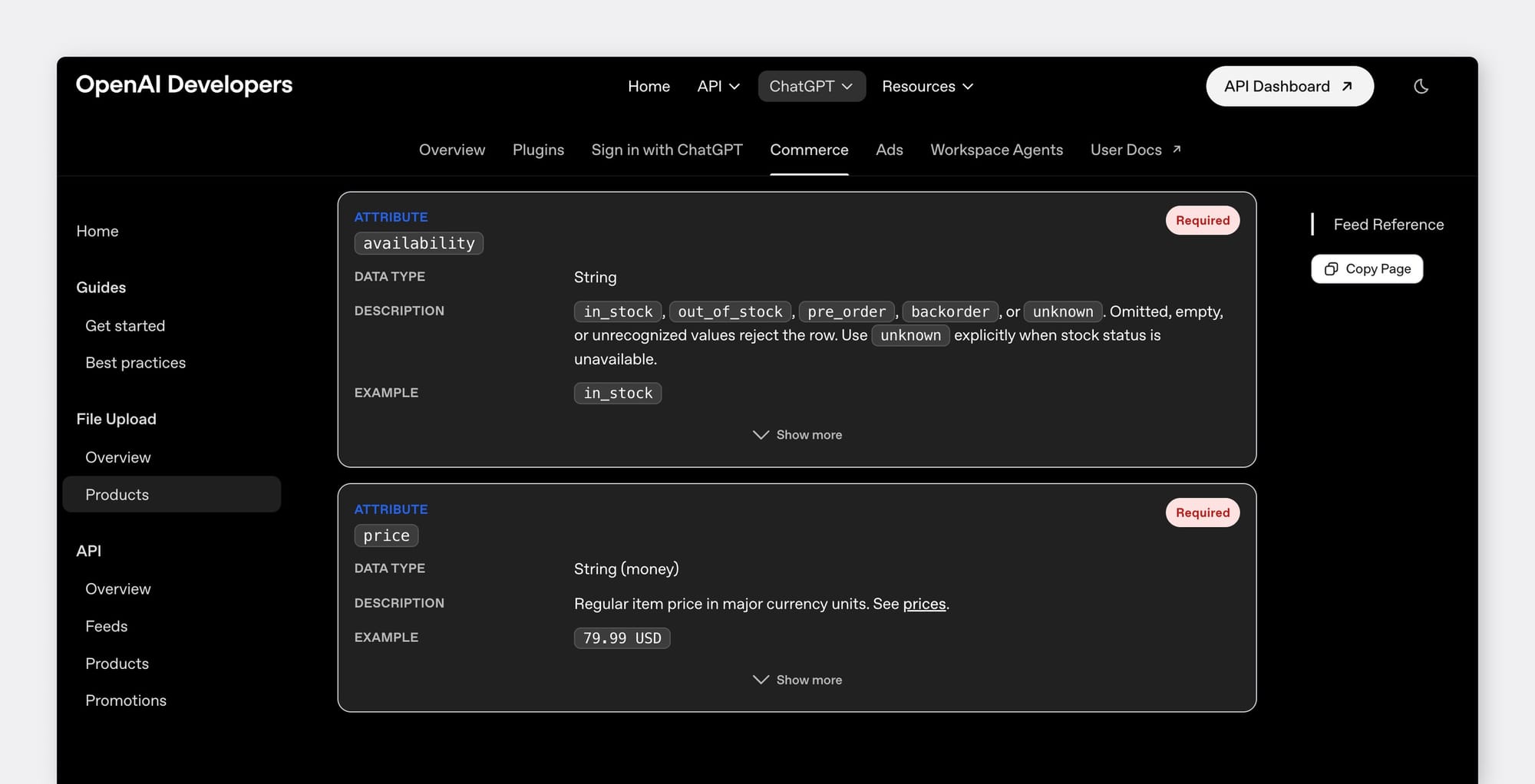
OpenAI's product feed specification makes availability a required field for every item, with five accepted values: in_stock, out_of_stock, pre_order, backorder, and unknown. A row without one is rejected. That means if your inventory count is off, the feed sends the wrong status, and every assistant reading it sees the same wrong number.
Measure Your Inventory Record Accuracy
Inventory record accuracy is the share of items where the quantity in your system matches what you physically count. It's measured per item, not in total units. If one item is 3 units over and another is 3 units under, your total looks right while two items are wrong.
The formula is:

You can get this number from a sample count instead of a full one. Include:
- Your best-selling variants (the ones most likely to be recommended)
- Items with low on-hand quantities, where a small error changes the status from in stock to out of stock
- Items with recent returns, damages, or transfers between locations
Example: Counting 40 Variants
Let's say you count 40 variants of two products, the "Cotton Sweater" and the "Flannel Shirt." Six don't match:
| Item | Recorded Quantity | Counted Quantity | Variance |
|---|---|---|---|
| Cotton Sweater, Gray, M | 4 | 2 | −2 |
| Cotton Sweater, Red, L | 11 | 12 | +1 |
| Flannel Shirt, White, L | 36 | 34 | −2 |
| Flannel Shirt, White, S | 3 | 0 | −3 |
| Cotton Sweater, Navy, S | 7 | 6 | −1 |
| Flannel Shirt, White, M | 18 | 19 | +1 |
34 of the 40 variants matched, so your record accuracy is 85% (34 ÷ 40 × 100). Two of the six misses need attention right away because so few units are left. The Gray sweater shows 4 in your records, but you have 2. The Small shirt shows 3, but you have none.
- If an item's mismatch would change its status (e.g., 3 recorded, 0 on hand), correct it today.
- If accuracy across the sample is below the target you set (e.g., 95%, or 38 of 40), find the cause before you increase how often you sync. Common causes are unrecorded returns, damaged units that were never written off, and sales recorded on one channel but not another.
Run the Count in BoxHero
- Go to
Inventory Countand create a new count. Choose the location and select only the items in your sample. - Add
Task Sheetsand assign them by person or by storage area. - When every sheet is complete, click
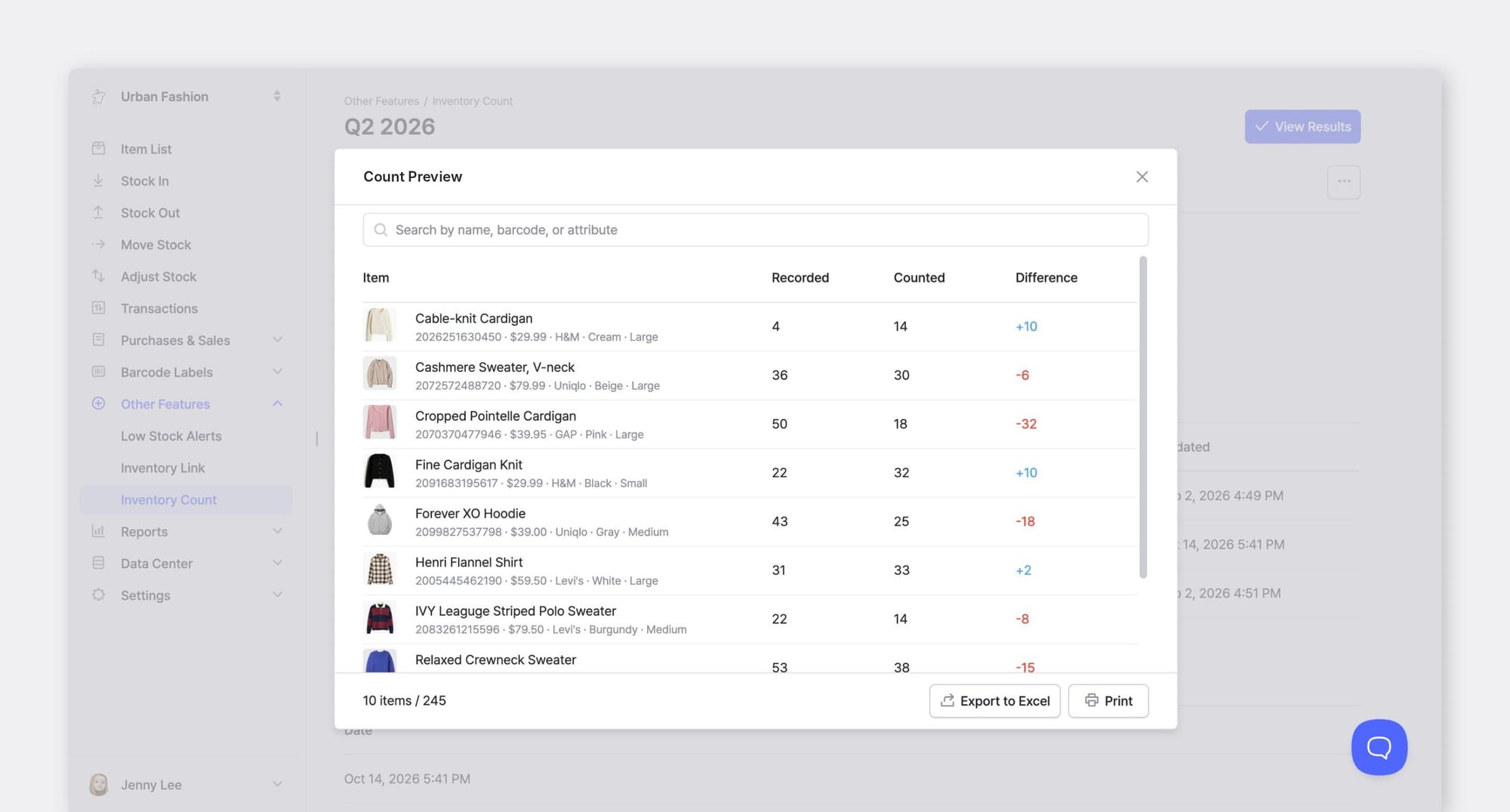
Preview. The Count Preview screen shows each item's starting quantity, counted quantity, and the difference. - Click
Submit. BoxHero applies the counted quantities through anAdjust Stocktransaction, so the correction stays in your transaction history.
Set a Sync Frequency to Match How Fast Items Sell
Your online store already updates its own count when it makes a sale. What it can't see is stock that leaves through other channels: a second marketplace, wholesale orders, a pop-up shop, or damaged units you write off. Those changes only reach the store when you sync it with your inventory records.
Sync lag is the time between a stock change in your records and the matching update in your store. For each item, estimate how many units can leave without the store knowing:

Example: Flannel Shirt, White, Small
Let's say the Flannel Shirt in the color White and size Small sells about 18 units a day on your Shopify store during holiday weeks, plus 12 units a day through Etsy, all filled from the same stock.
If you update Shopify once a day, up to 12 units can leave without the store knowing. Once you're down to 10 on hand, Shopify can still send in_stock for an item you no longer have.
Units unaccounted for at each sync interval:
| Units out per day elsewhere | Daily | Every 4 hours | Hourly |
|---|---|---|---|
| 2 | 2.0 | 0.3 | 0.1 |
| 6 | 6.0 | 1.0 | 0.3 |
| 12 | 12.0 | 2.0 | 0.5 |
| 24 | 24.0 | 4.0 | 1.0 |
For the Flannel Shirt, a 4-hour sync leaves about 2 units unaccounted for. Items that sell only through your online store stay current on their own, so sync those after counts and adjustments.
Keep Your Store in Step With BoxHero
A. Scheduled export. Record every stock out, return, and adjustment in BoxHero the same day it happens. At each sync time, export your items to Excel and update the store's quantities from that file.
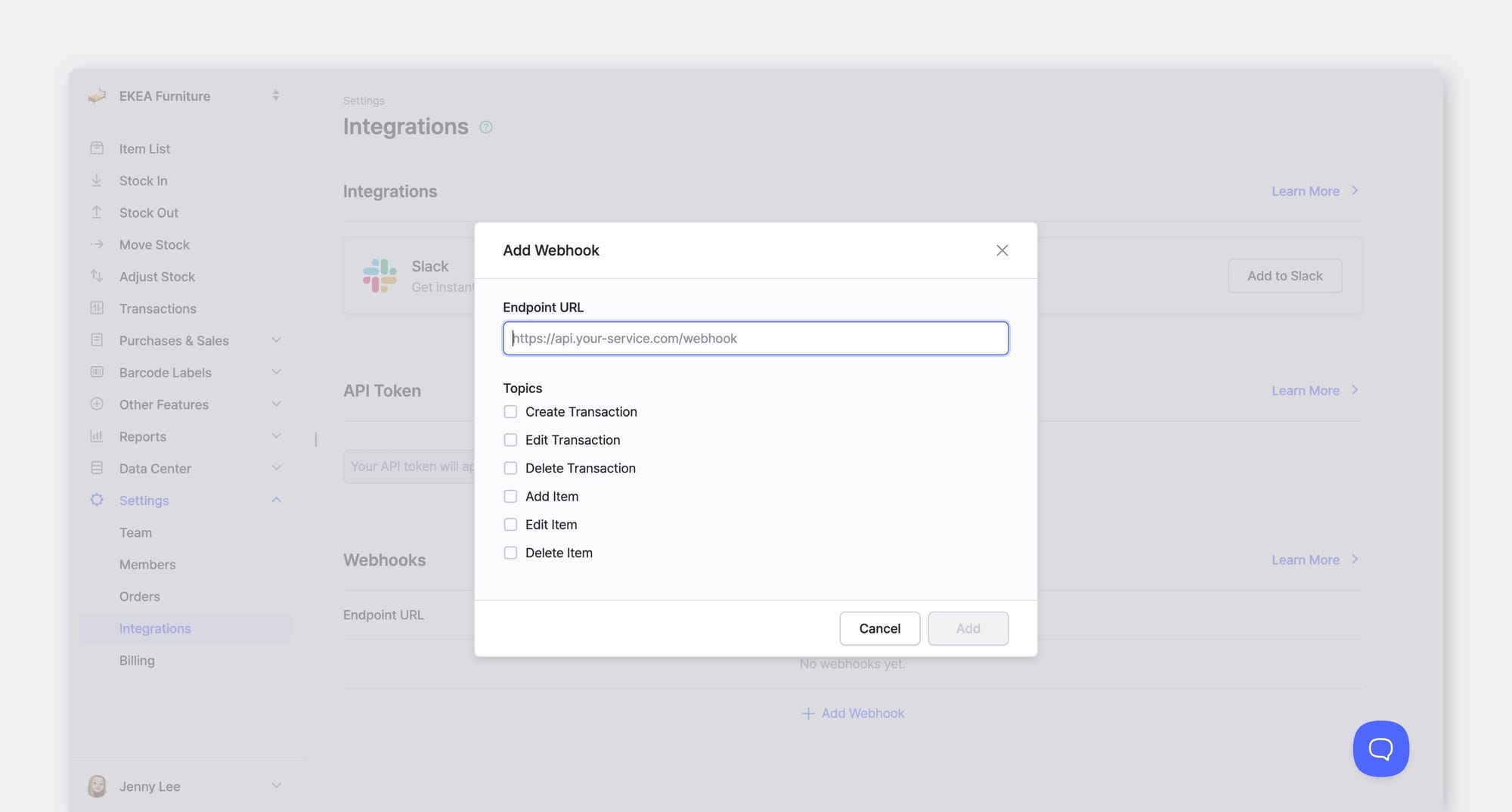
B. Automatic updates. If you have a developer or an automation tool, BoxHero can send a webhook with the item's new stock level every time a transaction is recorded, so your store updates without waiting for an export.
Hold Back a Buffer for Low-Stock Items
A stock buffer is the number of units you keep out of the quantity your store publishes. When on-hand stock falls to the buffer, the store shows the item as "out of stock," and the remaining units cover orders from other channels. (Safety stock tells you when to reorder. A buffer controls what shoppers and AI platforms see.)
Set the buffer from two numbers you already have:

For the Small Flannel Shirt, that's 2 units from the 4-hour sync plus 3 from the last count (the system showed 3, the count found 0), for a buffer of 5:
| On hand | Buffer | Store shows | Status sent |
|---|---|---|---|
| 80 | 5 | 75 | in_stock |
| 23 | 5 | 18 | in_stock |
| 5 | 5 | 0 | out_ |
At 5 on hand, your store sends out_of_stock, so AI platforms reading the feed see the shirt as unavailable. The remaining 5 units cover Etsy sales that haven't synced yet, instead of turning into canceled orders.
Set Low Stock Alerts in BoxHero
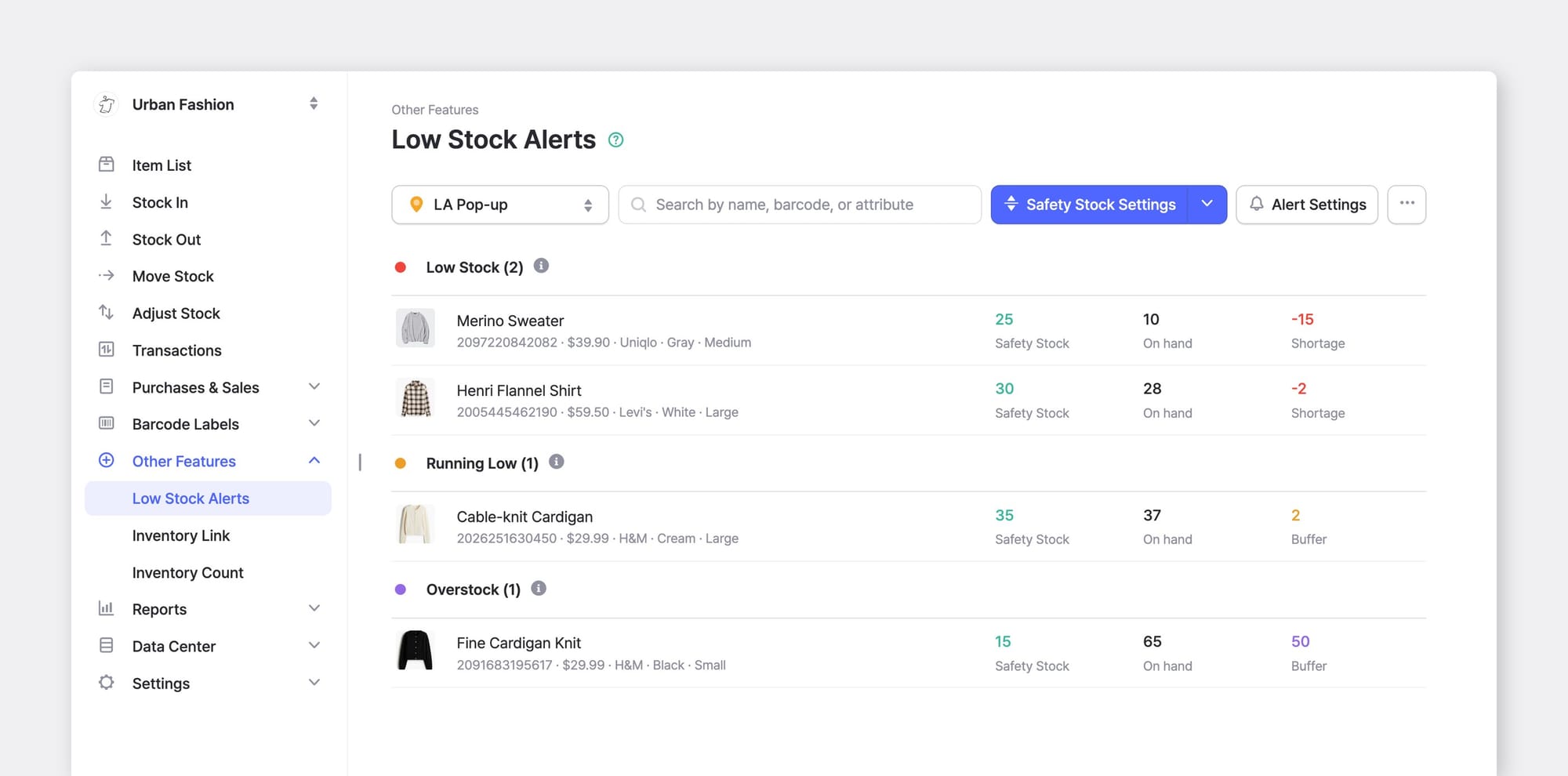
In BoxHero, open Low Stock Alerts and enter a safety stock level for the item in Safety Stock Settings.
Set the level above the buffer so the alert gives you time to reorder. For the Small Shirt, a safety stock of 30 would alert you about 20 hours before the store hides the item (25 units above the buffer, selling 30 a day across all channels).
Fill In the Product Fields
When a shopper asks for "a cotton sweater under $40," the assistant compares material, price, and other attributes across stores. An item with no material listed can't match that request.
OpenAI's product feed specification lists these optional fields, among others:
- GTIN: the GS1 product number from your UPC or EAN barcode (8, 12, 13, or 14 digits, with a valid check digit).
- Material, color, and size: written the same way across every variant in a product group.
- Dimensions and weight: of the product itself, not the shipping box, with units stated (e.g.,
cm,kg).
For example, a report might show that your two newest Cotton Sweater colors have no material listed. Export those items to Excel, fill in the column, and import the file back. Then add the same detail to your store's product records.
Find Missing Fields in BoxHero
- Store each field as an item attribute (e.g., a text attribute for
Material, a number attribute forWeight (kg)). Keep GTINs in the item'sBarcodefield. - Go to
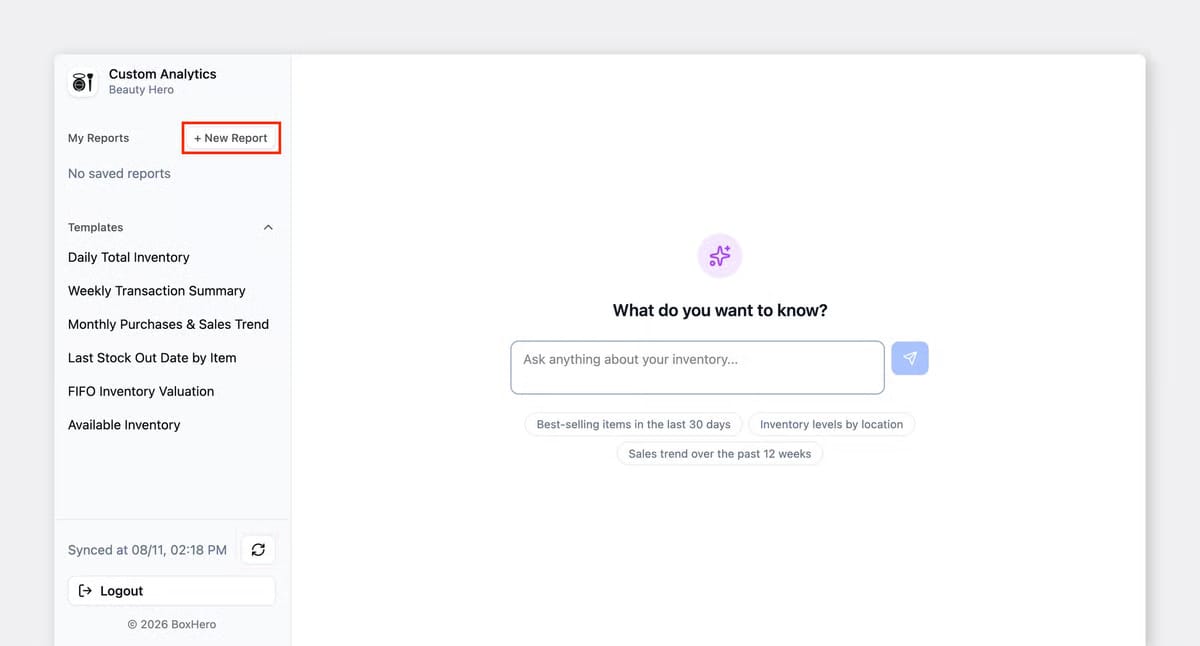
Reports>Custom Analyticsand click+ New Report. - Ask the
AI Assistantfor the list in plain language. For example: "List every item where the Material or Weight (kg) attribute is empty, with SKU, item name, and barcode." - Click the sync button at the bottom-left first so the report includes today's changes.
- Save the report. It appears in
My Reports, so you can rerun it each time you add new items.
Summary: What to Set Up Before the Holiday Rush
Before Black Friday, work through these steps in order:
- Count a sample. Start with best sellers and low-stock items, and fix any mismatch that changes an item's status.
- Set a sync interval. For multi-channel items, shorten the interval if too many units can sell between syncs.
- Add buffers. For low-stock, multi-channel items, hold back the sync gap plus your largest count miss.
- Set safety stock above the buffer so you're alerted with time to reorder.
- Fill in missing fields. Find items missing material, weight, or a GTIN, and update both BoxHero and your store.
After the holidays, repeat the count on the same sample. If accuracy went up, you can lower some buffers. If it went down, look at which channel the misses came from before you change anything else.