# Getting Started
***
## Sign Up
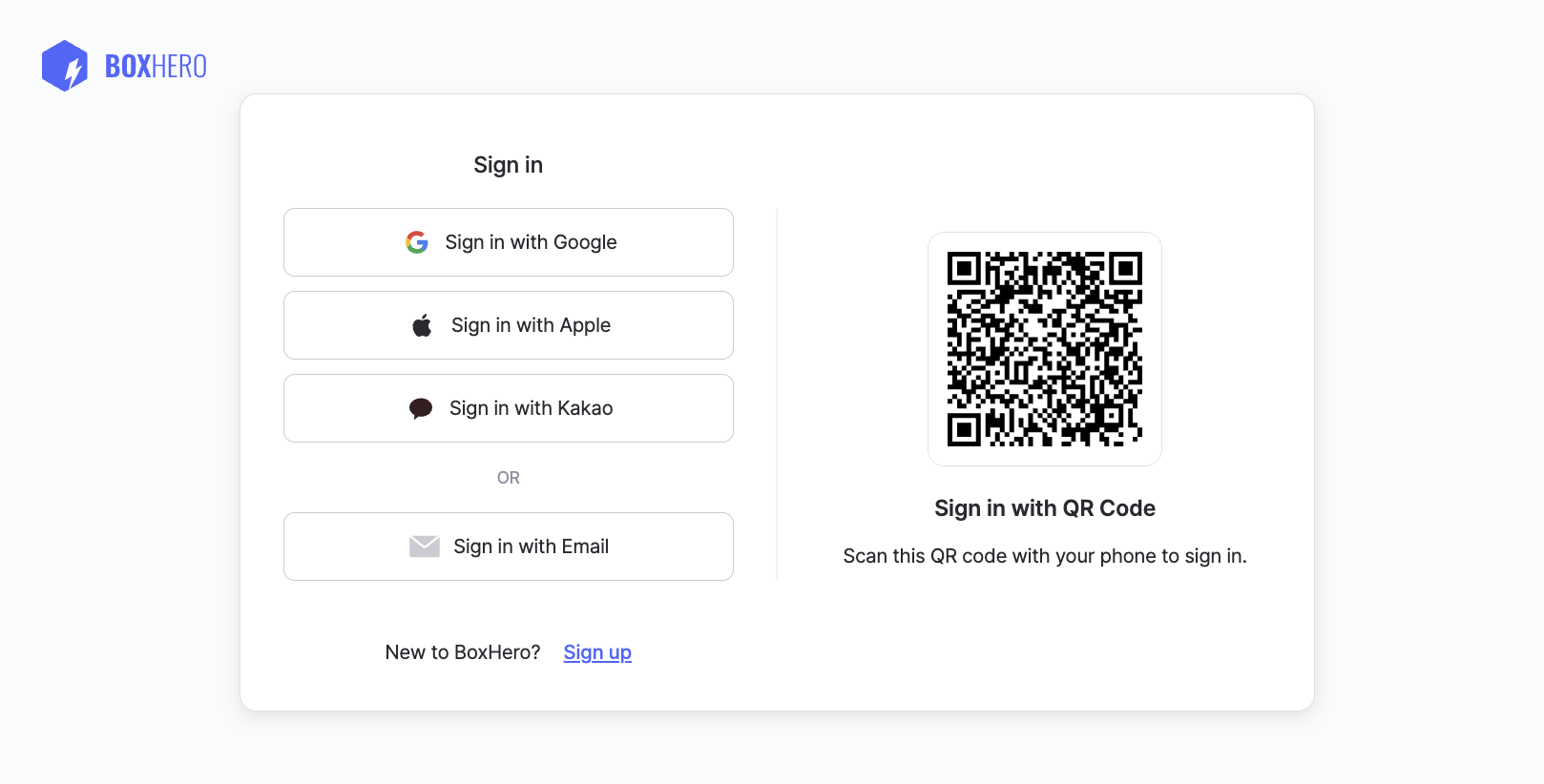
You can sign up with your email or use a Google, Apple, or Kakao account — or log in instantly by scanning a QR code. You’ll get a **free 30-day trial** of the Business Plan, with no commitment or payment required.
{% hint style="info" %}
**Note**: If you don’t start a subscription, your account will automatically move to the free [Personal Plan](https://www.boxhero.io/docs/pricing#personal-plan) when the trial ends. Premium features will no longer be available.
{% endhint %}
## Create a Team
Once you’ve signed up, your first step is to set up a "team." Think of a **`Team`** as a shared workspace where you and your colleagues can manage inventory, track items, and control user access in one place.
#### Best Practices
* **Keep it Simple**: Most businesses only need one team.
* **Stay Organized**: If you need to strictly separate departments or locations, you can create additional teams.
* **Name it Right**: We recommend starting with your business name. Don’t worry—you can rename a team at any time.
{% hint style="success" %}
**Need help with these terms?**\
Check out our [terminology guide](https://www.boxhero.io/en/blog/terminology-guide) for clear definitions and explanations of key concepts in BoxHero.
{% endhint %}
***
## Add Items
**Items** are the basic units of inventory you manage in BoxHero.
1. To add an item, go to **`Item List`** and click the **`Add Item`** button.
2. Then, fill in your item details and click **`Submit`** at the end.
{% embed url="" %}
#### Basic Info
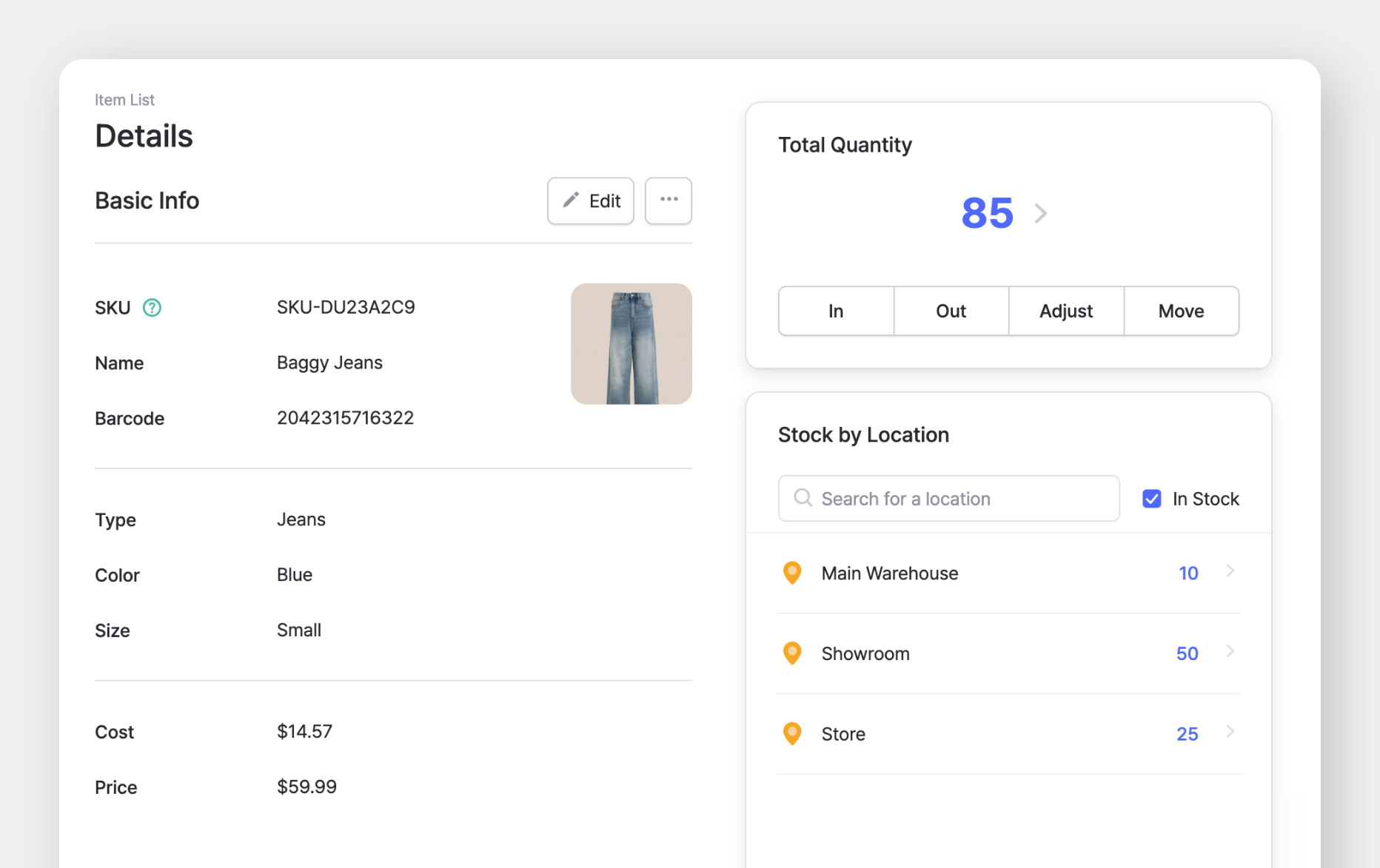
* **Item Photo**: Upload an image for quick identification (Max: 3 MB).
* [**SKU**](https://www.boxhero.io/en/blog/what-is-sku-inventory/) *(Required)*: A unique identifier for the item. BoxHero generates one automatically, or you can enter a custom Stock Keeping Unit. Must be unique, so duplicates aren't allowed.
* **Item Name** *(Required)*: The primary name used to identify the item or product.
* **Barcode**: Adding a barcode allows for instant lookup via scanning.
* **Existing Barcode**: Type it in manually or use a scanner (USB or mobile camera).
* **No barcode?** Select **`Generate`** to create a random 13-digit number. You can print this onto labels after saving the item.
#### Attributes
* [**Attributes**](https://www.boxhero.io/docs/data-center/attributes): Add any custom details you need to help categorize and filter your inventory.\
(Examples: *brand, manufacturer, color, and size)*
#### Pricing
* **Cost & Price** *(Optional)*: Set a default unit cost and selling price for your items. These values will autofill in [purchase and sales orders](https://www.boxhero.io/docs/key-features/purchase-and-sales).
* These fields are for reference only. They do *not* calculate profit margins or track historical price fluctuations.
#### Initial Quantity
* **Quantity** *(Optional):* You can save an item with a zero balance and add stock later.
* If you store inventory across multiple sites, you can add [locations](https://www.boxhero.io/docs/data-center/locations) and set the quantity for each one. If you have multiple storage sites, you can assign specific quantities to each location.
{% hint style="success" %}
**Save time**: You can upload an Excel file to [**add items in bulk**](https://www.boxhero.io/docs/data-center/items#add-items-via-excel).
{% endhint %}
***
## View Items
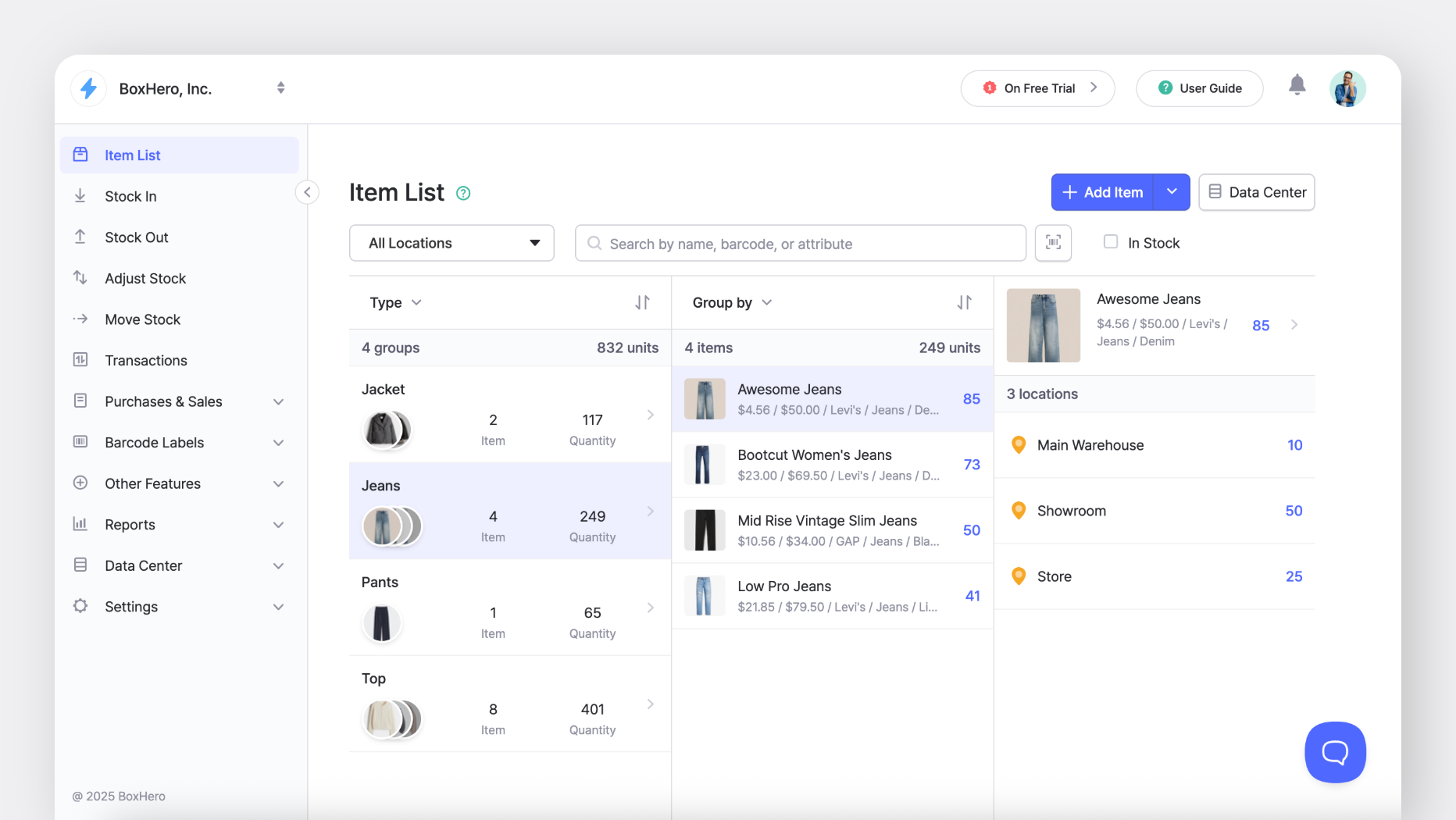
You can search for items in the **`Item List`** or organize them in folder-style categories.
In the **`Data Center`**, you can:
* View your items in a table
* Sort items by any column
* Select multiple items to edit or delete at once
***
## Inventory Transactions
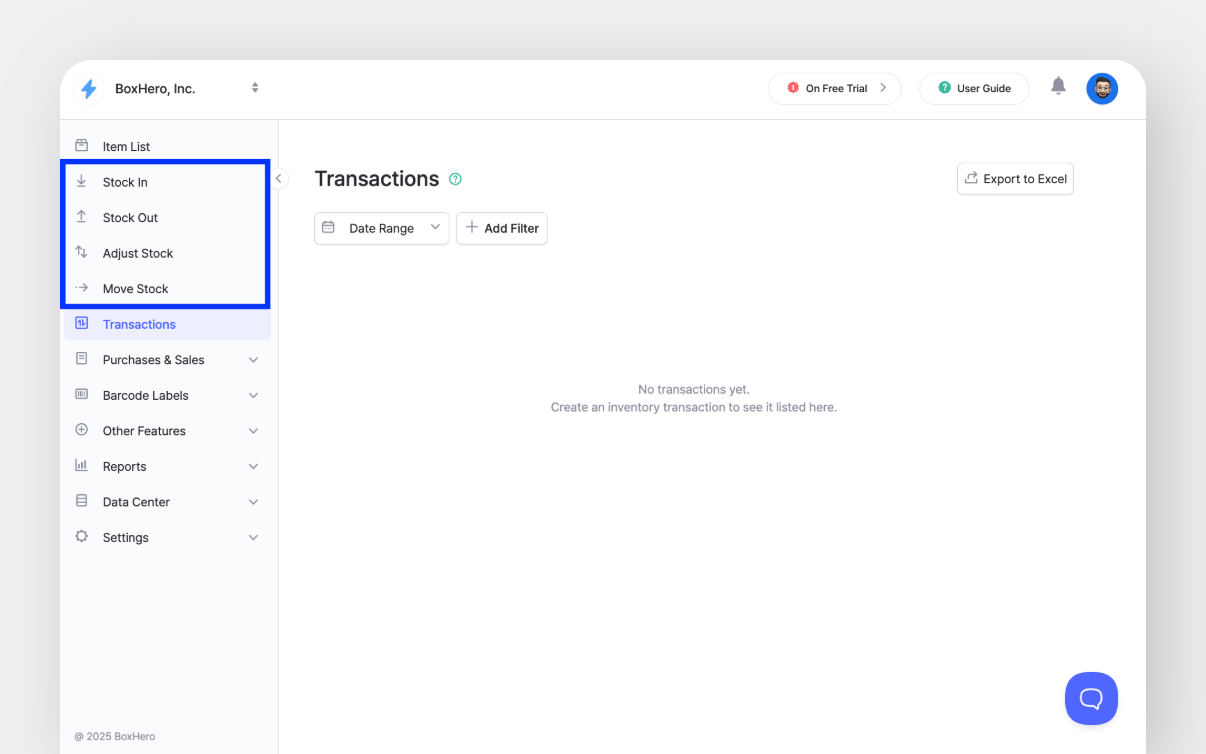
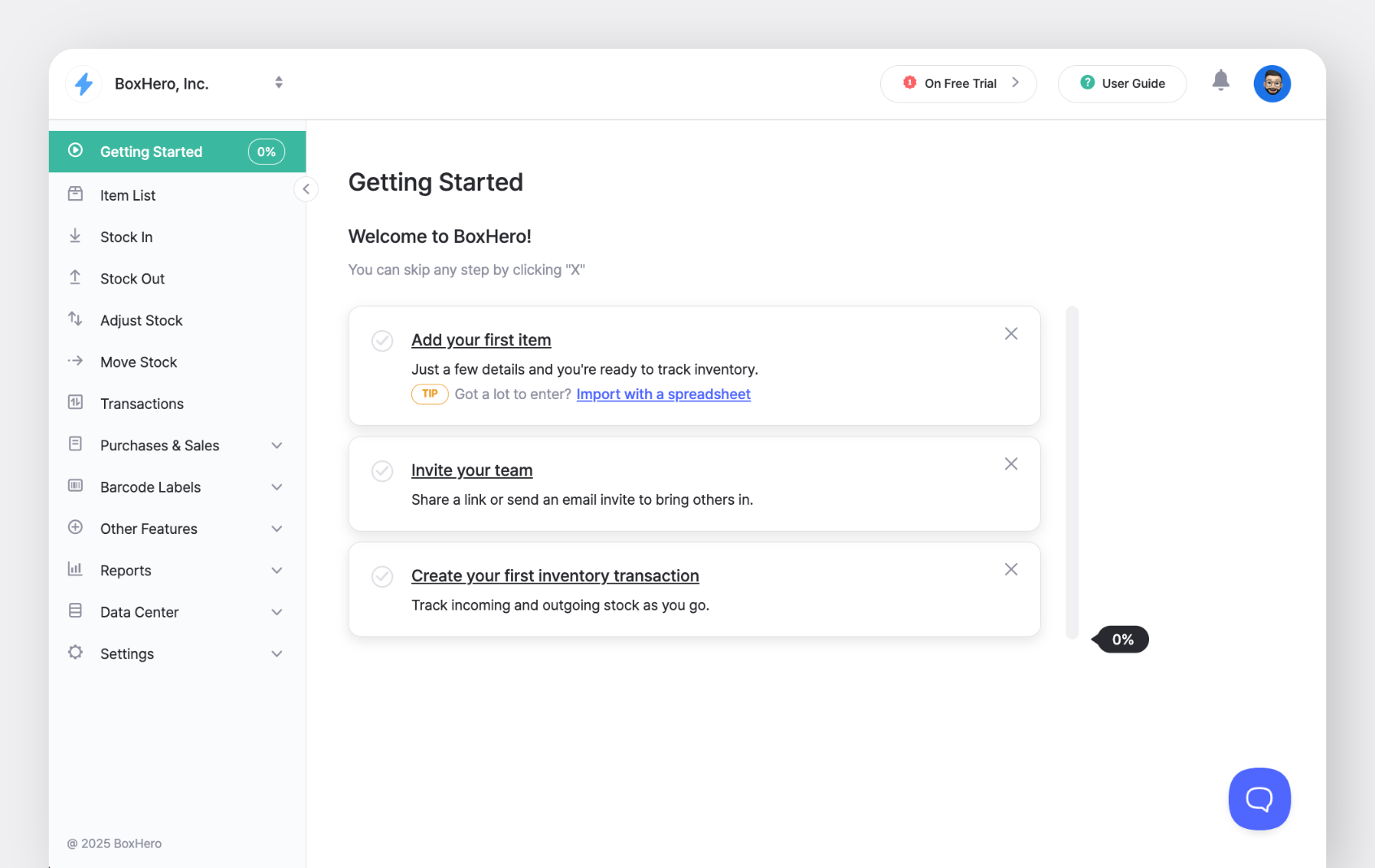
After you add items, update quantities with the **Stock In**, **Stock Out**, **Adjust Stock**, and **Move Stock** menus. Each transaction updates on-hand quantities and is recorded in the item history.
* **`Stock In`**: Add inventory.
* **`Stock Out`**: Reduce inventory.
* **`Adjust Stock`**: Correct or modify stock levels (loss, damage, counting difference).
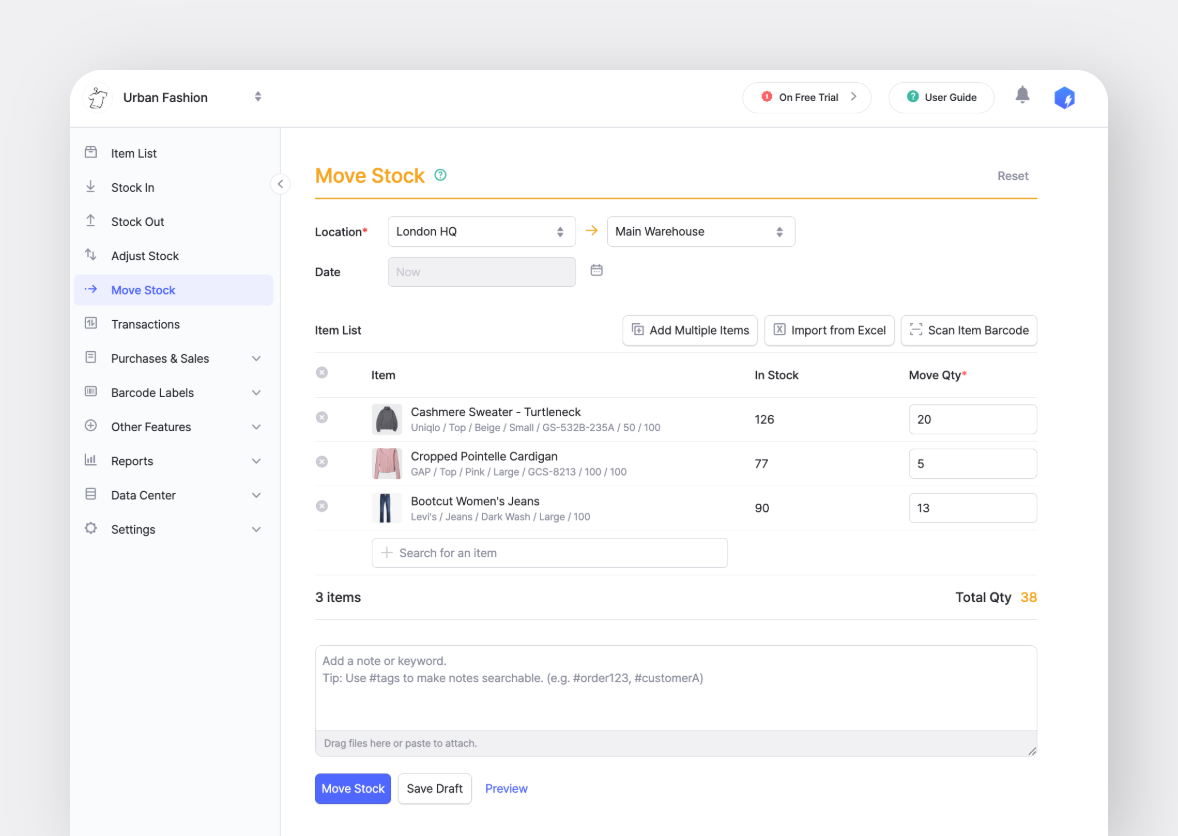
* **`Move Stock`**: Transfer items between locations.
### Stock In & Stock Out
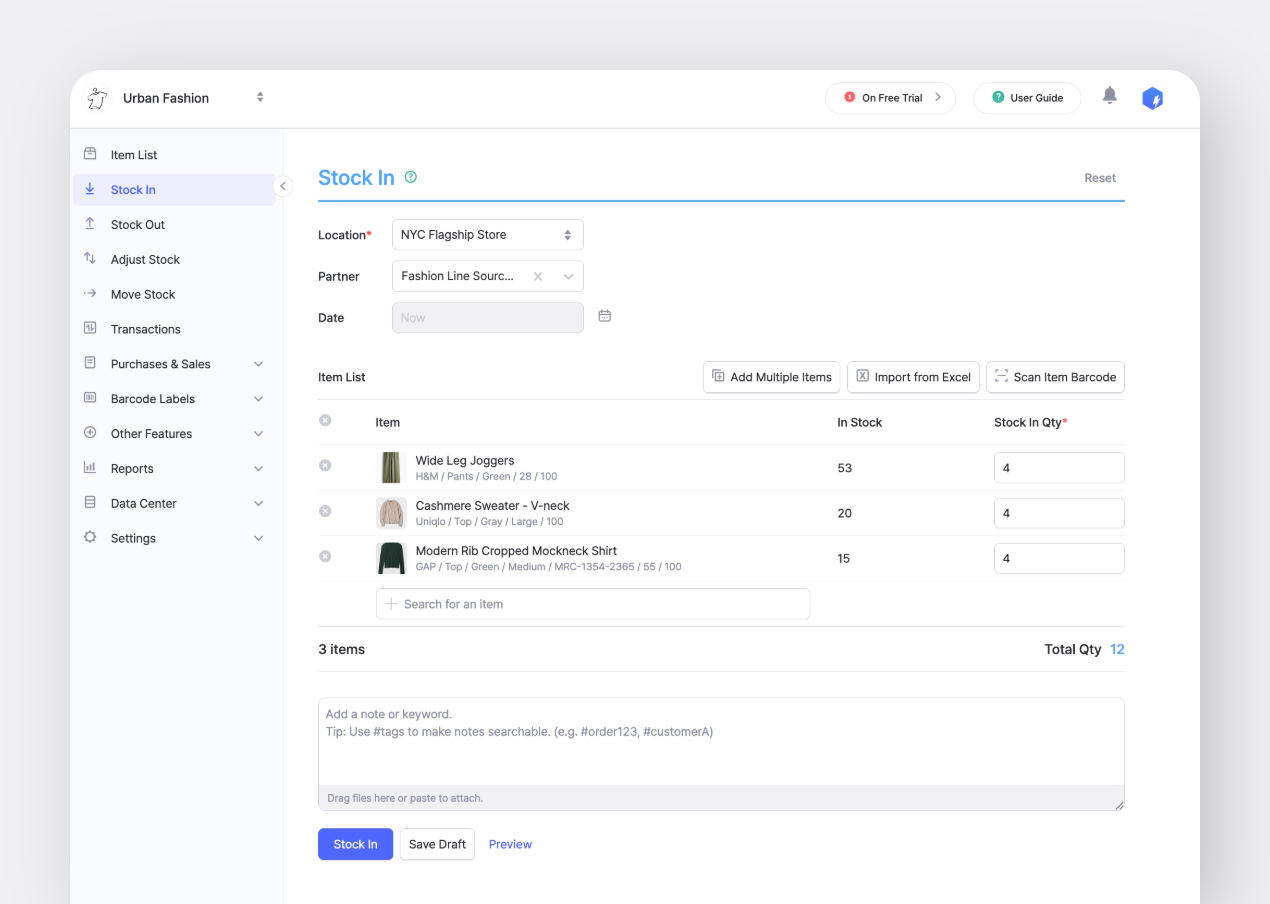
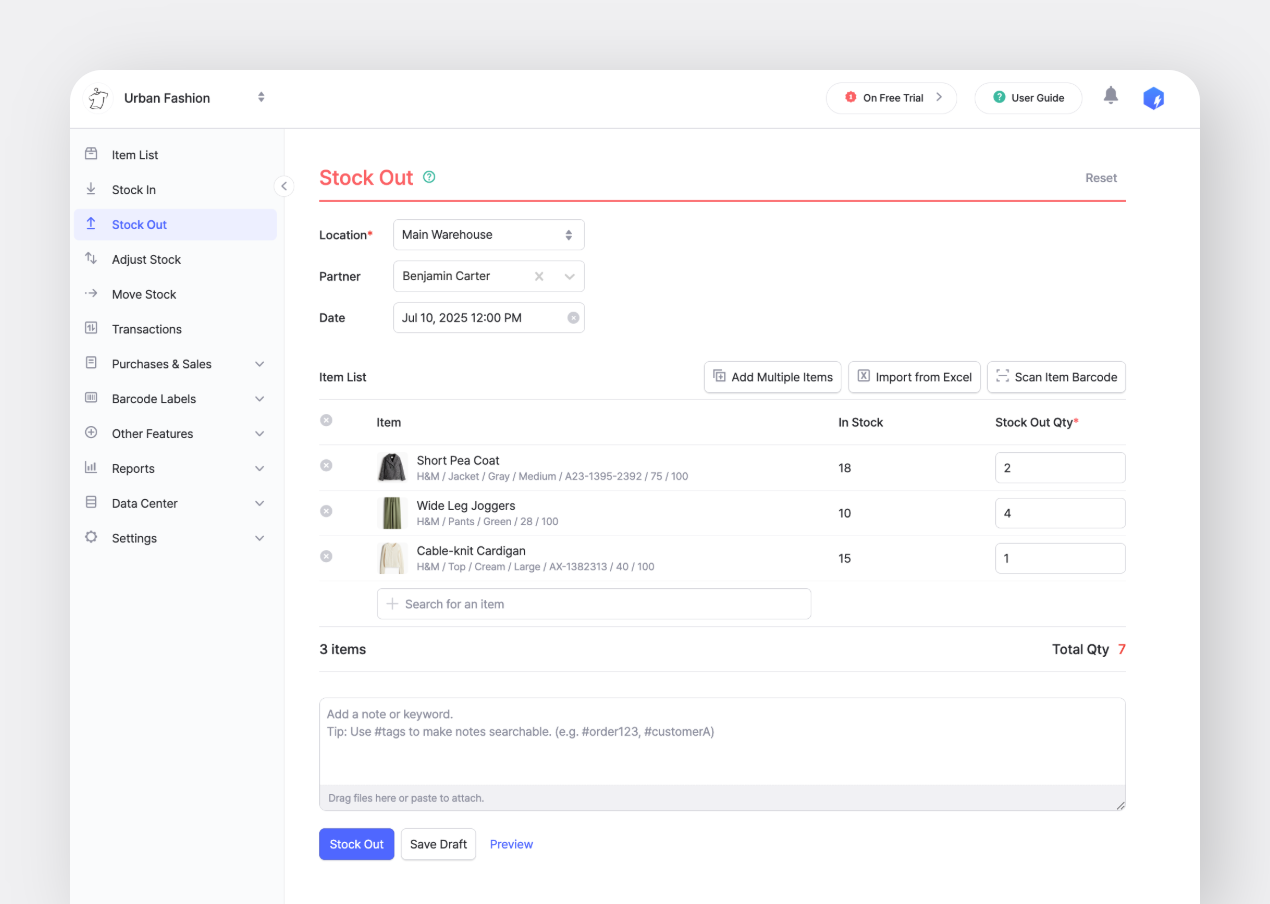
1. In the left sidebar, go to **`Stock In`** or **`Stock Out`**.
2. Select a location.
3. *(Optional)* Select a [partner](https://www.boxhero.io/docs/data-center/partners), such as a supplier or customer.
4. Choose the item and enter the quantity.
5. *(Optional)* Add a reference, note, or attachment (invoice, packing list, photo).
{% hint style="warning" %}
The "**location**" option only appears if you're using more than one location. New teams start with a free 30-day trial of the **Business Plan**, which includes **multi-location support**.
{% endhint %}
{% tabs %}
{% tab title="Stock In" %}
{% endtab %}
{% tab title="Stock Out" %}
{% endtab %}
{% endtabs %}
{% hint style="success" %}
**Quick** **Shortcuts**:\
Use **`Import from Excel`** or **`Scan Item Barcode`** to add multiple items or quantities at once.
{% endhint %}
### Adjust Stock
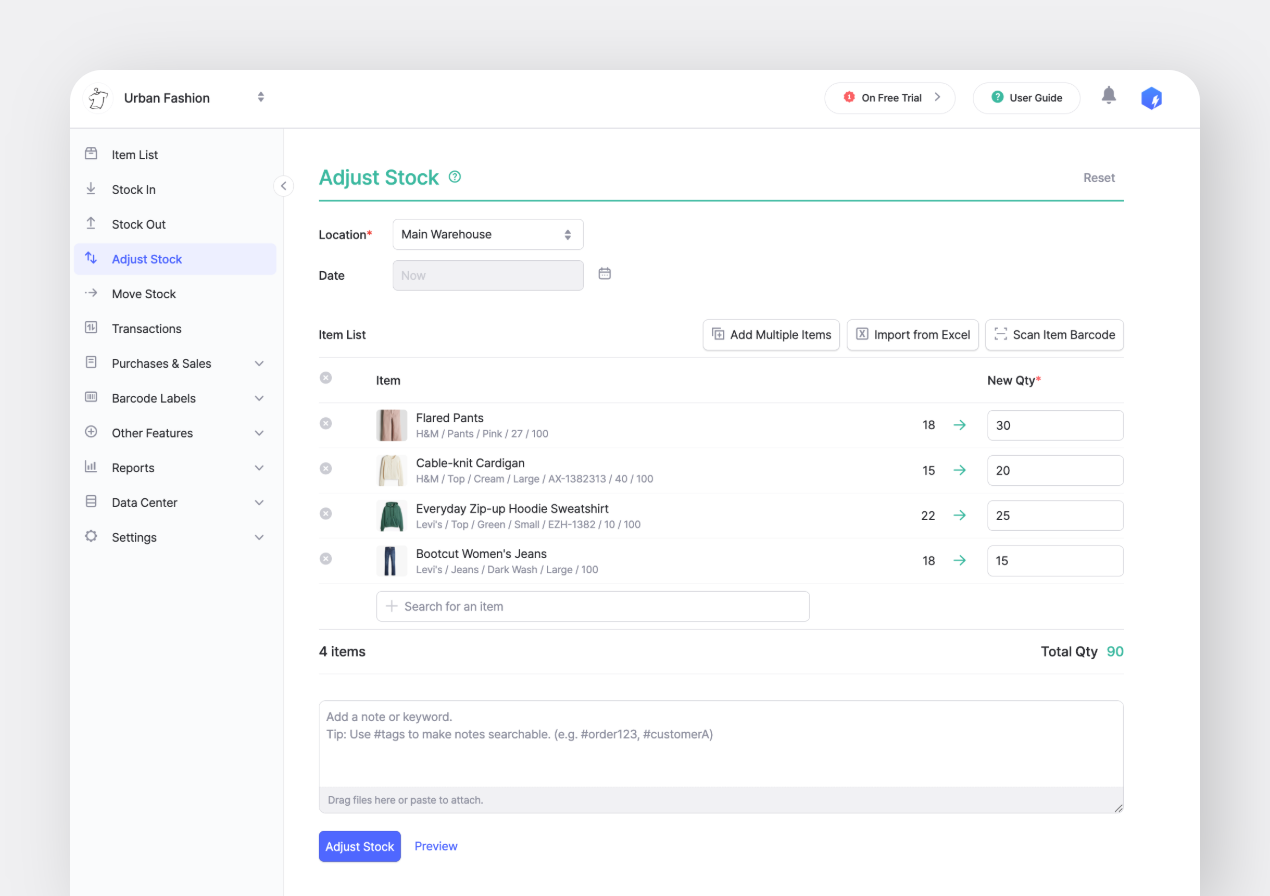
1. In the left sidebar, go to **`Adjust Stock`**.
2. Select a location.
3. Select the item and enter the new quantity.
4. *(Optional)* Add a reason or reference (e.g., loss, damage, count difference) and attach any supporting documents or photos.
### Move Stock
1. In the left sidebar, go to **`Move Stock`**.
2. Select the source location (From) and the destination location (To).
3. Choose the items and quantities to move.
4. *(Optional)* Add a reference or note if needed.
{% hint style="warning" %}
The **Move Stock** feature is only available when you have 2 or more [locations](https://docs-en.boxhero.io/data-center/locations) set up.
{% endhint %}
***
## View Transaction History
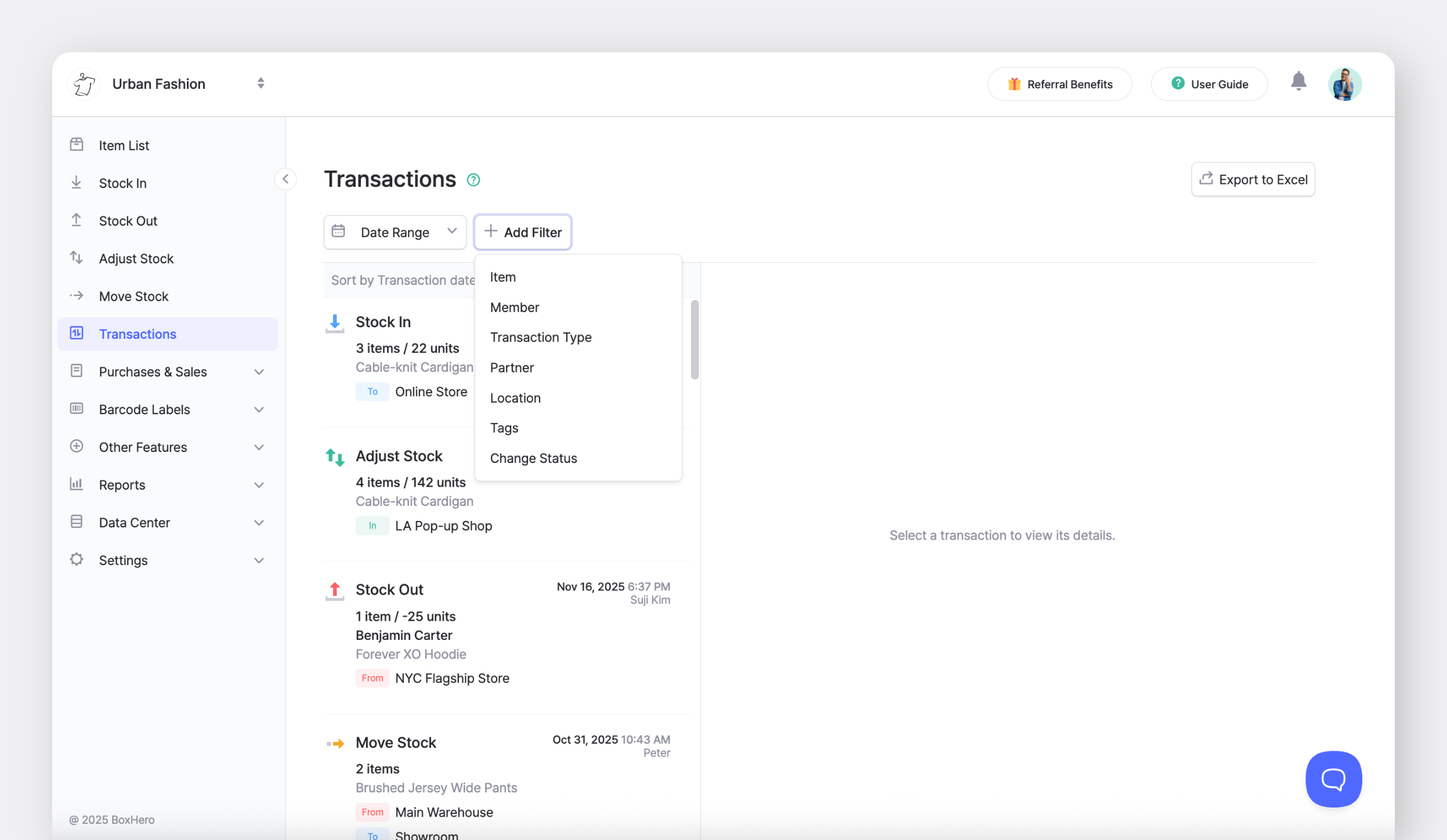
* Use the **`Transactions`** menu to review every inventory action and find the details you need for reconciliation or audits.
* You can set a **`Date Range`**, click **`+ Add Filter`**, or use the **`Export to Excel`** button to download your inventory records.
[**More Actions**](https://www.boxhero.io/docs/key-features/tx#types-of-inventory-transactions)**:**
* Print a summary
* Download a PDF of the transaction
* Print labels for items in that transaction
* Export that single transaction to Excel
* Edit or delete the transaction
***
## Invite Team Members
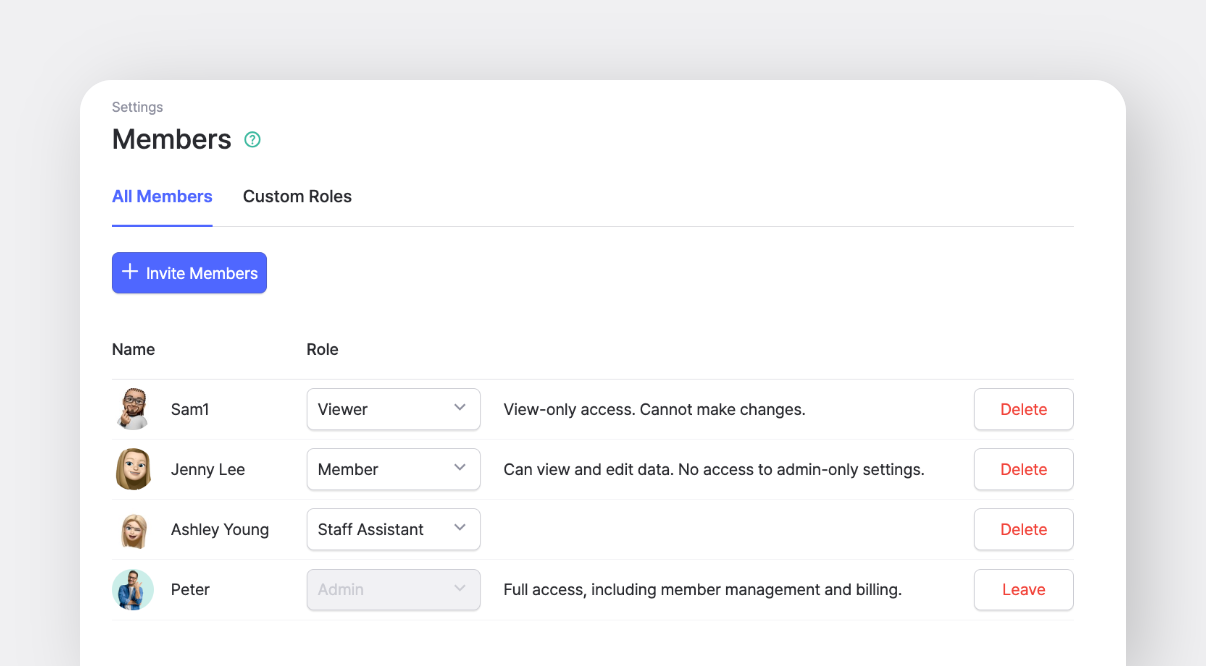
Go to **`Settings`** > **`Members`** to invite or remove [team members](https://www.boxhero.io/docs/settings/members#member-settings).\
Invite anyone who will help manage your inventory so you can test features together.
{% hint style="success" %}
During the free trial, there are no limits on your [team's usage](https://docs-en.boxhero.io/pricing#usage-limits) (items, members, or locations).
{% endhint %}
***
## Get the Mobile App
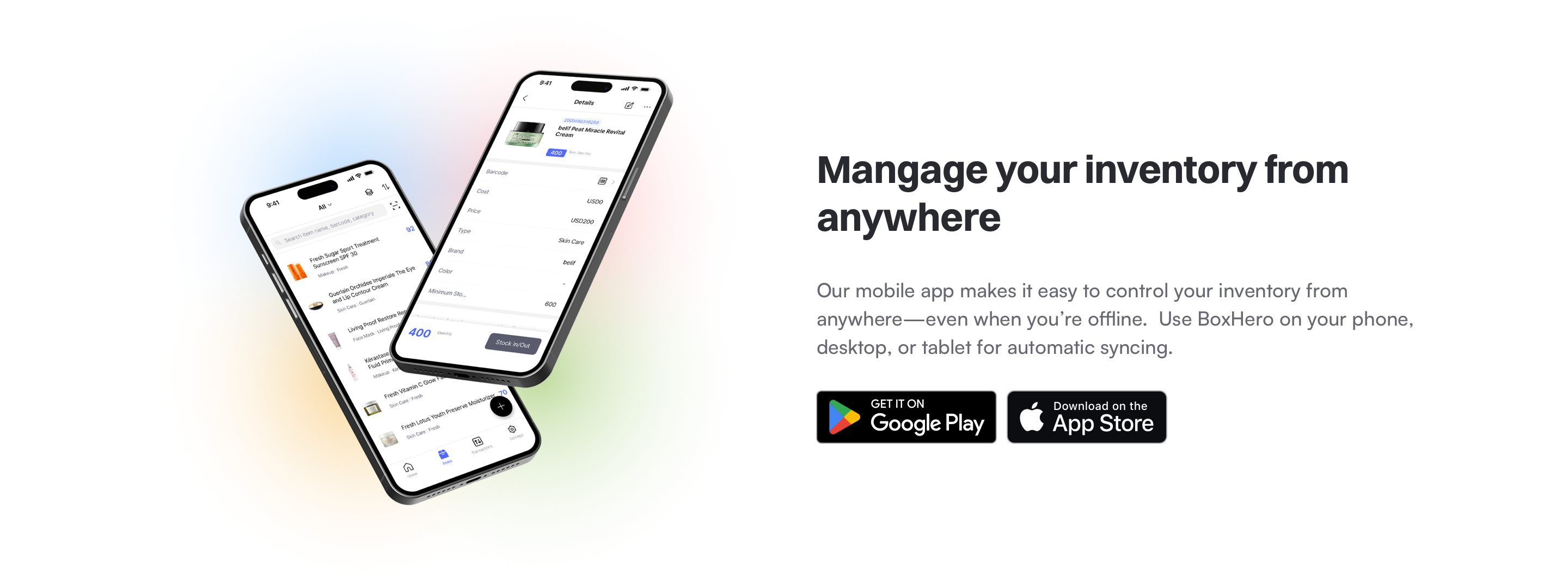
Use the BoxHero mobile app to manage inventory on the go! Sign in with your account to access your team, scan barcodes, and record transactions from your phone.
* **Android**: [Link](http://play.google.com/store/apps/details?id=com.bgpworks.boxhero)
* **iOS**: [Link](http://itunes.apple.com/app/id1325512157)
***
## Subscribe
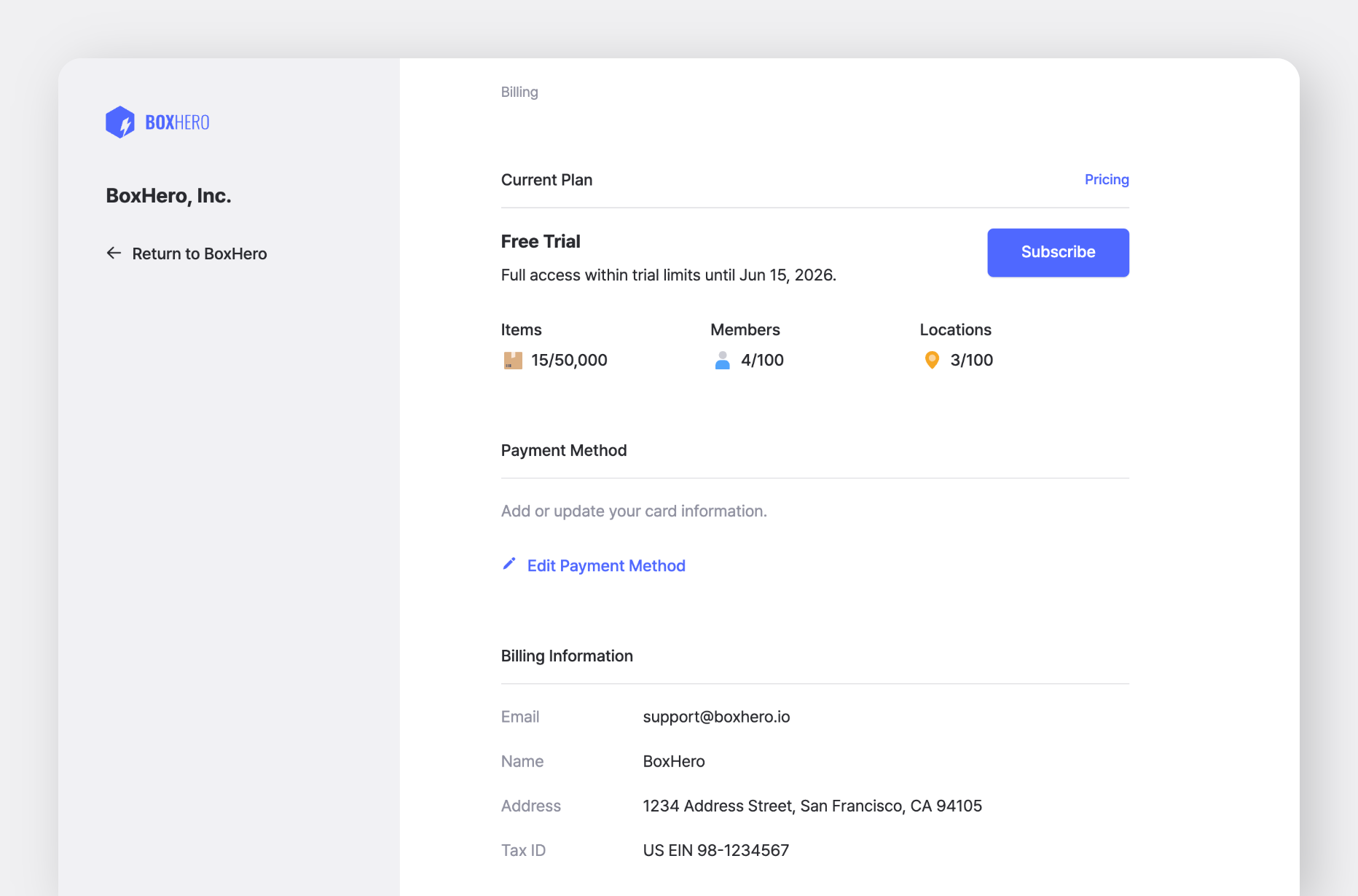
After you’ve tried the features during the free trial and decide to continue, go to **`Settings`** > **`Billing`** to start your subscription.
You can find more details about payments and billing here.
**About your data:** Any data you enter during the free trial *stays* in your account after the trial ends. If you subscribe to the team you used for testing, you can continue using it without interruption.
**If you want to start fresh:** You can reset your test team in one of the following ways:
* Delete all items in the team and contact [Support](https://www.boxhero.io/docs/resources/contact) to reset your transaction history.
* Or create a new team and start with a clean setup.
.png?alt=media)