7 BoxHero Features You're Probably Not Using (But Should Be)

There's a lot tucked inside BoxHero that doesn't get enough attention. Some of these features were added recently, others have been around for a while — but they're easy to miss if you're sticking to the same screens every day.
Beyond the basics, there are plenty of lesser-known tools built to save you time and keep your team on the same page.
Whether you just signed up or you've been on BoxHero for a while, here are seven worth knowing about. 😊
1. Customize Your Team Logo
If you manage multiple BoxHero teams (say, one per store location), you've probably noticed they all default to the same lightning bolt icon. That makes it surprisingly easy to open the wrong team, especially for new hires or team members who don't use BoxHero daily.
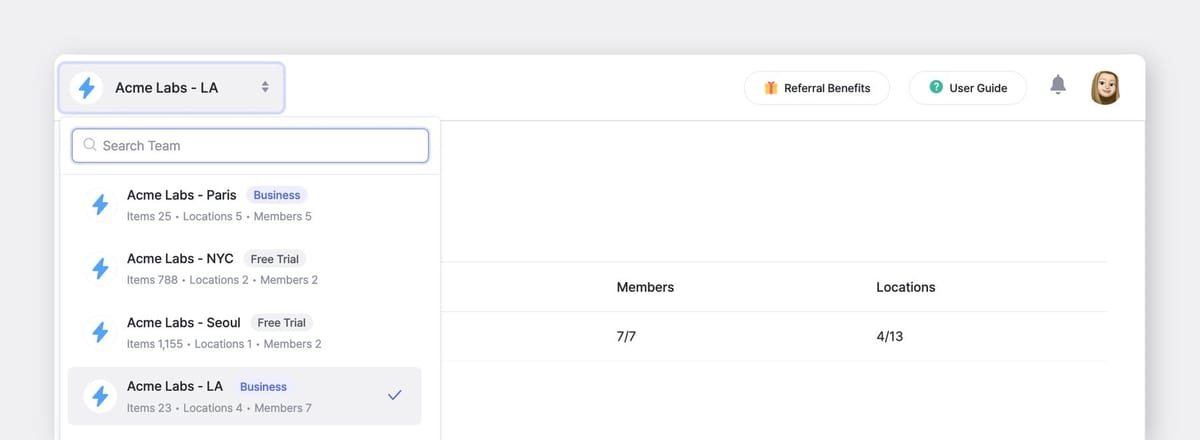
You can fix this in seconds.
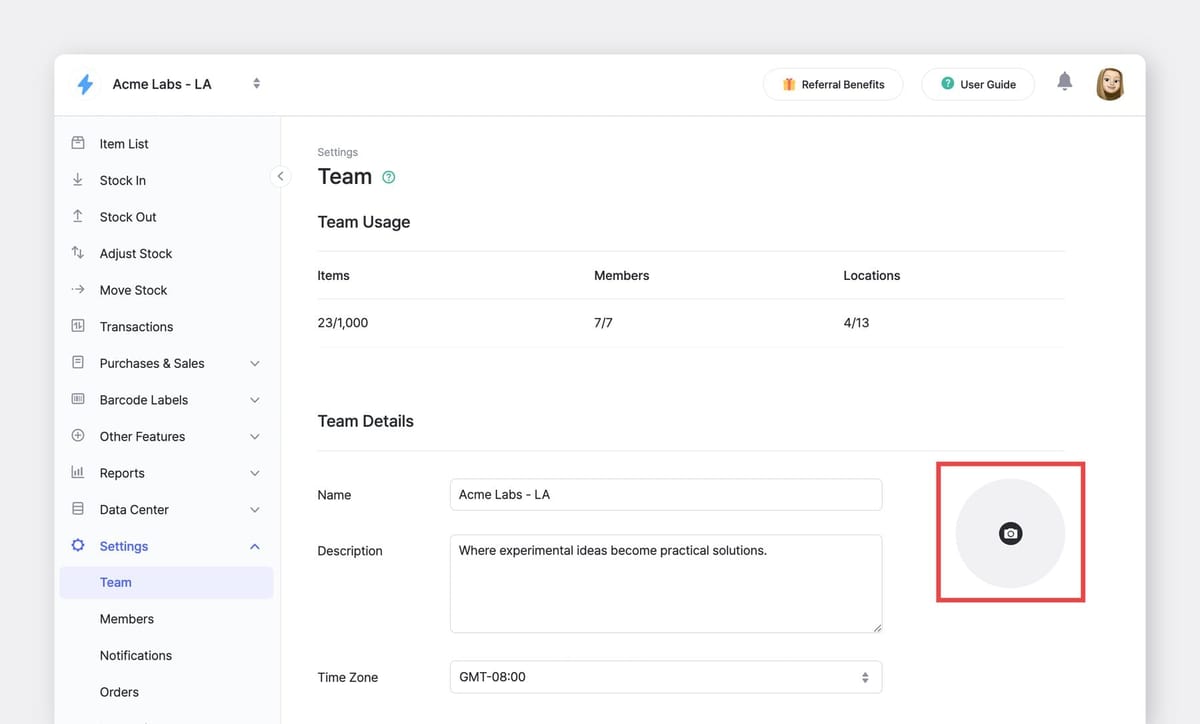
Head to Settings > Team > Team Details and upload a unique logo for each team. It's a small change, but it makes switching between teams far more intuitive and cuts down on accidental mix-ups.
2. Set Display Preferences
BoxHero also lets you customize how key item info appears across your team. To do this, go to Settings > Team > Display Settings.
Set Item Details to Custom, and you'll see a text field where you can build your own display format using item attributes wrapped in {{curly braces}}.
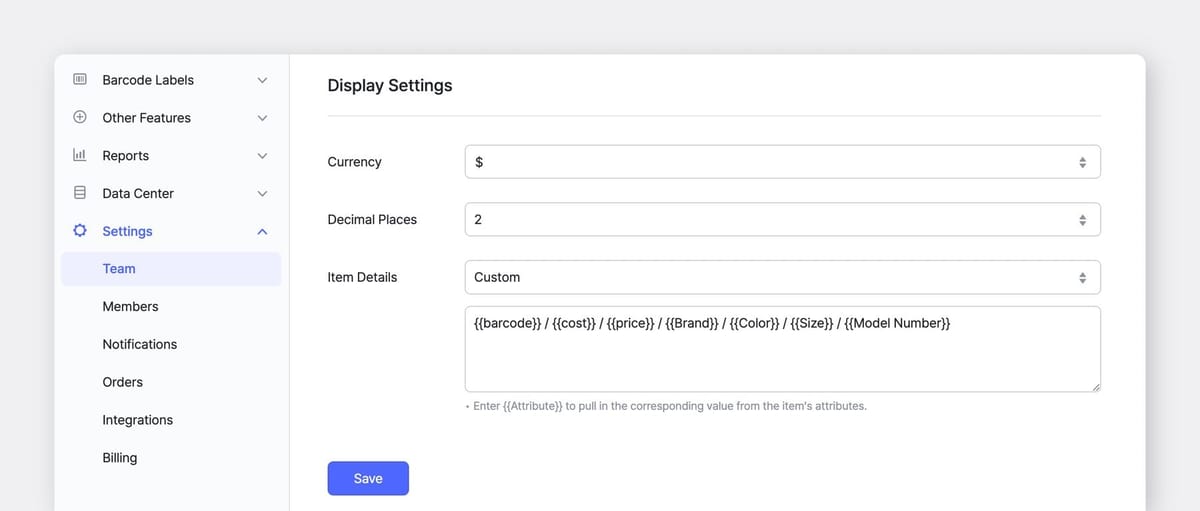
For example, entering {{Price}} / {{Brand}} / {{Color}} / {{Size}} would change how specific details appear in your Item List.
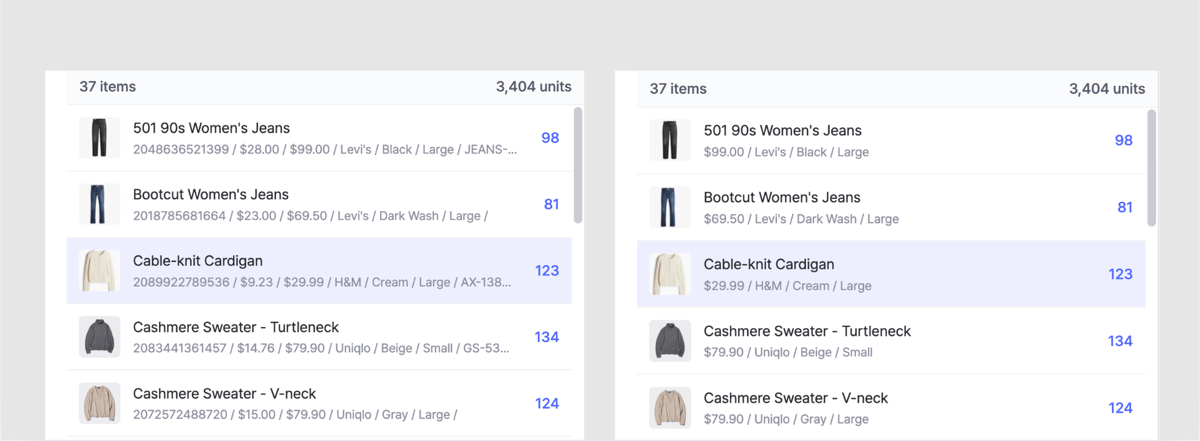
You can also rearrange which attributes appear first — maybe put the barcode number up front, or leave out cost details entirely.
It sounds minor, but when you're scanning a looooooooooong list of items multiple times a day, having the right information front and center saves more time than you'd expect.
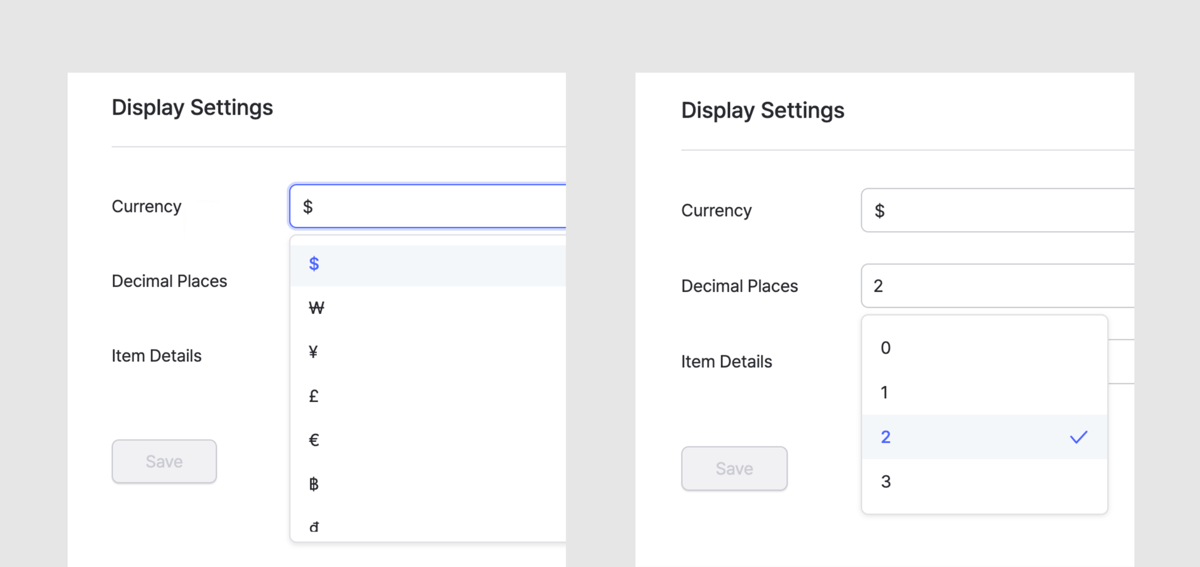
currency and number of decimal places for unit prices. This comes handy if you work with international suppliers or deal with raw materials and fabrics, where pricing gets granular.3. Group Items by Attribute
As your SKU count grows, your item list can get overwhelming. If you're tired of scrolling through hundreds of items to find what you need, here's a quick fix:
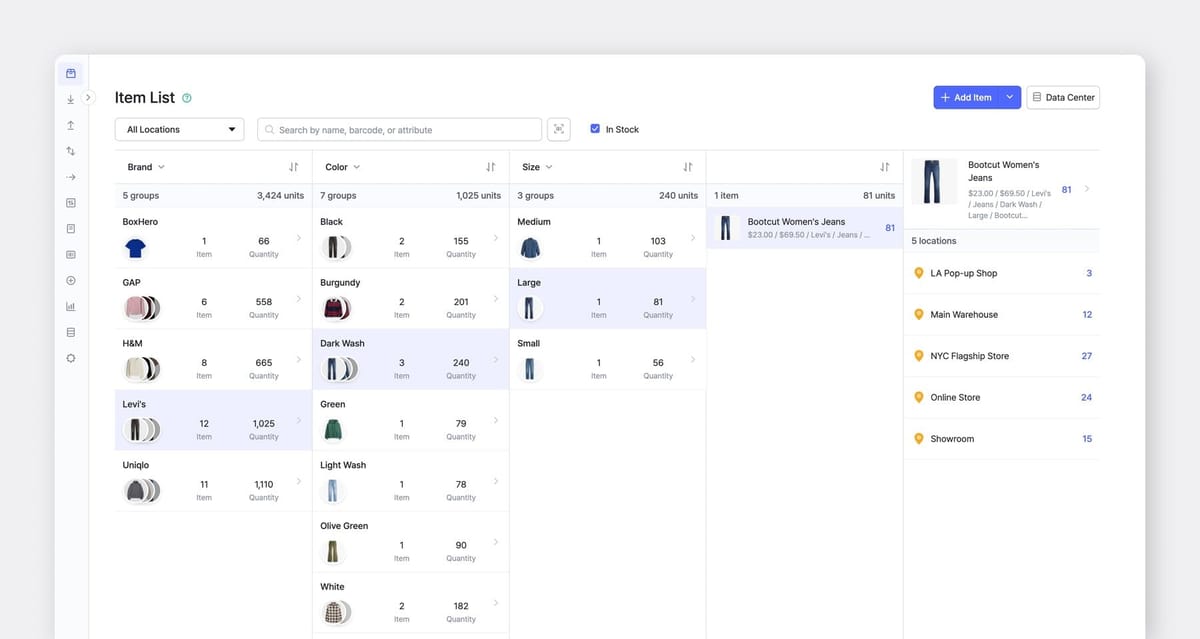
BoxHero's Group by function lets you organize items by attribute, up to three levels deep on the web app (one level on mobile).
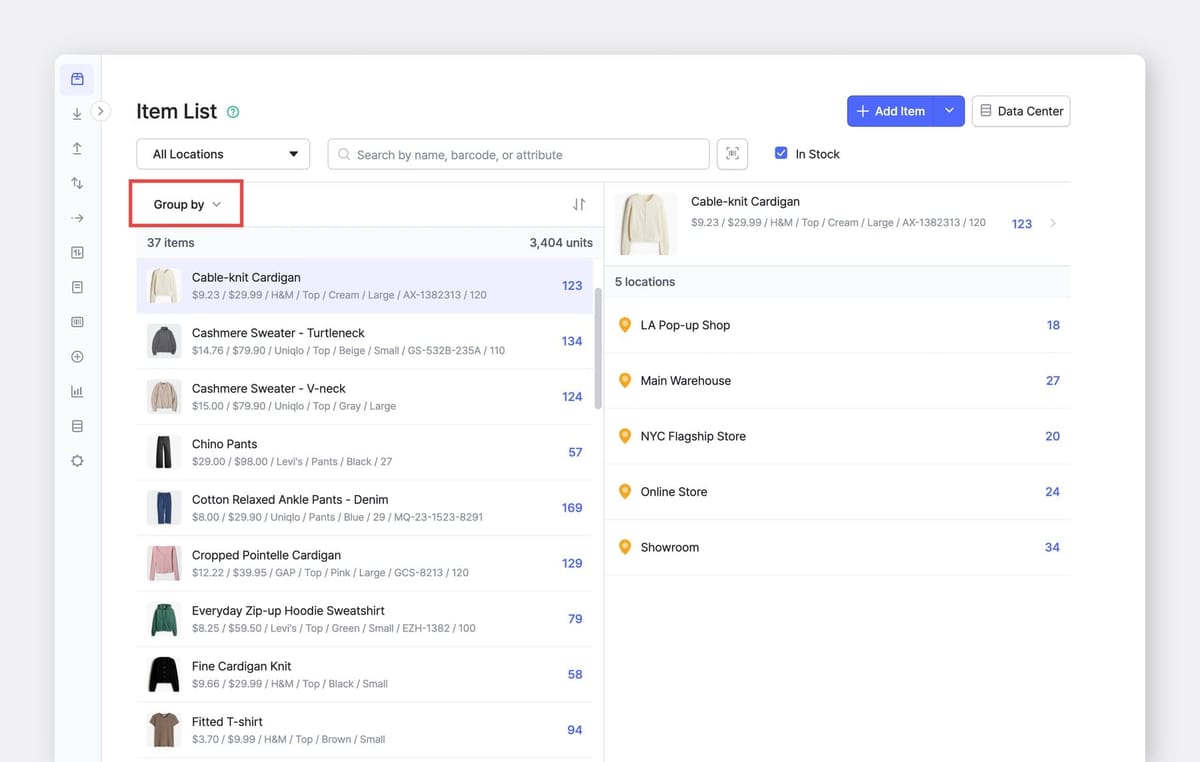
For example, you could group by Brand → Color → Size to instantly drill down to Levi's, Dark Wash, Large and check its stock level.
4. Use Hashtags as Search Filters
Here's another feature that flies under the radar: hashtags in BoxHero work as powerful search filters for your transaction history.
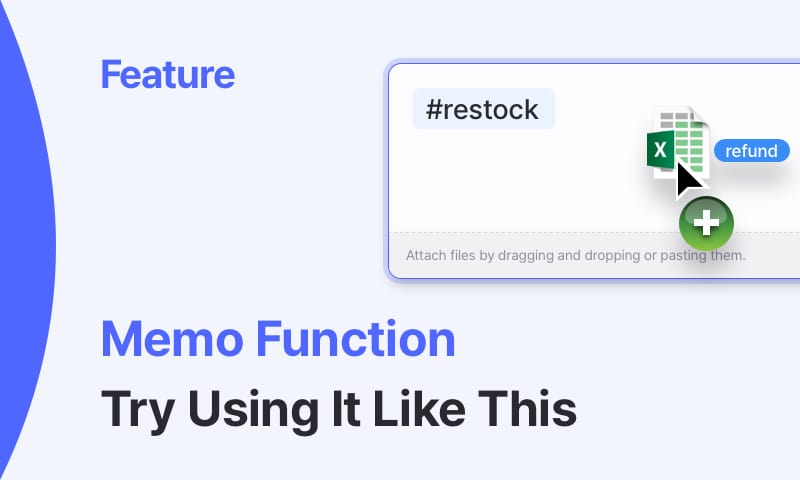
Add tags like #return, #defective, or #hold to the memo field when recording inventory transactions.
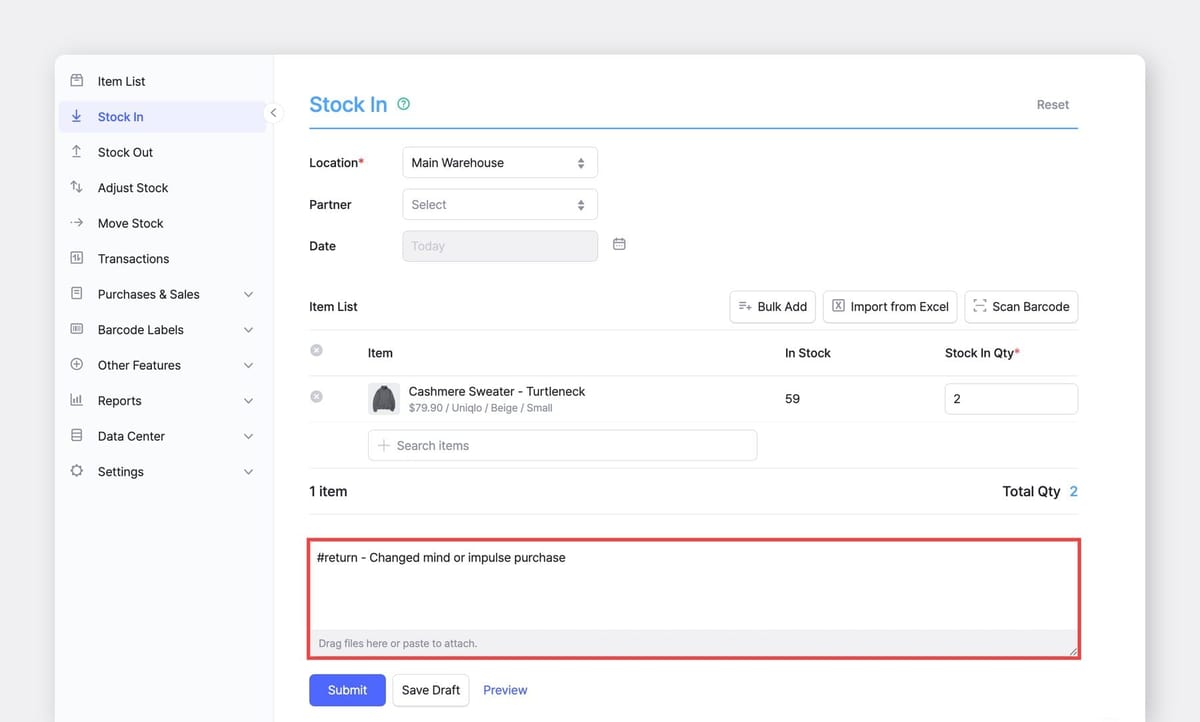
Later, when you need to pull up the relevant returns from the past quarter, go to Transactions > + Add Filter > Tags, and search for #return.
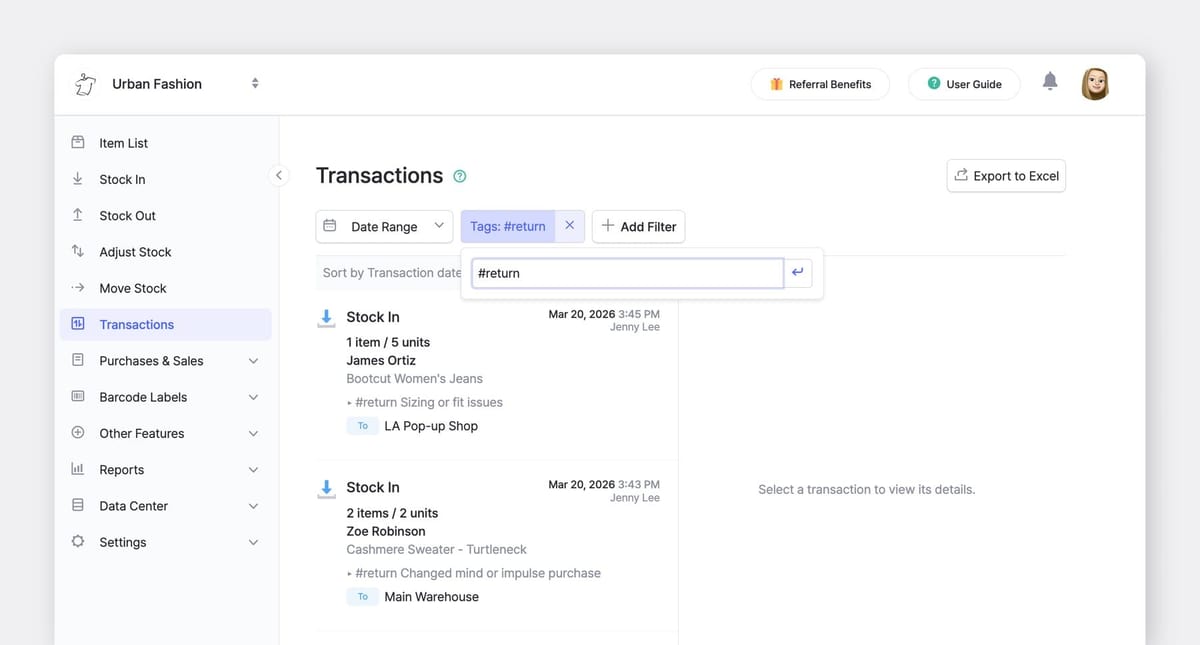
Just like that, you've filtered down to exactly the records you need! It's a simple habit that pays off big when you're auditing, investigating discrepancies, or preparing reports.
5. Manage Items in Table View
Most BoxHero users check inventory through the Item List page. But there's a second view worth knowing about: Data Center > Items.
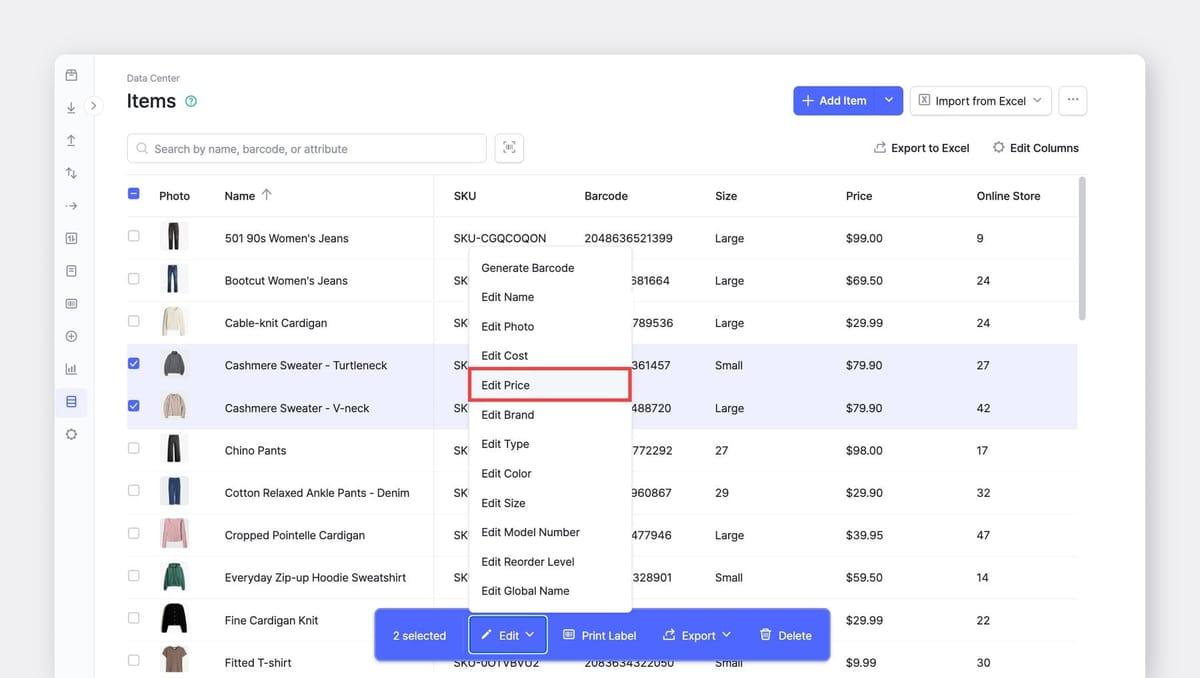
While the Item List is great for a quick visual overview of stock levels, the Data Center view lays everything out in a spreadsheet-style table. You can choose which columns to display, sort by any attribute, and most importantly, select multiple items at once for bulk actions.
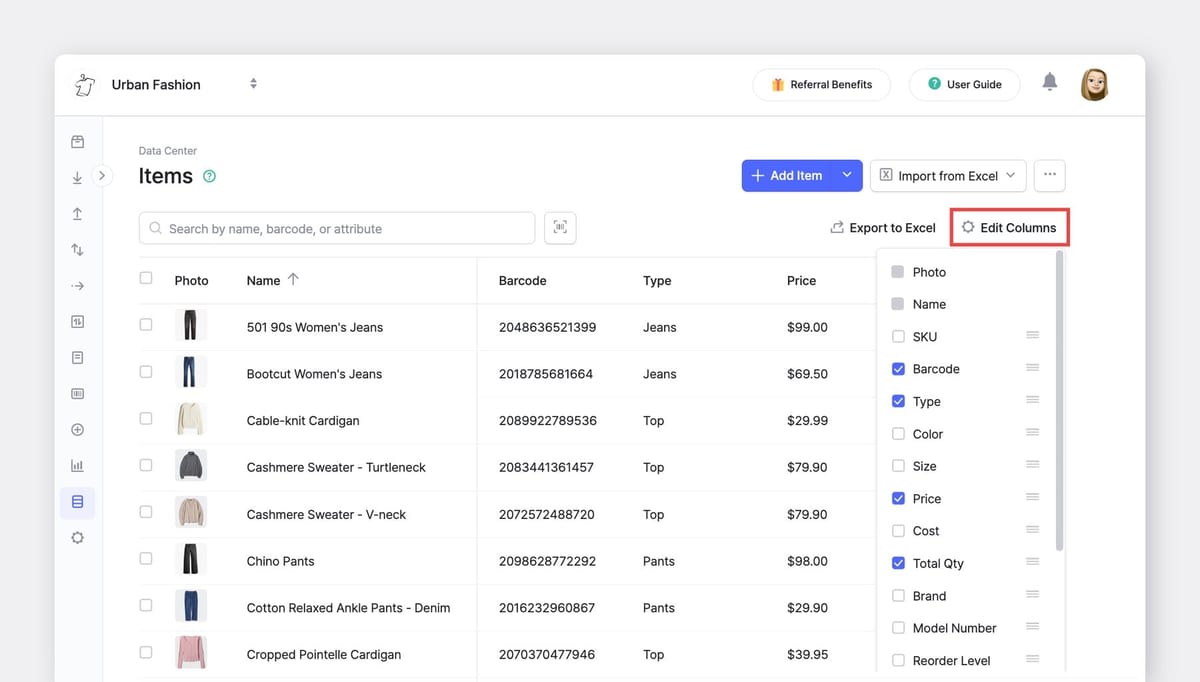
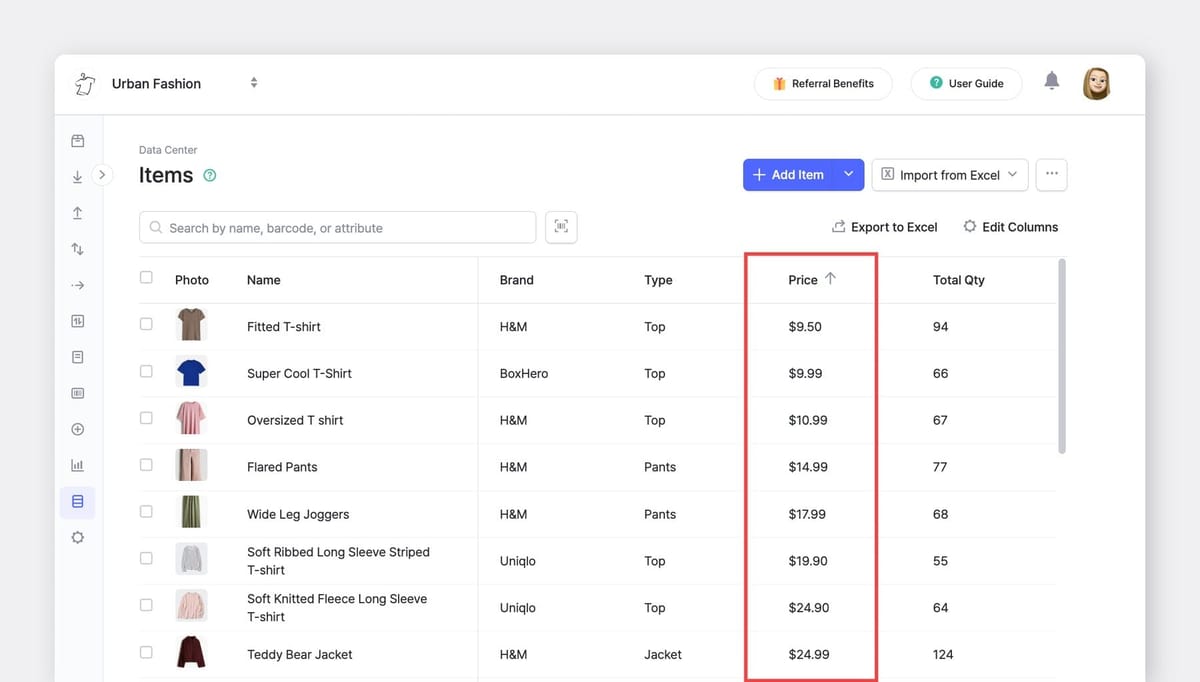
For example, you can print barcode labels for every item that's missing in one go, or update prices across a product line by editing in bulk. It's the fastest way to clean up and maintain your item data directly inside BoxHero.
6. Set Up Personalized Low Stock Alerts
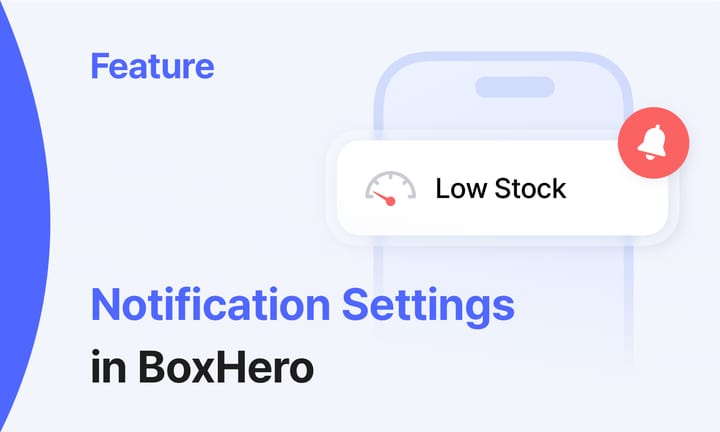
BoxHero can send push notifications to your mobile app when inventory drops below the safety stock threshold. But the default setup sends the same alert to everyone on the team — and that's not always ideal.
In Settings > Notifcations, you can customize alerts on a per-user basis. Choose which inventory location each person monitors, and set individual notification times.
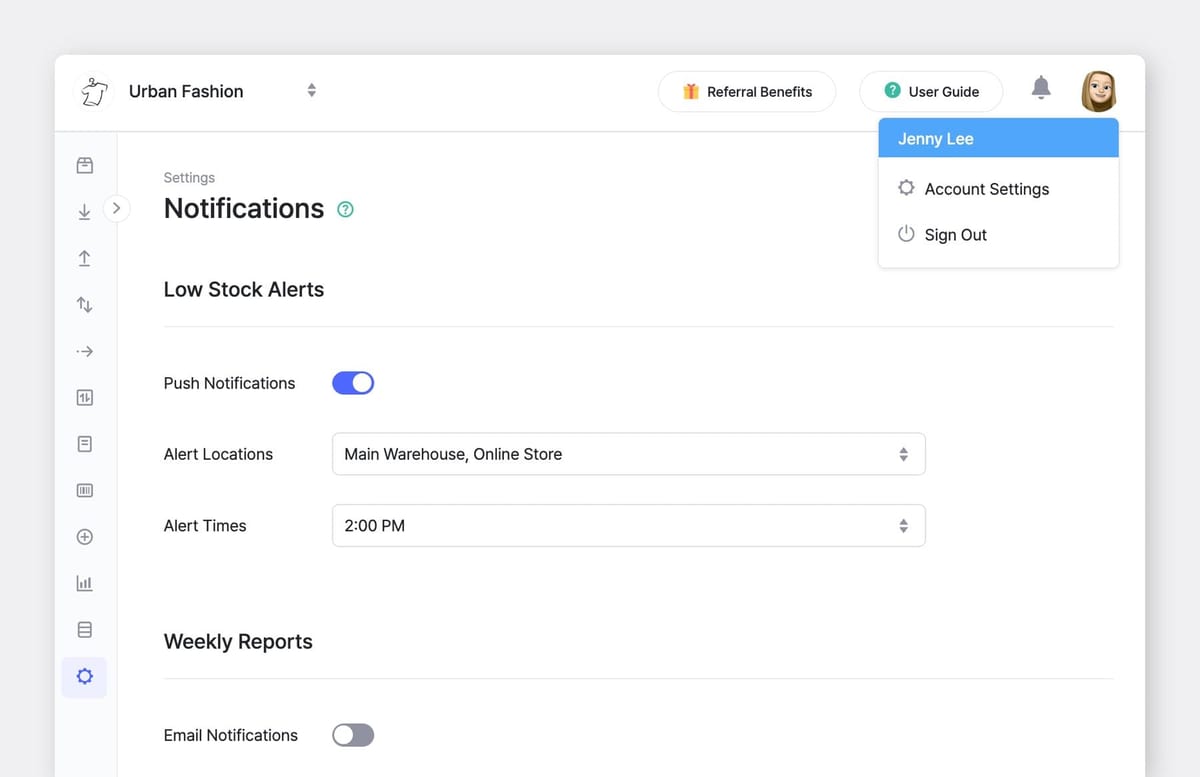
For example, your purchasing manager might get a full inventory alert at 9 AM, while your warehouse lead receives alerts only for their specific location at 2 PM.
7. Share Inventory with External Partners
Last but not least, your partners need real-time visibility into on-site inventory. Suppliers want to check your stock before placing orders, while customers want to confirm availability before buying.
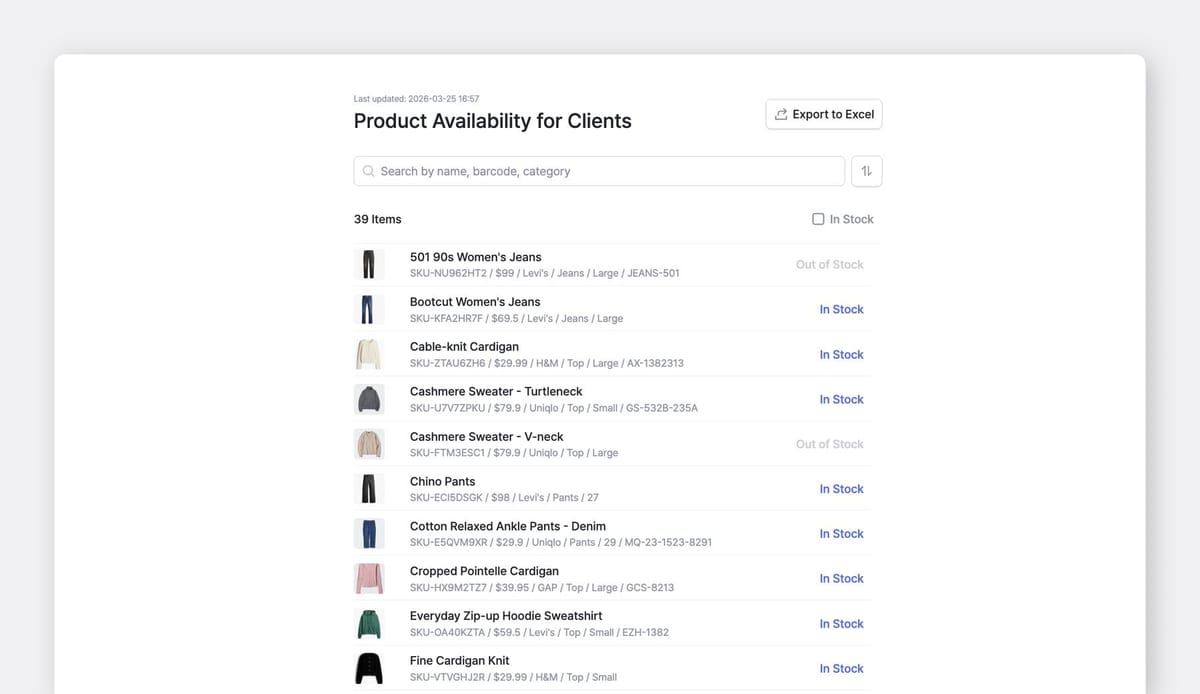
BoxHero's public Inventory Link solves this well. Create a shareable link that shows only the items you choose, with control over which attributes are visible. You can even hide exact quantities and show only in-stock or out-of-stock status.
The link works without a login, so anyone can access it (no BoxHero account required).
Get More Out of BoxHero
You don't need to overhaul your workflow to see results. Even picking up one or two of these features can cut down on repetitive tasks and help your team move faster.
Already using BoxHero? Take five minutes to explore one of these features today. It doesn't take long to set up, and once they're in place, you'll wonder why you didn't turn them on sooner. 😁
RELATED POSTS
 BoxHero
 BoxHero
 BoxHero