Managing Notifications: Inventory Alerts and Weekly Reports
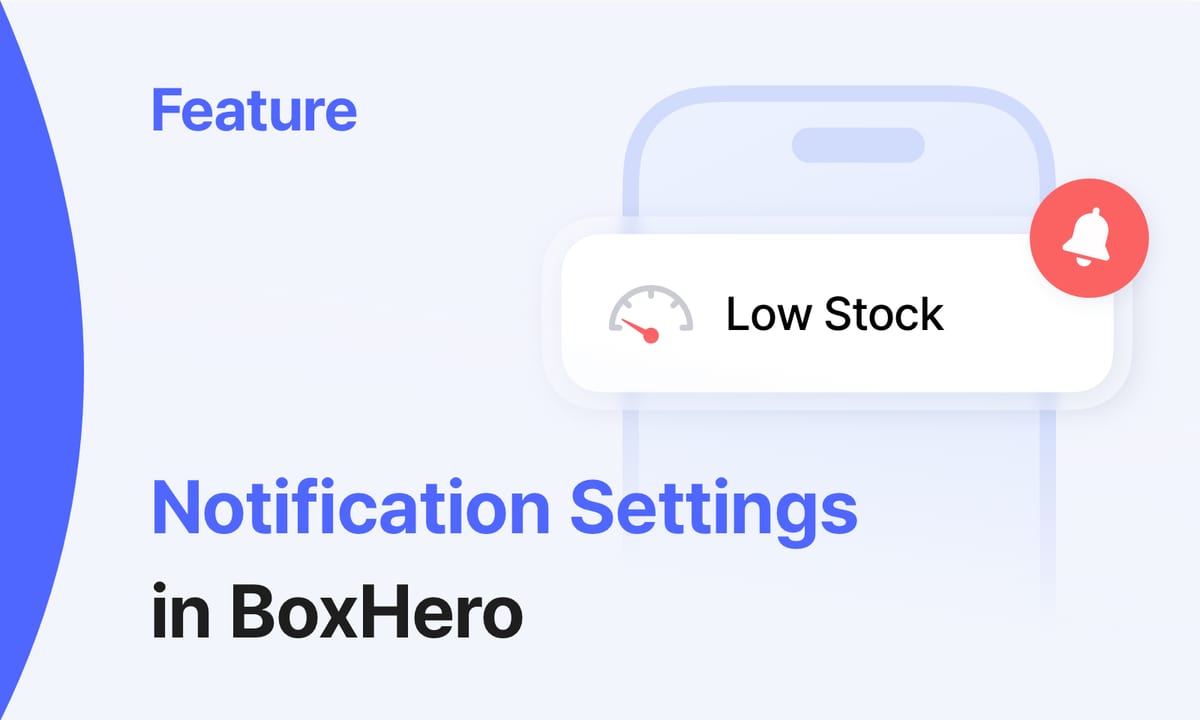
Notifications are easy to ignore when they are poorly timed or too broad. BoxHero’s notification settings are designed to alert you when needed and appropriate, not to flood your inbox or lock screen.
Notifications include Low Stock Alerts with customizable locations and times, plus Weekly Reports that summarize inventory activity. This article explains how BoxHero's notification settings work, how to configure them properly, and how small businesses can use them on a daily basis.
What Notifications Actually Do For You
Large companies have staff who monitor inventory full time, but small businesses don't have that luxury. Notification settings fill that gap by watching stock levels continuously and surfacing changes that require attention.
Proper notifications help prevent two expensive problems:
1. Stockouts
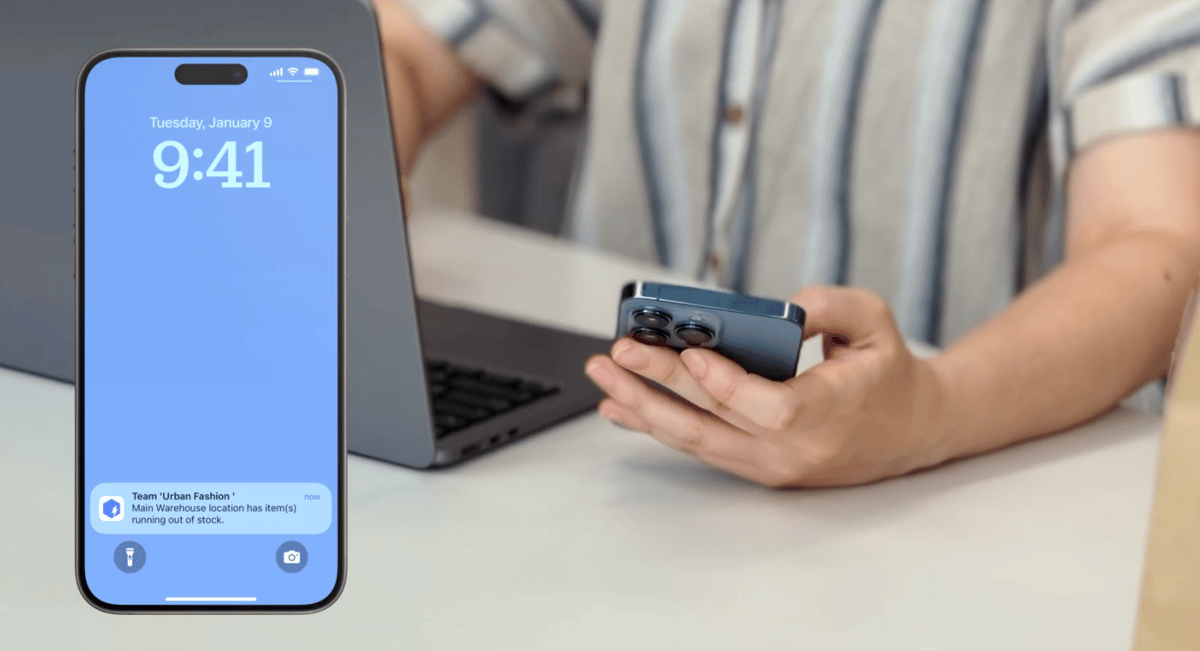
When you run out of an item or product, you lose the immediate sale. Worse, you might lose the customer permanently if they go to a competitor and have a good experience there. Low stock alerts give advance notice so you can reorder in time.
2. Overstocking
Without timely signals, it's easy to over-order. Holding extra stock as a precaution is a common response, but it also ties up your cash in items sitting on shelves. Products might expire, become obsolete, or need to be discounted to clear space.
Understanding Low Stock Alerts
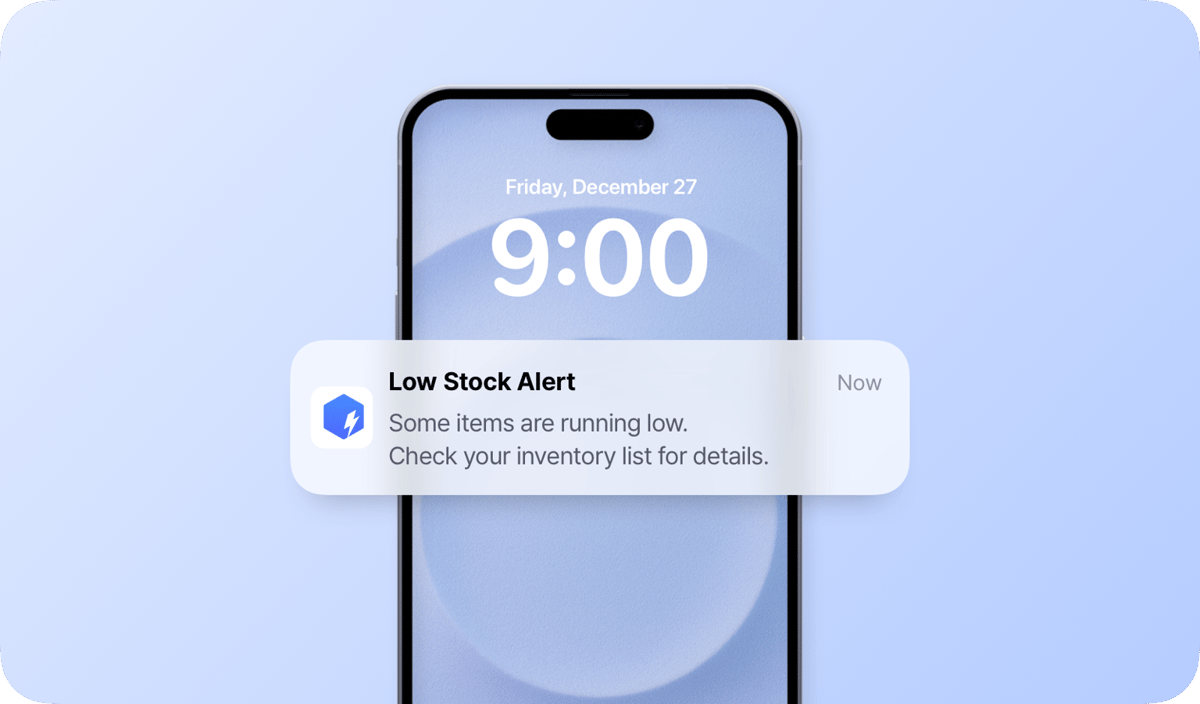
BoxHero's Low Stock Alerts tell you when items are running low before you run out completely. They give you time to reorder from suppliers and avoid stockouts that cost you sales.
The key is setting these alerts at the right threshold. If you set them too high, you'll get alerts when you still have plenty of stock. Set them too low, and you won't have enough time to reorder before running out.
Setting Your Alert Thresholds
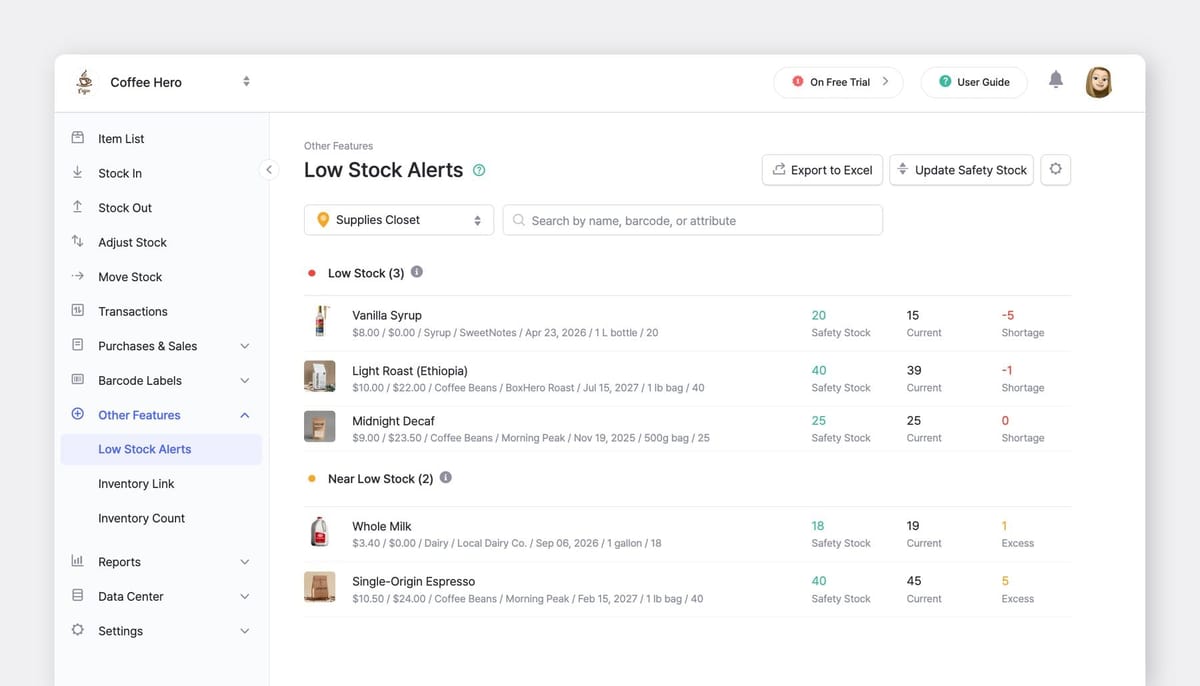
BoxHero calculates low stock based on the "safety stock level" you set for each item. Safety Stock is the minimum quantity you want to maintain at all times. When your current stock falls below this number, you'll receive an alert.
For example, if you sell coffee beans and typically go through 50 bags per week, and your supplier takes one week to fulfill orders, you might set your safety stock at 60 bags. This leaves room for demand changes or delivery delays.
Think about these factors when setting safety stock levels:
- Lead time from suppliers. How long does it take from placing an order until the item or product arrives at your location? Include processing time, shipping time, and any customs clearance if importing.
- Sales rate. How quickly do you sell through this item? Look at your transaction history to find the average daily or weekly sales rate.
- Demand variability. Does this item sell at a steady rate, or do you see spikes? Items with unpredictable demand need higher safety stock.
- Storage costs. Items that are expensive to store or that expire quickly should have lower safety stock levels.
 Heehong Moon
Configuring Push Notifications for Low Stock
Push notifications are used for low stock alerts because they are time-sensitive. These alerts appear through the BoxHero mobile app.
To enable them:
- Go to
Settings>Notifications. - In the
Low Stock Alertssection, turn onPush Notifications.
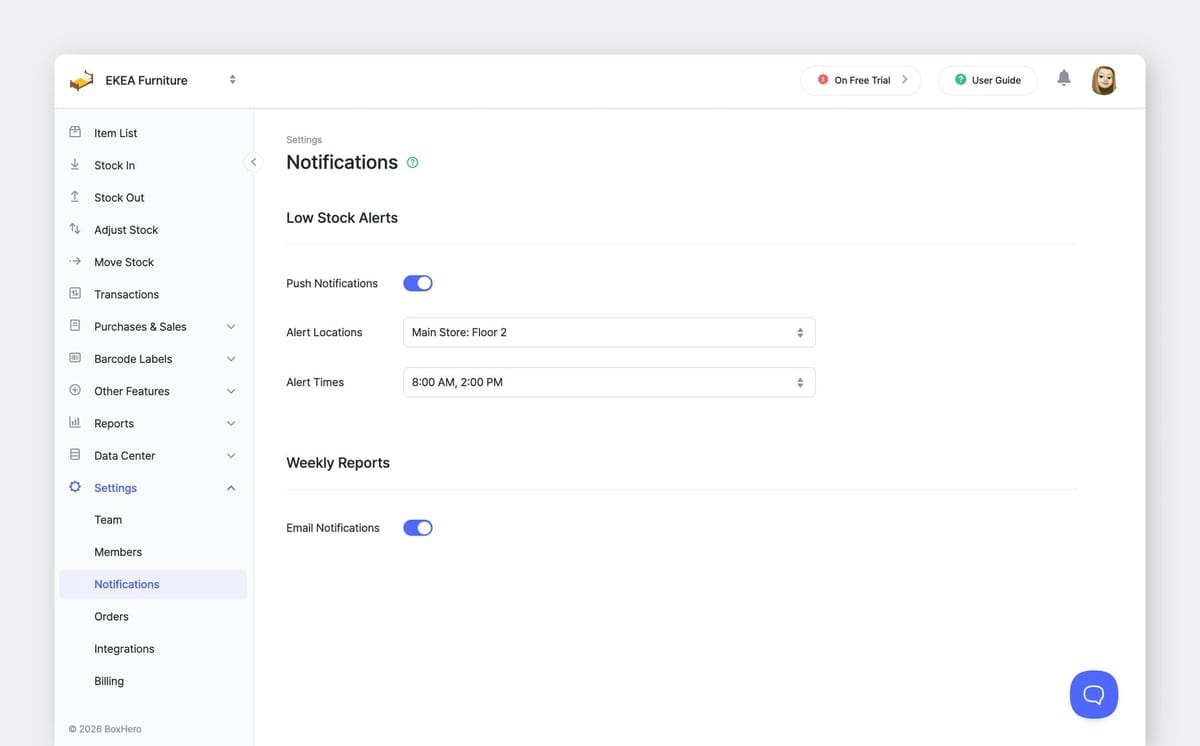
The push notification toggle controls whether low stock alerts appear on the user’s device. Turning it off does not disable alert tracking. It only stops delivery to that device.
➤ Choosing Alert Locations
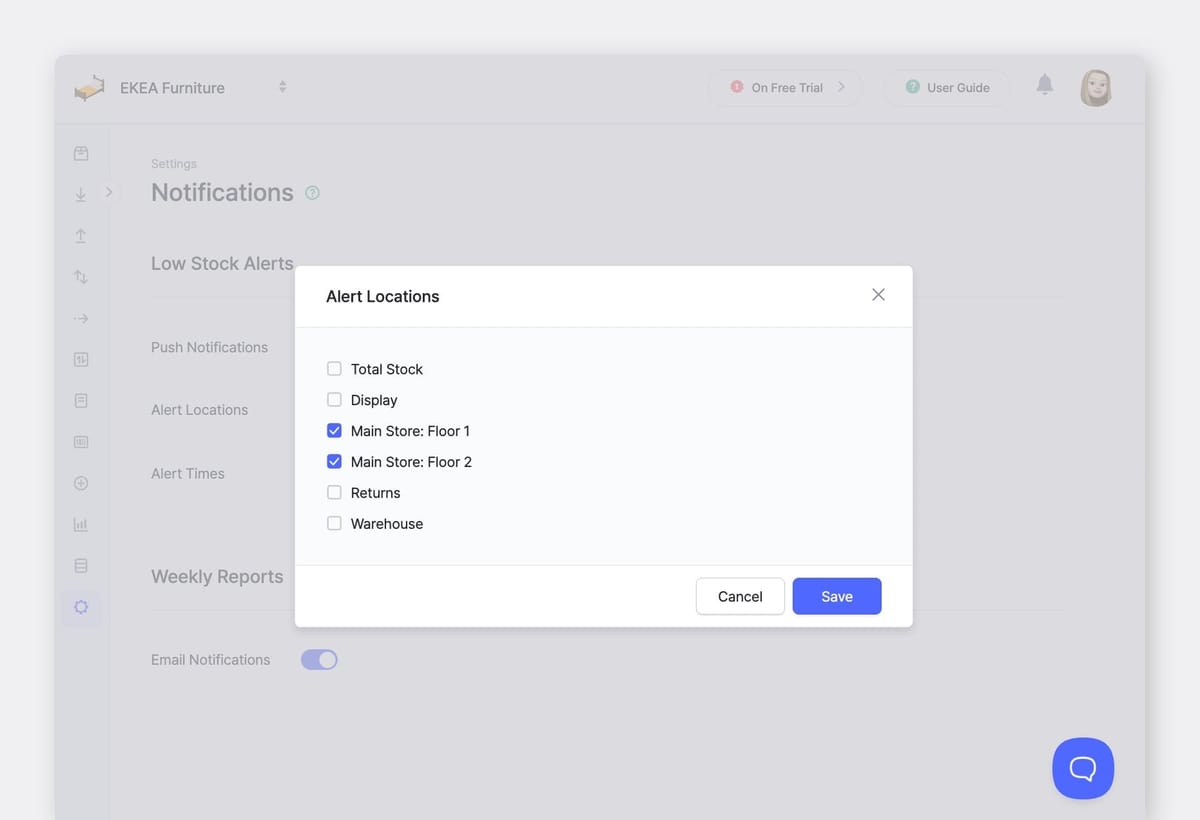
Not every location needs the same notification settings. You might want alerts for your main retail store but not for a warehouse that you check daily anyway.
BoxHero lets you select which locations trigger notifications. Click on Alert Locations and select one or more locations from your list.
For instance, if you manage a furniture store with inventory on Floor 1 and Floor 2, you might want alerts for Floor 2 where you keep overflow stock, but not for Floor 1 where you see inventory levels throughout the day.
➤ Setting Alert Times
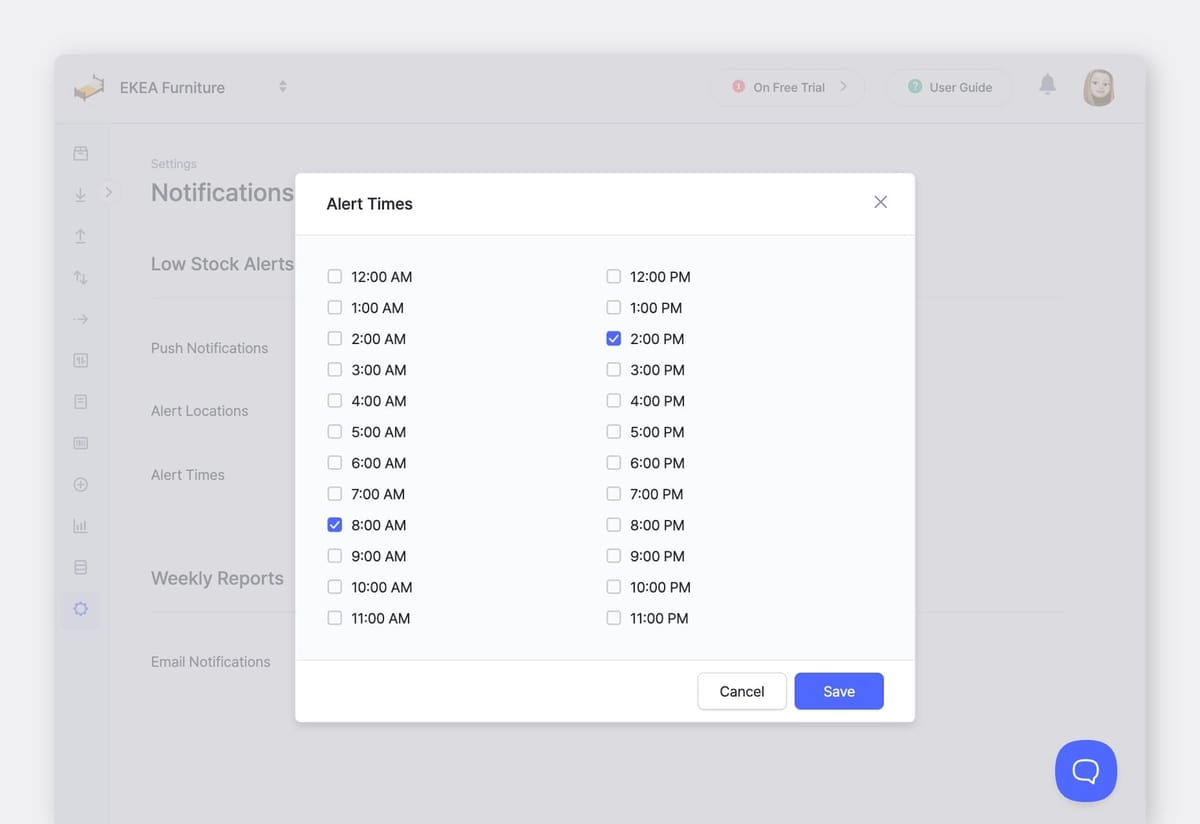
Receiving low stock alerts at 3 AM doesn't help anyone. BoxHero lets you choose specific times when you want to receive these notifications.
Click on Alert Times to open a dialog showing hourly time slots throughout the day. Select the times that work for your review routine. Many businesses choose morning times like 8:00 AM or 9:00 AM to review alerts at the start of the workday, and afternoon times like 2:00 PM to catch any urgent situations.
Alerts are grouped and delivered at those times rather than sent instantly for every change. This reduces repeated alerts for the same item and avoids late-night notifications.
Weekly Email Reports
Weekly reports provide a scheduled overview of inventory activity. They are sent by email and are intended for review rather than immediate action.
These reports show you how many items you received, how many you shipped, and what your current stock levels look like.
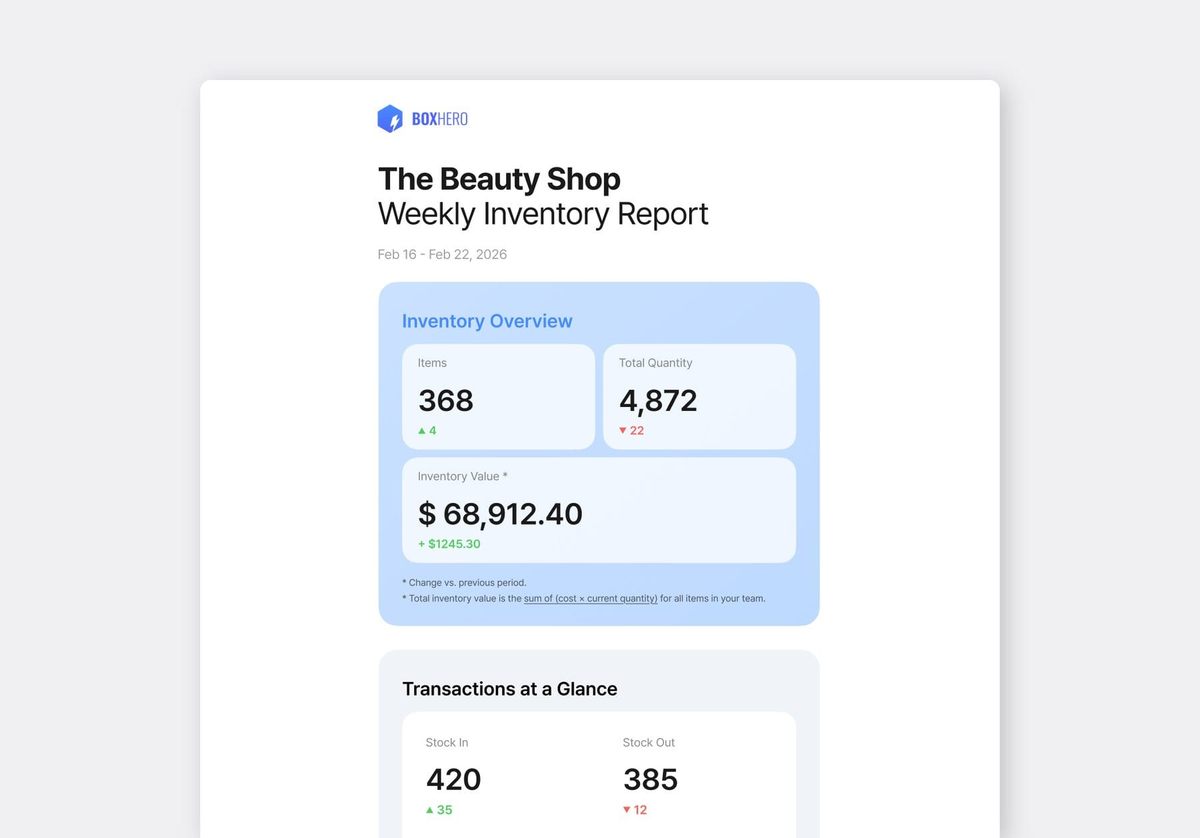
The Weekly Report summarizes your team's:
- Inventory valuation
- Total quantity changes
- Activity summary
- Top moving items
➤ Enabling Weekly Reports
In Settings > Notifications, scroll down to the Weekly Reports section.
Toggle on Email Notifications to start receiving these reports.
The reports arrive in your inbox once per week, giving you a regular checkpoint to review inventory performance.
➤ Updating Your Email Address
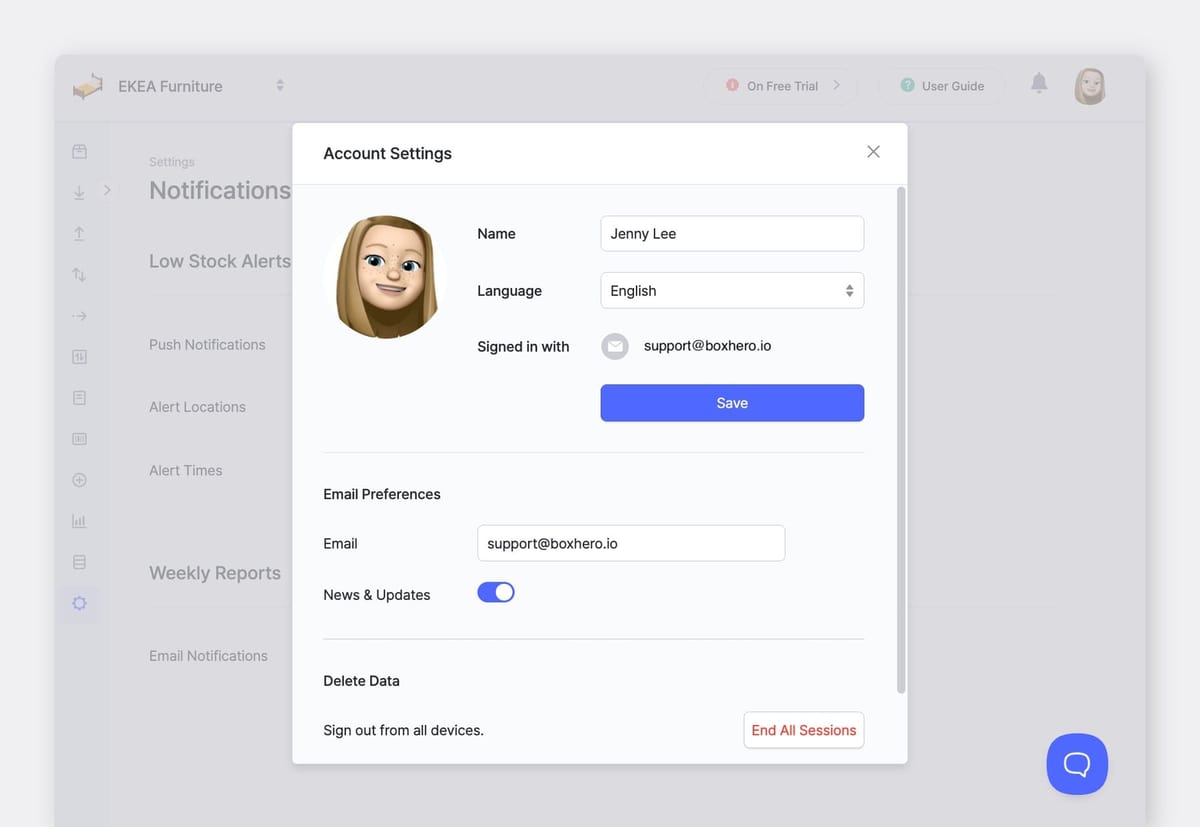
By default, weekly reports are sent to the admin account email (i.e. the email address used to sign up). If you're a team admin and want reports sent to a different address, you can change this in your account settings:
- Click on your
Profileicon in the top right corner. - Select
Account Settingsfrom the dropdown menu. - Update the email under
Email Preferences. - Click
Save.
Push Notifications vs. Email
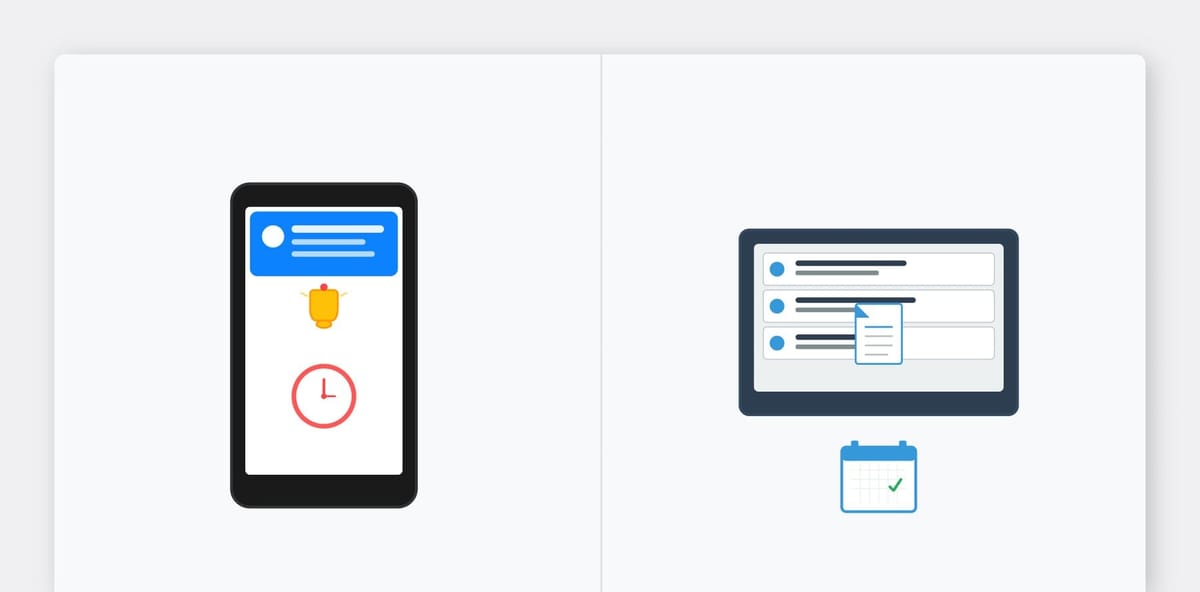
- Push notifications are used for short, time-sensitive messages. They appear on devices where the BoxHero app is installed.
- Email reports are used for summaries that team admins review at their convenience. These are sent every Monday morning.
Troubleshooting Notification Issues
If you're not receiving notifications you expect, check a few common issues.
- Make sure notifications are actually enabled in the BoxHero settings. It's easy to accidentally toggle them off. 😅
- Check your device notification settings. Your phone might be blocking BoxHero notifications. Make sure BoxHero has permission to send notifications.
- For email notifications, check your spam folder. Email filters sometimes catch automated reports. If you find BoxHero emails in spam, mark them as "not spam" so future emails go to your inbox.
- Verify your email address in account settings is correct and that you have access to that inbox.
Common Notification Mistakes to Avoid

1. Turning On Every Location
Selecting all locations often leads to alerts that do not require action. Alerts should point to places where stock decisions happen.
2. Choosing Too Many Alert Times
Hourly alerts can become repetitive. Fewer, well-timed alerts are easier to act on.
3. Ignoring Safety Stock Values
Alerts rely on safety stock numbers. If these values are outdated, alerts lose meaning. Reviewing safety stock regularly keeps notifications accurate.


Summary
Notification settings are most useful when they actually help you catch problems early. With BoxHero, you can choose specific alert times, limit locations, and separate alerts from reports to stay informed.
Take 10 minutes to configure your notification settings properly. Adjust them as you learn what works for you and your team. The time investment pays off in fewer stockouts, less excess inventory, and significantly less mental overhead.
RELATED POSTS
 Nahi Kim
 BoxHero
 Heehong Moon