Sales Orders: Managing Customers, Invoices, and Shipping Status
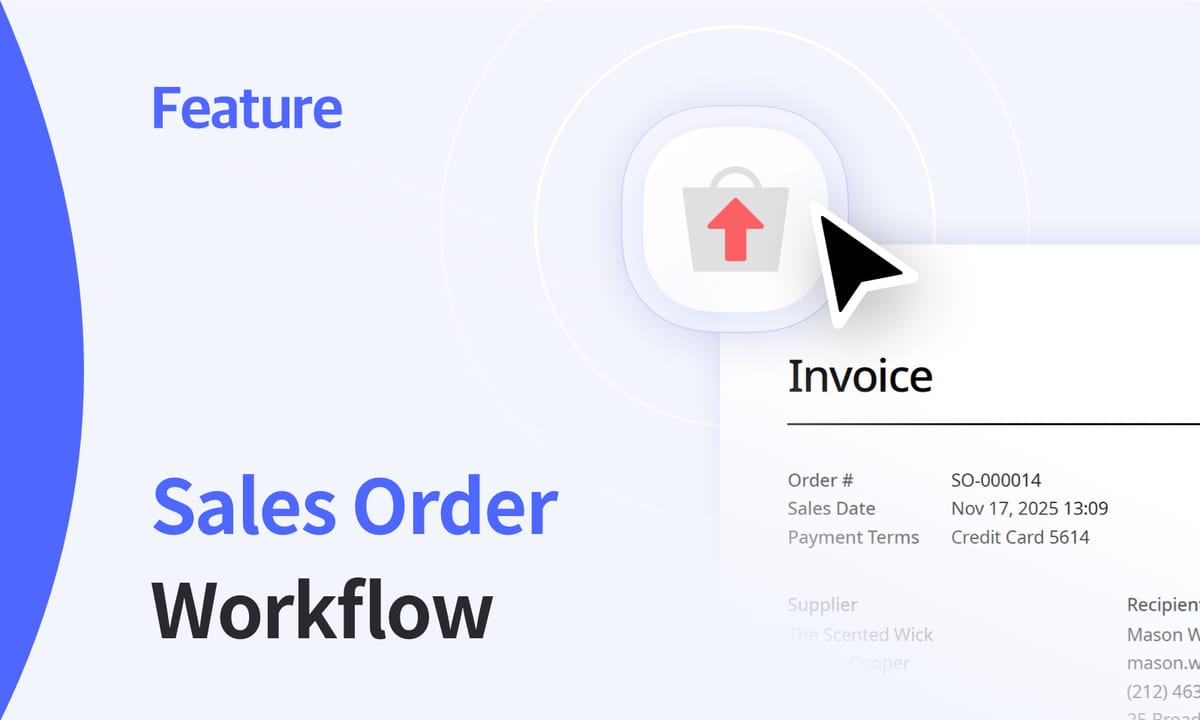
When a customer places an order, it triggers a chain of tasks: verifying stock, creating the sales order, issuing an invoice, picking and shipping items, and finally recording revenue.
How do you what’s been confirmed, what’s shipped, and what’s still waiting?
BoxHero’s Purchases & Sales feature brings your orders and inventory together in one place. You can create sales orders, update shipment status, and track everything from "Draft" to "Shipped."
This guide walks through how to manage sales orders (SOs) in BoxHero, what each status means, and how you can keep your records organized across both web and mobile – let's jump right in!
Getting Started in BoxHero
Before you create your first sales order, check that your basic setup is ready.
Add Your Items and Customers
- Go to your
Data Center>Itemsand make sure everything you sell is listed with a clear name, SKU, and unit price. - Then open
Data Center>Partnersto add your customers. Having them set up here helps keep everything ready when you create future sales orders.
![Adding new customers in BoxHero via [Data Center] > [Partners]](https://ghost-image.boxhero.io/https://storage.ghost.io/c/4b/67/4b6787eb-0e31-45ef-84f2-0fabf4806216/content/images/2025/11/desktop-partners.png)
Check User Roles and Permissions
If you have a few people sharing the same BoxHero team, assign user roles so the right people can view or edit orders. For example, someone packing boxes might only need to mark shipments, while a manager can edit prices or issue invoices.
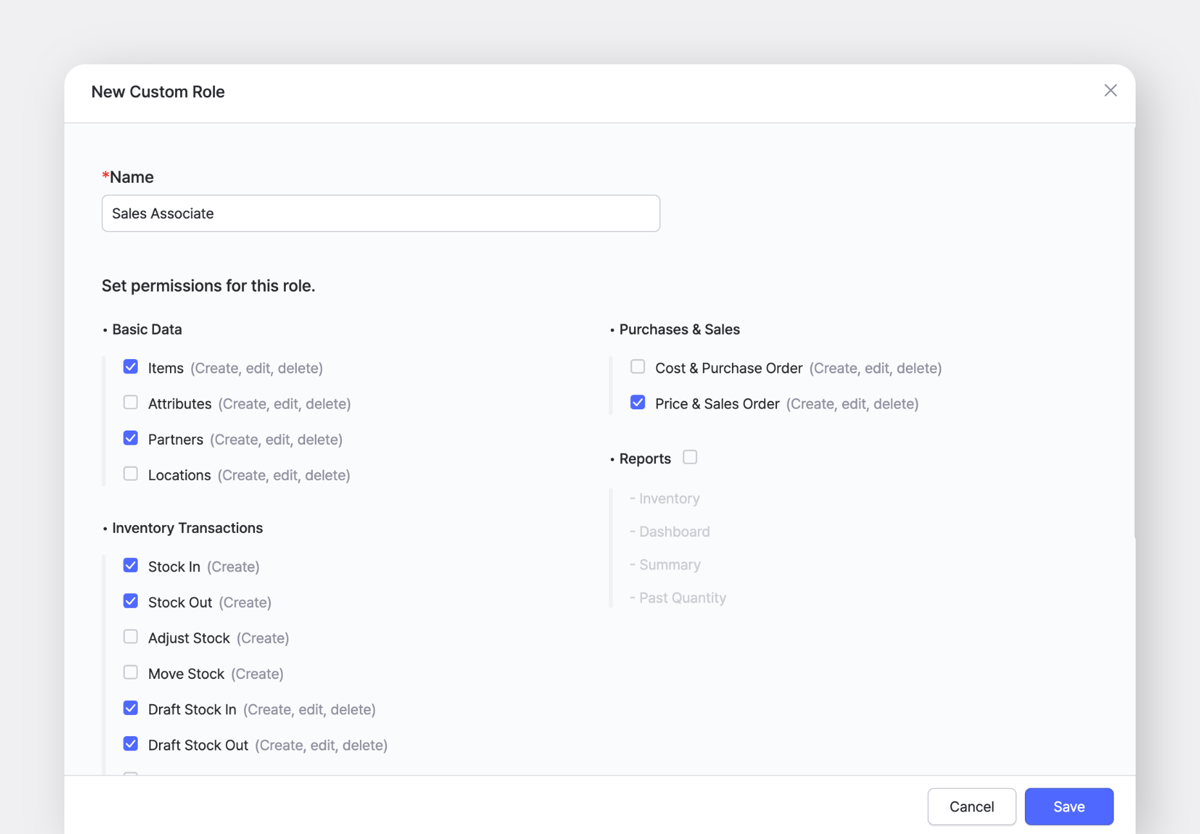
How to Manage Sales Orders in BoxHero
Once everything’s ready, you can handle your sales orders right from the Purchases & Sales tab.
1. Create a New Sales Order
- On Desktop (Web):
Open the left-hand menu, selectSales, and click+ Create Sales Order.

- On Mobile (App):
From the home screen, select the Sales section, tap the+icon.
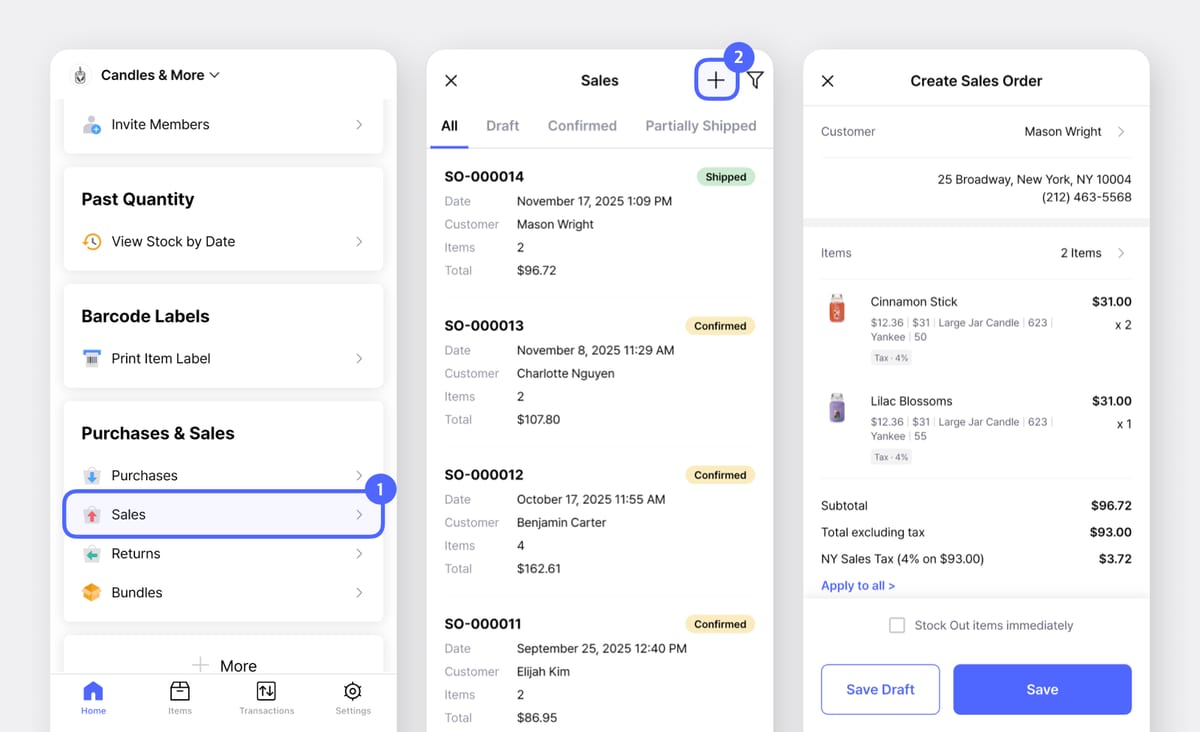
Then fill in:
- Customer: Choose from your partner list or add a new one.
- Order #: Use your preferred numbering format (e.g., SO-001234).
- Order Date: The date the order was placed.
- Ship Date: Optional, for when you expect shipping.
- Memo: Optional, any internal notes like special packaging or instructions.
Partners beforehand, their contact details (phone, email, and address) will automatically fill in when you select them.2. Add Items and Quantities
Use the item search bar to find what’s being sold and enter the quantity and unit price. BoxHero automatically calculates the subtotal, taxes, discounts, and total so you can check everything before confirming.
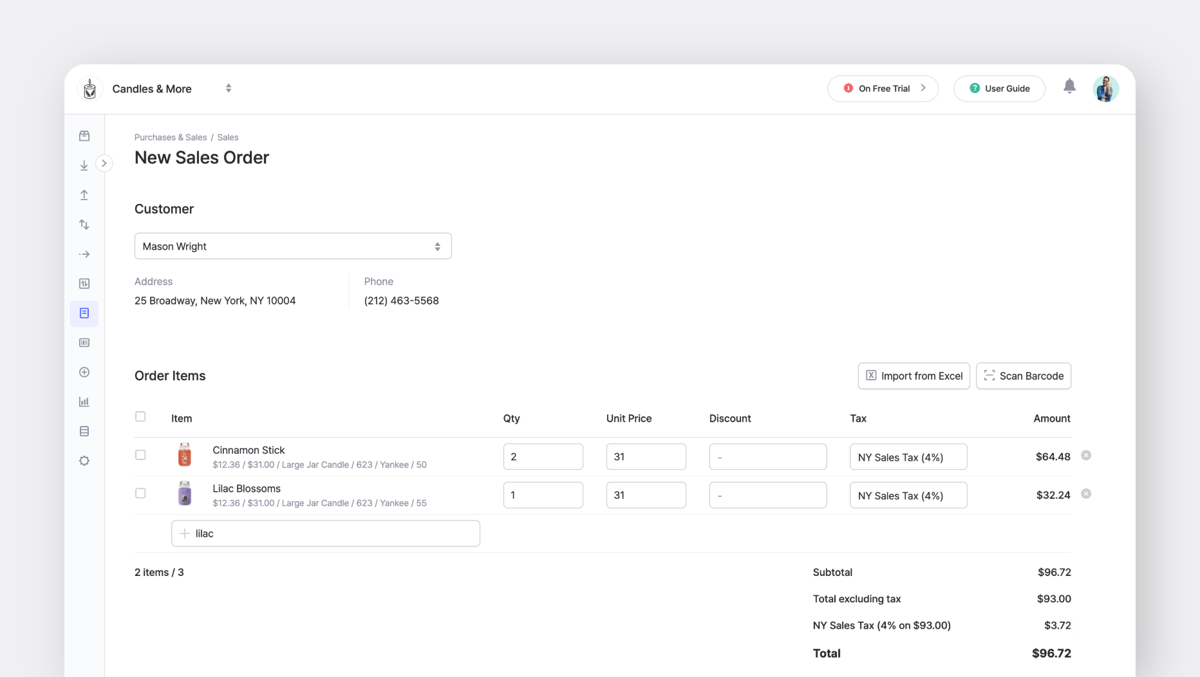
You’ll see a summary showing:
- Subtotal
- Total excluding tax
- Taxes (if applicable)
- Final total
What are custom fields?
If you add the same details to most of your orders, you can save them as Custom Fields. This is helpful for things like payment terms, tax IDs, customer account numbers, or any information your team needs to reference while preparing an order.
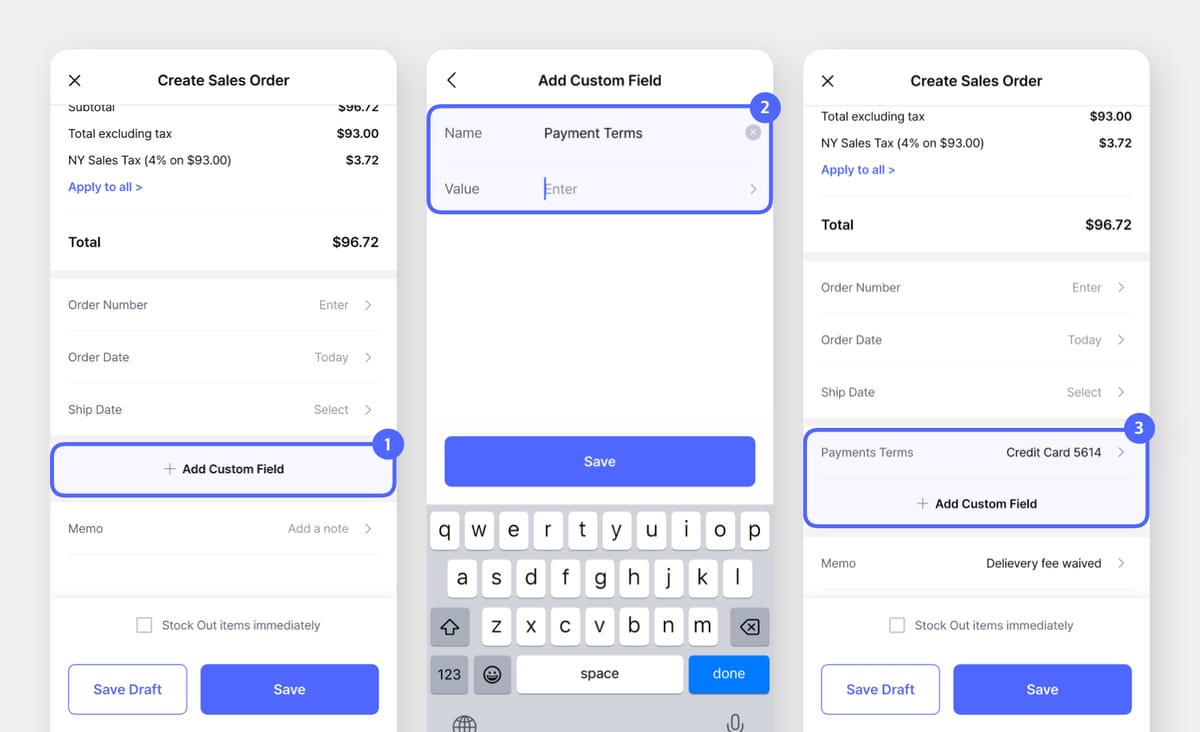
When you print or email an order, these fields appear automatically. Here are a few examples of what you might store as a custom field:
| Field name | Example |
|---|---|
| Contact person | Jane Smith |
| Phone number | (555) 234-9876 |
| jane@example.com | |
| Customer ID | SMITH-1024 |
| Delivery address | 245 Market St, San Francisco, CA 94103 |
| Tax ID | 12-3456789 |
| Payment terms | Net 15 |
| Bank details | Chase Bank • Routing # 021000021 |
3. Save and Set the Order Status
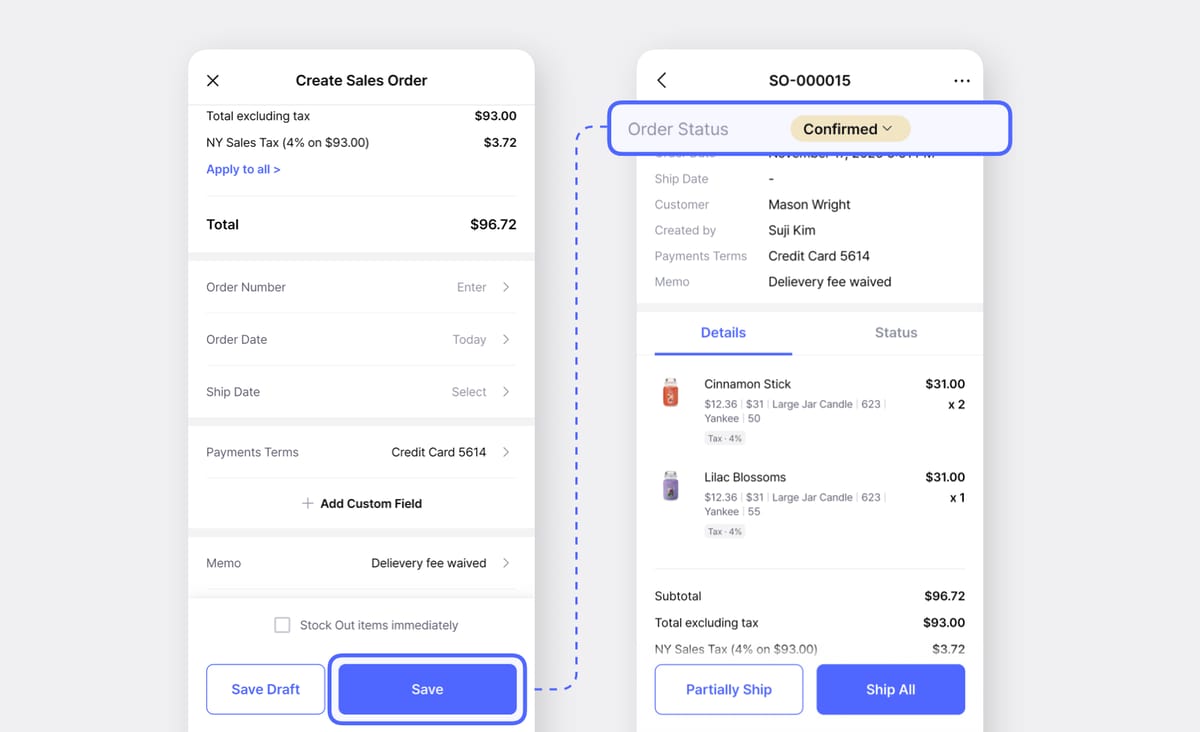
Once everything looks right, you can choose how to save the order depending on its stage.
- Save Draft: Keep it as a Draft if you’re still waiting on customer confirmation.
- Save: Once confirmed by the customer, mark it as Confirmed.
- Stock Out Immediately + Save: If you’ve already shipped the items, you can choose this option. The order status changes to Shipped and BoxHero will update your inventory.
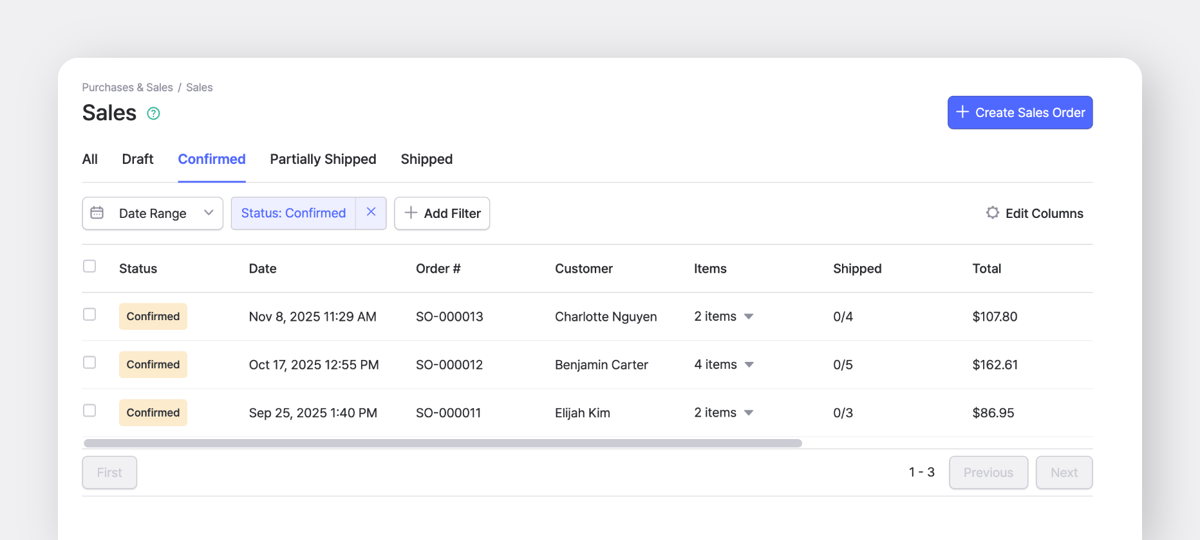
BoxHero shows each stage clearly in the Sales Order list, so you can see which orders are new, confirmed, or shipped at a glance.
Sales Order Status:
| Status | Description |
|---|---|
| Draft | Created but not yet confirmed with the customer. |
| Confirmed | Confirmed order, but no items shipped yet. |
| Partially Shipped | Some items have shipped; others are pending. |
| Shipped | All items have shipped; inventory updated. |
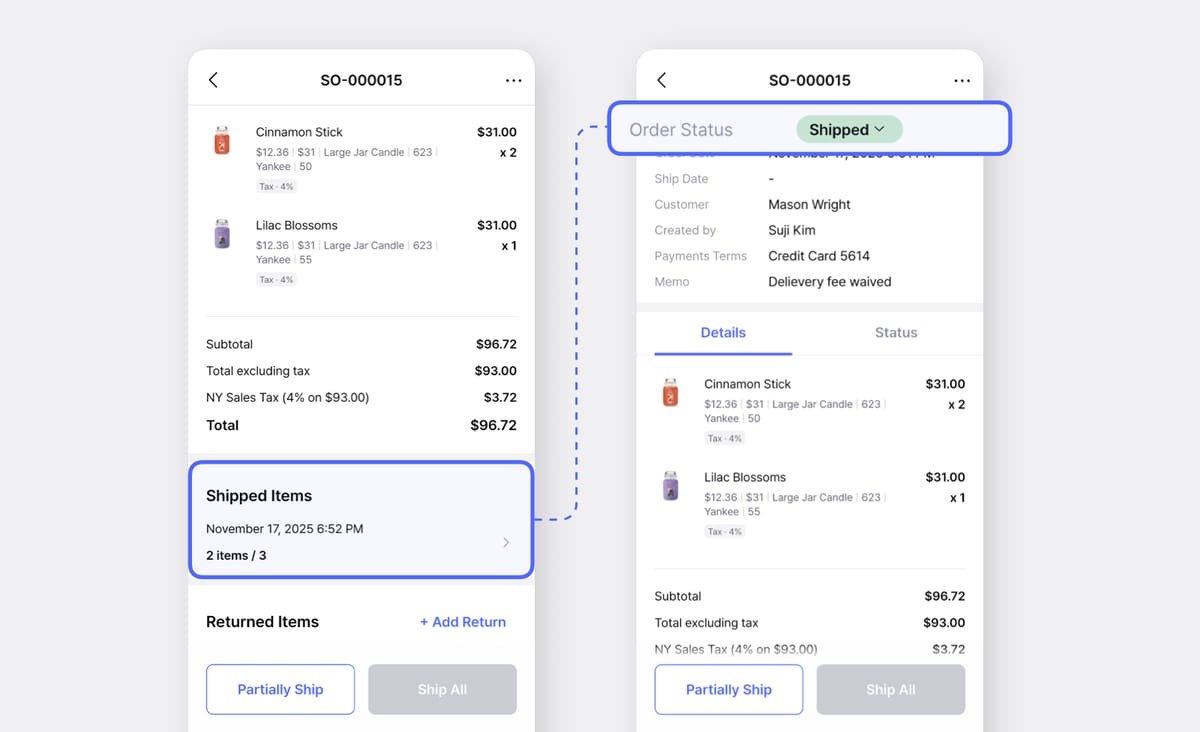
4. Ship Items and Update Status
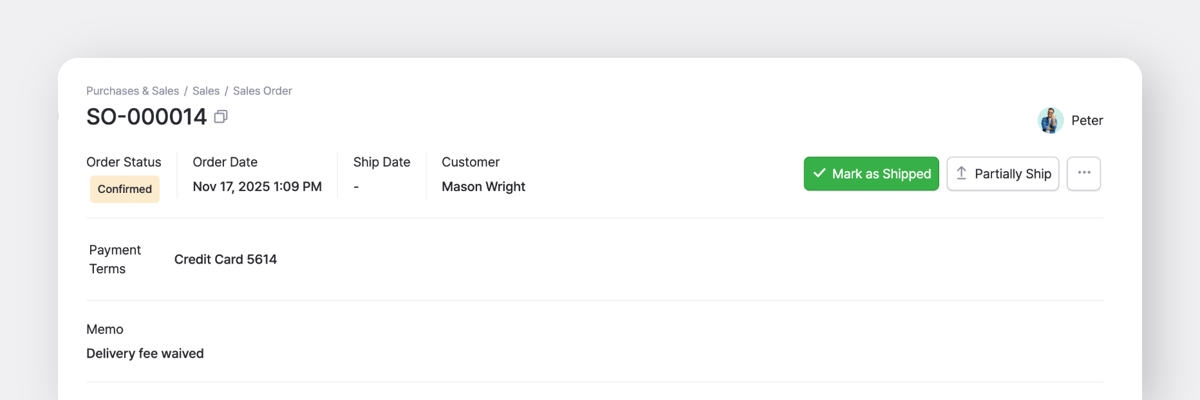
When it’s time to ship, open the sales order and record the items being sent.
On Desktop (Web): In the top right, choose Mark as Shipped or Partially Ship depending on what's leaving your inventory.
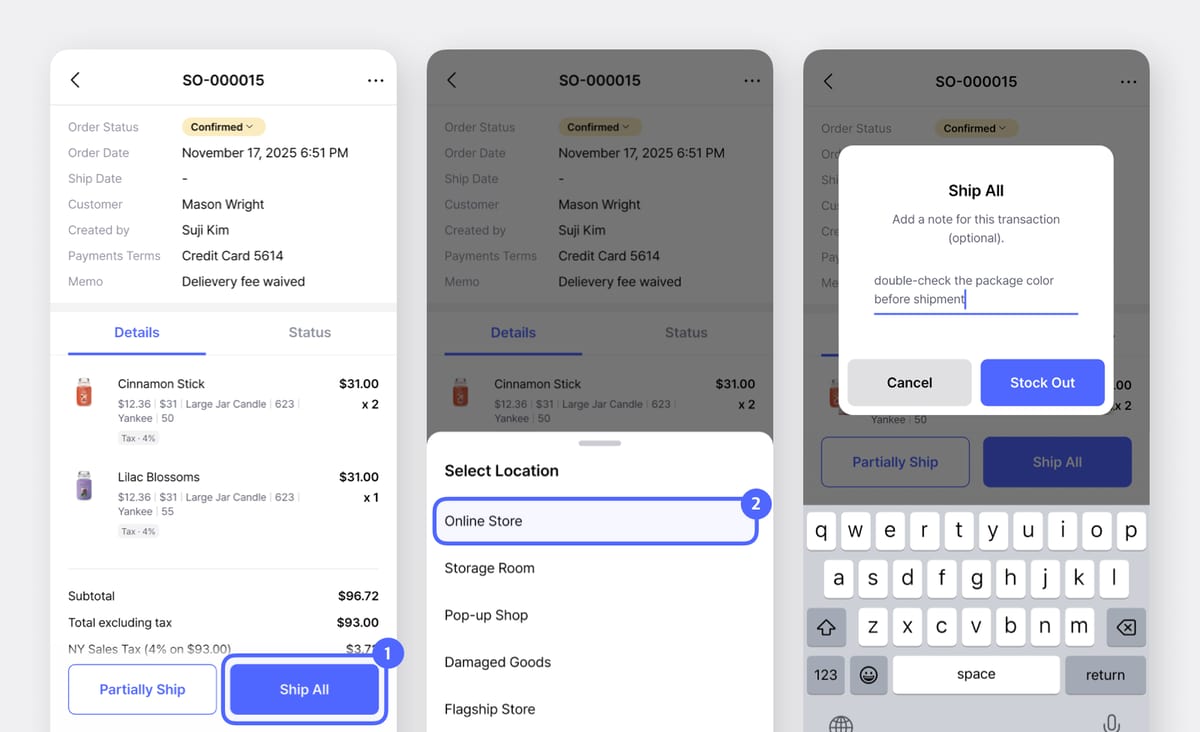
On Mobile (App): Tap Partially Ship or Ship All at the bottom of the screen. Enter the quantity being shipped and the location it’s coming from. You can also add a short note if needed.
A quick note:
- If you send part of an order first, the status changes to Partially Shipped.
- Once all items are sent, the status becomes Shipped.
5. Edit, Delete, or Export Orders
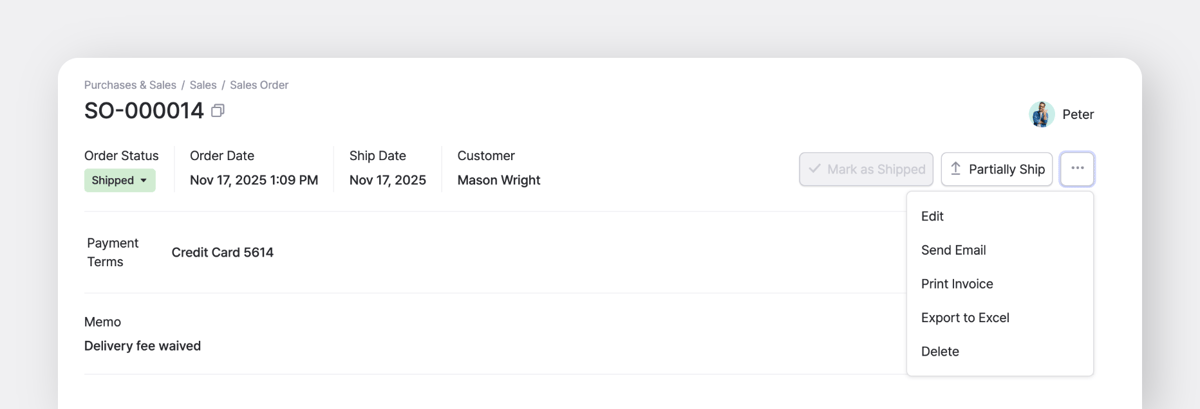
After creating a SO, you still have full control over it. Click the ... button in the top-right corner to:
- Edit: Update details or quantities.
- Delete: Remove draft or test entries.
- Export to Excel: Download data for reports or accounting.
- Print Invoice: Create a clean order copy to share with your team or customer.
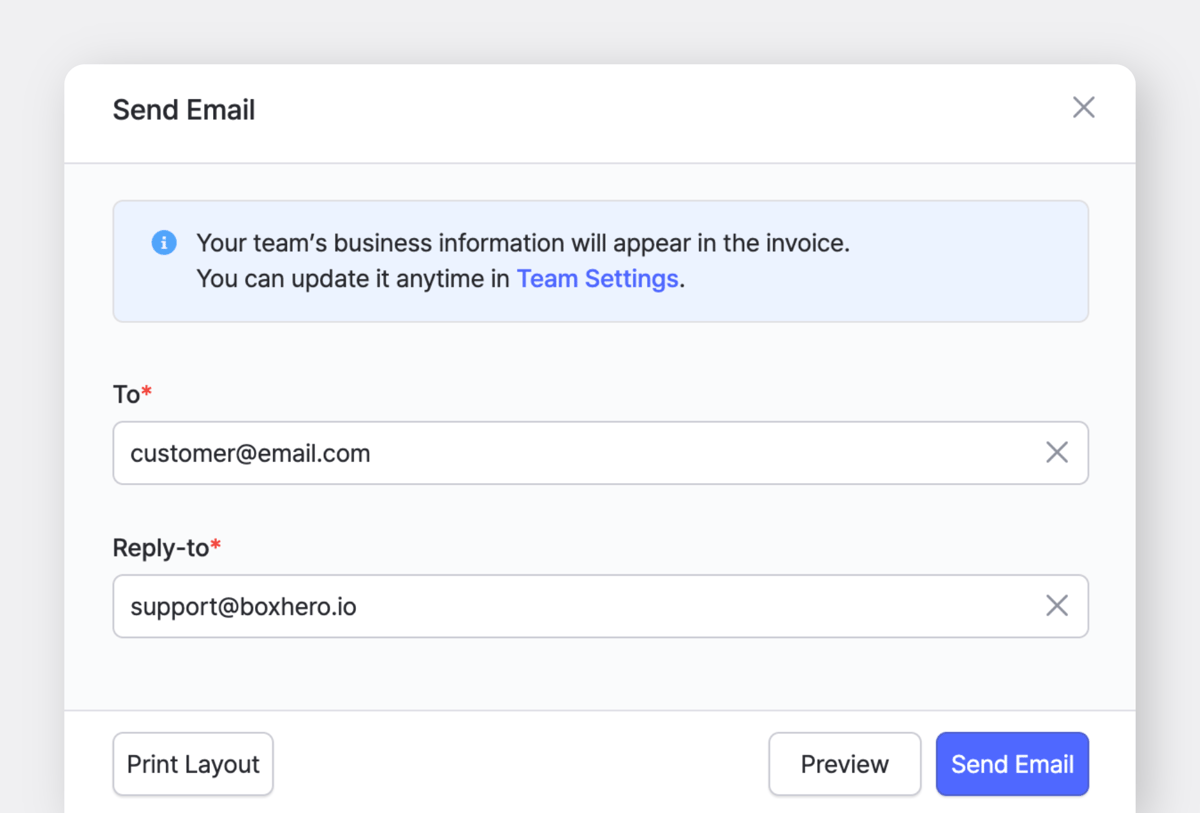
You can also email the sales invoice directly to your customer without leaving BoxHero.
Tracking Returns
Returns happen, and BoxHero makes it simple to record them.
When a customer sends something back, open the original order and click + Add Return. Choose the item being returned, enter the quantity, and add a note (optional).
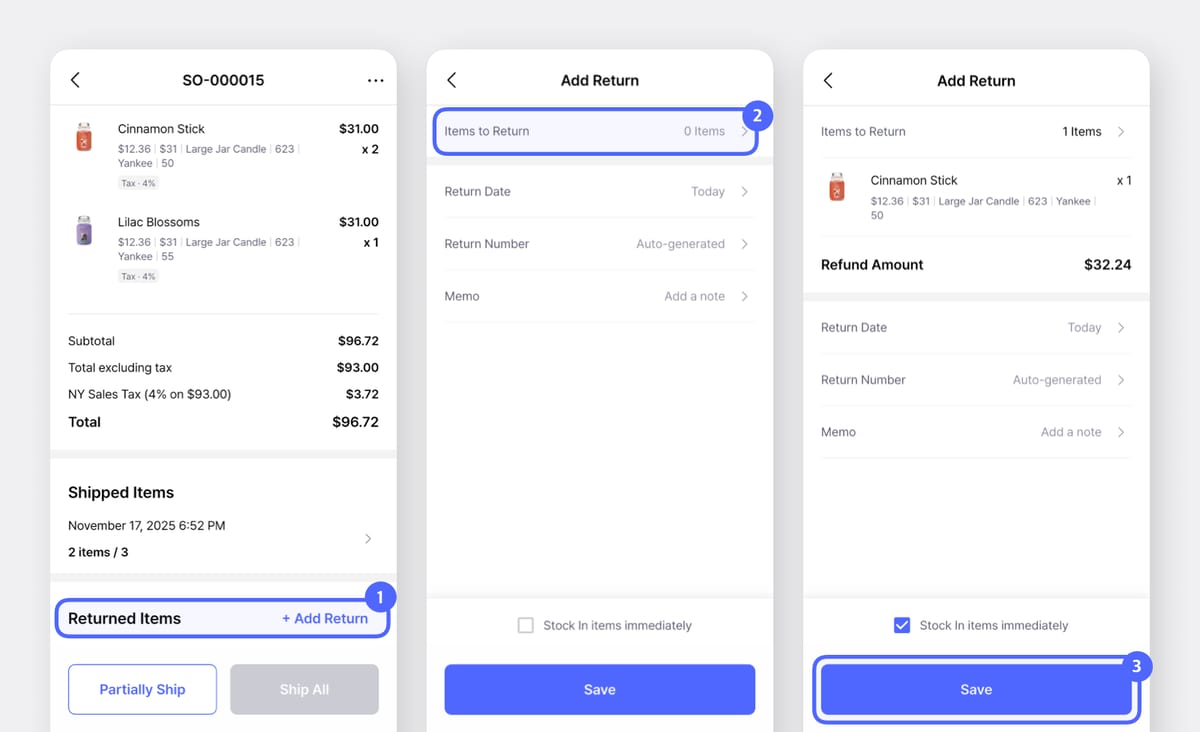
Next, choose the location where the returned item will go.
Tap Stock In to complete the return.
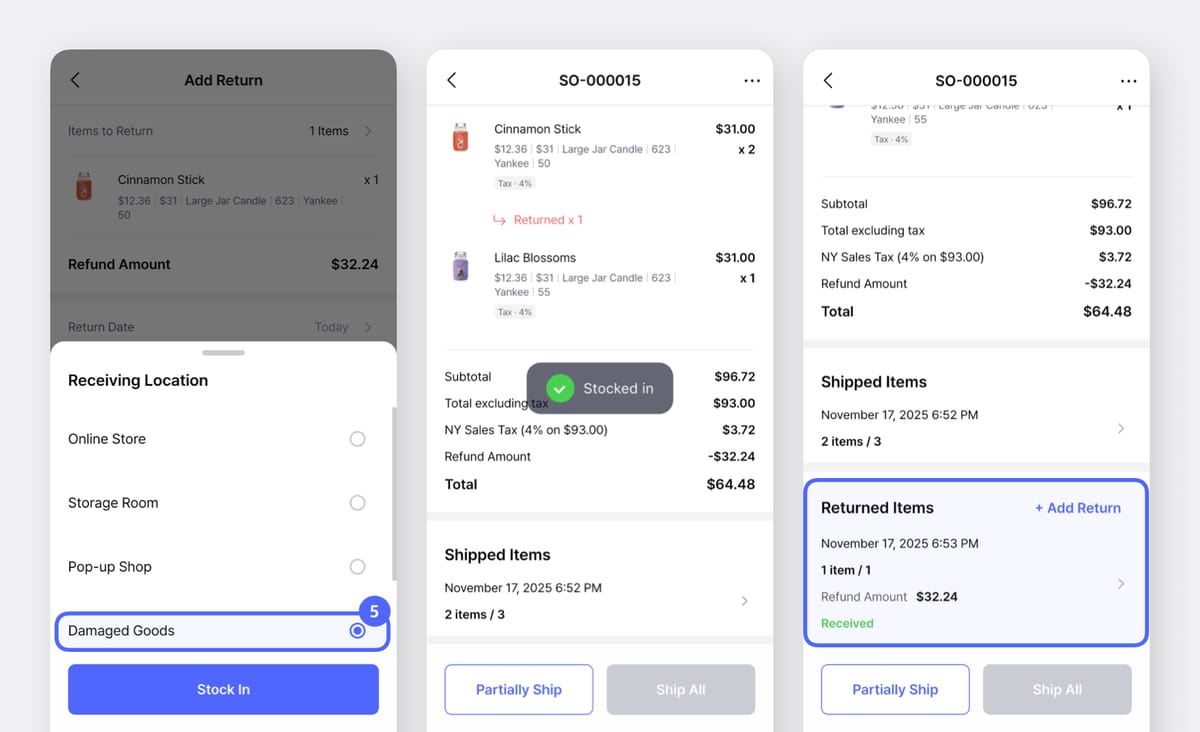
You can also view all recorded returns from the Returns tab, or look for the “Processed Return” entry directly inside the related sales order.

Keeping an Eye on Sales and Profit
Once you’ve been entering sales orders for a bit, the Sales Report feature becomes a helpful place to review how your items are performing.
From here, you can check:
- Sales Quantity: how many units sold over time.
- Sales Amount: total sales value.
- Refund: how much was returned.
- Revenue: sales after refunds.
- Net Profit & Profit Rate: useful for checking margins and comparing items.
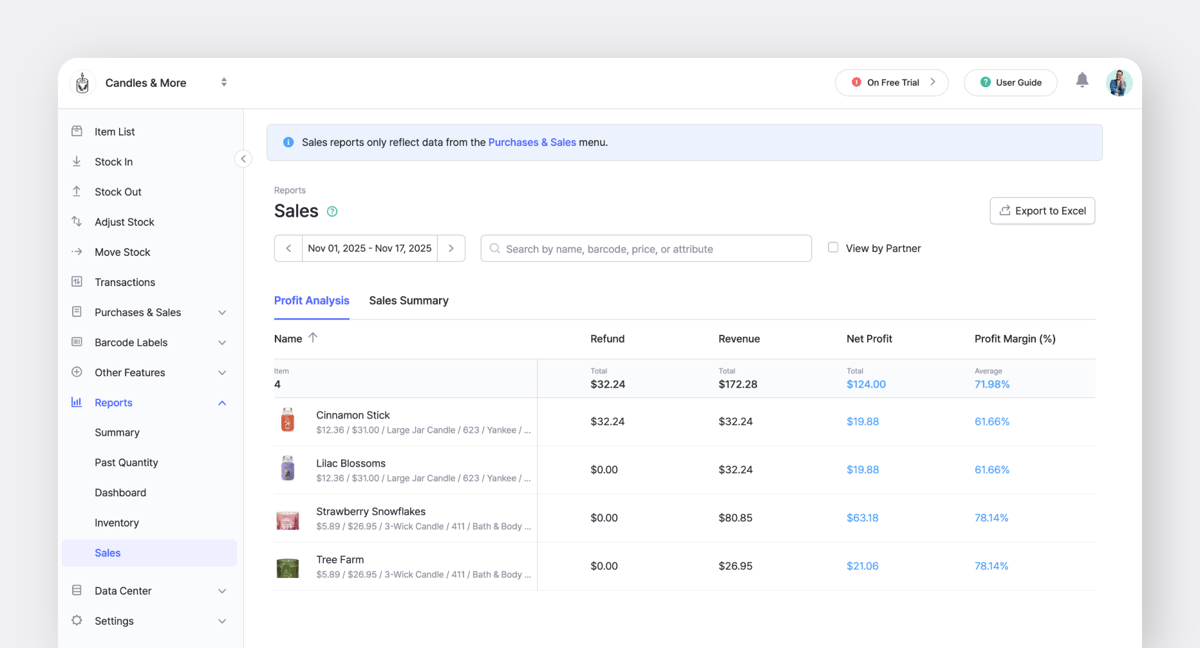
Even without fancy dashboards, these numbers give you a solid picture of how your business is doing month to month.
Try It Out
If you’ve been handling orders by email or spreadsheet, it’s worth creating one test order in BoxHero.
Start small: make a sample sales order, update its status, and record a Stock Out. You’ll immediately see how it connects to your inventory.
BoxHero’s Purchases & Sales keeps your order process simple and reliable. From order creation to shipment and returns, everything stays linked — so you spend less time fixing numbers and more time serving customers.RELATED POSTS
 Ekaterina Glozshtein

 Nahi Kim