How to Set Up Order Settings in BoxHero

Order settings define how purchase orders, sales orders, and printed documents are created in BoxHero. They determine how taxes are calculated, what discounts are applied, how invoices look like, and which order details are included by default.
For small businesses, these settings help keep orders consistent as volume grows. In BoxHero, all order customization options are grouped in one place and organized into four sections: Taxes, Discounts, Print Layout, and Custom Fields.
We'll walk through each section in detail, focusing on how small businesses use these settings and what kind of impact they have day to day.
Taxes: Inclusive and Exclusive Tax Rules
Taxes are often the first setting teams configure, especially when working across regions or selling to different customer types.

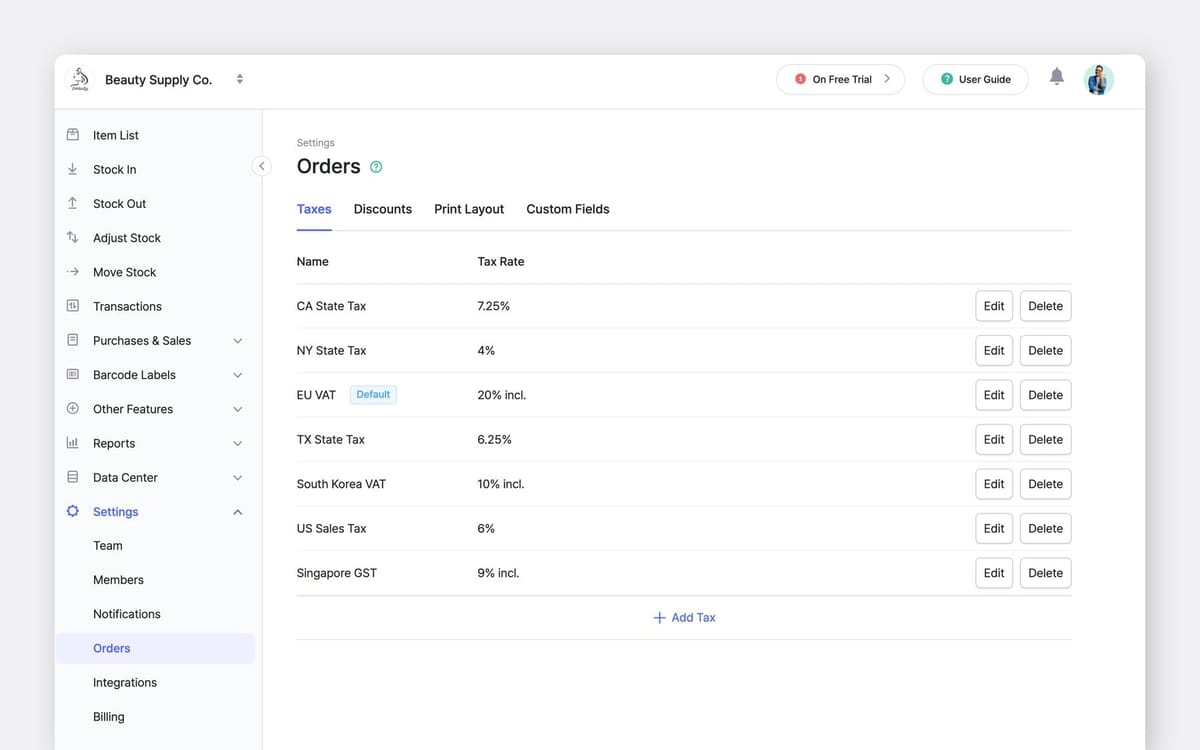
A. Creating and Managing Tax Rates
BoxHero allows multiple tax rates to be created and stored. Each tax includes:
- A name, such as state sales tax or VAT
- A percentage rate
- A tax type, inclusive or exclusive
Inclusive taxes are built into the item price. Exclusive taxes are added on top of the listed price.
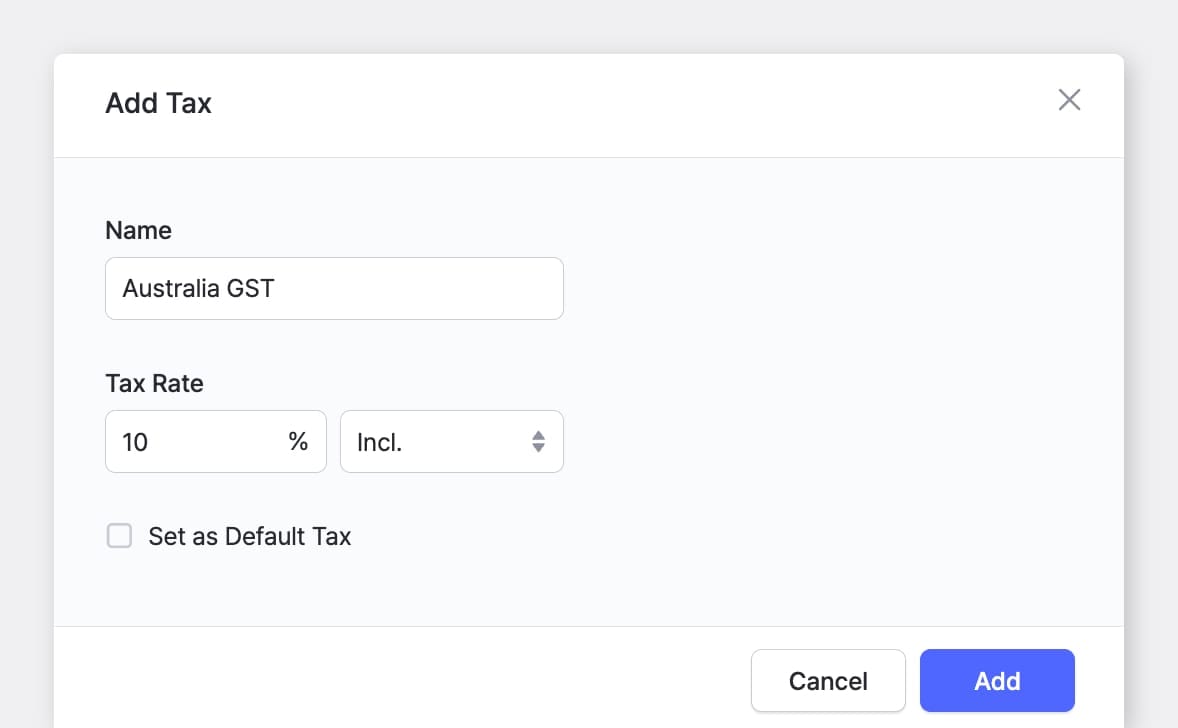
When you add a new tax in BoxHero, you can name it something like "Australia GST," specify the rate as a percentage, and choose whether the tax is inclusive or exclusive.
For example, if you sell an item for $100 with a 10% inclusive tax, the customer pays $100 total. The system calculates that $90.91 is the base price and $9.09 is the tax portion. With exclusive tax, that same $100 item would cost the customer $110 total.
B. Applying Taxes to Orders
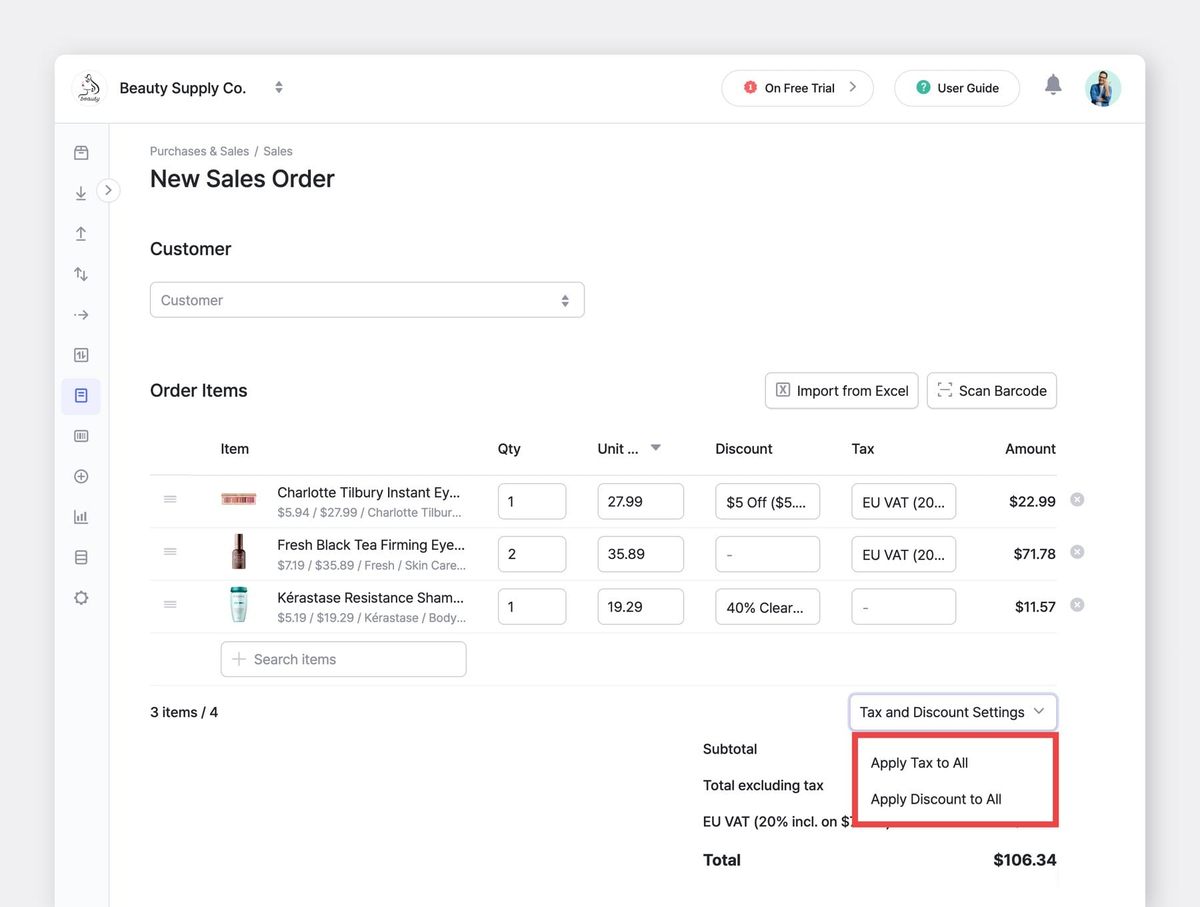
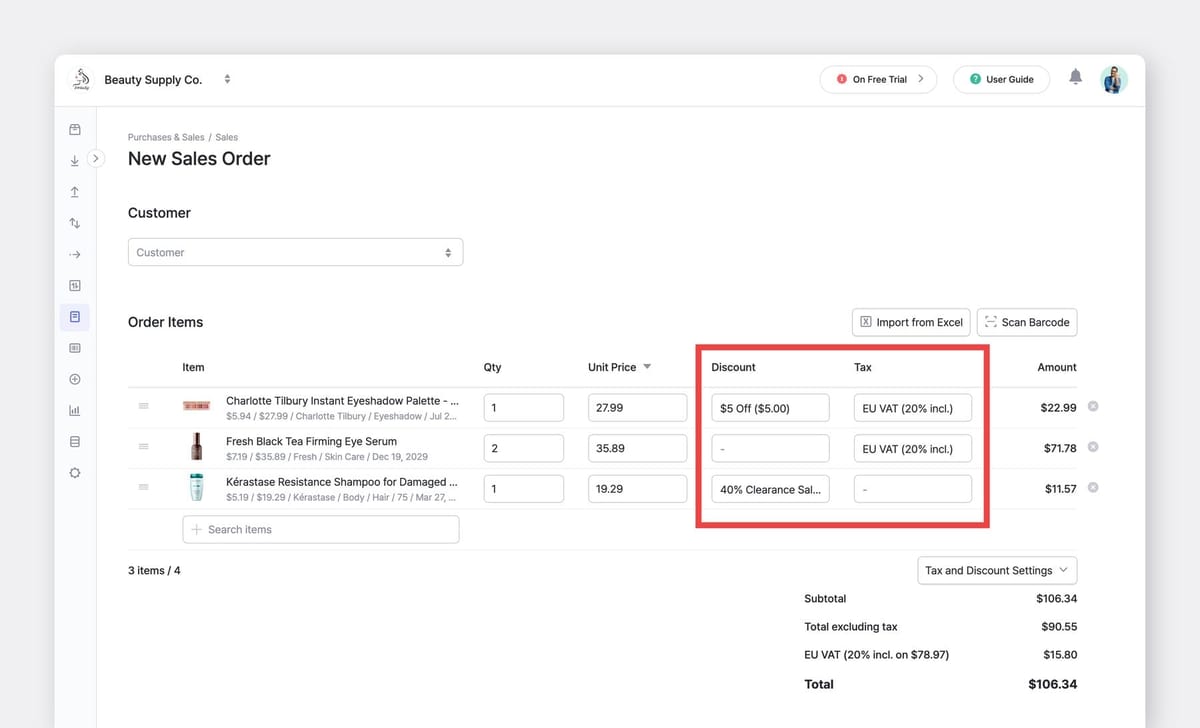
Some businesses deal with products that use different tax rates. Food items might be tax-exempt while general merchandise carries a full sales tax. BoxHero handles this by letting you select different taxes for each line item when creating an order.
You can also apply one tax across multiple items at once using the "Apply Tax to All" option in the order screen.
Discounts: Fixed Amounts and Percentage Discounts
Discounts come in two basic types: fixed amounts and percentages.
- A fixed discount subtracts a specific dollar amount from the order total.
- A percentage discount calculates based on the item price.
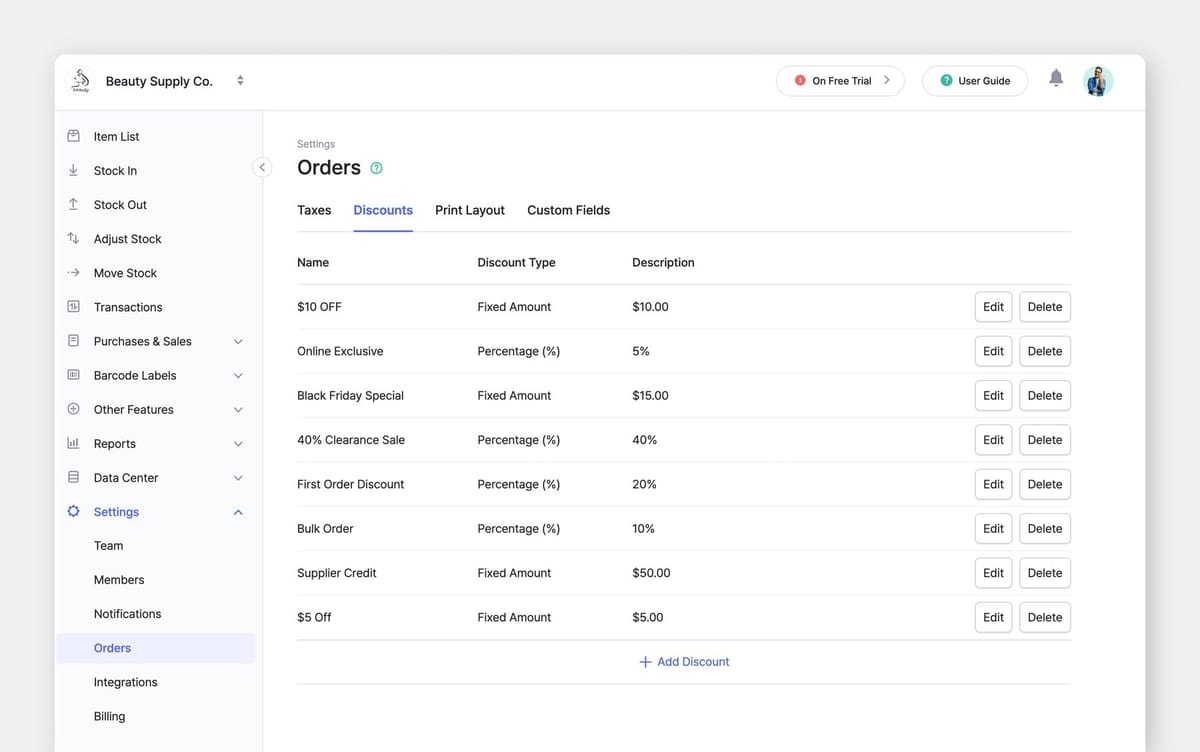
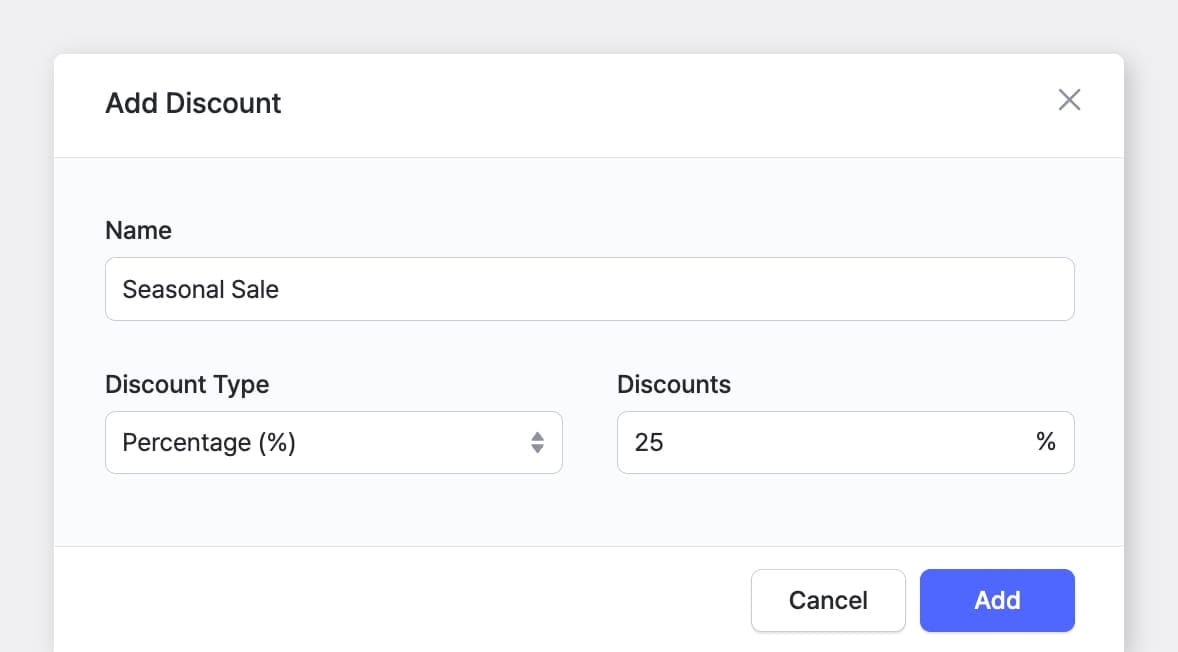
A. Creating and Managing Discounts
Each discount includes a name and value. Here are some common examples:
Percentage discounts are often used for seasonal promotions or customer loyalty programs, like "Spring Sale 20%" or "VIP Member 15%." These scale automatically with order size, so a larger purchase gets a proportionally larger discount (i.e. bigger spenders get bigger savings).
Fixed amount discounts give the same dollar value to every customer regardless of order size. A "$10 Off First Order" promotion subtracts ten dollars whether someone buys one item or ten. These work best for acquisition campaigns or compensating customers for specific issues like delayed shipping.
B. Applying Discounts to Orders
When you apply a discount to an order line item, BoxHero shows both the discount name and the calculated amount in the order table.
Discounts can be applied to individual items or to all items in an order using the "Apply Discount to All" option in the Tax and Discount Settings. Item-level discounts apply only to the selected item, while order-wide discounts apply after all items have been added.
Print Layout: Controlling What Appears on Documents
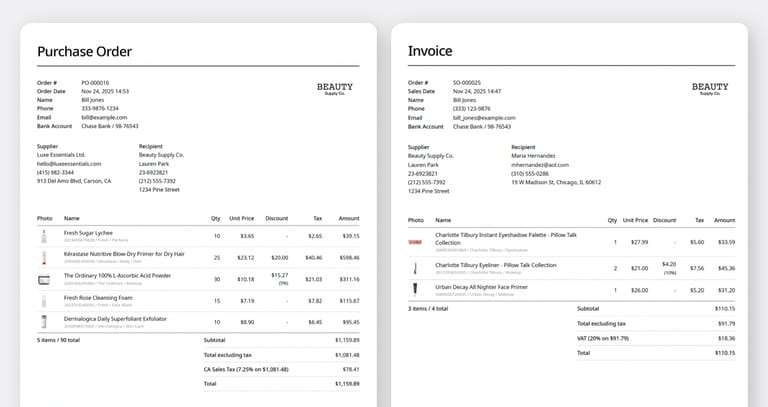
Print layout settings determine how orders appear when exported or printed. This includes invoices, purchase orders, and internal documents.
1. Business Logo
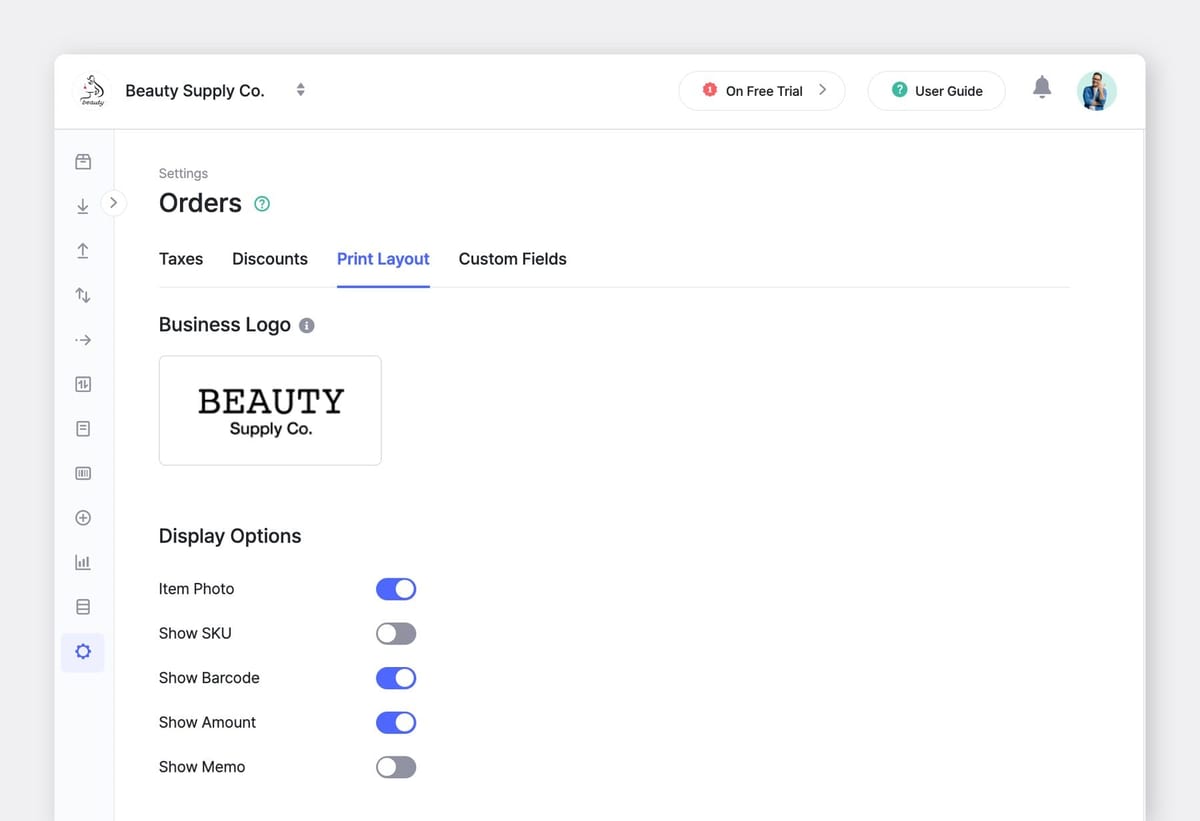
You can upload a business logo up to 3 MB that appears on all printed order documents. The logo helps recipients immediately identify your company and makes invoices and purchase orders look more professional than generic templates (+1 for branding detail 👍).
2. Display Options
BoxHero provides toggles for common order details. Each toggle controls whether that information appears on printed documents.
- Item Photo adds small product images next to each line item.
- Show SKU includes the stock keeping unit for each item, which is often used for identification in inventory tracking.
- Show Barcode prints a scannable barcode for each item. This speeds up order processing in warehouses that use barcode scanners for fulfillment.
- Show Amount displays the line item total for each product. This should be enabled on customer-facing invoices so buyers can see individual item costs.
- Show Memo includes any notes or comments attached to the order. You can communicate special instructions like "Fragile - Handle with Care" or "Expedited shipping."
3. Attributes
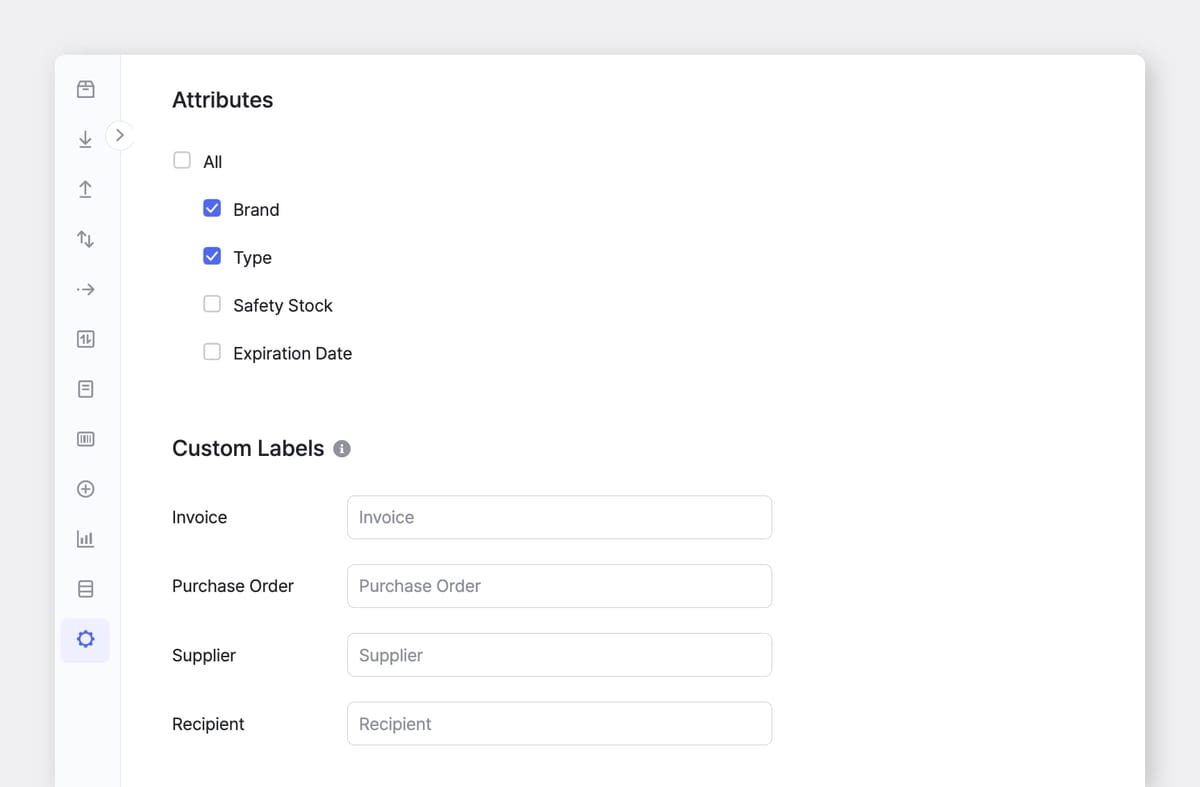
Item attributes like Brand, Type, Safety Stock, and Expiration Date can also be included on printed documents. A checkbox list lets you select which attributes appear. Only the attributes you mark will print.
For example, if you have "Vitamin C Serum" in multiple sizes, the attributes clarify whether a 30ml or 100ml bottle was sold.
4. Custom Labels
Custom labels let you rename standard fields on printed documents. The default labels are "Invoice" for the document title, "Purchase Order" for internal buying documents, "Supplier" for vendor information, and "Recipient" for customer information.
You might change these to match your business terminology. A company that uses "Vendor" instead of "Supplier" can relabel that field. A business can rename the "Recipient" label to "Ship To."
Custom Fields: Adding Order Specific Information
Standard order information includes customer name and order date. But many businesses need to track additional details that fall outside those fields.
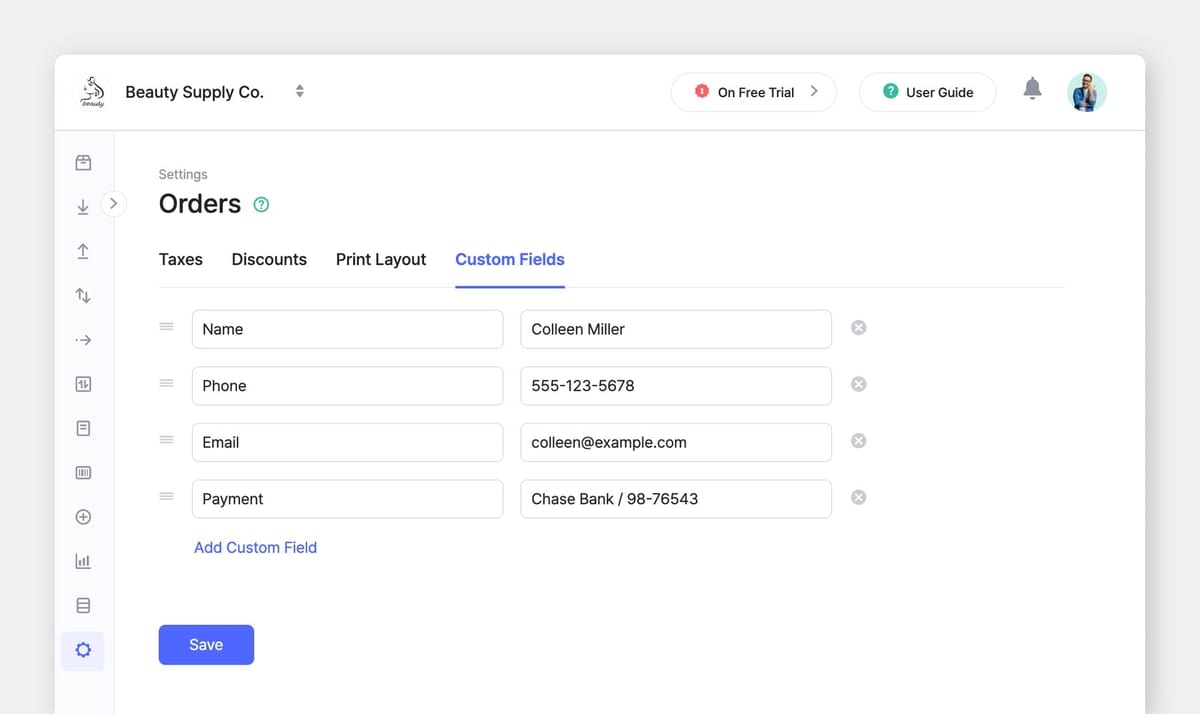
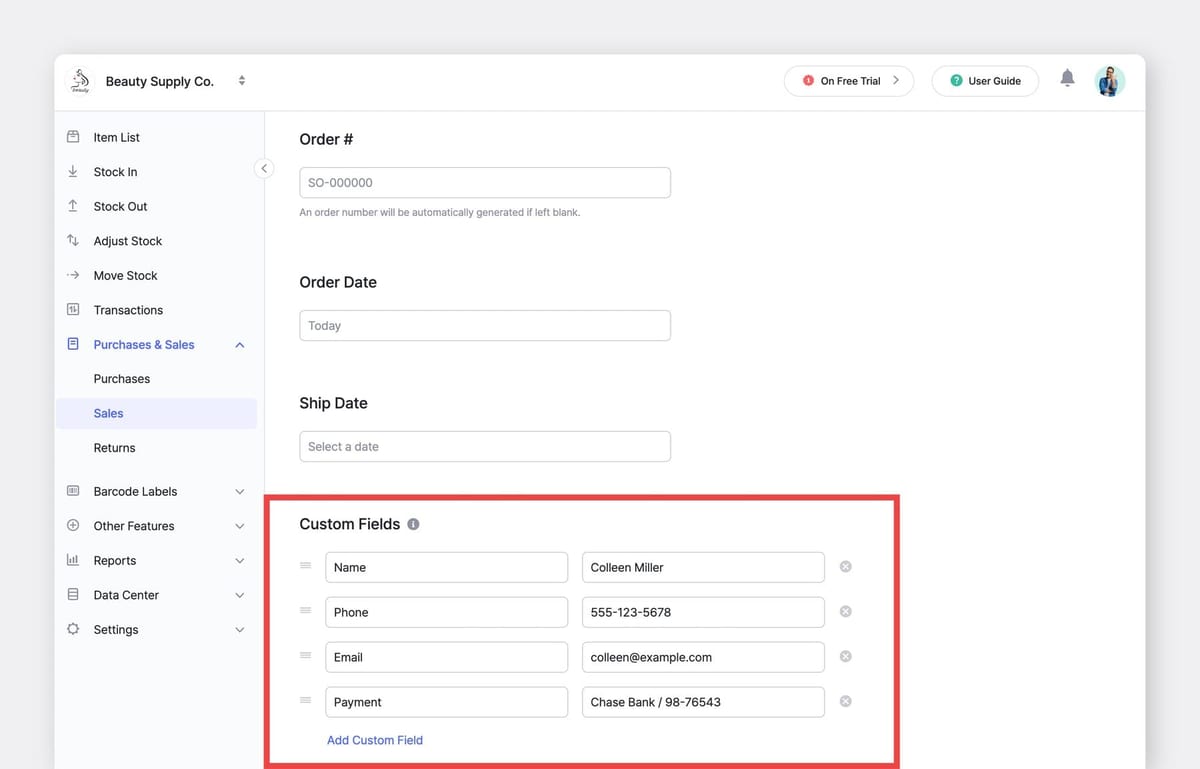
BoxHero's custom fields lets you add extra information to every order. You define these fields in Settings, and they appear on the Purchase Order or Sales Order screen where staff can fill them in during order creation.
A. Creating Custom Fields
Each custom field includes a label and a value that gets entered per order.
Common examples include customer contact details (e.g., phone number and email address), internal reference numbers, payment notes, and delivery instructions for special handling.
B. Where Custom Fields Appear
Custom fields appear directly on purchase and sales orders. Depending on your print layout settings, they can also be included on printed documents.
Next Steps
Order settings aren't something you configure once and forget. Tax rules update, promotions come and go, and internal processes shift over time. Schedule time every quarter to review your order settings and make adjustments.
✅ Check your tax rates against current regulations. Sales tax rates could change, and VAT rates can shift with policy changes.
✅ Review your discount list and remove promotions that ended. If "Holiday Sale 2025" is still in your discount list in March 2026, it's clutter that should be deleted.
✅ Evaluate whether your custom fields still serve their purpose. If nobody fills out the "Warehouse Zone" field anymore because you reorganized your warehouse, remove it. If you find staff writing the same information in order notes repeatedly, add a custom field for it.
BoxHero's Order Settings give you a consistent structure for how orders are created, reviewed, and shared. Make sure these settings up to date to keep your orders organized as your business grows.
RELATED POSTS
 Ahrom Yoo
 BoxHero
 Nahi Kim