How to Track Inventory by Location in BoxHero
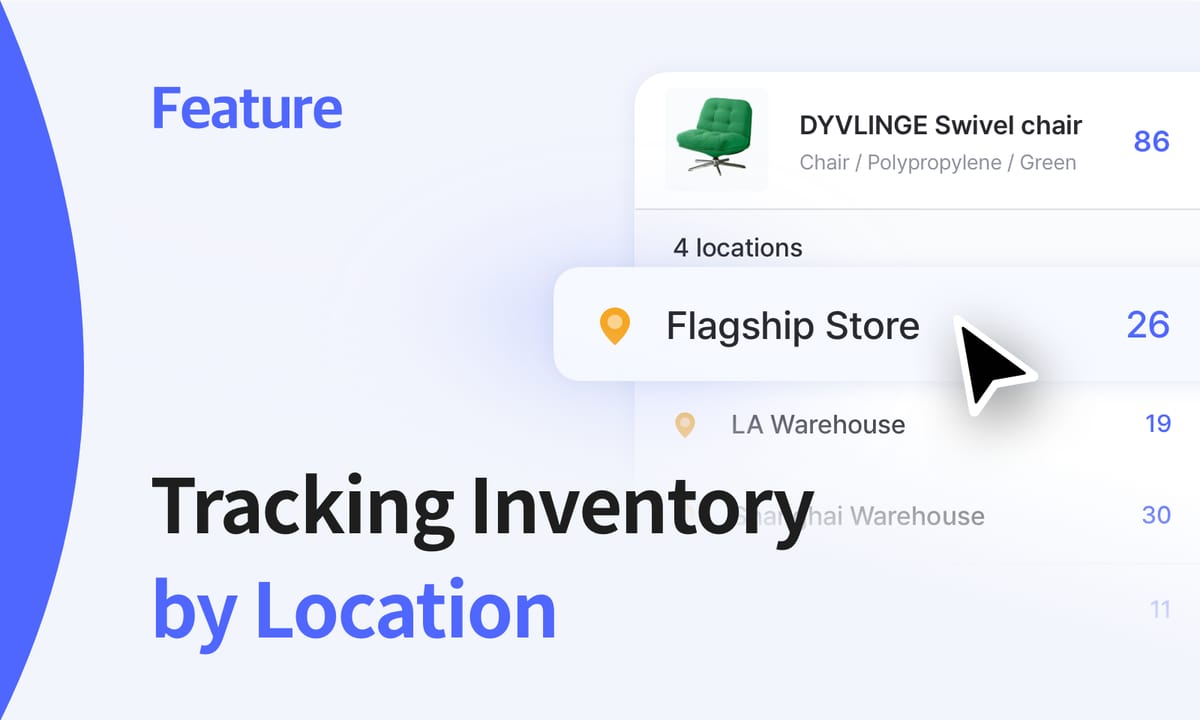
Location tracking sounds like a small detail in inventory management. But really, it's one of the first things that breaks when a business grows past a single shelf or storage room. You might have products in the warehouse, some at the retail location, maybe a few items at a pop-up shop.
Where is the stock that shows as available?
Which location is fulfilling orders today?
Which items are sitting untouched in the back while another site runs low?
BoxHero’s multi-location feature provides answers to those questions. Below, we'll walk through how to manage and organize your inventory across multiple locations and how small businesses actually use BoxHero day to day.
What Exactly is a Location?
In BoxHero, a location represents a specific place where inventory exists. That place can be physical or logical, but it always answers one simple question: where is this item right now?
A location might be:
- A warehouse
- A retail store
- A stockroom
- A shelf or zone
- A temporary holding space for inspections or repairs
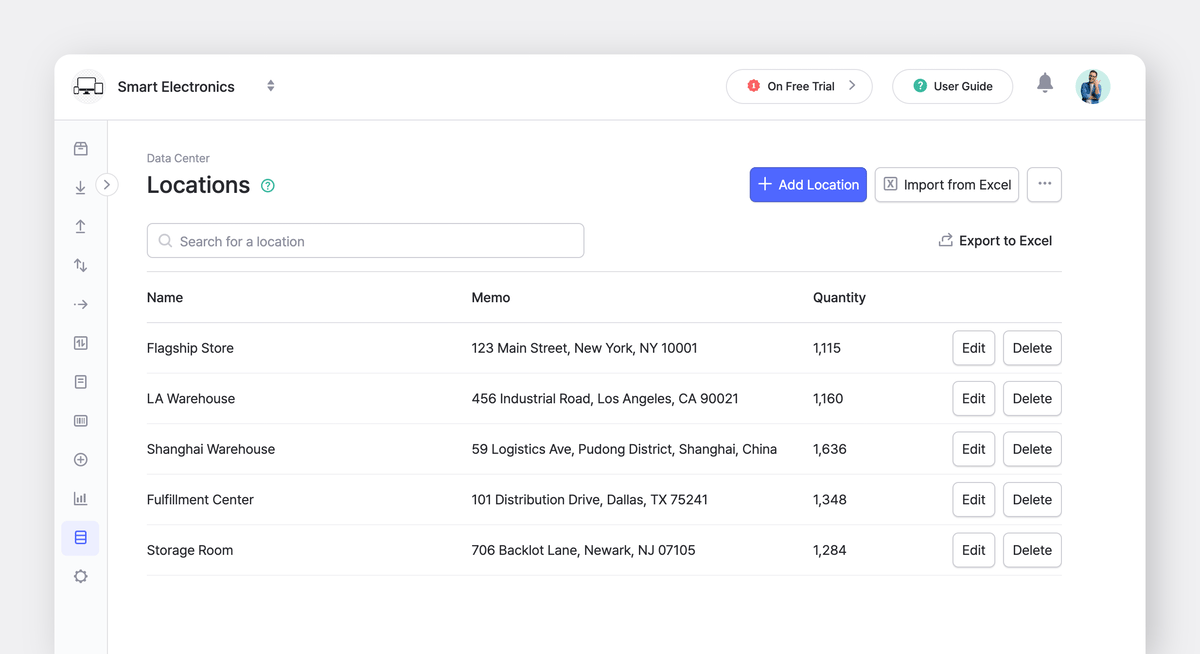
BoxHero treats each location as a distinct entity within your inventory system.
When you record a transaction (e.g., receiving new stock, selling a product, or moving items between locations), BoxHero updates the quantities for each specific location so you get a clear picture of exactly where every item is at any given time.
When Location Tracking is Needed
Many small businesses start without formal location tracking. Inventory is “in the back,” “upstairs,” or “wherever there’s space.” But problems start when inventory responsibility spreads or inventory itself grows.
Common breaking points include:
- Selling from multiple places
- Bringing on staff who don't know inventory by memory
- Handling returns separately from sellable item
- Buying in bulk and storing overflow
- Using one place for sales and another for fulfillment
At that point, knowing total stock is no longer enough. Day-to-day decisions depend on knowing which location has inventory available right now.
▶︎ Example 1: Out of sight, out of mind
Extra units purchased months earlier end up in a back storage area or secondary room, while your main floor runs low. Team members might expect items to be on hand and spend hours searching shelves and boxes... only to discover the inventory is somewhere else or not easily accessible.
▶︎ Example 2: Returns and damaged items
A returned item is placed back on the shelf without any record of its condition. Damaged or incomplete items sit alongside sellable stock. These issues usually surface later through customer complaints, incorrect shipments, or internal back-and-forth to figure out what went wrong.
▶︎ Example 3: Items in the wrong location
Stock could also be sitting in the wrong place. Your downtown location runs out of a bestselling product while your suburban warehouse has 50 units collecting dust. Manual systems rarely catch this early, since they don’t show which locations are actually selling and which ones aren’t.
How Location Tracking Works In BoxHero
BoxHero does not treat locations as tags or labels. Locations are a fundamental part of every inventory transaction. Each activity in BoxHero happens at a specific location, so your inventory data remains accurate.
1. Creating and Managing Locations
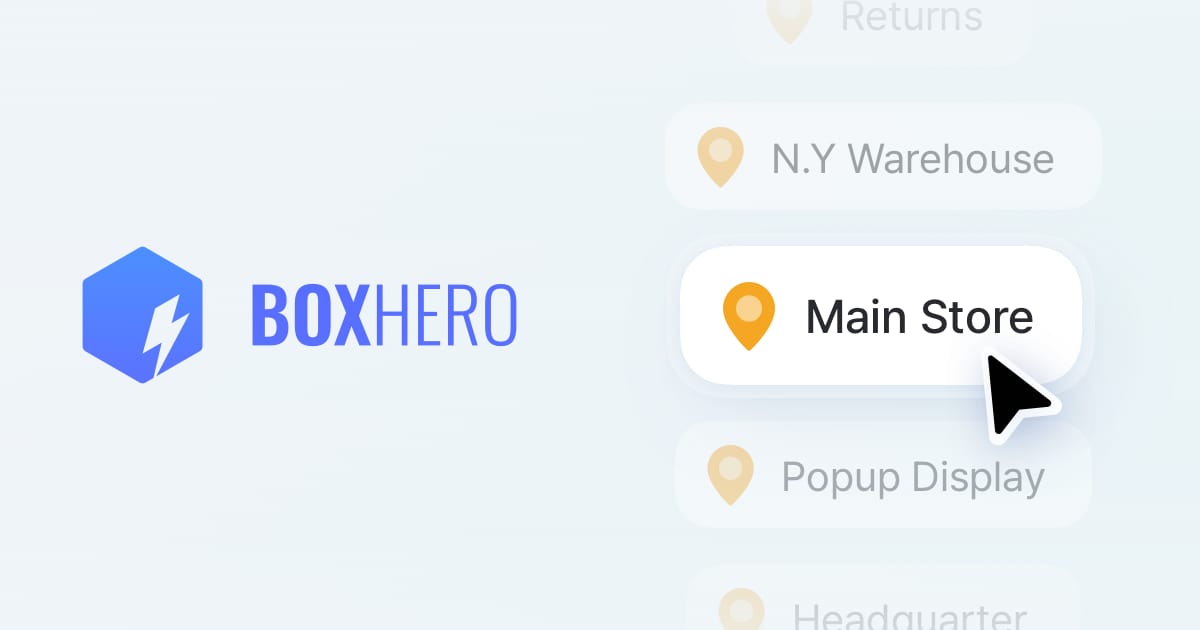
All teams start with a default location. Additional locations can be created as needed in Data Center > Locations. Each location requires a name and optionally supports notes or memos for additional context.
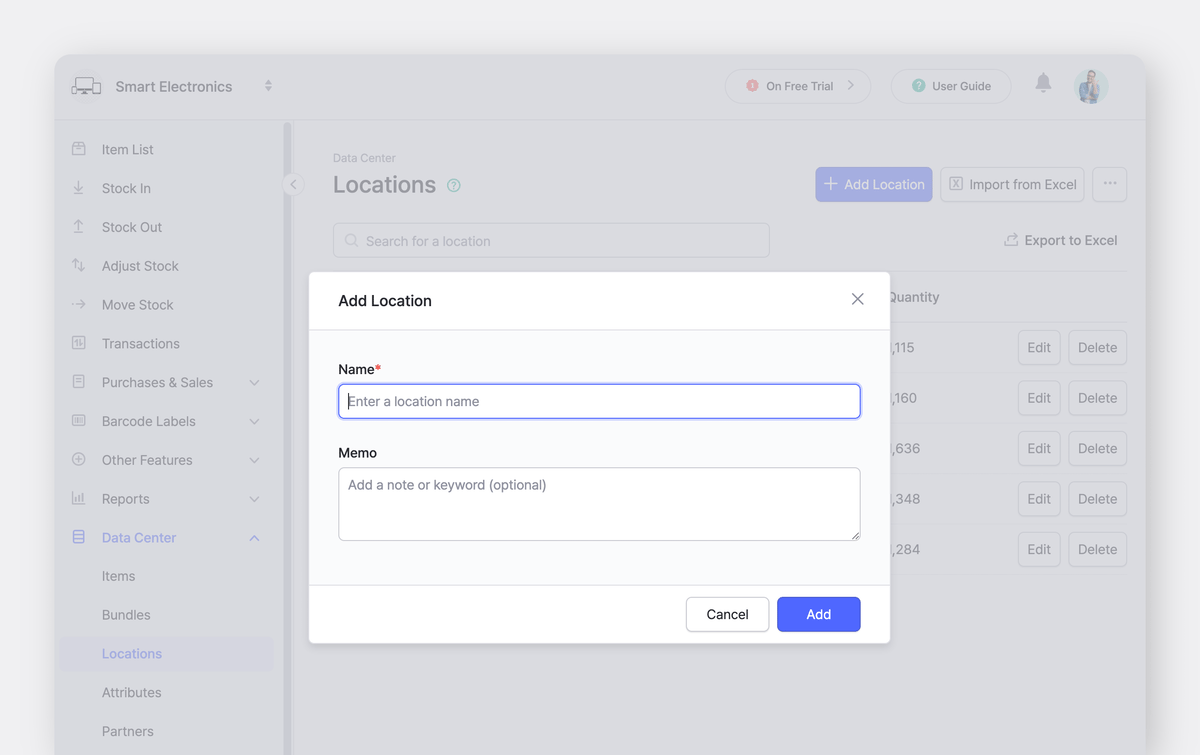
Good location names describe physical spaces your team can point to:
• Retail Store Back Room
• Storage Unit B
You can also use locations to track item status:
• Used/Open Box
• Display Models
Some businesses even use locations to separate different product categories when they need strict boundaries between inventory types. While BoxHero's Attributes feature handles category-based organization more flexibly, locations work well when you need absolute separation.

Team vs. Location
One important consideration: BoxHero's location feature works within teams, not across them. You can move inventory between locations within the same team, but not between different teams.
Each team operates as a separate entity with its own inventory. This design works well for most small businesses, but if you need completely separate inventories for different business units, you'll want to create separate teams rather than separate locations.
2. Viewing Inventory by Location
BoxHero shows item quantities per location directly in the Item List. Instead of one total number, you see how stock is distributed across your locations.
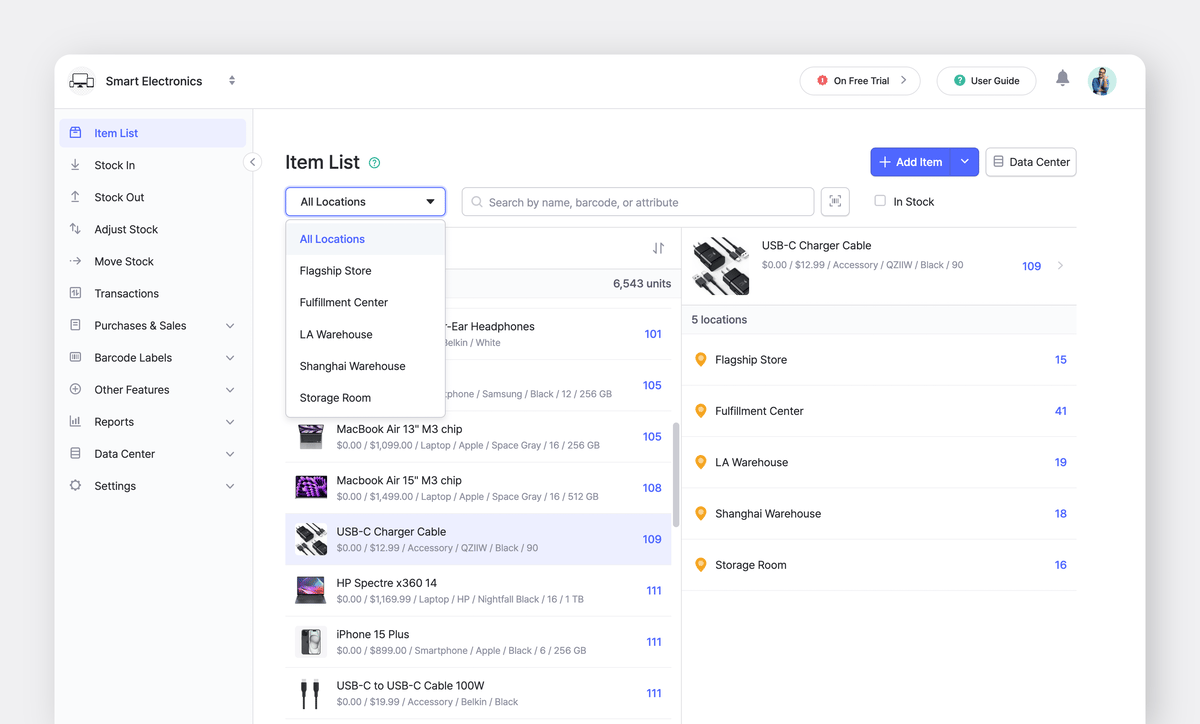
You can spot patterns:
- One location is selling faster than another
- A location shows stock on paper but shelves are empty
- You need to decide where to fulfill a sale
3. Recording "Stock In" and "Stock Out"
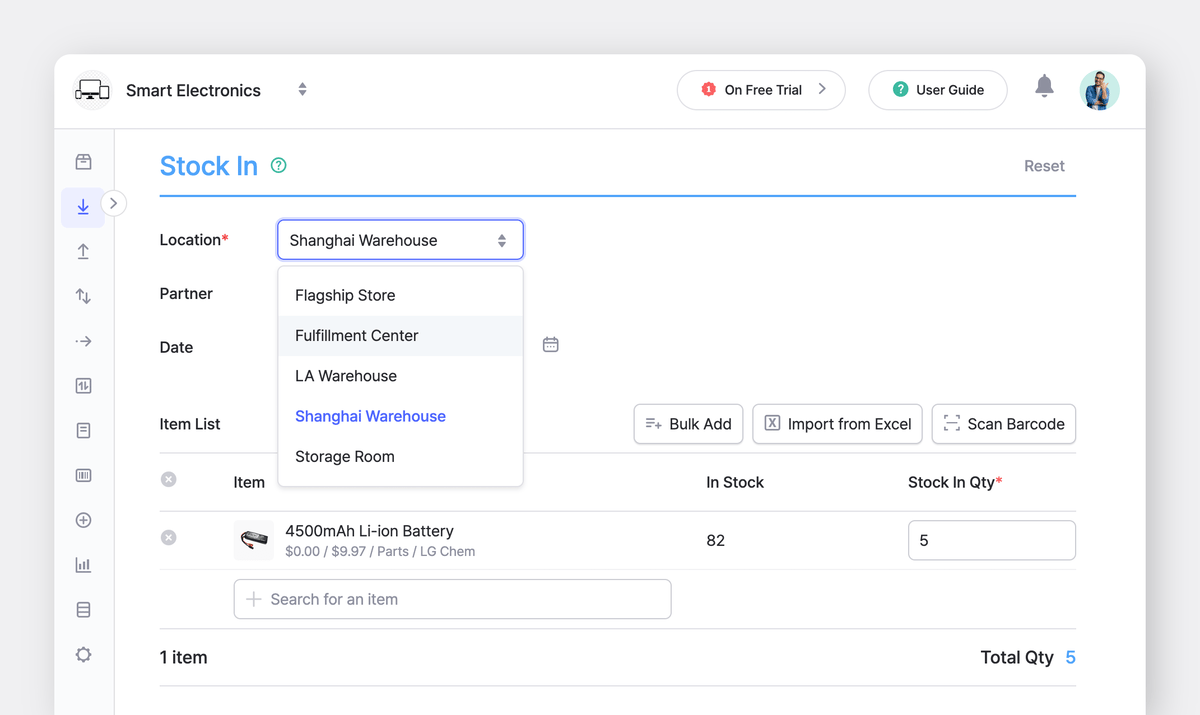
Every Stock In transaction requires a location selection. When new shipment arrives at your warehouse, record it there. When items are delivered directly to your retail store, assign them to that location.
Stock Out transactions work the same way. Recording a sale, return to supplier, or damaged goods removal? You specify which location the stock leaves from. This creates an accurate record of inventory movement and prevents situations where your system shows available stock that doesn't actually exist at the location.
4. Moving Inventory between Locations
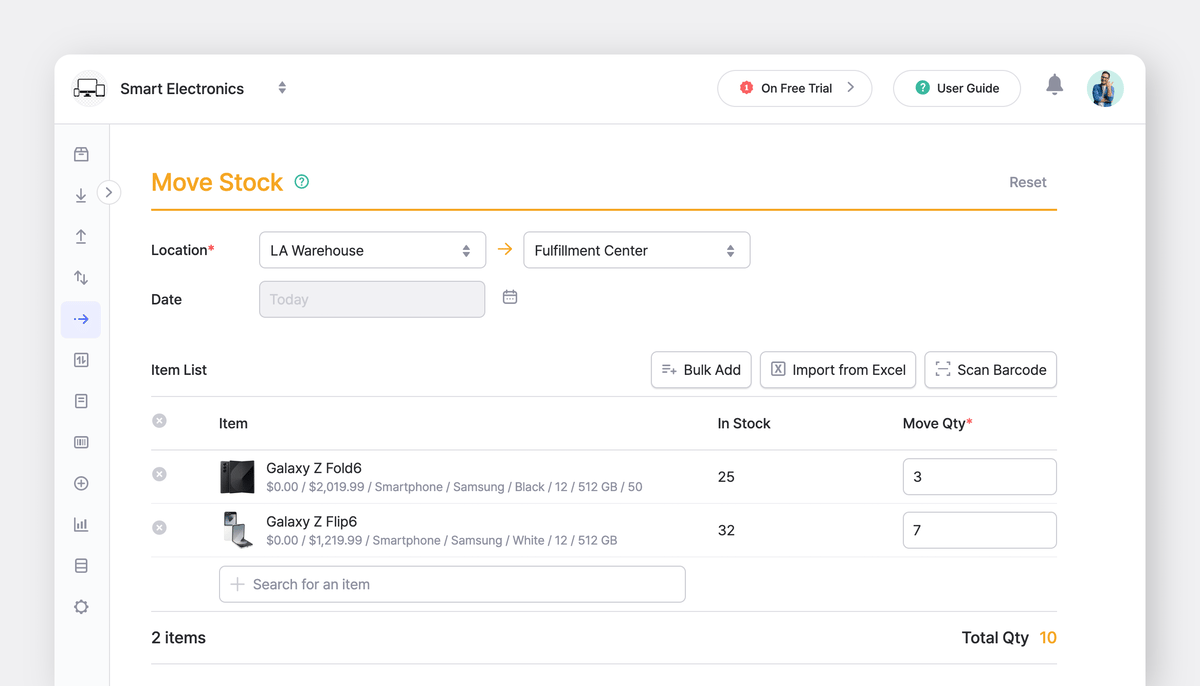
The Move Stock feature records transfers between locations. Pull up the item you need to move, choose your source and destination locations, confirm the quantity, and both locations update immediately.
Each move transaction requires:
- Source location
- Destination location
- Item(s)
- Quantity(ies)
Once completed, BoxHero deducts inventory from the source location and adds it to the destination. The transaction history keeps a record of when the move happened, who performed it, and any notes attached to the transfer.
5. Fulfilling Orders and Making Sales
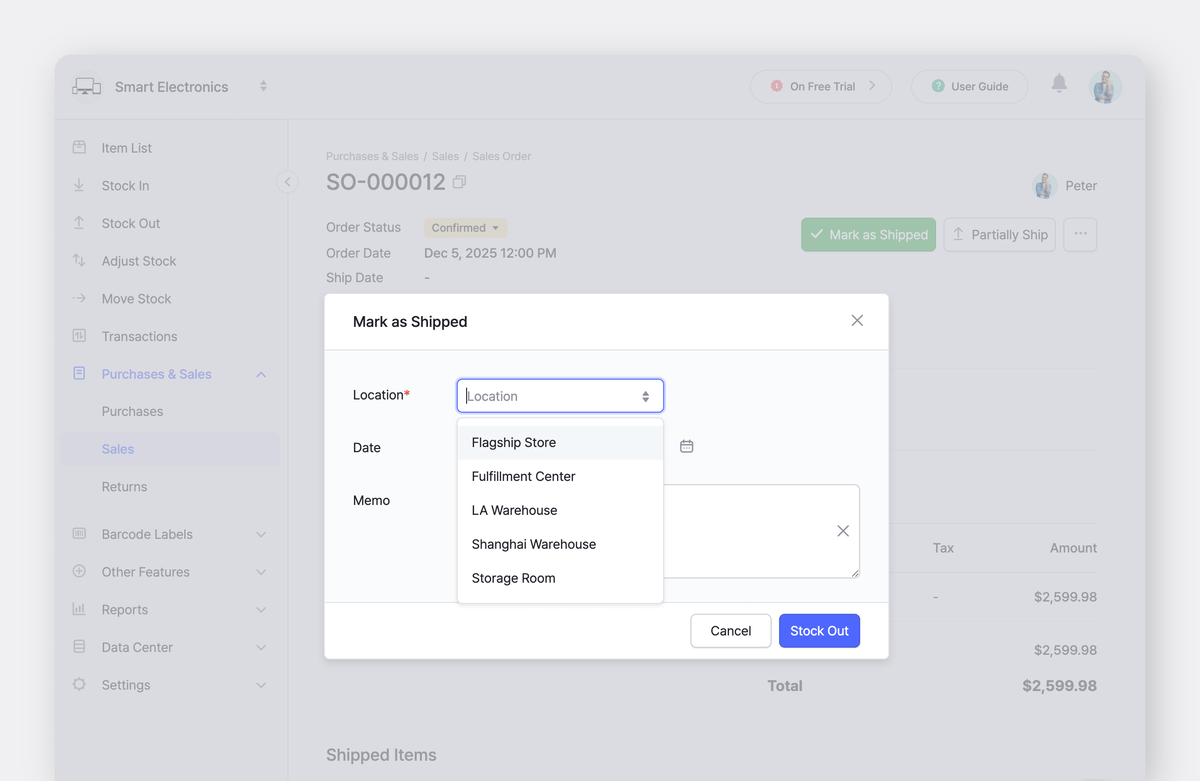
BoxHero's Purchases & Sales feature integrates with location tracking at every transaction. When you record a sale, specify which location fulfilled it.
This prevents a common fulfillment problem: your system shows inventory available, but it's at a location that can't fulfill the current order. With BoxHero, you see what's available at each location before confirming the sale, so you can fulfill from the right place (or move stock if needed).
6. Conducting Inventory Counts
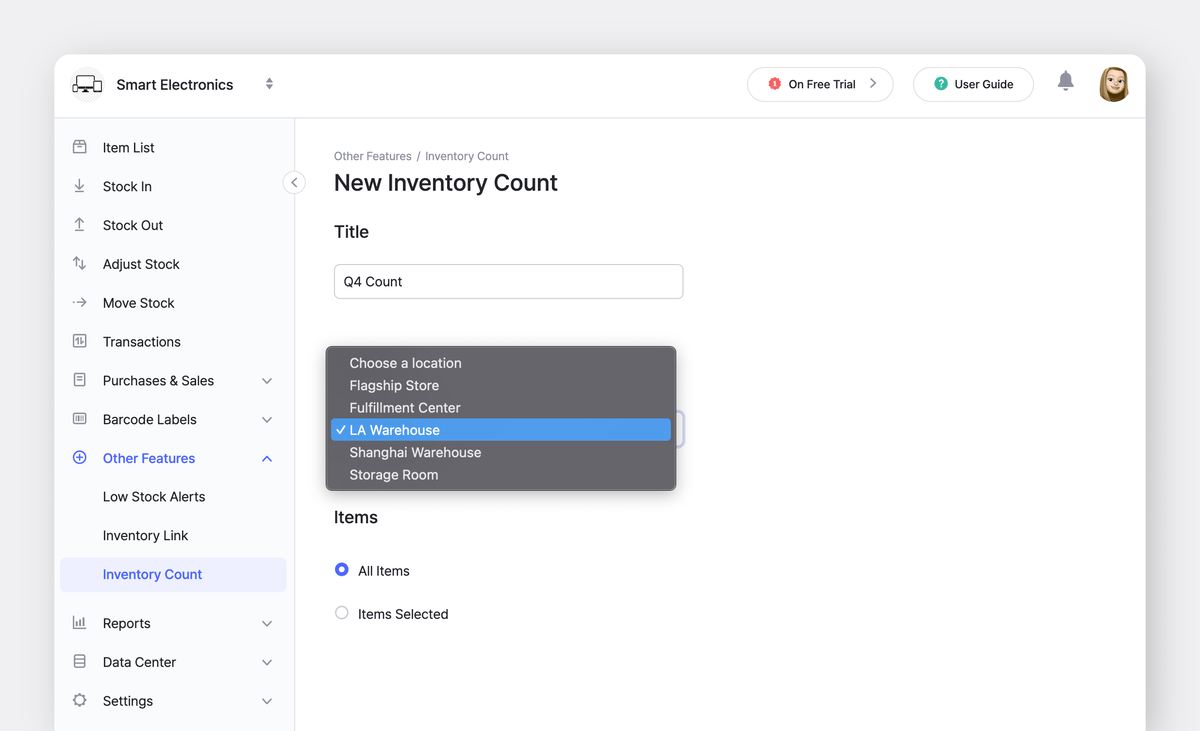
Physical inventory counts become manageable with location-based organization as well. Rather than counting everything at once, you can conduct partial counts for specific locations.
BoxHero's Inventory Count feature lets you create task sheets by location. Count your retail store inventory on Tuesday while normal operations continue at the warehouse. Count the warehouse on Thursday without disrupting retail.
This approach, sometimes called cycle counting, maintains accuracy without requiring a complete operational shutdown. Your team can work through one location's count before moving to the next.
Advanced Location Tracking Strategies
A. Setting Up Location-Specific Alerts
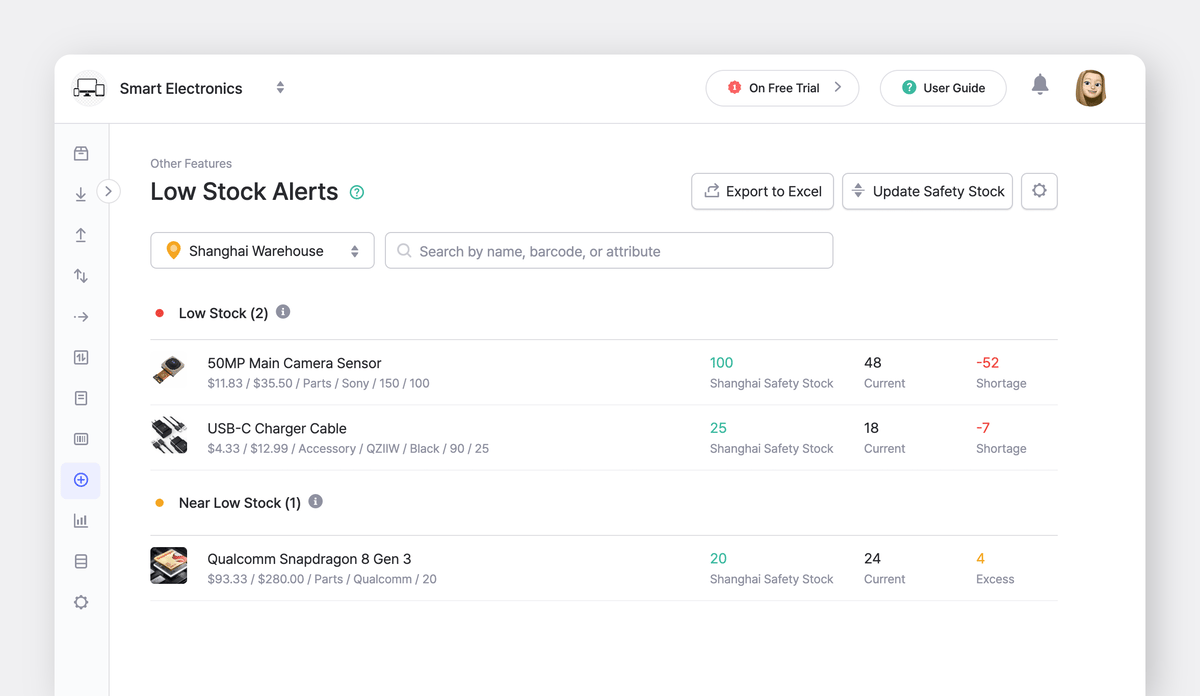
BoxHero allows you to set different safety stock levels for each location. This makes sense because demand patterns vary by location. Your downtown store might need 20 units minimum while your suburban location only needs 5.
Make sure to configure Low Stock Alerts by location, and team members receive notifications specific to their area.
B. Using Locations for Quality Control
Many businesses also use BoxHero locations to build quality control into their inventory process. Create a "QC Hold" location where incoming inventory sits temporarily. Inspect products for defects, verify quantities against purchase orders, and check expiration dates. Only after passing inspection do items move to "Ready for Sale" locations.
C. Tracking Products through their Lifecycle
Some businesses use locations to track products through different lifecycle stages. A furniture retailer might use:
New Inventory > Floor Display > Customer Return > Refurbished > Final Sale
Each transition gets recorded, giving you data on how long products typically spend in each stage and where bottlenecks occur.
Closing Thoughts
When inventory is tracked by location, questions become easier to answer. You can see where items are stored, where they are selling, and where they are sitting unused. That means you'll be able to make better decisions about purchasing, transfers, fulfillment, and expansion.
➤ For teams already using BoxHero, reviewing your locations setup can uncover small fixes that make a real difference. Clear location names, a manageable number of locations, and consistent use of transfers usually improve accuracy without changing how people work.
➤ For teams still relying on memory or spreadsheets to track inventory, BoxHero’s approach keeps location tracking tied directly to purchases, sales, and stock movements. You get the insights you need to manage multiple locations effectively while keeping the system simple enough that your entire team actually uses it.
RELATED POSTS
 BoxHero
 Nahi Kim
 BoxHero