Barcoding for Small Businesses: Print and Scan with BoxHero
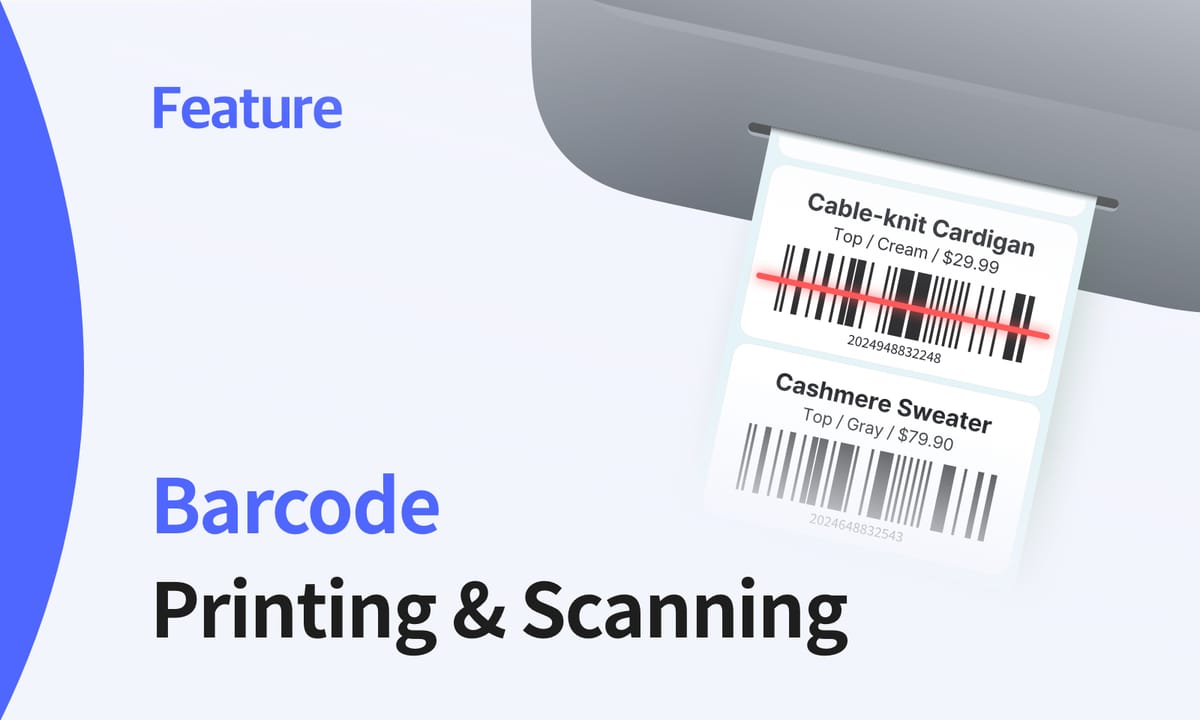
Barcodes aren't new. The first UPC barcode was scanned in 1974 on a pack of chewing gum. What has changed is who uses them and how accessible they have become. Barcoding is no longer limited to big retailers or warehouse operators with special hardware. Today, small businesses use barcoding as part of daily inventory tracking, often with nothing more than a phone and a label printer.
Instead of relying on memory or handwritten notes, barcoding provides a consistent way to identify items, record movement, and reduce recording mistakes.
This article explains how barcoding actually works in a small business setting, focusing on two core pieces: barcode scanning and barcode printing. It looks at when barcodes help, how teams use them in practice, and how BoxHero supports barcoding in a way that fits small businesses.
• Barcode scanning through the mobile app
• Support for common barcode formats (UPC, EAN, Code 128, QR codes)
• Barcode printing tied directly to item records
• Compatible with any standard printer and scanner
What Barcodes Do in Inventory Tracking
In inventory tracking, barcodes solve one basic problem: identifying the right item every time—without having to type. While manual entry introduces risks like typos ("BLU-SHRT-M" vs. "BLUE-SHIRT-M") and inconsistent abbreviations, a scanned barcode points to exactly one item.
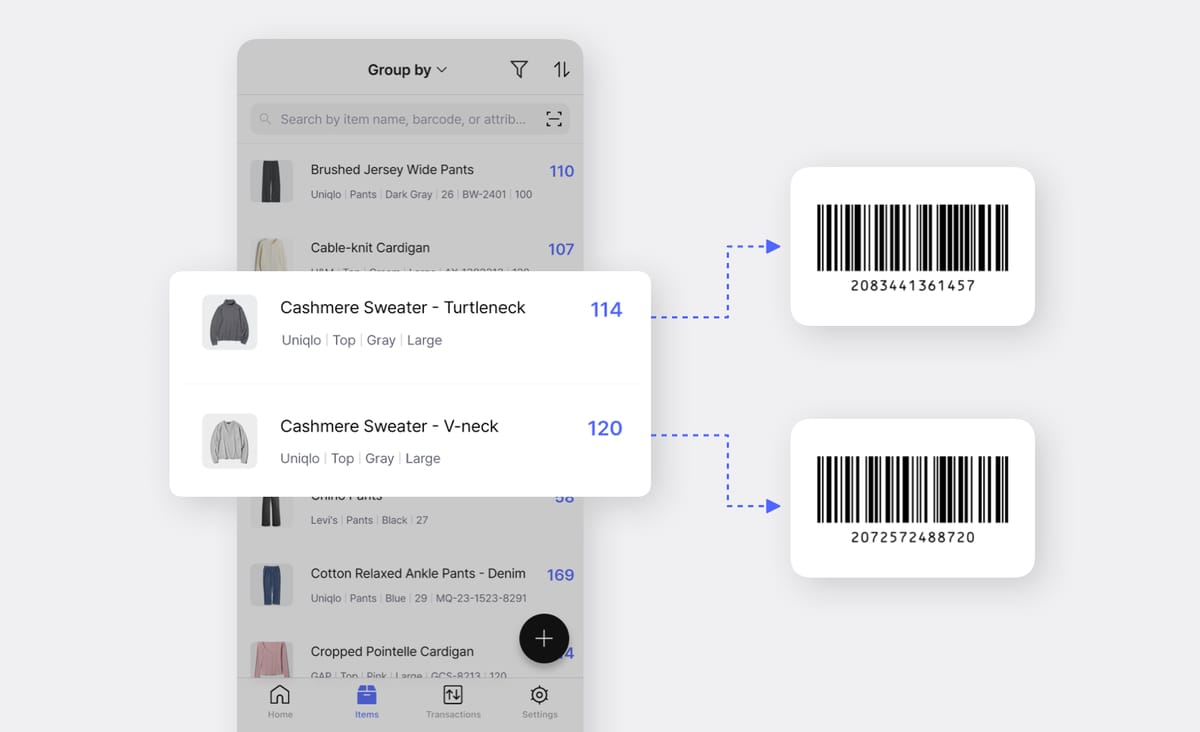
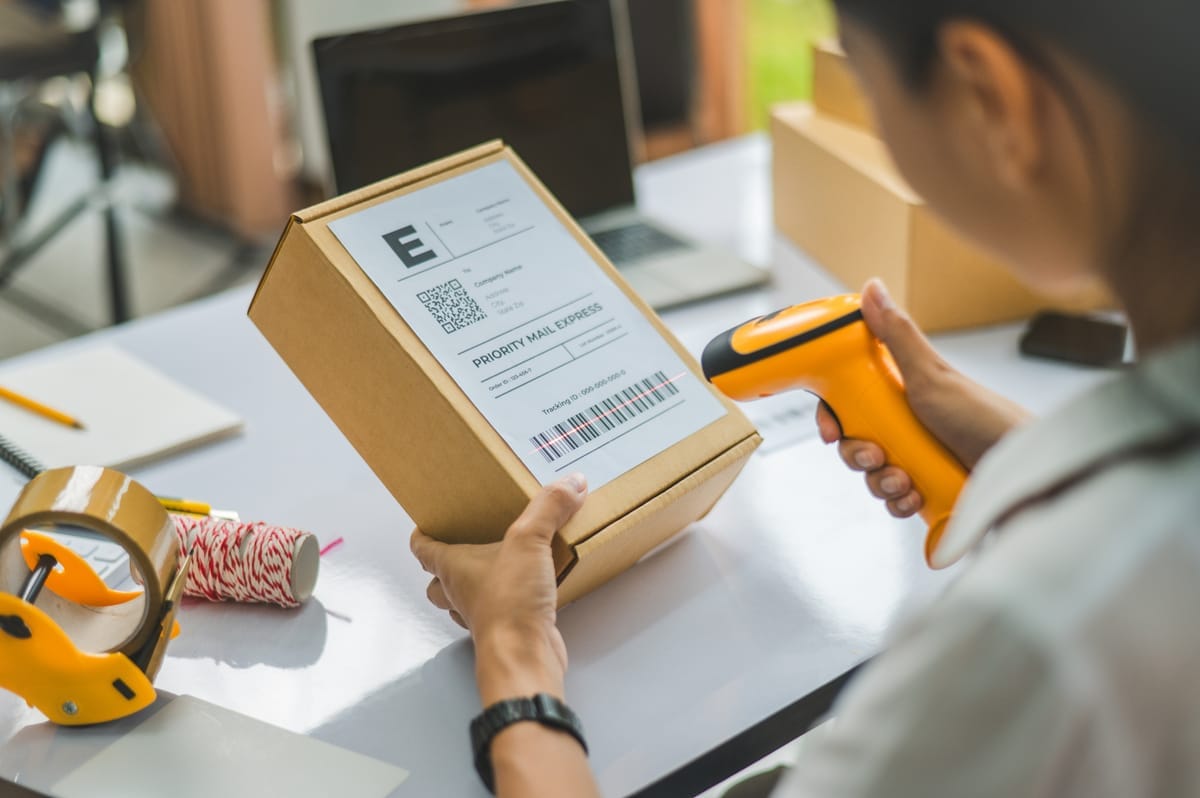
Here's how barcode scanning works in practice:
2) An employee scans the barcode with their phone or handheld scanner.
3) The system confirms the item and quantity.
4) The transaction is complete. 3 units are deducted from inventory and stock levels are updated across all connected devices.
The entire process takes seconds and creates a permanent, searchable record.
 BoxHero
GS1, the global organization behind UPC and EAN standards, describes barcodes as “a way to capture data accurately and efficiently” rather than as a technology for speed alone.
Speed matters, but accuracy is the real benefit, especially for small teams where one incorrect entry can impact purchasing decisions, fulfillment, and customer orders.
Types of Barcodes
Different barcode formats serve different purposes. The format you choose depends on whether you're scanning existing product barcodes or creating your own labels. Retail products come with linear barcodes already printed. Custom products need codes you generate and print yourself.
Linear (1D) Barcodes
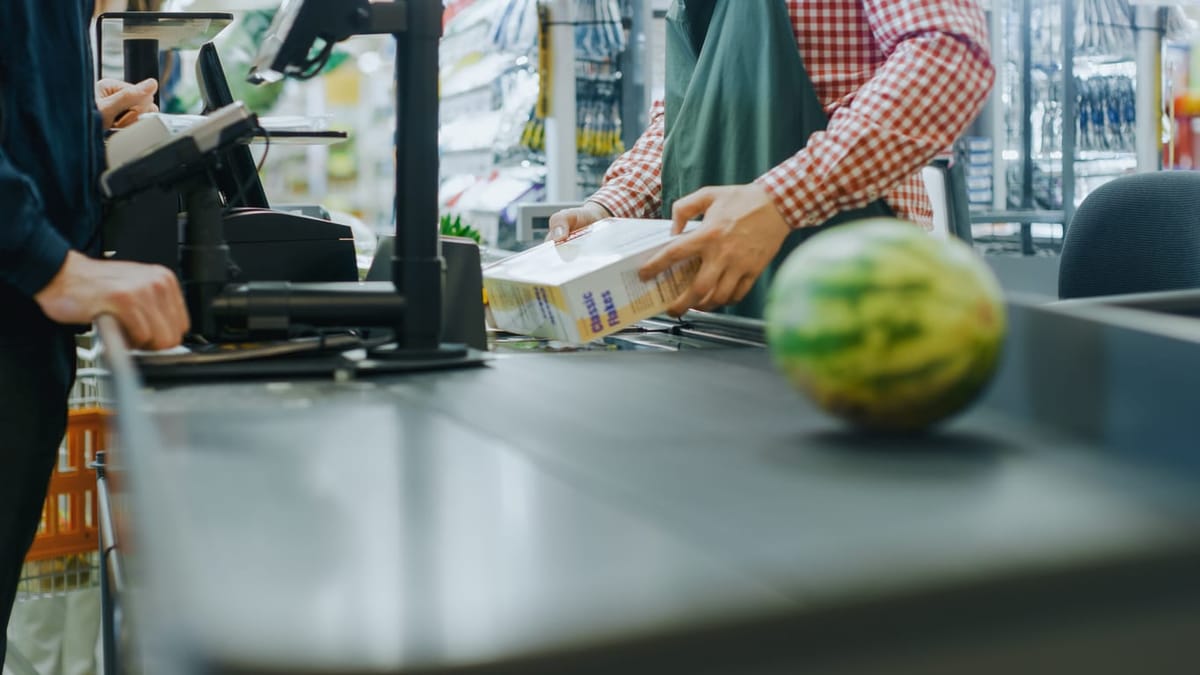
These are the traditional barcodes you see on most retail products—vertical black lines with numbers underneath. UPC-A codes (Universal Product Code) contain 12 digits and appear on nearly every consumer product in North America. EAN-13 codes serve the same function internationally with 13 digits.
Code 128 is another linear format, popular for internal inventory management because it can encode letters, numbers, and symbols. It's useful for custom product codes, serial numbers, and batch tracking, especially for parts or materials that don't come with a manufacturer barcode.
Two-Dimensional (2D) Barcodes
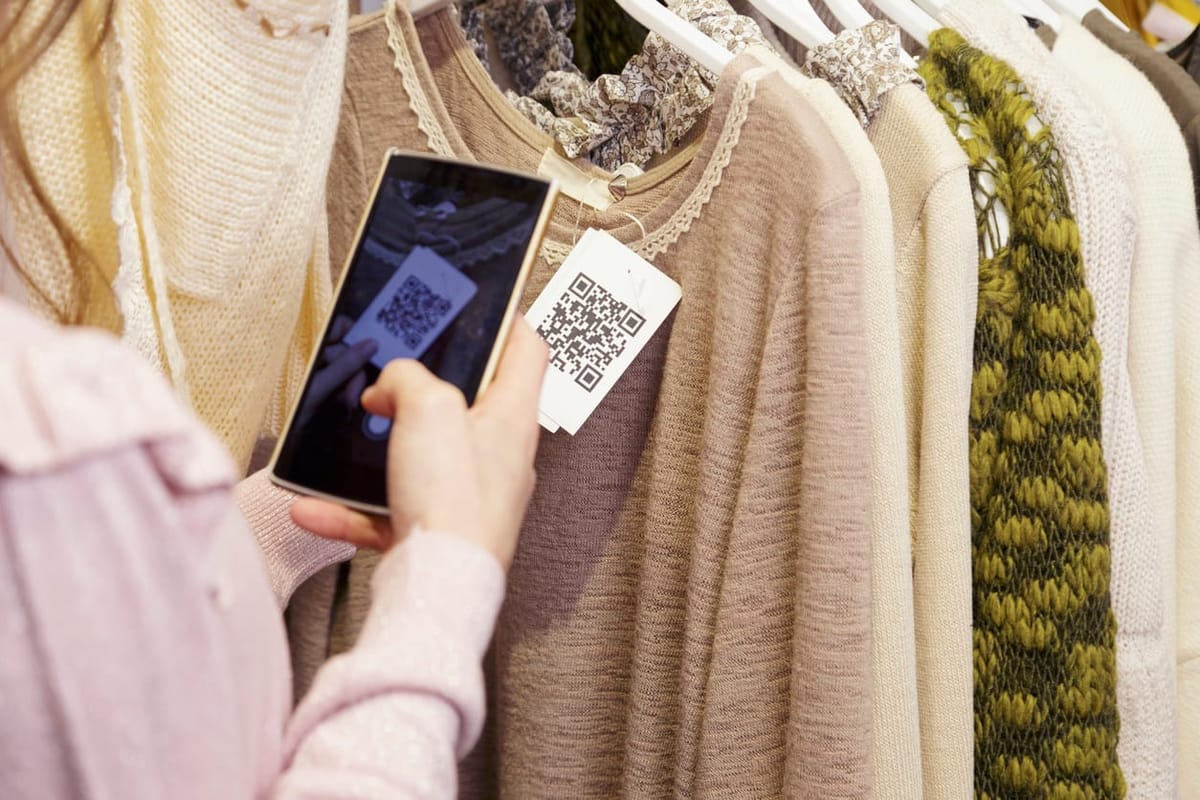
QR codes and data matrix codes can store significantly more information—up to several thousand characters versus 20-25 for most linear barcodes.
2D barcodes work well when additional information needs to be embedded directly in the code, such as lot numbers, expiration dates, or manufacturing details. They're common in healthcare, electronics manufacturing, and some food production environments.
Which Format Should You Use?
For most small businesses selling standard retail products, UPC or EAN codes make sense because they're already on manufacturer packaging. You simply scan existing barcodes into your inventory system.
For custom items, internal-use products, or anything without manufacturer barcodes, Code 128 works better. It handles letters, numbers, and symbols, so you can encode your own SKU formats and product identifiers.
QR codes can be useful when labels need to link to external information or when space is limited, but most inventory tracking workflows don't require them.
How to Set Up Barcode Scanning: Equipment and Software
You don't need industrial equipment to start scanning barcodes. With BoxHero, you can begin with a mobile phone camera or a simple scanner, then add or upgrade to more specialized hardware later.
Barcode Scanner Options
Modern smartphones work well as barcode scanners. Both iOS and Android devices include built-in cameras with sufficient resolution to read standard barcodes reliably. BoxHero's mobile app uses your phone's camera to scan barcodes without additional hardware.
For teams that scan large volumes of items throughout the day, barcode scanners offer some advantages:
- Handheld laser scanners start around $50-150 and work faster than phone cameras, particularly when scanning multiple items quickly. They're also more durable in warehouse or retail environments.
- Bluetooth scanners ($100-300) connect wirelessly to tablets or computers, giving employees mobility while maintaining connection to your inventory system. These work well for stockrooms or small warehouses where staff move between shelves.
 BoxHero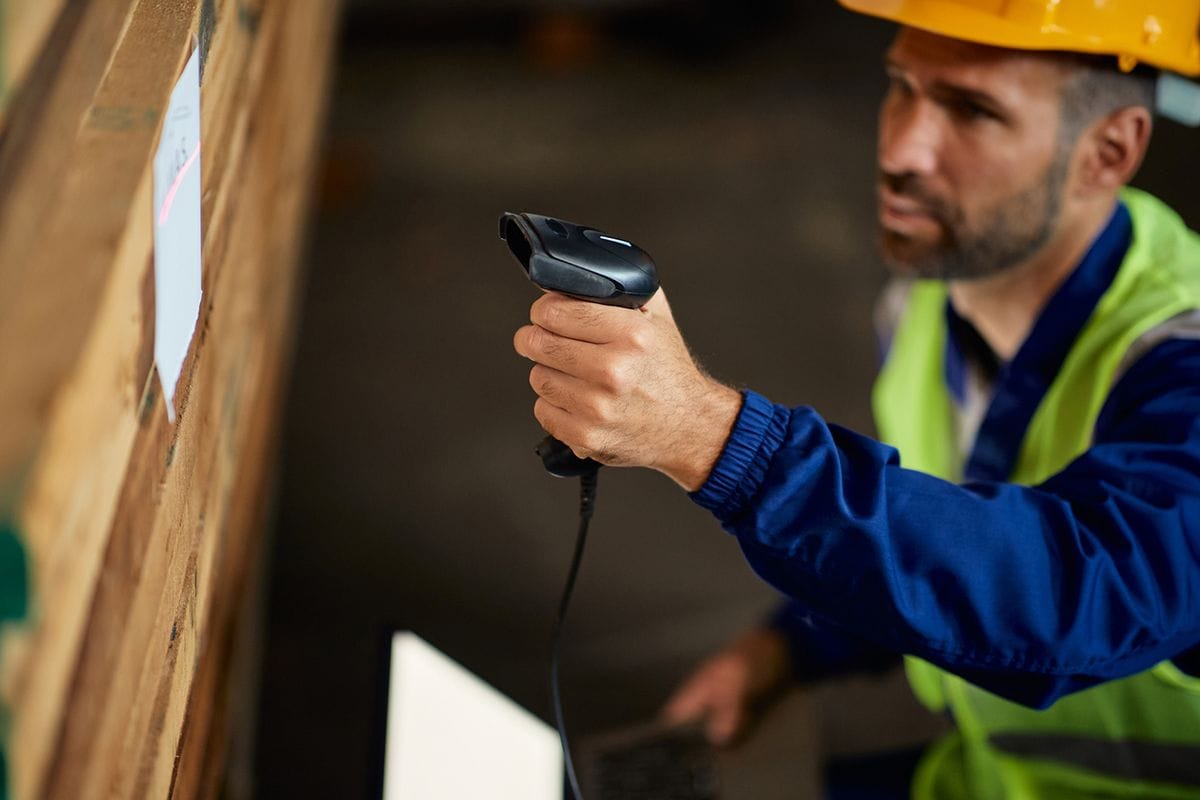
Software Integration
Your scanner is only useful if it connects to inventory management software that understands barcode input. Inventory systems like BoxHero accept barcode input directly and link each scan to an item record. Once connected, scanning can be used to record receiving, sales, and transfers without manually searching for items.
Key features to look for:
• Custom field support for tracking product-specific data
• Transaction history showing when items were scanned, by whom
• Location tracking within your facility or across multiple storage sites
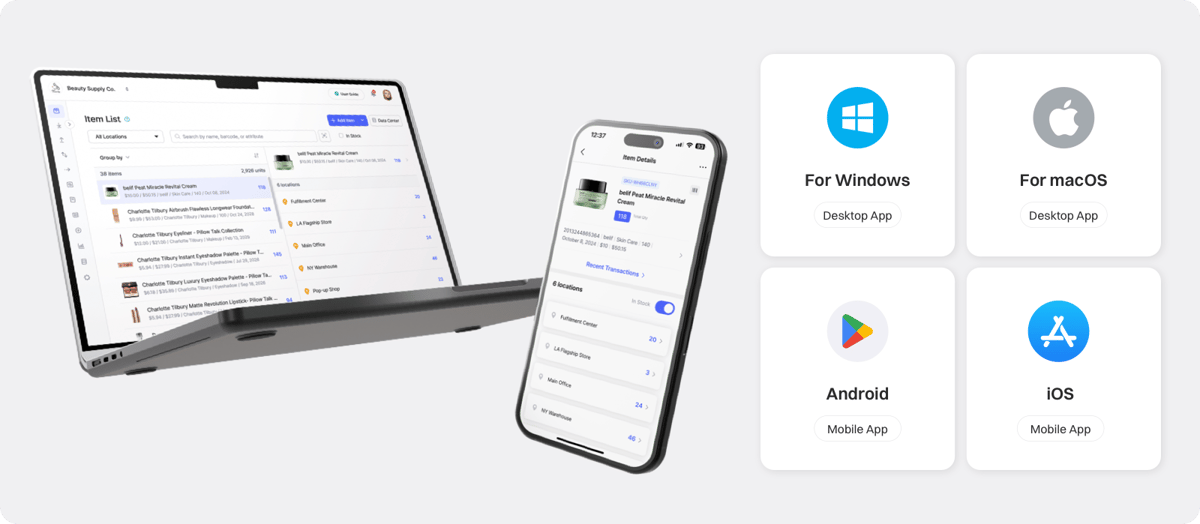
BoxHero's barcode scanning function works through mobile apps (iOS and Android) and web browsers on desktop computers. A phone camera can be used as a scanner right away, allowing you to scan items without buying hardware.
How to Print Custom Barcodes Labels
Many small businesses sell products that don't come with barcodes—handmade items, bulk products split into smaller quantities, or inventory purchased without retail packaging. Printing your own barcodes solves this problem.
Label Printer Options
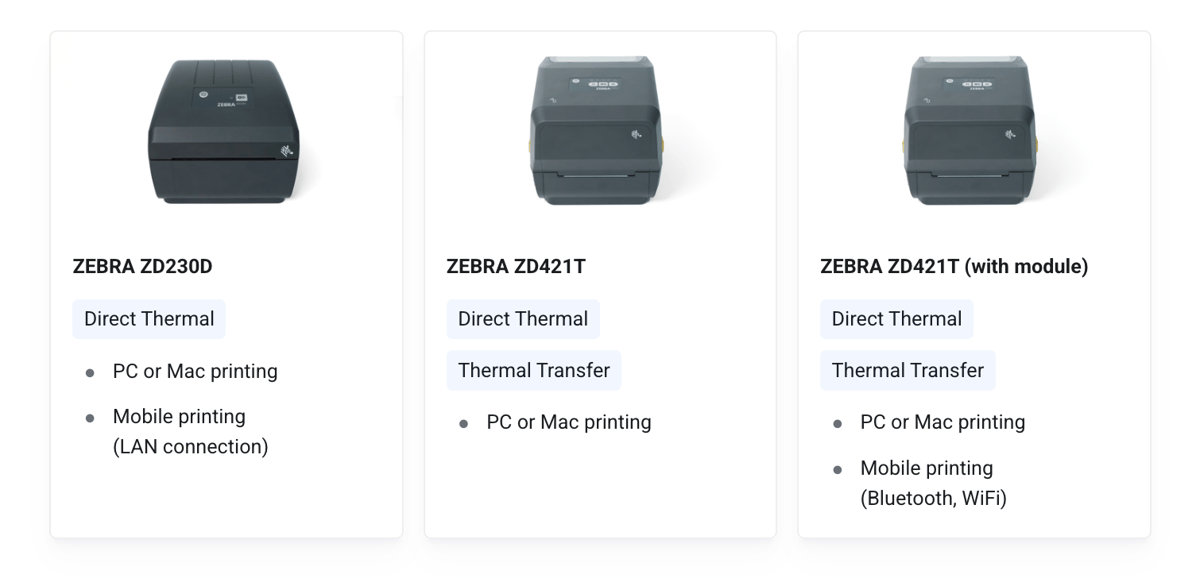
- Thermal printers designed for barcode labels range from $150 for basic models to $500+ for commercial-grade equipment. Dymo and Brother make popular entry-level options that connect via USB or Bluetooth. These printers use heat to create images on special thermal paper, eliminating ink costs. Labels come in rolls, typically in 1"x1" or 2"x1" sizes suitable for most products.
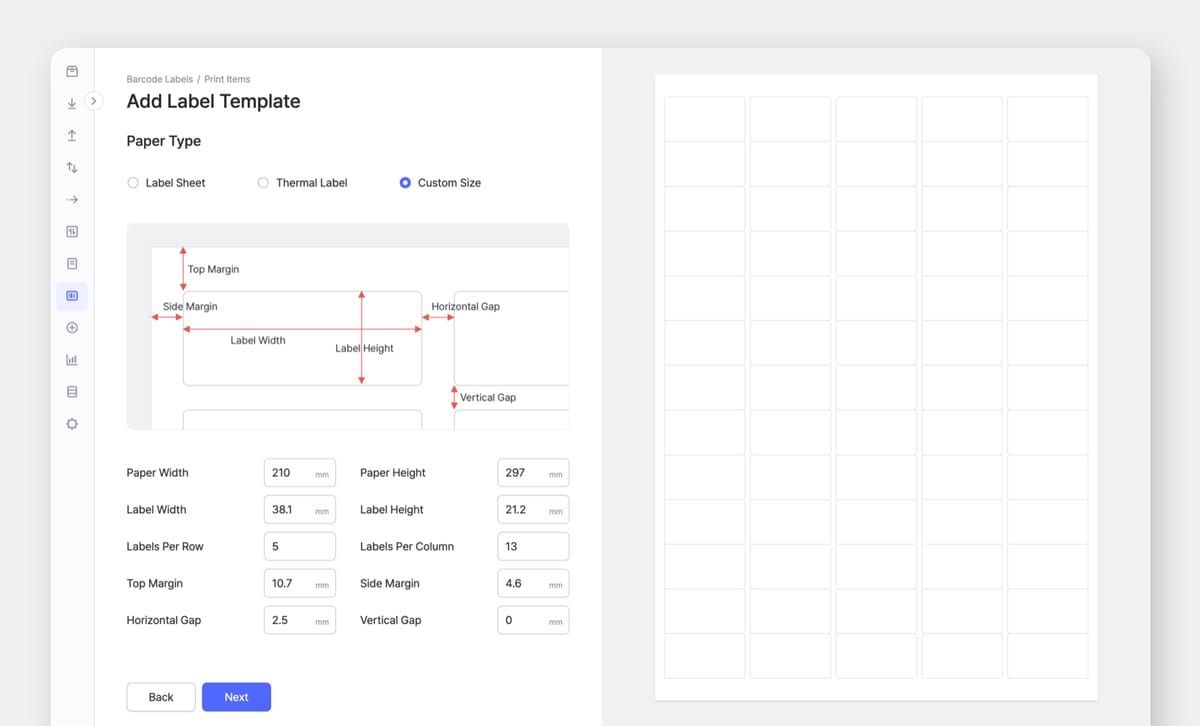
- Standard inkjet or laser printers also work if you print on adhesive label sheets. This option costs less upfront but becomes more expensive per label (and less durable) over time. It makes sense if you're printing only occasionally.
Creating and Printing Labels
BoxHero's barcode printing feature generates labels directly from your item information. Select any item, choose your barcode format, and print labels without exporting data.
You can print individual labels or batch print hundreds at once. For products with variations (different sizes, colors, or expiration dates), create unique labels for each variation to maintain precise tracking.
What to Put on a Barcode Label
A barcode label does not need to carry a lot of information. Its main job is to encode an identifier that the system understands.
Most small teams include:
- The barcode itself
- A short item name or internal code
- Optional info such as pricing, category, and other attributes
BoxHero's Barcoding Features
BoxHero is designed so small businesses can start using barcodes without setup work or specialized knowledge.
Scanning Existing Barcodes
For items that already have manufacturer barcodes, simply scan them when creating a new item. BoxHero recognizes common formats such as UPC, EAN, Code 128, and QR codes and stores them automatically.
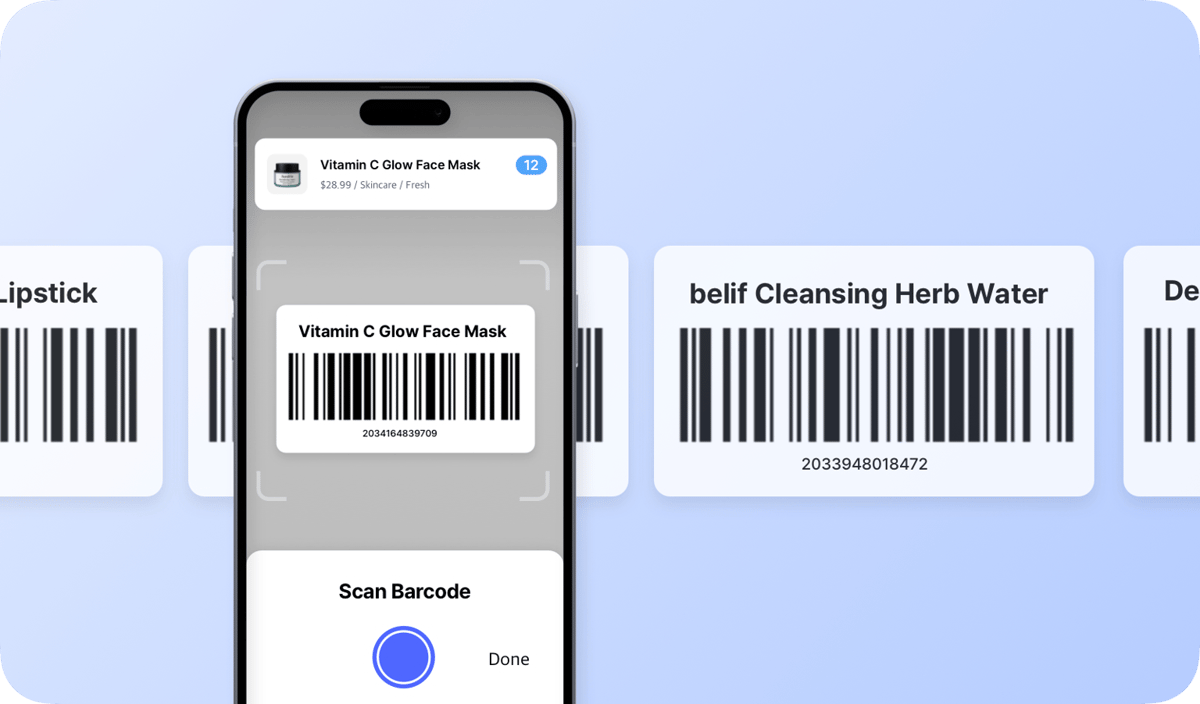
How Scanning Works:
BoxHero's scanning interface is intentionally simple. Point your camera at any barcode, and BoxHero instantly opens the matching item record to show current quantity and location. You can record inventory transactions like Stock In and Move Stock, which will be reflected in your Transactions history.
Multiple team members can scan items at the same time from different devices. All changes sync instantly across your organization so you can process orders, receive shipments, and count inventory without overwriting each other’s work.
Printing Custom Barcodes
For items without barcodes, BoxHero can generate barcodes tied to your item info. You can create barcode labels based on internal SKUs or item identifiers, then print them using any label printer. Each barcode maps to a single item.
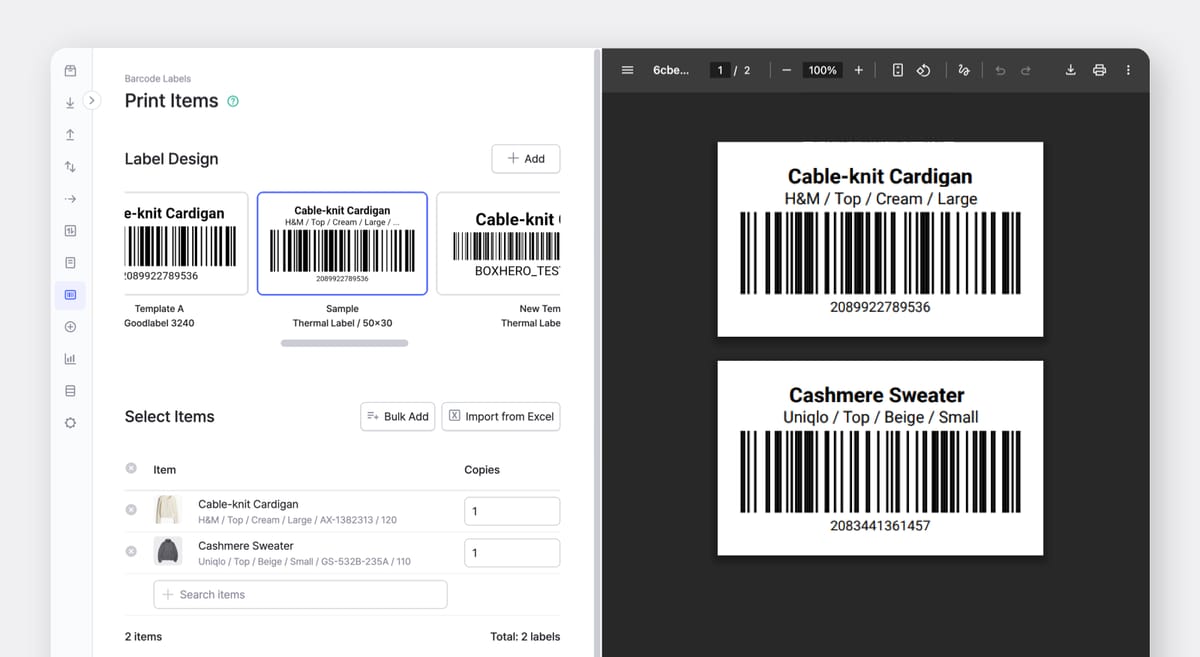
The Complete Workflow
Barcoding works best when printing and scanning are treated as one continuous workflow rather than separate tasks. In practice, that workflow looks like this:
- Create an item record in the inventory system
- Generate and print the barcode label
- Attach the label before the item is placed in storage
- Scan the barcode whenever the item is received, moved, or used
Following this sequence keeps physical items and system records aligned.
• Barcode Scanning Guide
• Barcode Printing Guide
Conclusion
Barcode scanning and printing change how inventory is recorded on a daily basis. Instead of estimating quantities or searching for misplaced products, you scan items and immediately know what you have, where it is, and when it last moved.
Most small businesses can get started with tools they already have: a phone, a basic label printer, and inventory software that supports scanning and printing. A functional barcode setup does not require large upfront costs or complex configuration.
For businesses ready to move beyond spreadsheets and manual counting, barcoding offers a practical way to keep your inventory records clean and accurate. Ready to try it out with BoxHero?
RELATED POSTS
 BoxHero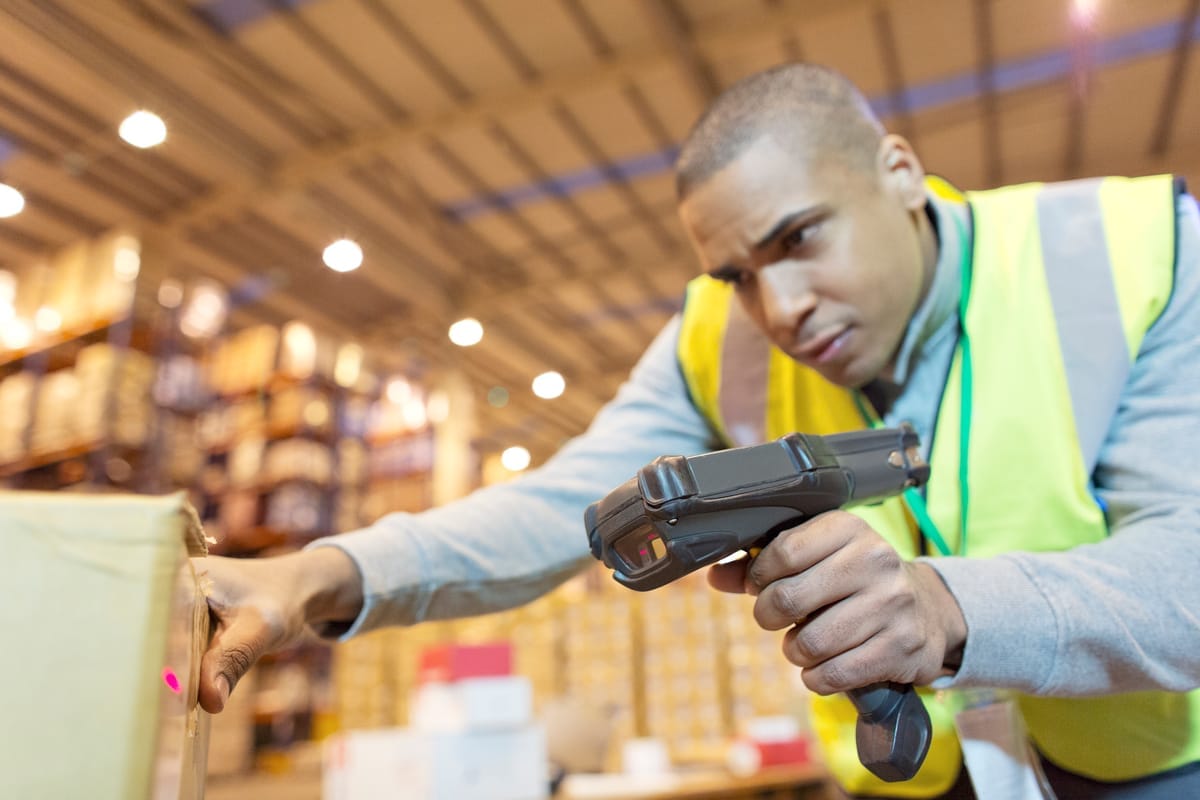
 BoxHero
 Antonette Tagnipez