Attach Files and Images to Your Item Details

Every item in your inventory carries more context than a name and a number. Spec sheets, certificates, product photos, inspection records — until now, that information had to be stored elsewhere.
Today, we're introducing file support for BoxHero's Attributes: you can now attach files, media, and images directly to your items! 🎉
Attach Files and Images to Your Items
BoxHero attributes now support a file type, joining the existing text, number, date, and barcode types.
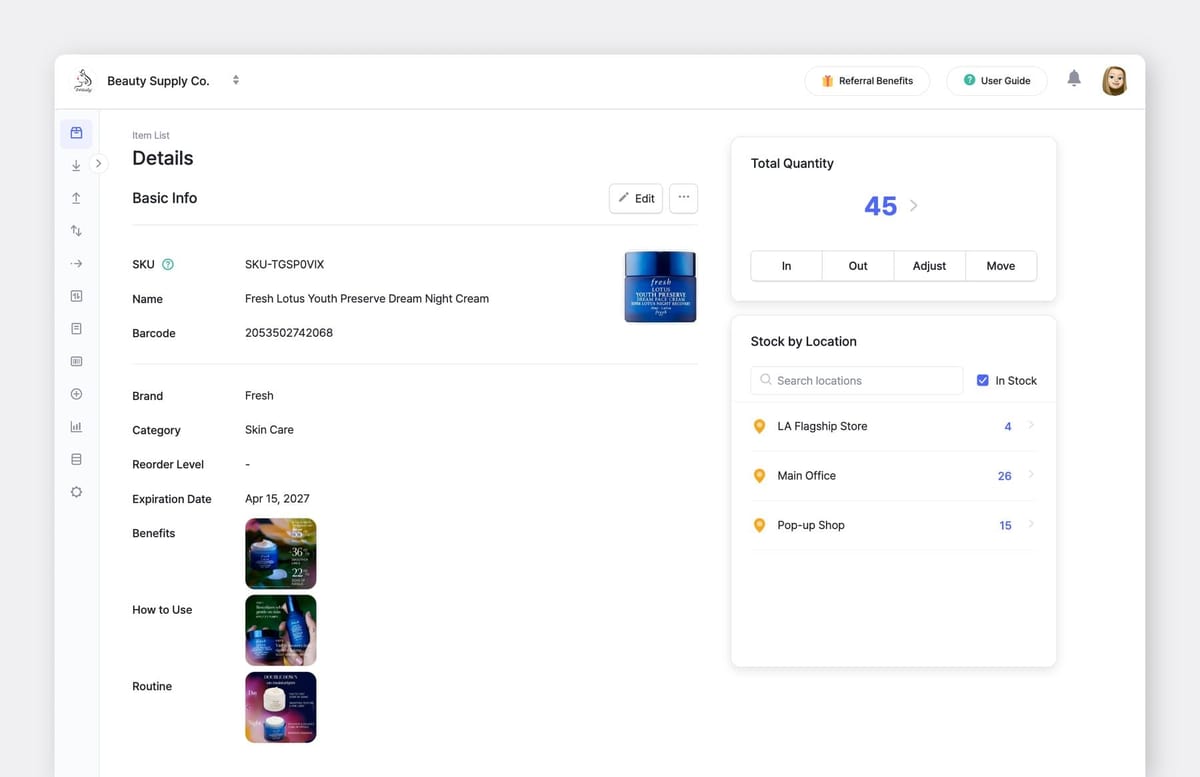
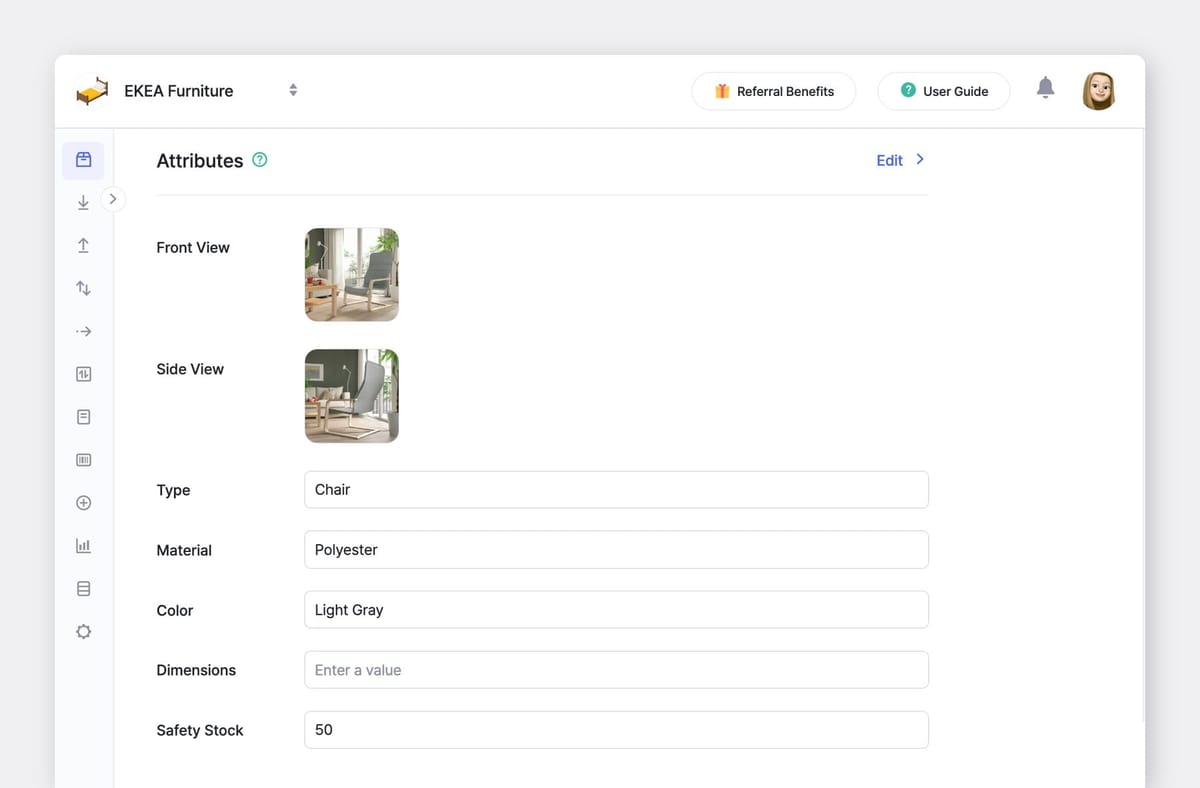
You can attach images, documents, and other files directly to any item in your inventory — product photos, marketing images, compliance certificates, supplier agreements, test reports, assembly instructions, and more.
How It Works
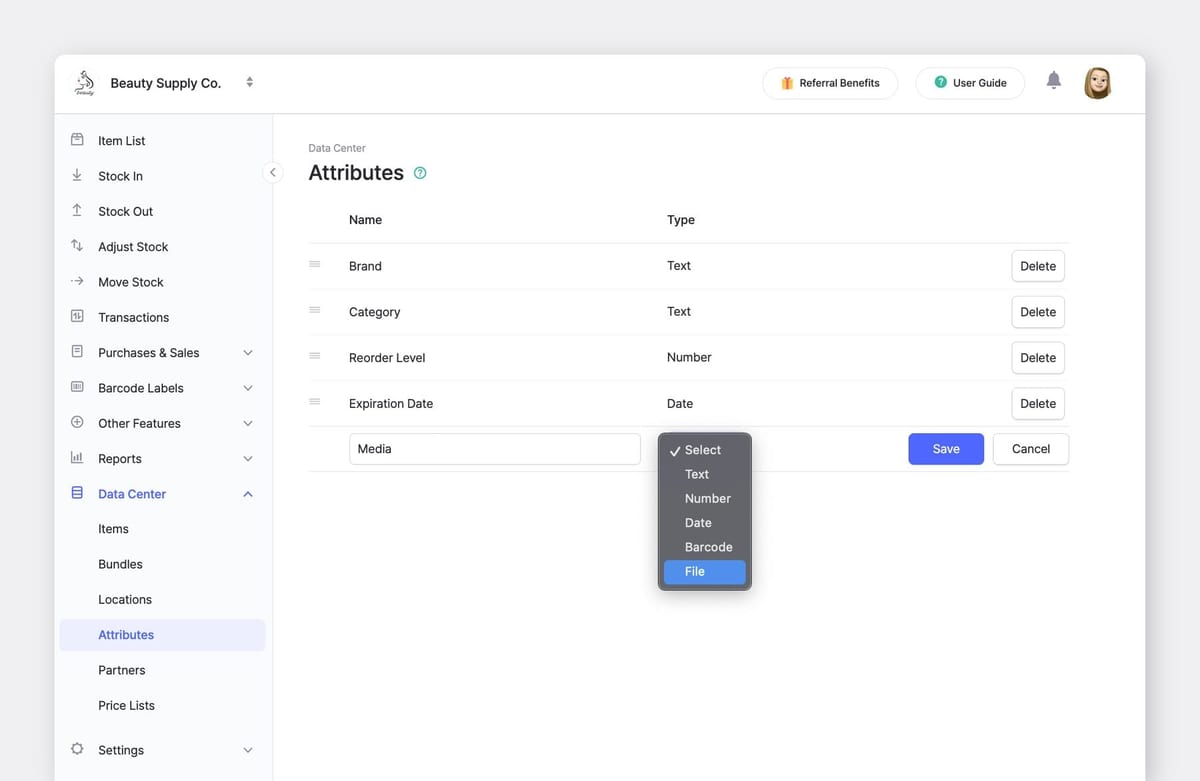
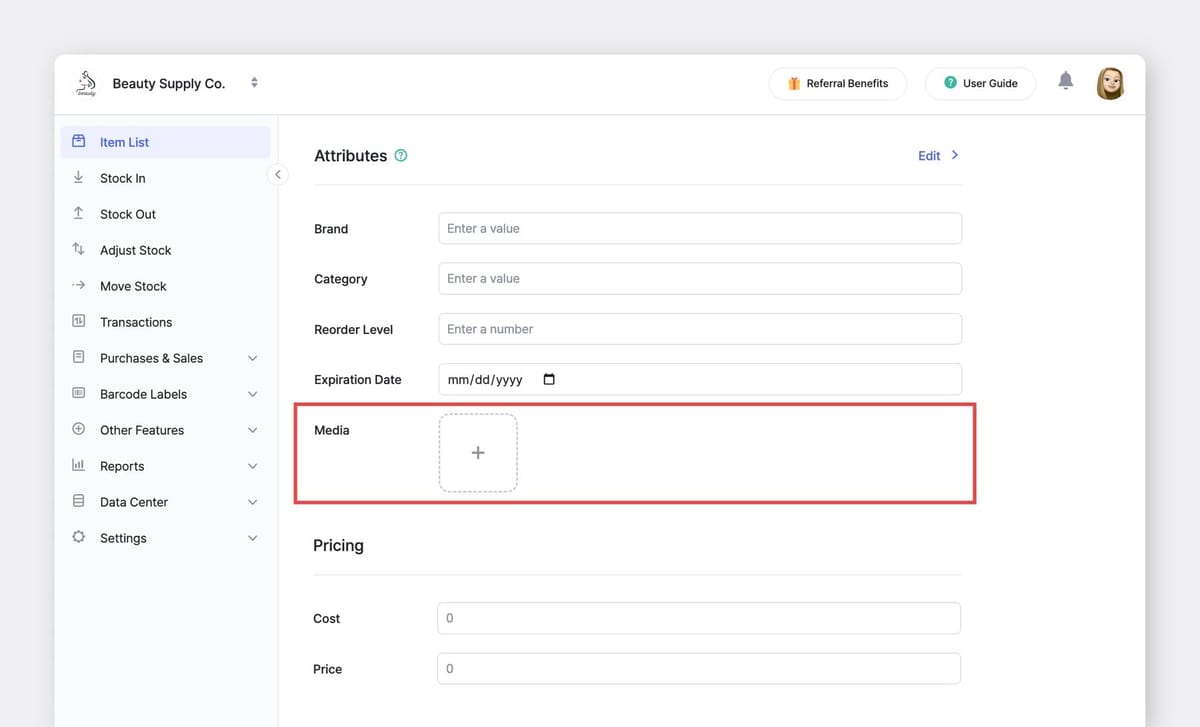
When you create or edit an attribute in Data Center > Attributes, you'll now see File as a type option. Once added, the file upload field appears on your item detail screen. Drag and drop or browse to upload (up to 10 MB).
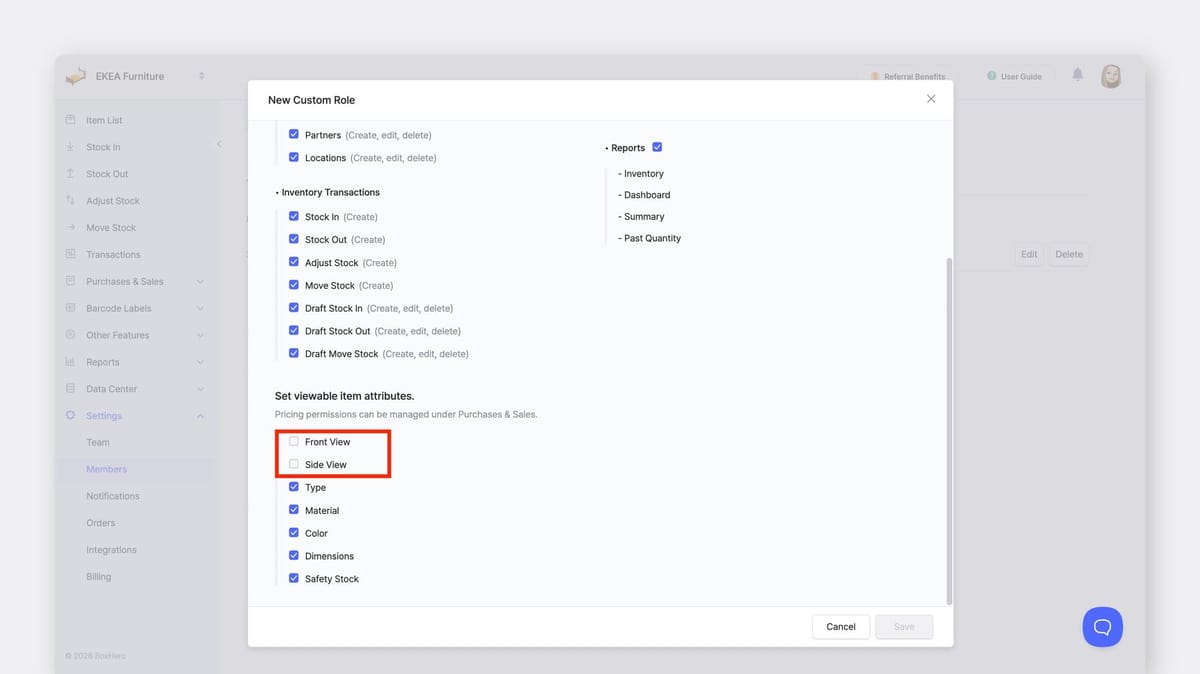
If you want to hide a file attribute from certain team members, you can set this up using custom roles and permissions.
Go to Settings > Members > Custom Roles, create a custom permission set that excludes the file attribute, and assign it to the relevant member.
Getting Started
File attributes are available now for all BoxHero users.
To add one, go to Data Center > Attributes, click + Add, choose File as the type, and name your attribute.
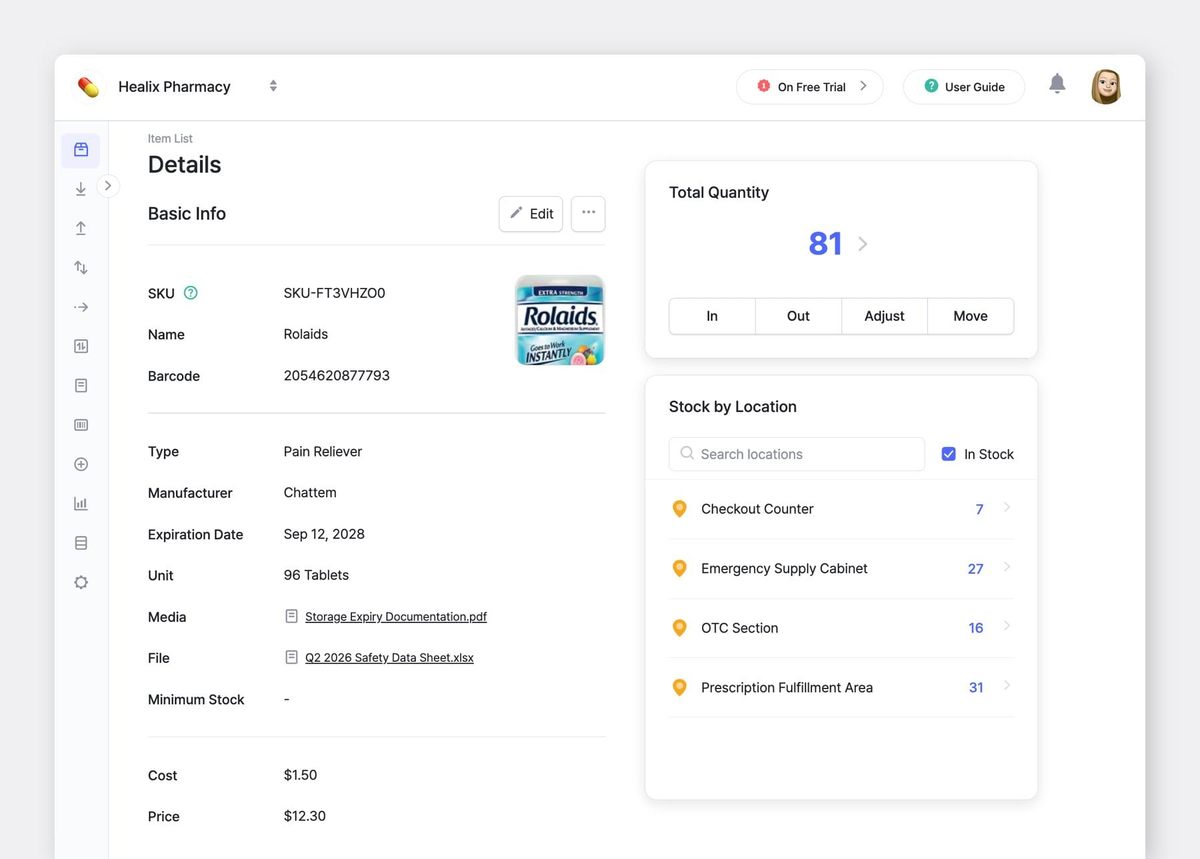
If you're new to attributes, our User Guide walks through how to set them up, enter data, and use grouping and sorting to organize your item list.
Try it out in your team today!