Desktop Printing
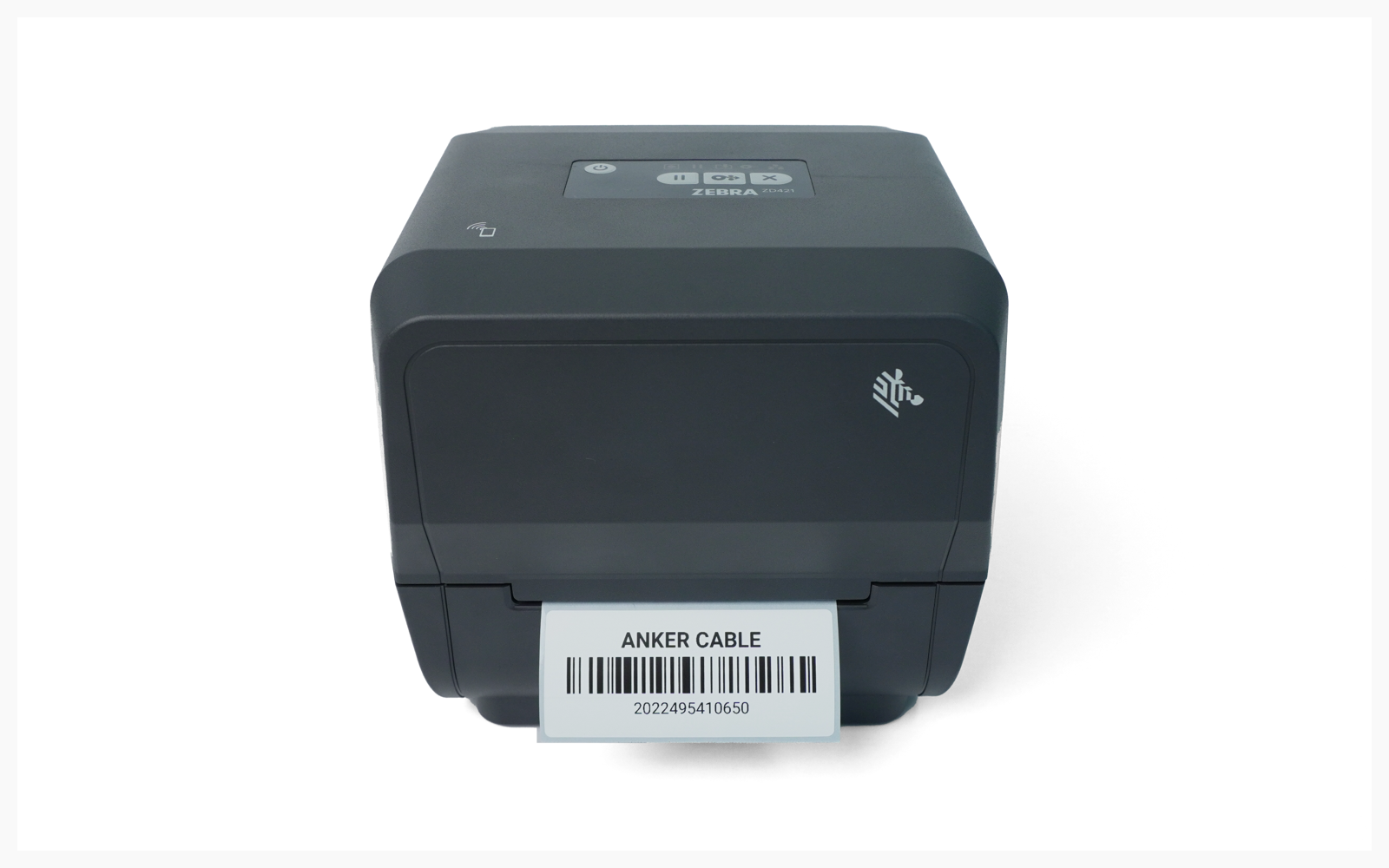
Printing from your computer after completing ZEBRA ZD421T setup.
이 콘텐츠는 아직 번역되지 않았습니다.
I. Driver Installation
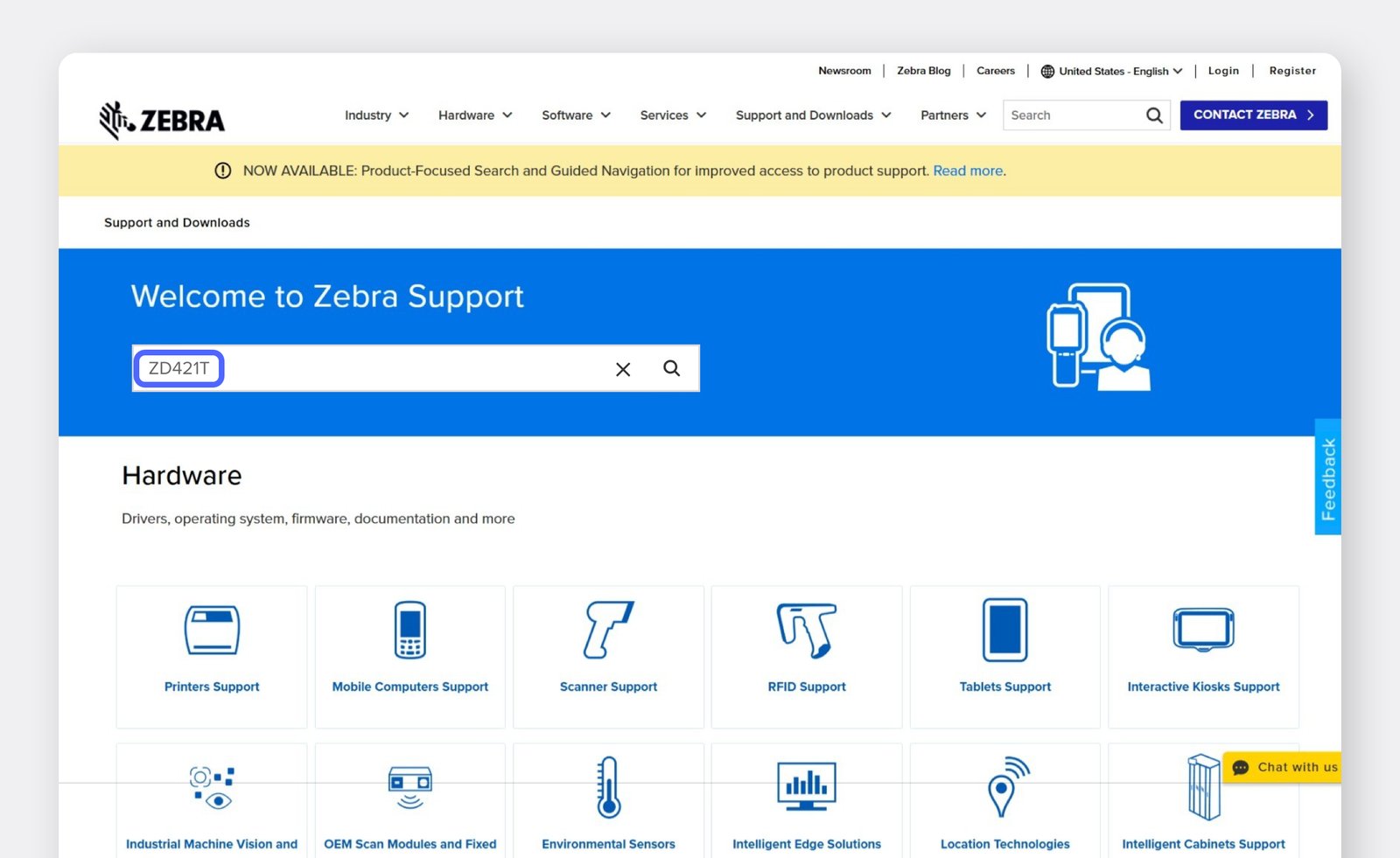
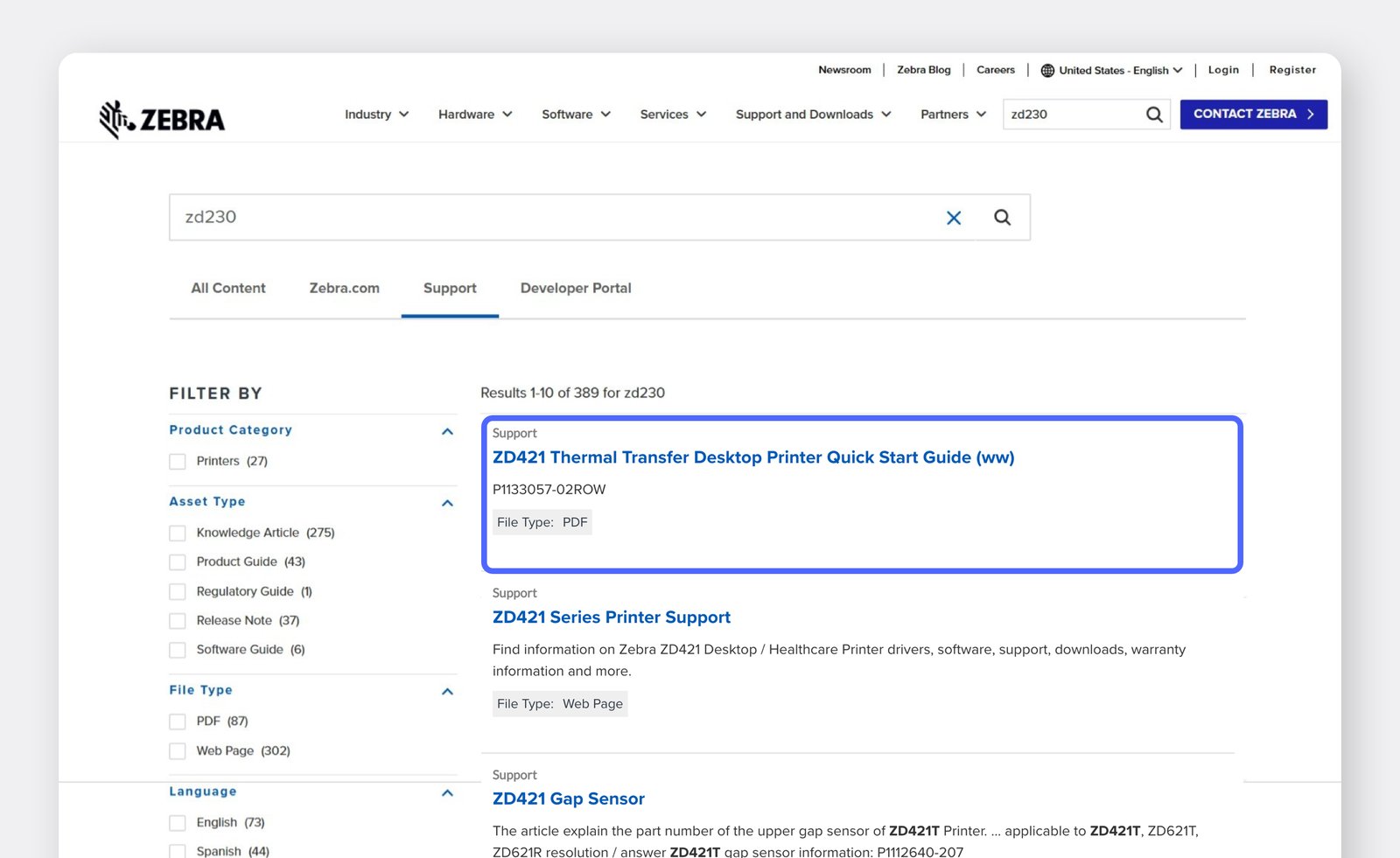
Section titled “I. Driver Installation”Search for your printer model (ZD421T) on the official ZEBRA website and download the driver.
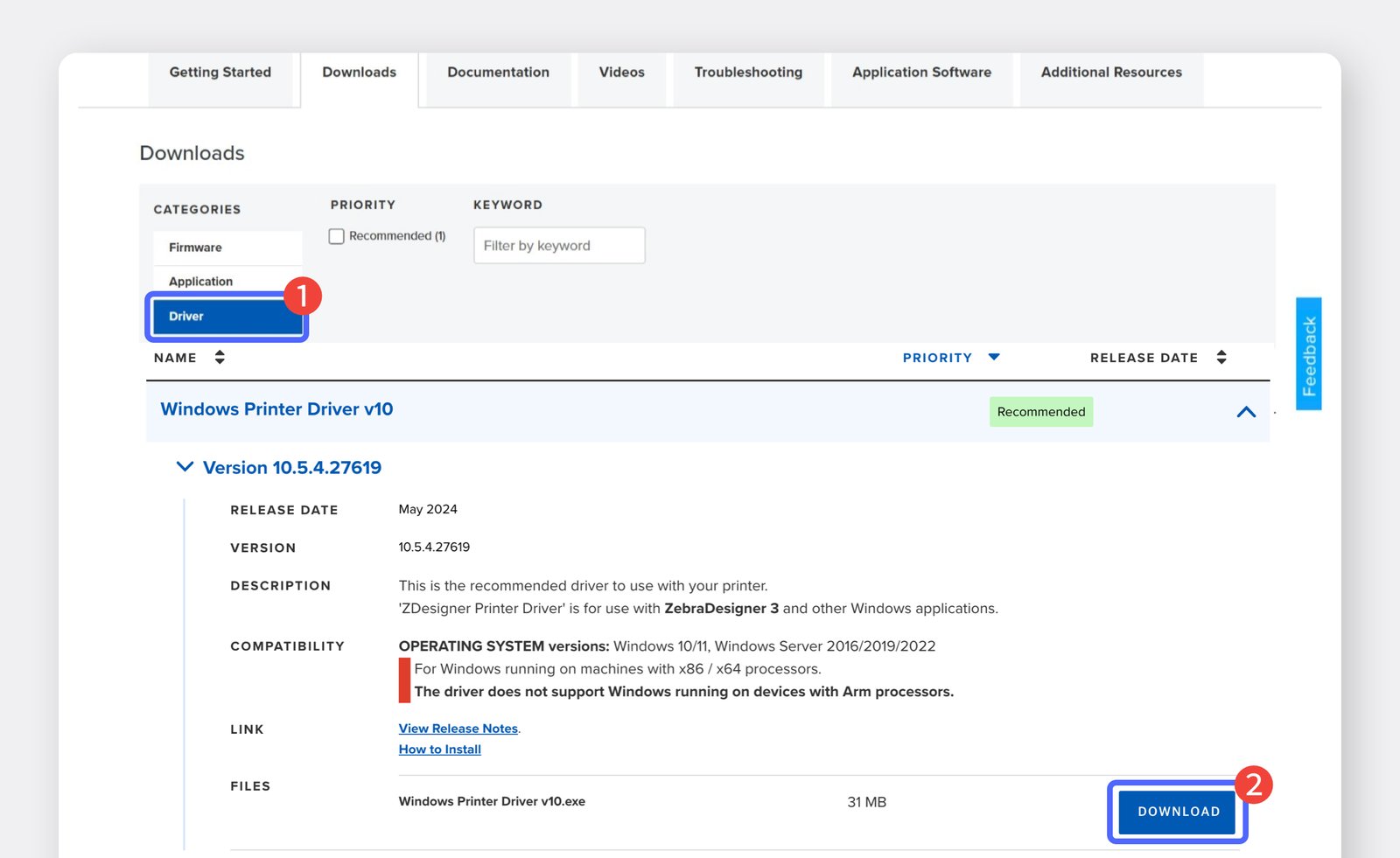
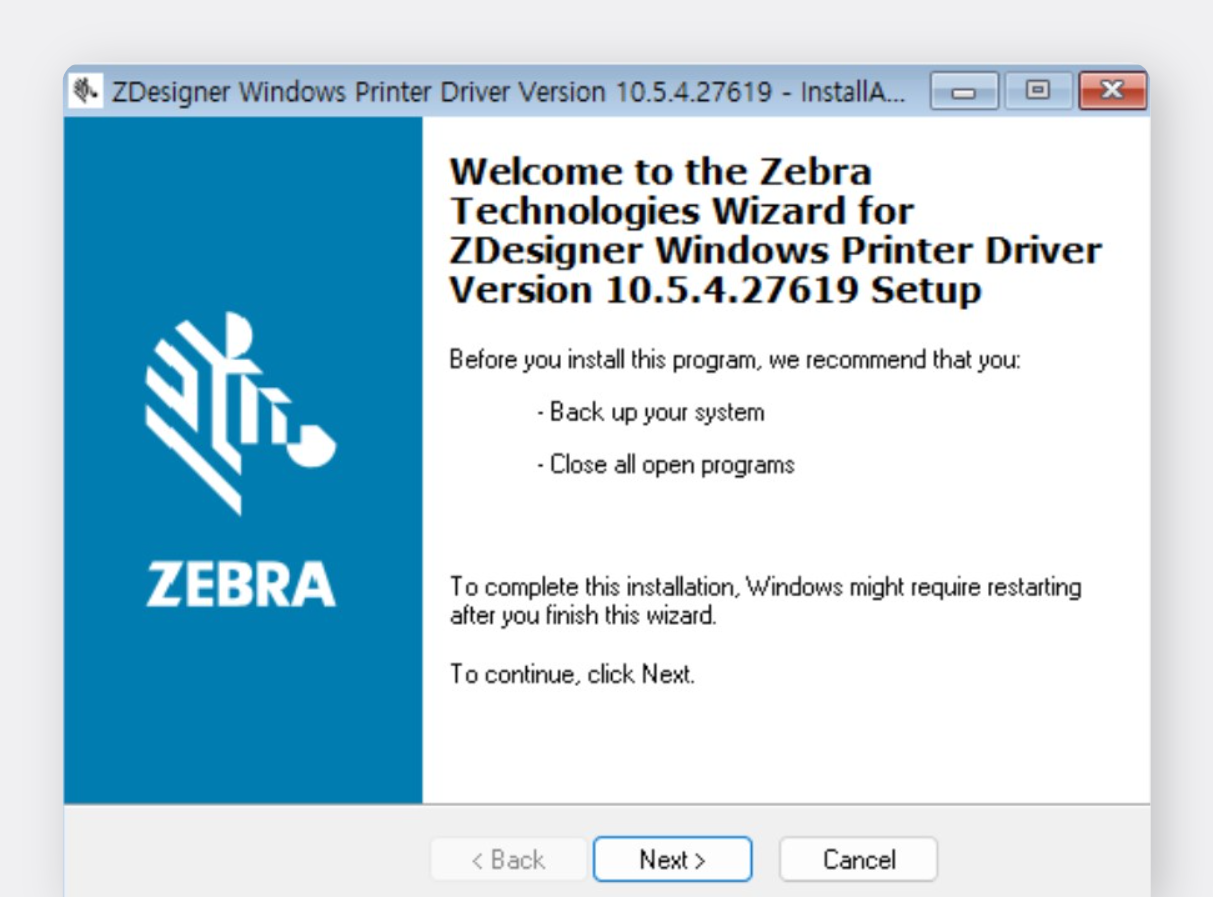
Run the driver file to begin installation.
On the final screen, check Run the printer installation wizard and click
Finish.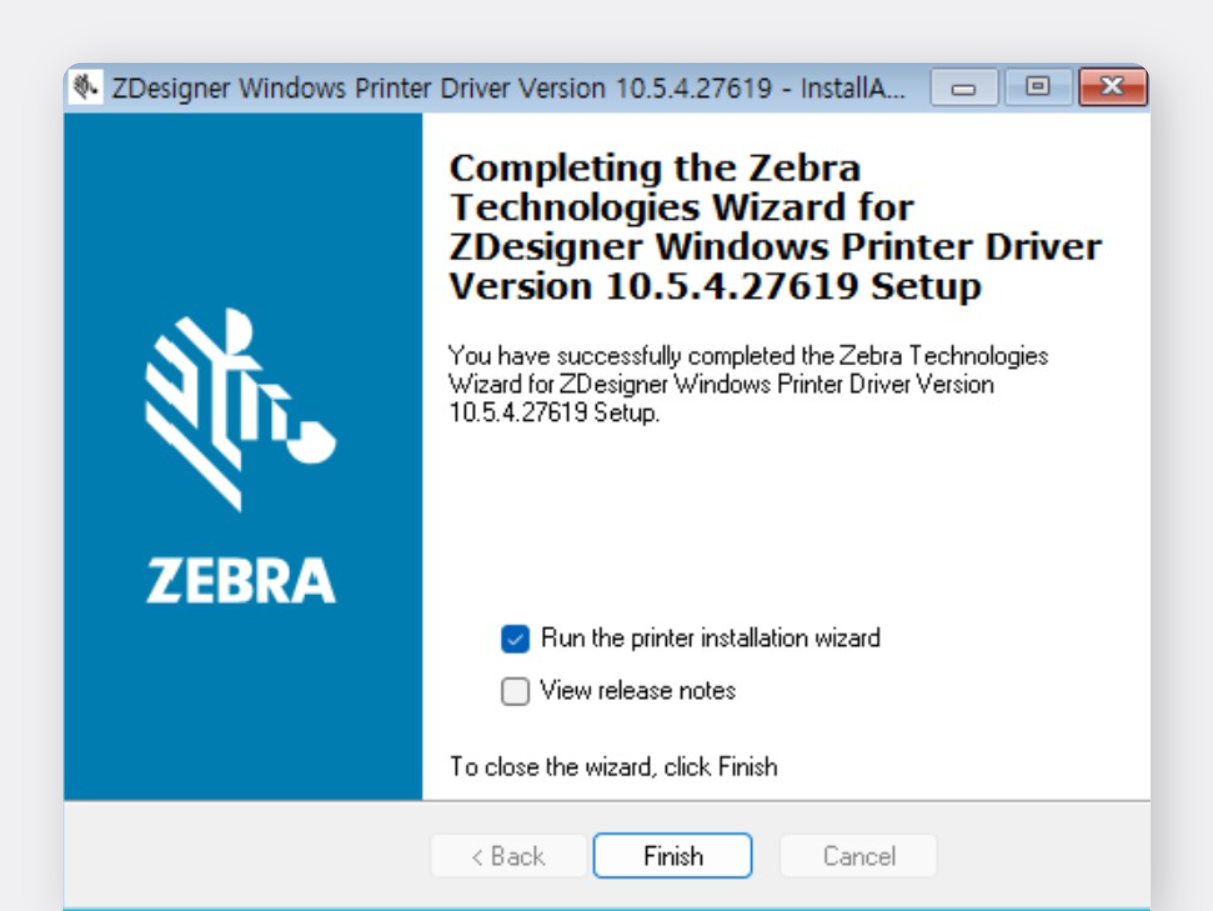
Pause the process and prepare a USB cable to connect your PC and printer. (Don’t connect it yet.)
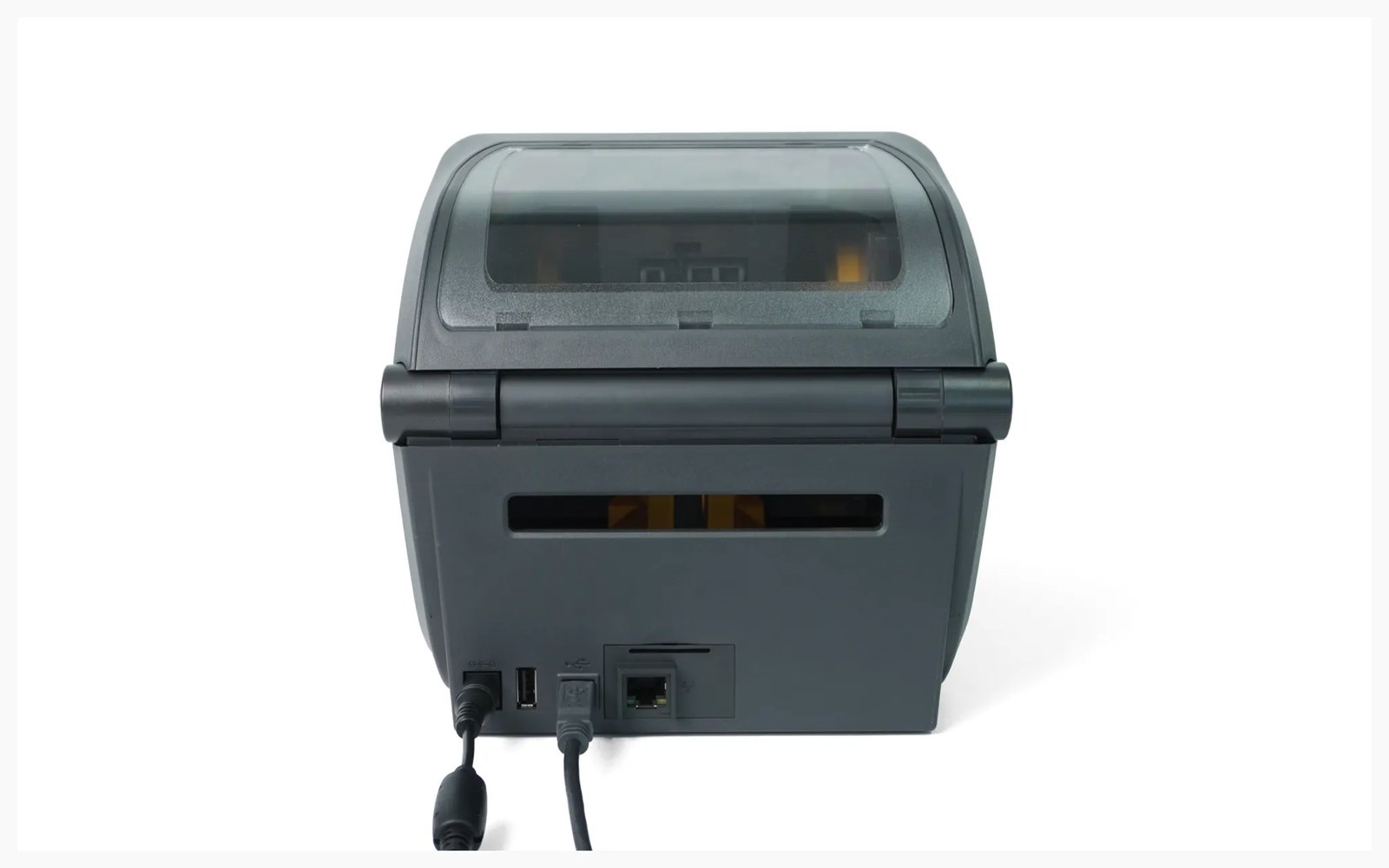
Continue with the printer installation wizard.
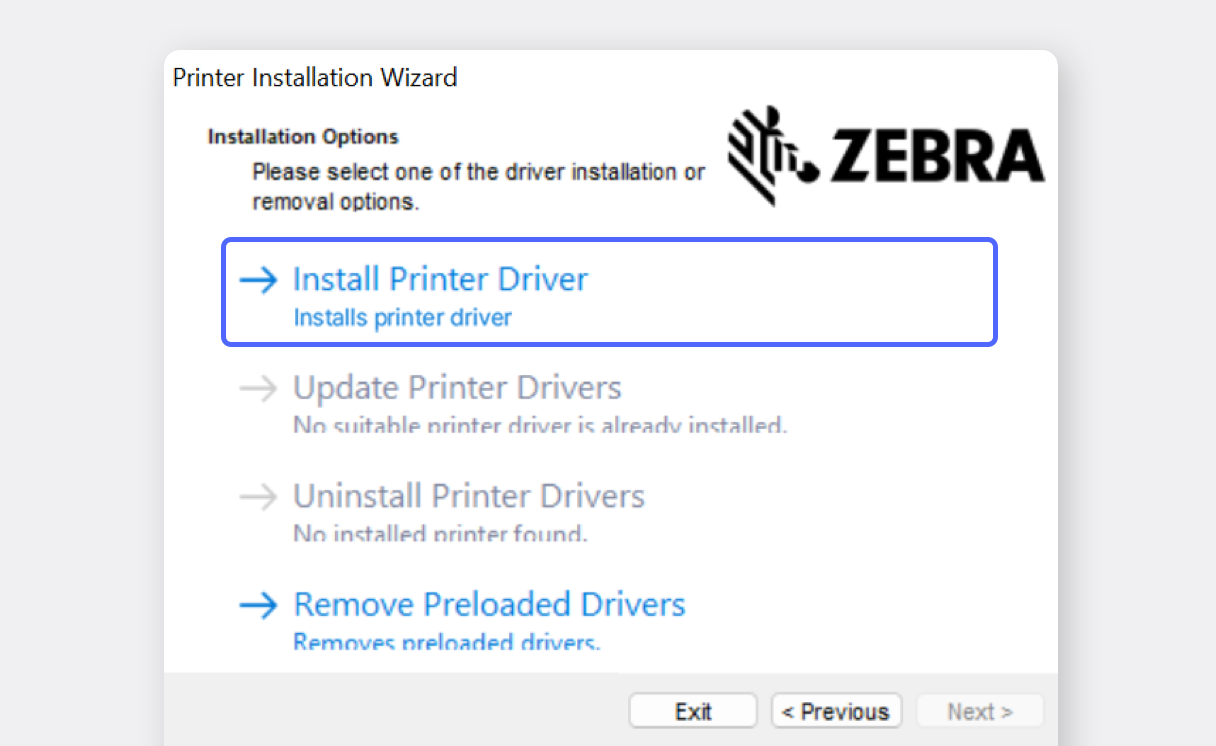
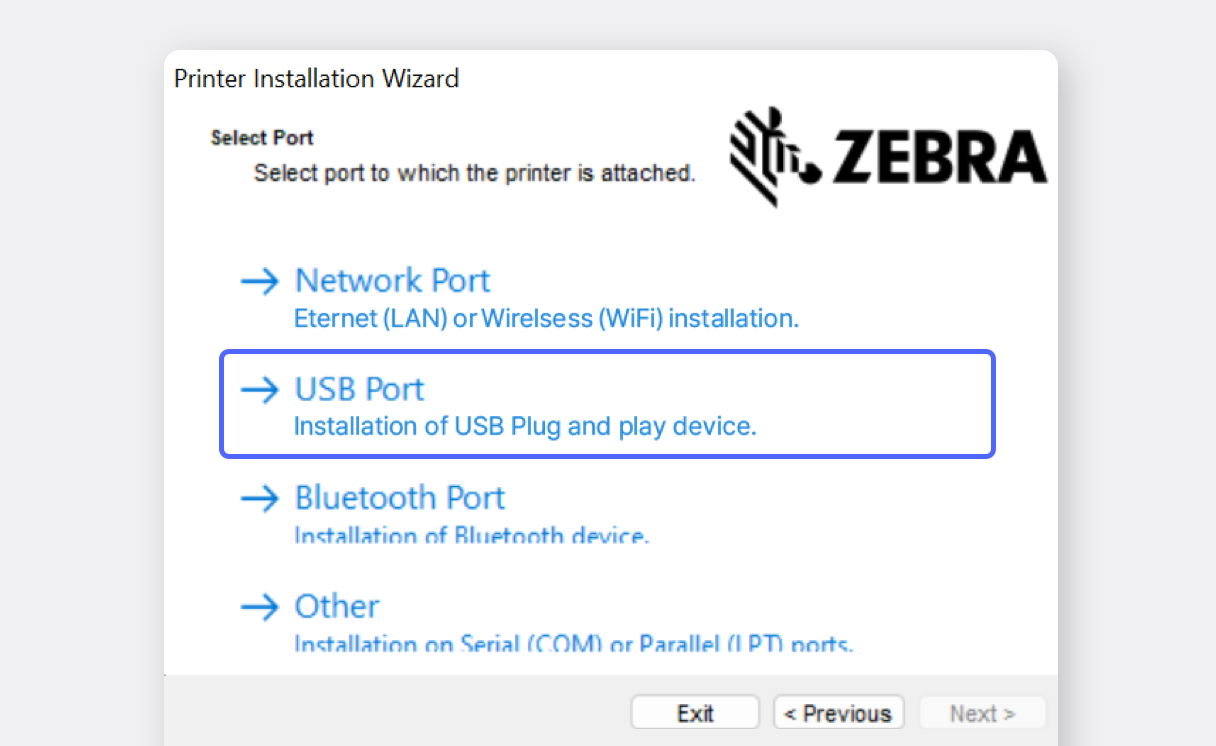
When prompted, connect the USB cable to both the printer and computer. If the screen doesn’t advance, try disconnecting and reconnecting the USB cable.
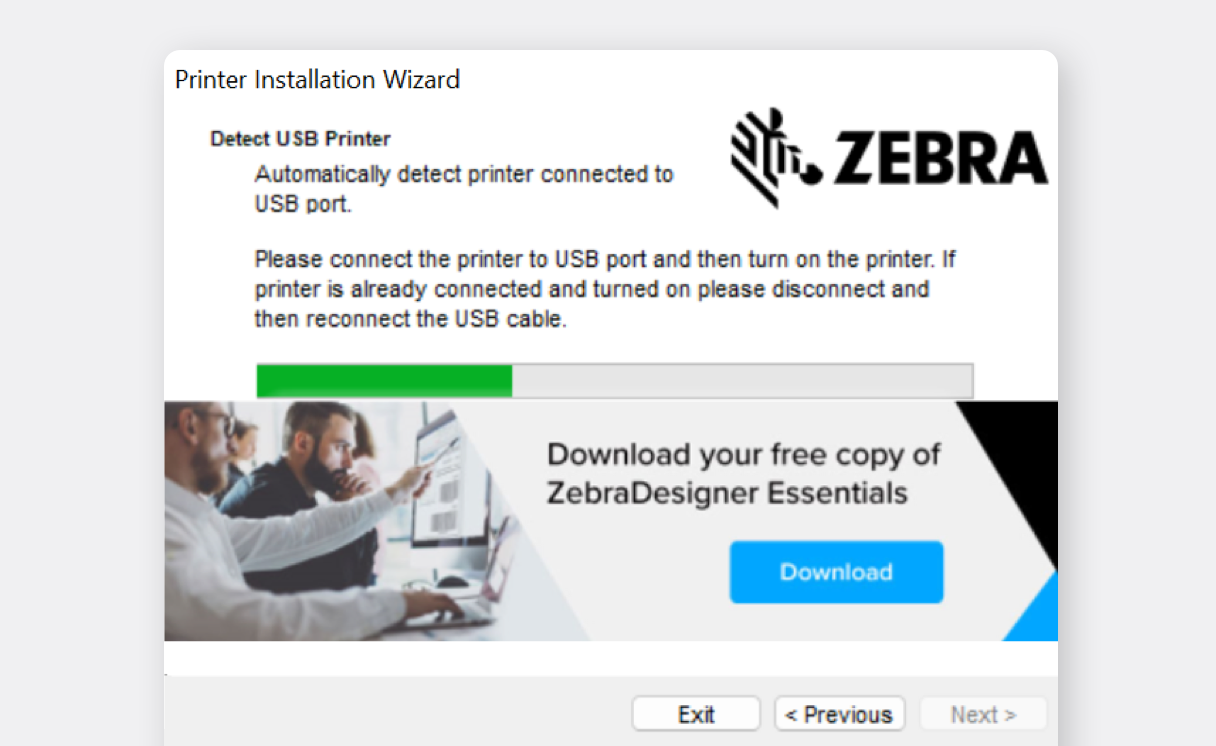
Click
Nextto complete the installation.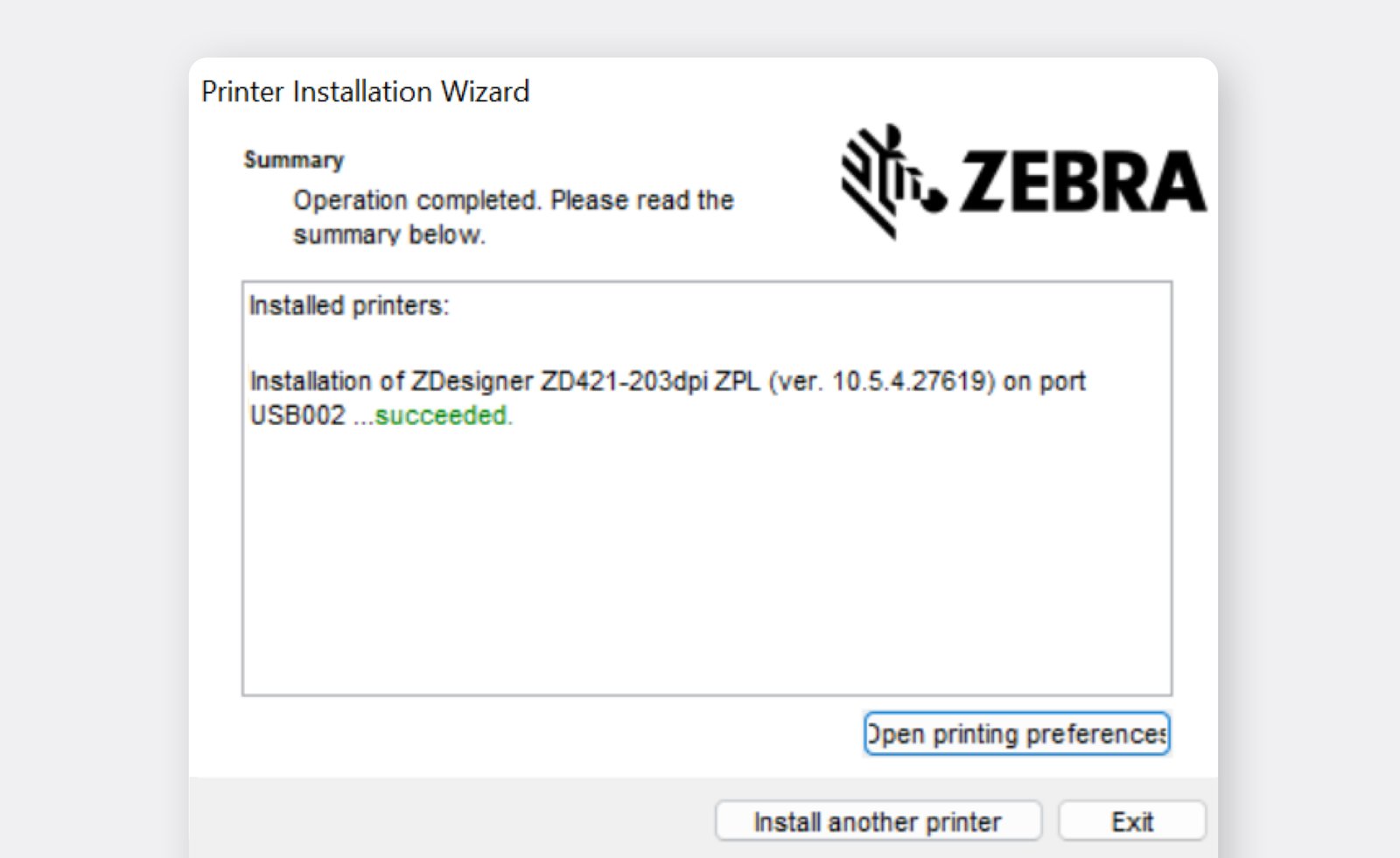
Now you need to set the paper size in the printer settings. Go to
Bluetooth & devices>Printers & scanners.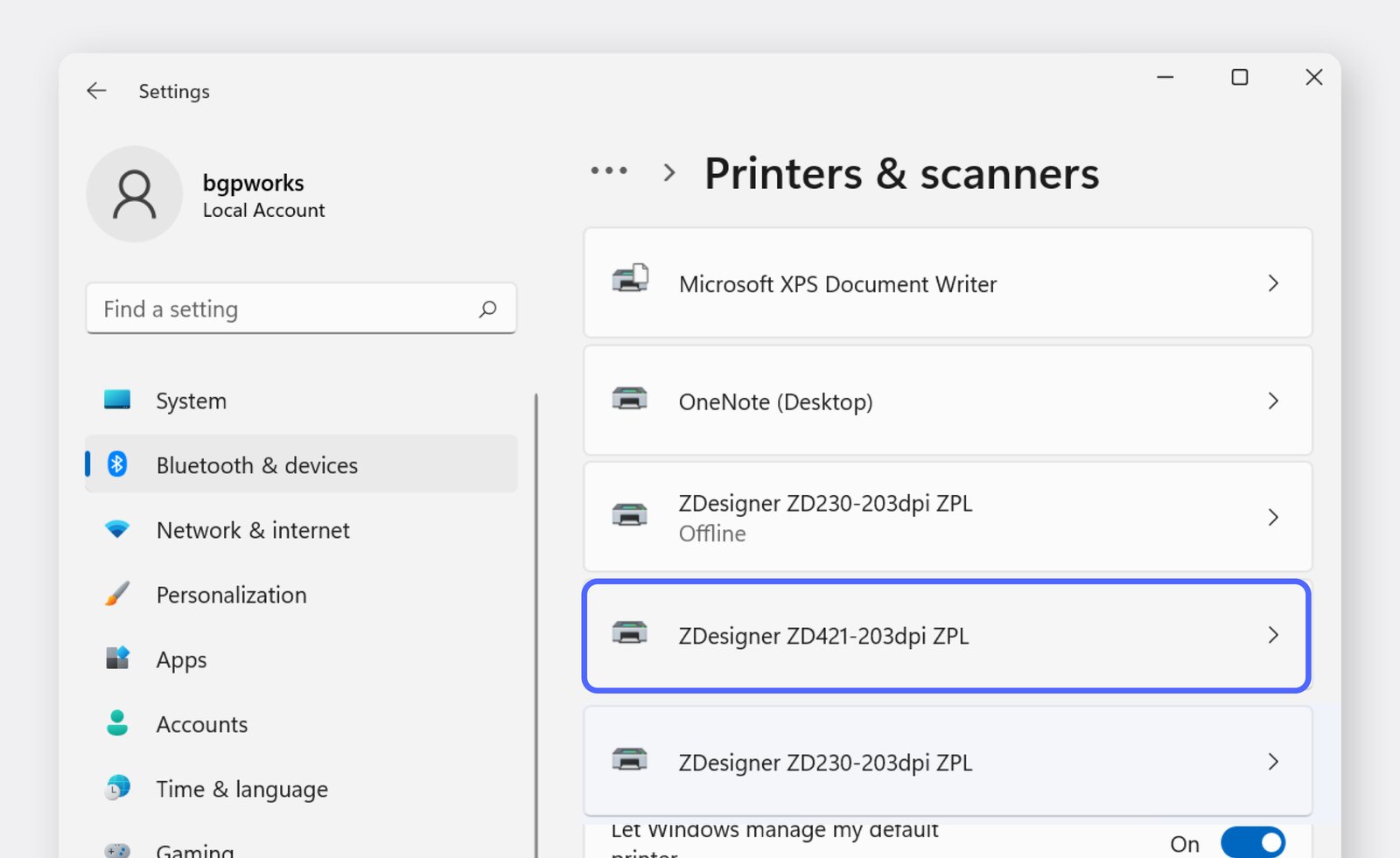
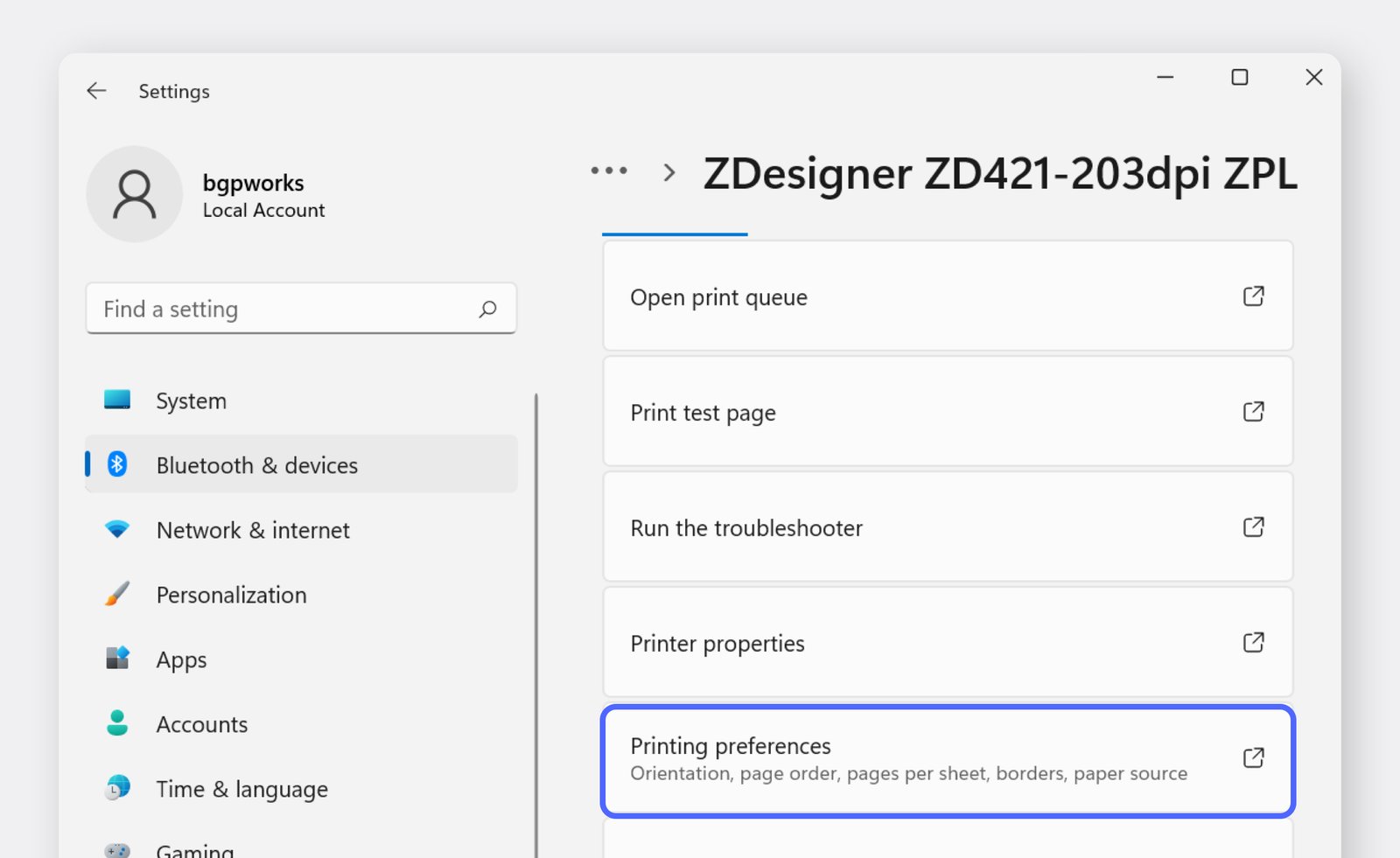
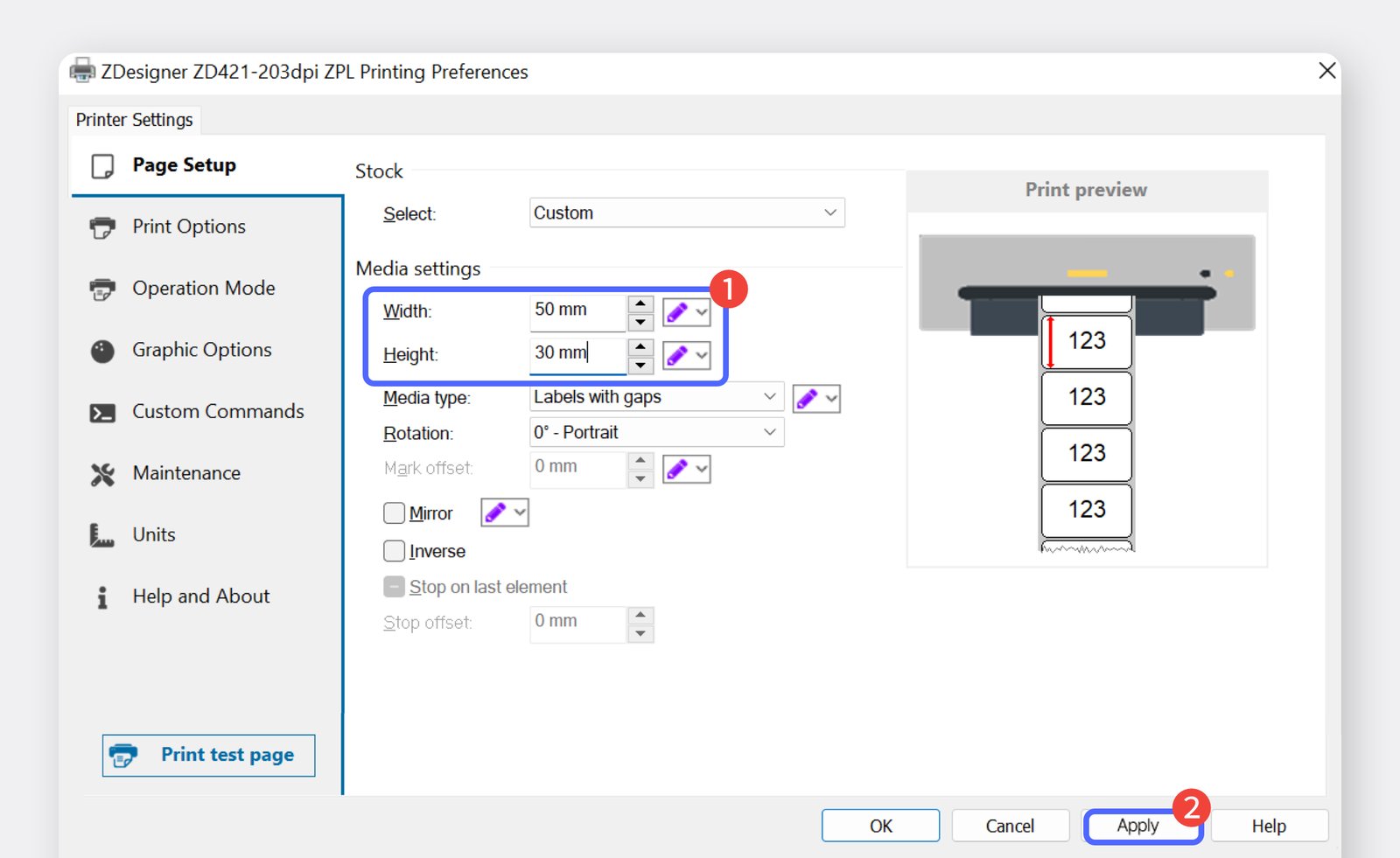
II. Label Printing
Section titled “II. Label Printing”Log into BoxHero on your PC and navigate to the
Barcode Labelssection. SelectThermal Rolland enter the paper size you’ll be using.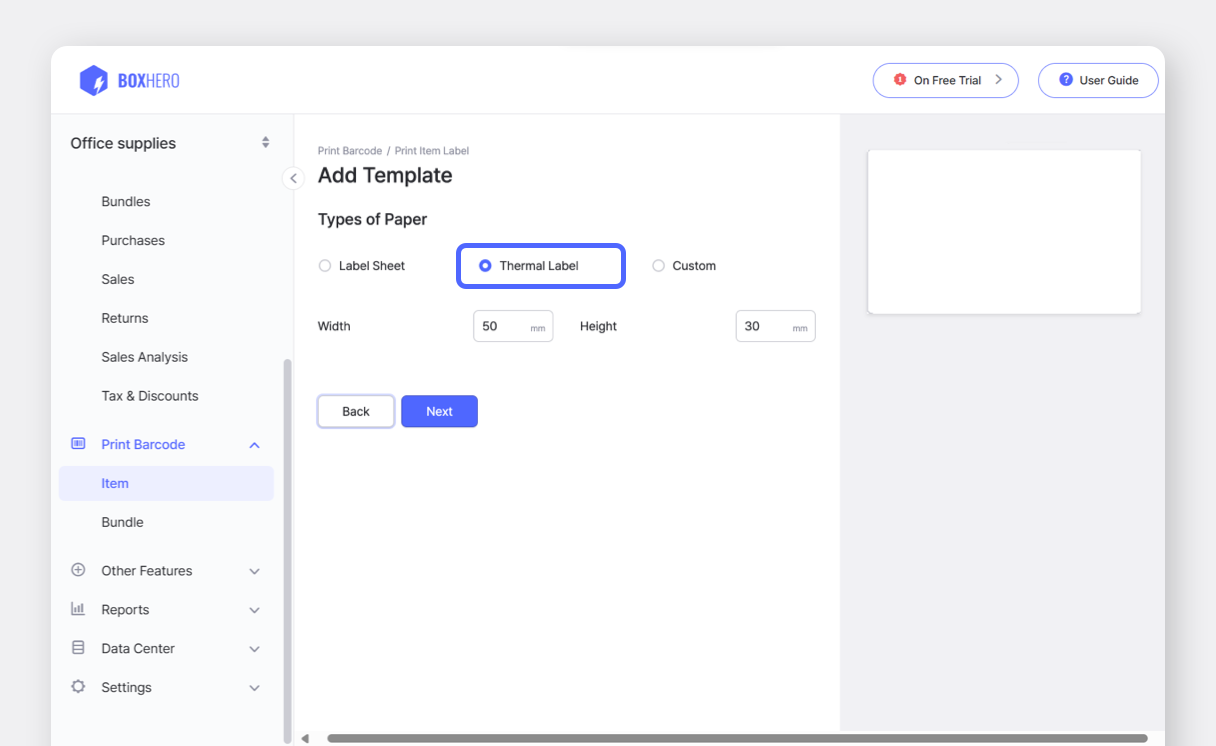
Choose your desired template: Barcode or QR Code.
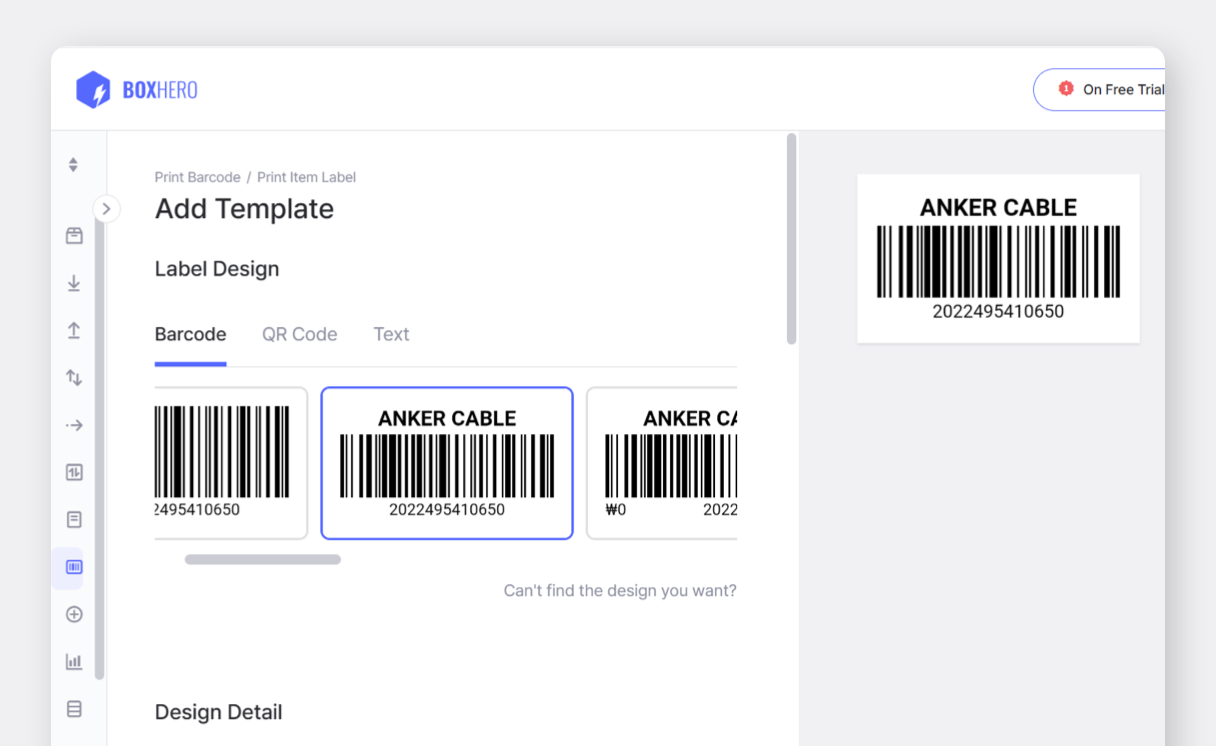
In the
Label Contentsection at the bottom of the page, set up the item information you want to display on the label and clickSave.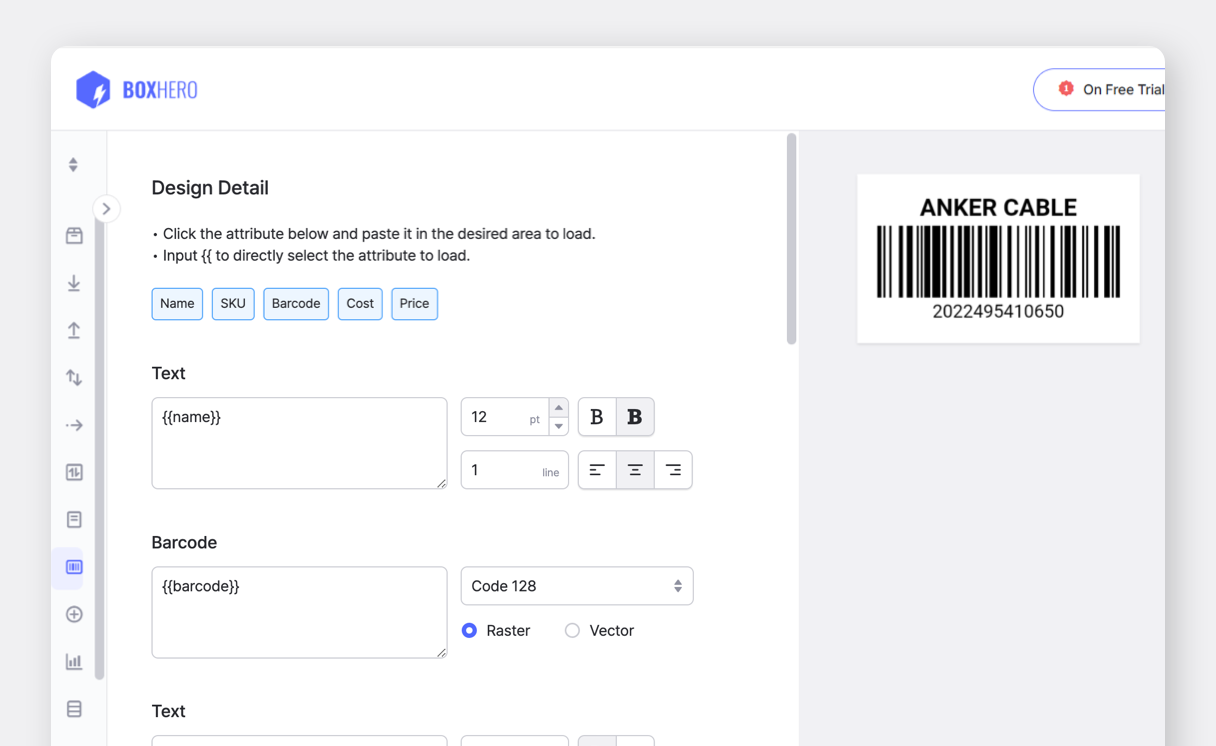
Add the items you want to print to the list, then click the
Printbutton at the bottom.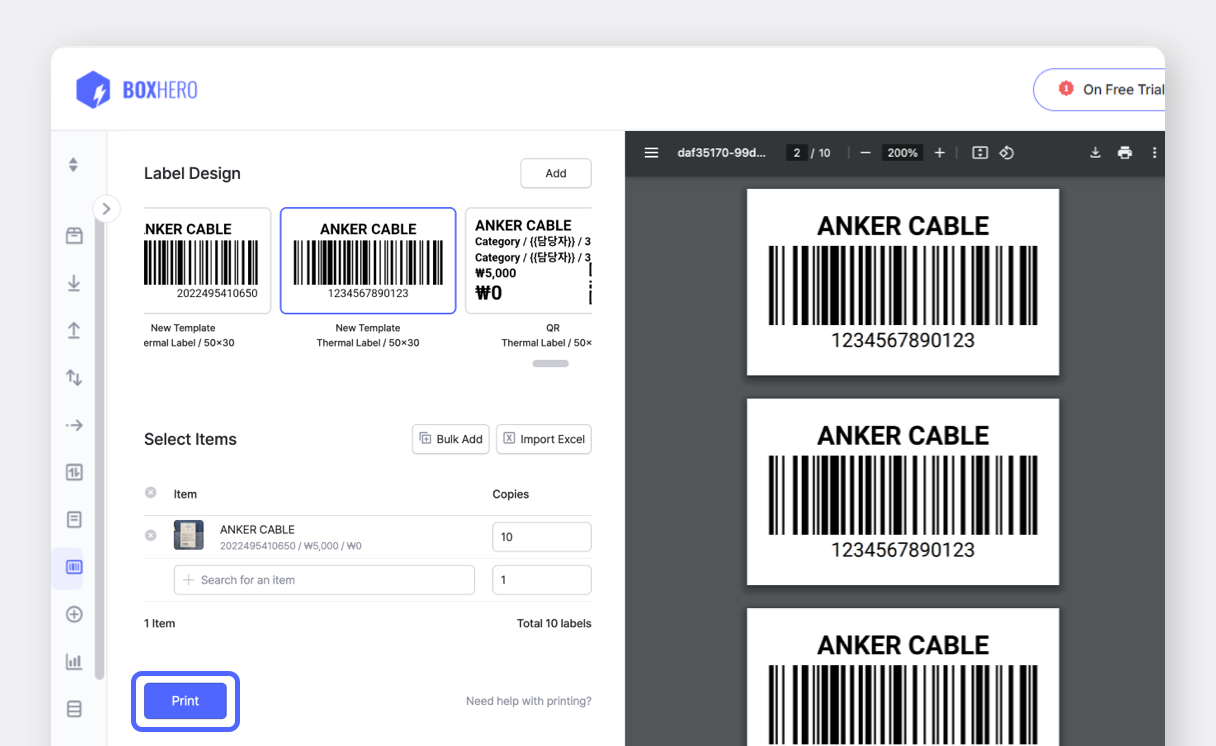
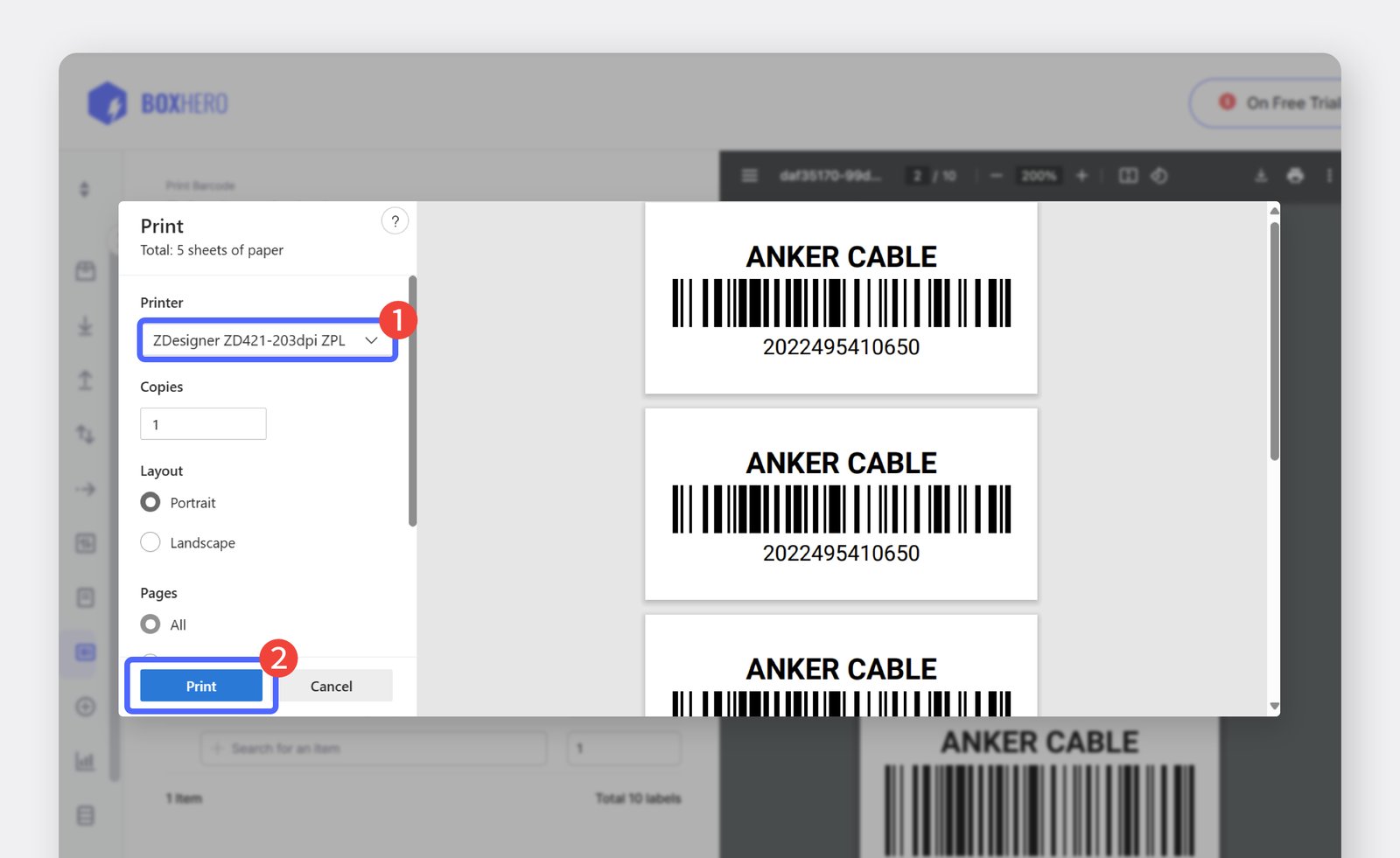
Select the printer you want to use and click
Printto start the printing.