# Barcode Printing

<figure><img src="https://687823928-files.gitbook.io/~/files/v0/b/gitbook-x-prod.appspot.com/o/spaces%2FlRf1QqJGoevCQqGbfI80%2Fuploads%2Fgit-blob-82d37f2d78ec02f6126764a15d212ea6c887c2ac%2F%E1%84%87%E1%85%A1%E1%84%8F%E1%85%A9%E1%84%83%E1%85%B3%20%E1%84%8B%E1%85%B5%E1%86%AB%E1%84%89%E1%85%AB.png?alt=media" alt=""><figcaption></figcaption></figure>

***

## **Key Highlights**

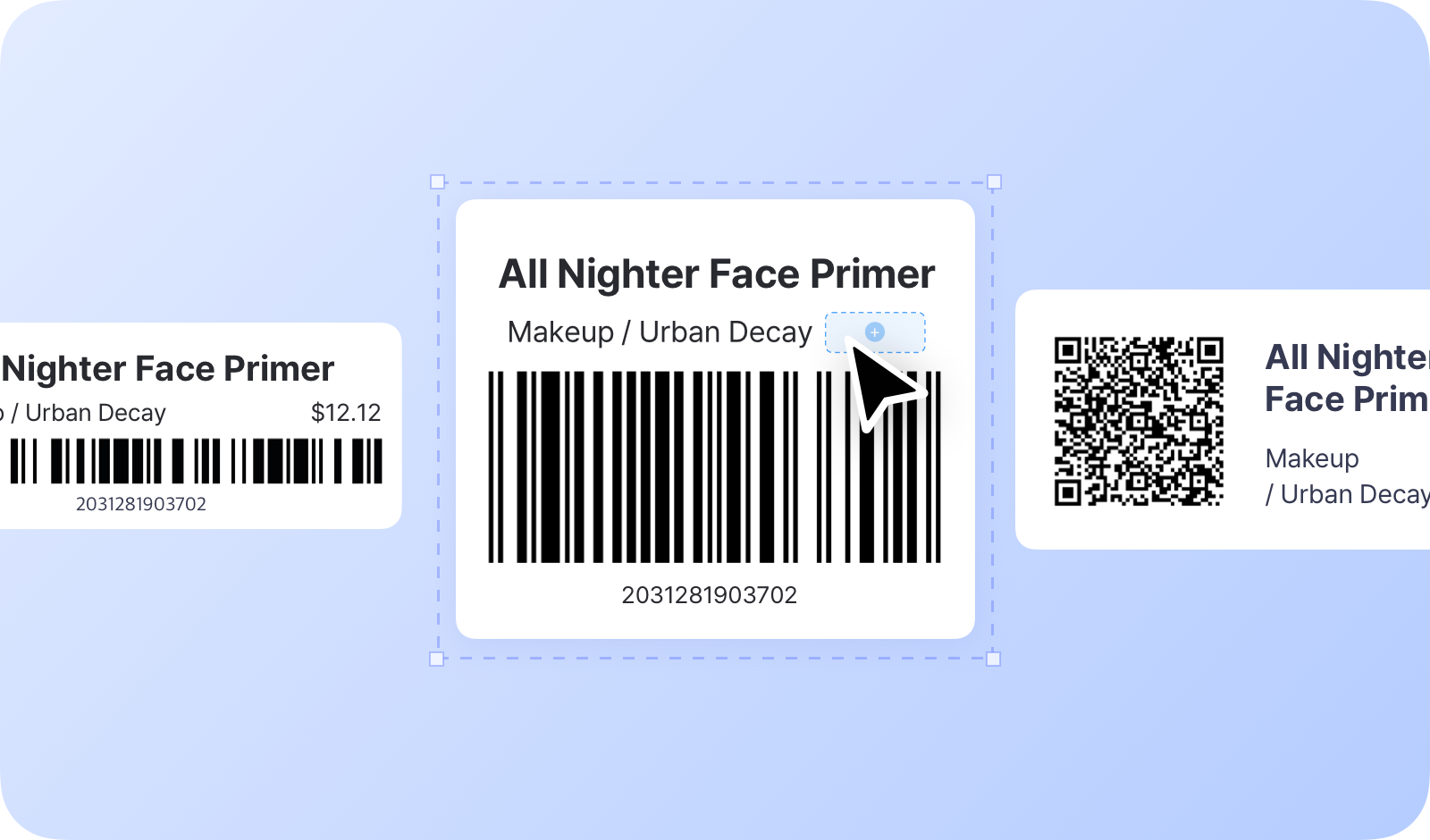
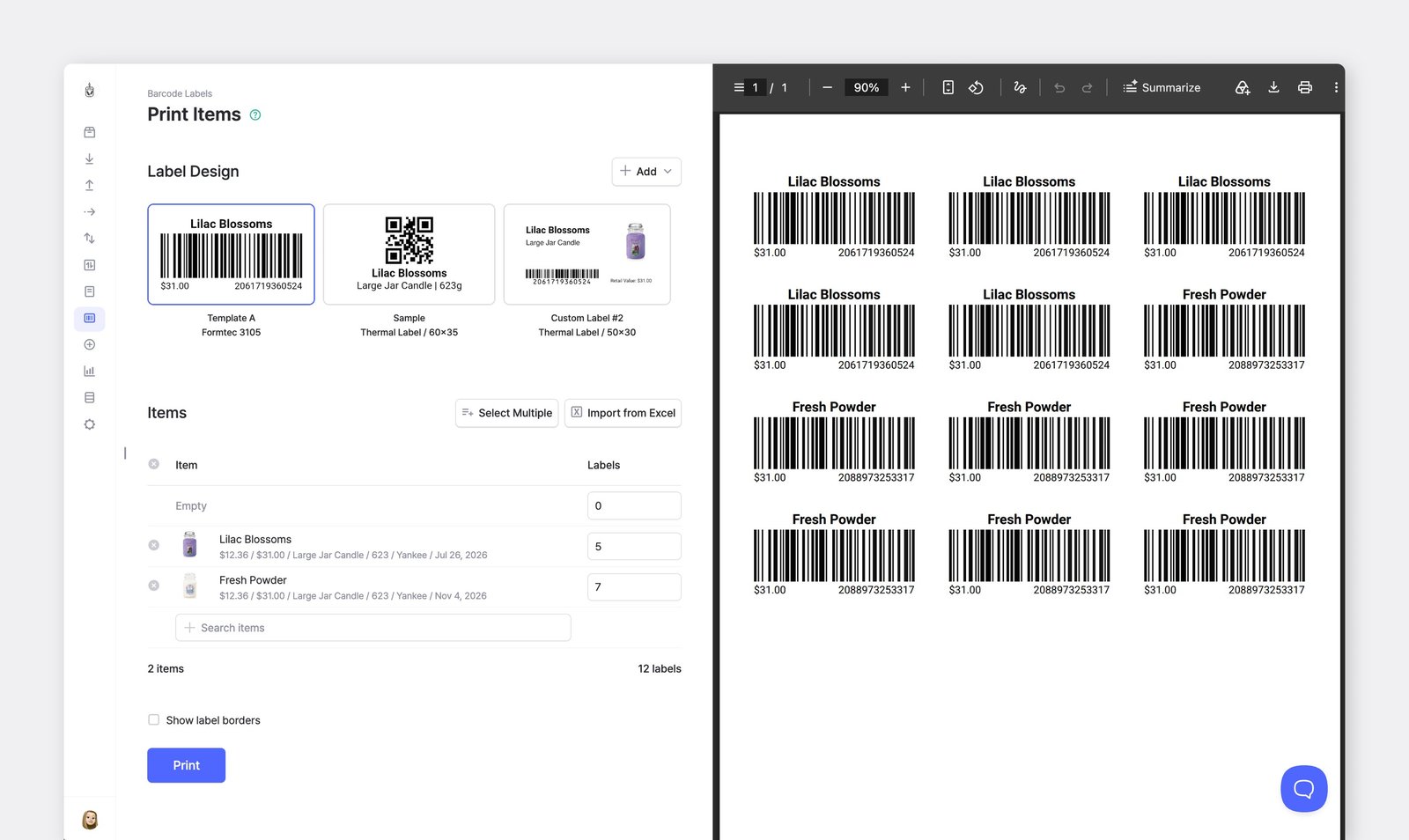
* Create and use barcodes, even if your items don’t have one.
* Supports both 1D barcodes and 2D barcodes (QR codes).
* Works with all printers and label types.
* Design labels in the layout and style you prefer.
<figure><img src="https://687823928-files.gitbook.io/~/files/v0/b/gitbook-x-prod.appspot.com/o/spaces%2FlRf1QqJGoevCQqGbfI80%2Fuploads%2Fgit-blob-037ddba7ff7bb8040c424c38d5b81087c02a9be3%2Fbarcode-print-preview.png?alt=media" alt=""><figcaption></figcaption></figure>

#### **Step-by-Step Guide:**

* Register item barcodes
* Check printer and label compatibility
* Set up printer
* Create labels
* Print barcodes

***

## Register Item Barcodes

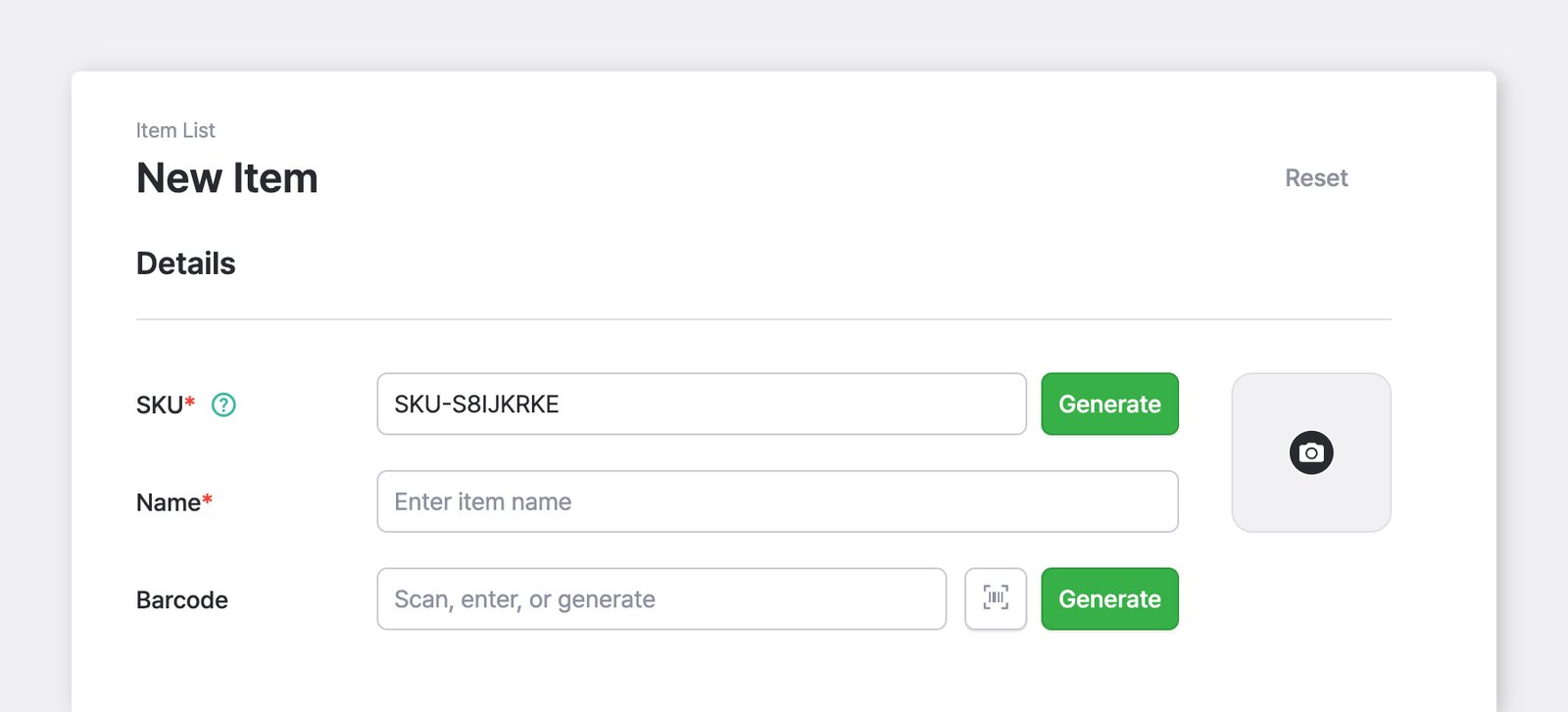
To use barcodes in BoxHero, add a barcode when you [create a new item](https://www.boxhero.io/docs/data-center/items#how-to-add-items).

<figure><img src="https://687823928-files.gitbook.io/~/files/v0/b/gitbook-x-prod.appspot.com/o/spaces%2FlRf1QqJGoevCQqGbfI80%2Fuploads%2Fgit-blob-31b5ce0befd8d1f3a7be5f6c3f88c6870d752149%2Fboxhero-new%20item-generate%20barcode.png?alt=media" alt="BoxHero - New Item - Generate Barcode"><figcaption></figcaption></figure>

#### A. If the item doesn’t have a barcode

Select <mark style="color:blue;">**`Generate`**</mark> to create a barcode for internal use.

#### B. If the item already has a barcode

If the item has a barcode on its packaging, enter that barcode during item setup.

{% hint style="success" %}
**Ways to enter a barcode**

* Scan the barcode with your phone’s camera in the mobile app
* Scan it using a barcode scanner connected to your computer
* Type the barcode by hand
  {% endhint %}

***

## Printer and Label Compatibility

You can use any printer that can connect to your computer.

### A. Standard Printers

If you’re using a regular home or office printer, purchase sticker-type label sheets. Brands like *Formtec* are commonly available, and you can choose the size you need from office supply stores or online retailers.

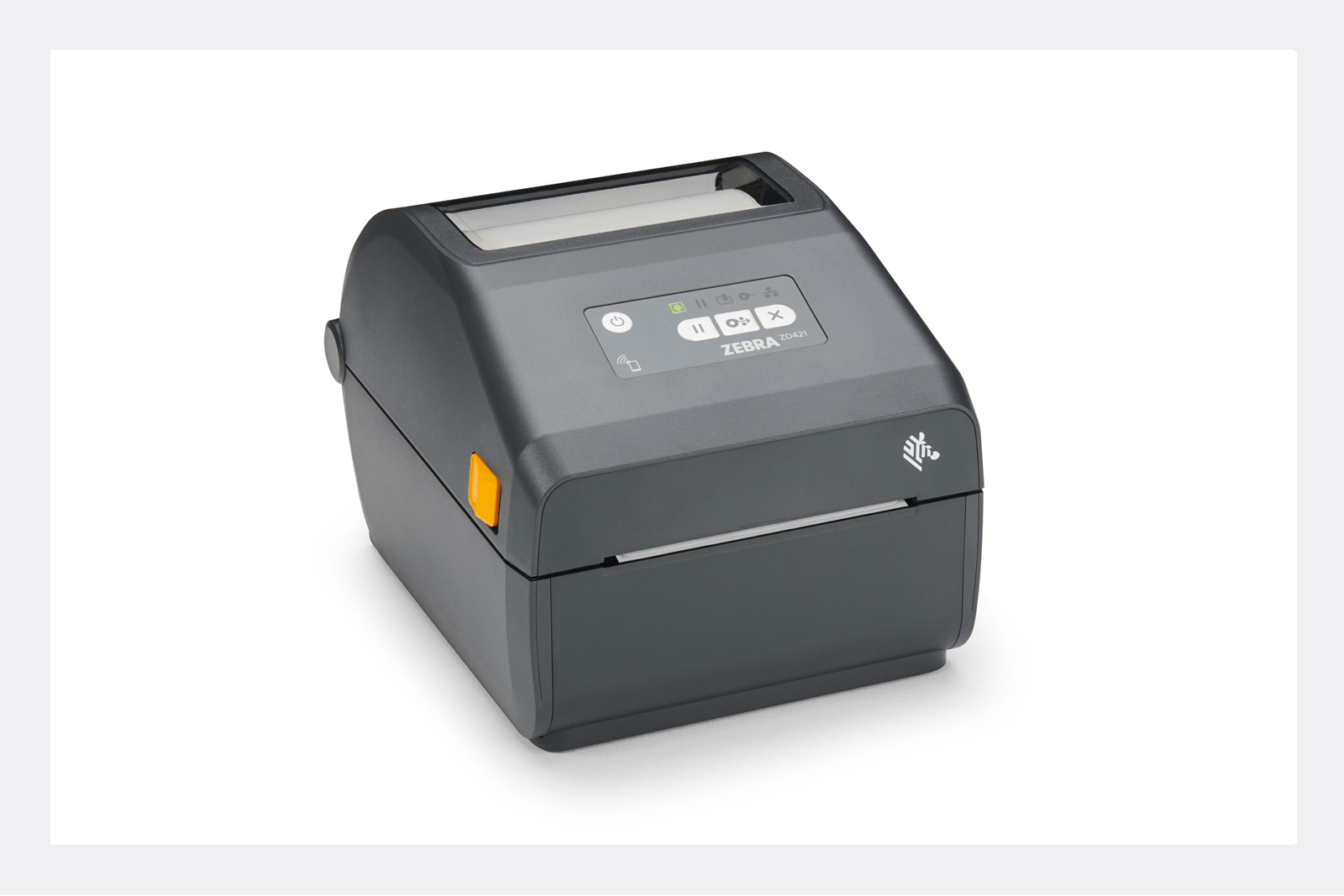
### B. Direct Thermal & Thermal Transfer Printers

These printers (DT & TT) produce more durable labels than standard printers. However, the label types they support vary by model, so check compatibility before you buy label rolls or ribbons.
<figure><img src="https://687823928-files.gitbook.io/~/files/v0/b/gitbook-x-prod.appspot.com/o/spaces%2FlRf1QqJGoevCQqGbfI80%2Fuploads%2Fgit-blob-57ab3703be5c81b62e66164116dd5524661c7b4f%2Fprinter%20(1).png?alt=media" alt=""><figcaption></figcaption></figure>

{% hint style="info" %}
**Mobile Printing:**\
To print from the mobile app, your printer must support **Bluetooth**, **Wi-Fi**, or **LAN** connections.\
\
Some printers, including certain ZEBRA models, only support mobile printing on *Android*. Be sure to confirm compatibility with your mobile device before purchasing.
{% endhint %}

***

## Printer Setup

If you're using BoxHero in a web browser (Chrome, Safari), make sure to **complete the printer setup steps** below before printing.

{% hint style="warning" %}
Direct thermal and thermal transfer printers may not print correctly if their default settings (such as paper size) aren't configured properly. Labels can print misaligned or fail to print entirely.
{% endhint %}

> **Tip:** The BoxHero [desktop app](https://www.boxhero.io/download) lets you print labels without any manual printer configuration.

#### 1. Set Paper Size

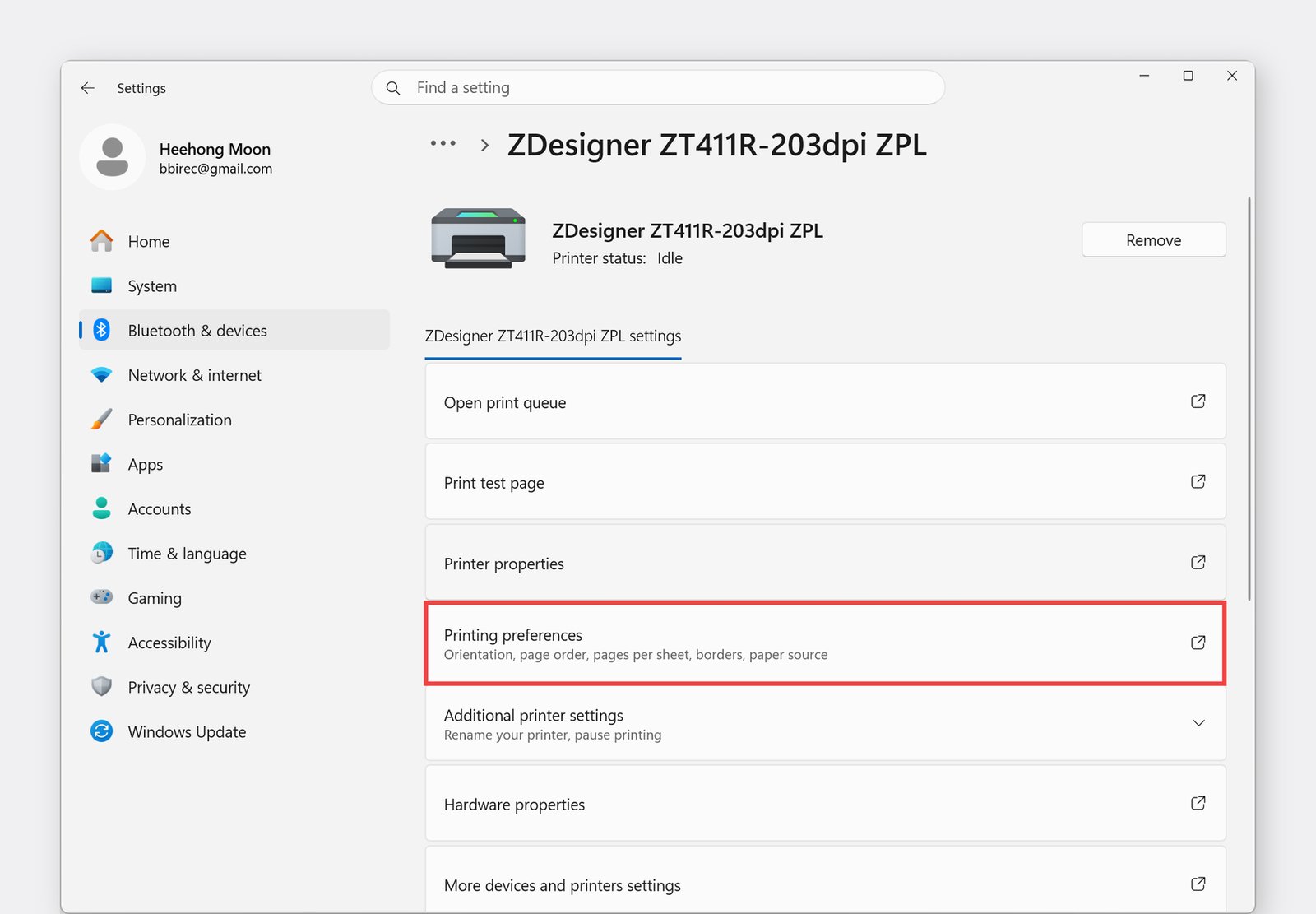
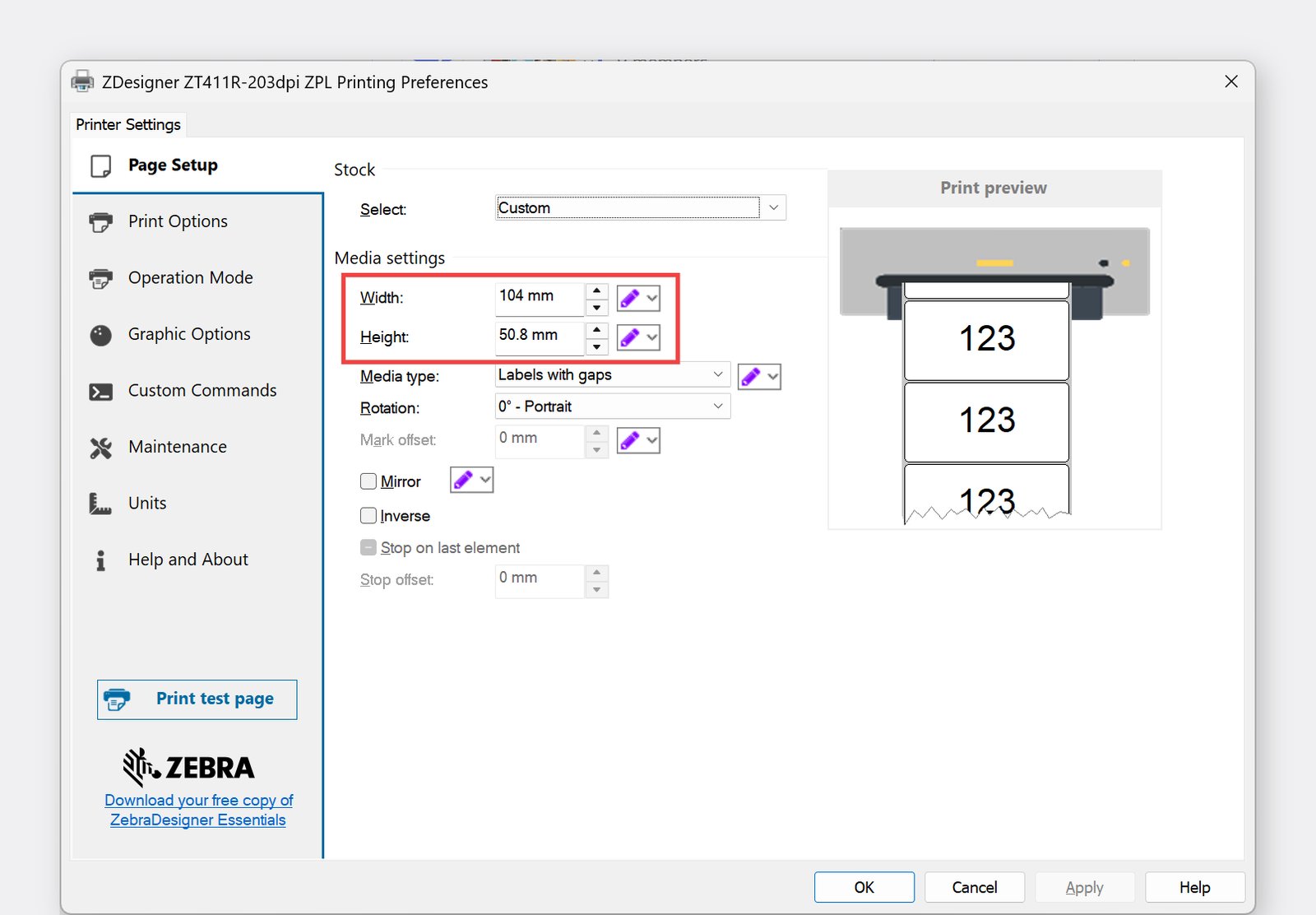
When using a label printer, you need to set the paper size in your operating system's printer settings. If you use multiple label sizes, check this setting each time before printing.

**Windows Path**: `Settings` > `Bluetooth & Devices` > `Printers & Scanners` > `Printing Preferences` > `Page Setup` >  `Media Settings`

<figure><img src="https://687823928-files.gitbook.io/~/files/v0/b/gitbook-x-prod.appspot.com/o/spaces%2FlRf1QqJGoevCQqGbfI80%2Fuploads%2FhfTCmjWONfWQhktXKd4N%2Fwindows-printing-preferences.jpg?alt=media&#x26;token=ed572da8-cd4c-402a-9d6c-ad0bb0ae6da7" alt=""><figcaption></figcaption></figure>

<figure><img src="https://687823928-files.gitbook.io/~/files/v0/b/gitbook-x-prod.appspot.com/o/spaces%2FlRf1QqJGoevCQqGbfI80%2Fuploads%2Fcs5ADv0SWJ40ikGPyV0y%2Fwindows-printer-settings-page-setup-media.jpg?alt=media&#x26;token=400a2a3e-5174-427e-adb8-37c3029a0abf" alt=""><figcaption></figcaption></figure>

{% hint style="success" %}
Always update the paper size through this path. Changing it elsewhere may not apply correctly.
{% endhint %}

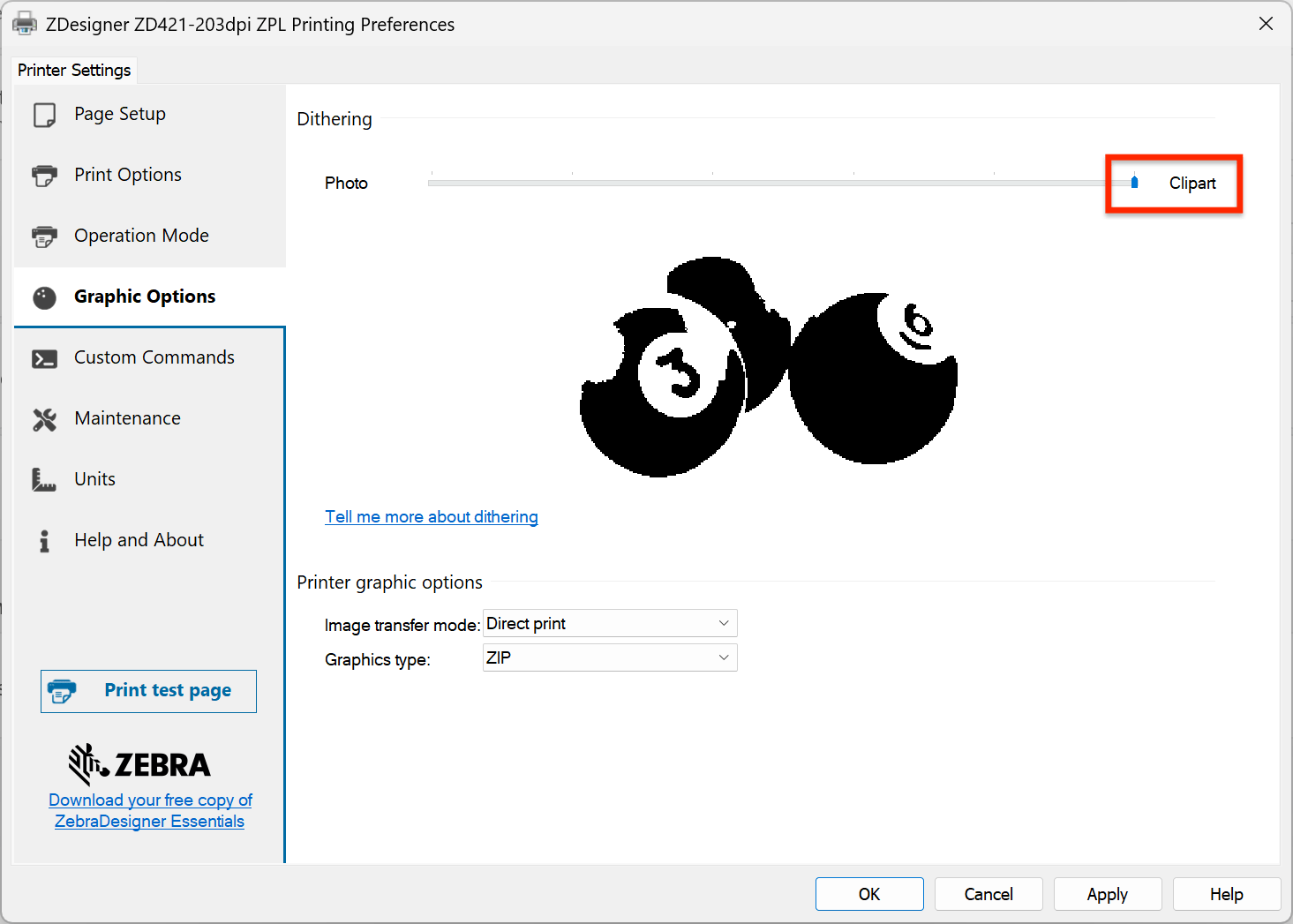
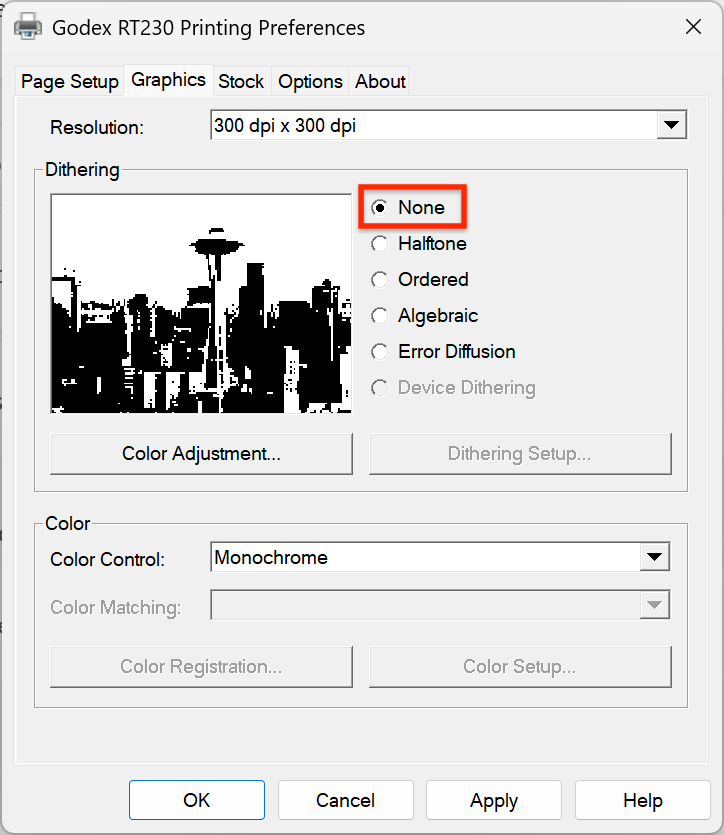
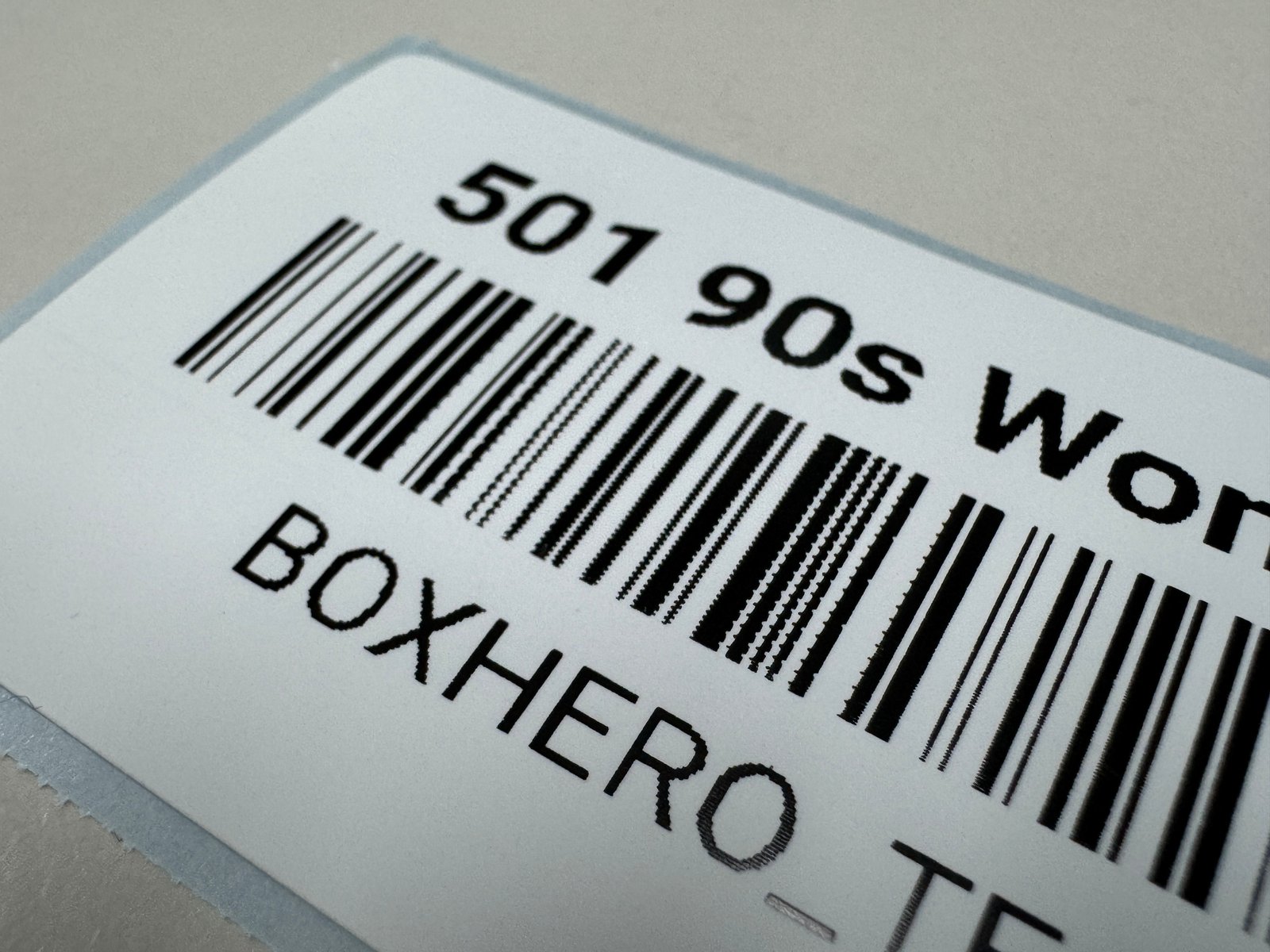
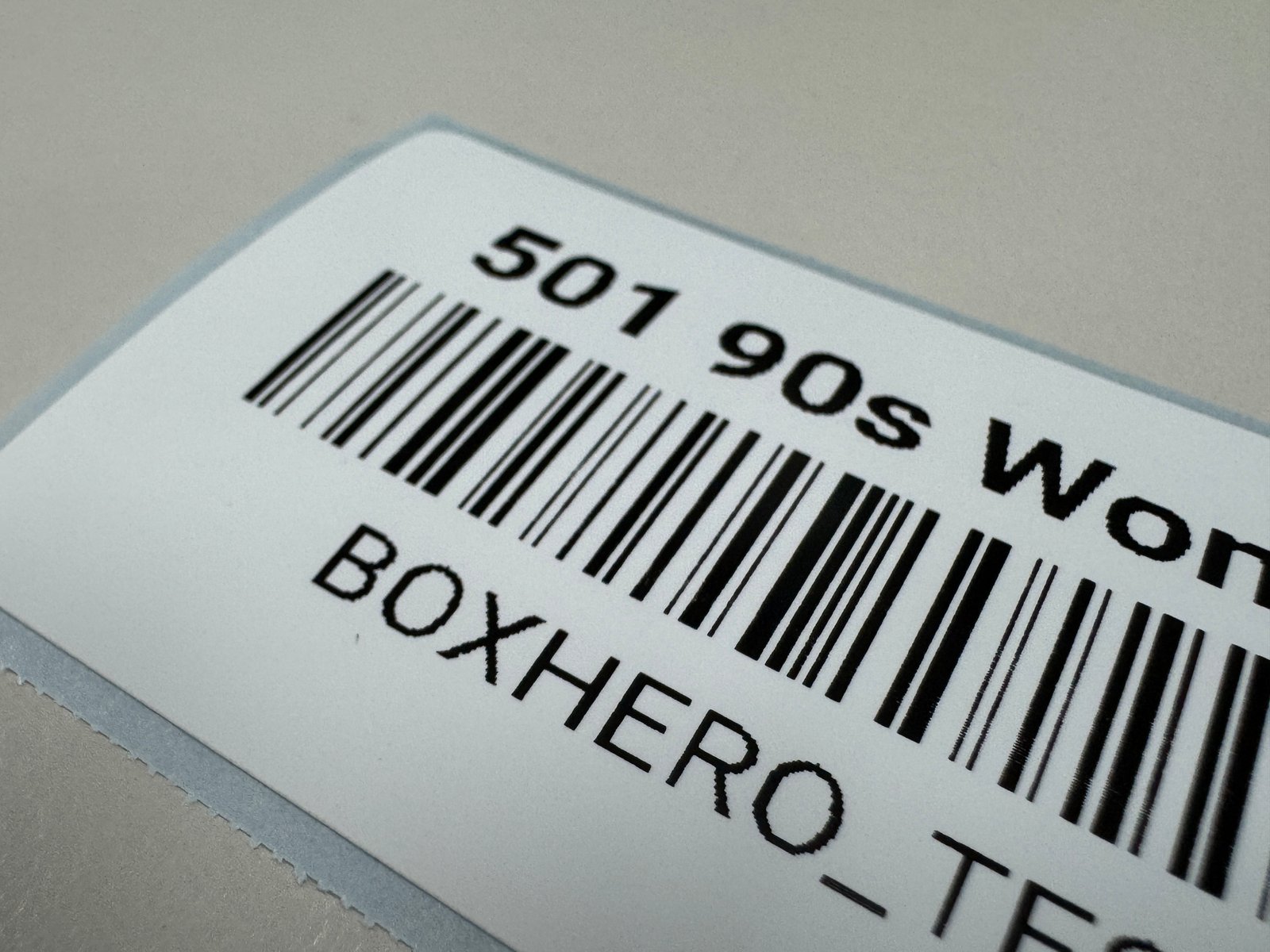
#### 2. Turn Off Dithering

For clearer print quality, set the dithering option to **OFF**.

**Windows Path**: `Control Panel` > `Bluetooth & Devices` > `Printers & Scanners` > Select your printer > `Printing Preferences` > `Graphic Options` >  `Dithering`

<details>

<summary><strong>ZEBRA driver</strong></summary>

![](https://687823928-files.gitbook.io/~/files/v0/b/gitbook-x-prod.appspot.com/o/spaces%2FlRf1QqJGoevCQqGbfI80%2Fuploads%2Fgit-blob-9afa2d795bd7f1c70f8eb0df95c6febff2e765c6%2Fzebra-dithering-callout.png?alt=media)

Under `Graphic Options`, set *Dithering* to **Clipart**.

</details>

<details>

<summary><strong>BarTender driver</strong></summary>

![](https://687823928-files.gitbook.io/~/files/v0/b/gitbook-x-prod.appspot.com/o/spaces%2FlRf1QqJGoevCQqGbfI80%2Fuploads%2Fgit-blob-4d41e758159a53fd168218a2227d5f8489ead038%2Fbartender-dithering-callout.png?alt=media)

Go to the `Graphics` tab and choose **None** for *Dithering*.

</details>

<table data-card-size="large" data-view="cards"><thead><tr><th></th><th data-hidden data-card-cover data-type="files"></th></tr></thead><tbody><tr><td>Before</td><td><a href="https://687823928-files.gitbook.io/~/files/v0/b/gitbook-x-prod.appspot.com/o/spaces%2FlRf1QqJGoevCQqGbfI80%2Fuploads%2Fgit-blob-ae8db00da2ff9a6aa66189a0619a65ed7ca8011c%2Fprint-quality-before.JPG.jpg?alt=media">print-quality-before.JPG.jpg</a></td></tr><tr><td>After</td><td><a href="https://687823928-files.gitbook.io/~/files/v0/b/gitbook-x-prod.appspot.com/o/spaces%2FlRf1QqJGoevCQqGbfI80%2Fuploads%2Fgit-blob-7ef6ed58c0a8d1d3ab0414bf59369d0870f9ea1f%2Fprint-quality-after.JPG.jpg?alt=media">print-quality-after.JPG.jpg</a></td></tr></tbody></table>

***

## Create Barcode Labels

You can create barcode labels in BoxHero in two ways:

**A. Choose from templates**\
Use a pre-designed format to create labels quickly.

**B. Create a custom design**\
Build your own label from scratch with full control over layout, placement, and styling.

### A. Choose from Templates

Go to <mark style="color:blue;">**`Barcode Labels`**</mark> > <mark style="color:blue;">**`Print Items`**</mark>, and click the <mark style="color:blue;">**`Add`**</mark> dropdown > <mark style="color:blue;">**`Choose from Templates`**</mark>.

{% embed url="<https://customer-0jrbilsa8yt3k758.cloudflarestream.com/5e166098eefb4701a8c2d906c6ec787a/iframe?autoplay=true&controls=false&letterboxColor=transparent&loop=true&muted=true&poster=https://customer-0jrbilsa8yt3k758.cloudflarestream.com/5e166098eefb4701a8c2d906c6ec787a/thumbnails/thumbnail.jpg?height=1080&preload=true>" %}

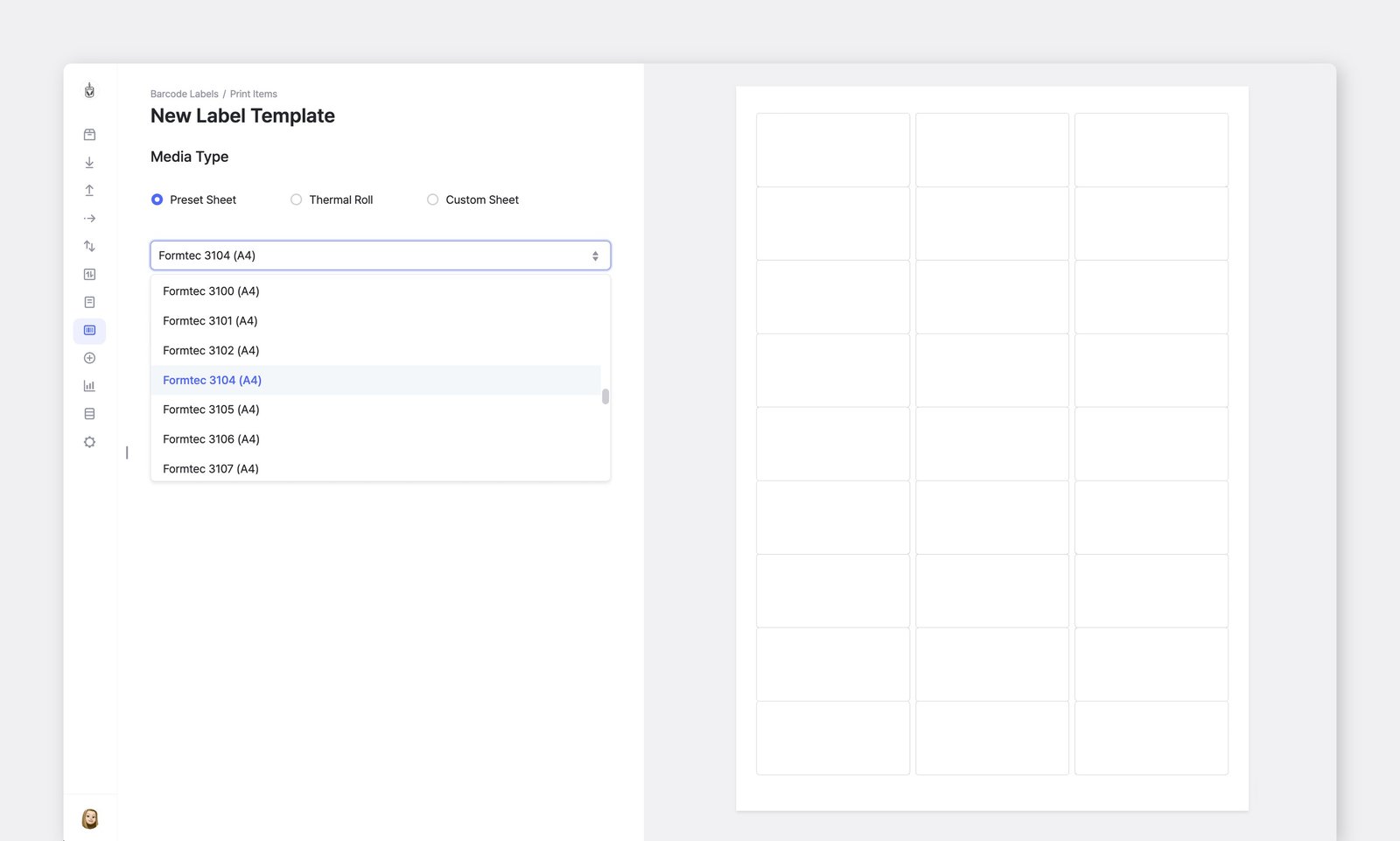
#### 1. Label Format

Select the label paper that matches what you’ll actually print on.

<table data-header-hidden><thead><tr><th width="182.90625"></th><th></th></tr></thead><tbody><tr><td><strong>Label Sheet</strong></td><td>For standard printers (e.g., Formtec, Avery, Printeec), choose the label sheet size you plan to use.</td></tr><tr><td><strong>Thermal Label</strong></td><td>For direct thermal or thermal transfer printers, select the matching roll size. Make sure the roll type is compatible with your printer model.</td></tr><tr><td><strong>Custom Size</strong></td><td>If you're using a standard printer and don’t see your label size in the list, you can enter the dimensions manually.</td></tr></tbody></table>

<figure><img src="https://687823928-files.gitbook.io/~/files/v0/b/gitbook-x-prod.appspot.com/o/spaces%2FlRf1QqJGoevCQqGbfI80%2Fuploads%2Fgit-blob-f83086965fbf1fedcbf24b2f953773743785bb7b%2Fboxhero_label%20template_paper%20type.png?alt=media" alt=""><figcaption></figcaption></figure>

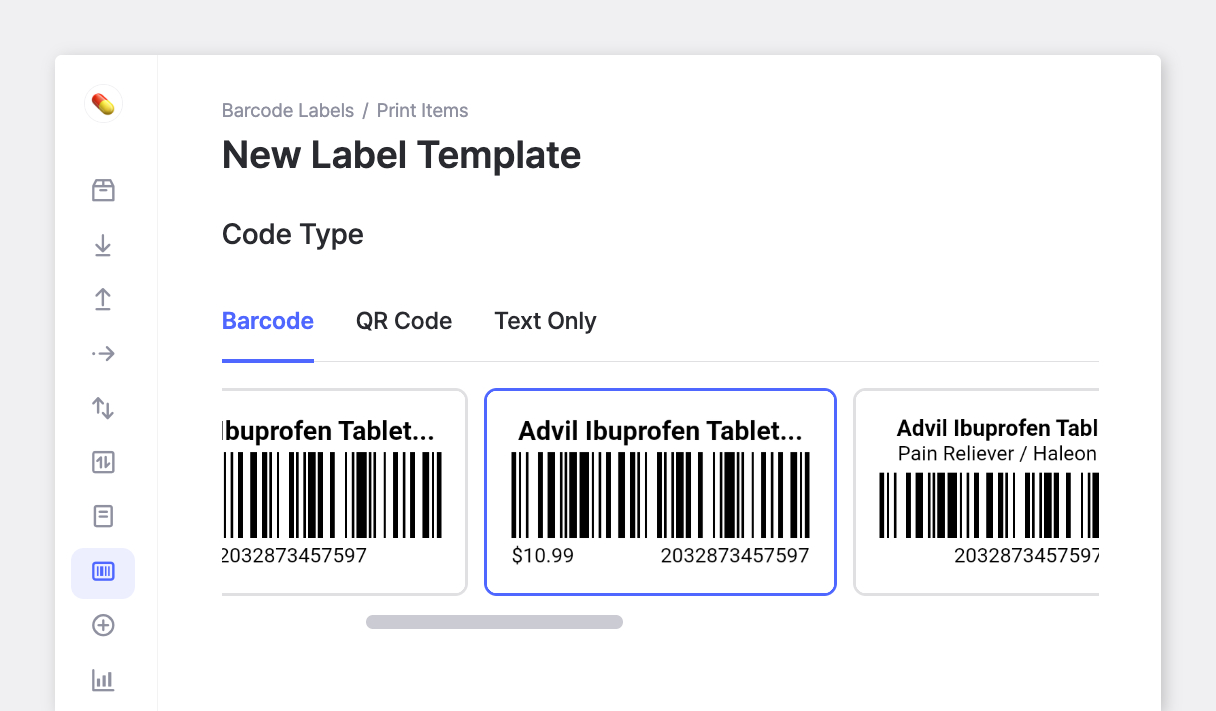
#### 2. Choose Label Design

Select the type of label you want to create: **Barcode**, **QR Code**, or **Text only**.

<figure><img src="https://687823928-files.gitbook.io/~/files/v0/b/gitbook-x-prod.appspot.com/o/spaces%2FlRf1QqJGoevCQqGbfI80%2Fuploads%2Fgit-blob-a8fd2fdead61f08cfc4a34c38173d500646de71c%2Fboxhero_label%20design_barcode%20qr%20text.png.png?alt=media" alt="BoxHero - Label Design - Barcode, QR Code, or Text Only"><figcaption></figcaption></figure>

{% hint style="info" %}
The preview shows information from the first item in your current sort order. If you haven't added any items yet, the preview may not display properly.
{% endhint %}

#### 3. Edit Label Details

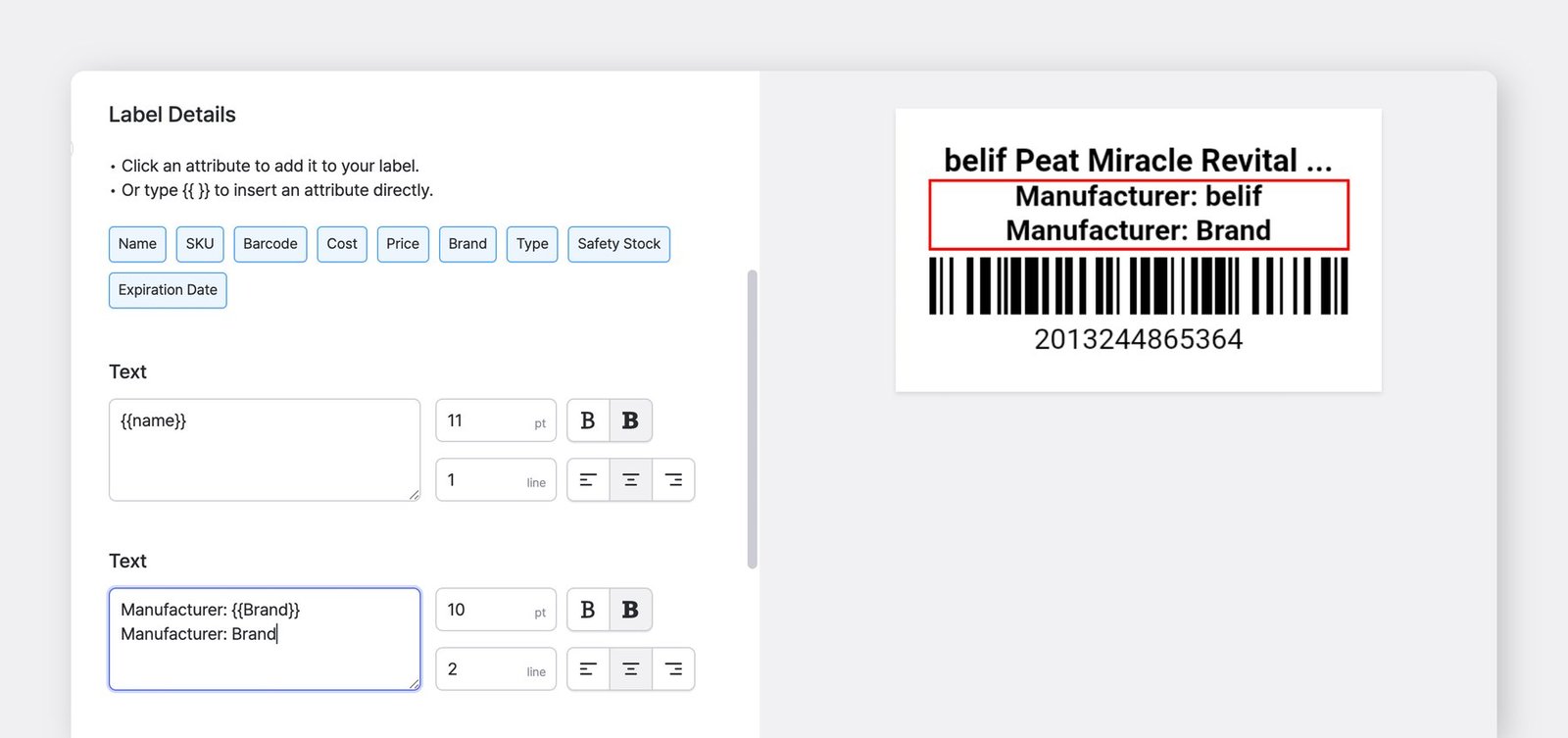
Click an item field button (shown in blue) to copy variables like <mark style="color:blue;">`{{Name}}`</mark> or <mark style="color:blue;">`{{Brand}}`</mark>.\
Paste them into any text area on the label.

* Values inside <mark style="color:blue;">`{{ }}`</mark> pull data from each item
* Text you type directly appears the same on every label

**Examples**:

* `Manufacturer:`<mark style="color:blue;">`{{Brand}}`</mark> → Shows each item's brand attribute
* `Manufacturer: Brand` → Shows the word "Brand" on every label
<figure><img src="https://687823928-files.gitbook.io/~/files/v0/b/gitbook-x-prod.appspot.com/o/spaces%2FlRf1QqJGoevCQqGbfI80%2Fuploads%2Fgit-blob-3bc060c76a7d3d13e673f84b140d7f97bb7747ee%2Fframeit_2026-02-24T14-17-34.jpg?alt=media" alt=""><figcaption></figcaption></figure>

{% hint style="info" %}
**Note:** If you want to print labels using the item SKU, replace {{barcode}} with {{sku}} in the barcode field.
{% endhint %}

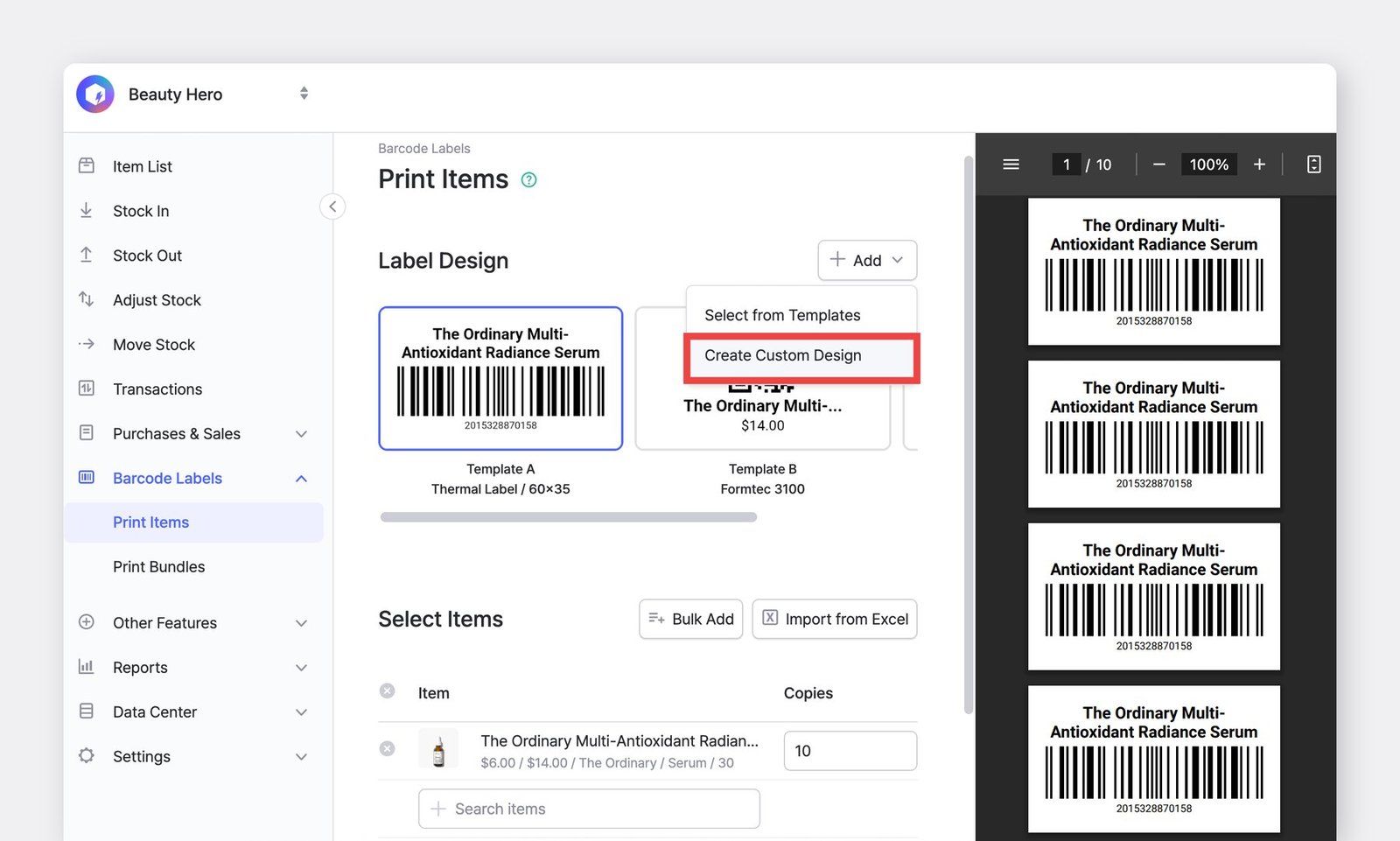
### B. Create Custom Design

Go to <mark style="color:blue;">**`Barcode Labels`**</mark> > <mark style="color:blue;">**`Print Items`**</mark>, and click the <mark style="color:blue;">**`Add`**</mark> dropdown > <mark style="color:blue;">**`Create Custom Design`**</mark>.

<figure><img src="https://687823928-files.gitbook.io/~/files/v0/b/gitbook-x-prod.appspot.com/o/spaces%2FlRf1QqJGoevCQqGbfI80%2Fuploads%2Fgit-blob-c9ec8d5d93dc4be74e9e7386193de70a25153404%2Fframeit_2026-01-14T15-17-29.jpg?alt=media" alt=""><figcaption></figcaption></figure>

#### 1. Select Label Format

The label format determines your design area, so choose the size that matches your actual label.

<table data-header-hidden><thead><tr><th width="182.90625"></th><th></th></tr></thead><tbody><tr><td><strong>Label Sheet</strong></td><td>For standard printers (e.g., Avery, Formtec, or similar brands)</td></tr><tr><td><strong>Thermal Label</strong></td><td>For direct thermal or thermal transfer printers</td></tr><tr><td><strong>Custom Size</strong></td><td>For standard printers when your label size isn’t listed</td></tr></tbody></table>

#### 2. Design Your Label

Place text, barcodes, QR codes, and other elements anywhere on the label canvas. You have full control over layout and positioning.

**2-1. Add Text**

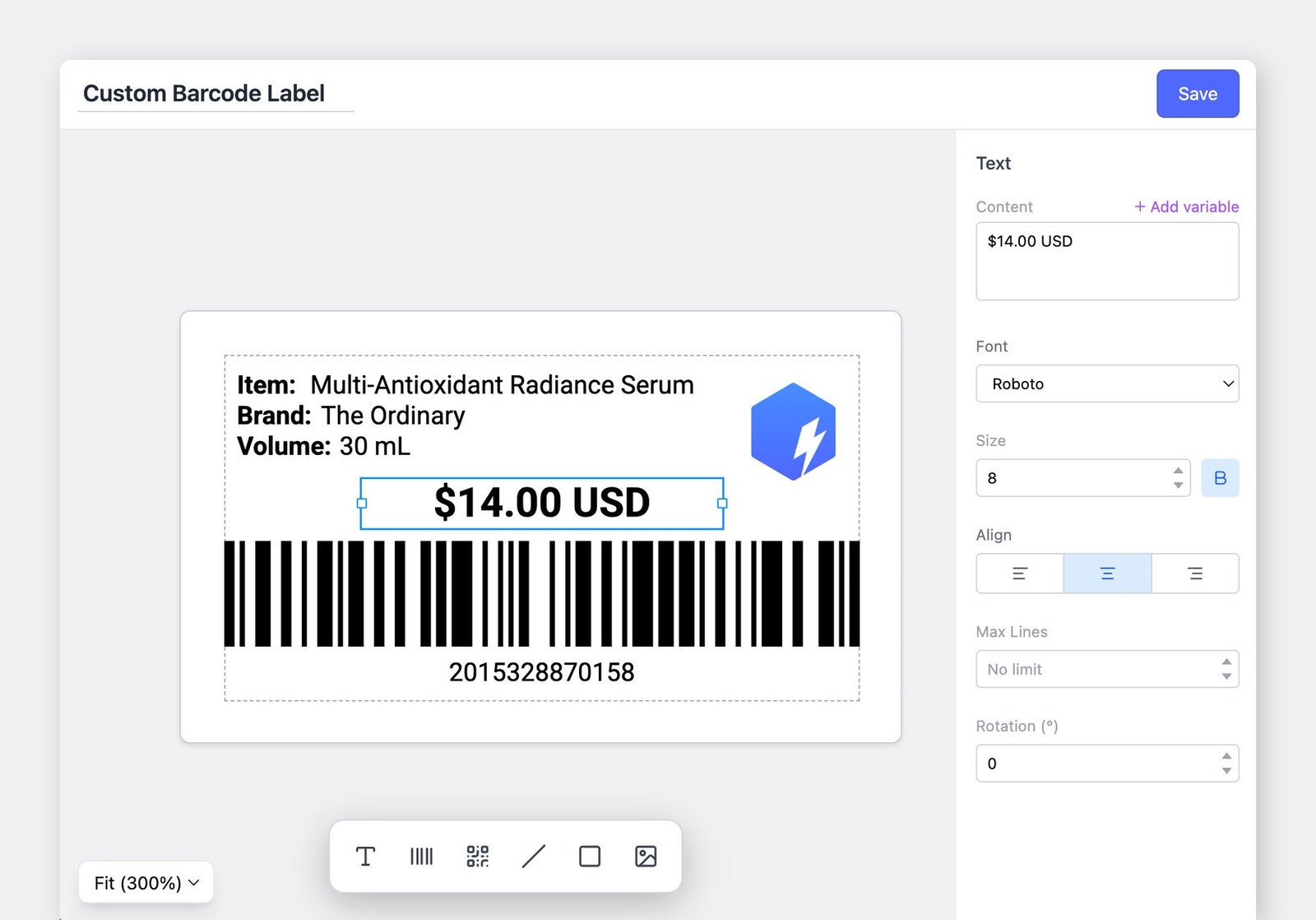
After adding a text element, use <mark style="color:blue;">**`+ Add variable`**</mark> on the right to insert item information.

* Text you type directly appears the same on all labels
* Variables pull information from each item
<figure><img src="https://687823928-files.gitbook.io/~/files/v0/b/gitbook-x-prod.appspot.com/o/spaces%2FlRf1QqJGoevCQqGbfI80%2Fuploads%2Fgit-blob-90384a1889d3d19827fb003b4d9d56d2a613ebfc%2Fframeit_2026-01-14T15-13-12.jpg?alt=media" alt=""><figcaption></figcaption></figure>

<details>

<summary><strong>Tips for Label Text:</strong></summary>

* Leave enough space for long item names or values
* Set <mark style="color:blue;">**`Max # Lines`**</mark> if needed. Text that exceeds the limit will be truncated with "..."

</details>

{% hint style="warning" %}
The variable preview is displayed based on the **information of the first item** in the sorting order. If no items are registered, it may be difficult to view the preview properly.
{% endhint %}

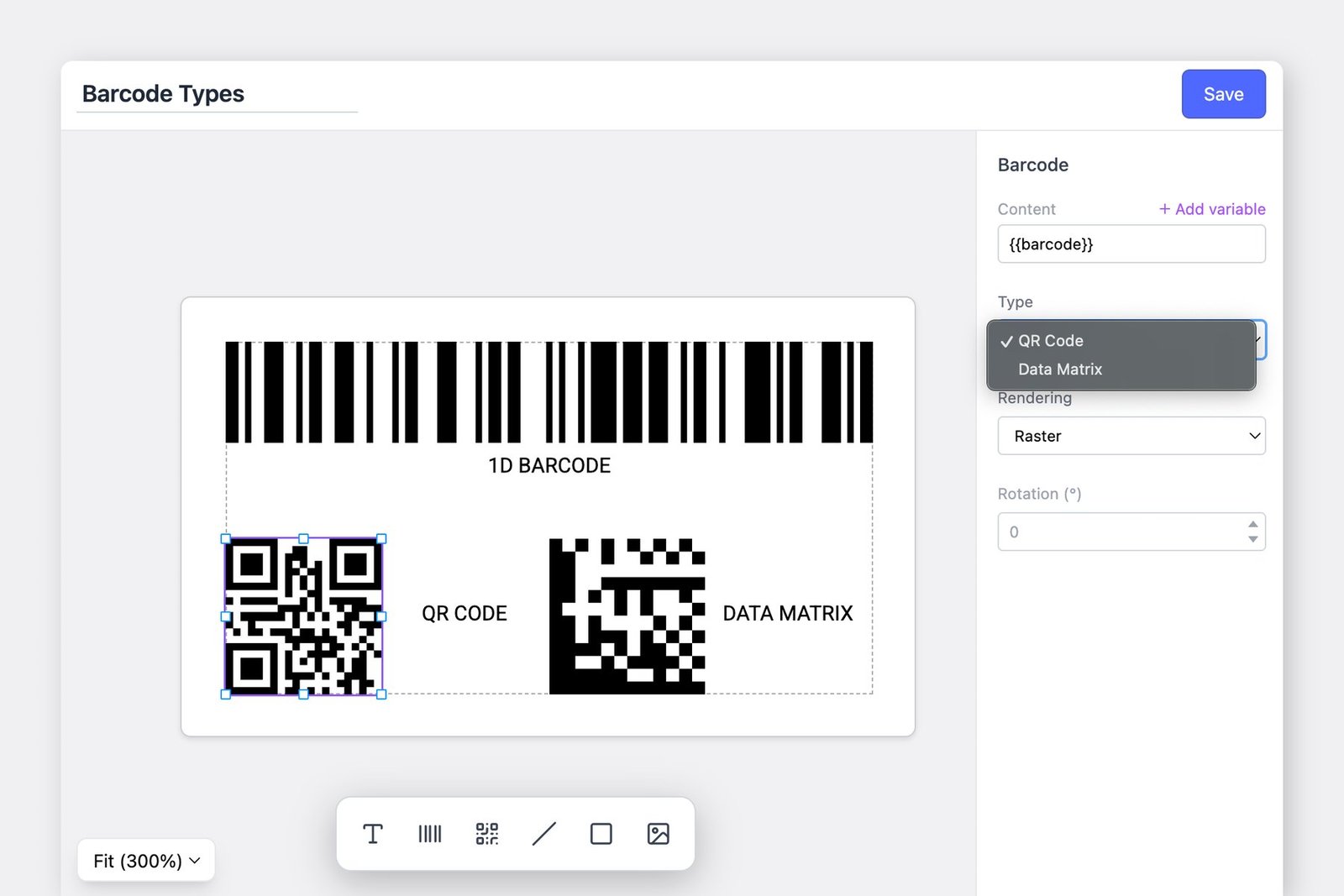
**2-2. Add Barcode**

Custom label designs support **1D barcodes**, **QR** **codes**, and **Data** **Matrix** codes.

<figure><img src="https://687823928-files.gitbook.io/~/files/v0/b/gitbook-x-prod.appspot.com/o/spaces%2FlRf1QqJGoevCQqGbfI80%2Fuploads%2Fgit-blob-28d84a0171472a5e590d0c219782872c30eadb50%2Fframeit_2026-01-14T16-04-34.jpg?alt=media" alt=""><figcaption></figcaption></figure>

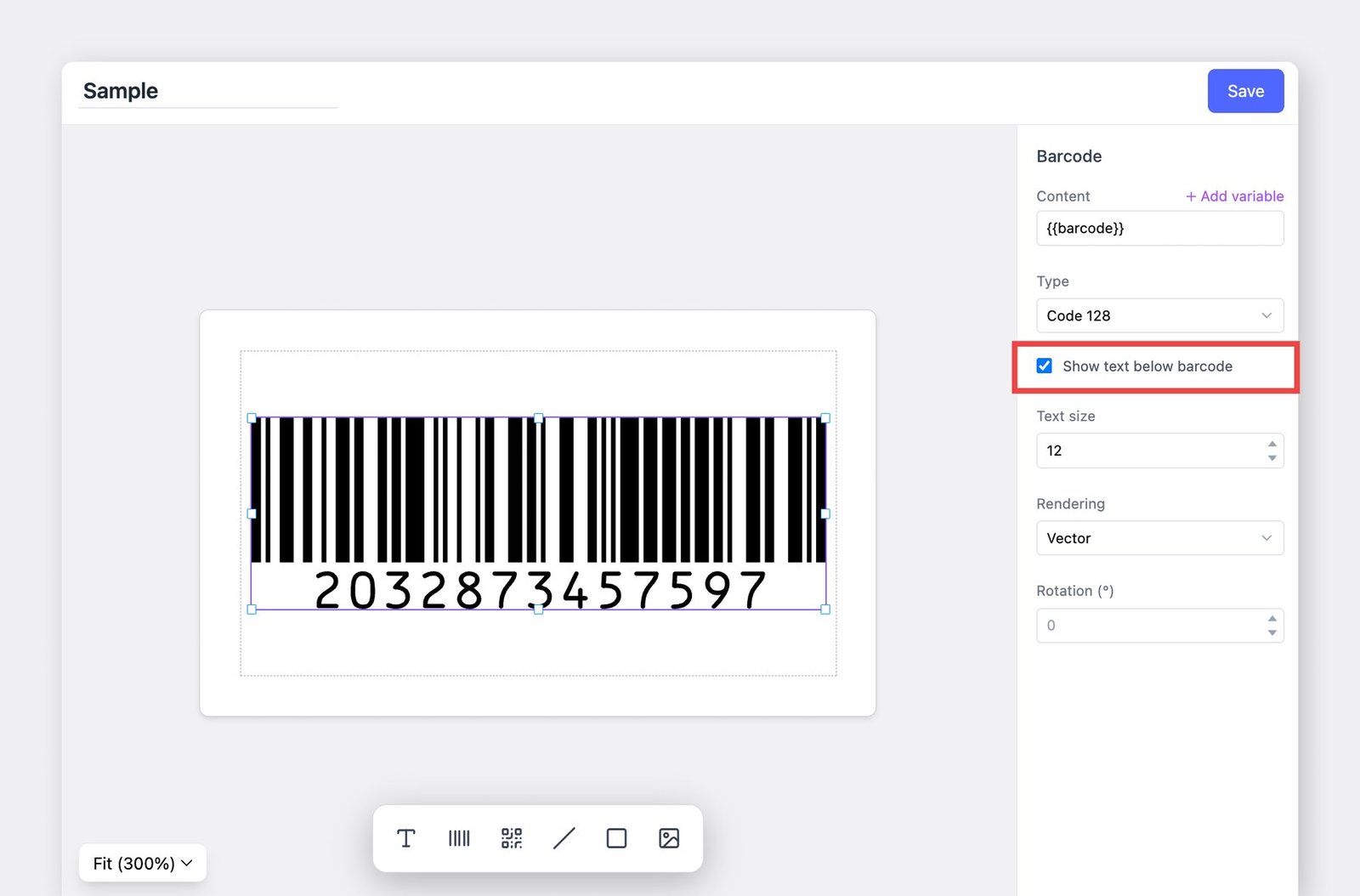
You can display the barcode number under the barcode when printing labels.

1. Select the **barcode** in your label design.
2. In the right panel, enable <mark style="color:blue;">**`Show text below barcode`**</mark>.
3. Adjust the **text size** if needed.

When you print the label, the barcode number registered for each item will appear automatically below the barcode.
<figure><img src="https://687823928-files.gitbook.io/~/files/v0/b/gitbook-x-prod.appspot.com/o/spaces%2FlRf1QqJGoevCQqGbfI80%2Fuploads%2Fgit-blob-cb6e9d67ac07bc3d07db5f991cb4d672d773becd%2Fframeit_2026-03-03T22-11-06.jpg?alt=media" alt=""><figcaption></figcaption></figure>

***

## Print Barcode Labels

{% hint style="warning" %}
If you’re using a direct thermal or thermal transfer printer, be sure to **configure the label (paper) size** in your computer’s printer settings.
{% endhint %}

### On Your Computer

Go to <mark style="color:blue;">**`Barcode Labels`**</mark> > <mark style="color:blue;">**`Print Items`**</mark> and select the items you want to print.

{% embed url="<https://customer-0jrbilsa8yt3k758.cloudflarestream.com/4ada30a1d3f343c3b5713b1504a57dca/iframe?autoplay=true&controls=false&letterboxColor=transparent&loop=true&muted=true&poster=https://customer-0jrbilsa8yt3k758.cloudflarestream.com/4ada30a1d3f343c3b5713b1504a57dca/thumbnails/thumbnail.jpg?height=1080&preload=true>" %}

\
You can also print the item list exactly as it appears after completing a <mark style="color:blue;">**`Stock In`**</mark> transaction.

{% hint style="info" %}
To print stock that have already been received:\
Go to **`Transactions`**, select the entry, and open the **`More`** menu.
{% endhint %}

### On Your Mobile Device

From the home screen, go to <mark style="color:blue;">**`Print Barcode`**</mark> > <mark style="color:blue;">**`Print Item Label`**</mark>.

{% hint style="danger" %}
For mobile printing, your printer and mobile device *must* be connected to the **same Wi-Fi network**.
{% endhint %}

{% embed url="<https://customer-0jrbilsa8yt3k758.cloudflarestream.com/b0bf9c2a45f04c0e9bc959e3ca26f680/iframe?autoplay=true&controls=false&letterboxColor=transparent&loop=true&muted=true&poster=https://customer-0jrbilsa8yt3k758.cloudflarestream.com/b0bf9c2a45f04c0e9bc959e3ca26f680/thumbnails/thumbnail.jpg?height=1080&preload=true>" %}

After completing a <mark style="color:blue;">**`Stock In`**</mark> or <mark style="color:blue;">**`Stock Out`**</mark> transaction, you can print labels directly from that list.

{% hint style="info" %}
To print a specific record:\
Go to **`Transactions`**, select the entry, tap the **`...`** menu, and choose **`Print Label`**.
{% endhint %}

***

## Troubleshooting

### Labels are misaligned

If your labels are not printing in the correct position (e.g., sideways or at a 90-degree angle), please go through the steps below in order. If the issue continues, move to the next step.

1. **Check the label paper loaded in your printer.** Make sure the label sheet or label roll is placed correctly and aligned inside the printer.
2. **Verify that your label design matches your label paper.** Confirm that the label size you selected in BoxHero matches the actual label sheet or label roll you’re using.
3. **Check for device-specific settings.**\
   \&#xNAN;***a.** For standard printers (label sheets):* Make sure the label sheet is inserted in the correct orientation. If it’s upside down or reversed, the print position may shift.\
   \
   \&#xNAN;***b.*** *For direct thermal or thermal transfer printers: C*onfirm that the correct paper size is set in your computer’s printer settings. Thermal printers require the paper size to be configured in the system settings to print correctly.

<figure><img src="https://687823928-files.gitbook.io/~/files/v0/b/gitbook-x-prod.appspot.com/o/spaces%2FlRf1QqJGoevCQqGbfI80%2Fuploads%2Fgit-blob-5ee4ab6ab8f4fb6c9aeafd7834d5a437cc32318e%2Fprinter.png?alt=media" alt=""><figcaption><p>Go to: <strong>Control Panel</strong> > <strong>Bluetooth &#x26; Devices</strong> > <strong>Printers &#x26; Scanners</strong> > <strong>Printing Preferences</strong></p></figcaption></figure>

### Barcodes print in red

If the barcode area prints with a red outline, the item may not have a barcode assigned. Add a valid barcode to the item and try printing again.

If a barcode is already assigned, check whether it includes any non-numeric or non-alphanumeric characters. Barcodes must contain only numbers or letters.

<div align="center"><figure><img src="https://687823928-files.gitbook.io/~/files/v0/b/gitbook-x-prod.appspot.com/o/spaces%2FlRf1QqJGoevCQqGbfI80%2Fuploads%2Fgit-blob-ac94d4e8e416cabd50387eb18d5ba6847cfa1ddb%2Fframeit_1689914690650.png?alt=media" alt=""><figcaption></figcaption></figure></div>

***

## Frequently Asked Questions (FAQ)

### Which printer should I buy?

You can use any printer that connects to your computer or mobile device. Choose a model that fits your budget and the features you need.

If possible, we recommend a **thermal transfer printer** for clean, durable labels. The [ZEBRA ZD421t](https://www.boxhero.io/en/blog/thermal-transfer-printers-zebra-zd421t) is one of our most reliable options.

<figure><img src="https://687823928-files.gitbook.io/~/files/v0/b/gitbook-x-prod.appspot.com/o/spaces%2FlRf1QqJGoevCQqGbfI80%2Fuploads%2Fgit-blob-eeb049e5d67bf311ae204493bc8f47374f19b4de%2Fframeit_2026-03-11T12-54-13.jpg?alt=media" alt=""><figcaption></figcaption></figure>

For more **printer** **recommendations**, visit the page below:

{% content-ref url="../device-setup/barcode-printer" %}
[barcode-printer](https://www.boxhero.io/docs/device-setup/barcode-printer)
{% endcontent-ref %}

### What barcode format does BoxHero use?

When you auto-generate a barcode in BoxHero, the system creates a 13-digit number in the **EAN-13** format.

When designing a label, you can choose the barcode format you want. If you don’t select one, **Code128** is used by default because it offers broad compatibility.

<figure><img src="https://687823928-files.gitbook.io/~/files/v0/b/gitbook-x-prod.appspot.com/o/spaces%2FlRf1QqJGoevCQqGbfI80%2Fuploads%2Fgit-blob-942c6f53f58f3f6c8cfaecffeb3893612151c57c%2Fframeit_2026-03-11T13-17-10.jpg?alt=media" alt=""><figcaption><p><strong>Supported formats:</strong> Code128, Code39, Code93, EAN-13, ITF, STF</p></figcaption></figure>

### Can I save barcode labels as image files?

Barcode labels can only be saved as a **PDF**.\
Click <mark style="color:blue;">**`Print`**</mark> and select <mark style="color:blue;">**`Save as PDF`**</mark> to download your label.

### Can I add an image or logo to a barcode label?

Yes, you can do so by using the <mark style="color:blue;">**`Create Custom Design`**</mark> option when printing your barcode labels.

<figure><img src="https://687823928-files.gitbook.io/~/files/v0/b/gitbook-x-prod.appspot.com/o/spaces%2FlRf1QqJGoevCQqGbfI80%2Fuploads%2Fgit-blob-f2a3444ca183662d77f1931fa2624c7cb875461d%2Fframeit_2026-01-14T16-10-33.jpg?alt=media" alt=""><figcaption></figcaption></figure>