> For the complete documentation index, see [llms.txt](https://www.boxhero.io/docs/llms.txt). Markdown versions of documentation pages are available by appending `.md` to page URLs; this page is available as [Markdown](https://www.boxhero.io/docs/documentation/ko/other-features/low-stock-alert.md).

# 재고 부족 알림

***

<figure><img src="/files/1Gl0bBZ971N0tiYmTlGG" alt=""><figcaption></figcaption></figure>

***

## 안전 재고 설정 <a href="#how-to-set-up" id="how-to-set-up"></a>

{% stepper %}
{% step %}
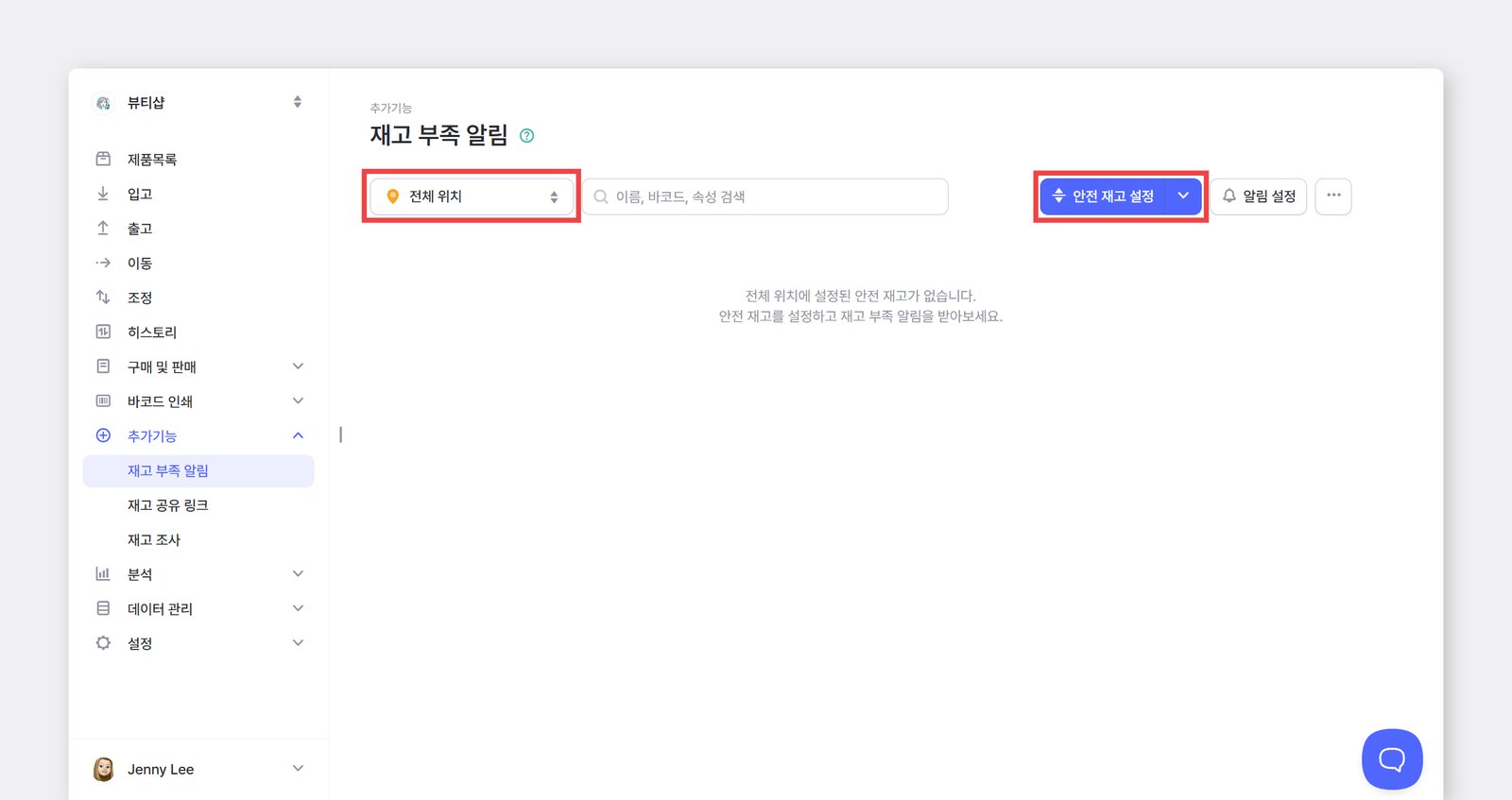
`추가 기능` > `재고 부족 알림` > `안전 재고 설정하기` 버튼을 눌러주세요.

<figure><img src="/files/kopJInRzFNkBZfkFKwpg" alt="안전재고 설정 화면"><figcaption></figcaption></figure>
{% endstep %}

{% step %}
`합산 재고` 우측 드롭다운 메뉴에서 `+추가하기`를 선택해 안전 재고 속성을 등록합니다.

{% embed url="<https://customer-0jrbilsa8yt3k758.cloudflarestream.com/78cbbbd2a38c4ae9b9172f61de5f95d0/iframe?autoplay=true&controls=false&letterboxColor=transparent&loop=true&muted=true&poster=https://customer-0jrbilsa8yt3k758.cloudflarestream.com/78cbbbd2a38c4ae9b9172f61de5f95d0/thumbnails/thumbnail.jpg?height=1080&preload=true>" %}
{% endstep %}

{% step %}
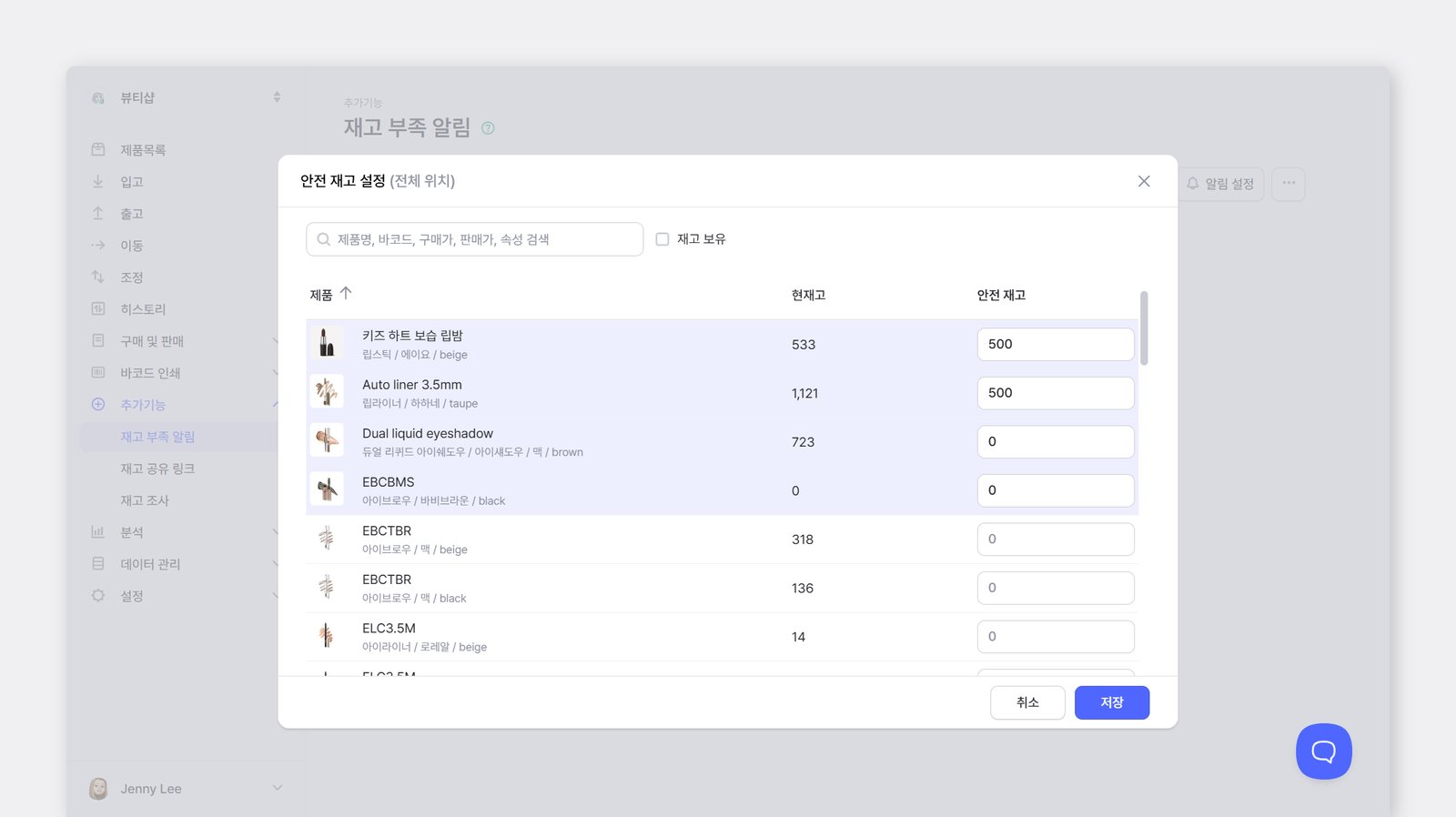
속성이 추가되면 우측 `수량 설정`을 눌러서 제품별 안전 재고 수량을 입력합니다.

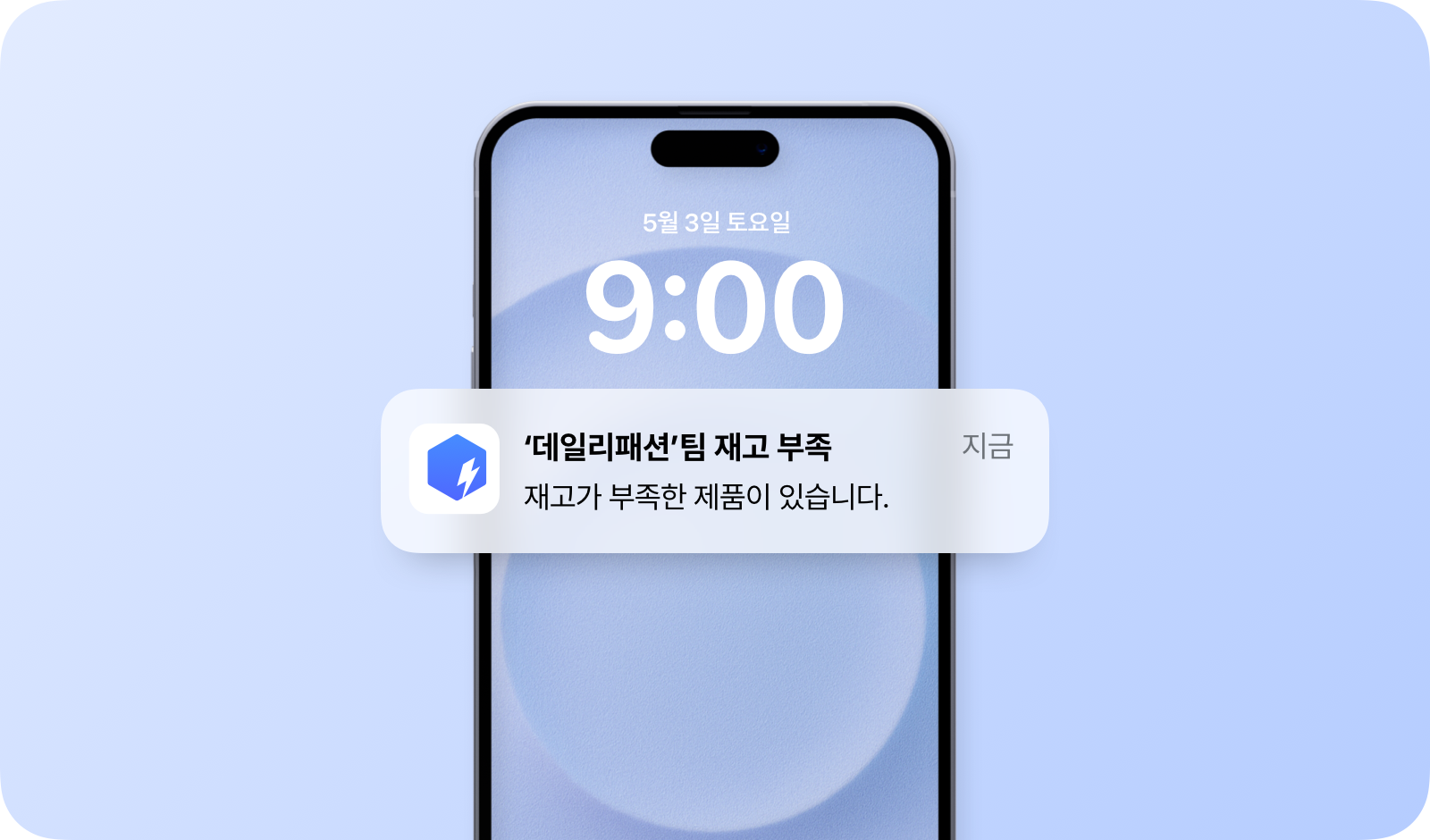
안전 재고를 10으로 등록하면, 수량이 10개 **이하**일 때 모바일 앱으로 푸시 알림을 받을 수 있습니다.

{% embed url="<https://customer-0jrbilsa8yt3k758.cloudflarestream.com/6dcaf4e0dfab44a9bb6d6554c7c326fe/iframe?autoplay=true&controls=false&letterboxColor=transparent&loop=true&muted=true&poster=https://customer-0jrbilsa8yt3k758.cloudflarestream.com/6dcaf4e0dfab44a9bb6d6554c7c326fe/thumbnails/thumbnail.jpg?height=1080&preload=true>" %}

안전 재고를 입력할 제품이 많다면 **엑셀**로 대량 입력할 수 있습니다.

1. `데이터 관리` > `제품` > `엑셀 가져오기` > `대량 수정` > `엑셀 양식 다운로드`
2. 다운로드 받은 엑셀 양식의 '안전 재고' 컬럼에 입력
3. 엑셀 파일 업로드

좀 더 자세한 방법이 궁금한 경우 [**엑셀 대량 수정**](/docs/documentation/ko/concepts/items.md#edit-items-via-excel) 페이지를 참고해 주세요.

{% hint style="success" %}
안전 재고를 0으로 입력해두면 재고가 모두 소진되었을 때 푸시 알림을 받을 수 있습니다.
{% endhint %}
{% endstep %}

{% step %}
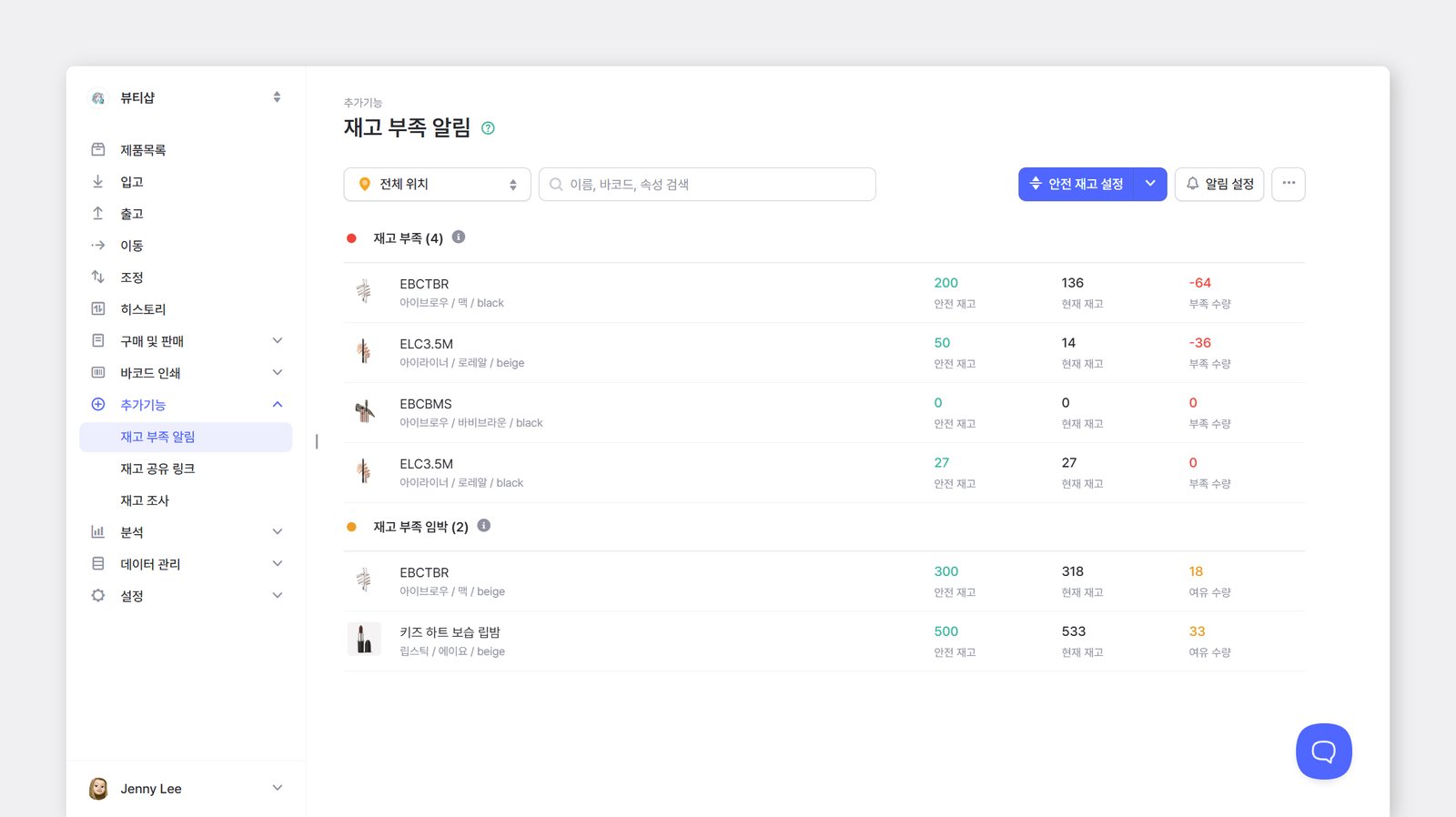
설정이 완료되면 `재고 부족 알림` 메뉴에서 재고가 부족한 제품 목록을 바로 확인할 수 있습니다.

<figure><img src="/files/oT38iQhe9Iwej1P3Wsu5" alt="재고 부족 확인 페이지"><figcaption></figcaption></figure>
{% endstep %}
{% endstepper %}

## 알림 설정 <a href="#set-up-notifications" id="set-up-notifications"></a>

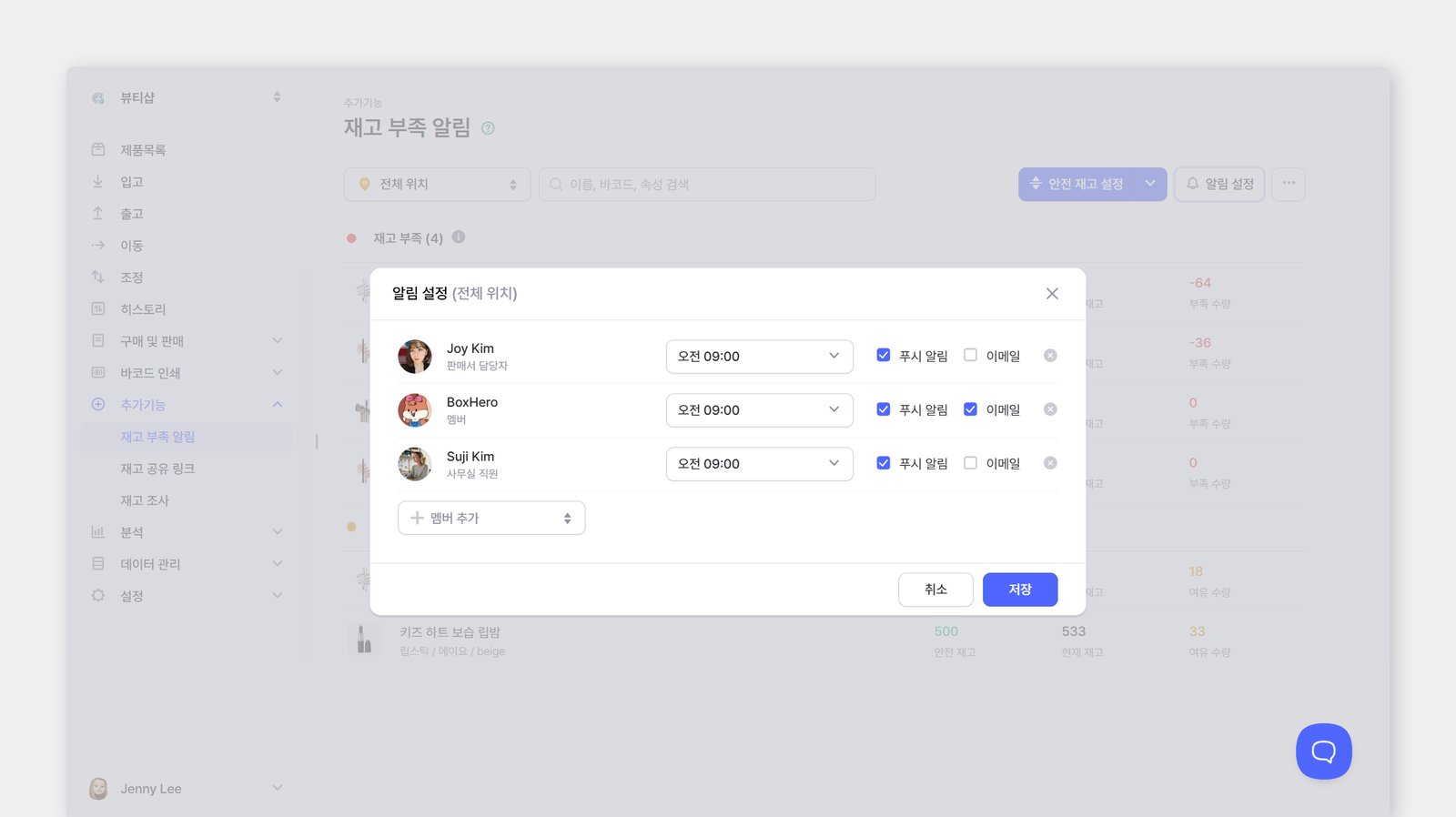
재고 부족 알림을 설정하면 기본적으로 **모든 팀원**에게 모바일 앱 푸시 알림이 발송됩니다. 필요한 경우 `설정` > `알림 설정` 에서 유저별로 알림 조건을 설정할 수 있습니다.

<figure><img src="/files/WQLjTFsXs2MsYp87oL9V" alt="알림 설정 페이지"><figcaption></figcaption></figure>

* **모바일 ON/OFF:** 푸시 알림을 받고 싶지 않다면 OFF로 설정하세요.
* **알림 대상:** 합산 재고(전체 위치) 또는 특정 위치만 선택해 알림을 받을 수 있습니다.
* **알림 시간:** 원하는 시간을 선택해 알림을 받을 수 있습니다.

{% hint style="warning" %}
푸시 알림이 켜져 있어도 알림이 오지 않는다면 스마트폰에서 앱 알림 설정을 확인해 주세요.
{% endhint %}

## 위치별 설정 <a href="#configure-by-location" id="configure-by-location"></a>

여러 위치를 추가해 사용하는 경우 **각 위치별로 재고 부족 알림을 받을 수 있습니다.** 위치마다 안전 재고 속성을 추가하고 수량을 각각 설정해 주세요.

<figure><img src="/files/25NHRNr1JdqWBurzX6tJ" alt="위치별 안전재고 등록"><figcaption></figcaption></figure>

{% hint style="warning" %}
위치별 안전 재고를 설정한 뒤, 각 멤버는 `설정` > `알림 설정`에서 원하는 위치의 알림을 개별적으로 설정하세요.
{% endhint %}

***

## FAQ

박스히어로 재고 부족 알림에 대해 **자주 묻는 질문**은 아래에서 확인하실 수 있습니다.

{% content-ref url="/spaces/dR2xvRG0Ds13315BlP8a/pages/dTcX8JcChle98AbObUXK" %}
[재고 부족 알림](/docs/faq/ko/inventory-and-transactions/low-stock-alerts.md)
{% endcontent-ref %}

***