# Low Stock Alerts

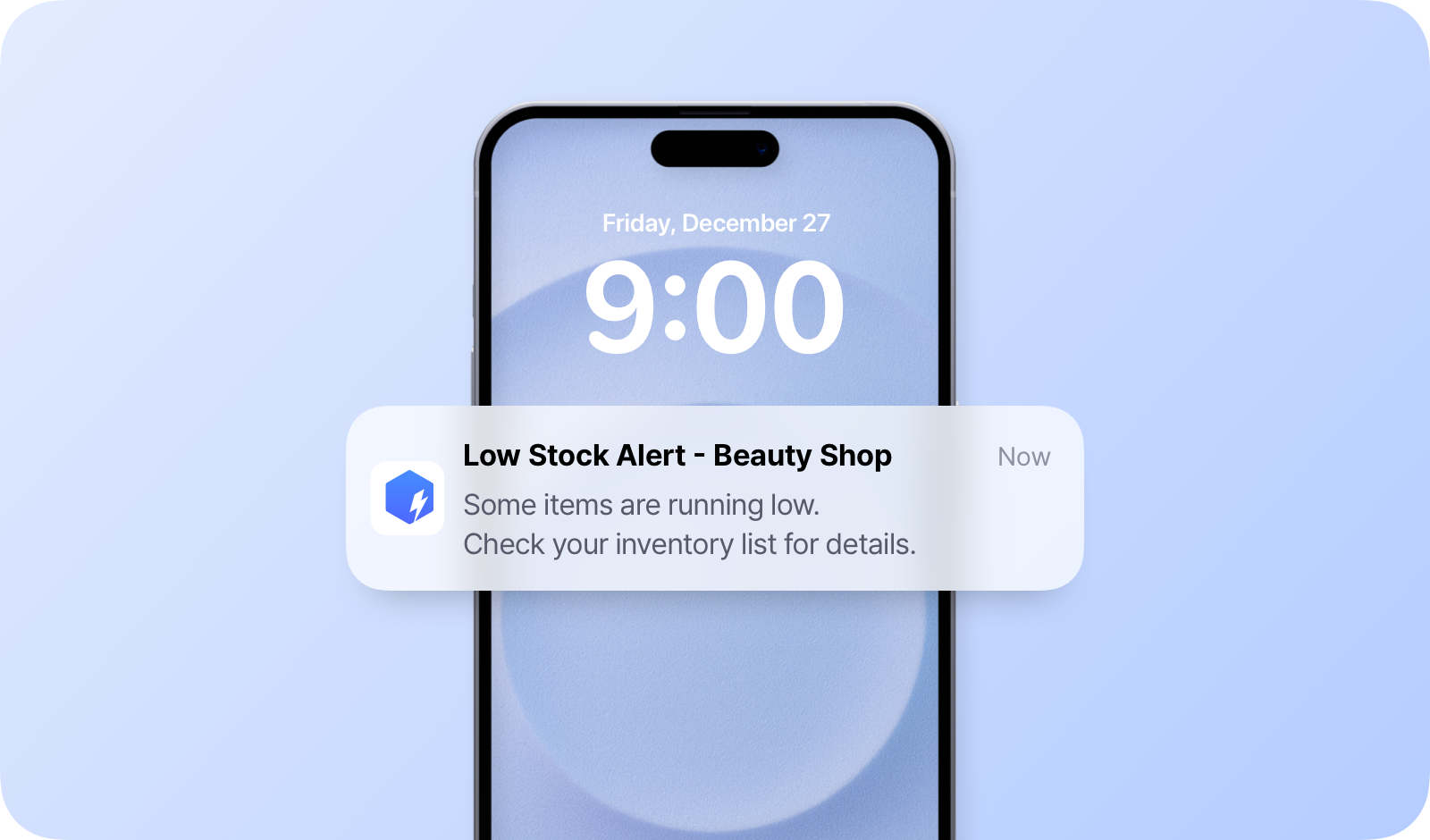
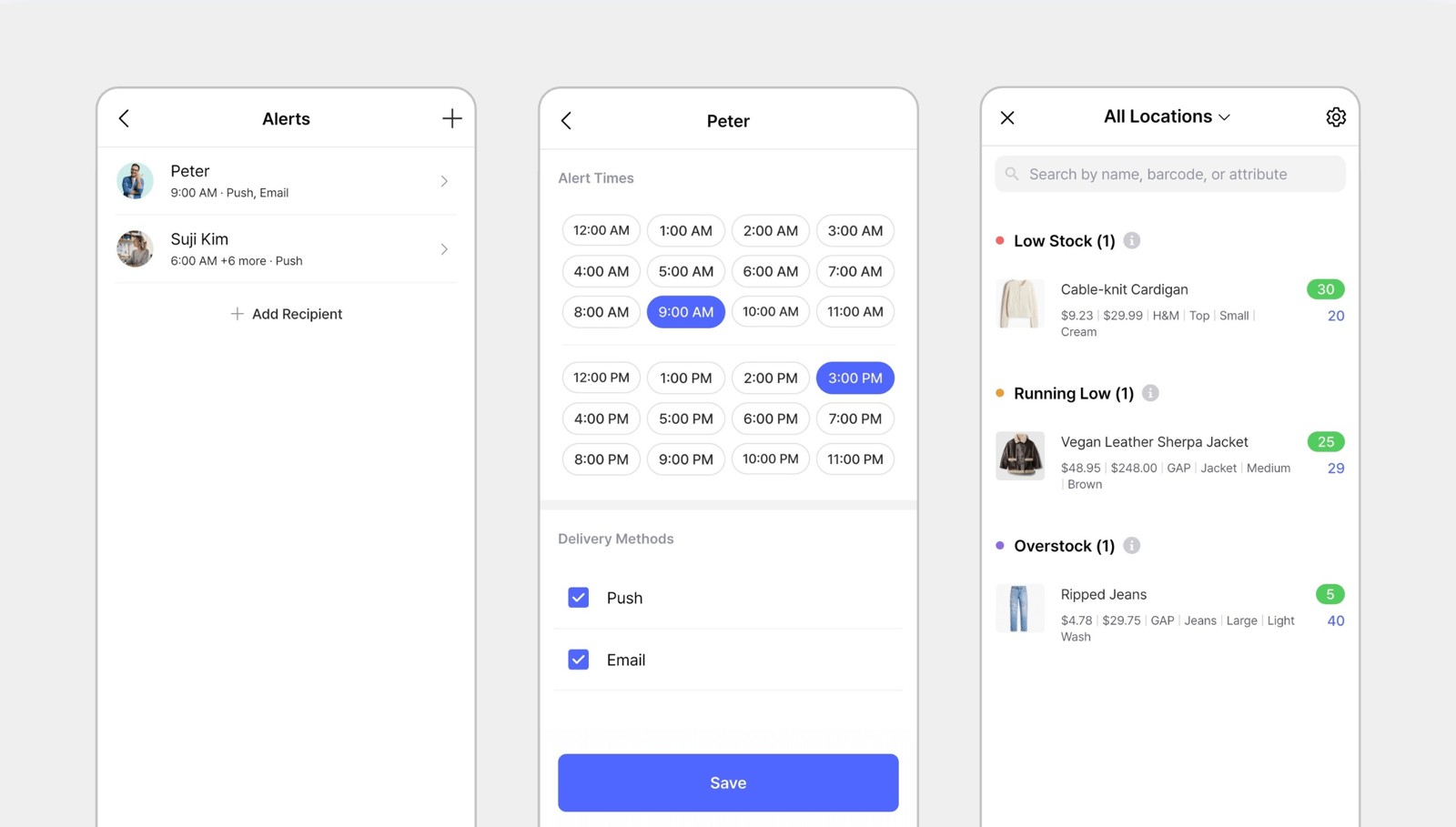
<figure><img src="https://687823928-files.gitbook.io/~/files/v0/b/gitbook-x-prod.appspot.com/o/spaces%2FlRf1QqJGoevCQqGbfI80%2Fuploads%2Fgit-blob-3b3d6c401eefd1e0b2e675f2dd143379214b6353%2F%E1%84%8C%E1%85%A2%E1%84%80%E1%85%A9%20%E1%84%87%E1%85%AE%E1%84%8C%E1%85%A9%E1%86%A8%20%E1%84%8B%E1%85%A1%E1%86%AF%E1%84%85%E1%85%B5%E1%86%B7%20(1).png?alt=media" alt="Set up safety stock quantities for your items and receive notifications directly via the mobile app."><figcaption><p>Get low stock alert notifications directly via the <a href="https://docs-en.boxhero.io/getting-started#get-the-mobile-app">mobile app</a>.</p></figcaption></figure>

***

## How to Set Up

{% stepper %}
{% step %}

#### Set Safety Stock

**Safety stock** is the minimum quantity of an item you want to keep in stock to avoid stockouts. You can set this up to monitor your inventory levels.

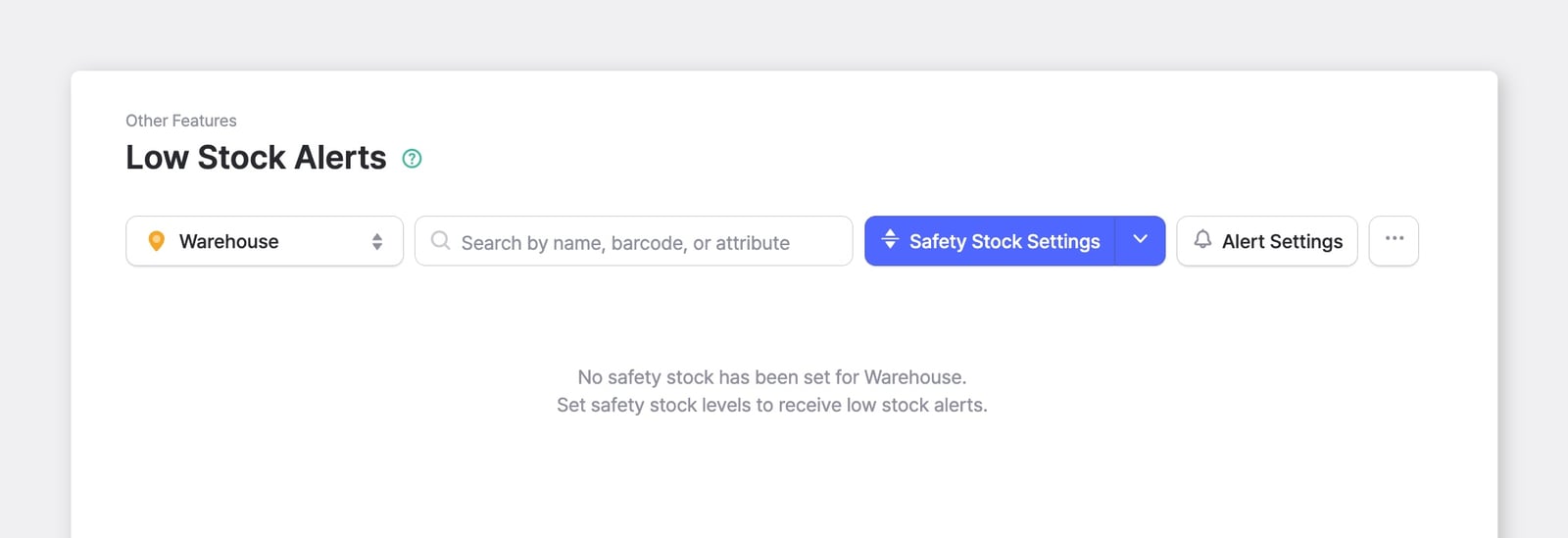
* Go to <mark style="color:blue;">**`Other Features`**</mark> > <mark style="color:blue;">**`Low Stock Alerts`**</mark>.
* Click <mark style="color:blue;">**`Set up Safety Stock`**</mark>.

<figure><img src="https://687823928-files.gitbook.io/~/files/v0/b/gitbook-x-prod.appspot.com/o/spaces%2FlRf1QqJGoevCQqGbfI80%2Fuploads%2Fgit-blob-a307809ba10b8ac5e7e57c6c732bc138f572f629%2Fset-up-safety-stock.png?alt=media" alt=""><figcaption></figcaption></figure>

{% endstep %}

{% step %}

#### Configure by Location

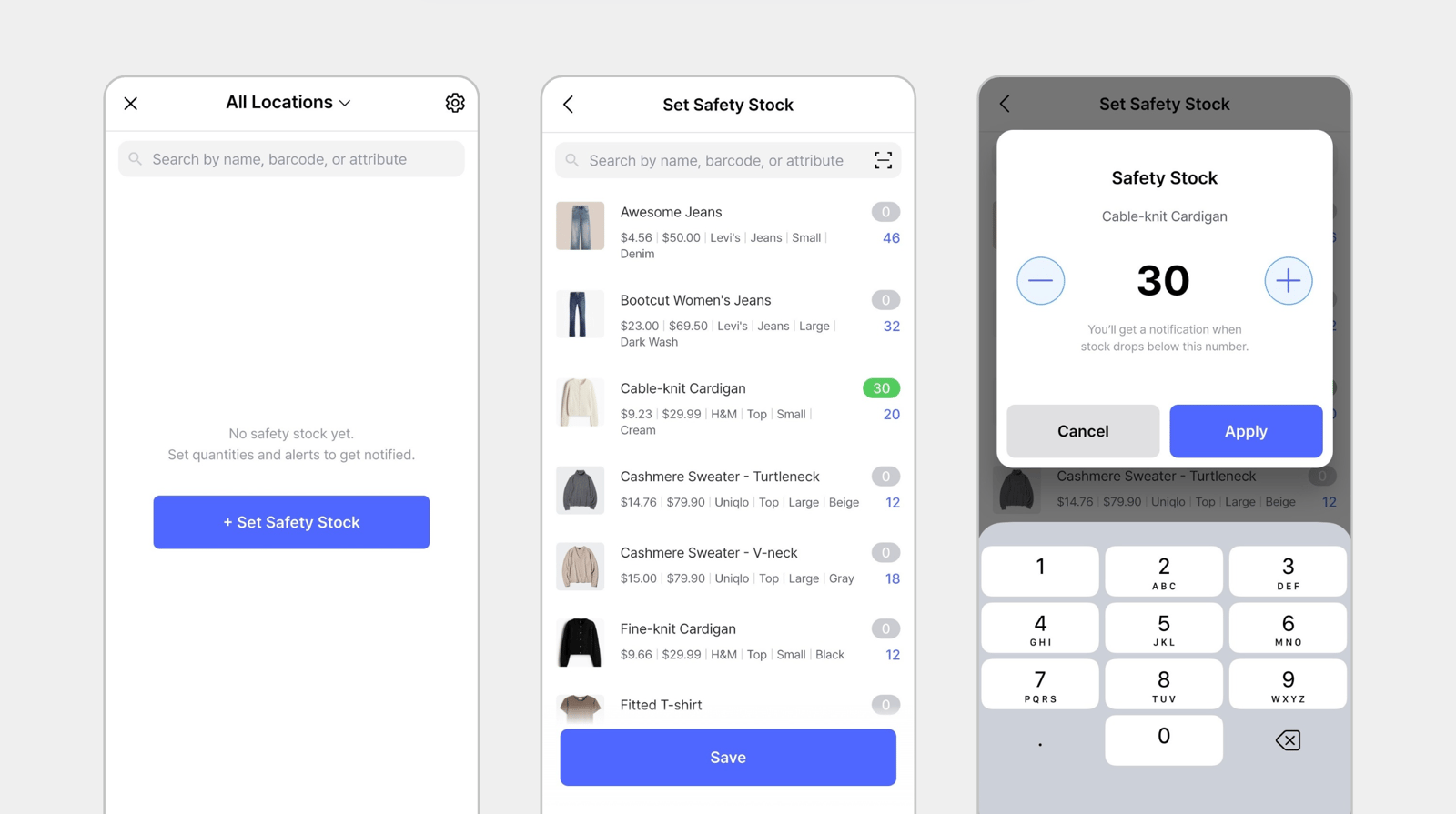
Customize safety stock settings: You can manage multiple warehouses or locations by setting alerts based on inventory levels in each specific site.

* **All Locations**: Sums inventory across all sites
* **Specific Location**: Tracks individual site levels

<figure><img src="https://687823928-files.gitbook.io/~/files/v0/b/gitbook-x-prod.appspot.com/o/spaces%2FlRf1QqJGoevCQqGbfI80%2Fuploads%2Fgit-blob-a80fe4ad7d736fdf4a76cd2ce28bb7780e5b1915%2Ffilename%20(50).png?alt=media" alt="Set Safety Stock"><figcaption></figcaption></figure>

{% endstep %}

{% step %}

#### Enter Quantities

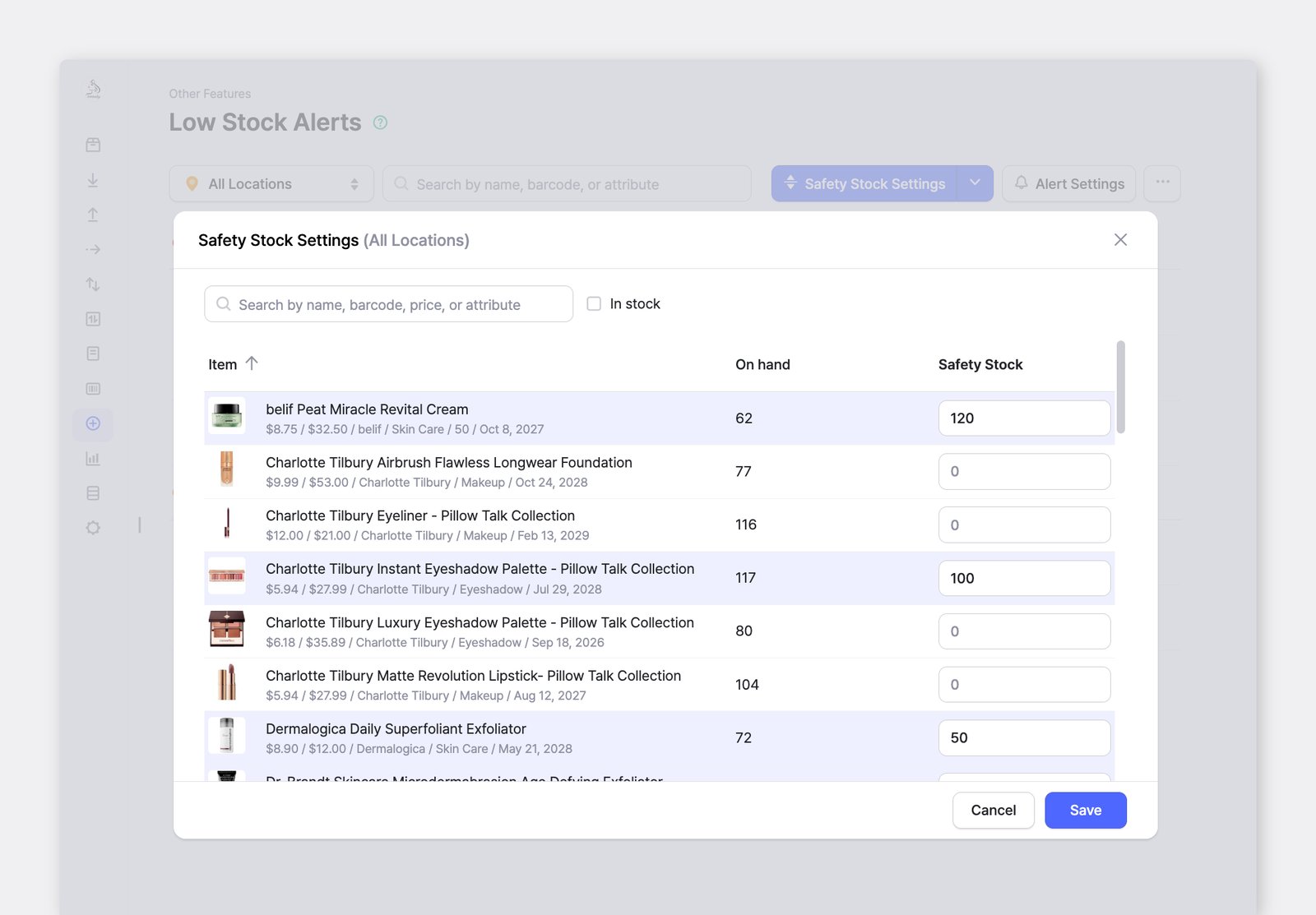
After adding the Safety Stock Attribute, click on <mark style="color:blue;">**`Edit Quantity`**</mark> to to enter the desired amount of safety stock for each item.

<figure><img src="https://687823928-files.gitbook.io/~/files/v0/b/gitbook-x-prod.appspot.com/o/spaces%2FlRf1QqJGoevCQqGbfI80%2Fuploads%2Fgit-blob-c6bd74ccac012aba3afb98a77b70e16af0ab2f10%2Ffilename%20(51).png?alt=media" alt="Set Safety Stock Quantity"><figcaption></figcaption></figure>

To **bulk edit** safety stock quantities via **Excel**:

* Navigate to <mark style="color:blue;">**`Data Center`**</mark> > <mark style="color:blue;">**`Items`**</mark> > <mark style="color:blue;">**`Import from Excel`**</mark>.
* Choose <mark style="color:blue;">**`Bulk Edit`**</mark> to download your existing data into Excel.
* Map the “Safety Stock” column and upload the file with your safety stock data back to BoxHero.

{% hint style="info" %}
If you set the **safety stock** to **0**, you’ll get a notification when the item is out of stock.
{% endhint %}

{% endstep %}

{% step %}

#### Monitor Low Stock Items

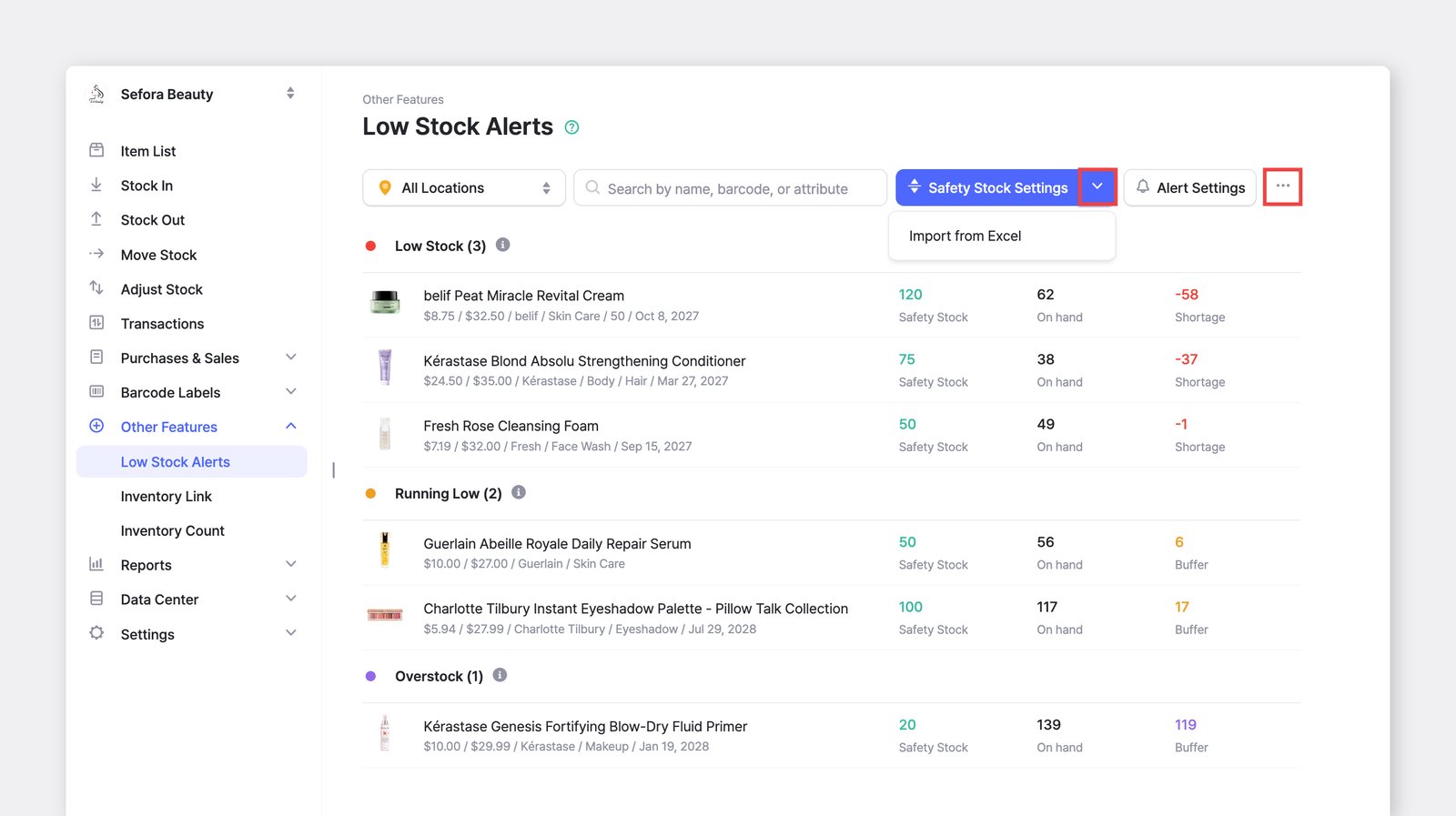
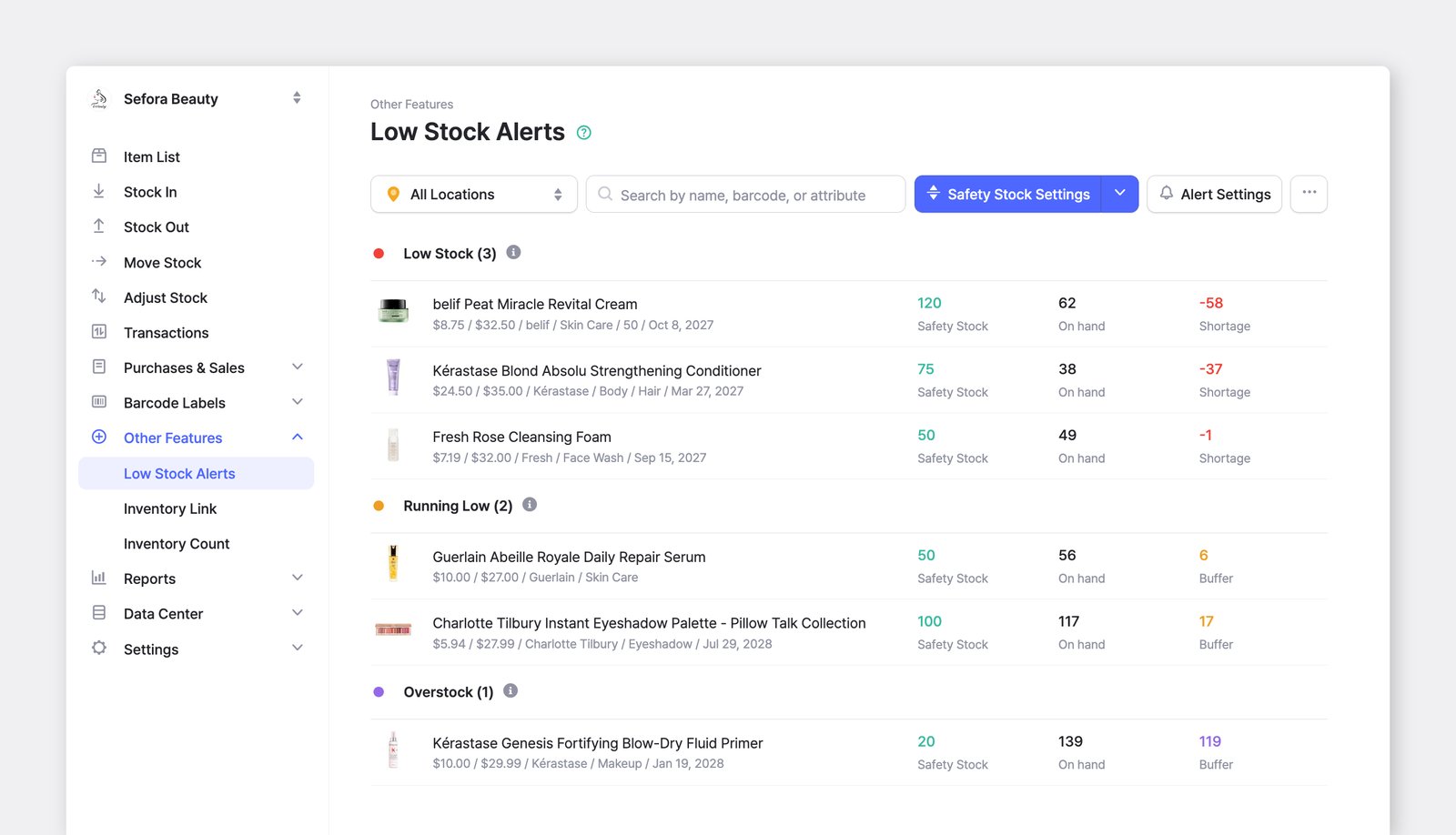
After setting safety stock quantities, you can easily check for items with low stock.

<figure><img src="https://687823928-files.gitbook.io/~/files/v0/b/gitbook-x-prod.appspot.com/o/spaces%2FlRf1QqJGoevCQqGbfI80%2Fuploads%2Fgit-blob-c19b8212989489bd8d15b36a2ea07118b1e9645a%2Ffilename%20(52).png?alt=media" alt="Check Items with Low Stock"><figcaption></figcaption></figure>

{% endstep %}

{% step %}

#### Set Up Notifications

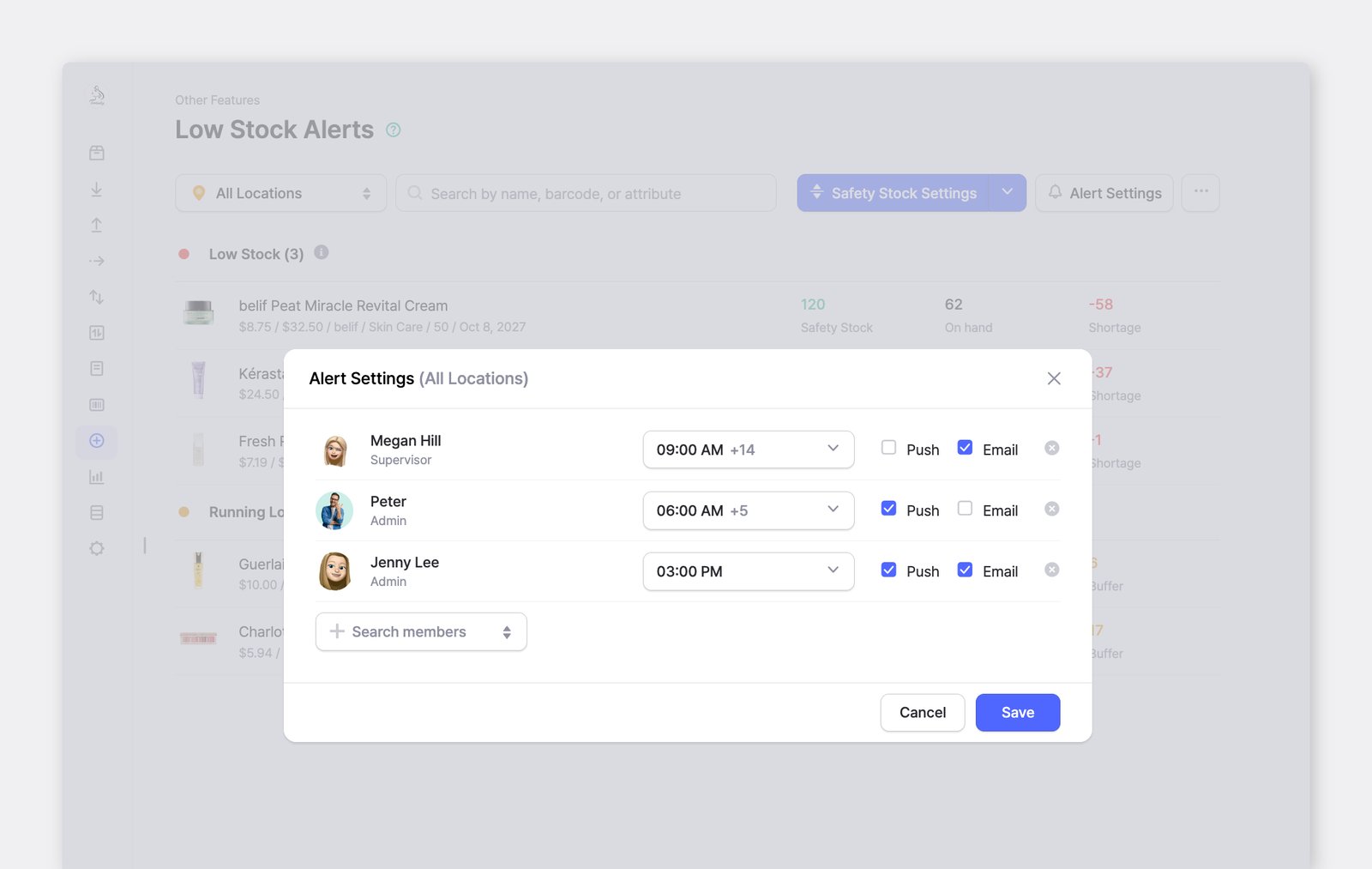
To receive alerts when stock falls below the safety stock quantities, you must enable notifications in your user settings.

<figure><img src="https://687823928-files.gitbook.io/~/files/v0/b/gitbook-x-prod.appspot.com/o/spaces%2FlRf1QqJGoevCQqGbfI80%2Fuploads%2Fgit-blob-593665b476473cc86cb58c3e37fe576446044815%2Fnotification-settings.png?alt=media" alt=""><figcaption></figcaption></figure>

* Go to <mark style="color:blue;">**`Settings`**</mark> > <mark style="color:blue;">**`Notifications`**</mark>.
* Under **Low Stock Alerts**, toggle the **App Notification** to ON.
* Select **Alert Locations**: You can choose to receive alerts for all locations or specific locations.
* Set **Alert Time**: Set the time you want to receive alerts.

{% hint style="success" %}
Each user can set their own preferences for receiving low stock notifications.
{% endhint %}
{% endstep %}
{% endstepper %}

***

## Frequently Asked Questions (FAQs)

### Can I receive low stock alerts on my desktop?

Currently, low stock alerts are only available via the mobile app. Please make sure your mobile device settings are enabled to receive notifications.

### What does “Near Low Stock” mean?

* **Low Stock**: Your inventory level has reached or dropped below the set safety stock level.
* **Near Low stock**: Your inventory is at or below **1.2 times** the safety stock level. It’s an early warning before you hit critical stock levels.

{% hint style="info" %}
**Note**: If you set the safety stock quantity to **0**, you will receive a notification when the stock is completely out of stock.
{% endhint %}

### Why am I not getting notifications?

Make sure App Notifications are enabled in <mark style="color:blue;">**`Settings`**</mark> > <mark style="color:blue;">**`Notifications`**</mark>, and also allowed in your device settings. On iOS or Android, check that notifications for the BoxHero app are turned on.

{% hint style="warning" %}
If **Do Not Disturb** or **Focus mode** is active, it may block alerts.
{% endhint %}