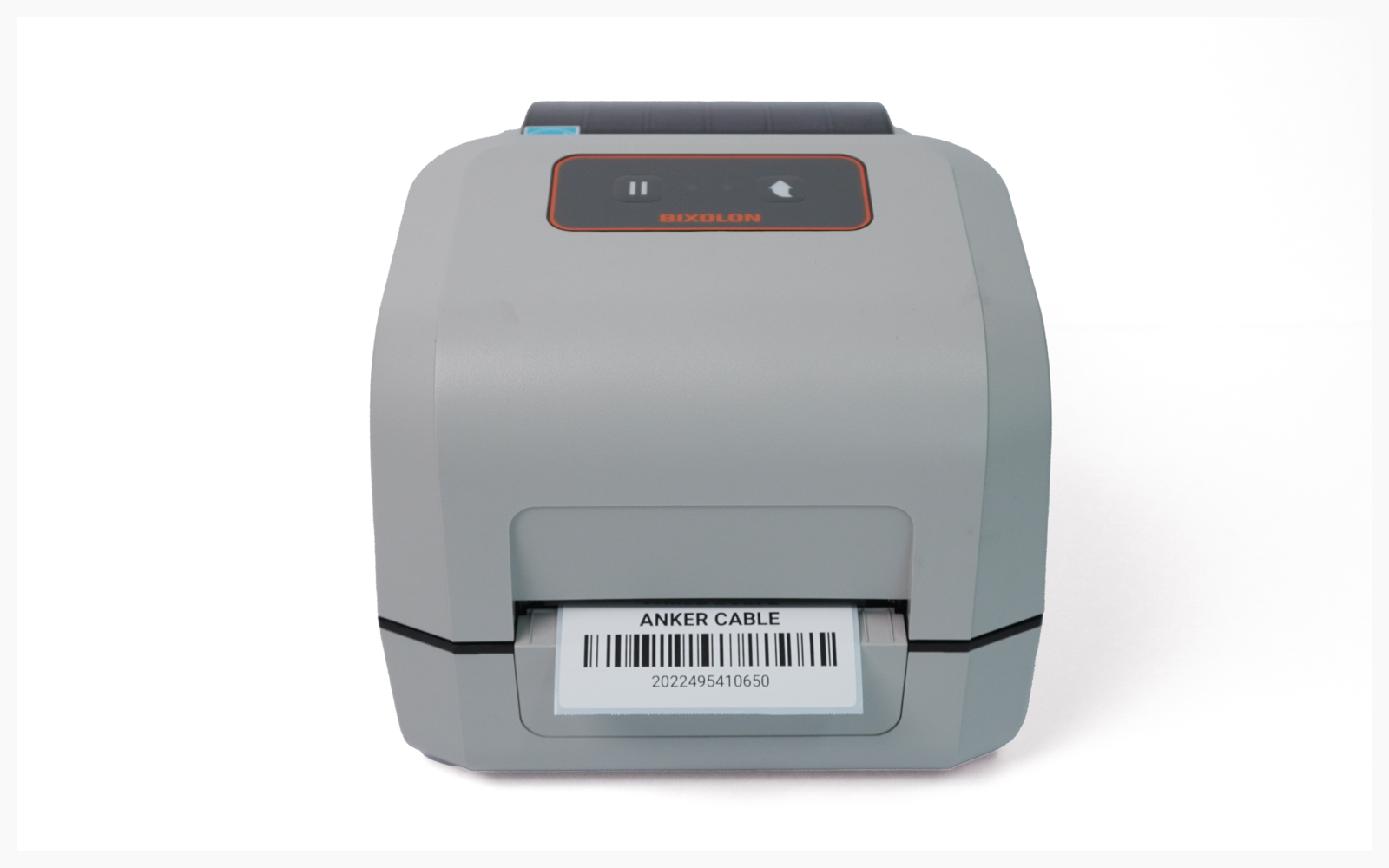
Mobile Printing
How to print from your phone once the BIXOLON XD5-40 is set up.
이 콘텐츠는 아직 번역되지 않았습니다.
I. Device Setup
Section titled “I. Device Setup”Go to the
Bluetoothsettings on your mobile device and select the printer you want to use.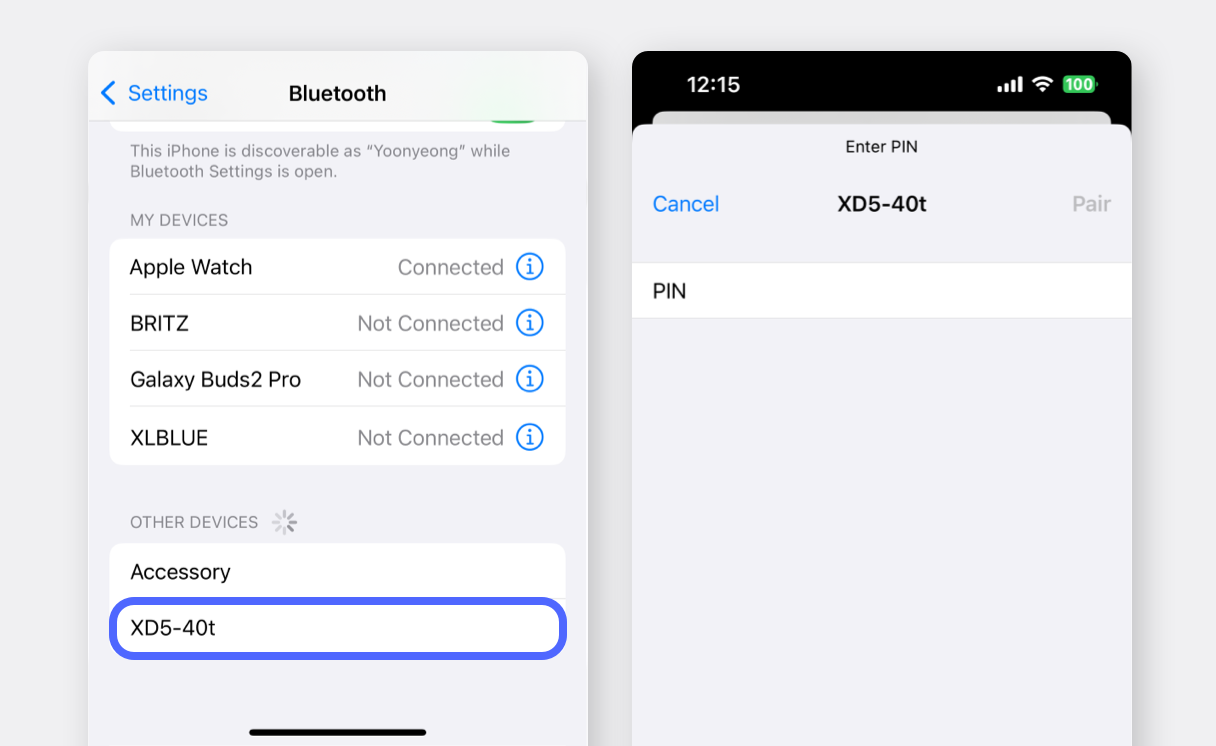
Search for “mPrint” on the Google Play Store or App Store and install the app.
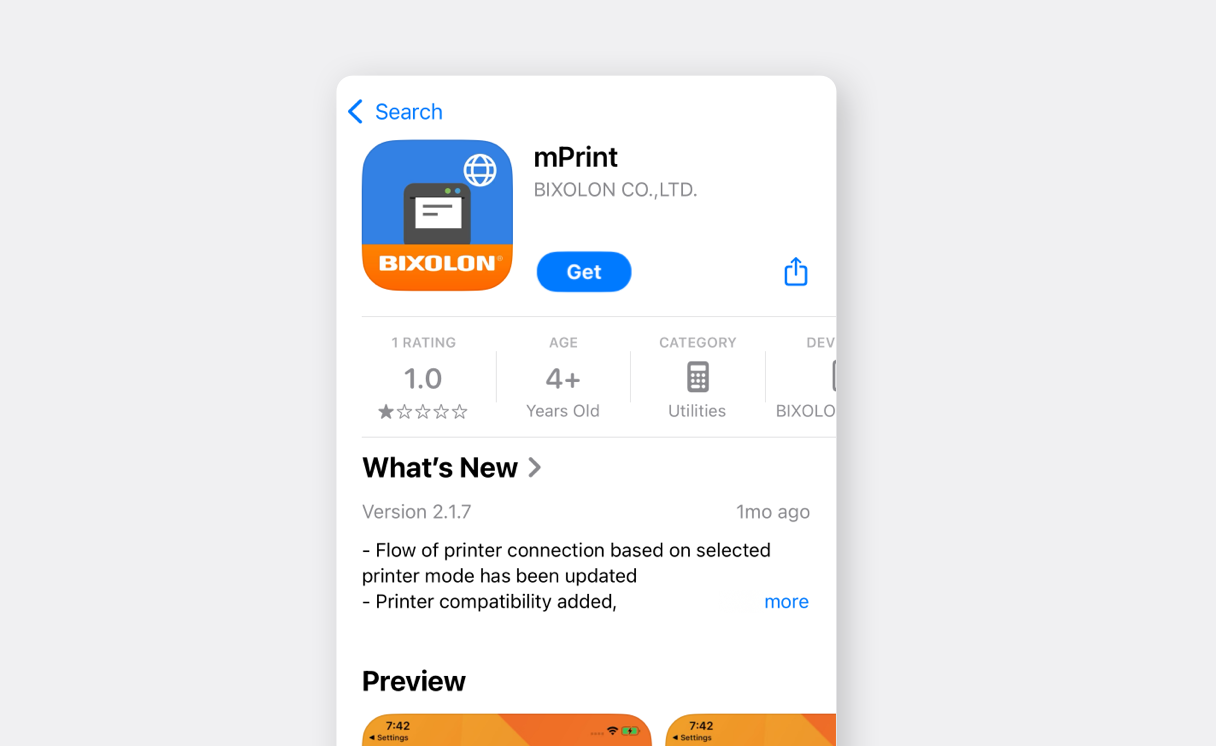
Open the app and go to
Setting.
(If a permission request pop-up appears, select “Allow” for all prompts.)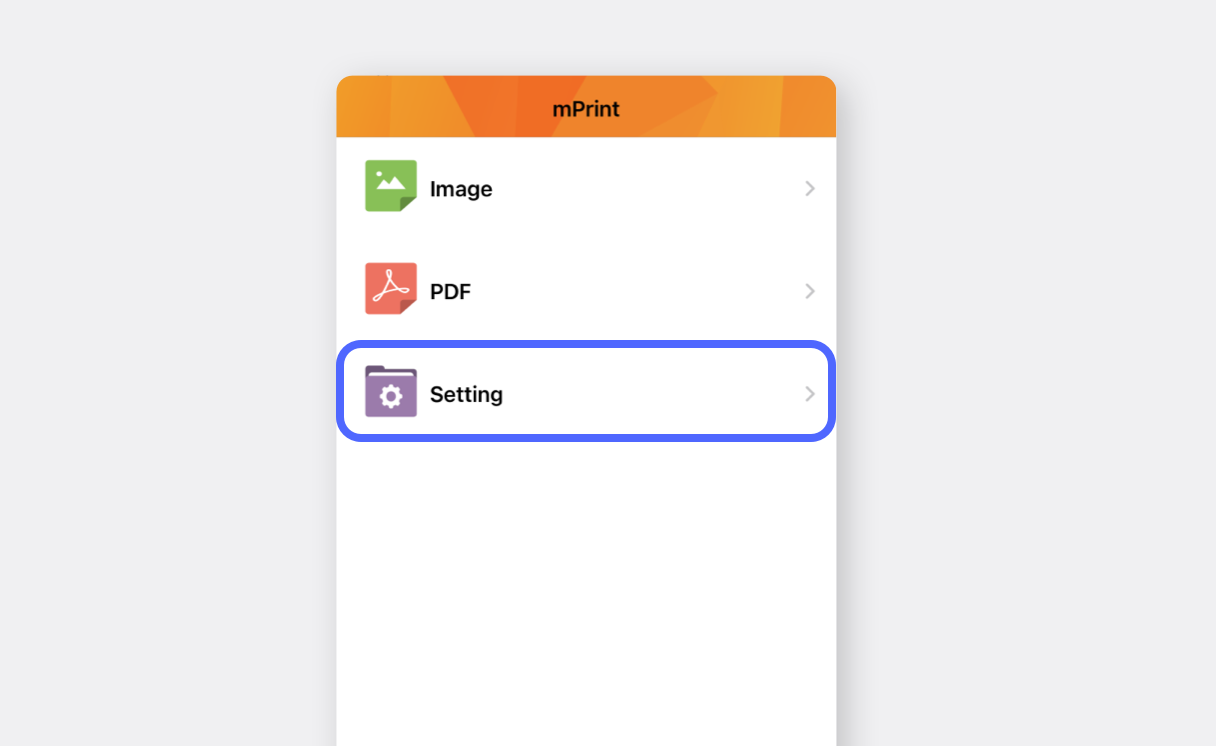
Tap
Printer Select Modeand select your label printer.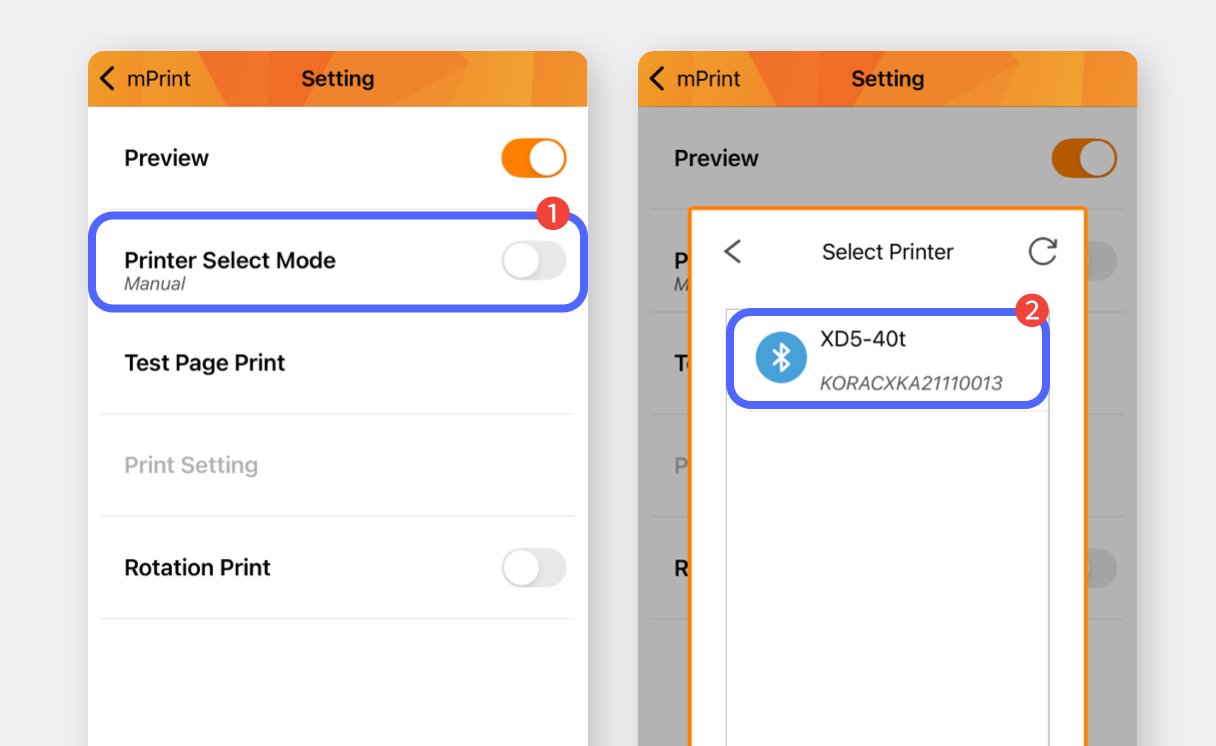
Tap
Print Test Pageto confirm that printing works. (Note: The label may not fit properly, but just confirm that it prints.)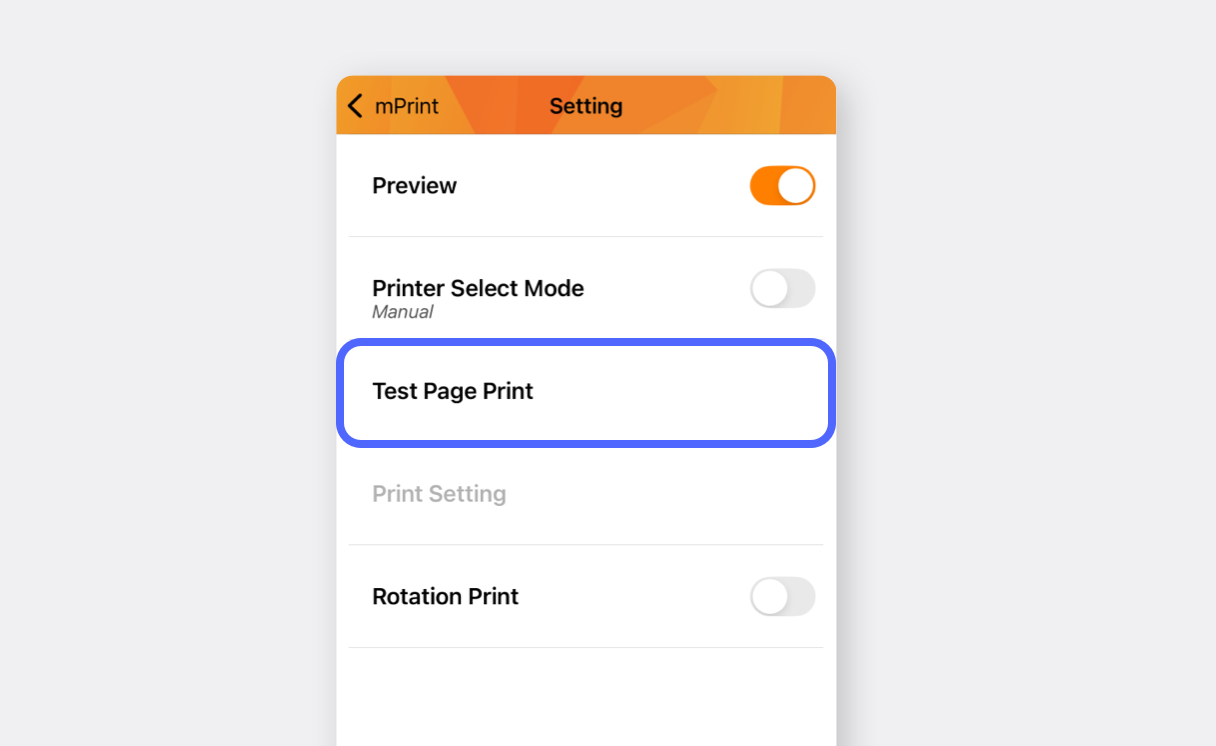
In
Print Setting, set the paper size in millimeters (mm) and input the paper size you’ll be using.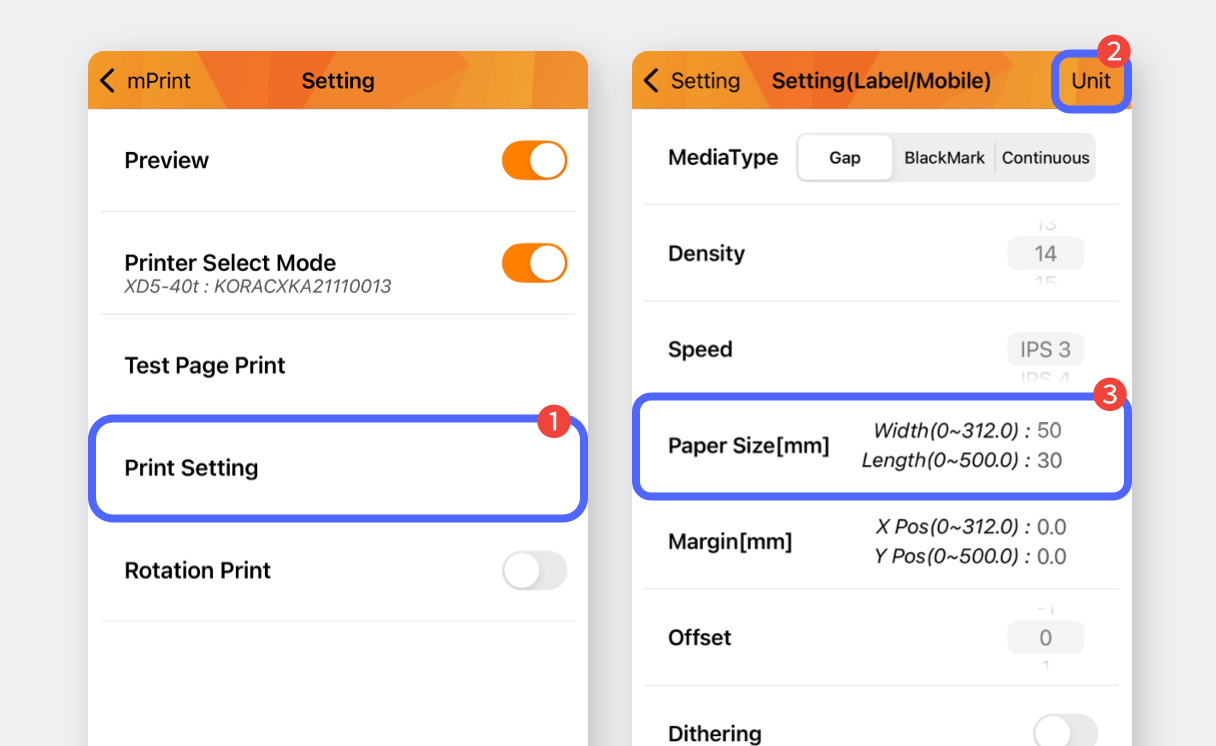
II. Label Printing
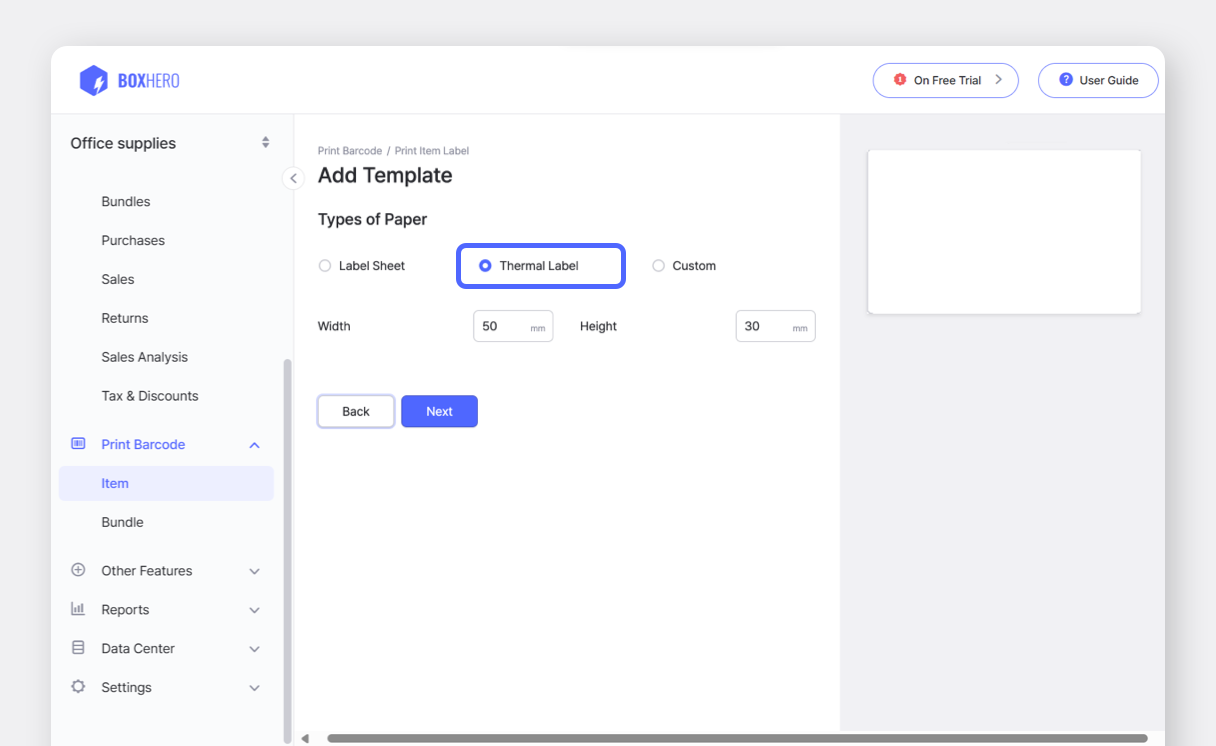
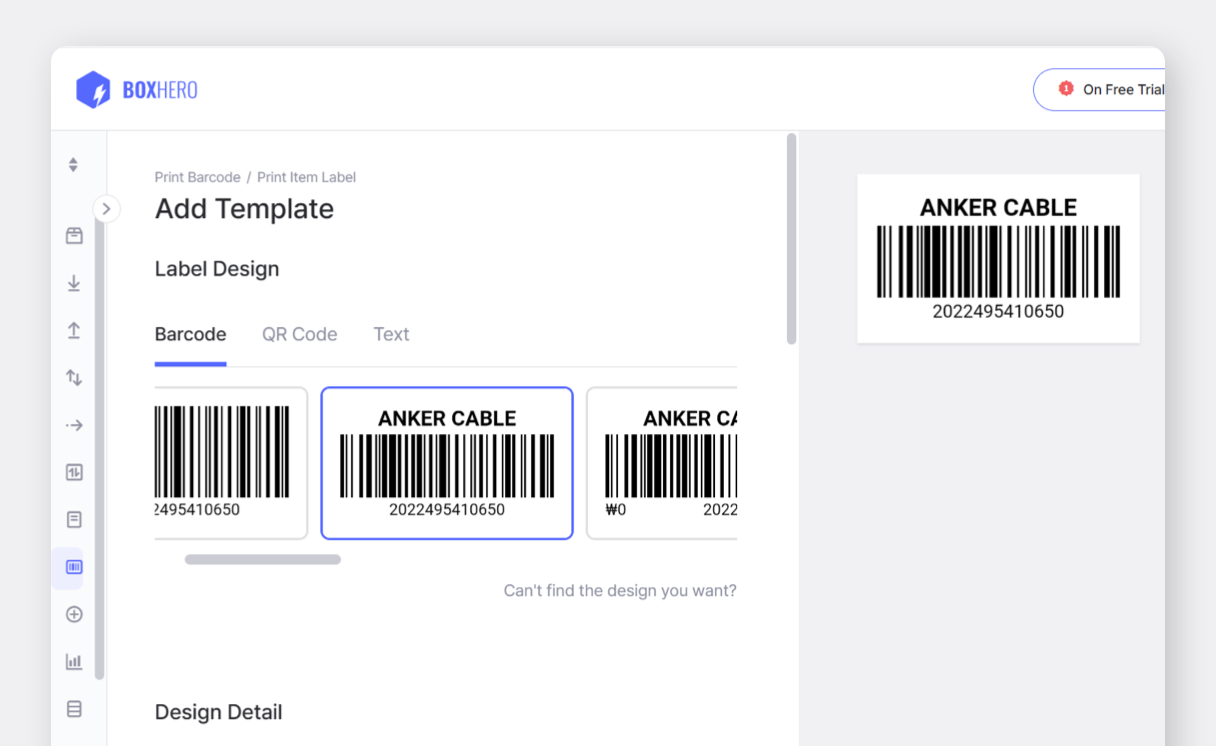
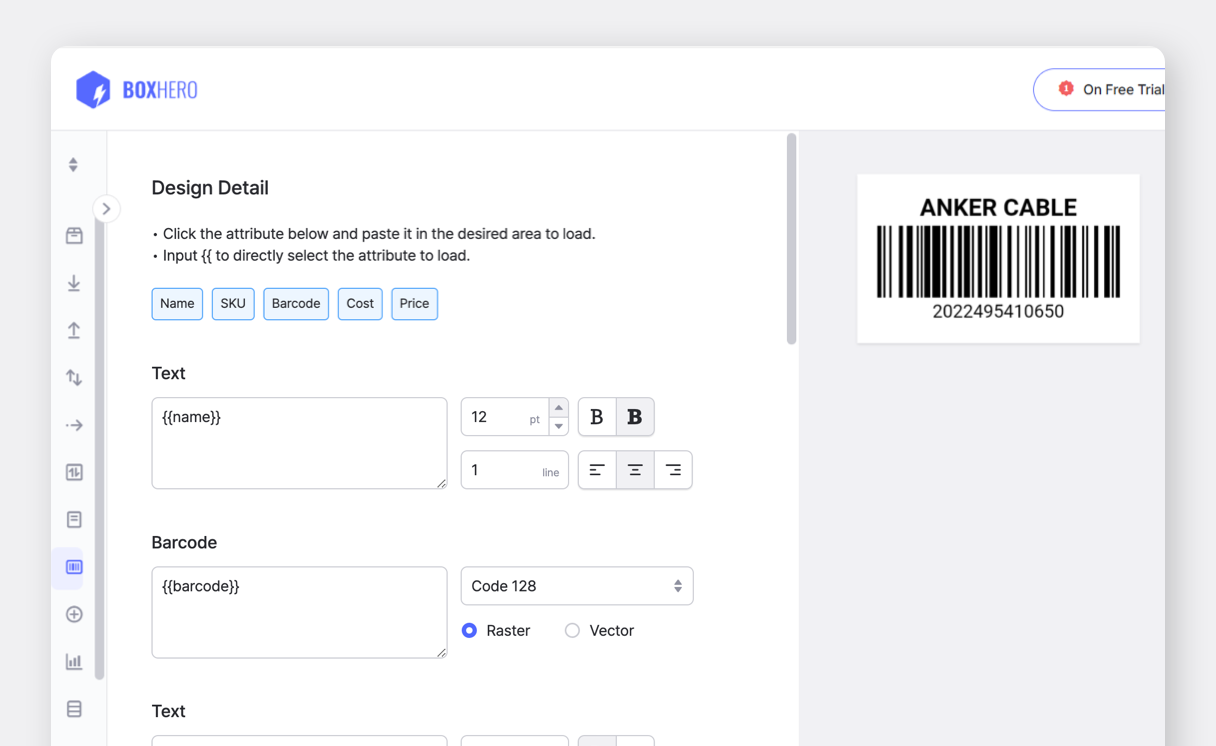
Section titled “II. Label Printing”Create barcode labels on the BoxHero web platform (PC/Desktop), which can then be used on your mobile device.
Open the BoxHero app on your mobile device and tap
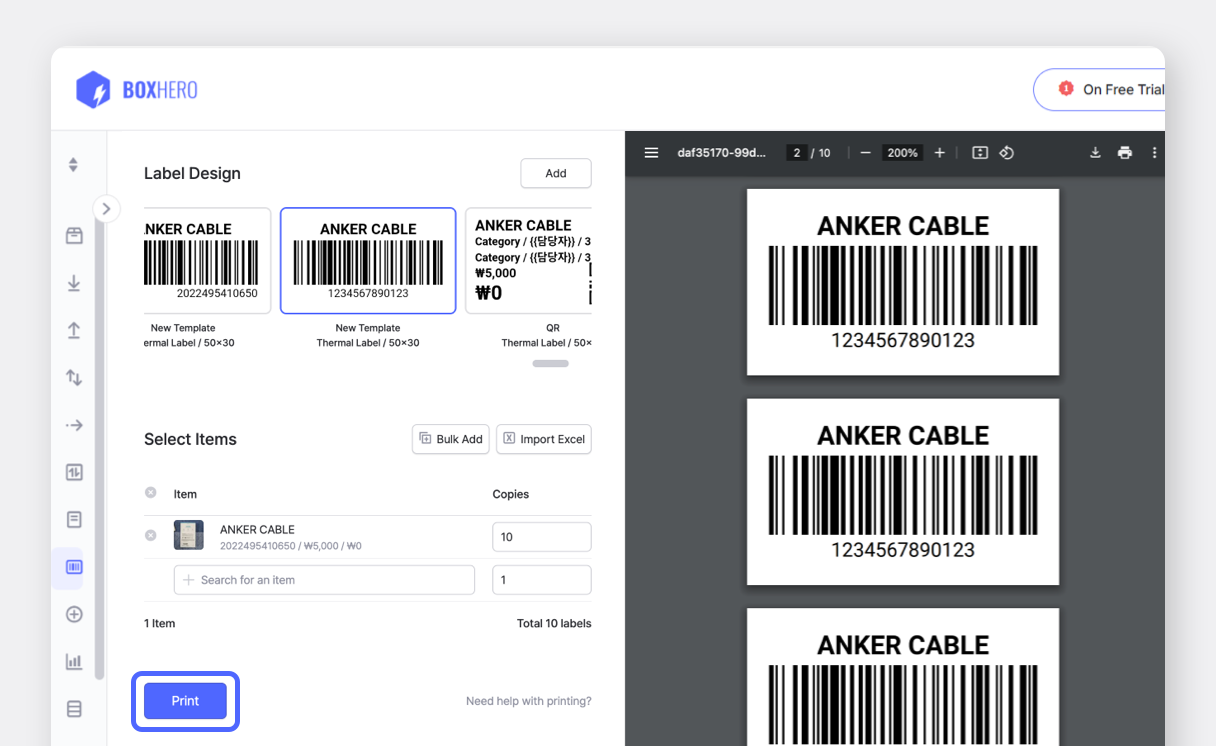
Print Item Labelin theBarcode Labelscard on the home screen.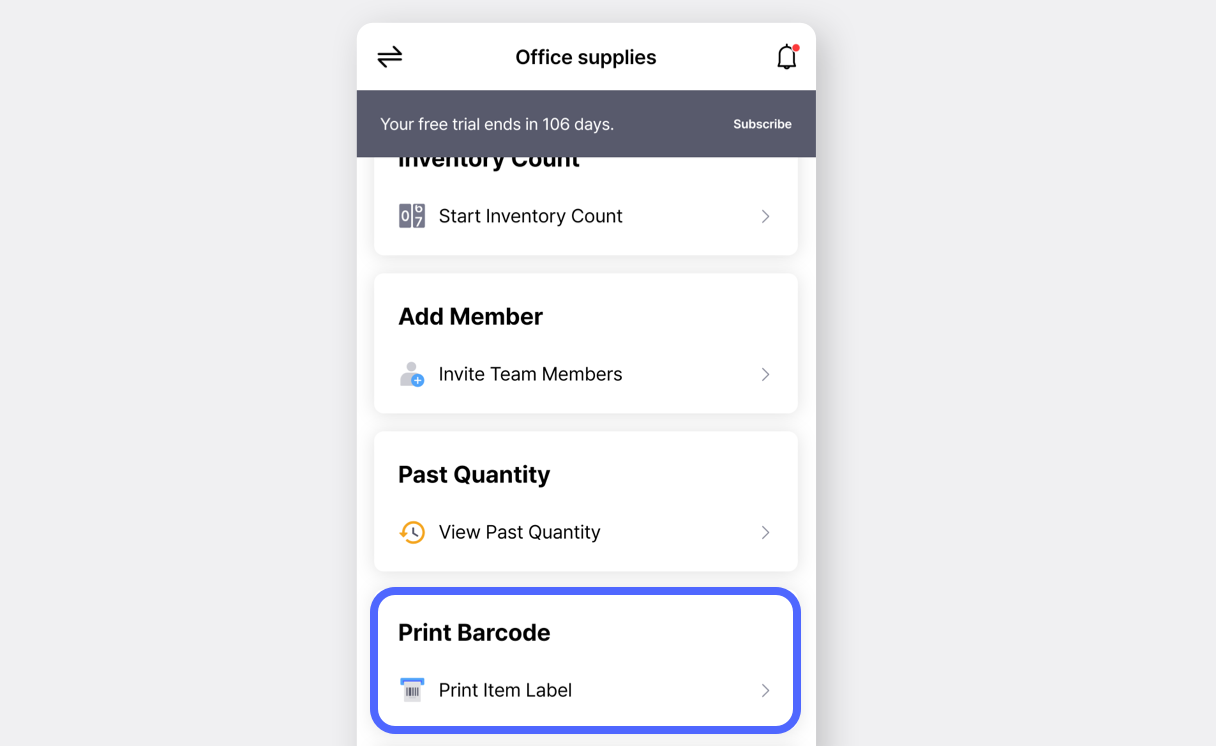
Tap
Label Design>Select Templateand choose your design.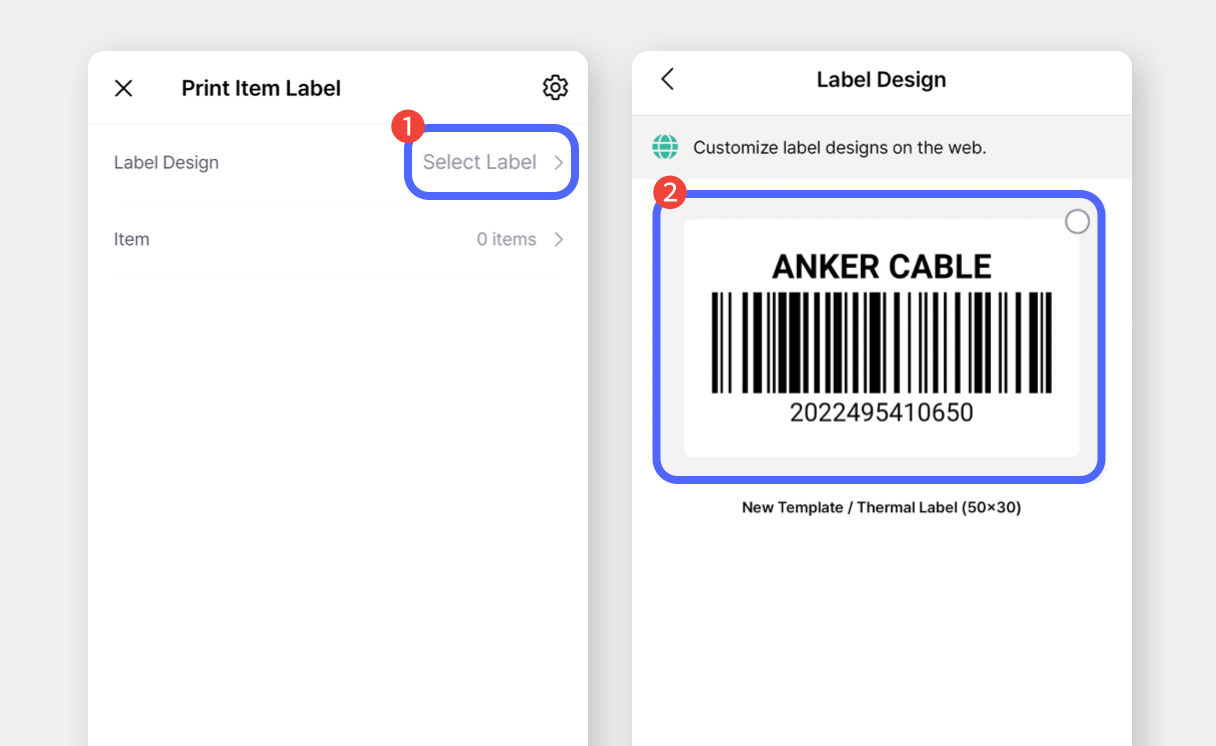
Select the items to print, enter the print quantity, and tap
Done.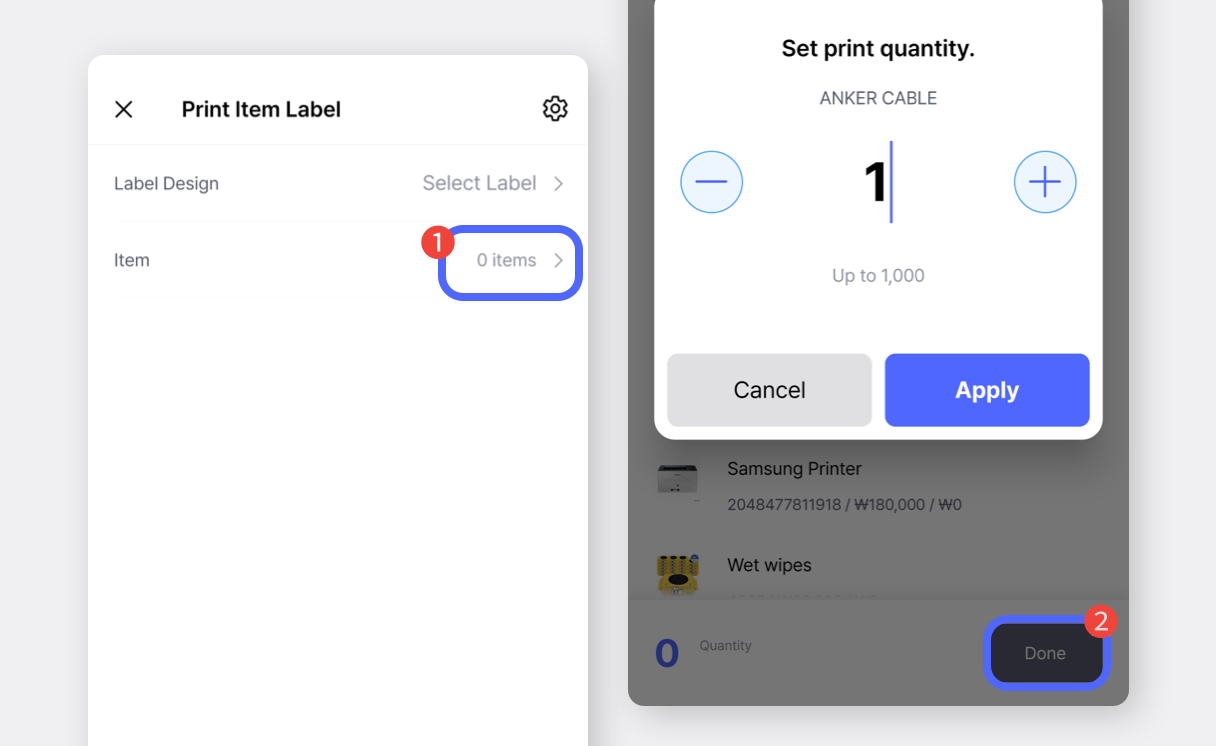
Tap the
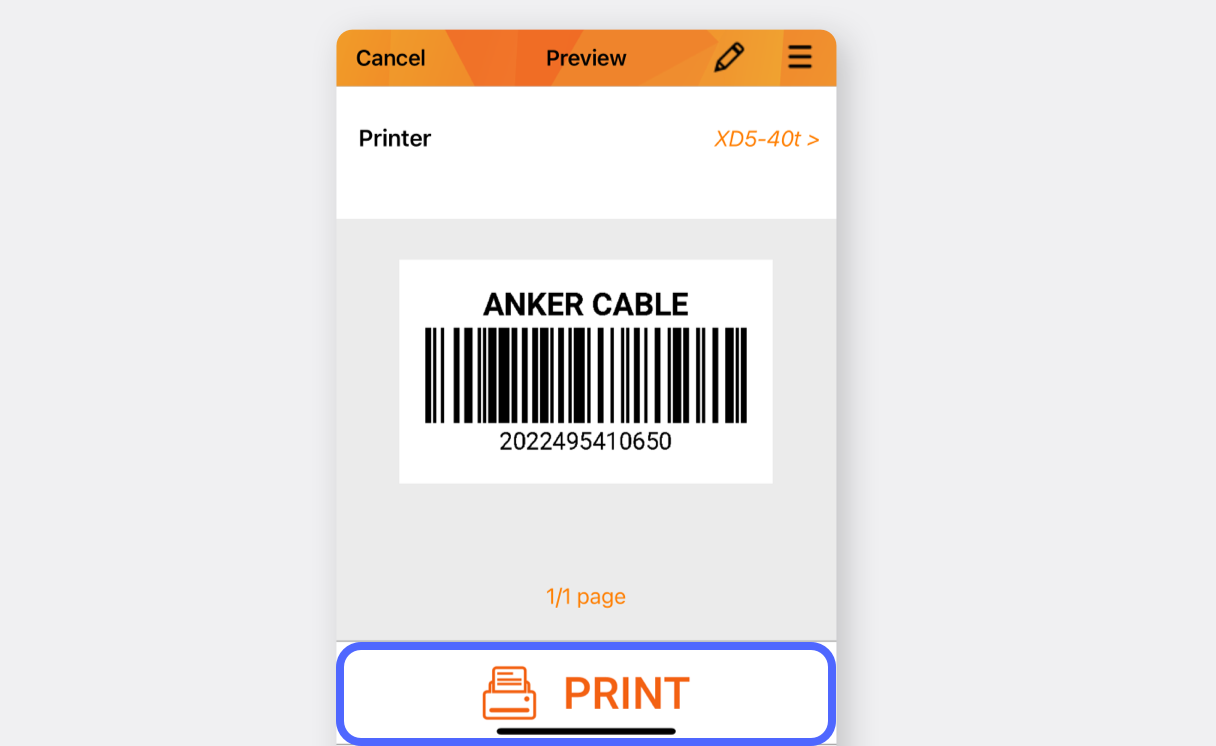
Printbutton and selectmPrintin the pop-up.
(If the printer is not listed, tap “More / More Options.”)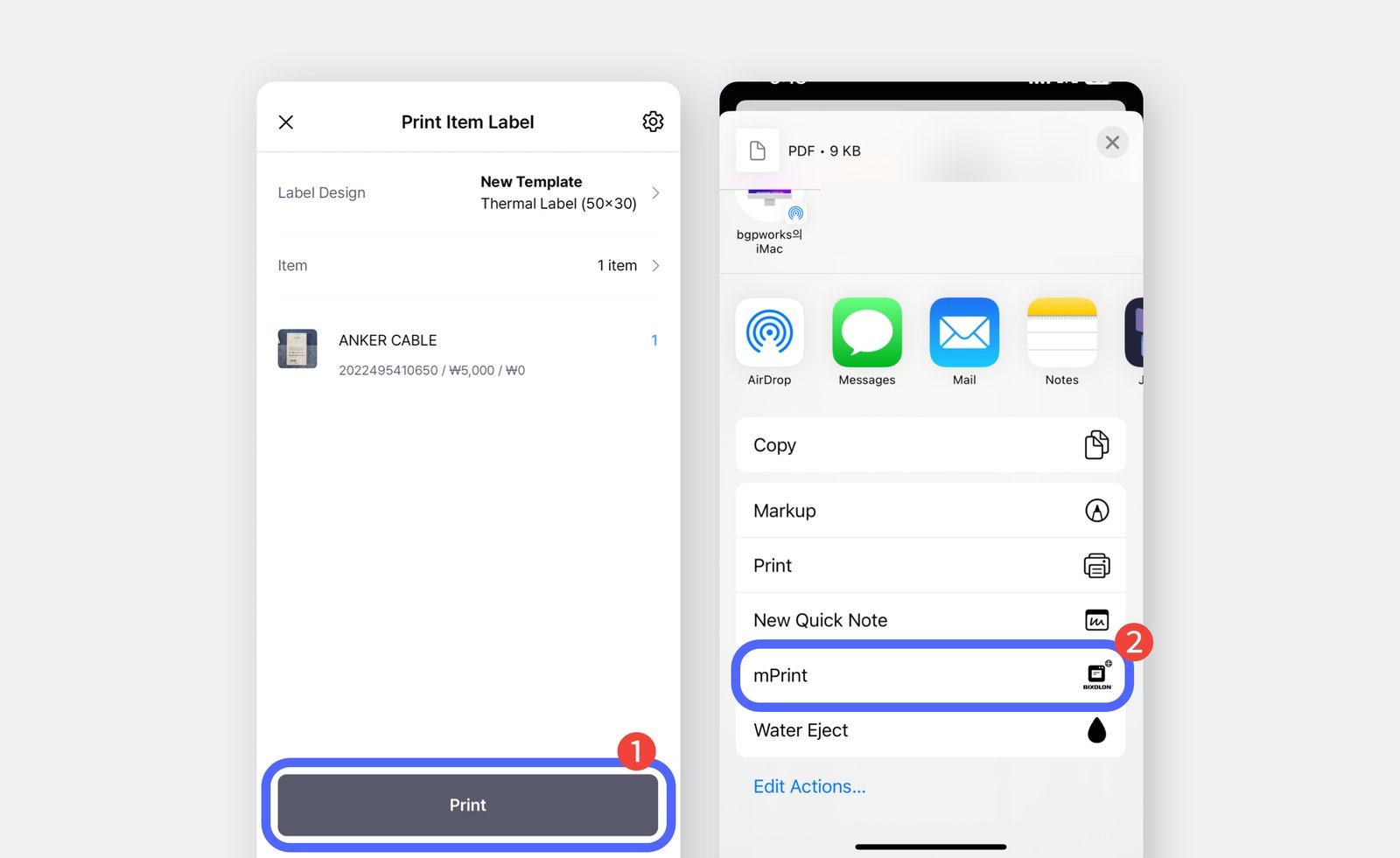
Tap the print button to ensure the label prints correctly.