> For the complete documentation index, see [llms.txt](https://www.boxhero.io/docs/llms.txt). Markdown versions of documentation pages are available by appending `.md` to page URLs; this page is available as [Markdown](https://www.boxhero.io/docs/resources/guides/bixolon-xd5-40/mobile-printing.md).

# Mobile Printing

***

{% hint style="warning" %}
**Note**: BIXOLON mobile printing is supported for both iOS and Android.
{% endhint %}

## I. Device Setup

{% stepper %}
{% step %}
Go to the **`Bluetooth`** settings on your mobile device and select the printer you want to use.
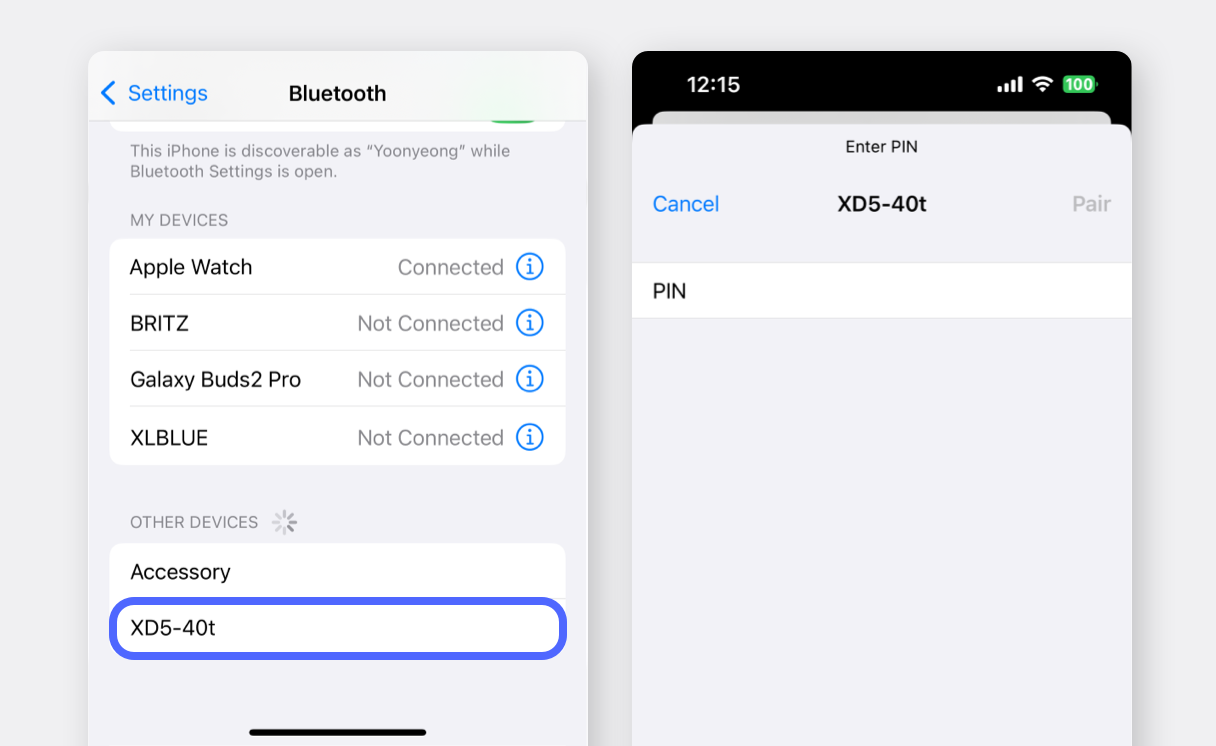
<figure><img src="/files/aWbXe8PHmQR277QK09q5" alt=""><figcaption></figcaption></figure>

{% endstep %}

{% step %}
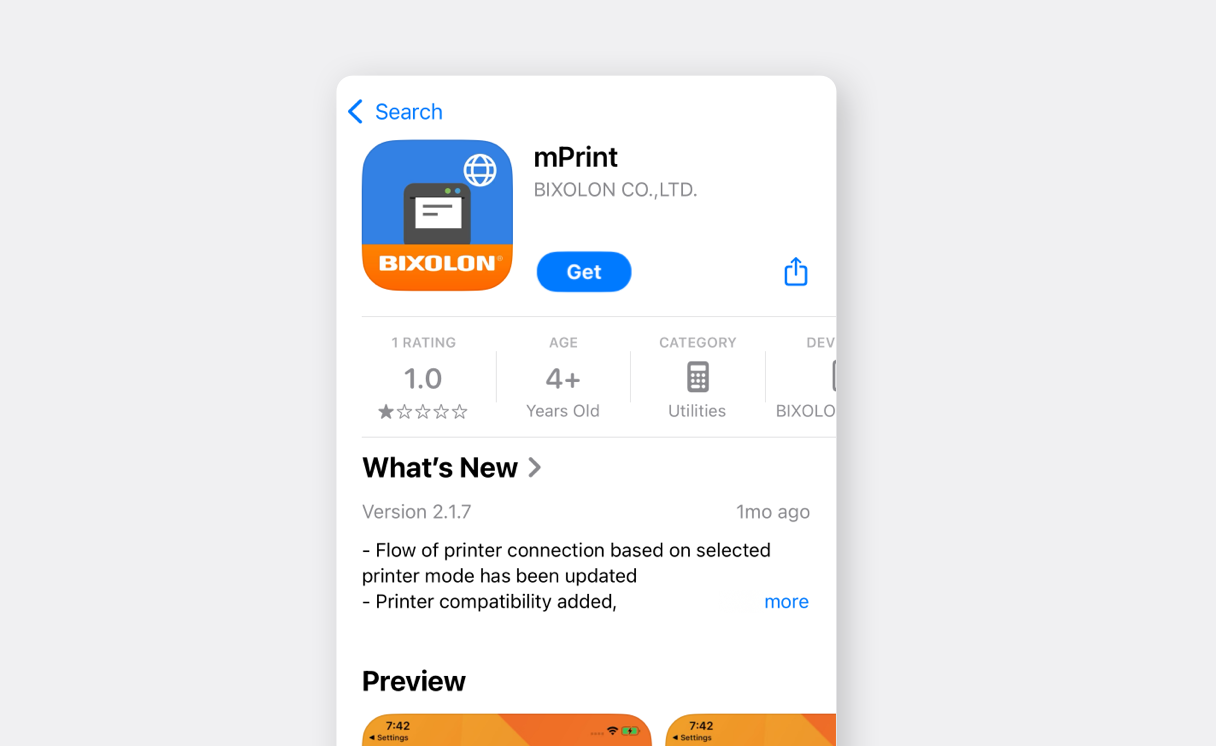
Search for “**mPrint**” on the Google Play Store or App Store and install the app.
<figure><img src="/files/WUvWK8C3nEmifQQW5mhe" alt=""><figcaption></figcaption></figure>

{% endstep %}

{% step %}
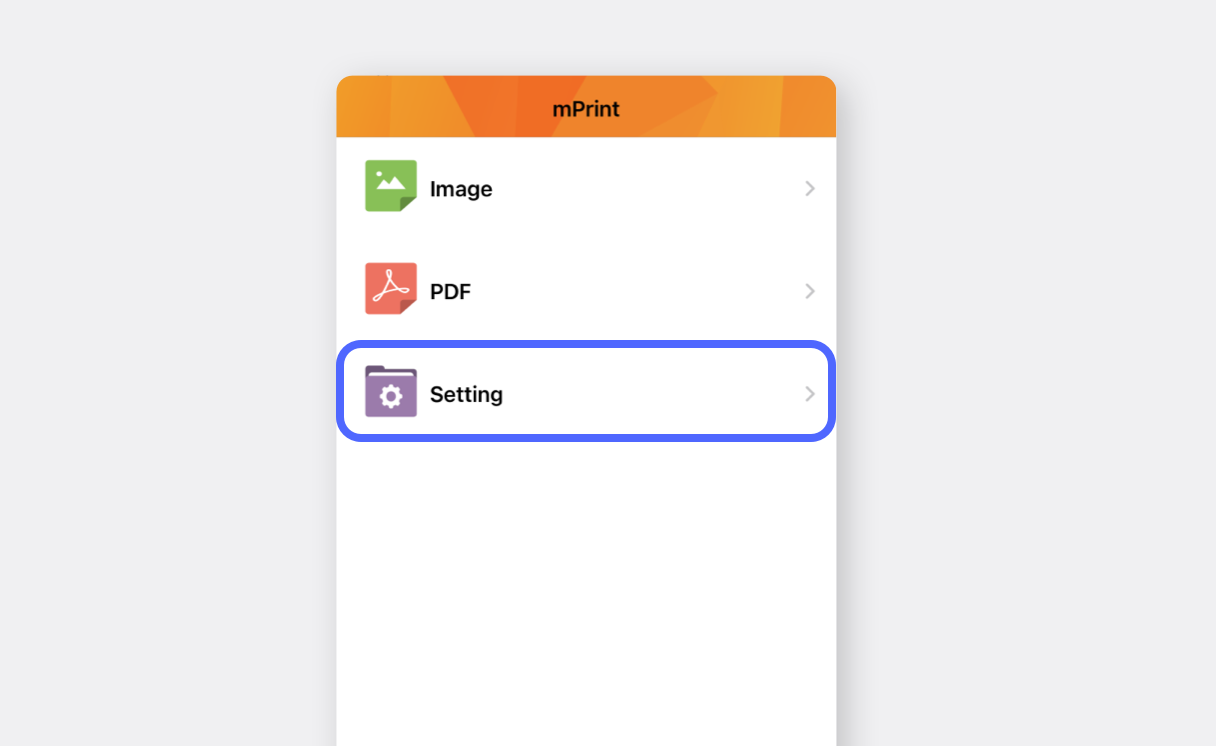
Open the app and go to **`Setting`**.\
(If a permission request pop-up appears, select "**Allow**" for all prompts.)

<figure><img src="/files/keShQIIaKrFvUNSRKORM" alt=""><figcaption></figcaption></figure>

{% endstep %}

{% step %}
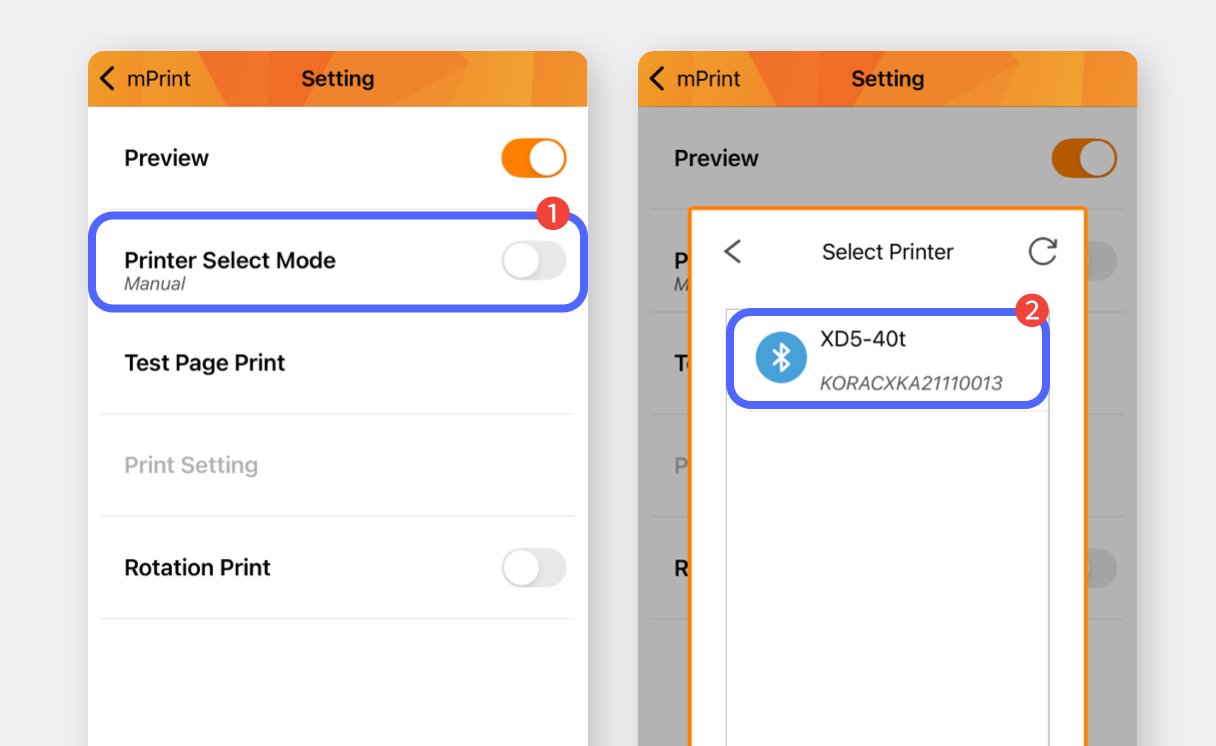
Tap **`Printer Select Mode`** and select your label printer.

<figure><img src="/files/w9K0O8BnfKwjcmmwyM9s" alt=""><figcaption></figcaption></figure>

{% endstep %}

{% step %}
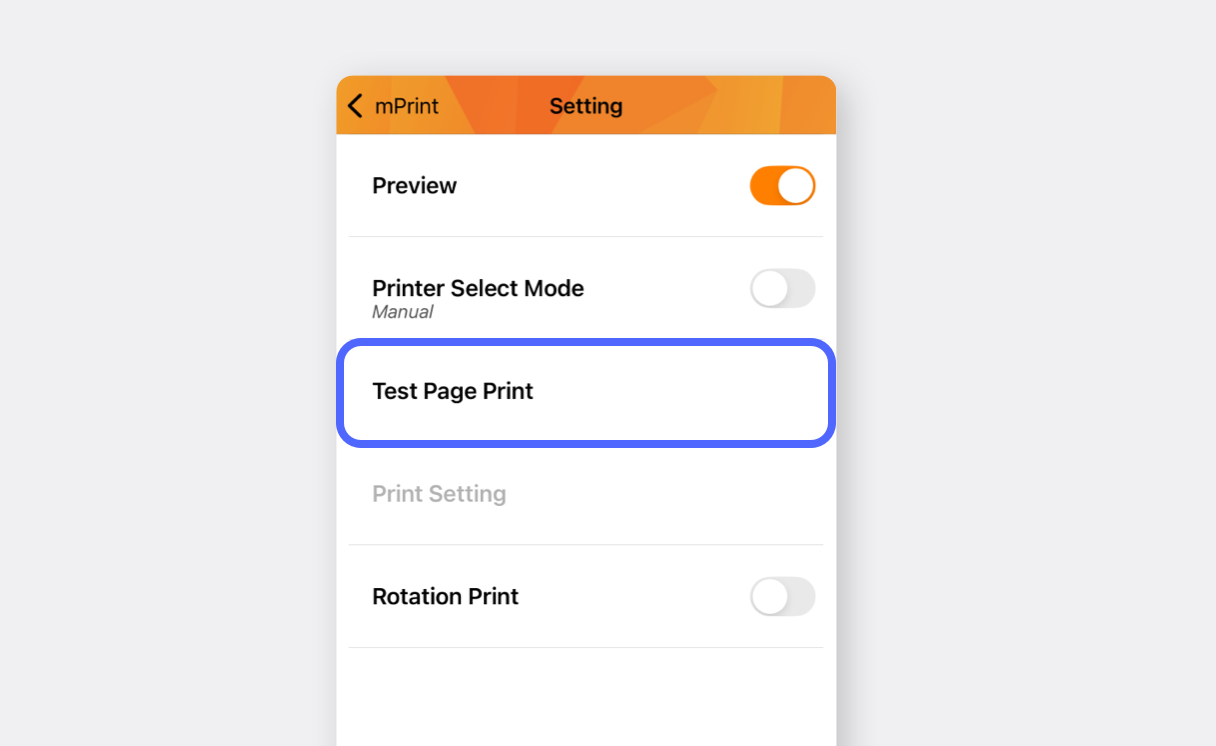
Tap **`Print Test Page`** to confirm that printing works. (Note: The label may not fit properly, but just confirm that it prints.)
<figure><img src="/files/72OBslgDF18qPkdGd0t5" alt=""><figcaption></figcaption></figure>

{% endstep %}

{% step %}
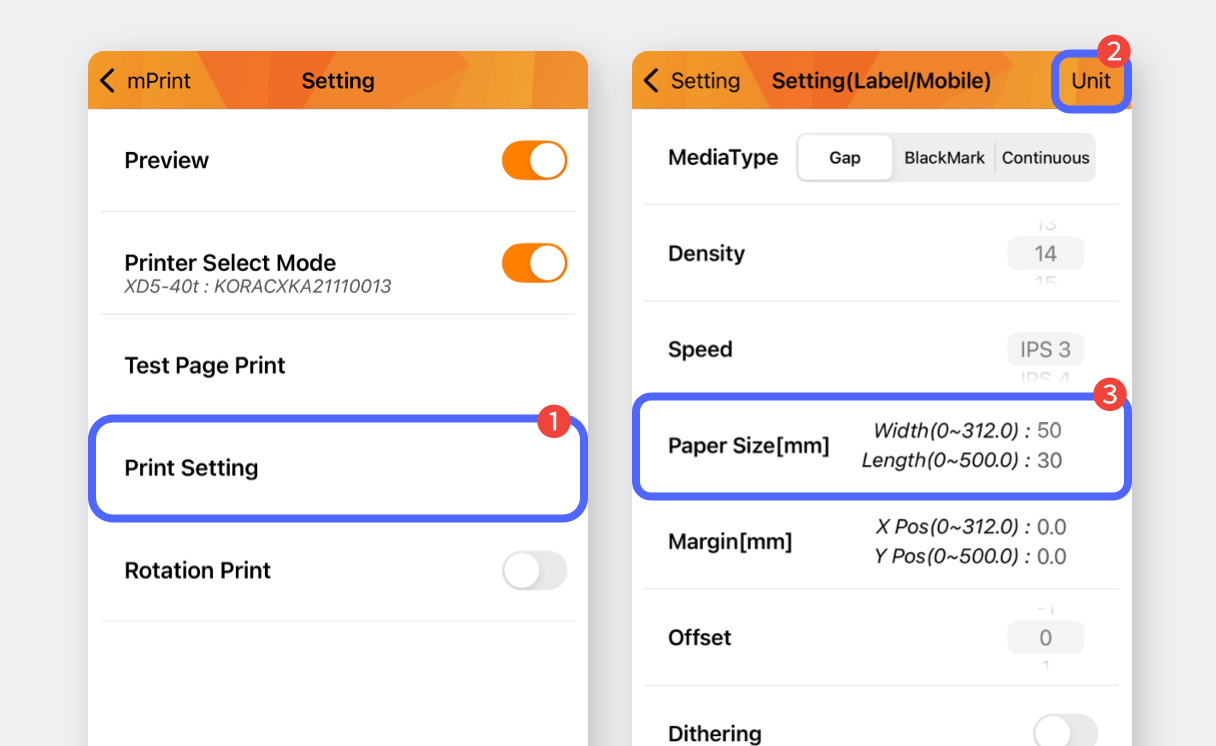
In **`Print Setting`**, set the paper size in **millimeters (mm)** and input the paper size you’ll be using.

<figure><img src="/files/6pyN0QKiD3NvbqbqqdoV" alt=""><figcaption></figcaption></figure>

{% endstep %}
{% endstepper %}

## II. Label Printing

{% hint style="success" %}
Once the **mPrint** app is set up, you can print labels from **BoxHero**.
{% endhint %}

{% stepper %}
{% step %}
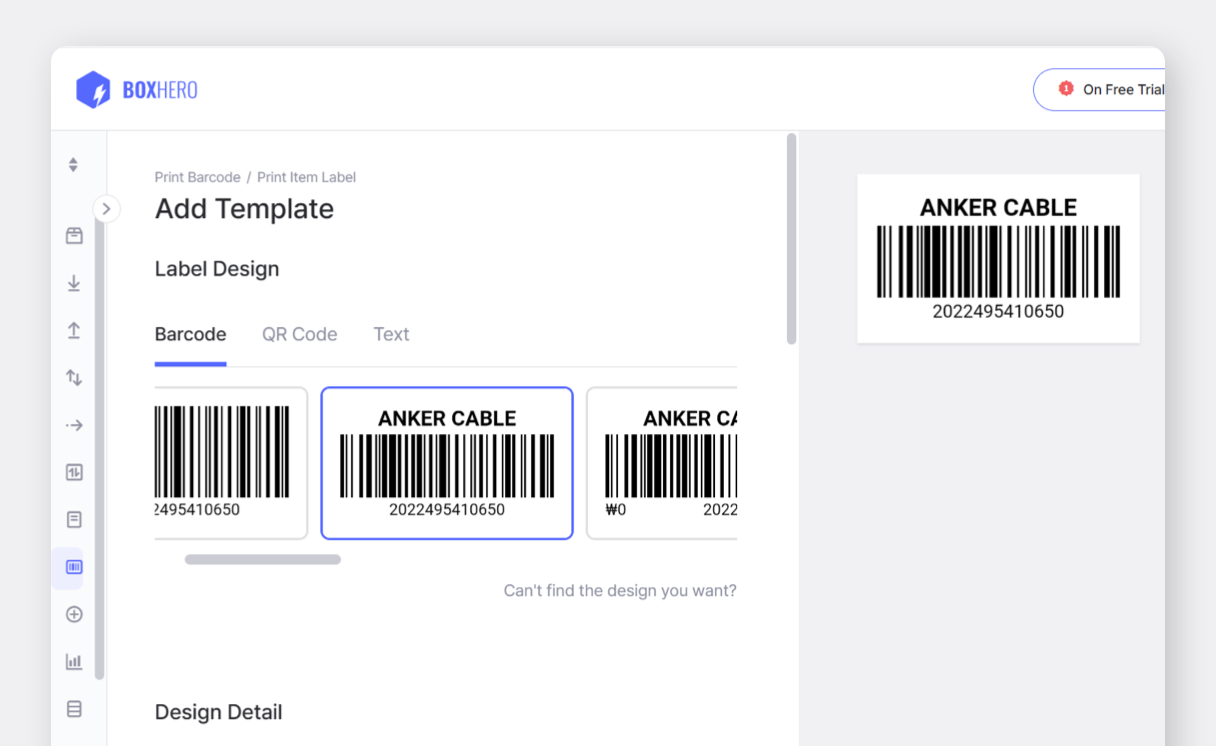
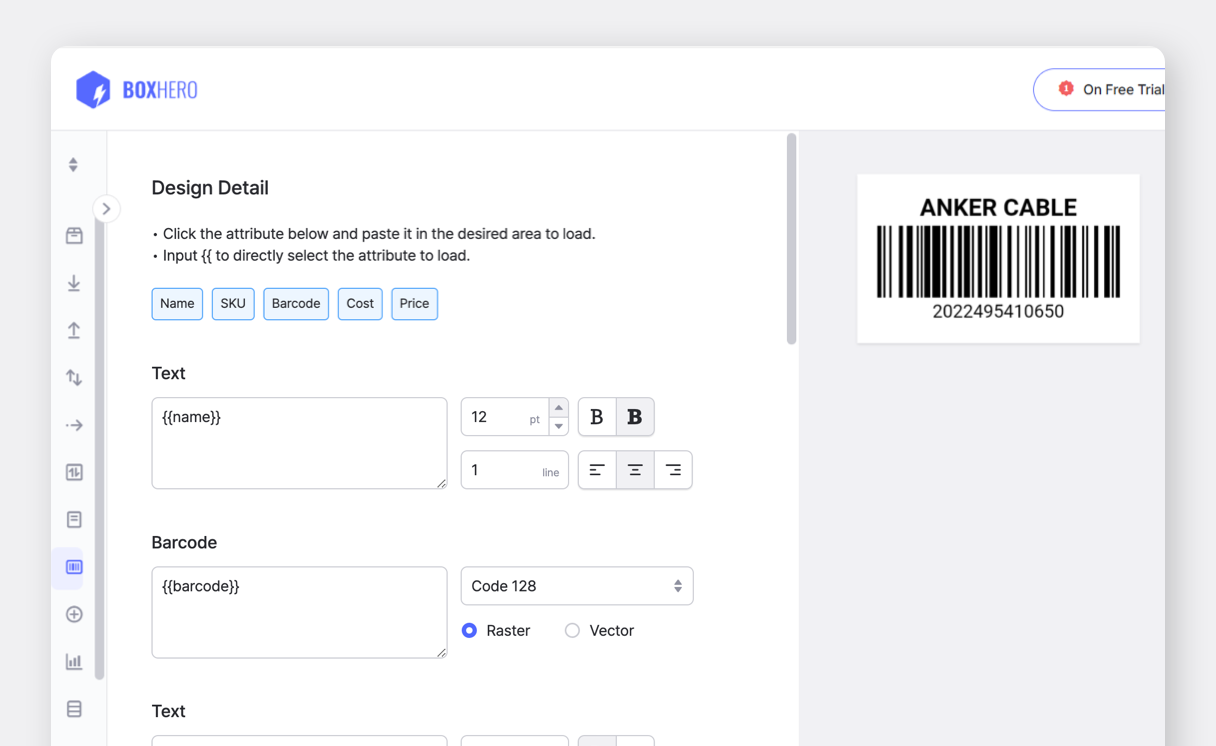
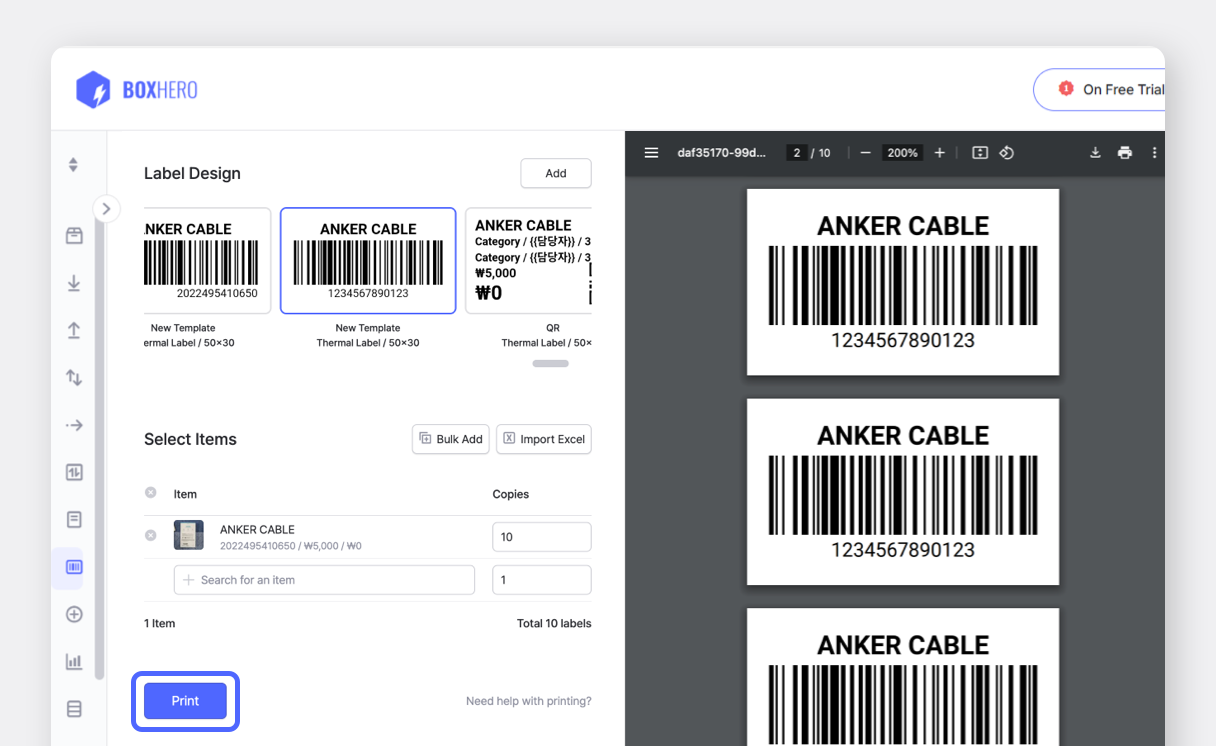
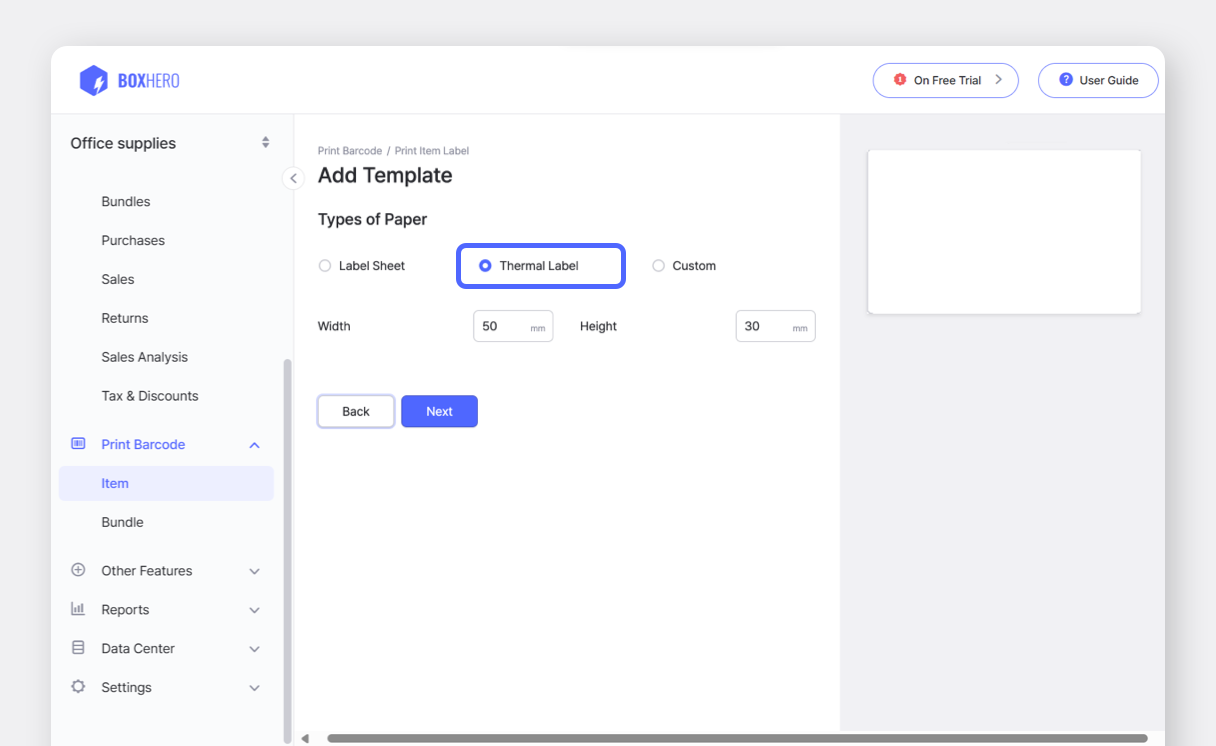
Create barcode labels on the BoxHero [web platform](http://app.boxhero.io/) (PC/Desktop), which can then be used on your mobile device.
<figure><img src="/files/gayF3rrHcwKLLxm6jwha" alt=""><figcaption></figcaption></figure>

<figure><img src="/files/pczVKSPnXhsz2xR8yx8n" alt=""><figcaption></figcaption></figure>

<figure><img src="/files/m0IW2qYKwfxmv1k28emg" alt=""><figcaption></figcaption></figure>

<figure><img src="/files/jt58WqkliwWa5OA2FwQB" alt=""><figcaption></figcaption></figure>

{% hint style="info" %}
Learn more about designing barcode labels [here](https://docs-en.boxhero.io/features/print-barcode#customize-your-barcode-design).
{% endhint %}

{% endstep %}

{% step %}
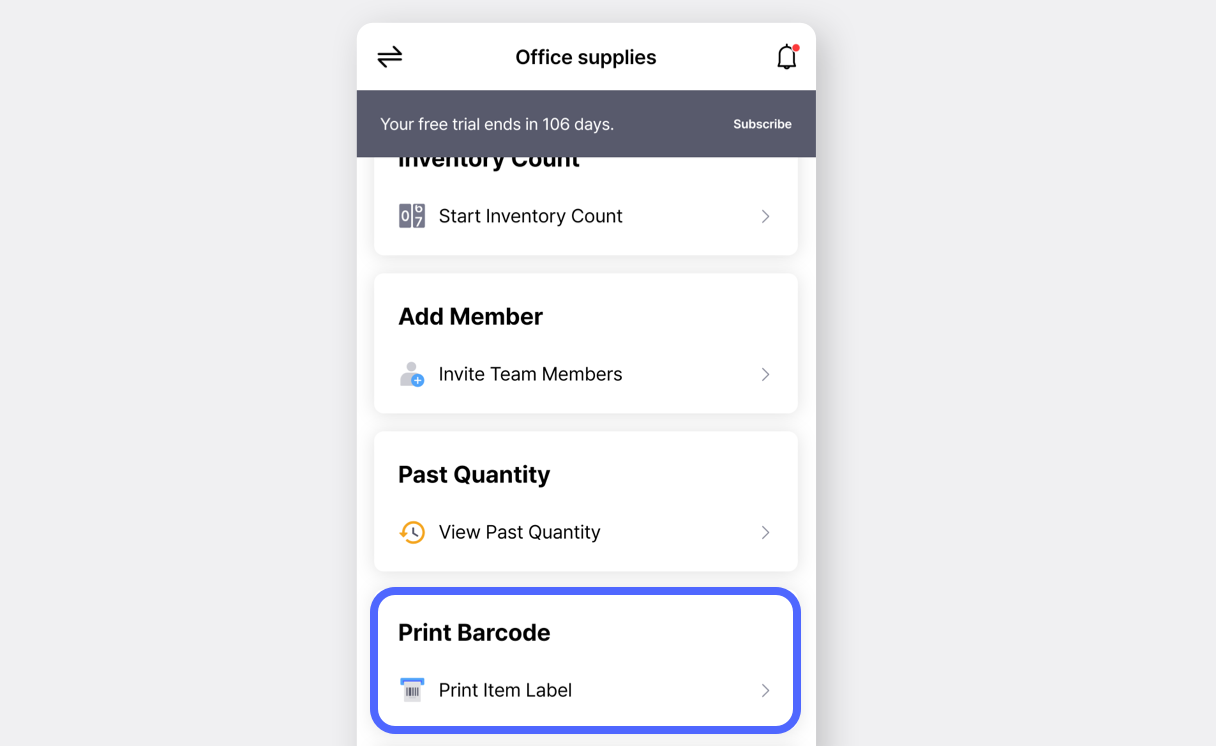
Open the [BoxHero app](https://docs-en.boxhero.io/getting-started#get-the-mobile-app) on your mobile device and tap **`Print Barcode`** on the home screen.

<figure><img src="/files/VaLG0thPFfCimvrx0naZ" alt=""><figcaption></figcaption></figure>

{% endstep %}

{% step %}
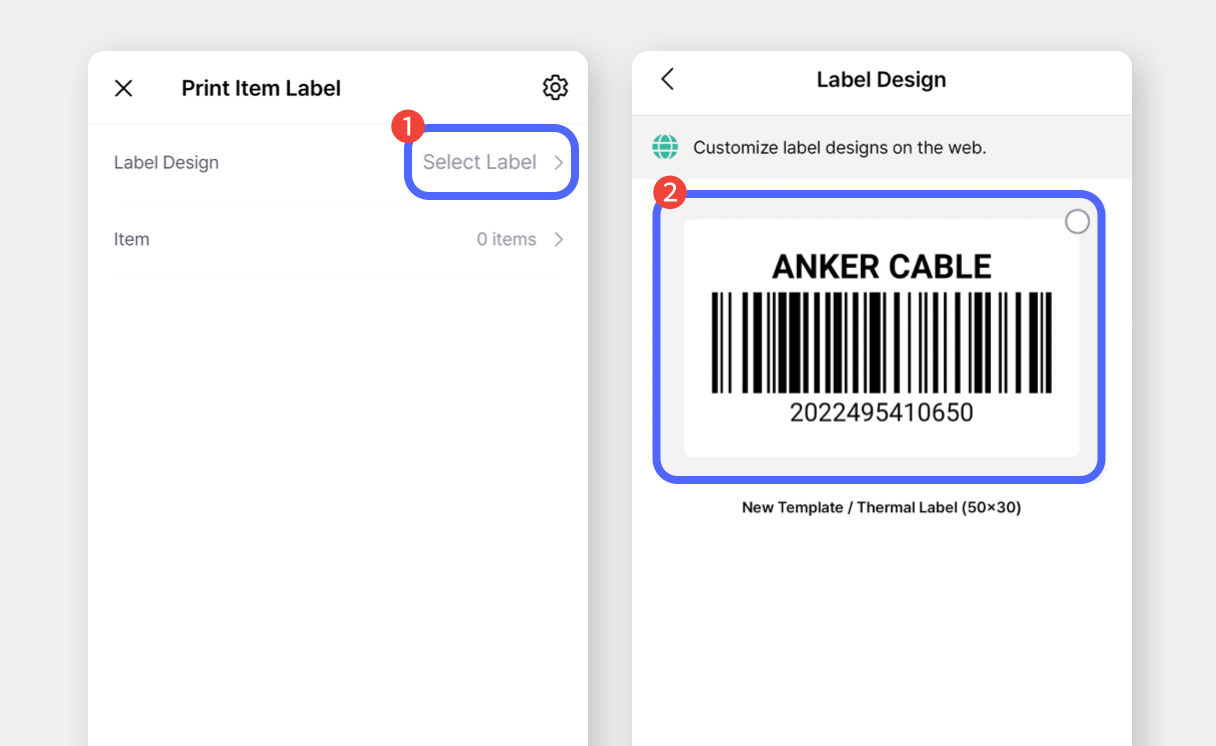
Tap **`Select Label`** and choose your design.

<figure><img src="/files/Pcd0EyOcR4CWa6XlQpsZ" alt=""><figcaption></figcaption></figure>

{% endstep %}

{% step %}
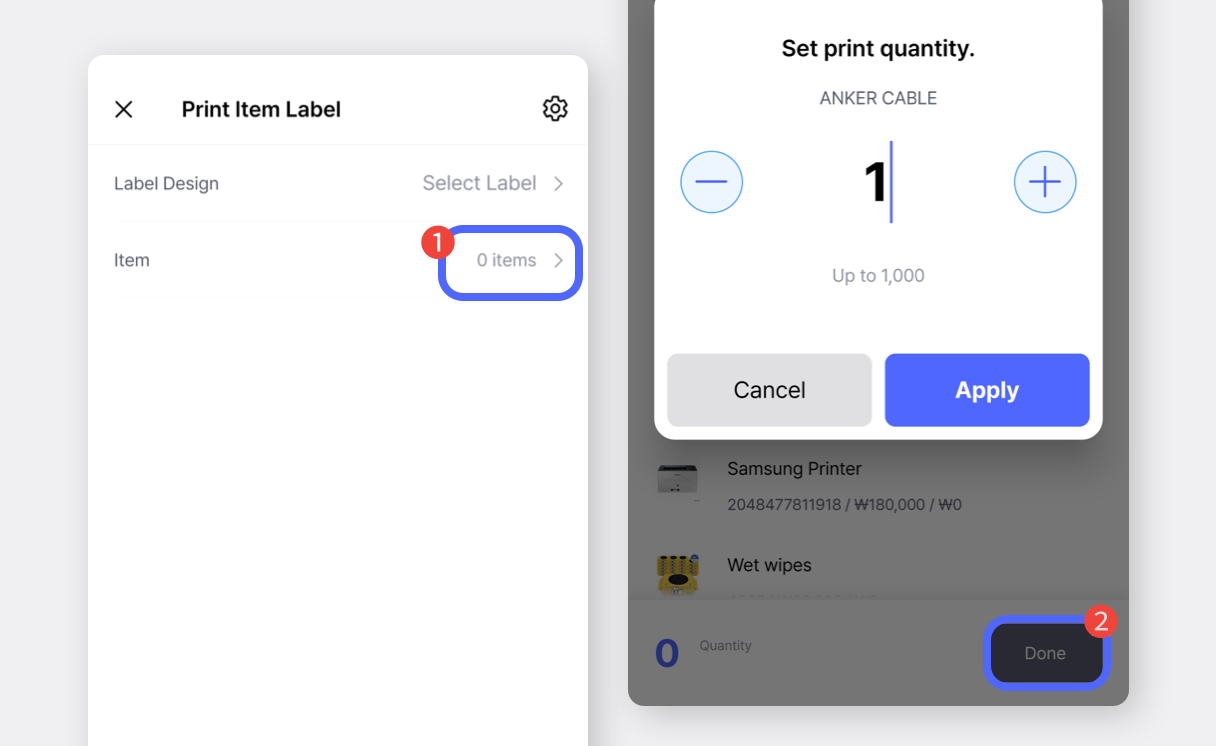
Select the items to print, enter the print quantity, and tap **`Done`**.

<figure><img src="/files/pD0F2UTC6300A5dAUG1N" alt=""><figcaption></figcaption></figure>

{% endstep %}

{% step %}
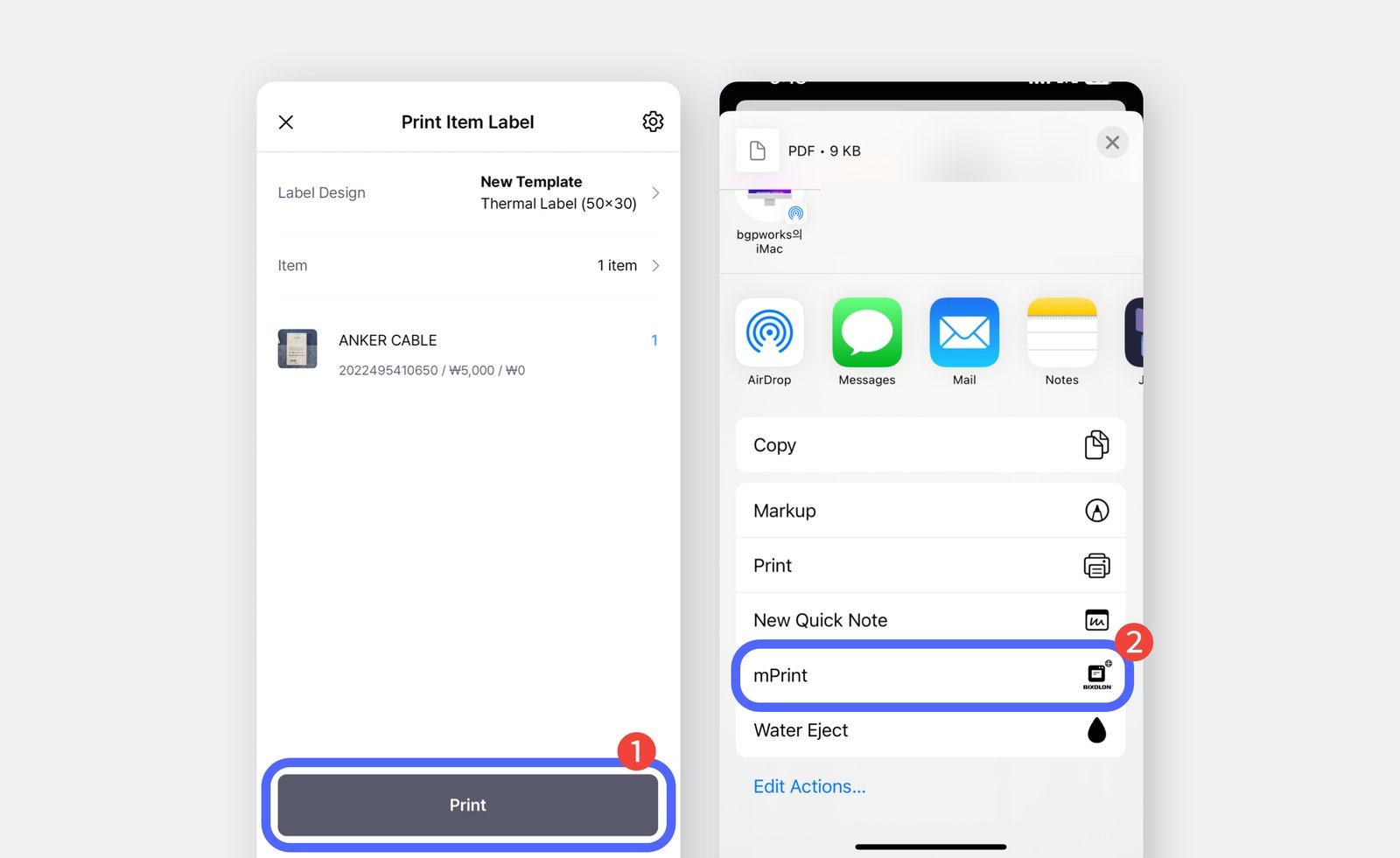
Tap the **`Print`** button and select **`mPrint`**&#x69;n the pop-up.\
(If the printer is not listed, tap “**More / More Options**.”)

<figure><img src="/files/ckb4NNfQfo8rdhNkEAeO" alt=""><figcaption></figcaption></figure>

{% endstep %}

{% step %}
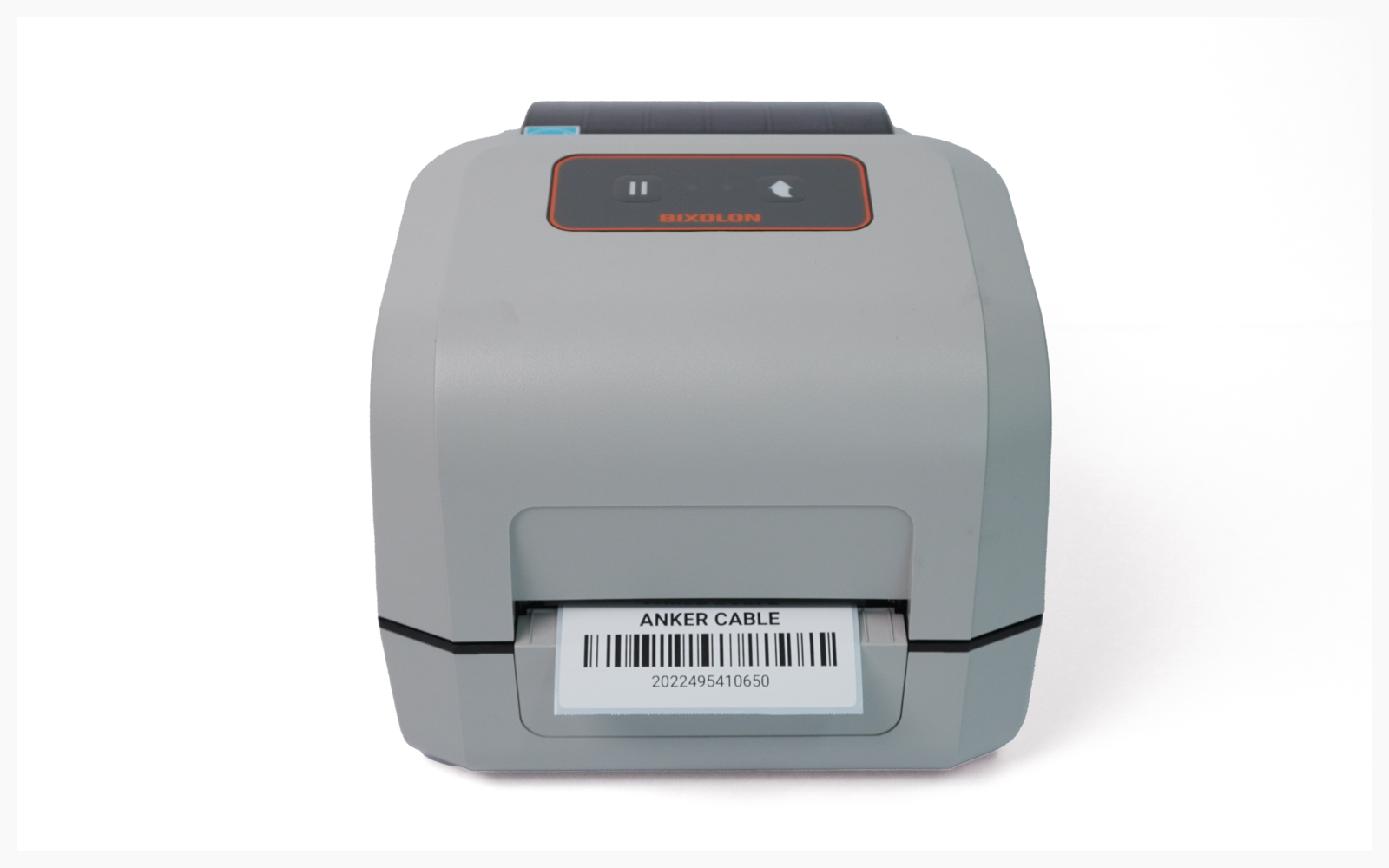
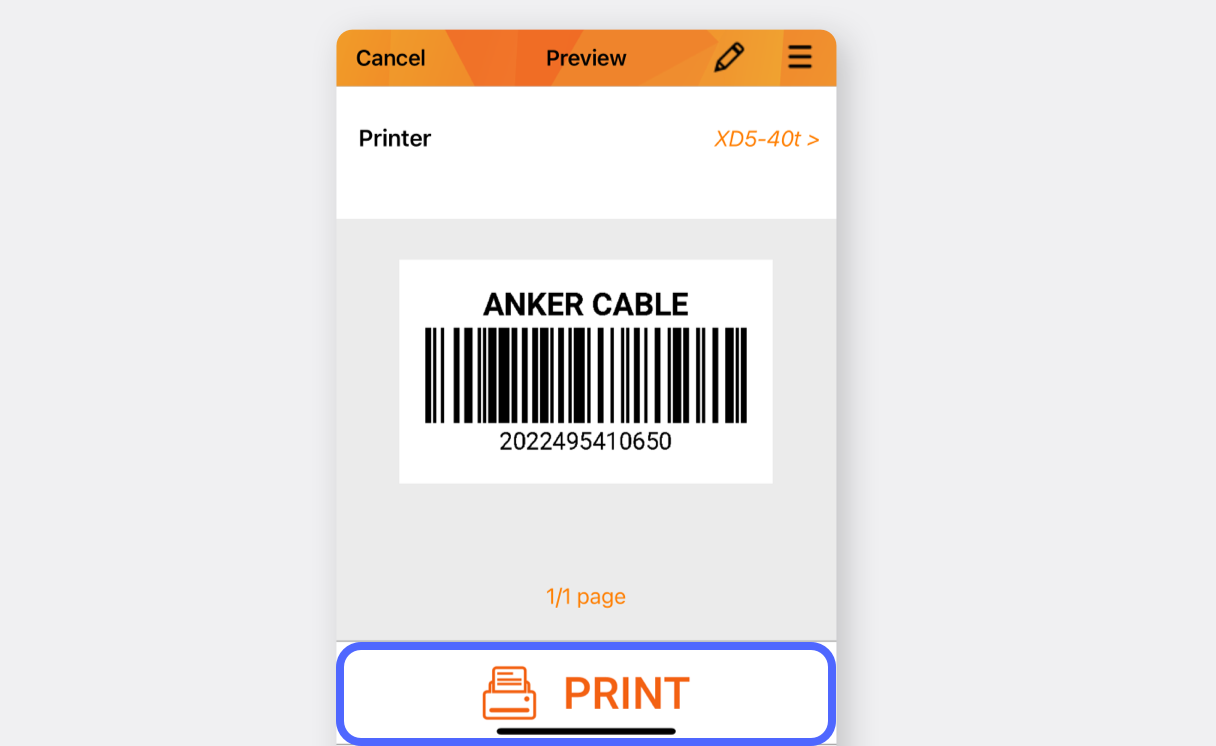
Tap the print button to ensure the label prints correctly.
<figure><img src="/files/9TgHjiPIkJkBAHCMsV2w" alt=""><figcaption></figcaption></figure>

<figure><img src="/files/lY94HRFdu2fd1cknYuPa" alt=""><figcaption></figcaption></figure>

{% endstep %}
{% endstepper %}