Excel Import & Export
Move your data in and out of Excel
You don’t have to leave Excel behind to get organized. Import your spreadsheets to start fast, then export your data back to Excel anytime you need to report or share it.
Start today with a 30-day trial.

Add
Import the spreadsheet you already use to set up all your items at once.

Edit
Change prices, quantities, or details across your catalog in bulk.

Export
Download your data into a spreadsheet to report, share, or back up.
Add with Excel
Bring your existing spreadsheet into BoxHero. Download a template, fill it in, and upload. Separate templates cover items, locations, and partners, with starting quantities included.
Import Items
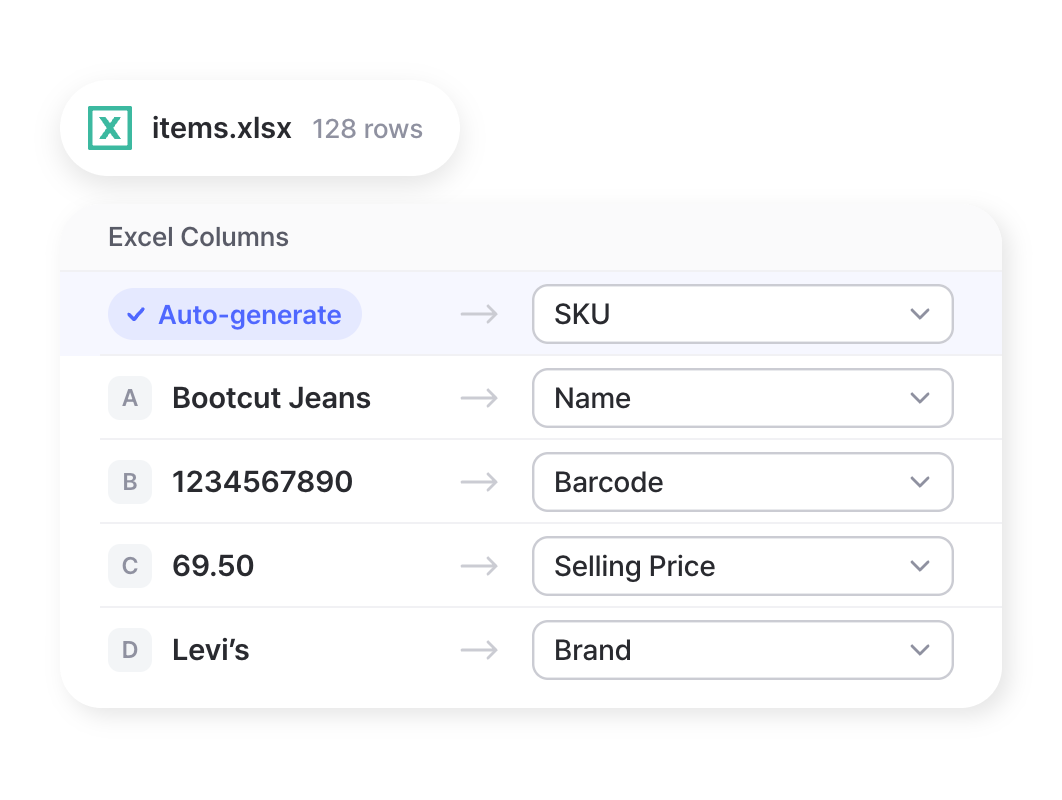
Upload an Excel file to add hundreds of items at once. You can set up columns with barcodes, pricing, supplier info, and custom attributes like brand, size, or color. Don’t have SKUs yet? Leave it blank and BoxHero will generate them for you on import.
Add Locations
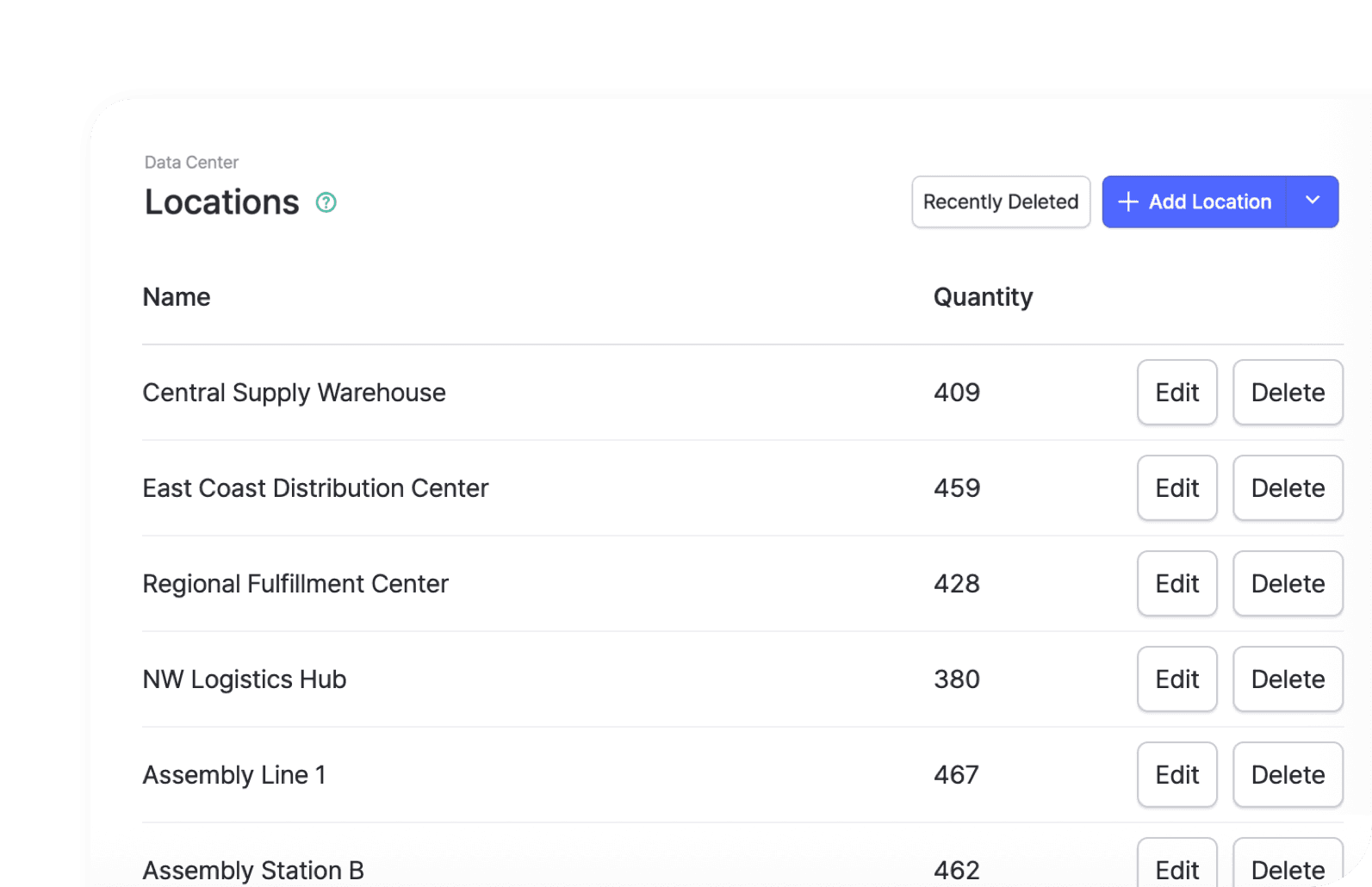
Set up all your stores, warehouses, and storage areas in a single upload instead of adding them one at a time. Once your locations are in, you can track stock separately at each one and move items between them.
Add Partners
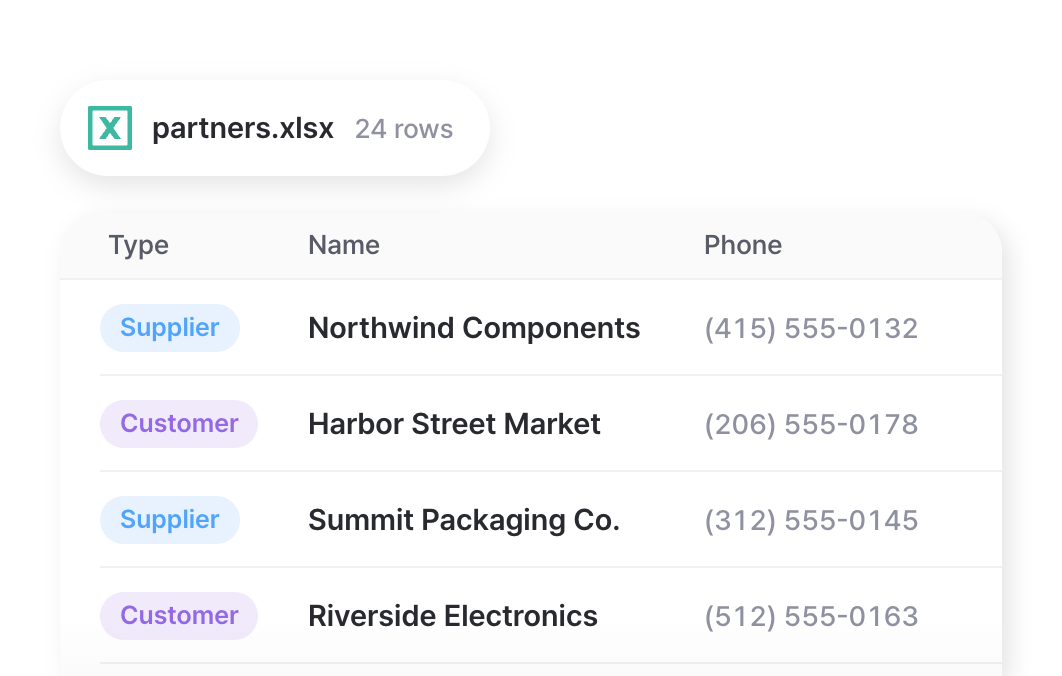
Import your full list of suppliers and customers from a spreadsheet, including their contact details. Your partners are then ready to attach to purchase orders, sales orders, and inventory transactions right away.
Edit with Excel
Update your inventory in bulk instead of one item at a time. Use Excel to edit item details, reset stock counts, and add photos across your whole catalog.
Upload Photos
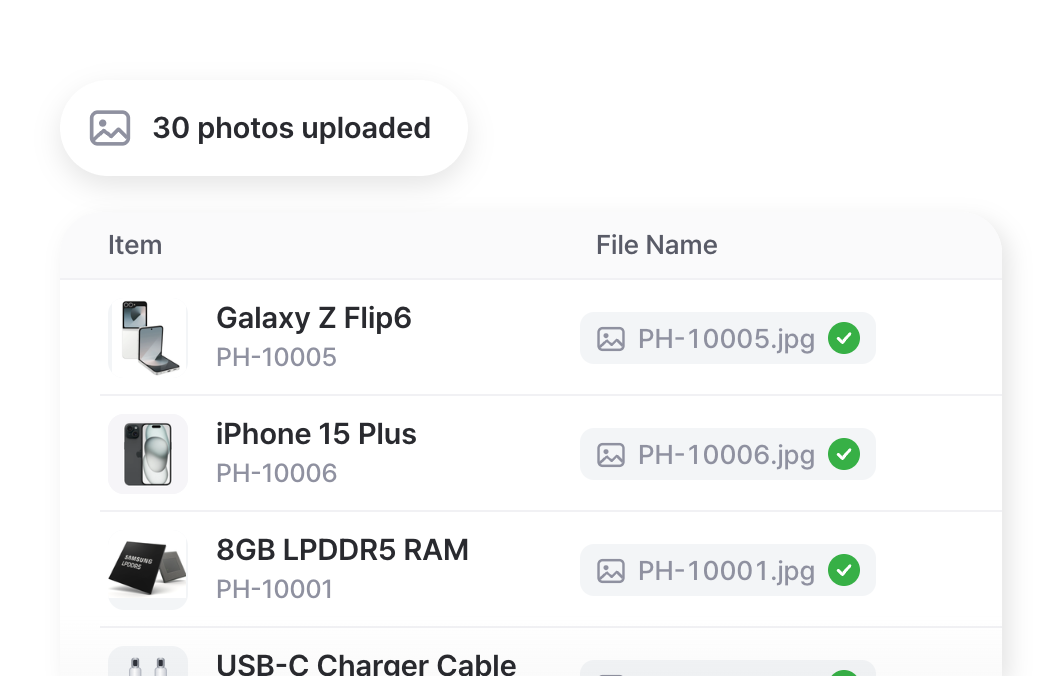
Add product photos to all your items by naming each image file to match its SKU and dropping them in. Item photos make stock easier to recognize on screen, during counts, and out in the warehouse.
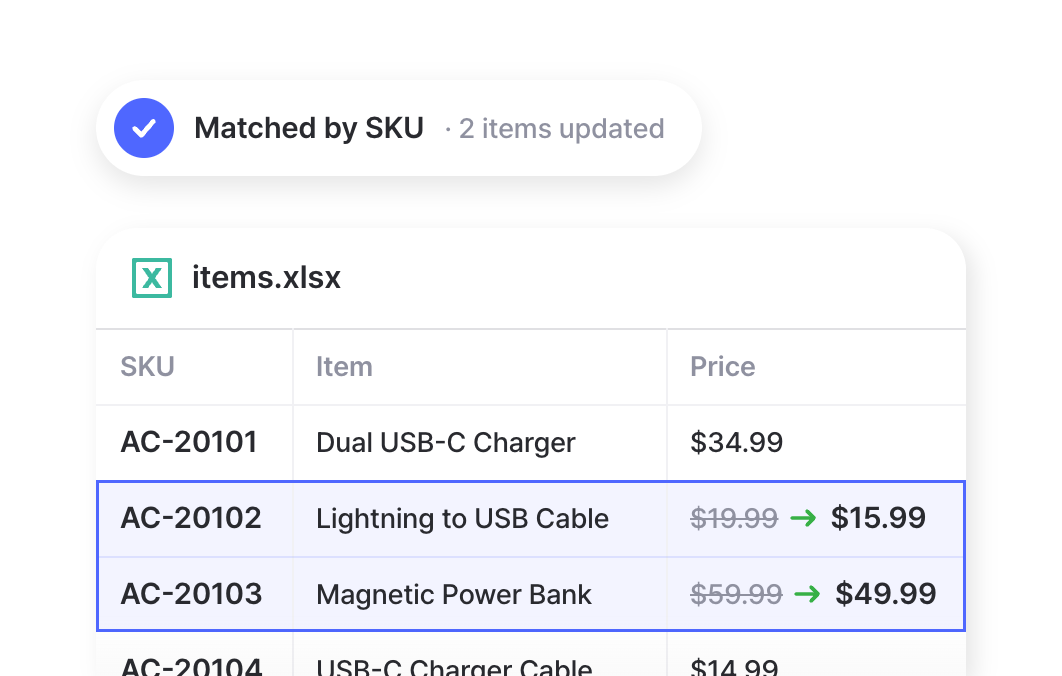
Update Items
Change names, prices, or attributes across hundreds of items in one spreadsheet, then import it back. Each row is matched by SKU or barcode, so each item keeps its transaction history.
Adjust Stock
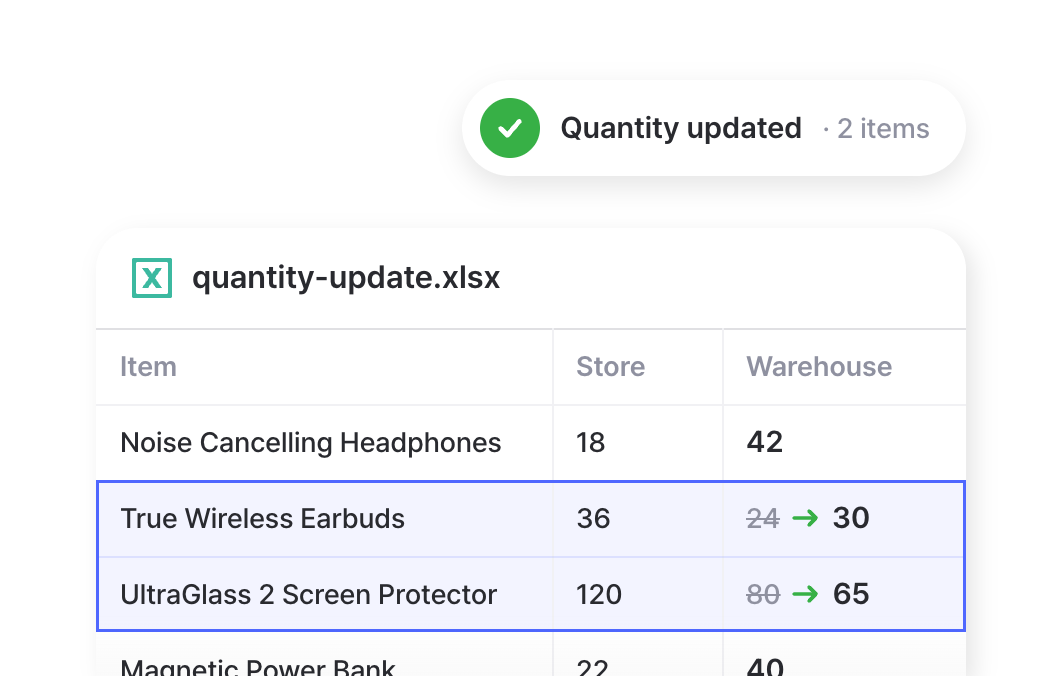
Update quantities in bulk by uploading a spreadsheet with their new counts. Ideal after a physical recount or a large delivery, when fixing each item by hand would take too long.
Export to Excel
Your data is always yours. Export to spreadsheets anytime for backups, accounting, sharing, or deeper analysis. Everything downloads ready to open, filter, and pivot in Excel.
Item Details
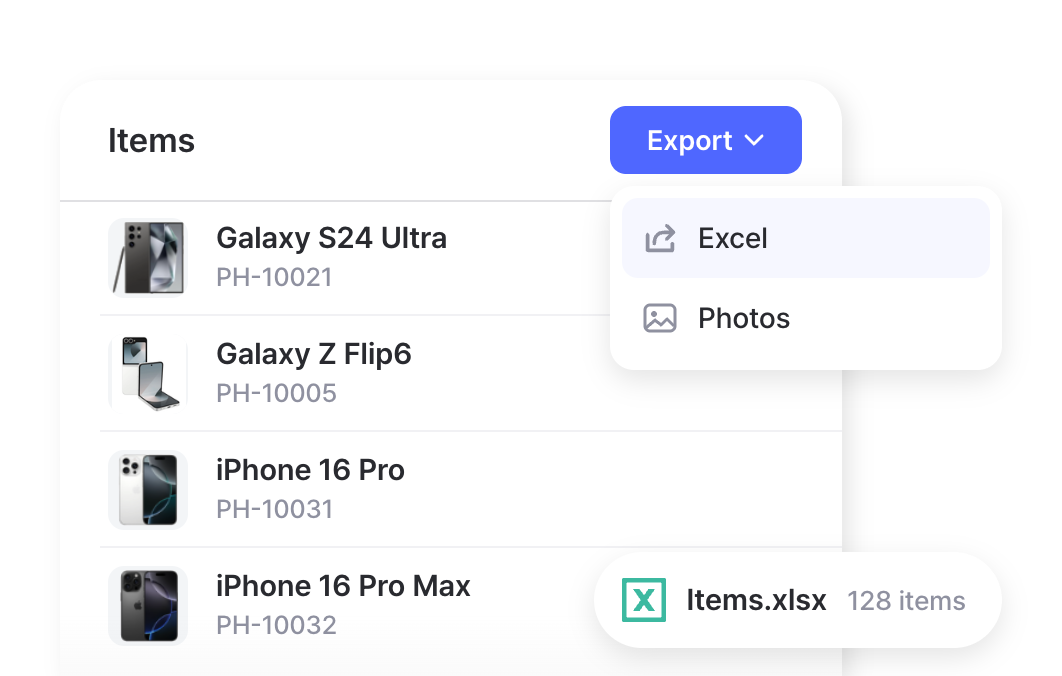
Download your complete item list as an Excel file, including SKUs, attributes, cost, price, and current quantities. Export to HTML to include item photos and barcode images alongside your data.
Transaction History
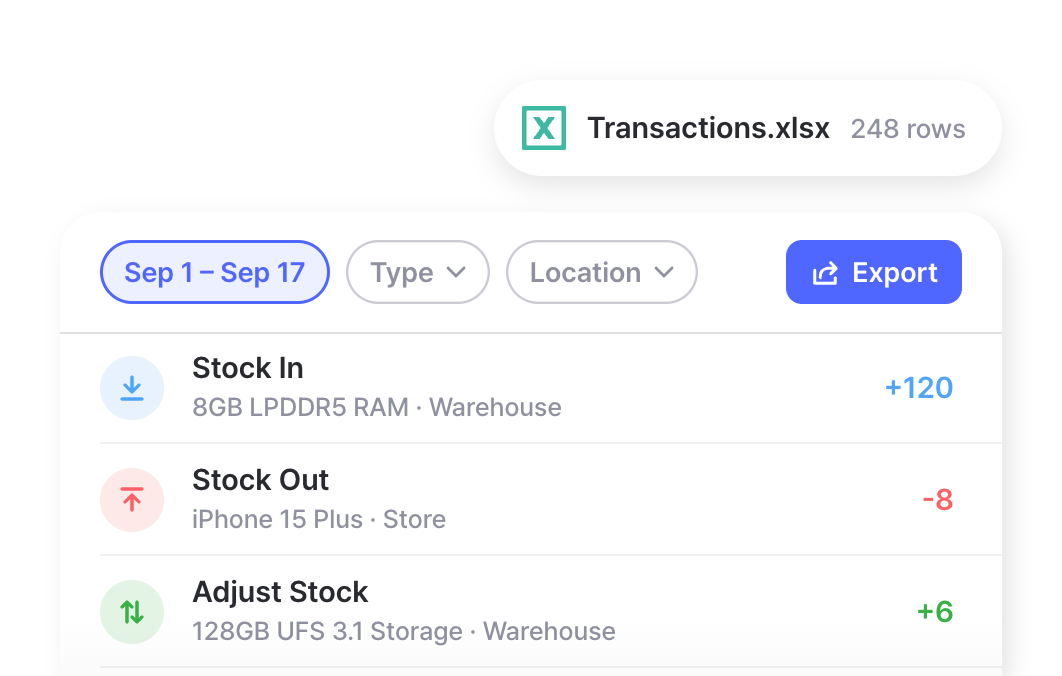
Export a complete log of all your inventory transactions to Excel — inbound and outbound stock, transfers, and adjustments. Filter by date, transaction type, or location to pull the exact records you need.
Reports
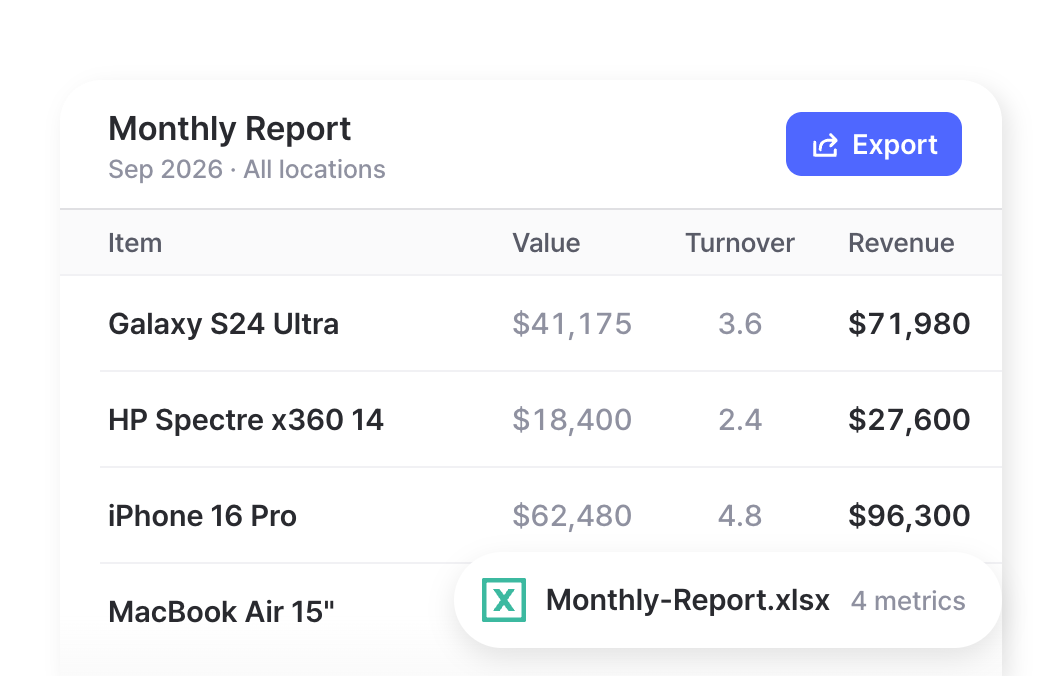
Get your inventory reports in Excel, with metrics like inventory value, turnover, profit, and reorder status. Choose from BoxHero’s ready-made formulas or build your own, so the report comes out ready for deeper analysis.
FAQ
Yes. Upload your spreadsheet under Data Center > Items > Import from Excel > Add via Excel to add your items in bulk. This includes details like SKU, barcode, name, cost, price, any custom attributes, and starting quantities.
BoxHero works with Excel files, and you can import a CSV, too. We recommend downloading the built-in template first so your column names line up and you avoid formatting errors.
By default, BoxHero matches each row to an item by its SKU, so your edits land on the right record instead of creating duplicates. If you work mainly with barcodes, you can switch the identifier under Settings > Team > Excel Import Settings.
Yes. Look for the Export to Excel button in the top-right corner of your Items, Transactions, and Reports pages to download each as a spreadsheet. You can also export to HTML to include item photos and barcode images alongside your item data.
Import your inventory in three steps
Already tracking stock in a spreadsheet? Then you’ve already done the hard part. Here’s how to bring your item list into BoxHero.
- 1
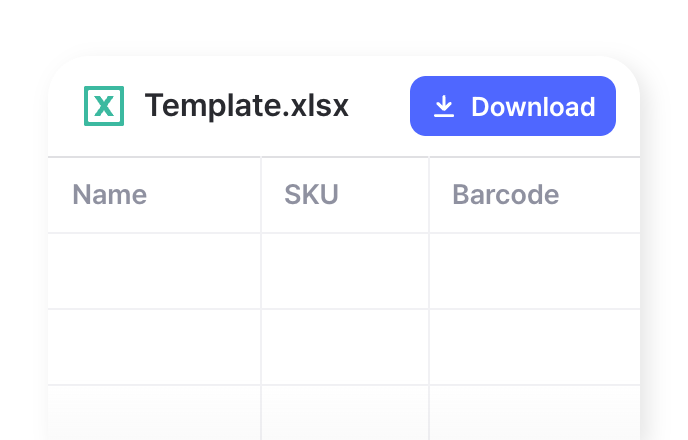
Download the Template
Download BoxHero’s ready-made template. It already has the right columns for every field, plus any custom attributes you’ve set up.
- 2
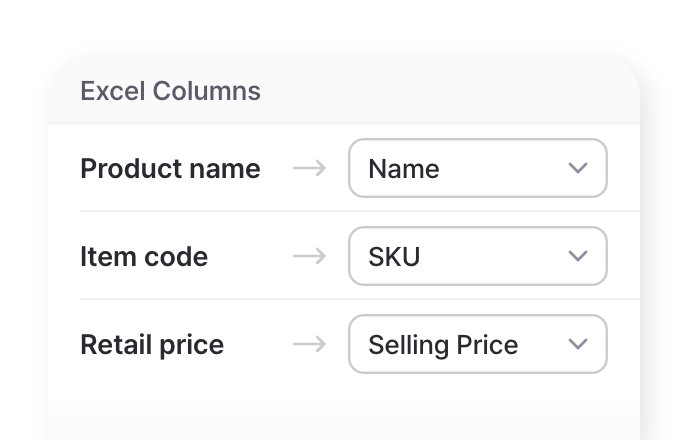
Match Excel Columns
Transfer your data into the template, matching your column names to its headers. Leave SKU or barcode blank to generate automatically.
- 3
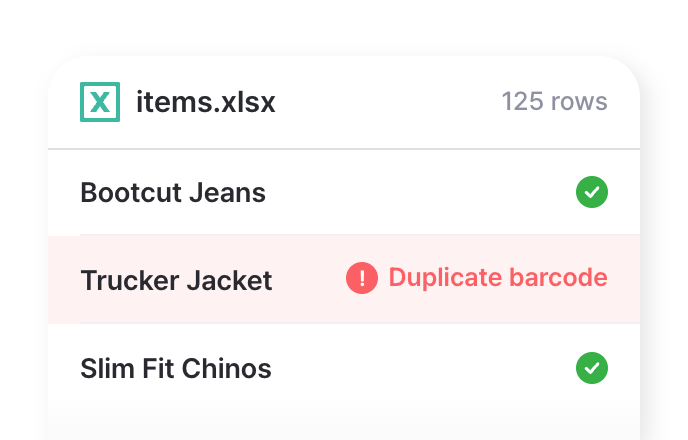
Upload the File
Upload your file and preview what’s coming in. BoxHero flags any errors so you can fix them before adding it to your team in one go.
Check out other related features
 Learn more
Inventory Control
Track every item in one place with SKUs, photos, and custom attributes. Record cost and price for each one, and keep quantities accurate with every stock transaction.
 Learn more
Reports
Build reports from your inventory and sales data, from stock value and turnover to profit. Use prebuilt formulas or write your own, filter by location and date range, then export to Excel.
 Learn more
Barcoding
Scan with your phone camera or a handheld scanner to add, find, count, and move items. Generate barcodes and print custom labels on any standard or thermal printer.
Your data moves both ways
Import your spreadsheet to set up fast, manage your stock in BoxHero day to day, and export back to Excel whenever you need it.

More on Excel and BoxHero
Practical guides for importing, editing, and analyzing your inventory data with Excel and BoxHero.
Import Your Excel File to BoxHero: A Step-by-Step Guide
Managing messy Excel files with countless versions can be downright frustrating. With BoxHero, you can easily import your inventory data in a flash. Follow this guide to add and update items in bulk.

How to Convince Your Boss to Upgrade from Excel
If you’ve outgrown your spreadsheet but still need buy-in to switch, this guide can help. It breaks down the four objections managers raise most often, from cost to adoption, and gives you the data and talking points to answer each one.

Tracking Inventory in Excel Spreadsheets and Beyond
Excel is a natural starting point for managing stock. This guide walks you through building an inventory workbook with the right tables and formulas, keeping it accurate as you grow, and spotting when it’s time to level up.
Ready to upgrade your spreadsheets?
Import your inventory from Excel today.
Try BoxHero free for 30 days.
Quick reference
 Help GuideFrom getting started to basic concepts, explore our detailed user guide to learn more about BoxHero.
 Contact UsHave a question or comment? Reach out to us and we’ll get back to you.
 GlossaryLearn about the most important inventory management and accounting terms and acronyms for small businesses.