> For the complete documentation index, see [llms.txt](https://www.boxhero.io/docs/llms.txt). Markdown versions of documentation pages are available by appending `.md` to page URLs; this page is available as [Markdown](https://www.boxhero.io/docs/settings/team.md).
# Team
The "Team Settings" menu lets you manage team details, including the team name, logo, business information, and currency. You can also adjust team-wide preferences for time zone and item identifiers.
***
## Team Settings
You can update team settings under `Settings` > `Team`. Changes made here will apply to **all team members** who are part of your team.
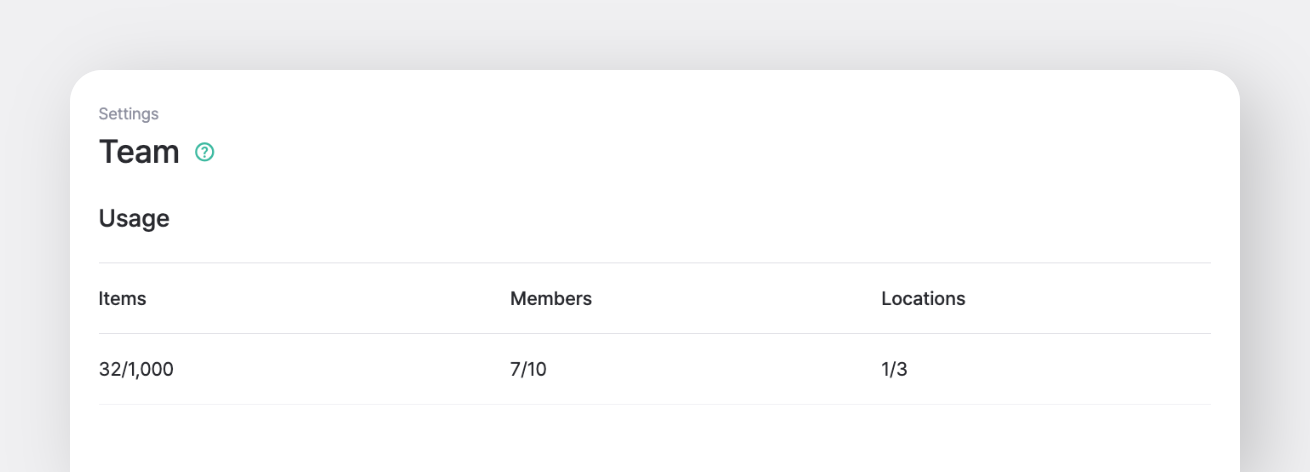
### Usage Limits
Review your team's current usage details, including:
* Items
* Members
* Locations
{% hint style="info" %}
If you exceed the team's usage limits, you can purchase [add-ons](/docs/pricing.md#add-ons) for an extra cost. Any adjustments will be **pro-rated**, and the additional charges will be reflected in your next billing cycle.
{% endhint %}
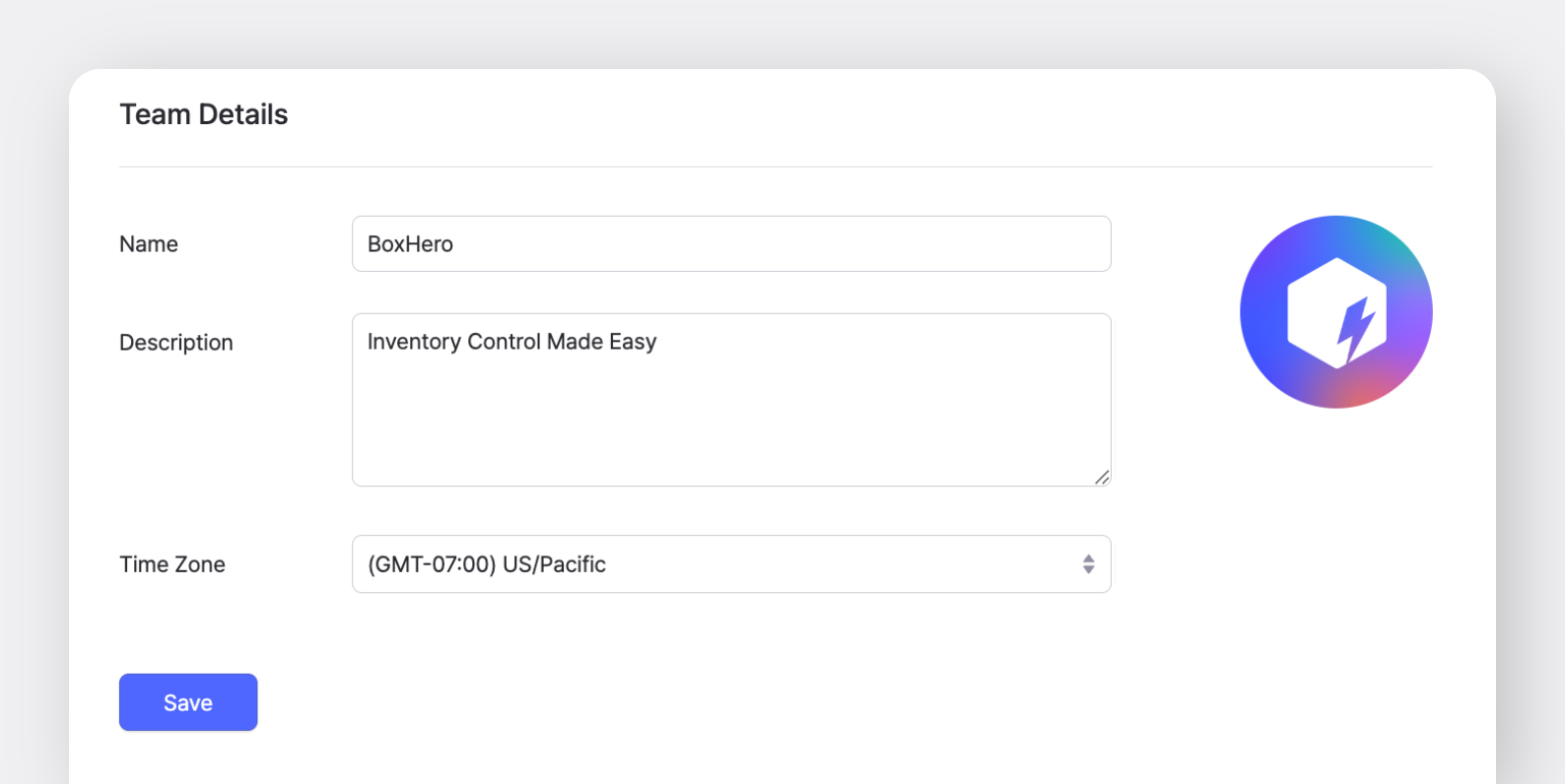
### Team Details
* **Name**: Create a name for your team. This can be changed anytime.
* **Description**: Add notes or memos to help distinguish your team, especially if you manage multiple teams in BoxHero.
* **Time Zone**: The selected time zone applies to all team members. Everyone will see the same time zone setting.
### Business Information
The business information you enter is used when generating purchase orders and invoices in BoxHero’s `Purchases & Sales` feature. BoxHero automatically applies the latest business details, including:
* Name
* Business Registration No.
* Address
* Contact Person
* Phone Number
* Email Address
{% hint style="success" %}
Make sure to click `Save` after making any changes.
{% endhint %}
***
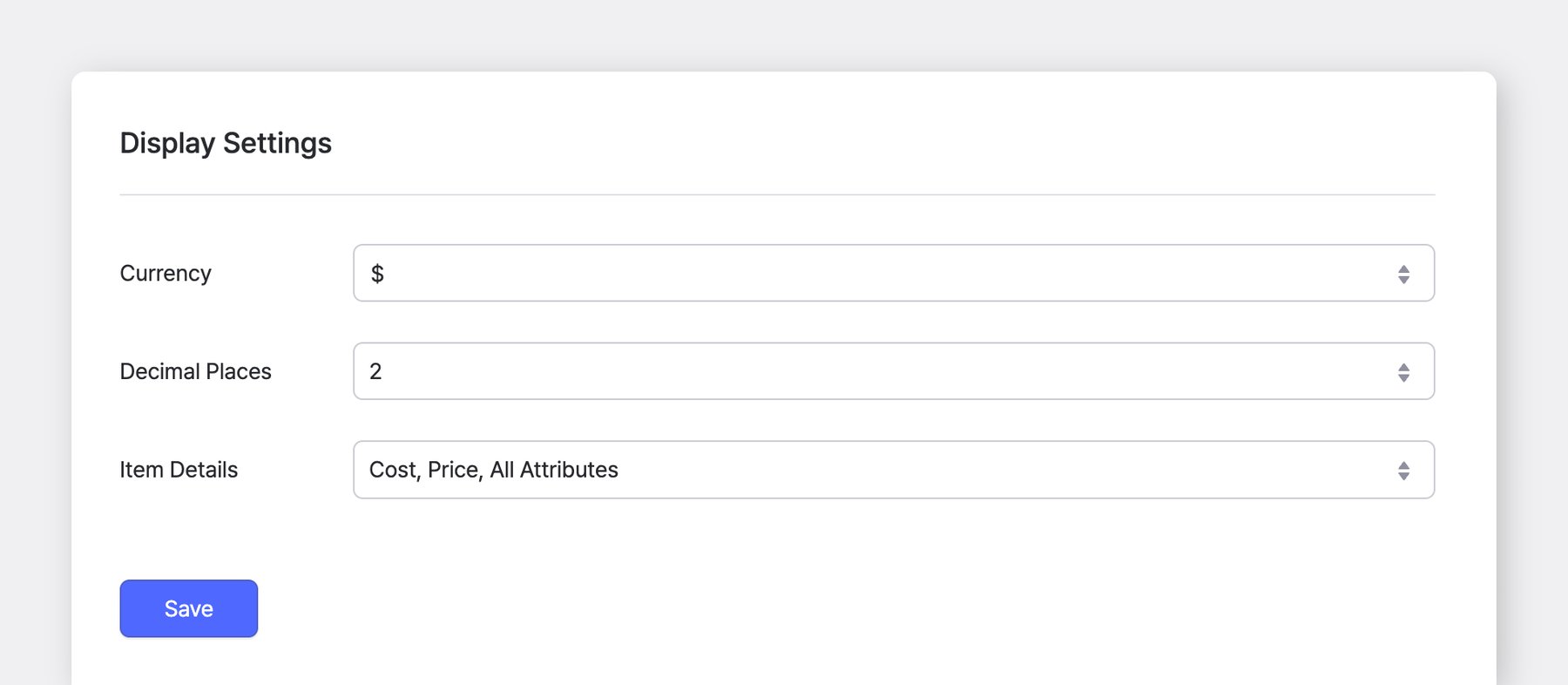
## Display Settings
You can update your team’s display settings at any time.
### Currency
The default currency used in `Purchases & Sales`. It is automatically selected when creating purchase orders and sales orders, and can be changed to a different currency.
### Decimal Places
Sets how many decimal places to show for unit prices and totals in `Purchases & Sales`.
> For example, if you select 2, amounts will show two decimal places (e.g., 0.12).
※ This setting does *not* affect how you enter quantity decimals.
### Item Details
Choose which item details to display in your `Item List` and inventory transactions.
If you select "**Custom**", you can show only the item details you need, or manually enter text to display alongside attributes.
***
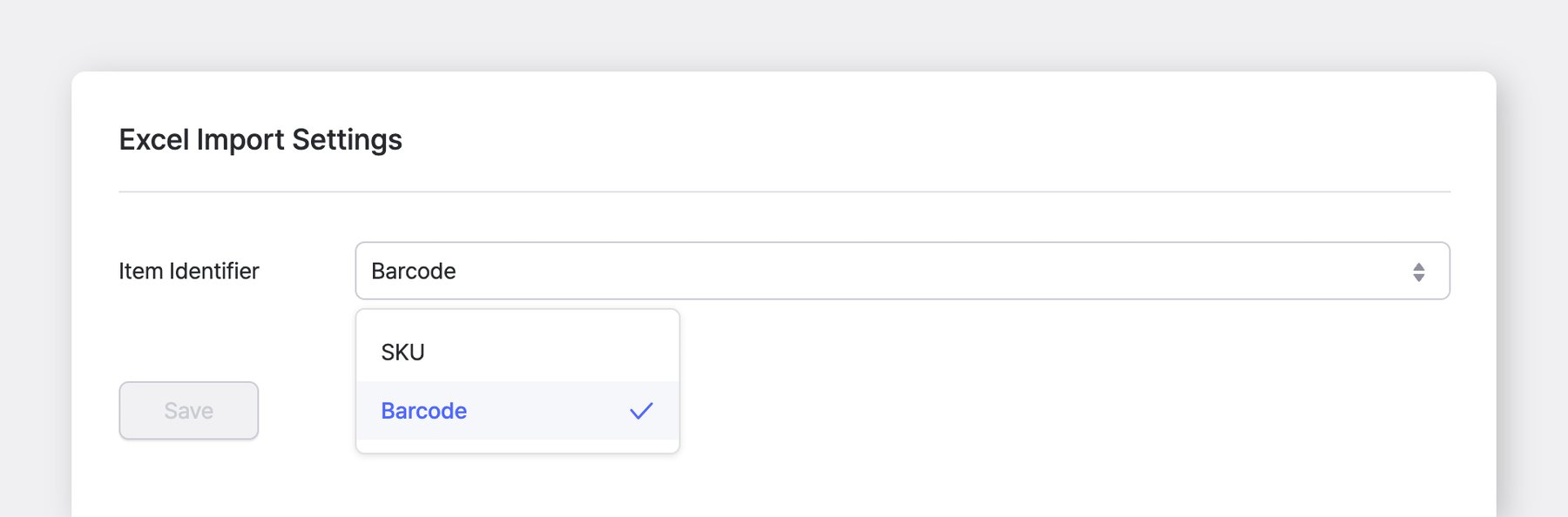
## Excel Import Settings
For actions like `Add via Excel` or `Edit via Excel`, you'll need an identifier for your items. You can choose between **SKU** or **Barcode**.
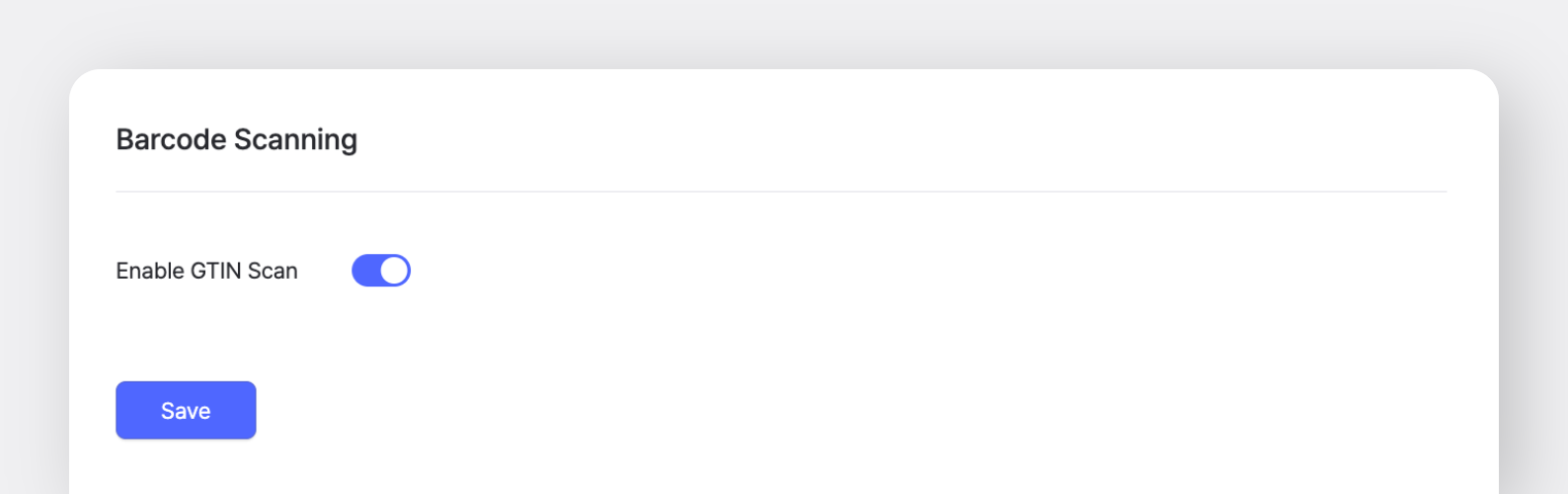
## Barcode Scanning
If your item barcodes include expiration dates, serial numbers, or other details--causing the barcode to change depending on when the item is received, please `Enable GTIN Scan`.
When this setting is turned on, only the GTIN code (which identifies the item) will be extracted from the barcode, ensuring the system recognizes it as the same item.
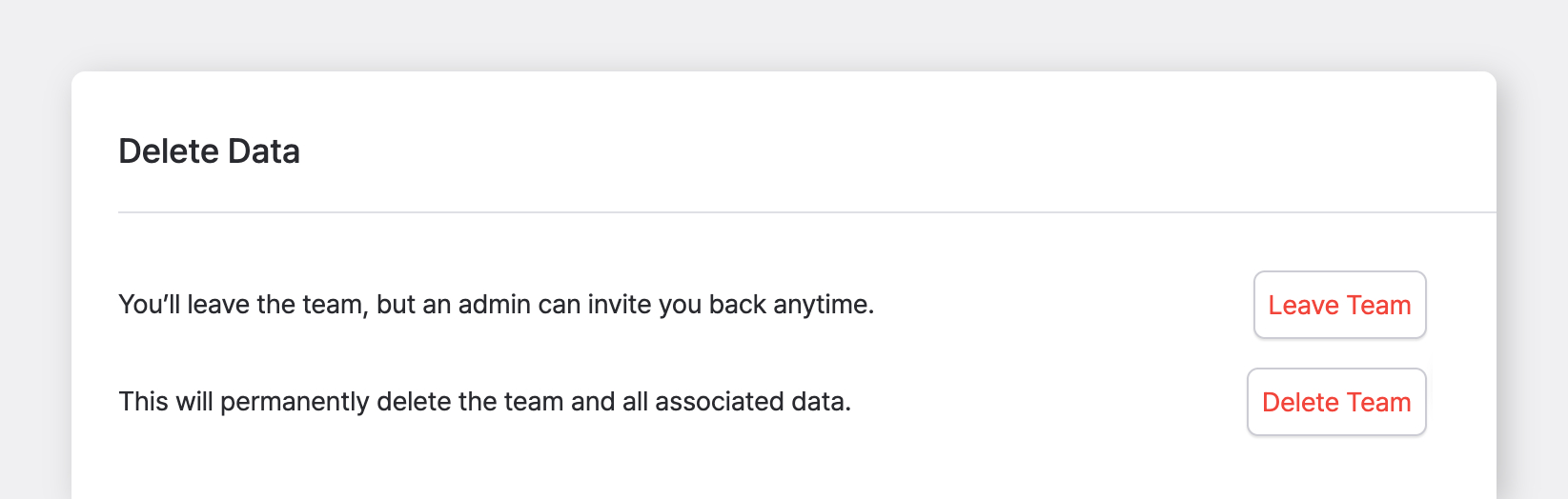
## Delete Data
* **Leave Team:** You’ll leave the team for now, but the admin can invite you back anytime.
* **Delete Team**: When you delete a team, all associated data, including team information, will be *permanently removed*. Any members of the deleted team will lose access, as the team will no longer be available.
***
## Frequently Asked Questions
**Still need help?** Check out our FAQ:
{% content-ref url="/spaces/mkYNU2xLl20GSI6NQQ6q/pages/GRSCyuQtKXdMjbJrSXnp" %}
[Deleting your account](/docs/faq/account-management/deleting-your-account.md)
{% endcontent-ref %}

.png?alt=media)