# BIXOLON XD5-40

***

## การตั้งค่าเครื่องพิมพ์

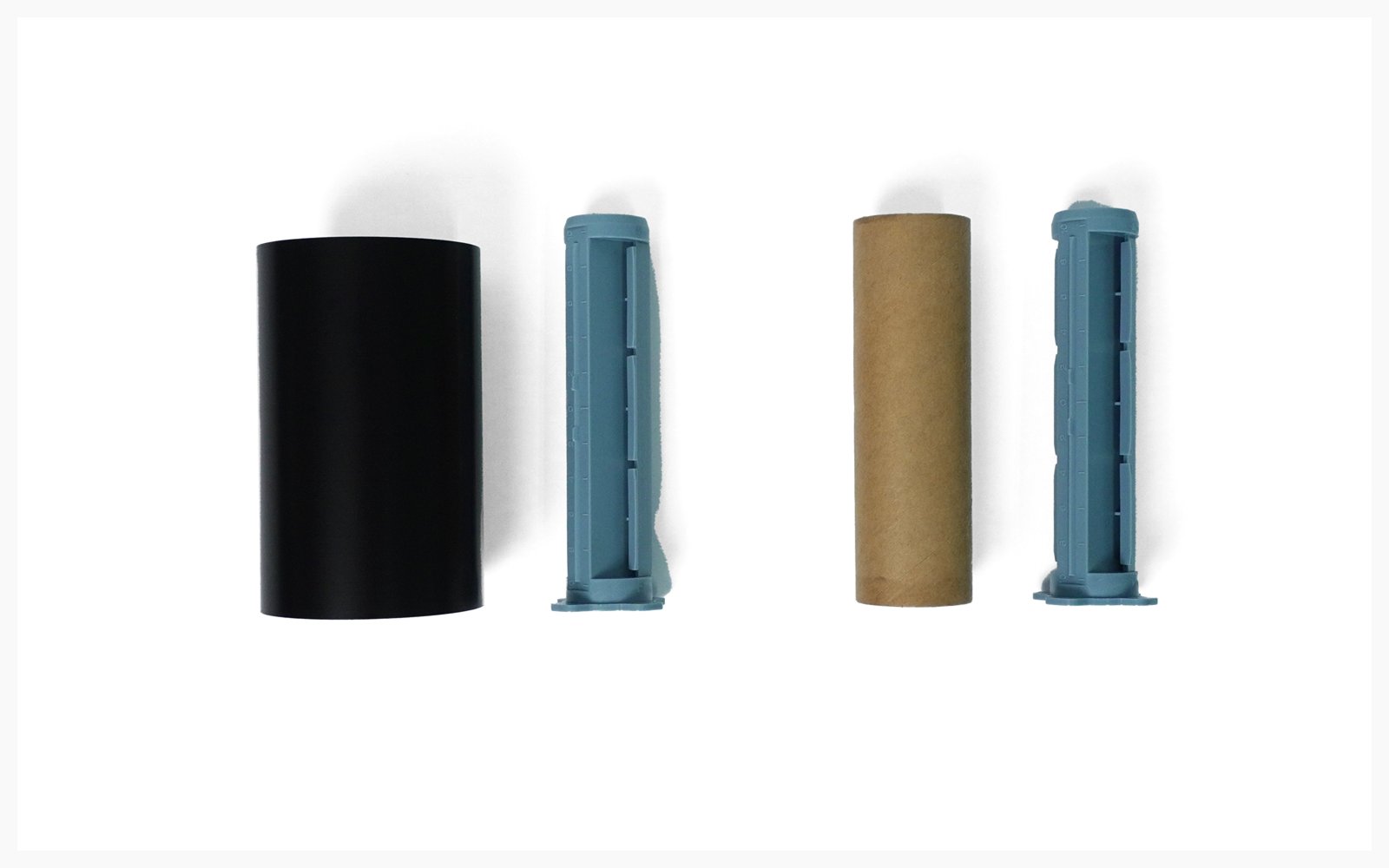
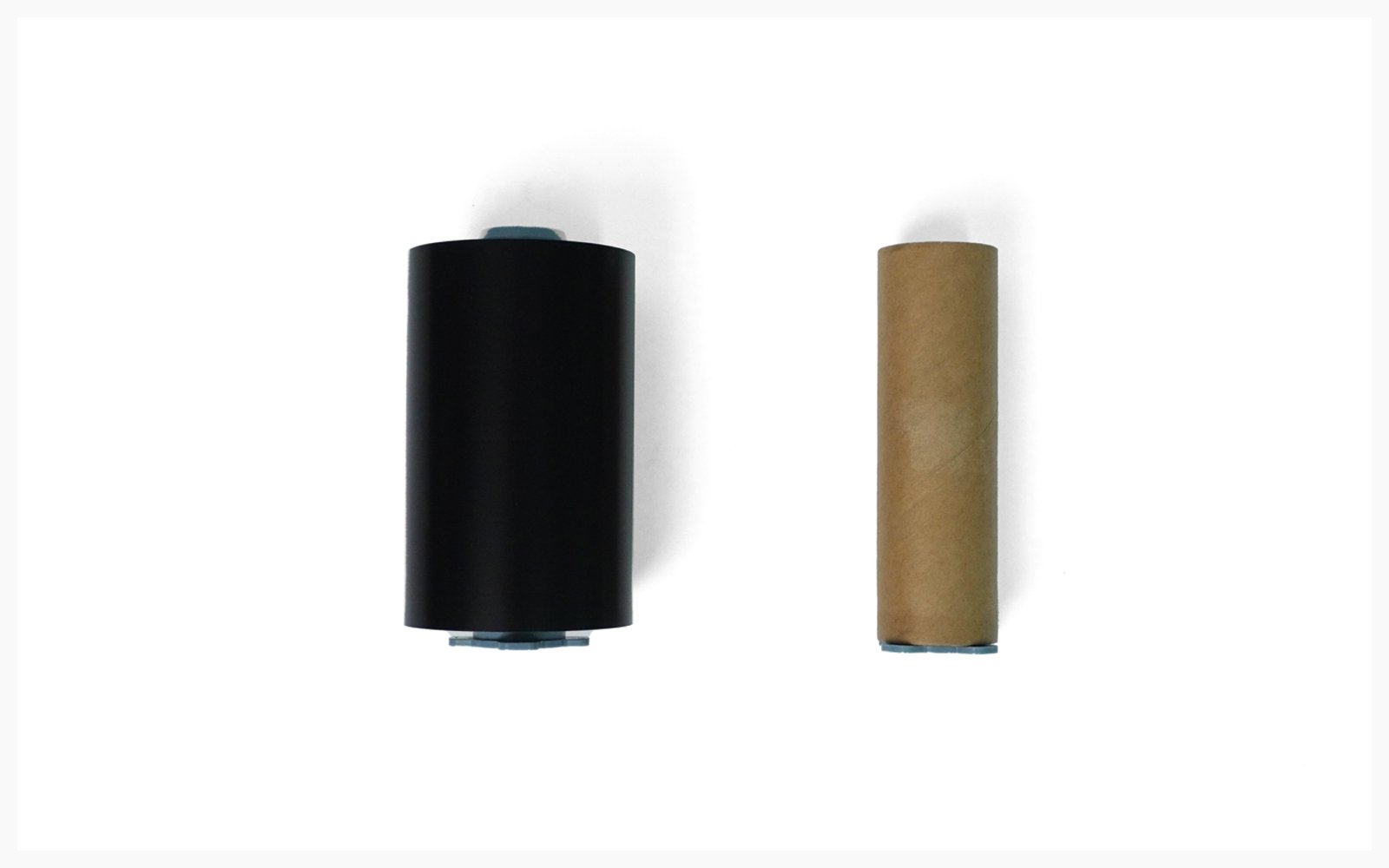
1. ติด **ตัวยึด** เข้ากับ **แกน 1 นิ้ว** และ **ริบบอน**.\
   (หากคุณใช้แกน 0.5 นิ้ว คุณสามารถข้ามตัวยึดและใส่ริบบอนโดยตรงได้)

<figure><img src="/files/693af895631df0e897b6b02b57d0250394772952" alt=""><figcaption></figcaption></figure>

<figure><img src="/files/540c6dc93b5705470570c2856474e3c0b1dab906" alt=""><figcaption></figcaption></figure>

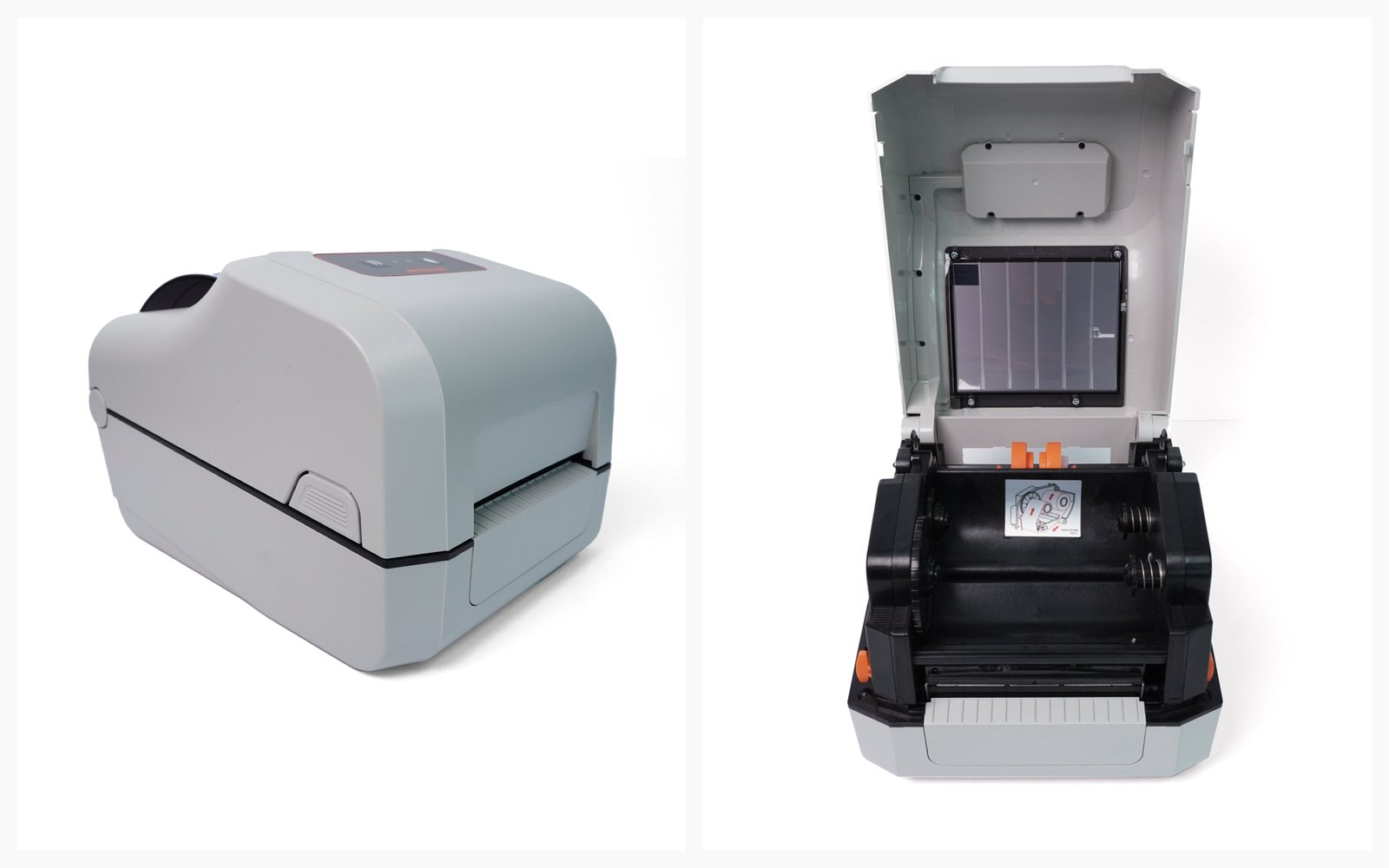
2. กด **ปุ่ม** ทั้งสองด้านของเครื่องพิมพ์เพื่อเปิดฝาครอบ

<figure><img src="/files/82998e1bba989f89c370dd8268a6d2d20dbfb078" alt=""><figcaption></figcaption></figure>

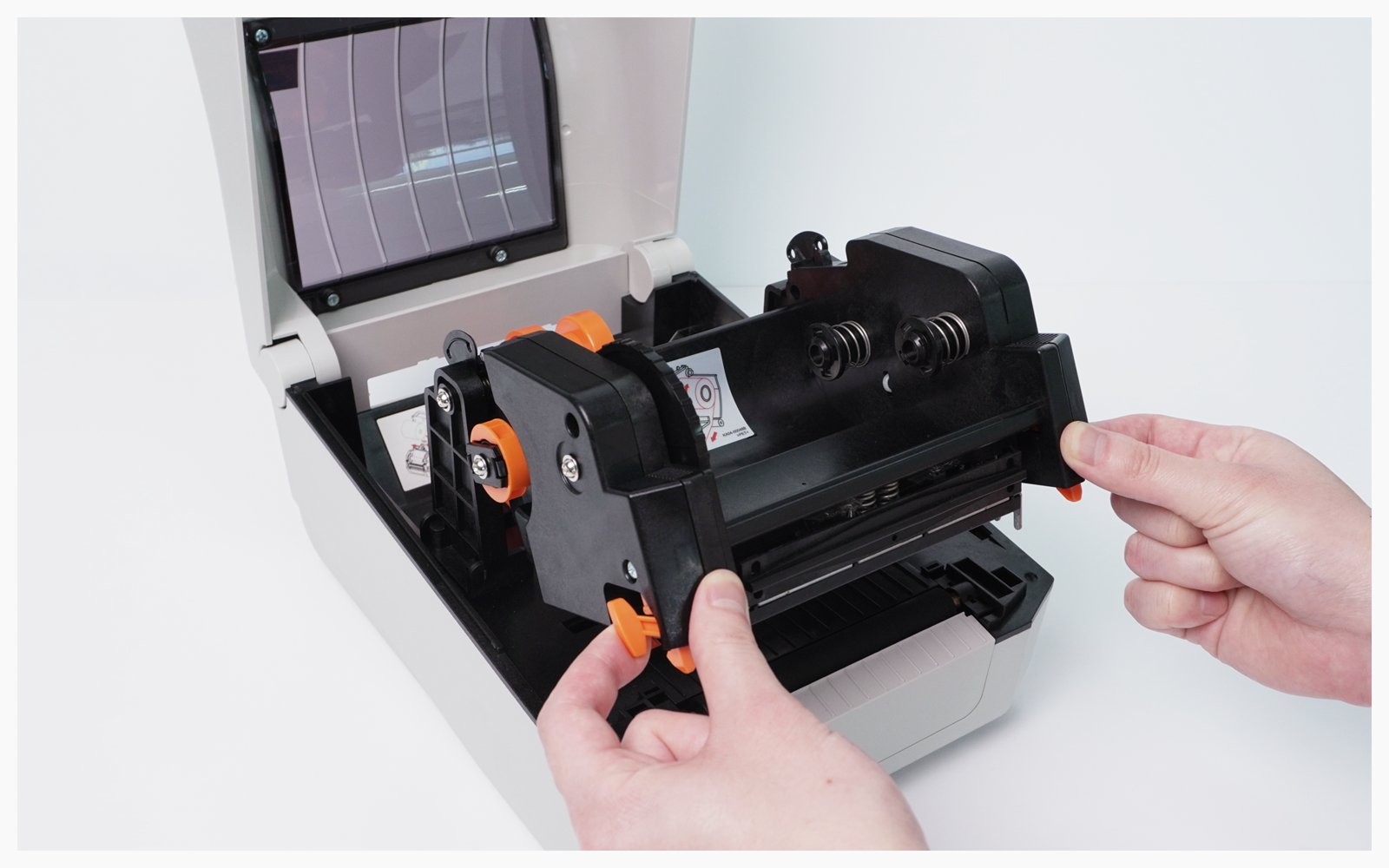
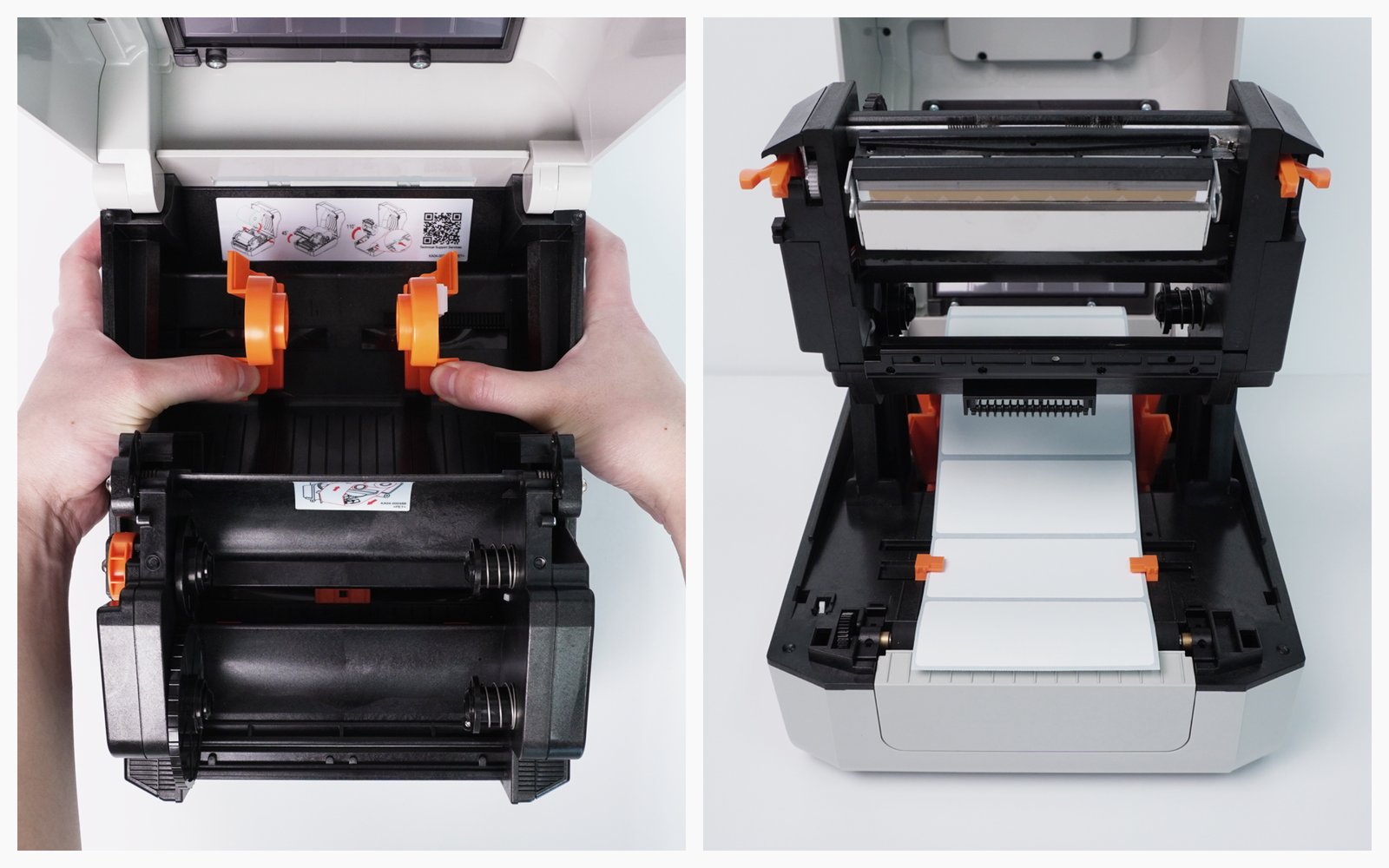
3. ดึง **คันโยก** ไปข้างหน้าเพื่อยกแกนม้วนริบบอนขึ้น

<figure><img src="/files/125b28cb3e86a7da09ee0085496ce2af6098d41d" alt=""><figcaption></figcaption></figure>

4. ใส่ **กระดาษฉลาก** ระหว่างตัวยึดสื่อ

<figure><img src="/files/e80a9ad503cacfff9fb6bf407a1a234dcfb622ba" alt=""><figcaption></figcaption></figure>

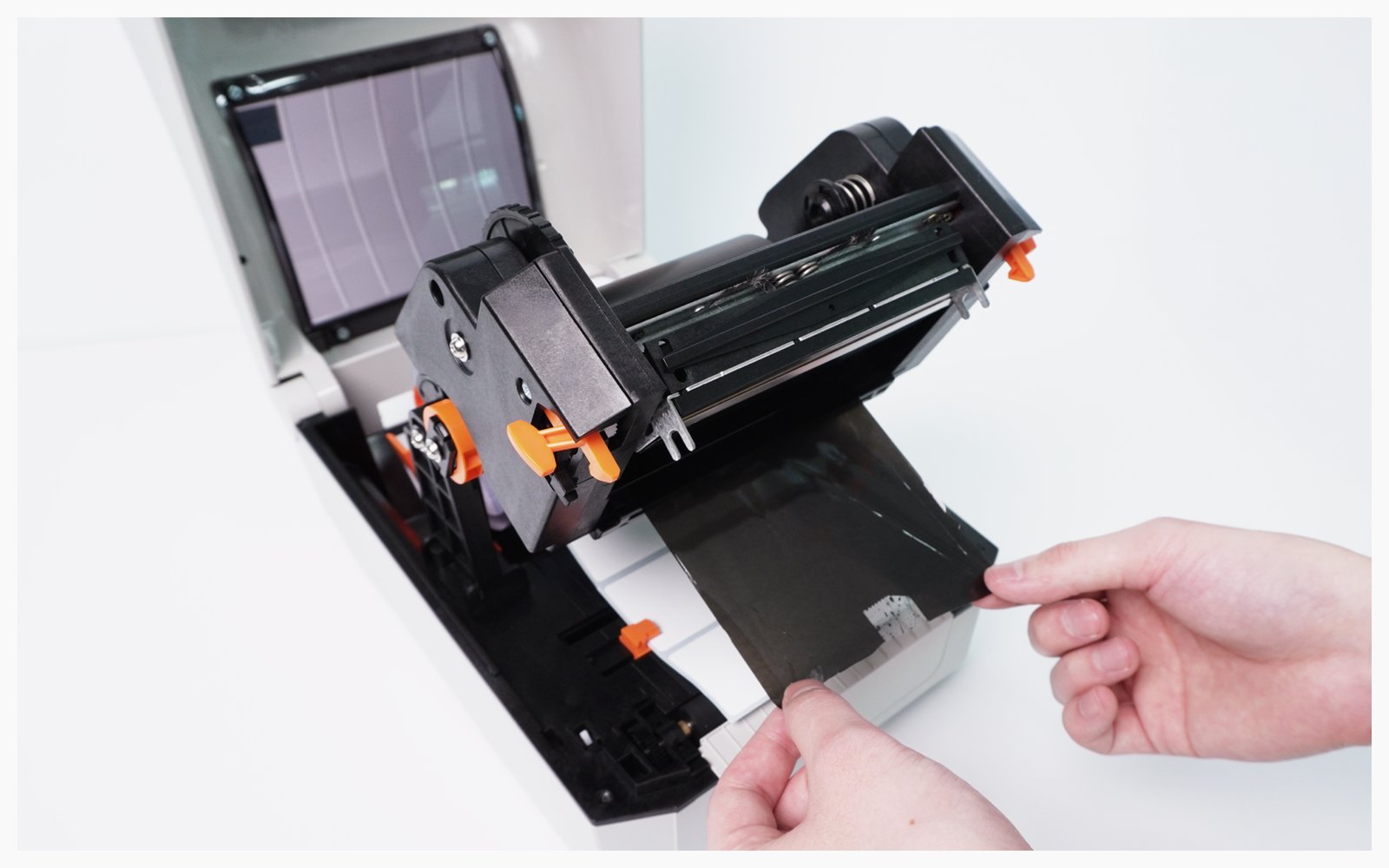
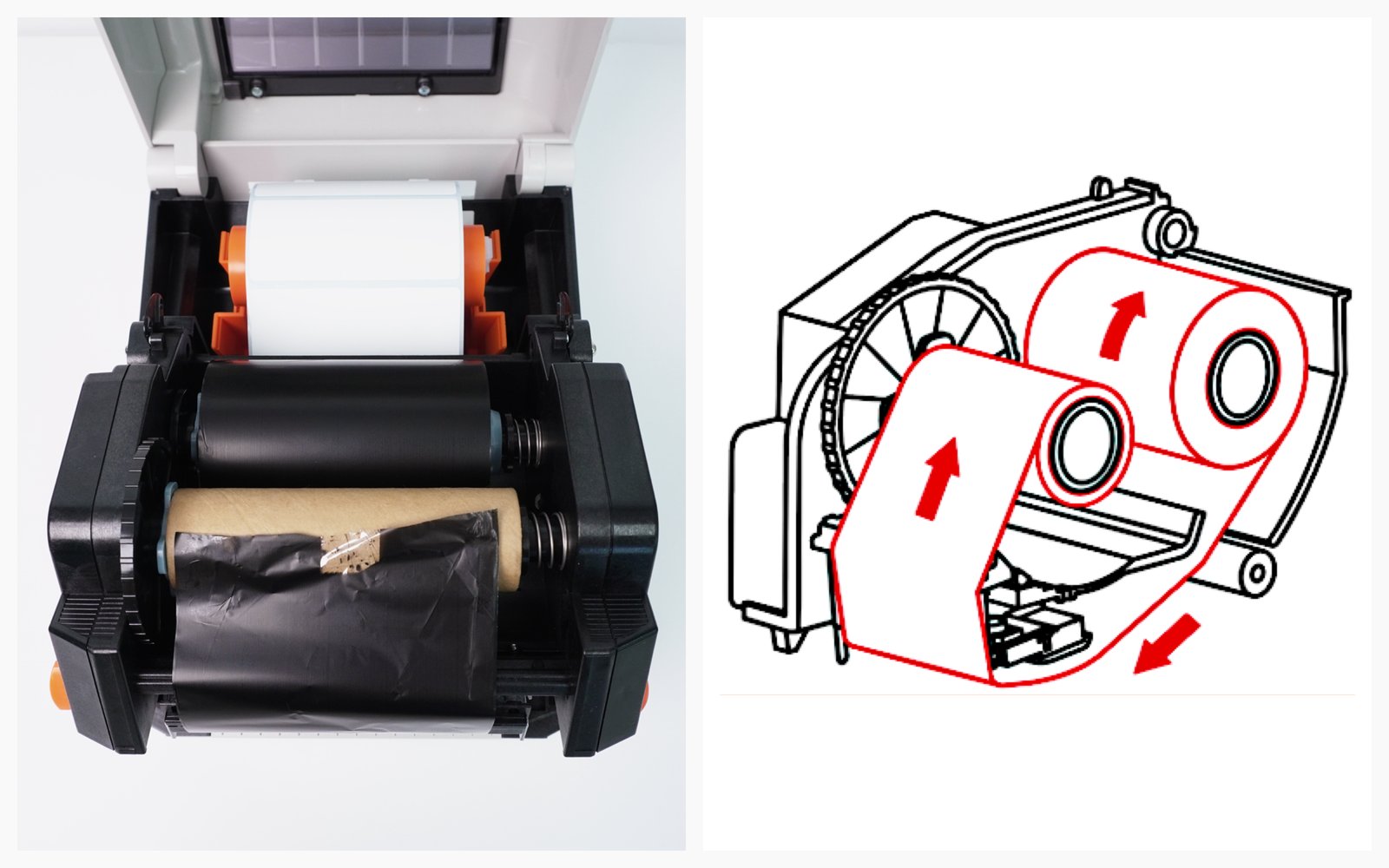
5. ตรวจสอบ **ทิศทางของริบบอน** แล้วติดเข้ากับแกนม้วนริบบอน

<figure><img src="/files/84b1144e34cc229bebb69360877bc8a3d562369a" alt=""><figcaption></figcaption></figure>

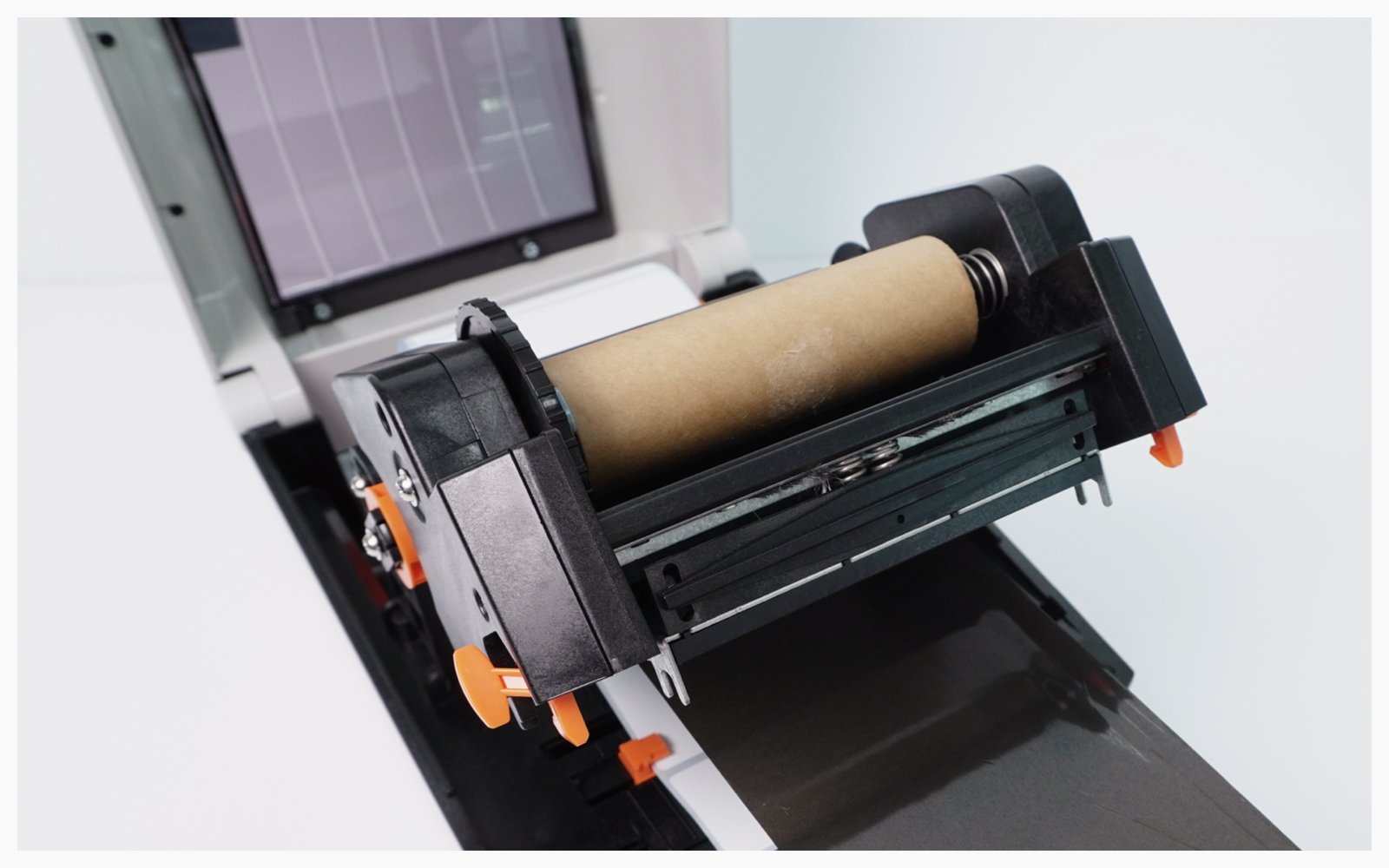
6. ติดตั้งแกนพร้อมตัวยึดที่ติดอยู่

<figure><img src="/files/2aa381075a01d9e983f9387076e520ddfa5689c5" alt=""><figcaption></figcaption></figure>

7. ยึดริบบอนด้วยเทปและหมุนเล็กน้อยเพื่อให้แน่ใจว่าริบบอนวางราบ

<figure><img src="/files/ad392964e8632304fdc83d2b9612347ef1d7db16" alt=""><figcaption></figcaption></figure>

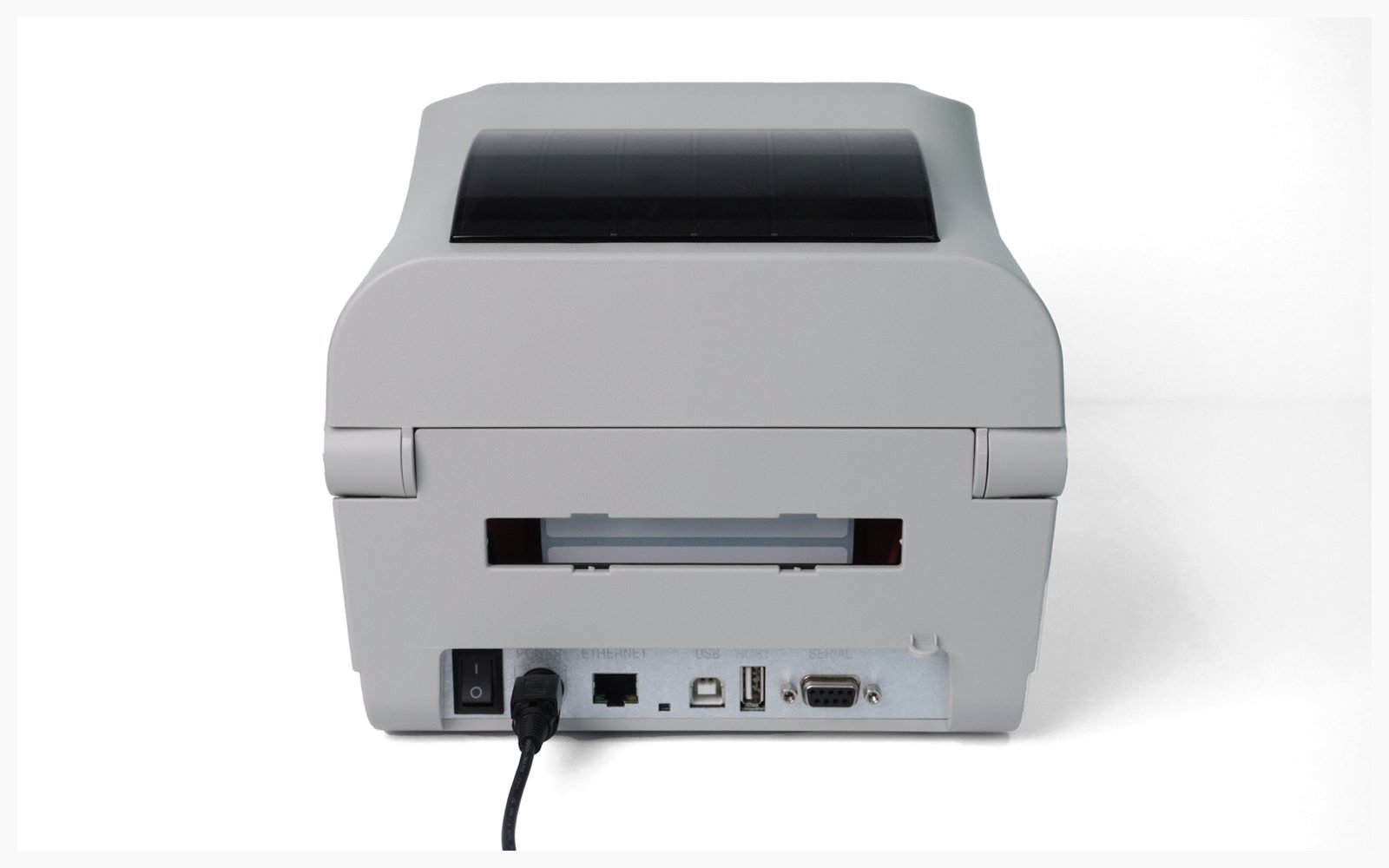
8. ปิดฝาครอบเครื่องพิมพ์และเชื่อมต่อสายไฟ

<figure><img src="/files/2f2e1f3b9f26a2415e4ed9900710b35dd63c1624" alt=""><figcaption></figcaption></figure>

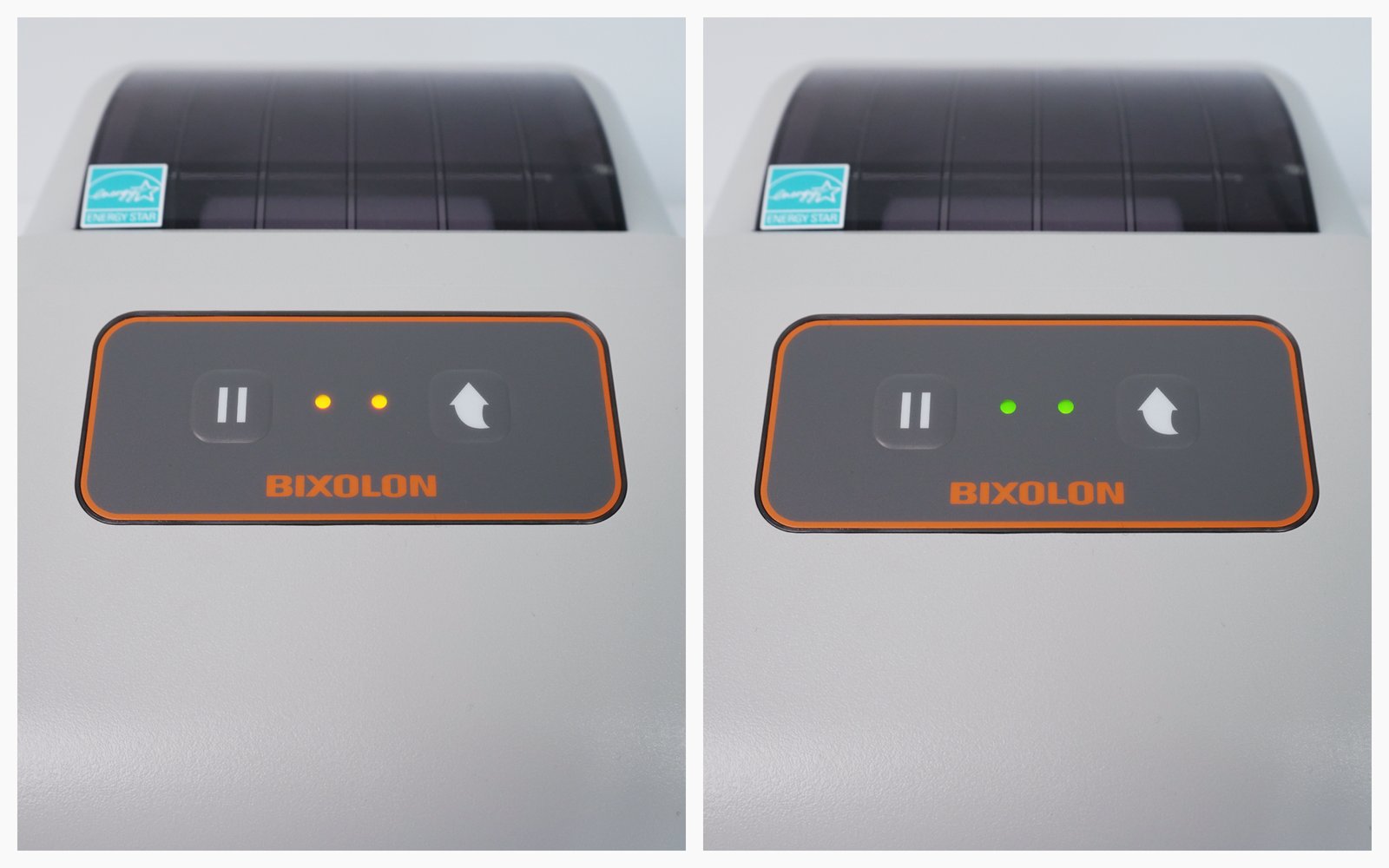
9. เมื่อเปิดเครื่องพิมพ์แล้ว ให้รอให้ไฟสีส้มเปลี่ยนเป็น **สีเขียว**.

<figure><img src="/files/b8c7830da38b19a57cbf0aae6982fdd3a3a764e7" alt=""><figcaption></figcaption></figure>

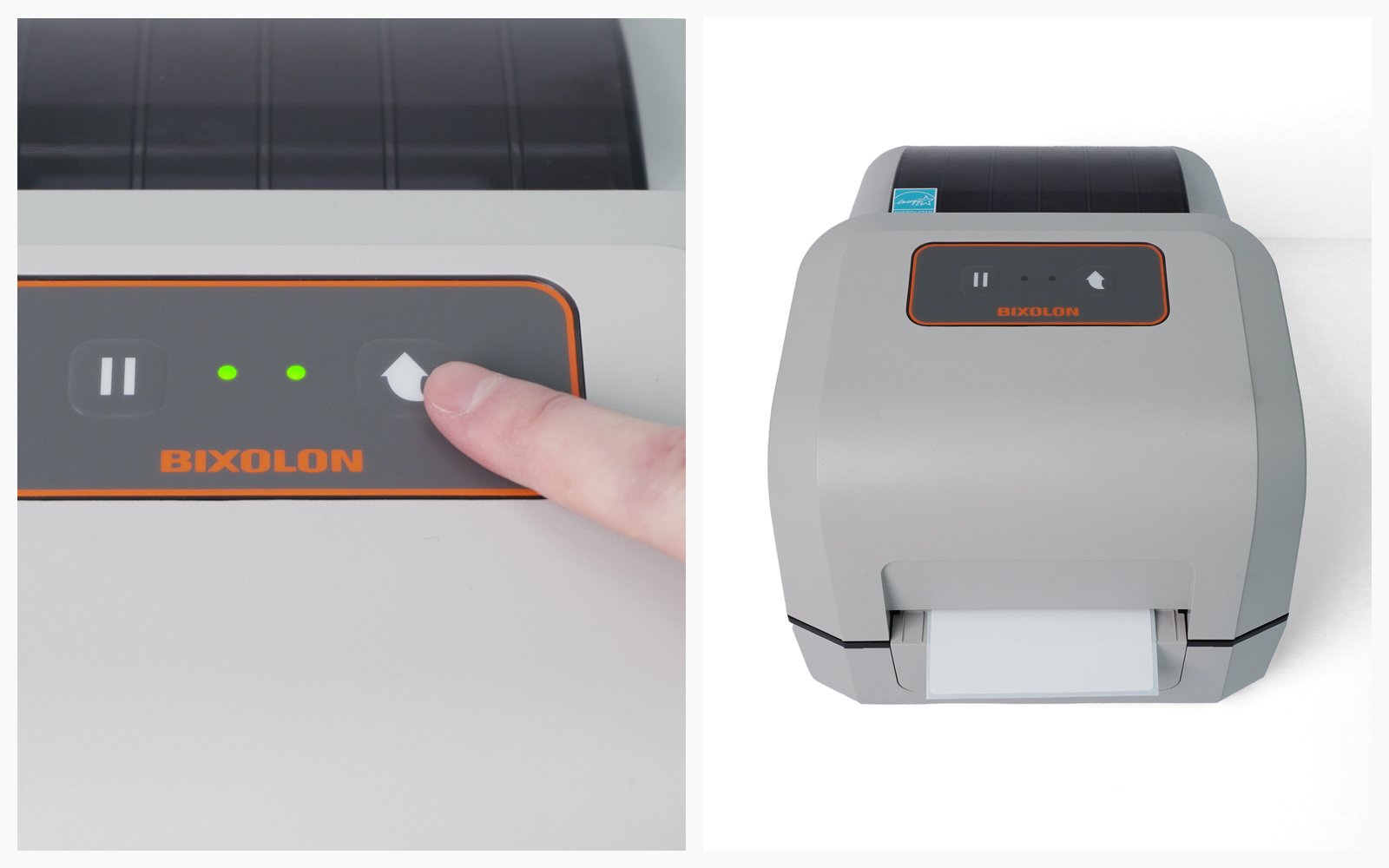
10. กด **FEED** **ปุ่ม** เพื่อตรวจสอบว่าฉลากป้อนกระดาษได้ถูกต้องหรือไม่

<figure><img src="/files/20f8a100ca815aa4cf42fde53ed6a062a7c9644c" alt=""><figcaption></figcaption></figure>

***

## การเชื่อมต่อเครื่องพิมพ์

{% tabs %}
{% tab title="มือถือ" %}

#### **I. การตั้งค่าอุปกรณ์**

{% hint style="warning" %}
**หมายเหตุ**: การพิมพ์ผ่านมือถือของ BIXOLON รองรับทั้ง iOS และ Android
{% endhint %}

{% stepper %}
{% step %}
ไปที่ **`Bluetooth`** ในการตั้งค่าบนอุปกรณ์มือถือของคุณ และเลือกเครื่องพิมพ์ที่ต้องการใช้

<figure><img src="/files/db22ba356066504455e61725b36143eaee335996" alt=""><figcaption></figcaption></figure>
{% endstep %}

{% step %}
ค้นหา “**mPrint**” ใน Google Play Store หรือ App Store แล้วติดตั้งแอป

<figure><img src="/files/c121409922e5cc5004a8f4e5b754169de605e69e" alt=""><figcaption></figcaption></figure>
{% endstep %}

{% step %}
เปิดแอปและไปที่ **`การตั้งค่า`**.\
(หากมีป๊อปอัปขออนุญาตปรากฏขึ้น ให้เลือก "**อนุญาต**" สำหรับทุกคำขอ)

<figure><img src="/files/fa4ab2b7707f2022564915f391bf81cabf5fec9e" alt=""><figcaption></figcaption></figure>
{% endstep %}

{% step %}
แตะ **`โหมดเลือกเครื่องพิมพ์`** และเลือกเครื่องพิมพ์ฉลากของคุณ

<figure><img src="/files/393af94dd00459dfce892db5d5f3b7e4ac115509" alt=""><figcaption></figcaption></figure>
{% endstep %}

{% step %}
แตะ **`พิมพ์หน้าทดสอบ`** เพื่อยืนยันว่าการพิมพ์ใช้งานได้ดี (หมายเหตุ: ฉลากอาจไม่พอดีอย่างสมบูรณ์ แต่ให้ยืนยันเพียงว่ามีการพิมพ์ออกมา)

<figure><img src="/files/829f87ce8769b276d23a2b40592fc89dd37c8db7" alt=""><figcaption></figcaption></figure>
{% endstep %}

{% step %}
ใน **`การตั้งค่าการพิมพ์`**&#xE43;ห้ตั้งค่าขนาดกระดาษเป็น **มิลลิเมตร (mm)** และป้อนขนาดกระดาษที่คุณจะใช้

<figure><img src="/files/47d1ddb00d615a3c3f347a541e81a1db8ec17fc4" alt=""><figcaption></figcaption></figure>
{% endstep %}
{% endstepper %}

#### **II. การพิมพ์ฉลาก**

{% hint style="success" %}
เมื่อ **mPrint** ตั้งค่าแอปเรียบร้อยแล้ว คุณสามารถพิมพ์ฉลากจาก **BoxHero**.
{% endhint %}

{% stepper %}
{% step %}
สร้างฉลากบาร์โค้ดบน [แพลตฟอร์มเว็บ](http://app.boxhero.io/) ของ BoxHero (PC/Desktop) ซึ่งสามารถนำไปใช้บนอุปกรณ์มือถือของคุณได้

<figure><img src="/files/64ccd08c37f8a0e995ce193a440d88582cfaddc4" alt=""><figcaption></figcaption></figure>

<figure><img src="/files/fa3c0b127936dbcb0e1616f3bb6067b2d4043501" alt=""><figcaption></figcaption></figure>

<figure><img src="/files/013f2e69b55fa9dc7ad736baf281944eb95b03b0" alt=""><figcaption></figcaption></figure>

<figure><img src="/files/9578ee98aa299e2df1405f9da8c03898366eb3a1" alt=""><figcaption></figcaption></figure>

{% hint style="info" %}
เรียนรู้เพิ่มเติมเกี่ยวกับการออกแบบฉลากบาร์โค้ด [ที่นี่](https://docs-en.boxhero.io/features/print-barcode#customize-your-barcode-design).
{% endhint %}
{% endstep %}

{% step %}
เปิด [แอป BoxHero](https://docs-en.boxhero.io/getting-started#get-the-mobile-app) บนอุปกรณ์มือถือของคุณ แล้วแตะ **`พิมพ์บาร์โค้ด`** บนหน้าจอหลัก

<figure><img src="/files/93fc3e2d3c5015e707efd943e1e8f73d0054bb47" alt=""><figcaption></figcaption></figure>
{% endstep %}

{% step %}
แตะ **`เลือกฉลาก`** และเลือกแบบของคุณ

<figure><img src="/files/c26eaed2b216bb4ddacf8db2532aa92b329706c1" alt=""><figcaption></figcaption></figure>
{% endstep %}

{% step %}
เลือกรายการที่จะพิมพ์ ป้อนจำนวนที่ต้องการพิมพ์ แล้วแตะ **`เสร็จสิ้น`**.

<figure><img src="/files/80a65938b4d73e608f3edc984c7366945c628790" alt=""><figcaption></figcaption></figure>
{% endstep %}

{% step %}
แตะ **`พิมพ์`** ปุ่มและเลือก **`mPrint`**&#xE43;นป๊อปอัป\
(หากไม่พบเครื่องพิมพ์ในรายการ ให้แตะ “**เพิ่มเติม / ตัวเลือกเพิ่มเติม**” )

<figure><img src="/files/92b680f3600f2d1346f1c63bb8817e7c79062165" alt=""><figcaption></figcaption></figure>
{% endstep %}

{% step %}
แตะปุ่มพิมพ์เพื่อให้แน่ใจว่าฉลากพิมพ์ได้อย่างถูกต้อง

<figure><img src="/files/f32b1e190026963004f79d10e9c37704d5598227" alt=""><figcaption></figcaption></figure>

<figure><img src="/files/246b6e93b6b09f6f8519d6a1a9d82df9ad50b8ff" alt=""><figcaption></figcaption></figure>
{% endstep %}
{% endstepper %}
{% endtab %}

{% tab title="เดสก์ท็อป" %}

#### **I. การติดตั้งไดรเวอร์**

{% stepper %}
{% step %}
เชื่อมต่อสาย USB ระหว่างเครื่องพิมพ์ฉลากกับพีซีของคุณ

<figure><img src="/files/616d12d8a0159851020eccf9d42e45c0ca0d914d" alt=""><figcaption></figcaption></figure>
{% endstep %}

{% step %}
ดาวน์โหลดไดรเวอร์ Windows ได้จาก [เว็บไซต์อย่างเป็นทางการของ BIXOLON](https://bixolon.com/software_view.php?idx=362).

<figure><img src="/files/af48d648f2d8750c66dcf8301700549e54fada28" alt=""><figcaption></figcaption></figure>

<figure><img src="/files/52a15f2bba15df9f04905ac8dbcf7a0163e5367e" alt=""><figcaption></figcaption></figure>

<figure><img src="/files/a08d0637f1cc7e765b3897392b304c691aba042b" alt=""><figcaption></figcaption></figure>

<figure><img src="/files/35cf59023c78f3c5334ff49458771d04b870b532" alt=""><figcaption></figcaption></figure>

<figure><img src="/files/8f2d70367b82a3130db310ccd8d6ea73acd63e30" alt=""><figcaption></figcaption></figure>
{% endstep %}

{% step %}
ตอนนี้คุณต้องตั้งค่าขนาดกระดาษในการตั้งค่าเครื่องพิมพ์ ไปที่ **`Bluetooth & devices`** > **`Printers & scanners`**.

<figure><img src="/files/2c5a848bbf921198fd70ba179694a737dde76b17" alt=""><figcaption></figcaption></figure>

<figure><img src="/files/bfd8f3cc3a5e7cdef0c4b2959616f143e69beb85" alt=""><figcaption></figcaption></figure>

<figure><img src="/files/5c9c140e1afe732f80b363434d38e5a39b58b2af" alt=""><figcaption></figcaption></figure>

{% hint style="danger" %}
หากไม่ได้ตั้งค่าขนาดกระดาษอย่างถูกต้องในการตั้งค่าเครื่องพิมพ์ ผลพิมพ์อาจไม่จัดแนวอย่างถูกต้อง
{% endhint %}
{% endstep %}
{% endstepper %}

#### **II. การพิมพ์ฉลาก**

{% hint style="success" %}
เมื่อไดรเวอร์ติดตั้งเรียบร้อยและตั้งค่าขนาดกระดาษแล้ว คุณสามารถพิมพ์ฉลากจาก **BoxHero**.
{% endhint %}

{% stepper %}
{% step %}
เข้าสู่ระบบ BoxHero บนพีซีของคุณและไปที่ **`พิมพ์บาร์โค้ด`** ส่วน\
เลือก **ฉลากความร้อน** และป้อนขนาดกระดาษที่คุณจะใช้

<figure><img src="/files/ec7be02594fca7fffc0a7fcfea8ba673af1bedeb" alt=""><figcaption></figcaption></figure>
{% endstep %}

{% step %}
เลือกเทมเพลตที่คุณต้องการ: **บาร์โค้ด** หรือ **คิวอาร์โค้ด**.

<figure><img src="/files/fa3c0b127936dbcb0e1616f3bb6067b2d4043501" alt=""><figcaption></figcaption></figure>

{% hint style="info" %}
หน้าตัวอย่างทางด้านขวาจะแสดงหนึ่งในรายการที่คุณลงทะเบียนไว้เพื่อใช้เป็นข้อมูลอ้างอิง
{% endhint %}
{% endstep %}

{% step %}
ใน **รายละเอียดการออกแบบ** ส่วนด้านล่างของหน้า ให้ตั้งค่าข้อมูลรายการที่คุณต้องการแสดงบนฉลาก เลือก "**เวกเตอร์**” สำหรับรูปแบบบาร์โค้ด แล้วคลิก **`บันทึก`**.

<figure><img src="/files/7dfe445de6d7e19c170cd251d40cb476503f1b23" alt=""><figcaption></figcaption></figure>

<figure><img src="/files/300c8beca8eb87361ebd71f500fde0e7c3e16fc4" alt=""><figcaption></figcaption></figure>

{% hint style="warning" %}
ต้องการความช่วยเหลือเกี่ยวกับการตั้งค่าการออกแบบหรือไม่? คลิก [ที่นี่](https://www.boxhero.io/docs/key-features/print-barcode#create-barcode-labels) สำหรับคำแนะนำโดยละเอียด
{% endhint %}
{% endstep %}

{% step %}
เพิ่มรายการที่คุณต้องการพิมพ์ลงในรายการ แล้วคลิก **`พิมพ์`** ปุ่มที่ด้านล่าง

<figure><img src="/files/a5e33fc3ea59a78699f5d69f7ababfa1197090bb" alt=""><figcaption></figcaption></figure>
{% endstep %}

{% step %}
เลือกเครื่องพิมพ์ที่คุณต้องการใช้ แล้วคลิก **`พิมพ์`** เพื่อเริ่มการพิมพ์

<figure><img src="/files/ea636933cd90f71300c032088946c67ded7e9c7a" alt=""><figcaption></figcaption></figure>

<figure><img src="/files/b9f198ceb3e01f174ff74cde1f26b01ef3bc2a17" alt=""><figcaption></figcaption></figure>
{% endstep %}
{% endstepper %}
{% endtab %}
{% endtabs %}


---

# Agent Instructions: Querying This Documentation

If you need additional information that is not directly available in this page, you can query the documentation dynamically by asking a question.

Perform an HTTP GET request on the current page URL with the `ask` query parameter:

```
GET https://www.boxhero.io/docs/documentation/th/resources/guides/bixolon-xd5-40.md?ask=<question>
```

The question should be specific, self-contained, and written in natural language.
The response will contain a direct answer to the question and relevant excerpts and sources from the documentation.

Use this mechanism when the answer is not explicitly present in the current page, you need clarification or additional context, or you want to retrieve related documentation sections.