> For the complete documentation index, see [llms.txt](https://www.boxhero.io/docs/llms.txt). Markdown versions of documentation pages are available by appending `.md` to page URLs; this page is available as [Markdown](https://www.boxhero.io/docs/documentation/th/resources/guides/zebra-zd421t/mobile-printing.md).

# การพิมพ์บนมือถือ

***

{% hint style="warning" %}
**หมายเหตุ**: การพิมพ์ผ่านมือถือของ ZEBRA รองรับเฉพาะบน *Android* อุปกรณ์เท่านั้น.
{% endhint %}

## I. การตั้งค่าอุปกรณ์

{% stepper %}
{% step %}
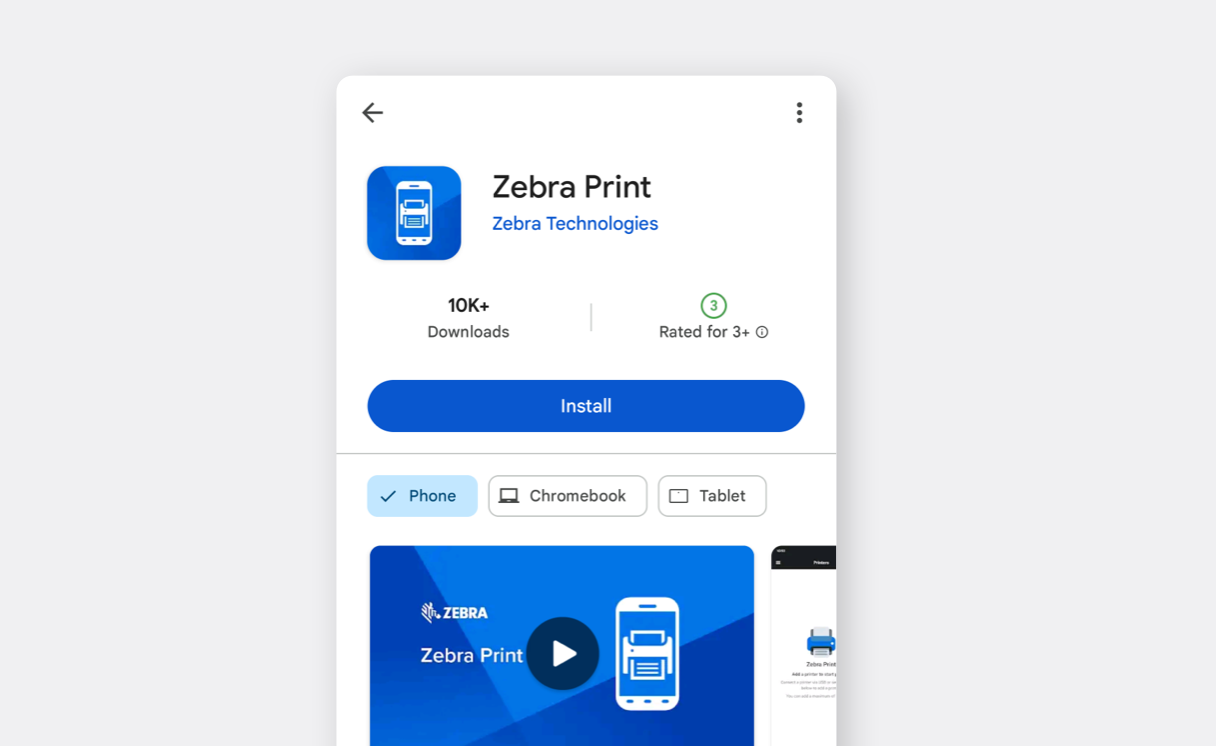
ติดตั้ง [Zebra Print](https://play.google.com/store/apps/details?id=com.zebra.channelaps\&utm_source=na_Med) จาก Google Play Store.

<figure><img src="/files/50698f6bea327b2b49c3e528c2a3abd172782df9" alt=""><figcaption></figcaption></figure>
{% endstep %}

{% step %}
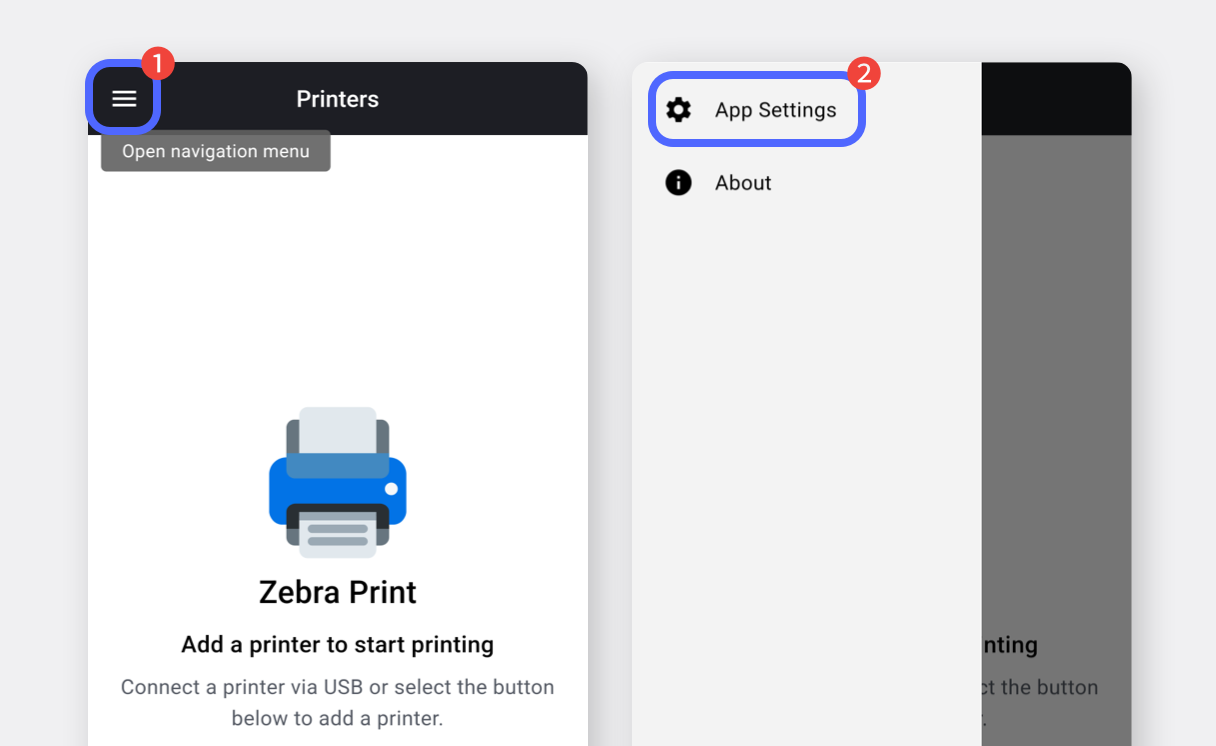
เปิดแอปแล้วเลือก `เมนูนำทาง (☰)` และแตะ `การตั้งค่าแอป`.

<figure><img src="/files/51cf4123d712ff67529a45d3bfa351fdc9499594" alt=""><figcaption></figcaption></figure>
{% endstep %}

{% step %}
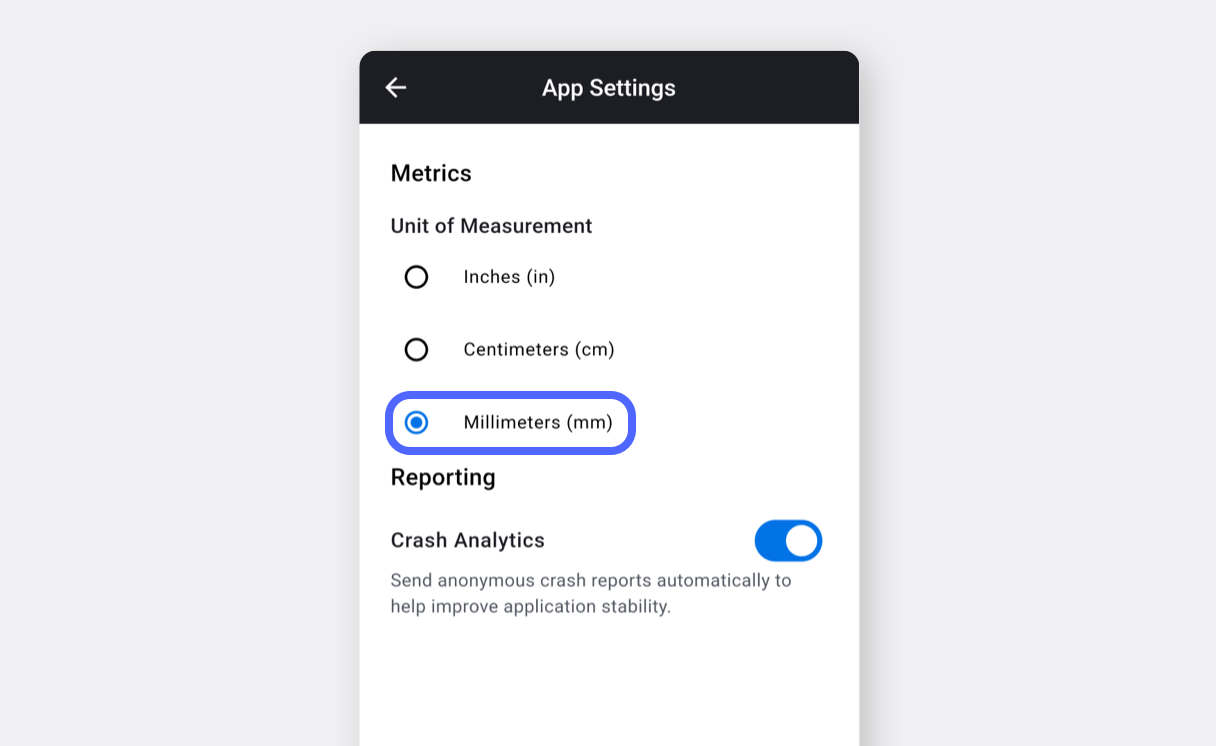
เปลี่ยนหน่วยวัดเป็น **มิลลิเมตร (mm)** แล้วกลับไปยังหน้าก่อนหน้า.

<figure><img src="/files/7fb3313b280cc3ff88be2d4a2a2e6bc371ccd172" alt=""><figcaption></figcaption></figure>
{% endstep %}

{% step %}
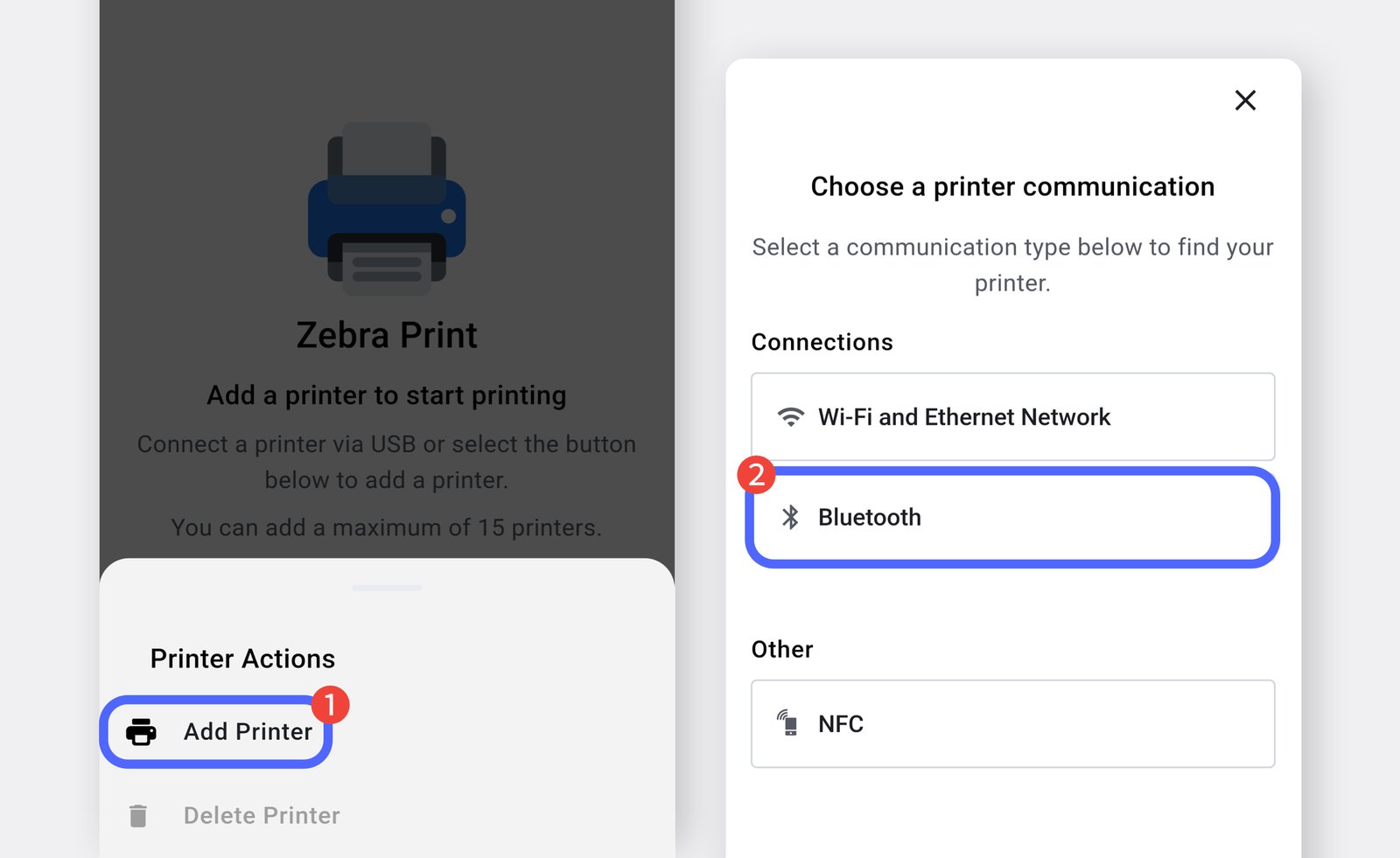
แตะ `...` ปุ่มด้านล่างและเลือก `เพิ่มเครื่องพิมพ์`.\
เลือก `Bluetooth` เป็นวิธีการเชื่อมต่อ.

<figure><img src="/files/6b54d03b64c17eac398be670a2133b4333bfc413" alt=""><figcaption></figcaption></figure>
{% endstep %}

{% step %}
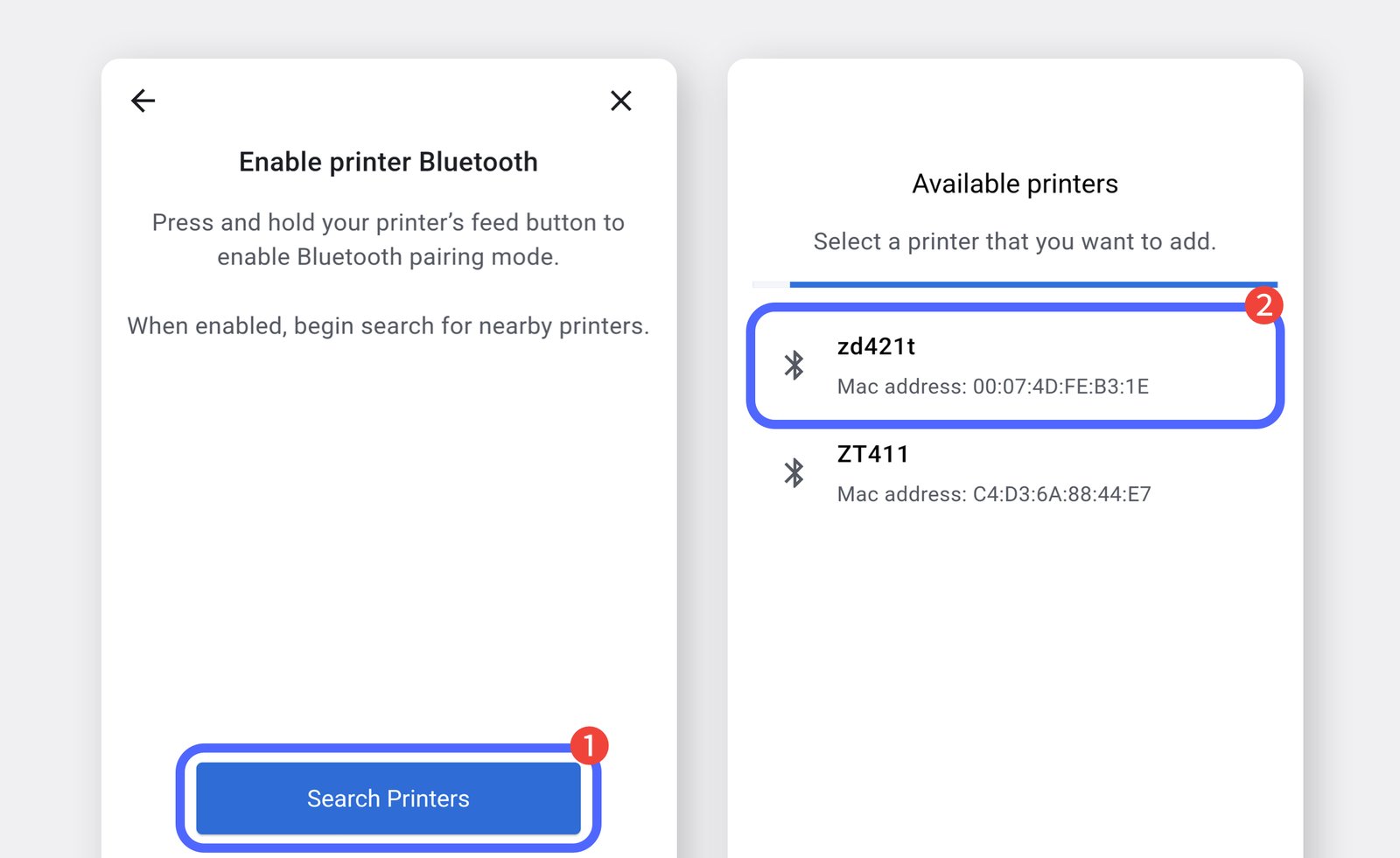
แตะ `ค้นหาเครื่องพิมพ์` แล้วเลือกเครื่องพิมพ์ของคุณ (ZD421T).

<figure><img src="/files/0bb28c41cfb3a47f570ba61f77538eff18da18b4" alt=""><figcaption></figcaption></figure>
{% endstep %}

{% step %}
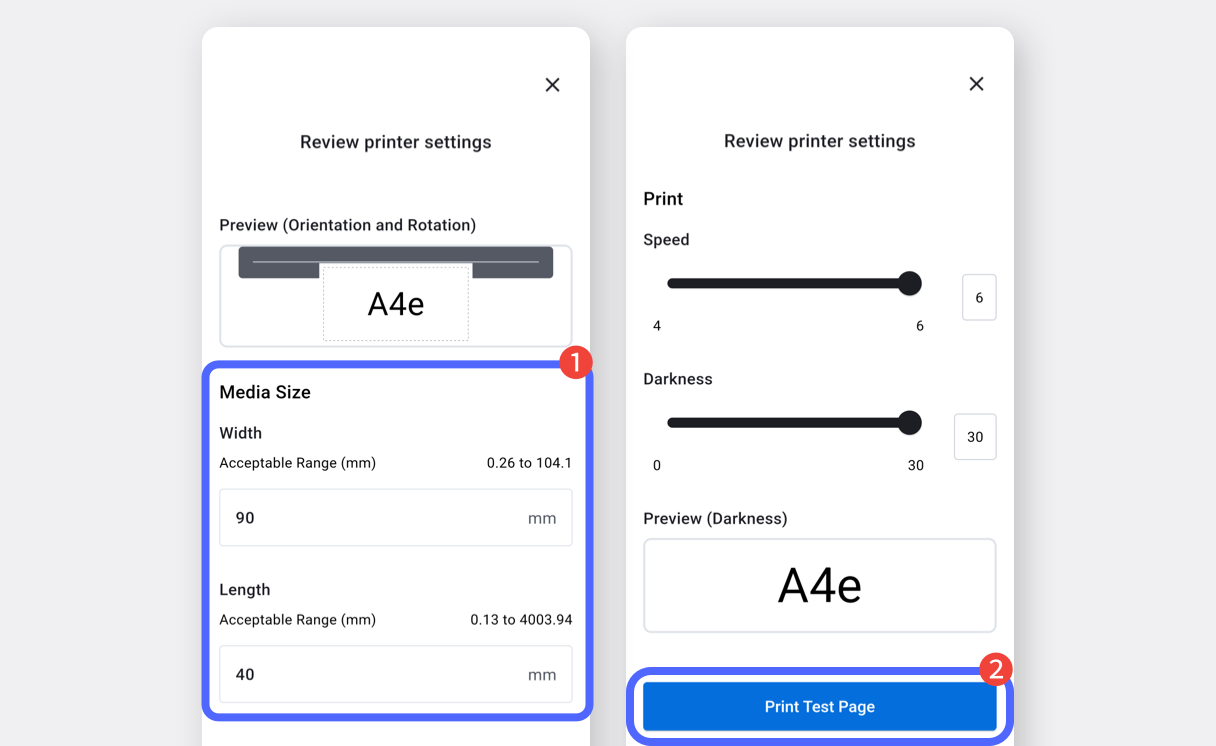
ป้อนขนาดฉลากแล้วแตะ `พิมพ์หน้าทดสอบ` เพื่อตรวจสอบผลลัพธ์ของฉลาก.

<figure><img src="/files/542e261572203f9f84409d9644a12de1d7f0f610" alt=""><figcaption></figcaption></figure>
{% endstep %}
{% endstepper %}

## II. การพิมพ์ฉลาก

เมื่อกำหนดค่าแอป Zebra Print เรียบร้อยแล้ว คุณสามารถพิมพ์ฉลากจาก BoxHero ได้

{% stepper %}
{% step %}
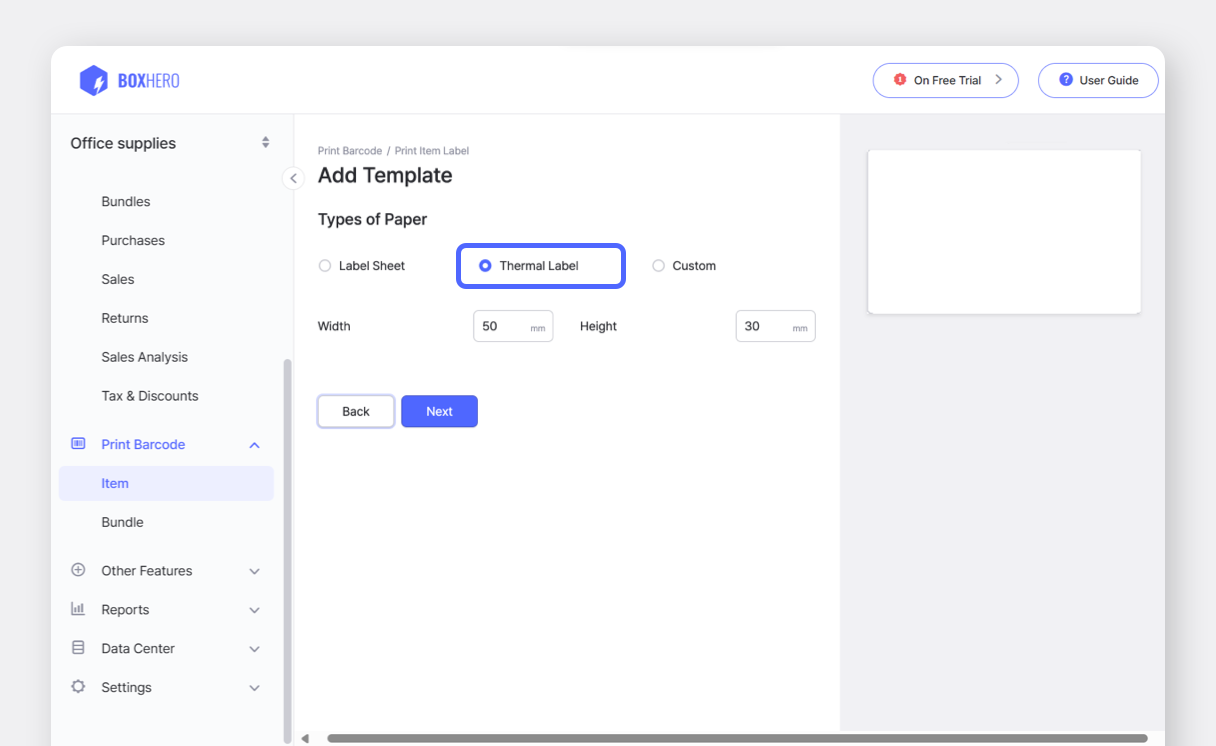
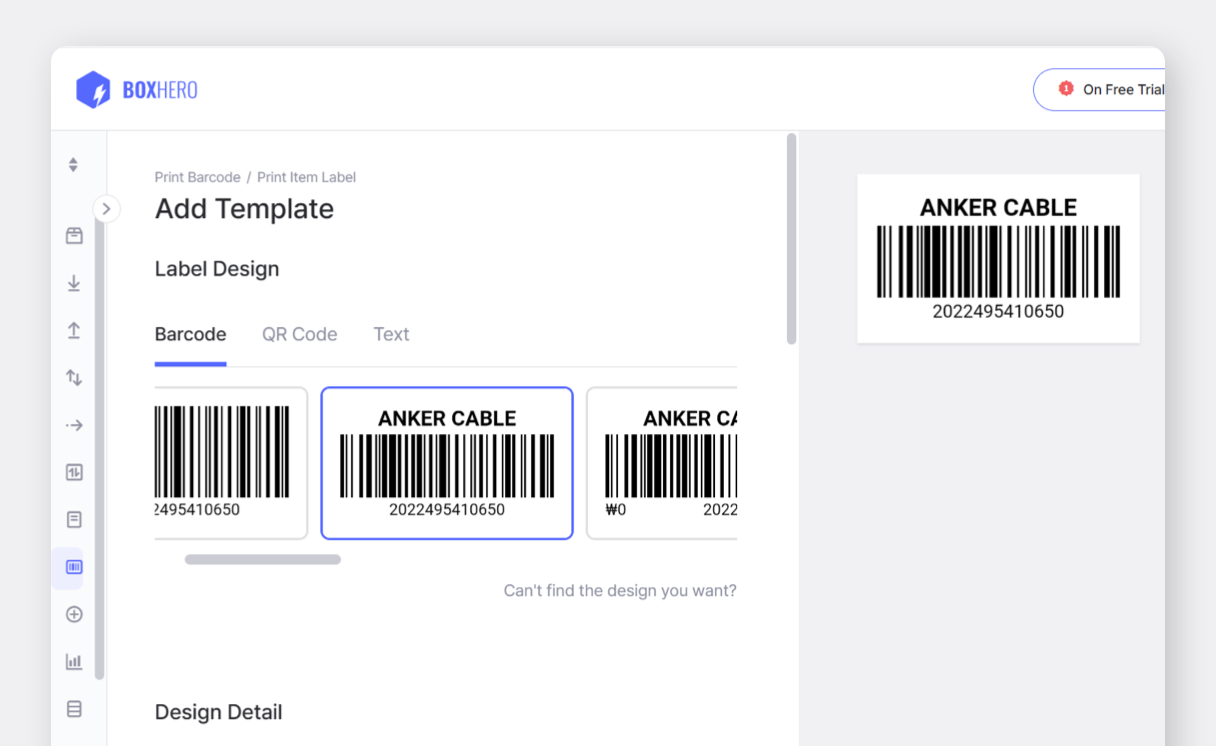
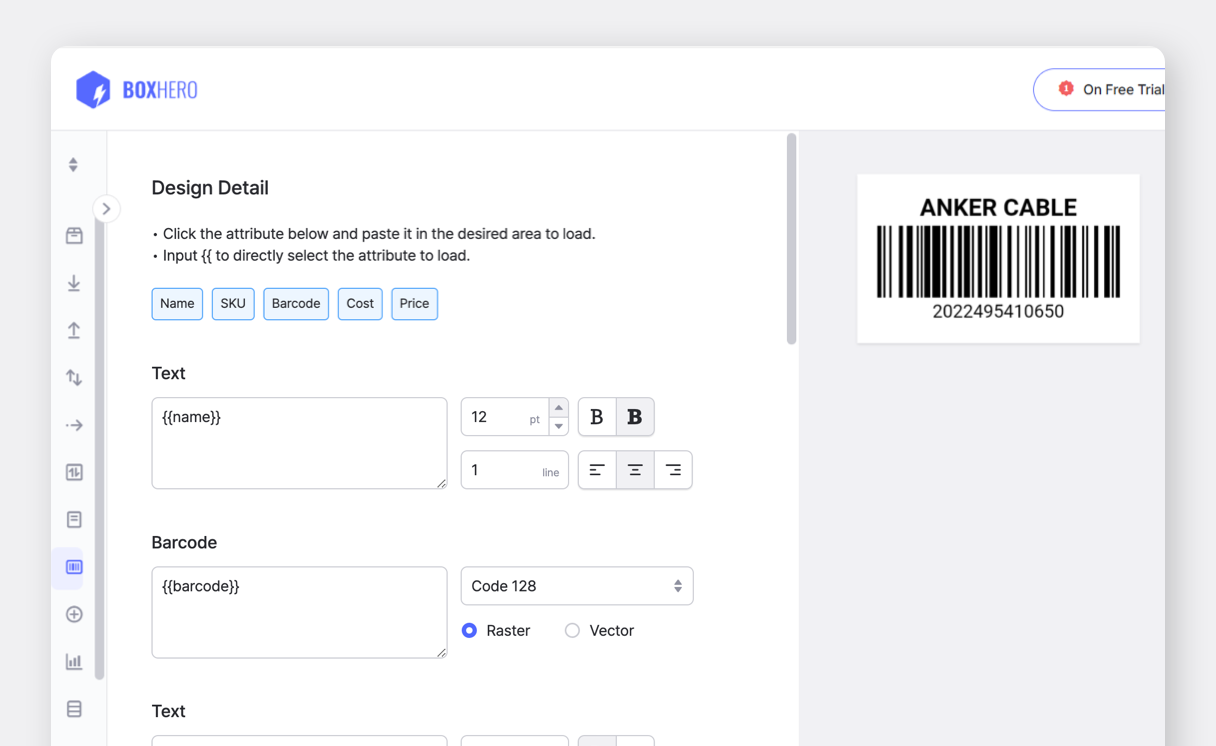
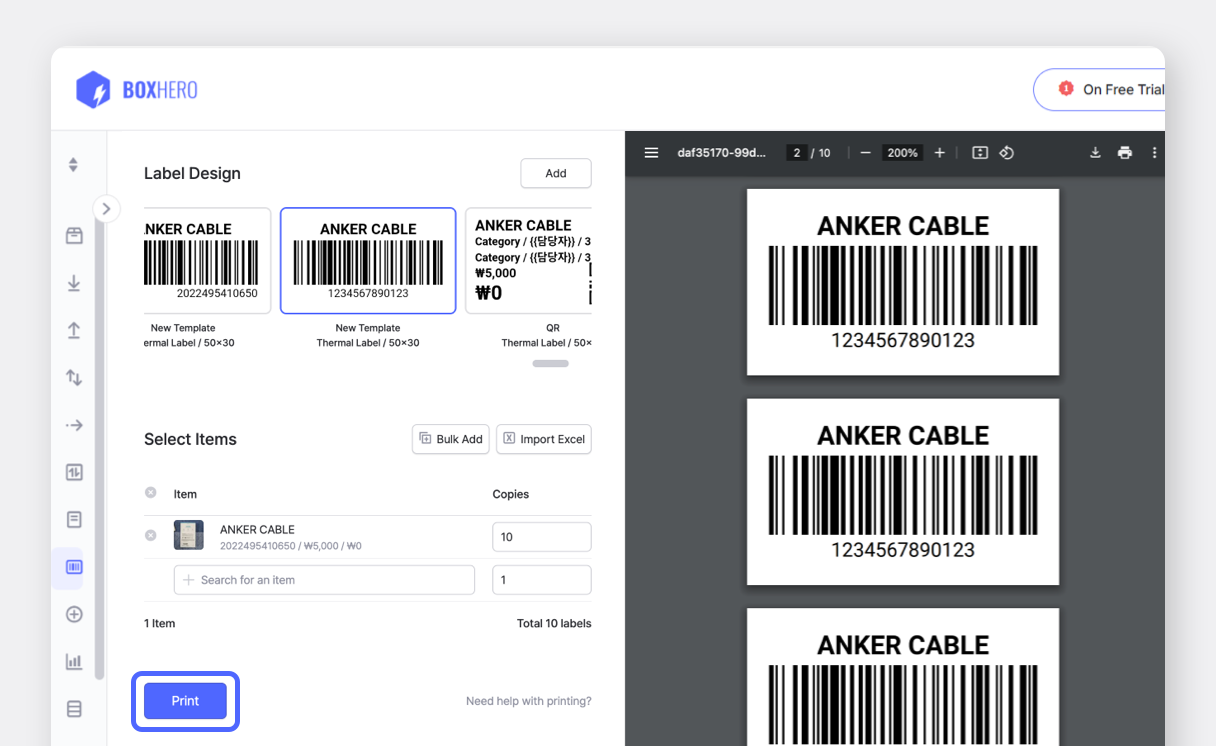
สร้างฉลากบาร์โค้ดบน [แพลตฟอร์มเว็บ](http://app.boxhero.io/) ของ BoxHero (เดสก์ท็อป) ซึ่งสามารถนำไปใช้บนอุปกรณ์มือถือของคุณได้

<figure><img src="/files/64ccd08c37f8a0e995ce193a440d88582cfaddc4" alt=""><figcaption></figcaption></figure>

<figure><img src="/files/fa3c0b127936dbcb0e1616f3bb6067b2d4043501" alt=""><figcaption></figcaption></figure>

<figure><img src="/files/013f2e69b55fa9dc7ad736baf281944eb95b03b0" alt=""><figcaption></figcaption></figure>

<figure><img src="/files/9578ee98aa299e2df1405f9da8c03898366eb3a1" alt=""><figcaption></figcaption></figure>

{% hint style="success" %}
ดูข้อมูลเพิ่มเติมเกี่ยวกับการออกแบบฉลากบาร์โค้ด [ที่นี่](https://www.boxhero.io/docs/key-features/print-barcode#create-barcode-labels).
{% endhint %}
{% endstep %}

{% step %}
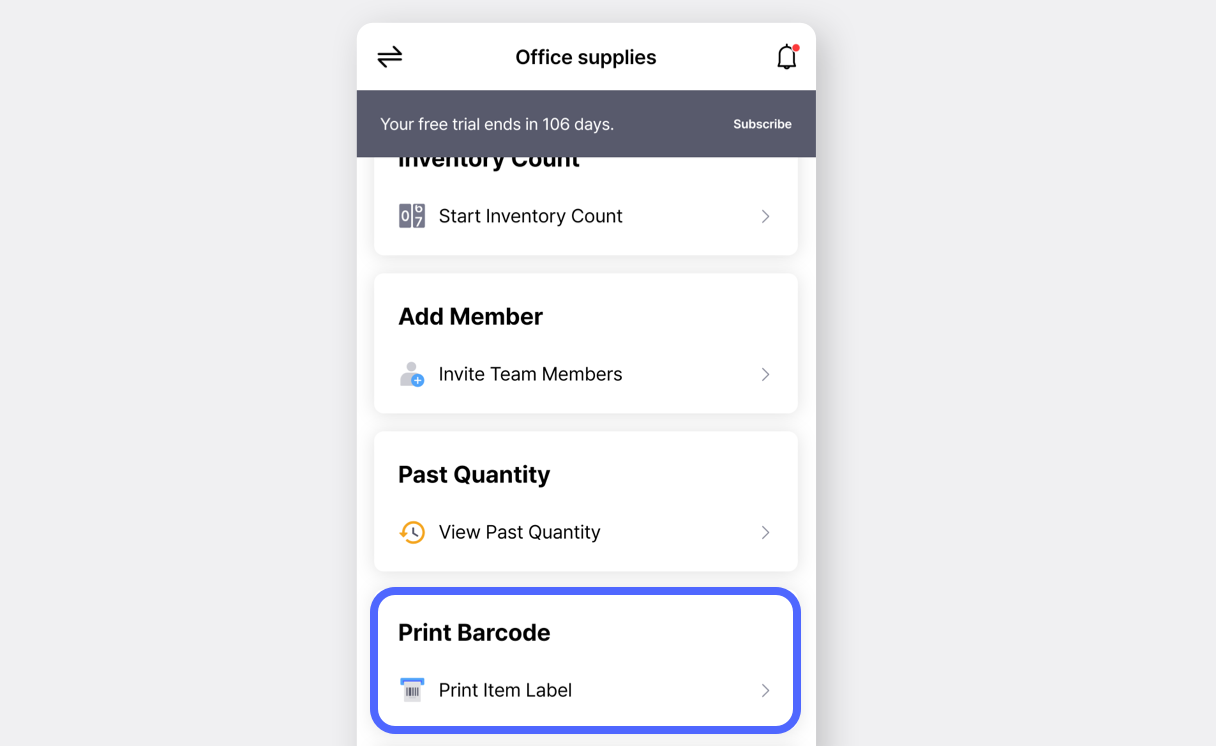
เปิด [แอป BoxHero](https://docs-en.boxhero.io/getting-started#get-the-mobile-app) บนอุปกรณ์มือถือของคุณแล้วแตะ <mark style="color:$primary;">`พิมพ์บาร์โค้ด`</mark> บนหน้าจอหลัก.

<figure><img src="/files/93fc3e2d3c5015e707efd943e1e8f73d0054bb47" alt=""><figcaption></figcaption></figure>
{% endstep %}

{% step %}
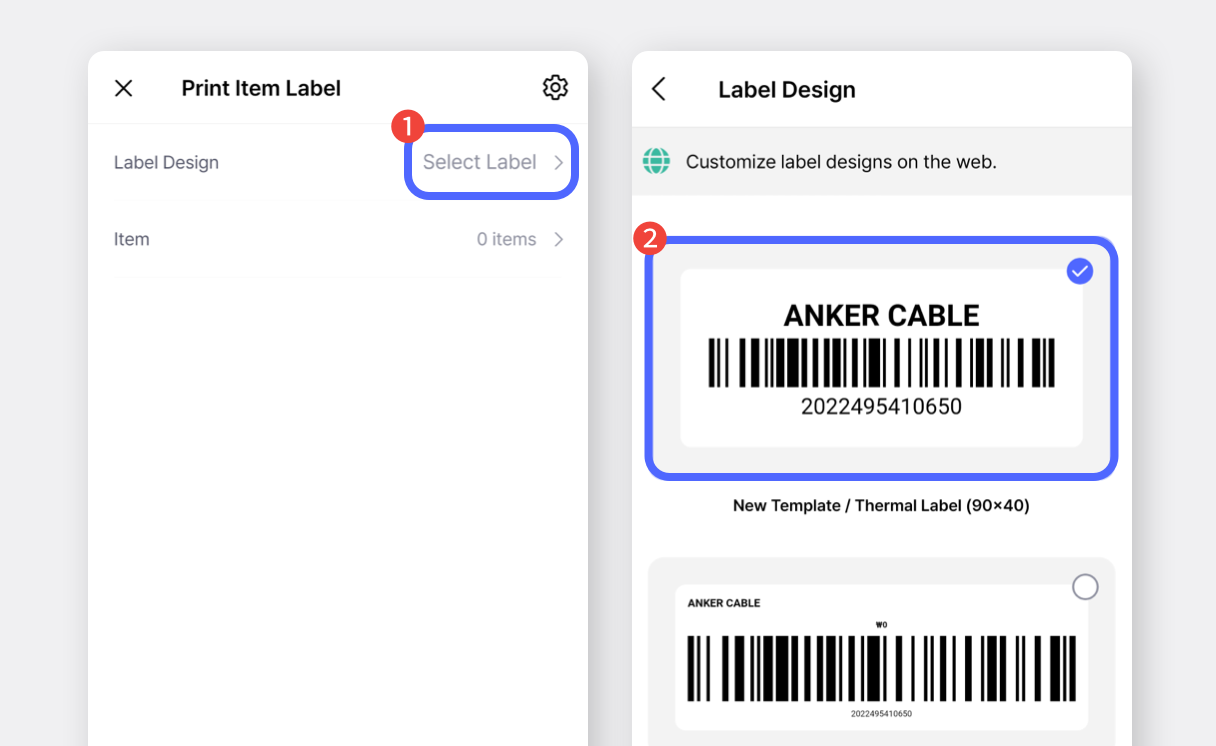
แตะ <mark style="color:$primary;">`เลือกฉลาก`</mark> แล้วเลือกแบบของคุณ.

<figure><img src="/files/4643c8ce5b7078dd336bb05cd20d016bcade84eb" alt=""><figcaption></figcaption></figure>
{% endstep %}

{% step %}
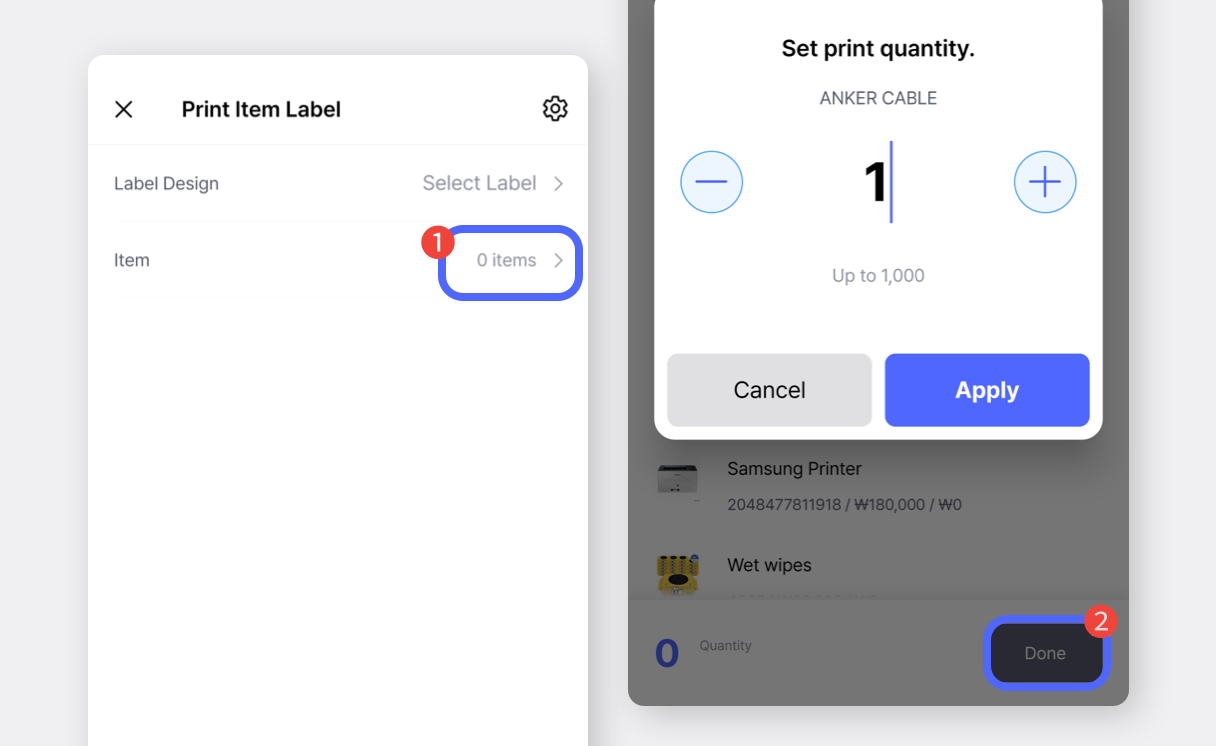
เลือกสินค้าที่จะพิมพ์ ป้อนจำนวนที่ต้องการพิมพ์ แล้วแตะ <mark style="color:$primary;">`เสร็จสิ้น`</mark>.

<figure><img src="/files/80a65938b4d73e608f3edc984c7366945c628790" alt=""><figcaption></figcaption></figure>
{% endstep %}

{% step %}
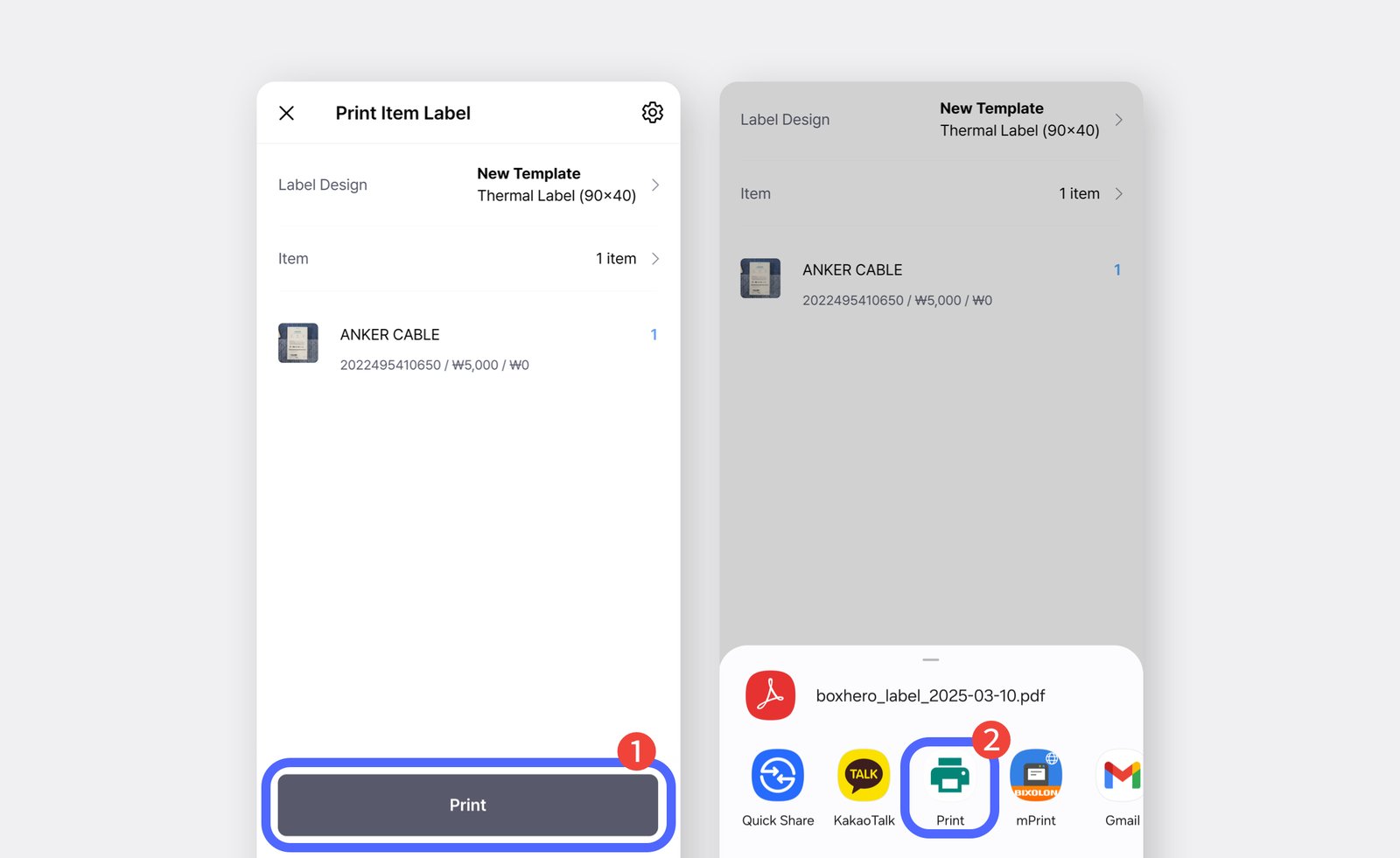
แตะ <mark style="color:$primary;">`พิมพ์`</mark> ปุ่มและเลือก <mark style="color:$primary;">`พิมพ์`</mark> อีกครั้งในหน้าต่างป๊อปอัป.\
(หากไม่พบเครื่องพิมพ์ในรายการ ให้แตะ “**เพิ่มเติม / ตัวเลือกเพิ่มเติม**.”)

<figure><img src="/files/12b0a63ead5051418186454b3ab726938302e97f" alt=""><figcaption></figcaption></figure>
{% endstep %}

{% step %}
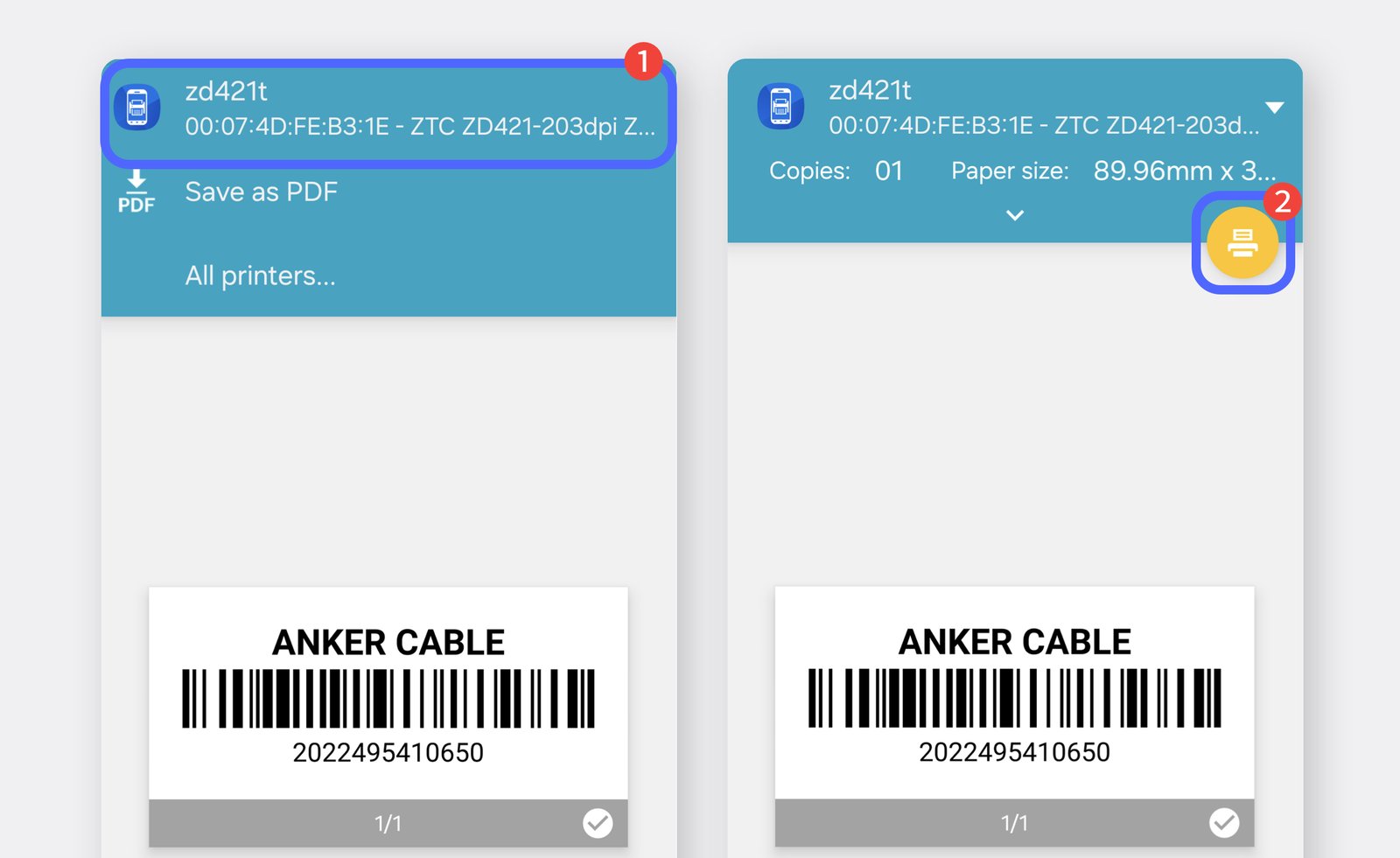
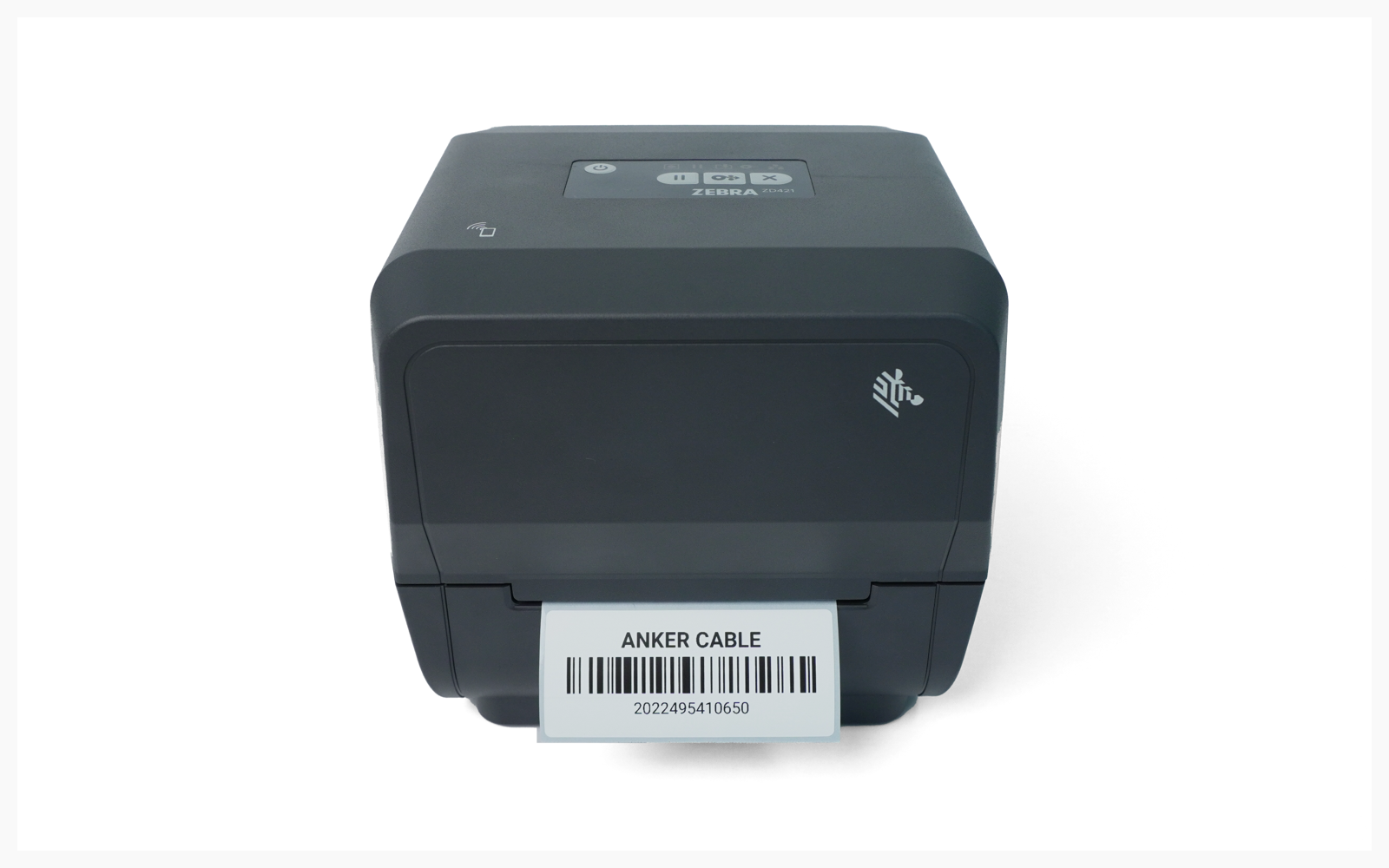
เลือกเครื่องพิมพ์ ZD421T ของคุณ แล้วแตะ **พิมพ์** **ไอคอน** บนหน้าจอถัดไปเพื่อยืนยันการพิมพ์

<figure><img src="/files/e2bbbbfe80381ffed80b95eb587d49d0c43ecb2d" alt=""><figcaption></figcaption></figure>

<figure><img src="/files/61967e24c92f0fb021711270ac7caff7b3c4cada" alt=""><figcaption></figcaption></figure>
{% endstep %}
{% endstepper %}