> For the complete documentation index, see [llms.txt](https://www.boxhero.io/docs/llms.txt). Markdown versions of documentation pages are available by appending `.md` to page URLs; this page is available as [Markdown](https://www.boxhero.io/docs/documentation/th/integrations/slack.md).

# Slack

<figure><img src="/files/205ddbaa33b37074fa5220e0431884bf6b1663d5" alt=""><figcaption></figcaption></figure>

***

## เชื่อมต่อ BoxHero กับ Slack

* **อัปเดตแบบเรียลไทม์**: รับการแจ้งเตือนเกี่ยวกับกิจกรรมสินค้าคงคลังได้ทันที (รับเข้า / เบิกออก / ปรับ / ย้าย).
* **การสื่อสารที่ดียิ่งขึ้น**: ให้ทุกคนในทีมของคุณรับทราบข้อมูลโดยไม่ต้องสลับไปมาระหว่างแพลตฟอร์ม
* **การแจ้งเตือนที่ปรับแต่งได้**: กรองและเลือกการแจ้งเตือนที่คุณต้องการรับเพื่อให้ได้ข้อมูลอัปเดตตรงเวลา

***

## วิธีตั้งค่า

1. **เข้าสู่ระบบ BoxHero**: เริ่มต้นด้วยการลงชื่อเข้าใช้บัญชี BoxHero ของคุณ
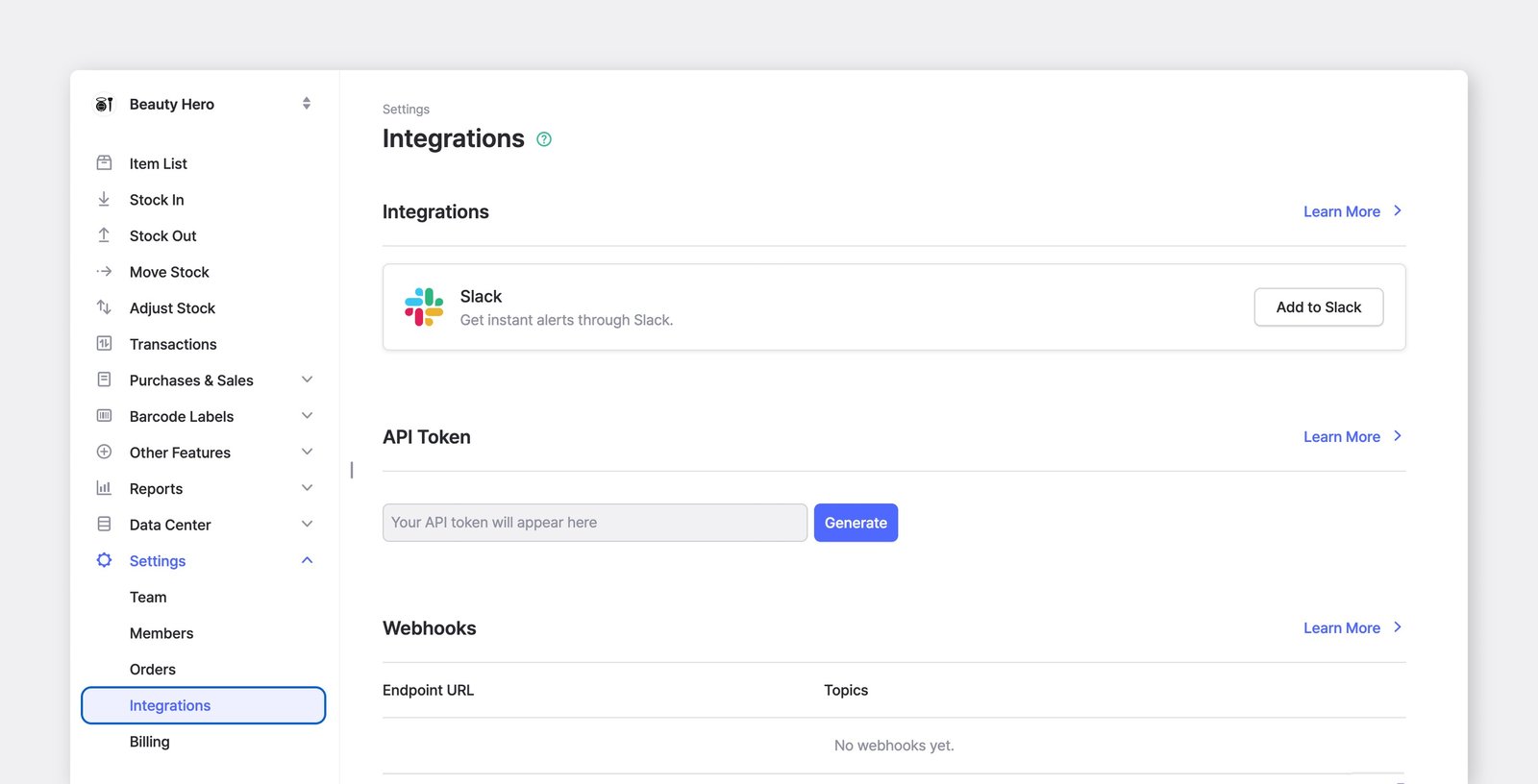
2. **ไปที่การตั้งค่า**: ไปที่ <mark style="color:สีน้ำเงิน;">`การตั้งค่า`</mark> > <mark style="color:สีน้ำเงิน;">`การผสานการทำงาน`</mark>.
3. **อนุญาต Slack**:
   * ใน <mark style="color:สีน้ำเงิน;">`การผสานการทำงาน`</mark> ส่วนนี้ คลิกปุ่ม <mark style="color:สีน้ำเงิน;">`เพิ่มไปยัง Slack`</mark> .
   * คุณจะถูกขอให้ตรวจสอบสิทธิ์การเข้าถึงที่ BoxHero ต้องใช้เพื่อส่งข้อความไปยัง Slack
   * คลิก **อนุญาต** เพื่อให้สิทธิ์ที่จำเป็น
4. **กำหนดค่าการแจ้งเตือน**: เมื่ออนุญาตแล้ว คุณจะถูกเปลี่ยนเส้นทางไปยังหน้าการตั้งค่าการผสานการทำงานใน BoxHero
   * **เลือกช่องทาง Slack**: เลือกตำแหน่งที่การแจ้งเตือนจะแสดงในพื้นที่ทำงาน Slack ของคุณ
   * **เลือกประเภทเหตุการณ์**: ระบุว่าต้องการรับการแจ้งเตือนเกี่ยวกับเหตุการณ์ใดบ้าง (เช่น รับเข้า, เบิกออก)
   * **ตั้งค่าภาษาที่ต้องการ**: เลือกภาษาสำหรับการแจ้งเตือน
   * **บันทึกการตั้งค่า**: ยืนยันการตั้งค่าของคุณโดยคลิก **บันทึก**.
5. **รับการแจ้งเตือน**: เมื่อตั้งค่าเสร็จแล้ว BoxHero จะส่งการแจ้งเตือนไปยังช่องทาง Slack ที่คุณกำหนดทุกครั้งที่เกิดเหตุการณ์ที่ตั้งค่าไว้
<figure><img src="/files/9ce22f61b843c5980977e5d7fef8882dfd7add47" alt=""><figcaption></figcaption></figure>

{% hint style="success" %}
**เคล็ดลับเพิ่มเติม:** หลังจากตั้งค่าแล้ว ให้ทดสอบเหตุการณ์หนึ่งครั้ง (เช่น รับเข้า) เพื่อตรวจสอบว่าการแจ้งเตือนถูกส่งมาถูกต้องตามที่คาดไว้
{% endhint %}

## ประเภทของการแจ้งเตือน

BoxHero มีการแจ้งเตือนประเภทต่อไปนี้บน Slack:

* **รับเข้า**: ส่งเมื่อมีการเพิ่มรายการเข้าไปในสินค้าคงคลังของทีมคุณ
* **เบิกออก**: ส่งเมื่อมีการนำรายการออกจากสินค้าคงคลังของทีมคุณ
* **ย้าย**: ส่งเมื่อมีการโอนรายการไปยังตำแหน่งอื่นในทีมของคุณ
* **ปรับ**: ส่งเมื่อมีการอัปเดตจำนวนรายการในระบบ

#### ตัวอย่างการแจ้งเตือน:

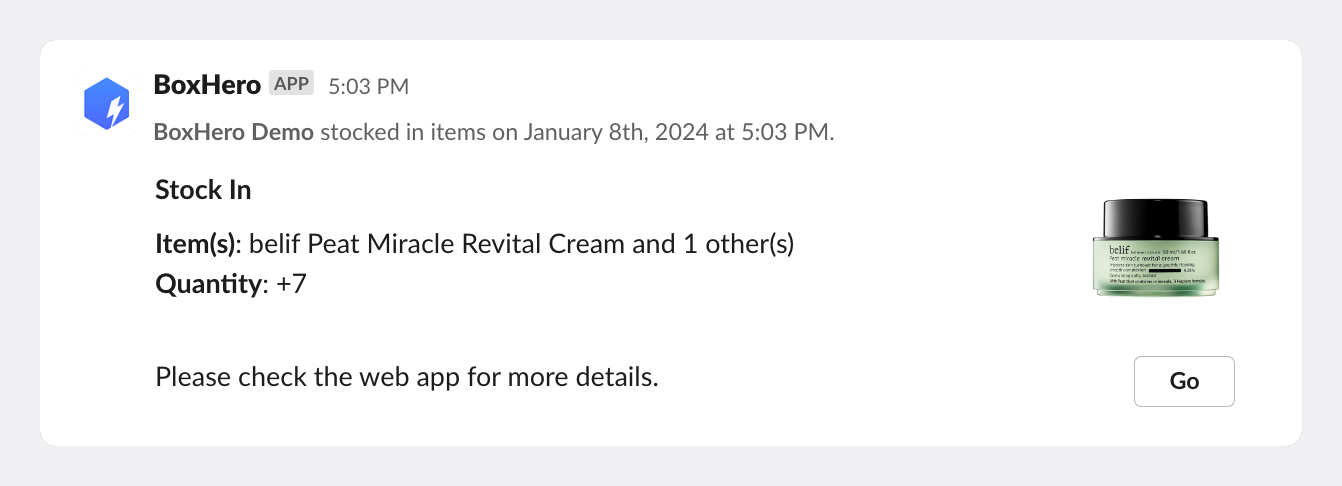
ข้อความ Slack สำหรับเหตุการณ์ <mark style="color:สีน้ำเงิน;">`รับเข้า`</mark> อาจมีลักษณะดังนี้:

<figure><img src="/files/79eaf7c6b582d97ee8fcabaf312fcb37b71caf45" alt=""><figcaption><p>การแจ้งเตือน BoxHero ที่แสดงในช่องทาง Slack</p></figcaption></figure>

***

## นโยบายความเป็นส่วนตัว

[https://www.boxhero.io/privacy](https://www.boxhero.io/en/privacy)

{% hint style="info" %}
หากต้องการทราบข้อมูลเพิ่มเติม โปรดเยี่ยมชม [**Slack Marketplace**](https://bgpworks.slack.com/marketplace/A06AY460J8N-boxhero).
{% endhint %}


---

# Agent Instructions
This documentation is published with GitBook. GitBook is the documentation platform designed so that both humans and AI agents can read, navigate, and reason over technical content effectively. Learn more at gitbook.com.

## Querying This Documentation
If you need additional information that is not directly available in this page, you can query the documentation dynamically by asking a question.

Perform an HTTP GET request on the current page URL with the `ask` query parameter, and the optional `goal` query parameter:

```
GET https://www.boxhero.io/docs/documentation/th/integrations/slack.md?ask=<question>&goal=<endgoal>
```

`ask` is the immediate question: it should be specific, self-contained, and written in natural language.
`goal` is optional and describes the broader end goal you are ultimately trying to accomplish on behalf of the user. GitBook uses it to tailor the answer towards what is most useful for that goal.

The response will contain a direct answer to the question and relevant excerpts and sources from the documentation.

Use this mechanism when the answer is not explicitly present in the current page, you need clarification or additional context, or you want to retrieve related documentation sections.