> For the complete documentation index, see [llms.txt](https://www.boxhero.io/docs/llms.txt). Markdown versions of documentation pages are available by appending `.md` to page URLs; this page is available as [Markdown](https://www.boxhero.io/docs/key-features/purchase-and-sales/bundles.md).
# Bundles
Create product bundles in BoxHero to sell multiple items as one unit. You can add bundles manually or via Excel import for purchase and sales orders.
{% hint style="danger" %}
**Note**: Bundles can *only* be used in [**Purchases & Sales**](/docs/key-features/purchase-and-sales.md).
{% endhint %}
***
## What are Bundles?
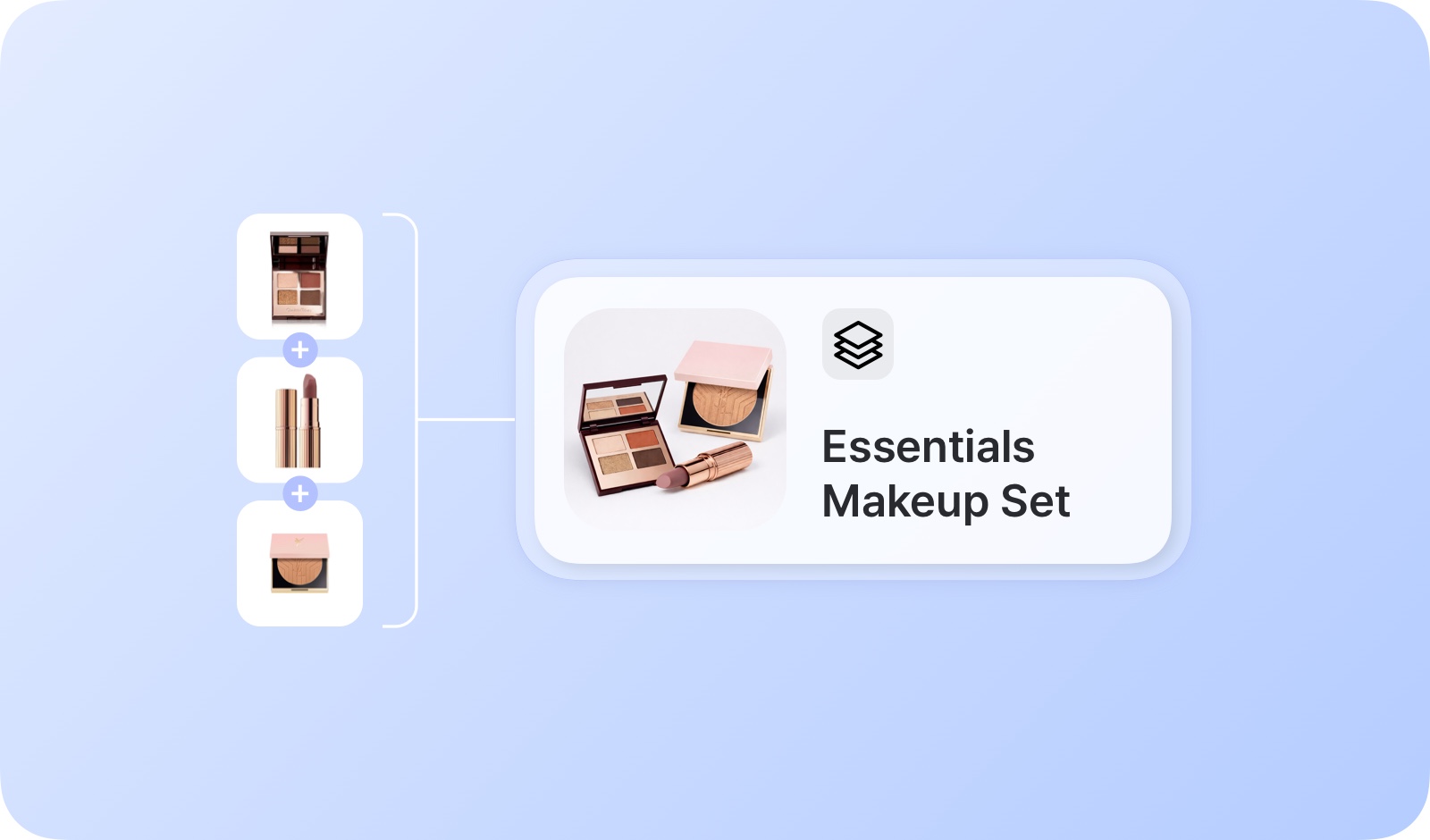
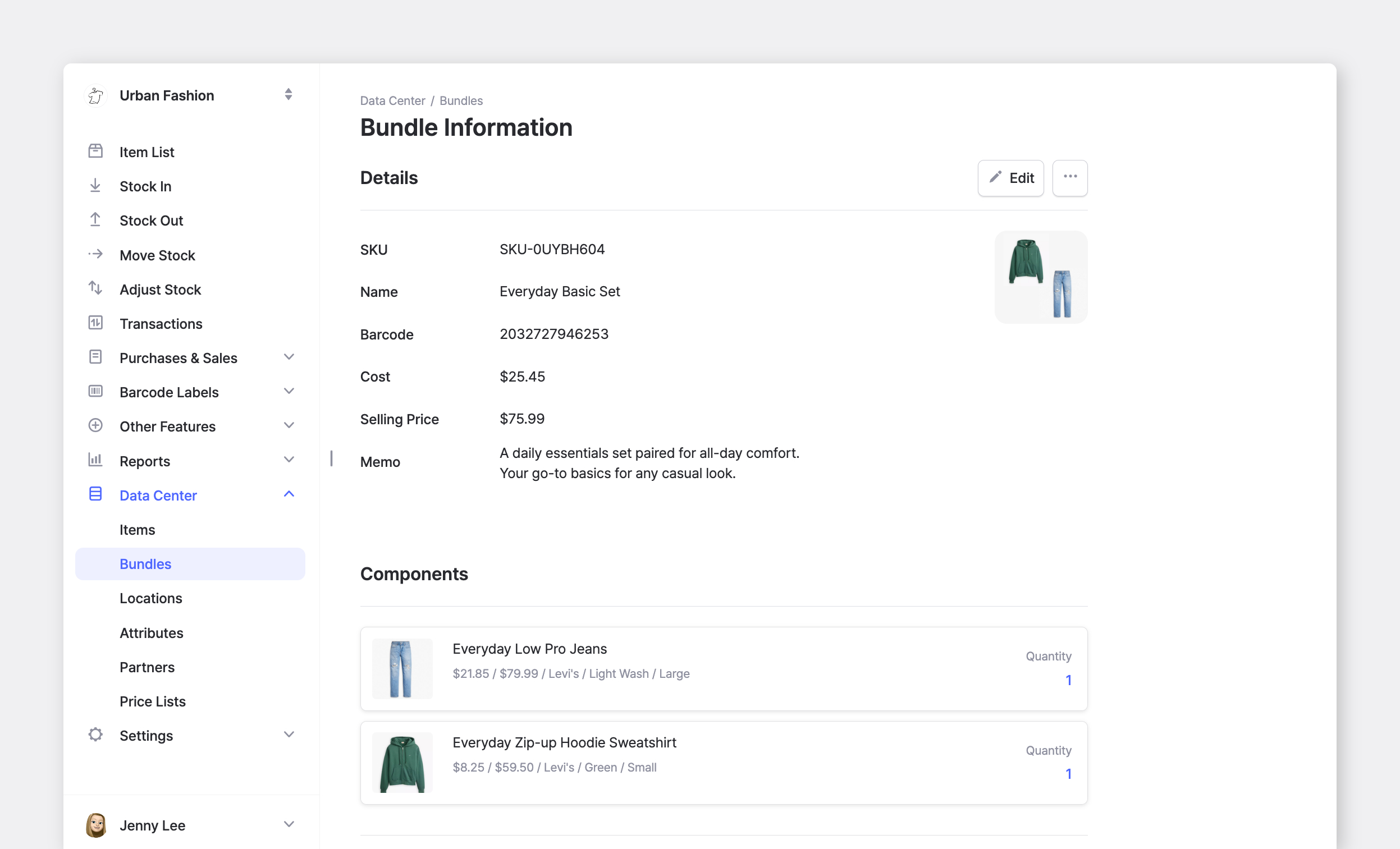
`Bundles` let you group multiple items together and sell or purchase them as a single unit. Each bundle contains a fixed set of component items with specified quantities.
**Common Uses:**
* Gift sets with multiple products
* Starter kits or product packages
* Wholesale packages
* Combo offers
***
## How to Use
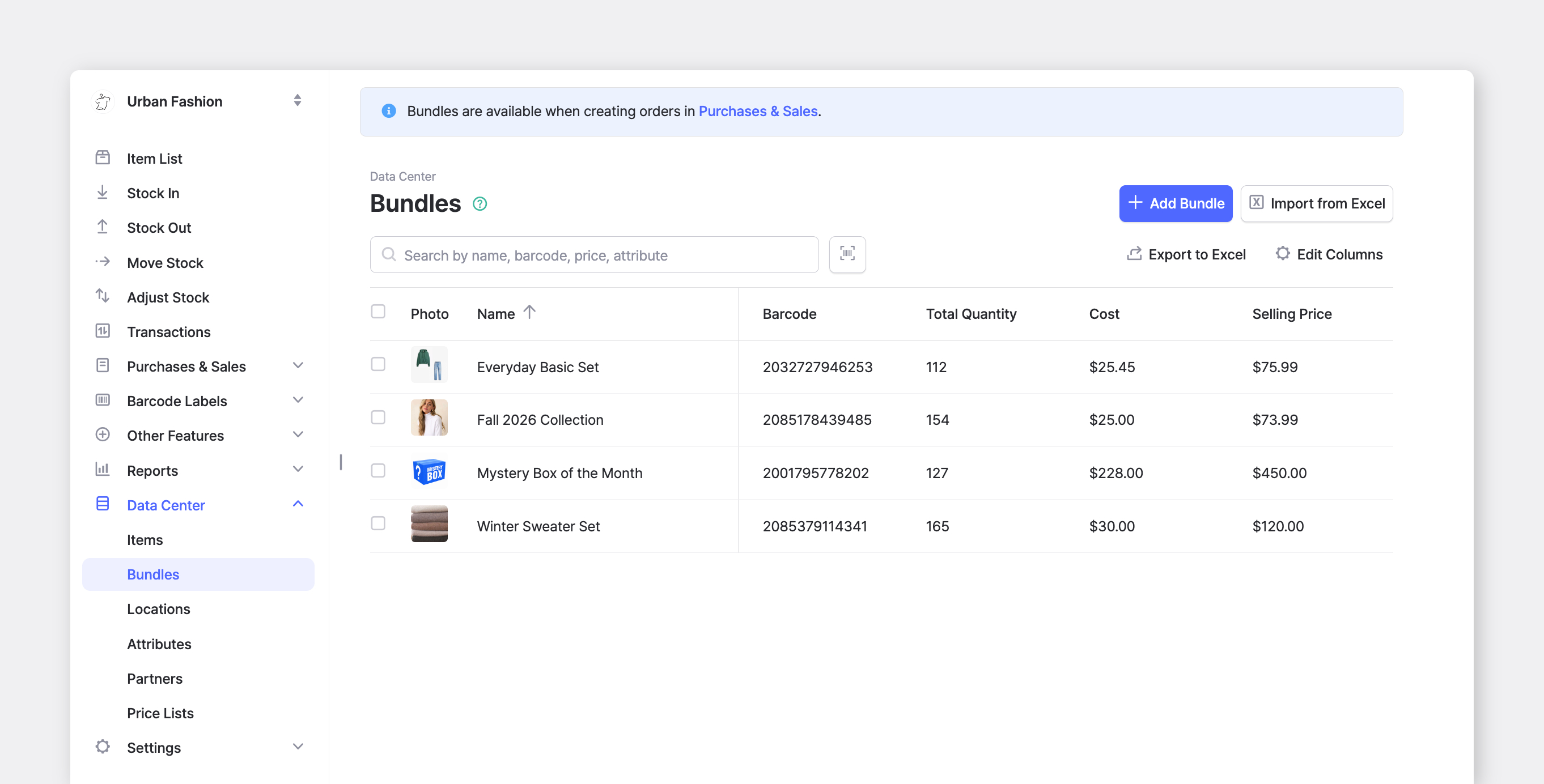
Navigate to `Data Center` > `Bundles` to create and manage your bundles.
Bundles work *only* in [**Purchases & Sales**](/docs/key-features/purchase-and-sales.md):
* ✅ Purchase Orders
* ✅ Sales Orders
Bundles **cannot** be used directly in [**Inventory Transactions**](/docs/key-features/tx.md)**:**
* ❌ Stock In
* ❌ Stock Out
* ❌ Move Stock
* ❌ Adjust Stock
{% hint style="info" %}
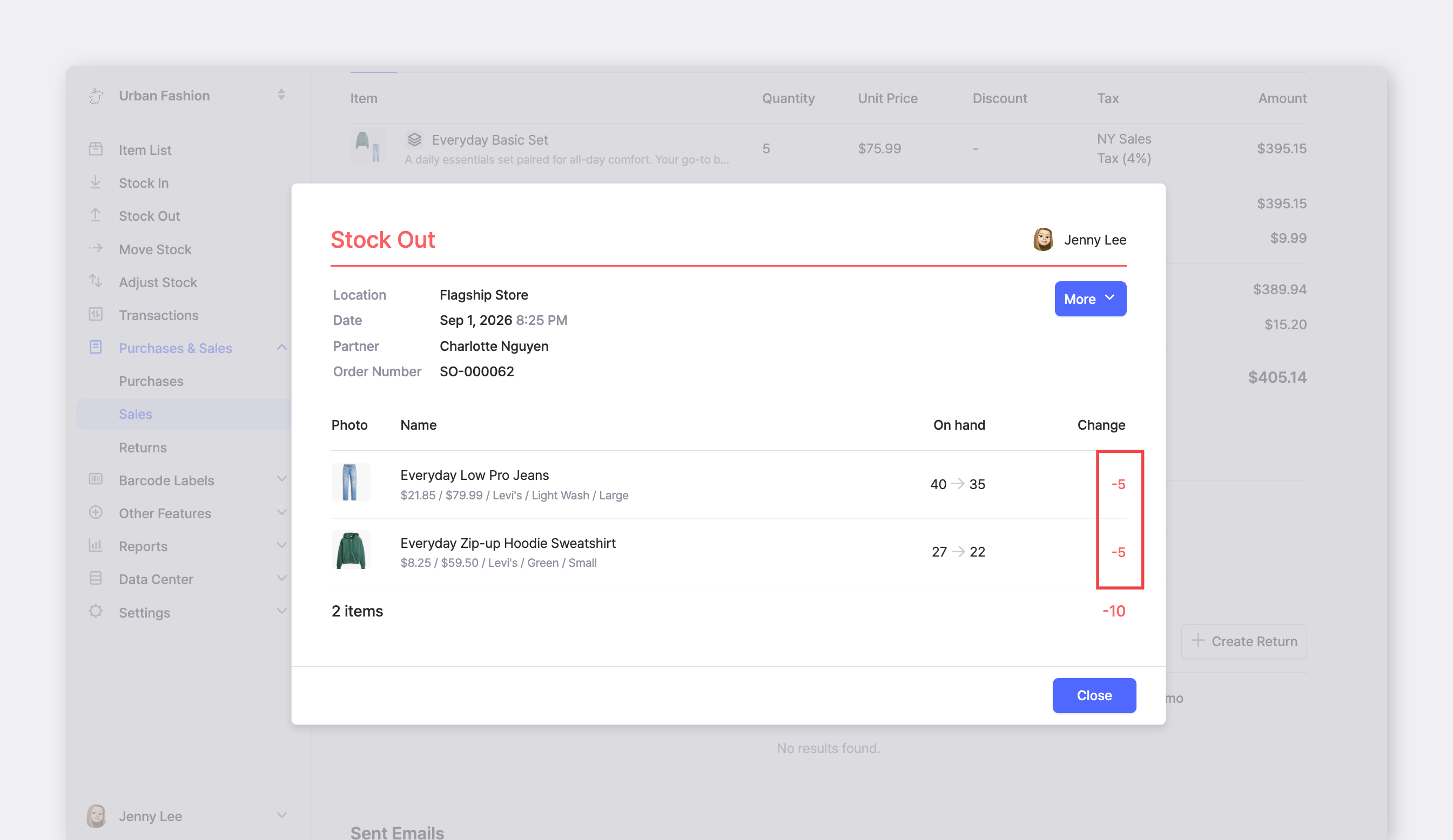
Inventory is always tracked at the **individual** **item** level. When you process a bundle in an order, BoxHero automatically updates stock quantities for each component item.
{% endhint %}
***
### Add Bundles
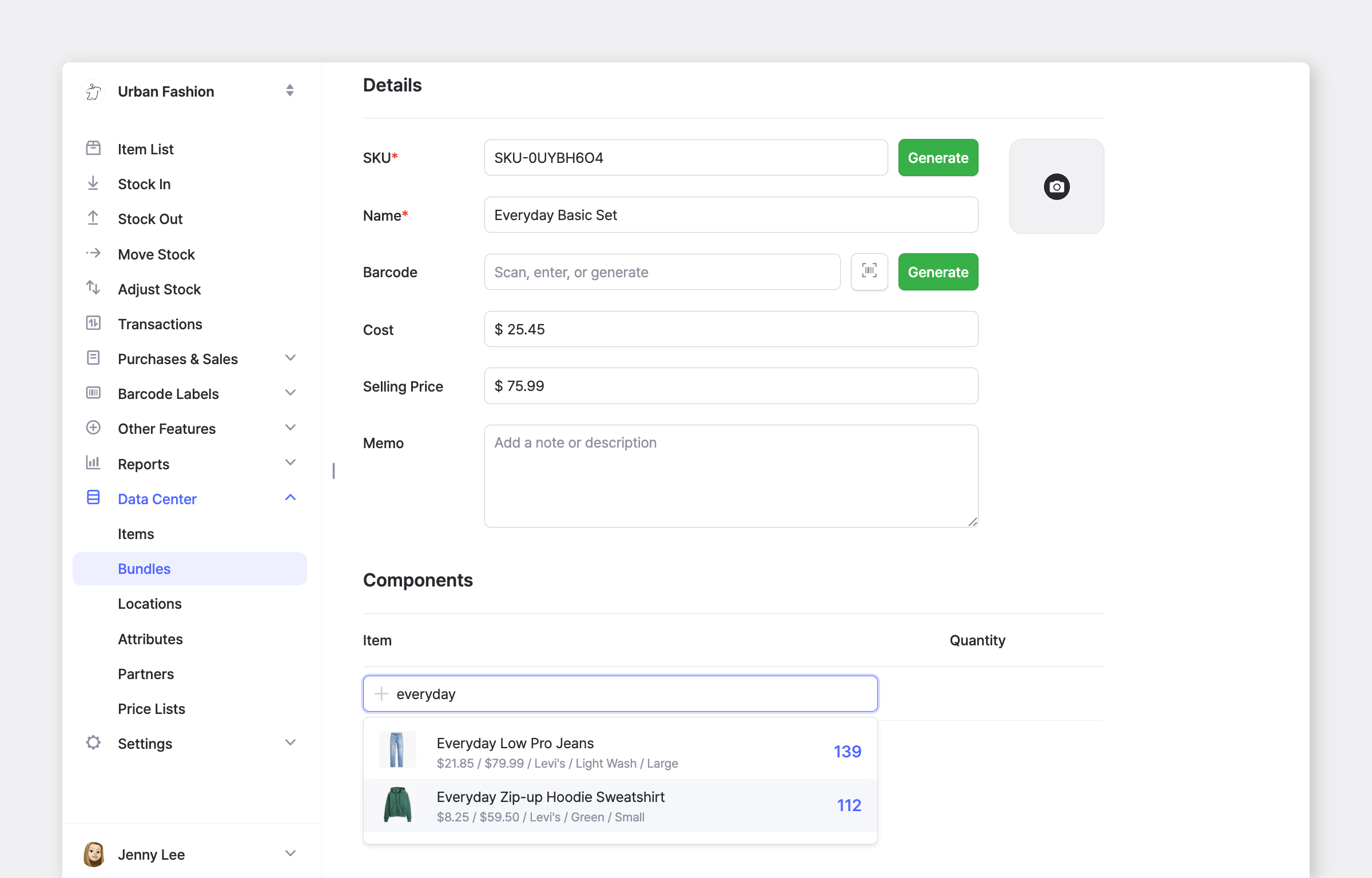
1. Go to `Data Center` > `Bundles`.
2. Click `+ Add Bundle`.
3. Enter the bundle details, including a name and SKU.
4. Link the component items and set the quantity for each.
5. Click `Save`.
{% hint style="success" %}
Once saved, the new bundle can be added to purchase and sales orders as a single line item.
{% endhint %}
***
### Add Bundles via Excel
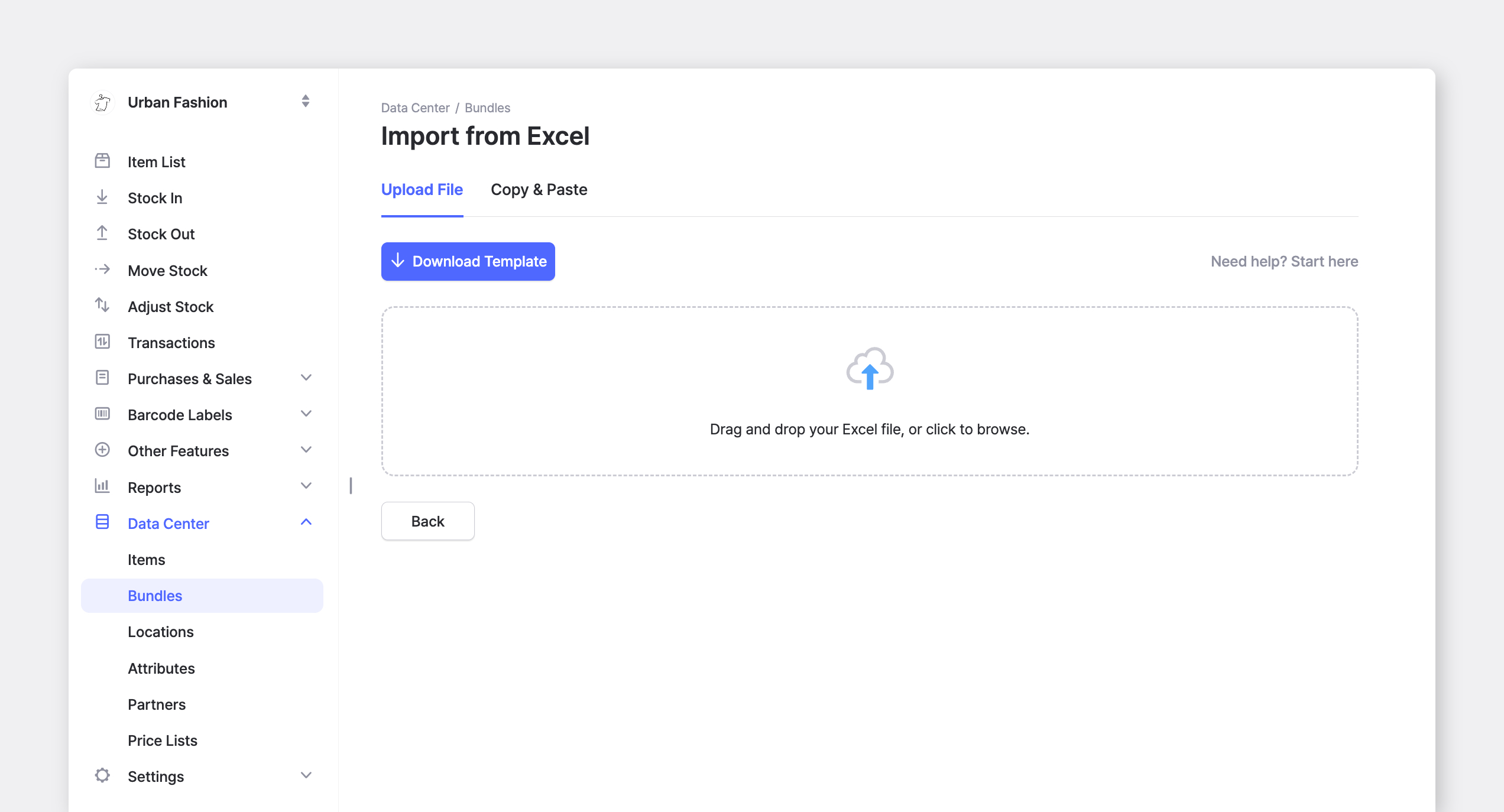
If you need to create multiple bundles at once, you can upload them using an Excel file. In the top-right corner, click `Import from Excel` and download the template.
When filling out the file:
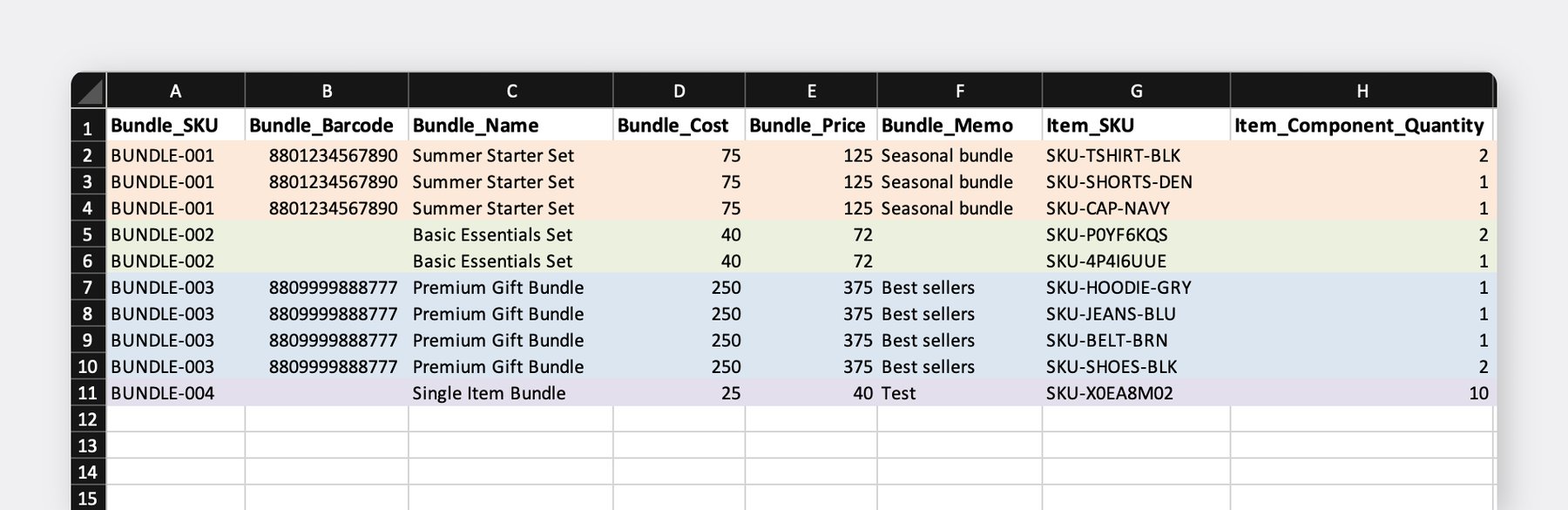
* Enter bundle SKUs manually. They are *not* generated automatically.
* Use one row per component item.
* For rows that belong to the same bundle, columns **A** through **F** must be identical.
* Only the component item SKU and quantity should differ for each row.
After uploading the file, the bundles and their item relationships will be created.
***
### Use Bundles in Orders
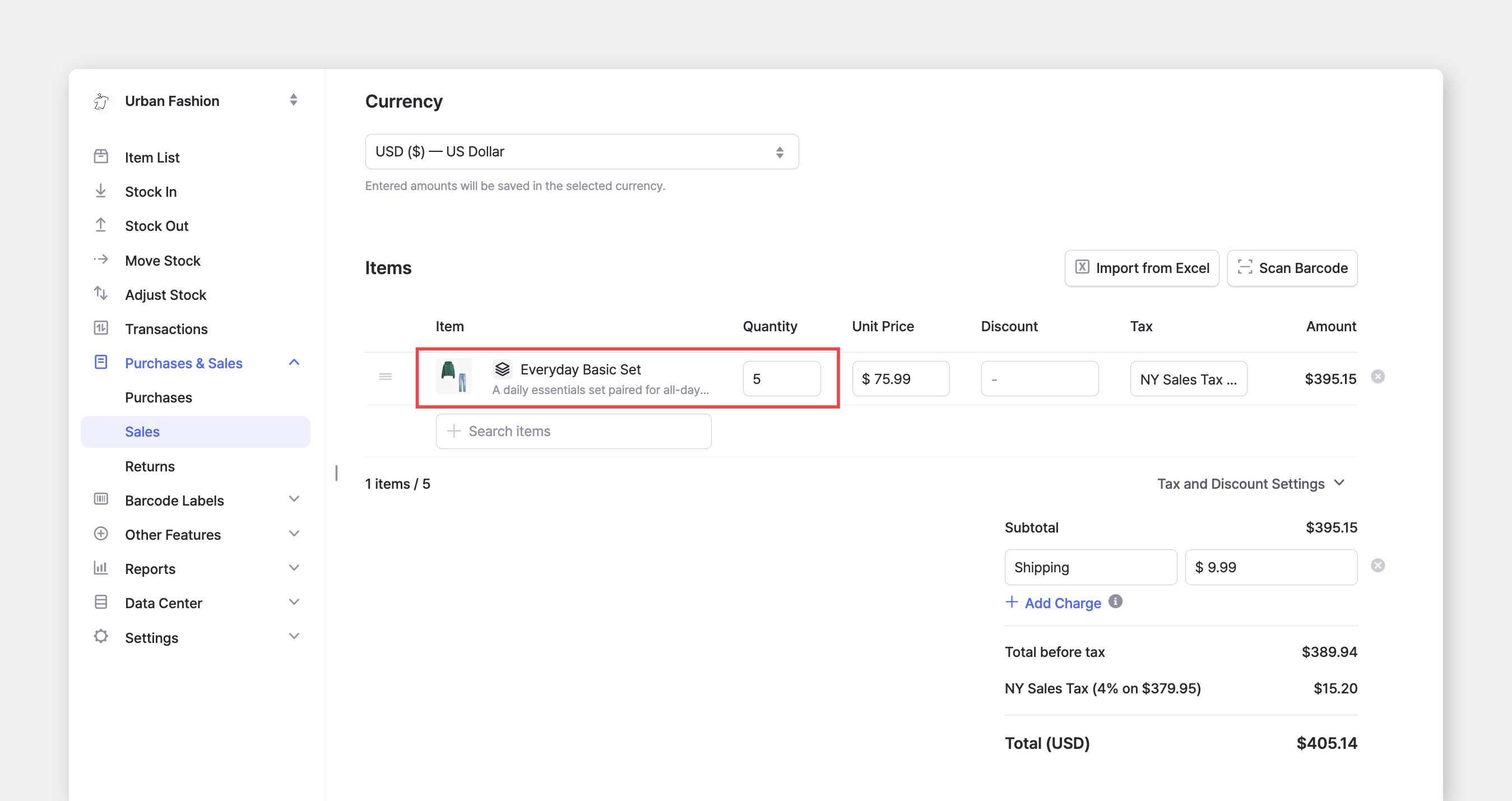
Bundles can be added to purchase and sales orders just like regular items. When a bundle is sold, stock quantities of its component items are adjusted accordingly.
{% hint style="info" %}
If a sales order is partially shipped, shipment details will show the individual items included in the bundle rather than the bundle *itself*.
{% endhint %}
In your team's `Transactions` history, bundle activity from a purchase or sales order will be displayed at the item level.