Desktop Printing
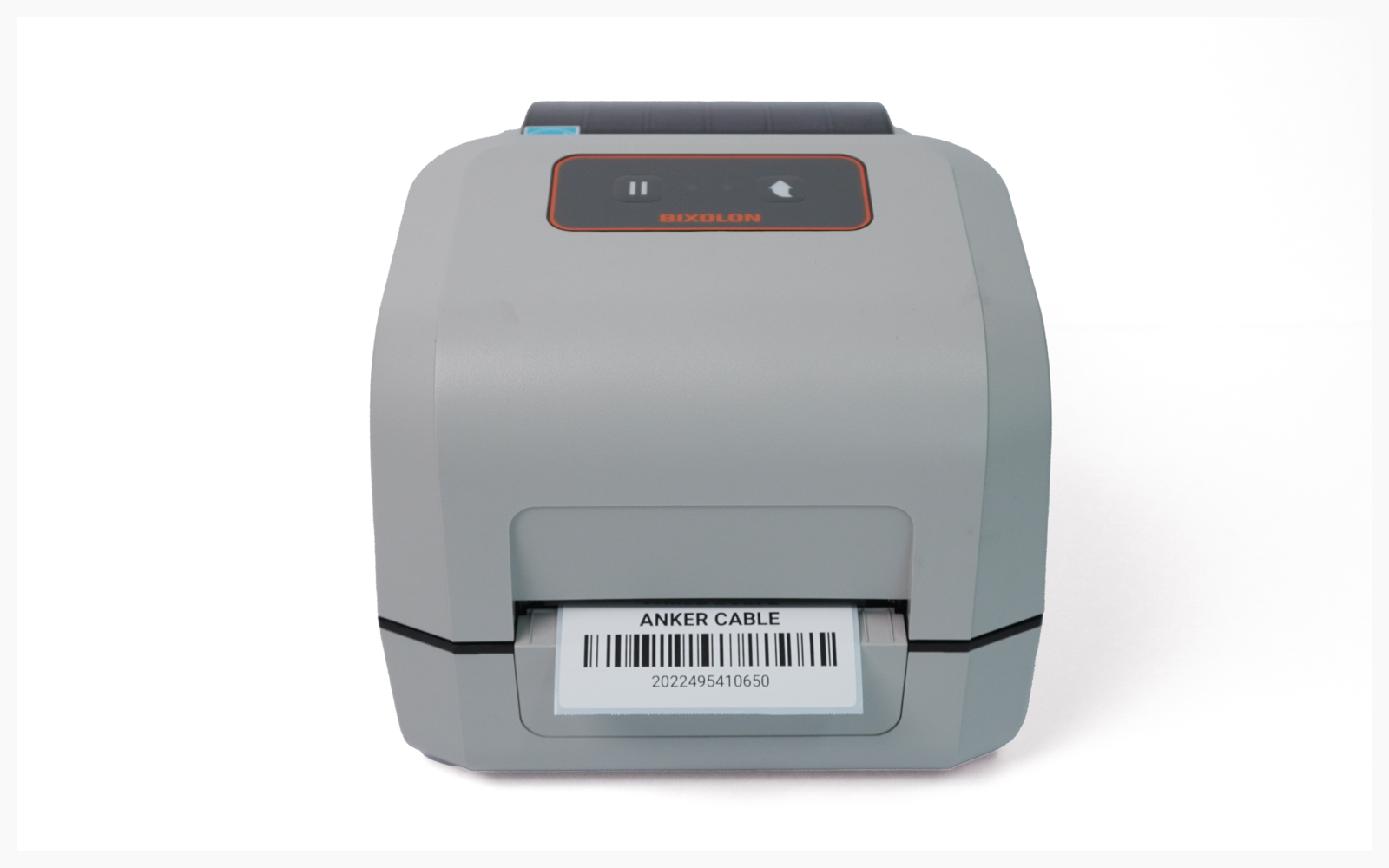
How to print from your computer once the BIXOLON XD5-40 is set up.
I. Driver Installation
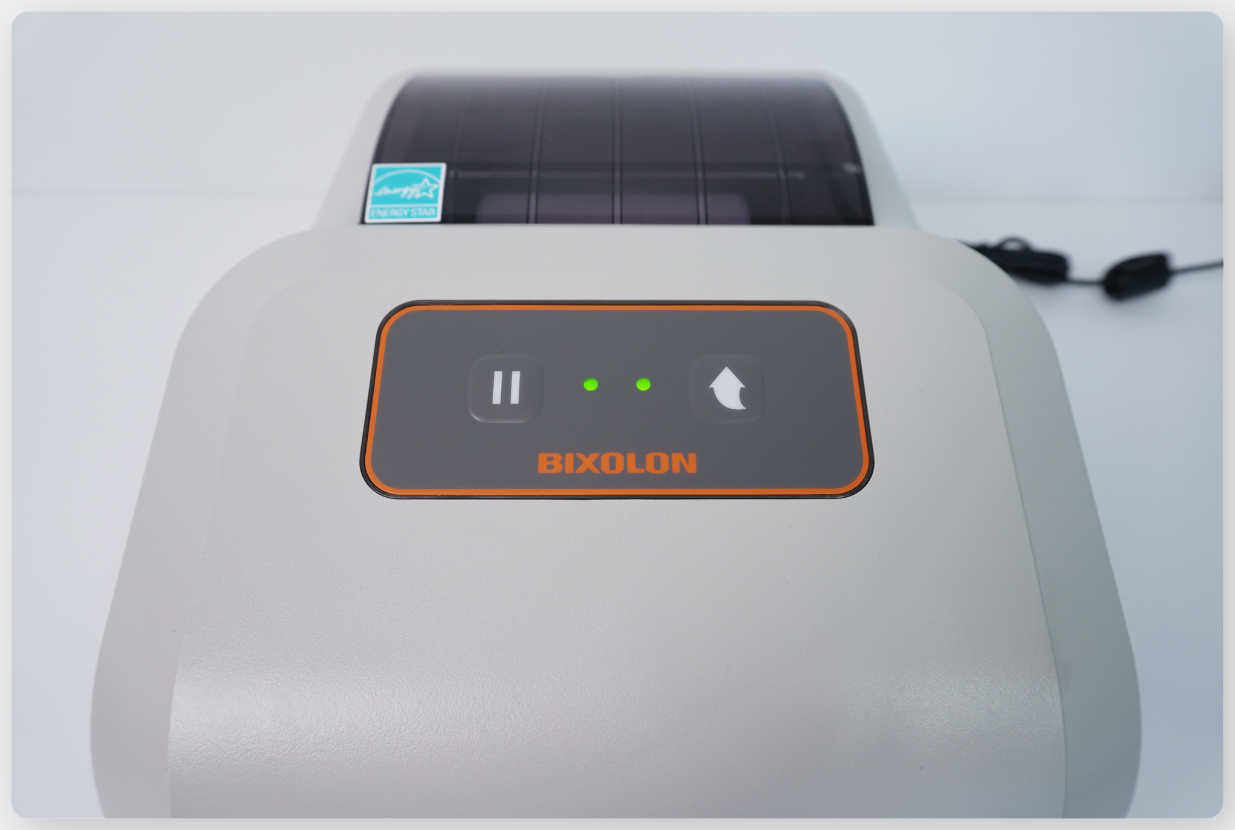
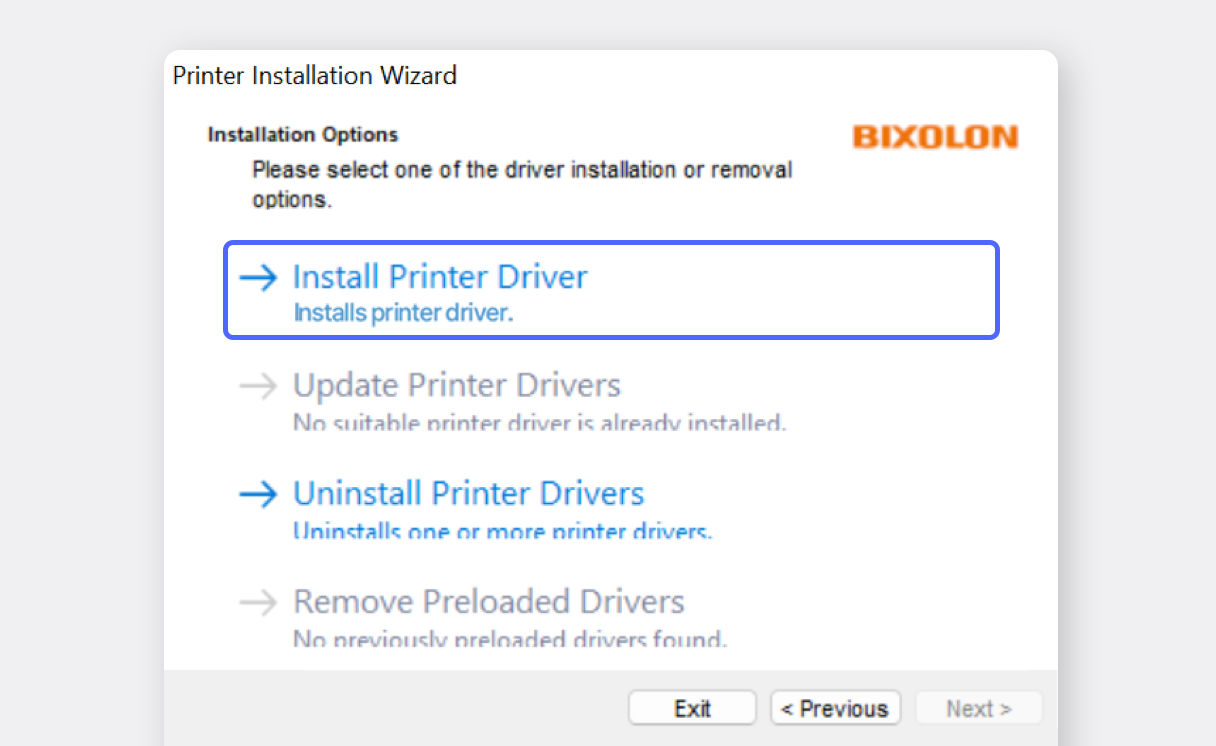
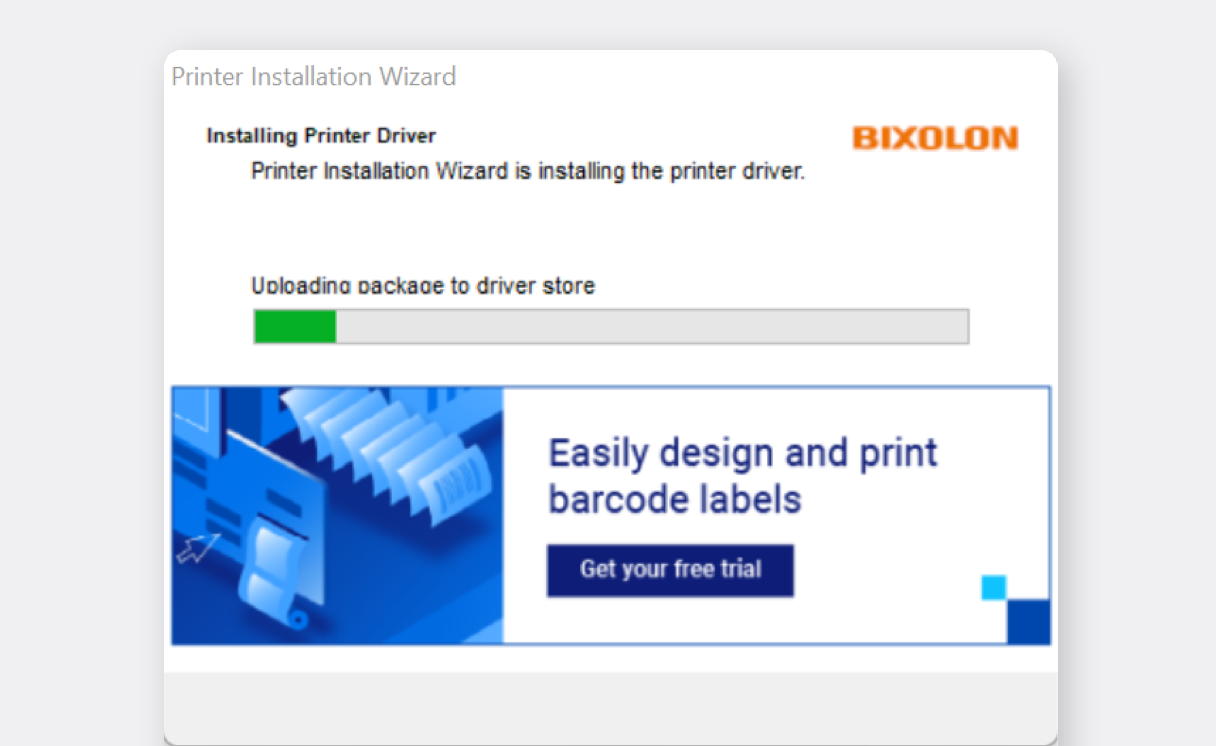
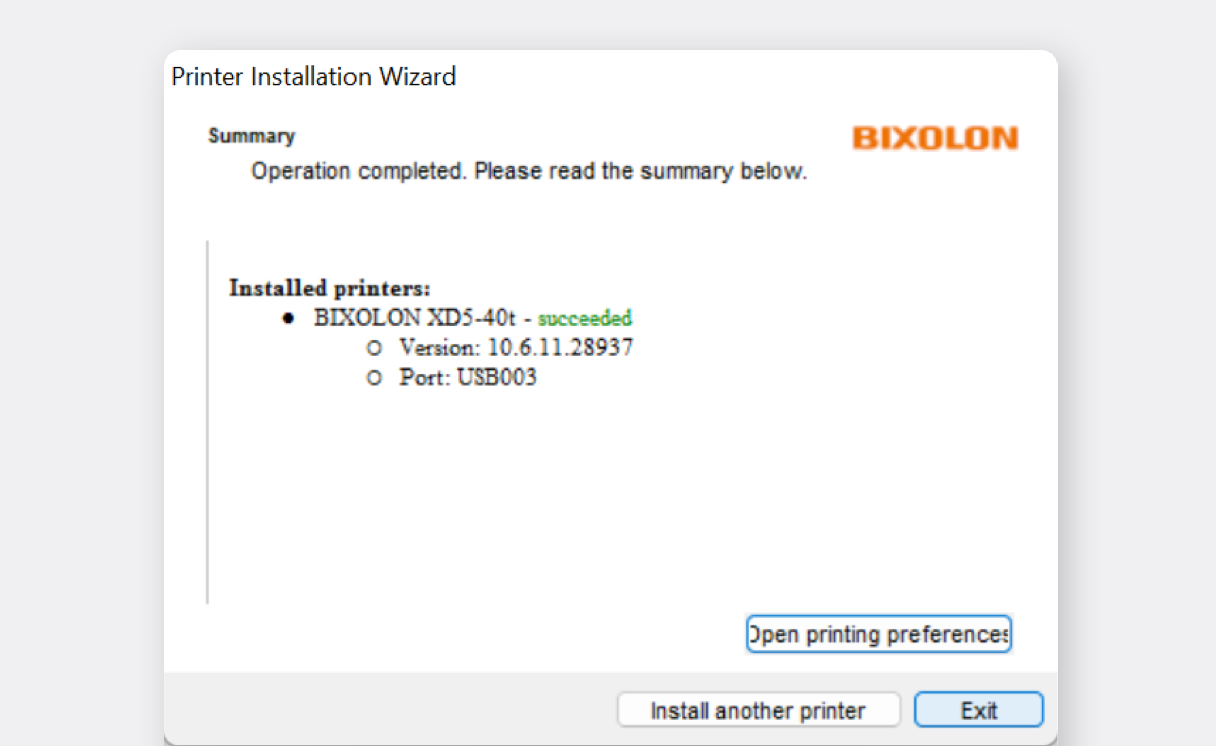
Section titled “I. Driver Installation”Connect the USB cable between the label printer and your PC.
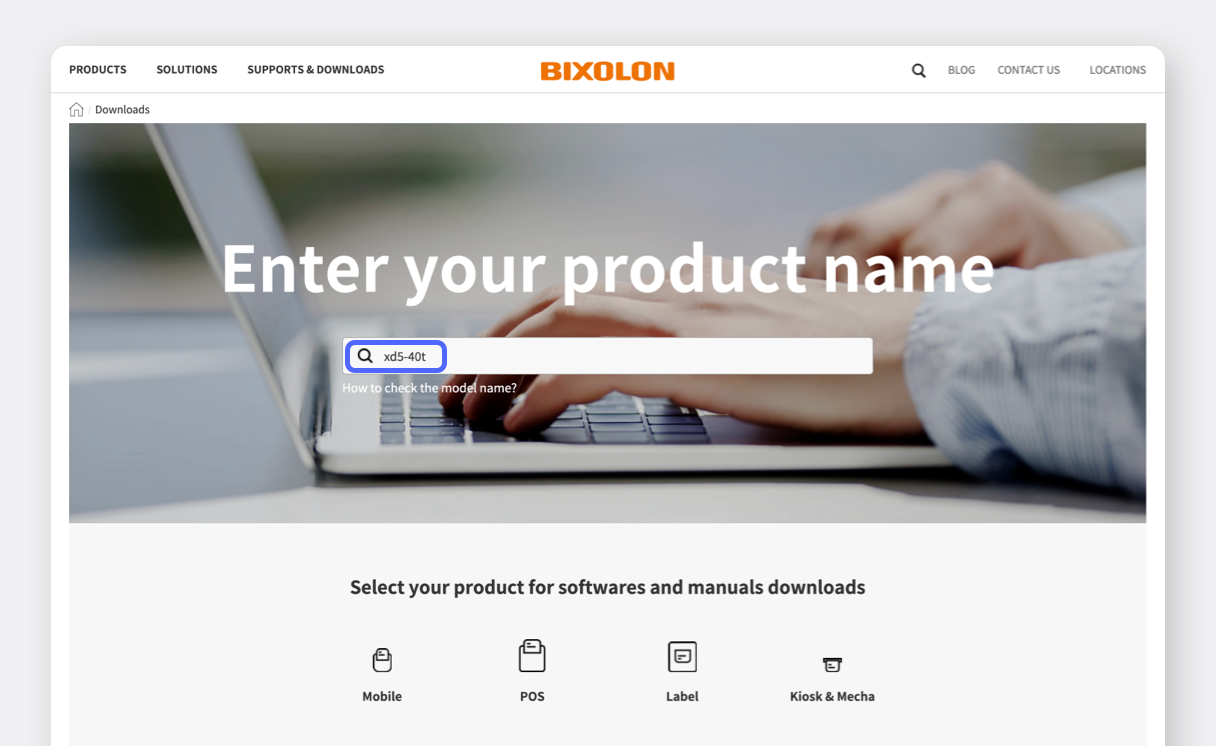
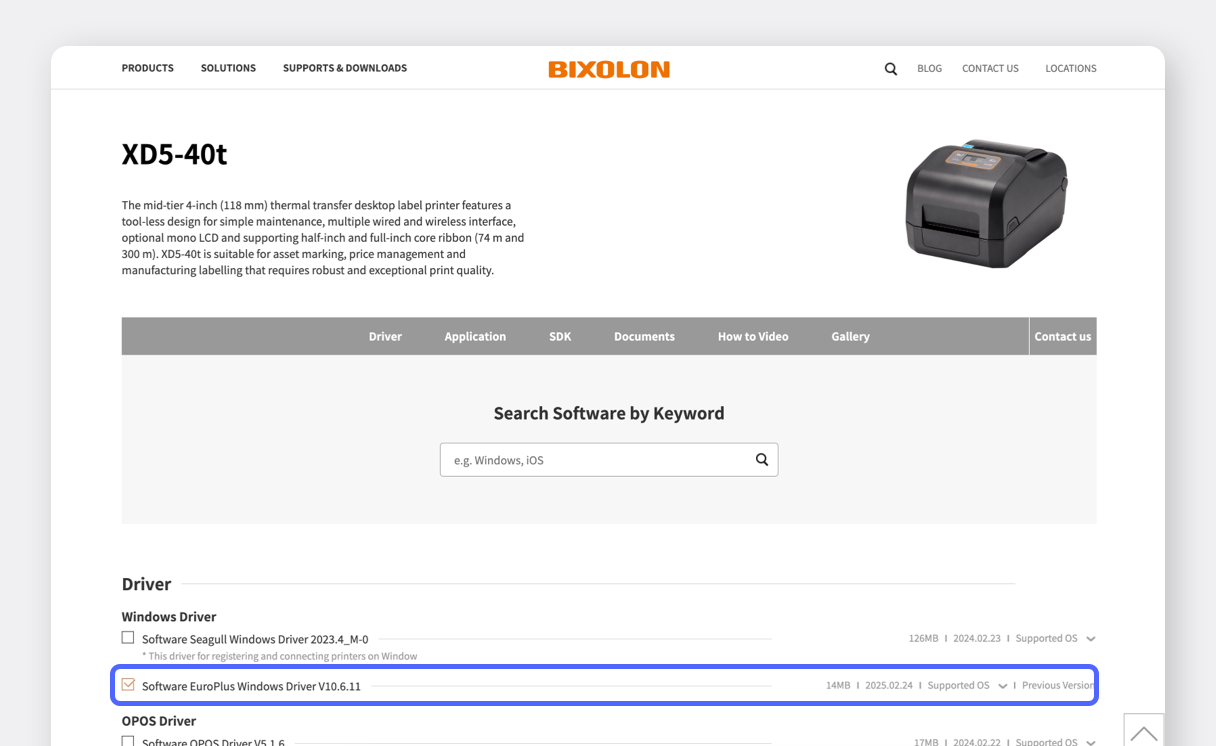
Download the Windows driver from the BIXOLON official website.
Now you need to set the paper size in the printer settings. Go to
Bluetooth & devices>Printers & scanners.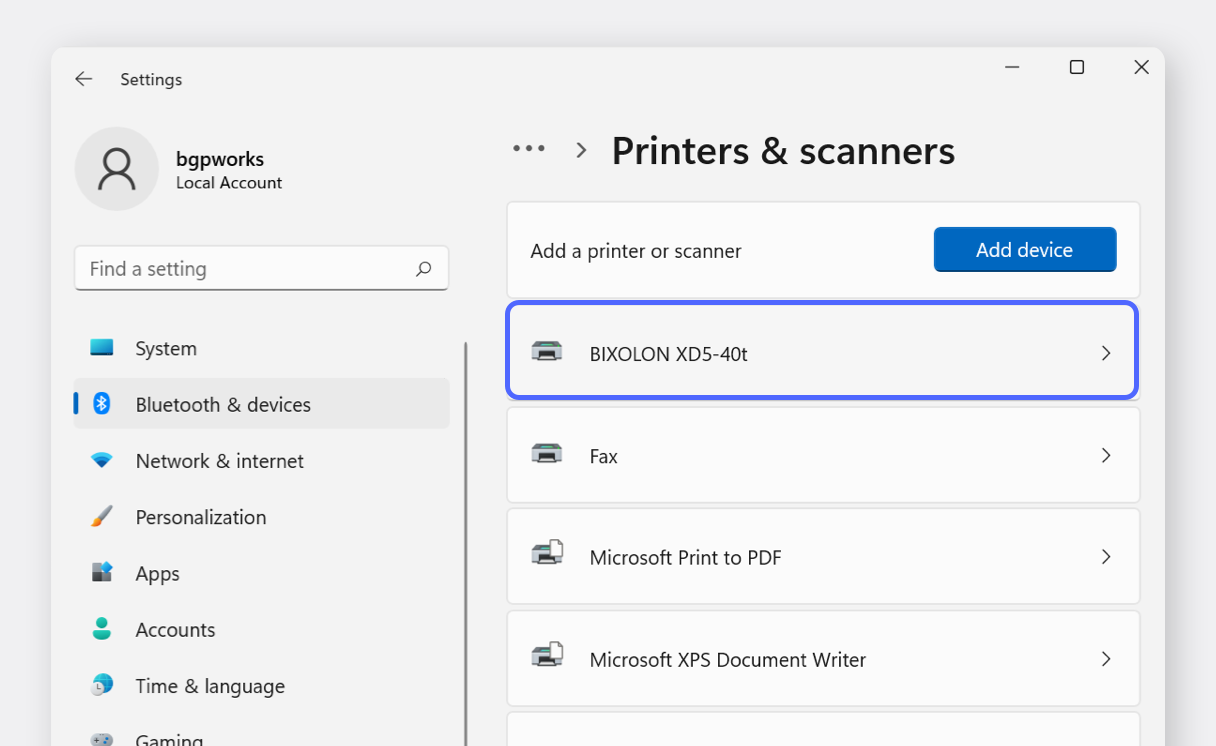
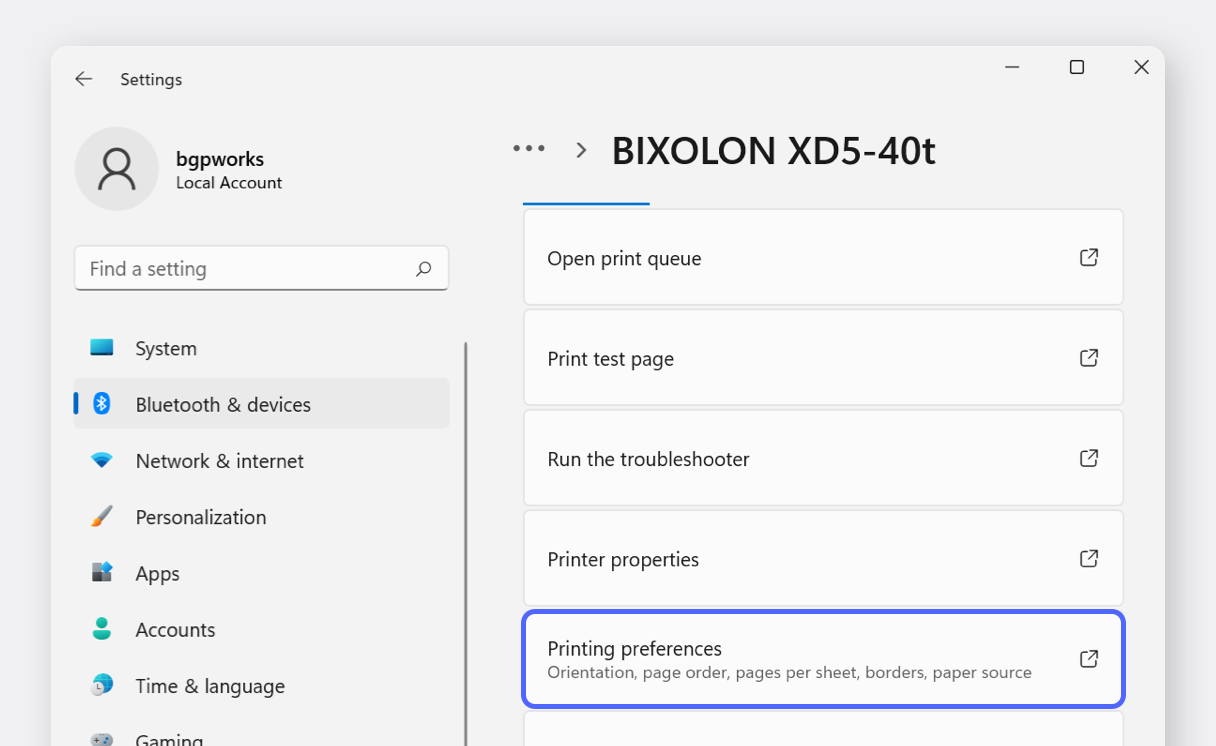
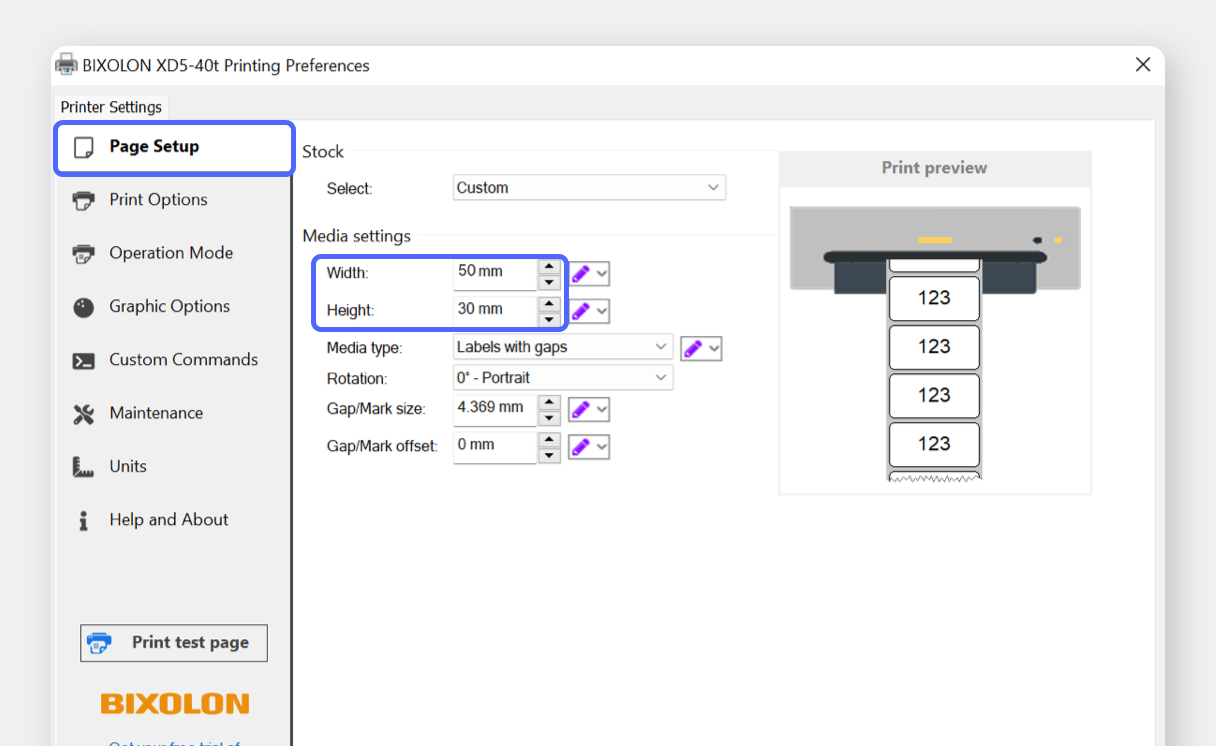
If the paper size doesn't match your labels, they may print misaligned. See Set Paper Size.
II. Label Printing
Section titled “II. Label Printing”Once the driver is installed and paper size is set, you can print labels from BoxHero.
Log in to BoxHero on your PC and go to
Barcode Labels>Print Items>Add>Select from Templates. SelectThermal Rolland enter the paper size you'll be using.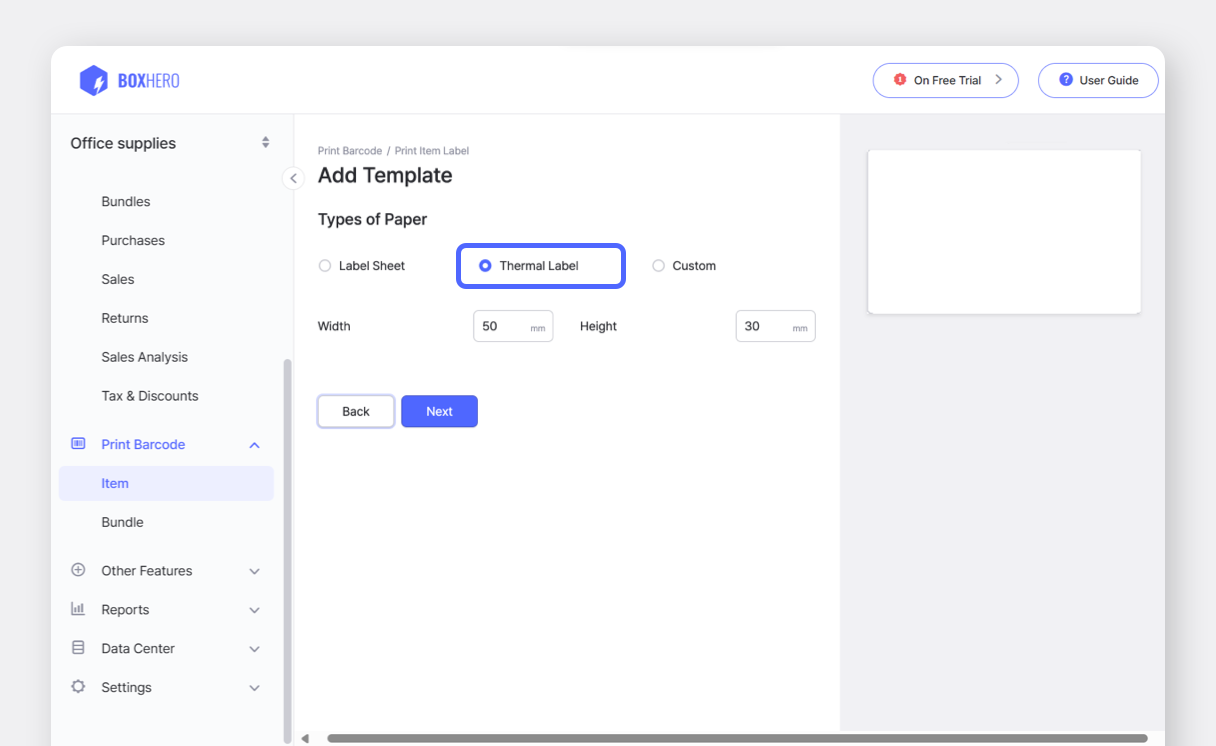
Choose your desired template: Barcode or QR Code.
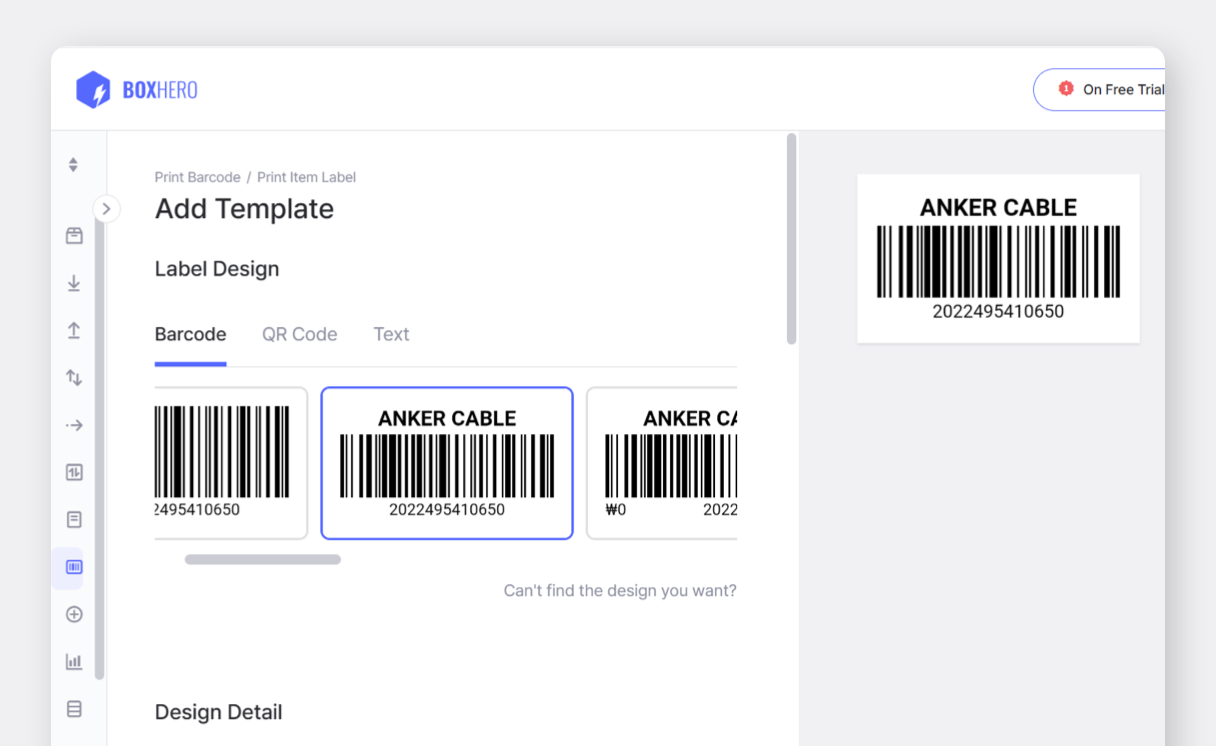
In the
Label Contentsection at the bottom of the page, set up the item information you want to display on the label and clickSave.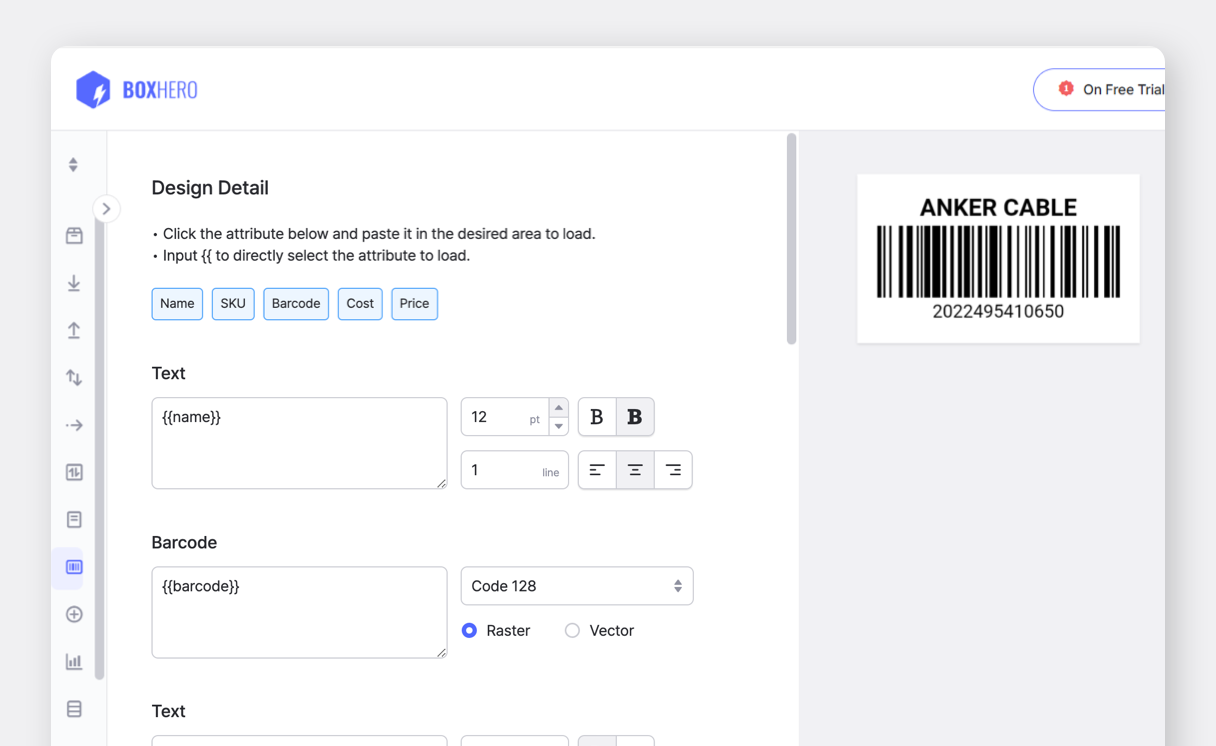
For design options, see Create Barcode Labels.
Add the items you want to print to the list, then click the
Printbutton at the bottom.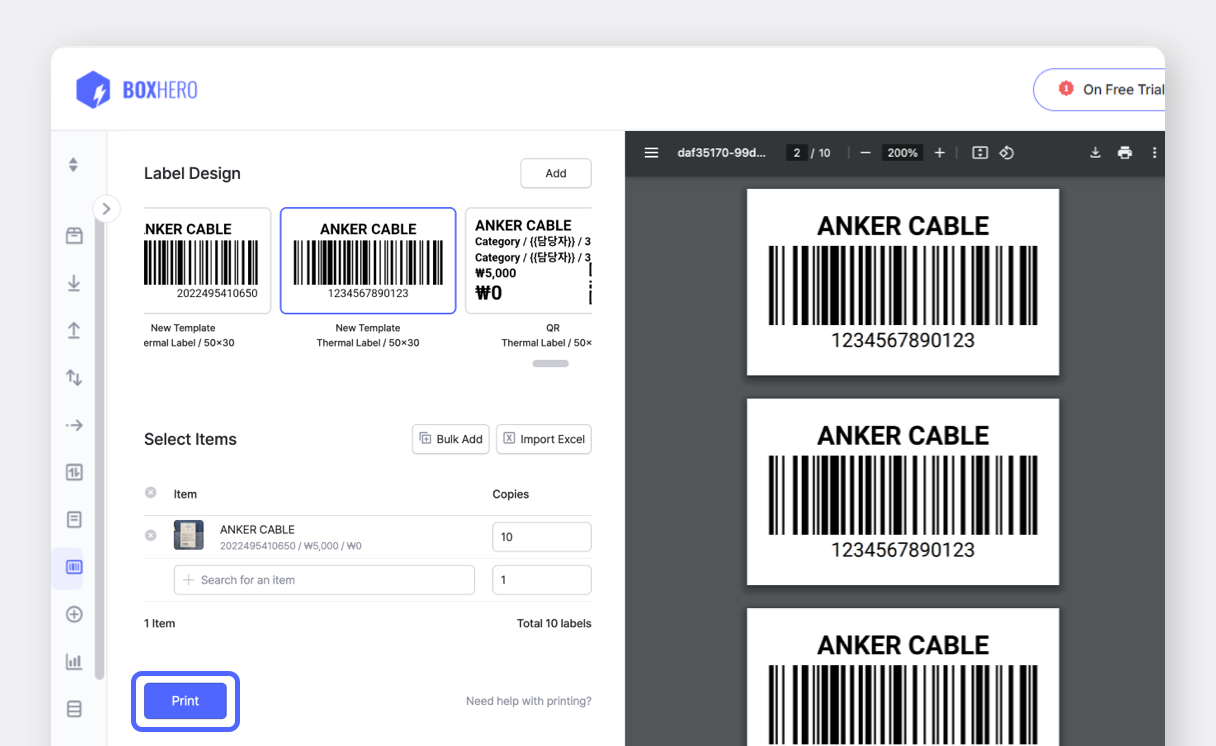
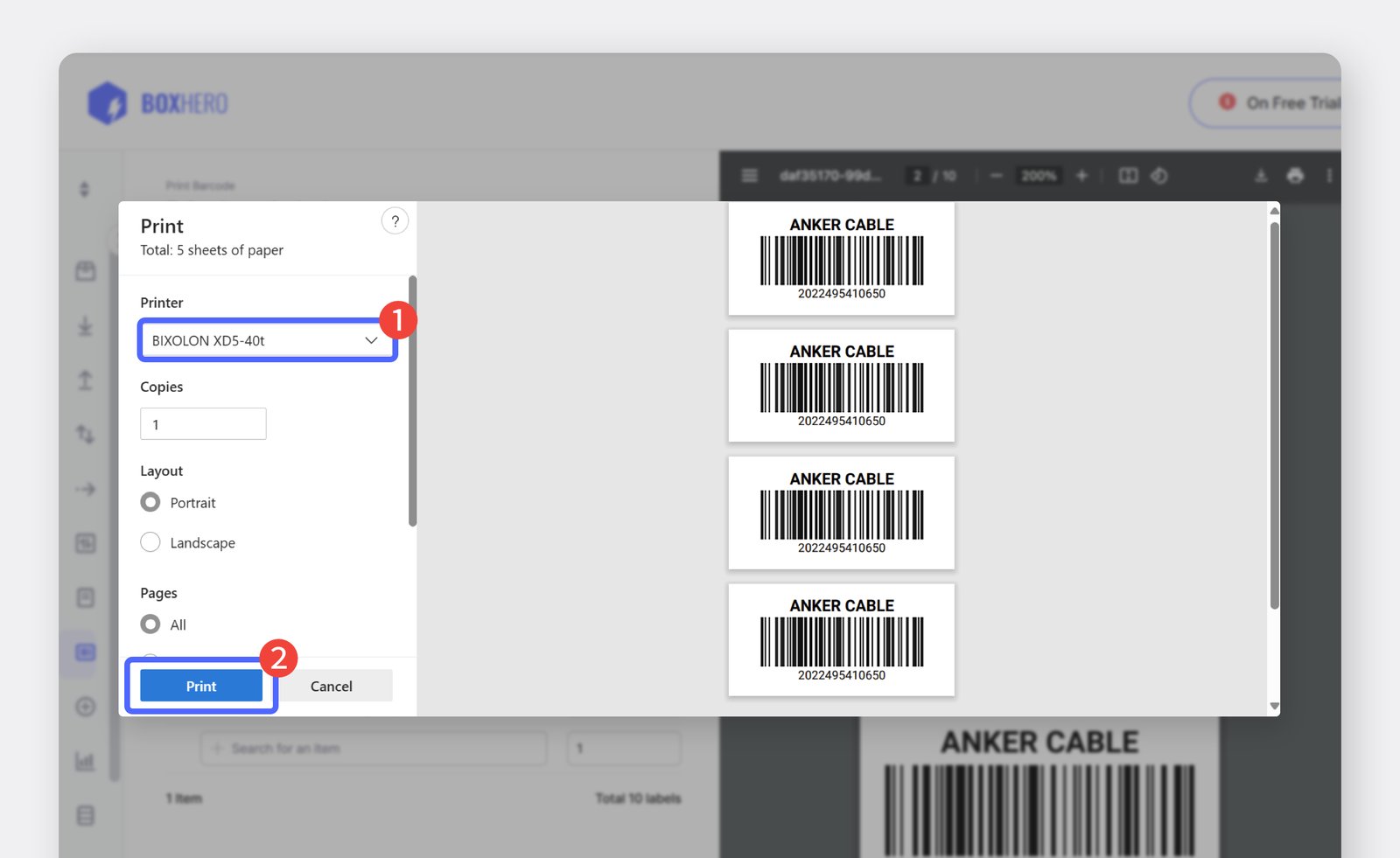
Select the printer you want to use and click
Printto start the printing.