
Barcode Scanning
Scan barcodes to speed up inventory tasks and cut data entry errors. BoxHero works with your phone's camera and with external barcode scanners.
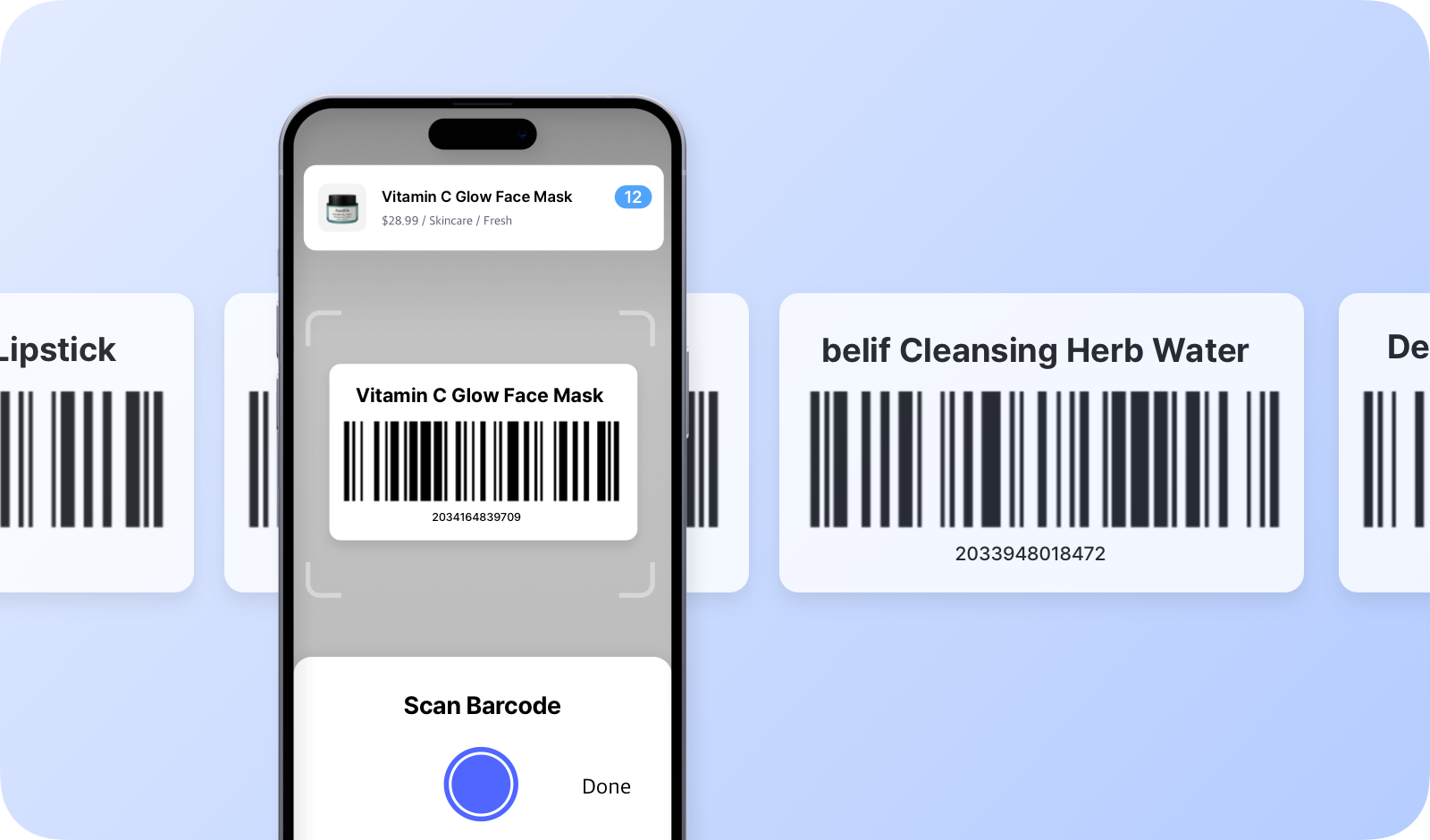
Don't have the app yet? Download it from Google Play or the App Store.
Key Highlights
Section titled “Key Highlights”- Add Items: Quickly add new items to your inventory by scanning their barcodes.
- Search Items: Instantly find products in your inventory by scanning their barcodes.
- Stock In & Out: Scan barcodes to streamline stock transactions for incoming and outgoing items.
- Move Stock: Transfer items between locations or warehouses by scanning their barcodes.
- Adjust Stock: Adjust inventory levels by scanning the barcode of the item you're updating.
- Inventory Counting: Conduct accurate counts using barcode scans and quickly tally stock levels.
Getting Started
Section titled “Getting Started”If your item already has a barcode, register it in BoxHero by scanning the barcode. If the item does not have a barcode, you can generate one in BoxHero.
For Existing Barcodes
Section titled “For Existing Barcodes”- Locate the barcode already on your item.
- Scan it into BoxHero via:
- Mobile app camera
- Connected Bluetooth/USB scanner
- Verify recognition by checking that the item details populate automatically.
For New Barcodes
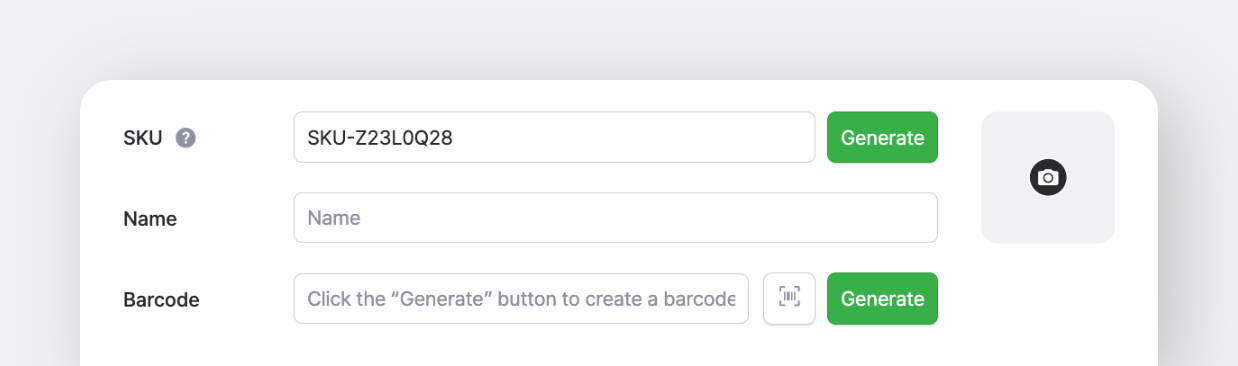
Section titled “For New Barcodes”- Auto-generate: Create unique barcodes directly in BoxHero.
- Print labels using the Barcode Printing feature.
- Attach labels to items before scanning into your inventory.
Platform Setup
Section titled “Platform Setup”A. Mobile Device
Section titled “A. Mobile Device”- In-App Camera: Use your smartphone or tablet's camera to scan barcodes without the need for additional equipment.
- Bluetooth Scanner: You can also connect a Bluetooth-enabled barcode scanner to your mobile device for faster and more precise scanning. Enable pairing mode on your scanner and connect via device settings.
Search items: Tap the Scan button on the home screen and scan a barcode to open that item's details, including its quantity and transaction history. With a Bluetooth scanner, you can scan right from the home screen without tapping the button first.
Stock In & Out: Each scan adds one to the item's quantity. You can also scan once and type in the quantity.
For more on mobile scanning, watch our video tutorial.
B. Desktop (Web)
Section titled “B. Desktop (Web)”When using BoxHero on your computer, you can scan barcodes using an external scanner.
Choosing a Scanner
Section titled “Choosing a Scanner”On a computer (desktop), you can use USB or Bluetooth scanners. The mobile app supports Bluetooth scanners only.
We've tested these models ourselves:
| Model | Connection |
|---|---|
| Zebra DS2208 | Wired |
| Zebra DS2278 | Wired, Bluetooth |
| Newland HR2180BT | Wired, Bluetooth |
| Netum C750 | Wired, Bluetooth |
*We have no affiliation with their manufacturers or sellers.
Scanner Connection
Section titled “Scanner Connection”Setup steps differ by manufacturer and model, so follow the manual that came with your scanner. To check that it's connected:
- Open a text editor on your computer (e.g., Notepad or TextEdit).
- Click inside the text area.
- Scan a barcode. If the barcode value appears in the editor, your scanner is connected.