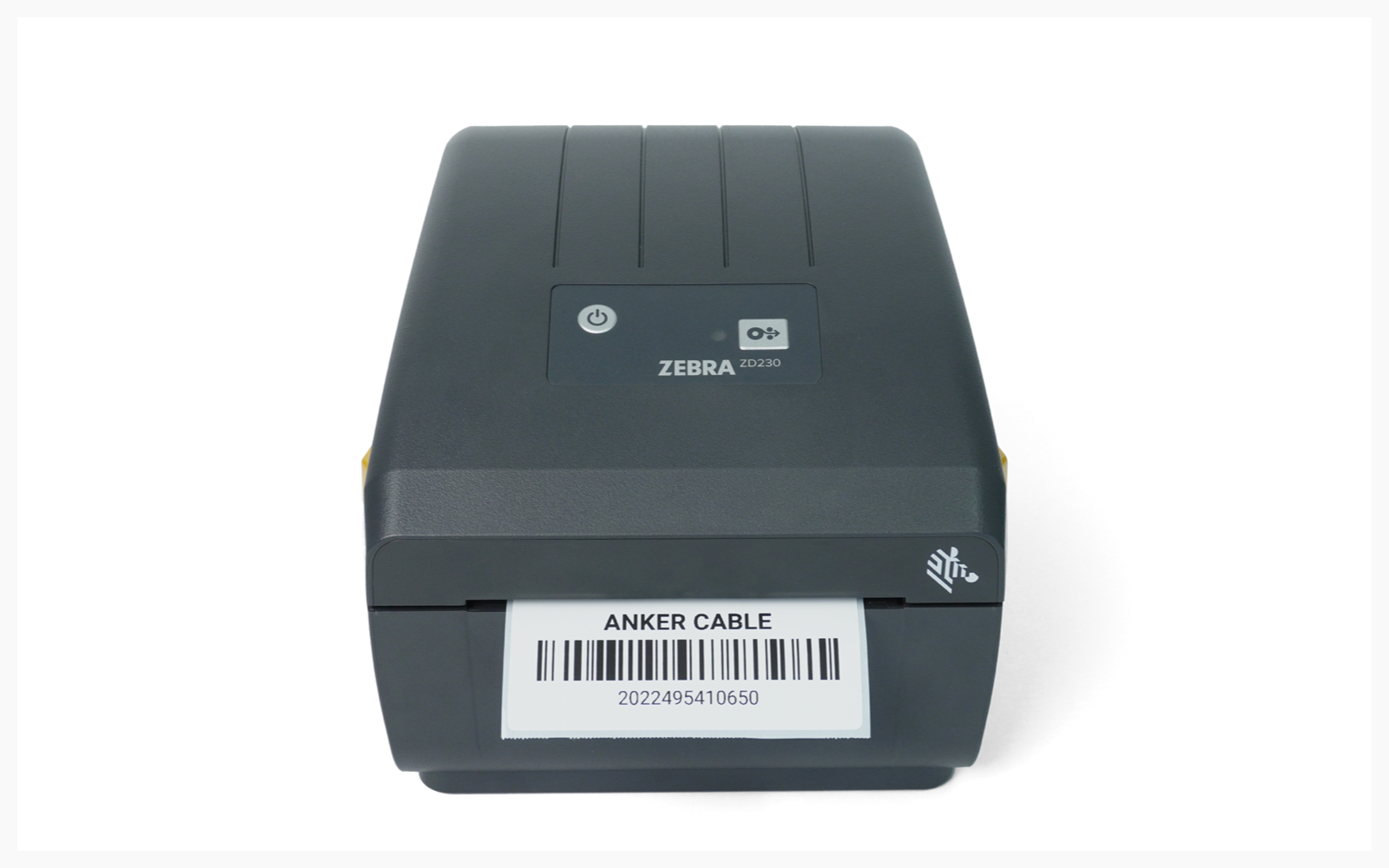
> For the complete documentation index, see [llms.txt](https://www.boxhero.io/docs/llms.txt). Markdown versions of documentation pages are available by appending `.md` to page URLs; this page is available as [Markdown](https://www.boxhero.io/docs/resources/guides/zebra-zd230d/mobile-printing.md).

# Mobile Printing

***

{% hint style="warning" %}
**Note**: ZEBRA mobile printing is only supported on *Android* devices.
{% endhint %}

## I. Device Setup

{% stepper %}
{% step %}
Connect the power cable and LAN cable to the printer.
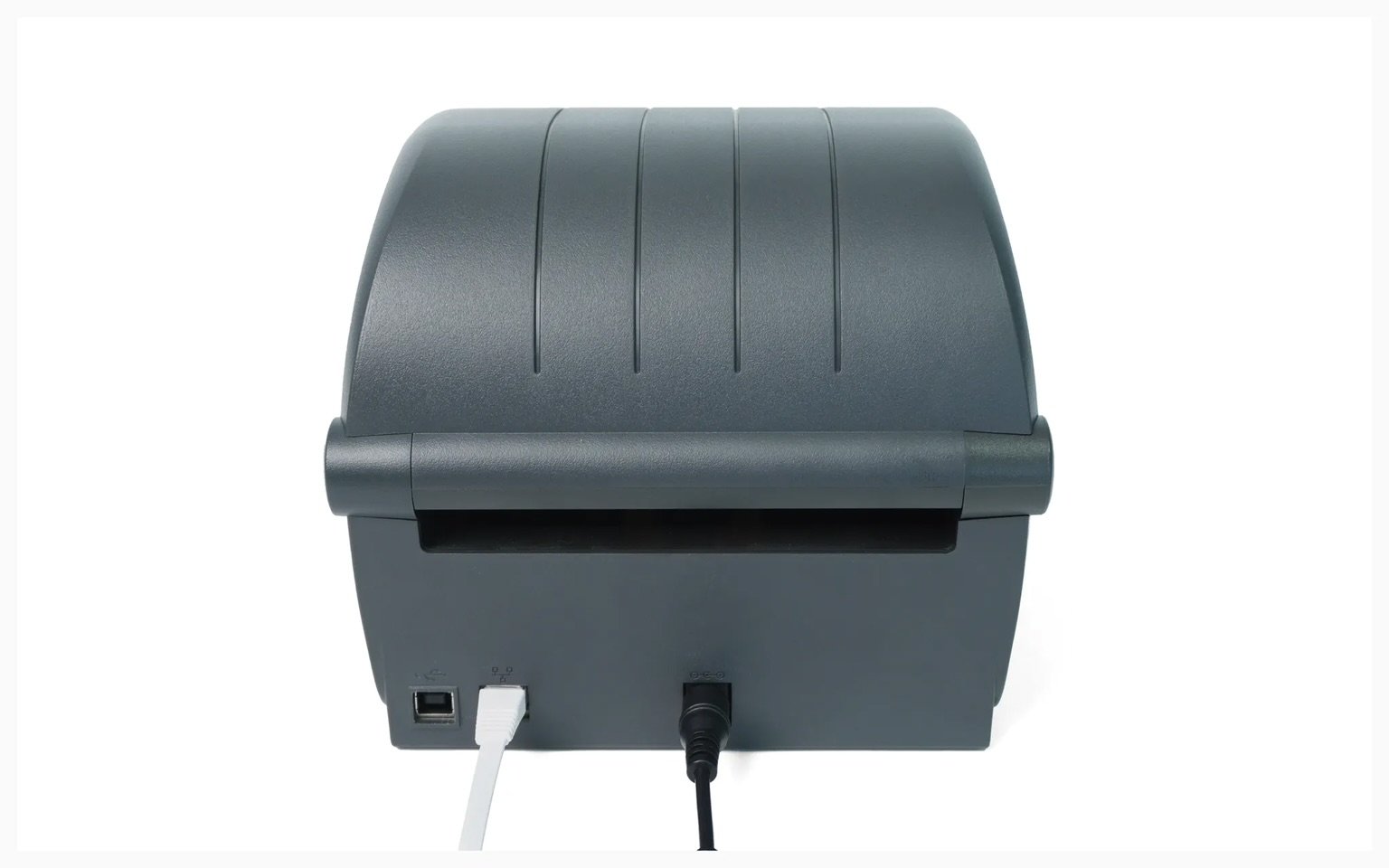
<figure><img src="/files/OEj4zxXbiXMABqyceVjR" alt=""><figcaption></figcaption></figure>
{% endstep %}

{% step %}
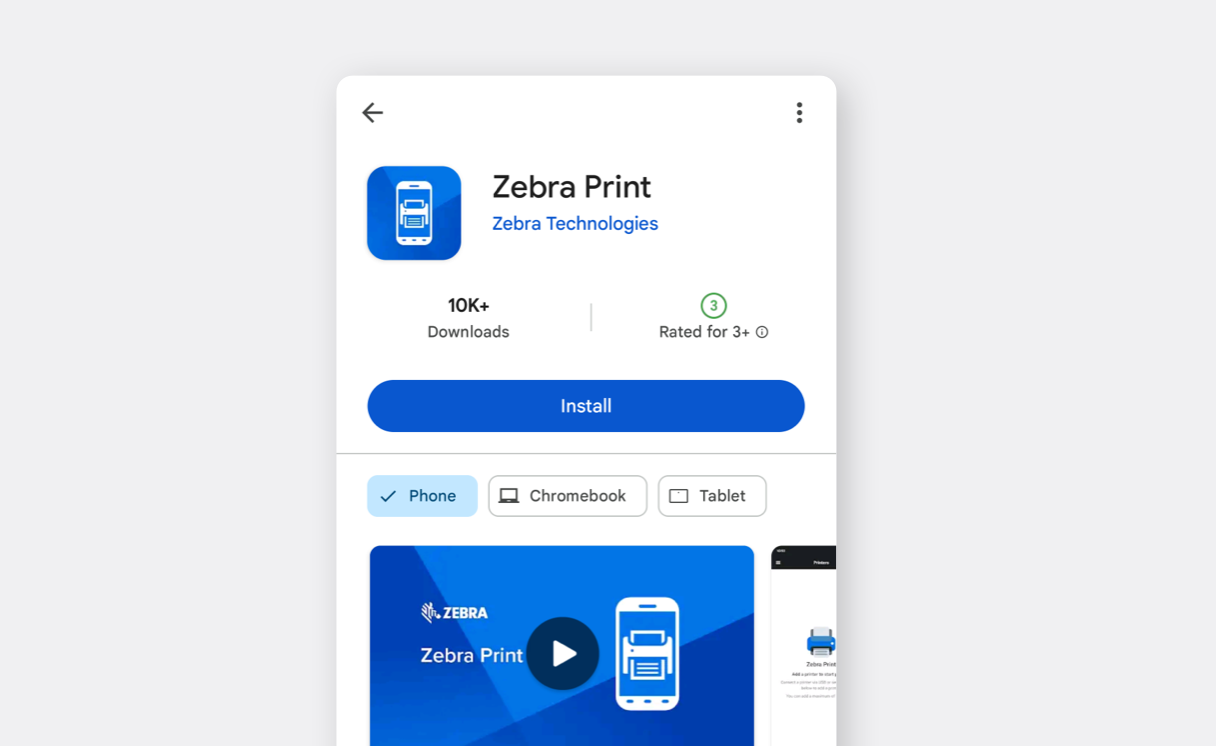
Install [Zebra Print](https://play.google.com/store/apps/details?id=com.zebra.channelaps\&utm_source=na_Med) from the Google Play Store.

<figure><img src="/files/j2oP8uqpk0ZZzJZCl3FZ" alt=""><figcaption></figcaption></figure>
{% endstep %}

{% step %}
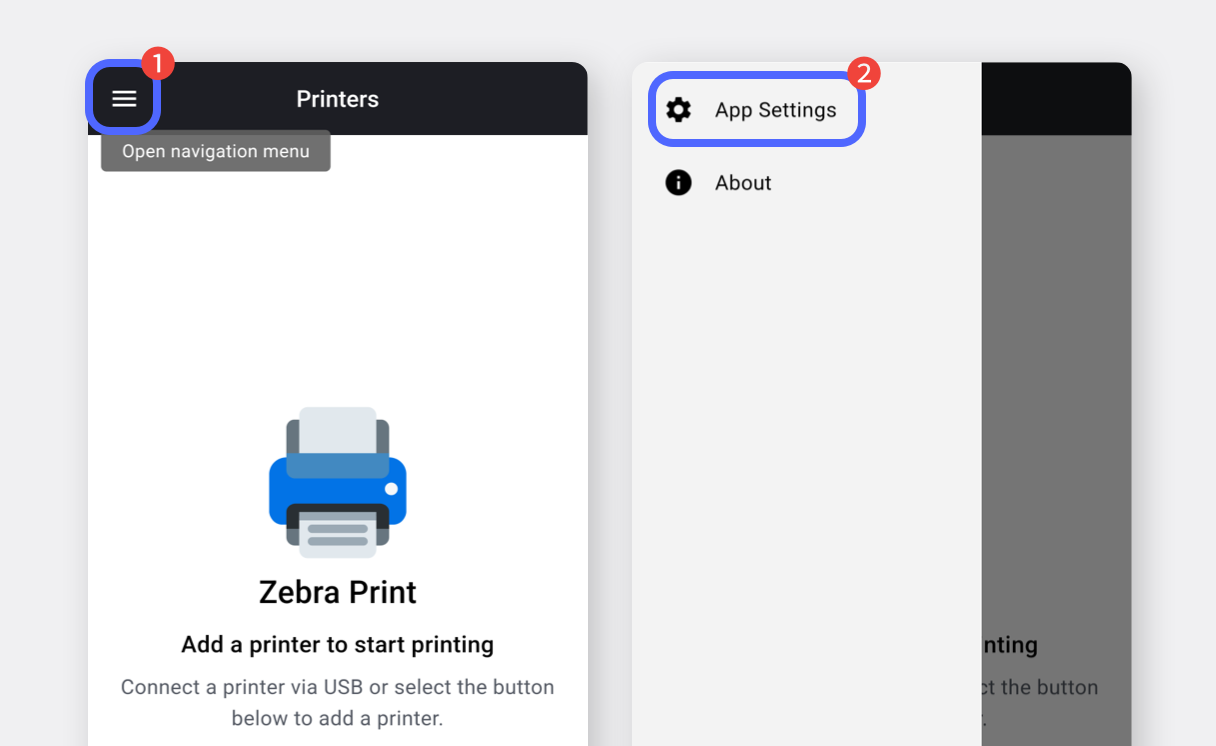
Open the app and select the `navigation menu (☰)` and tap `App Settings`.

<figure><img src="/files/z5kBN1i0B4T2ekE22p81" alt=""><figcaption></figcaption></figure>
{% endstep %}

{% step %}
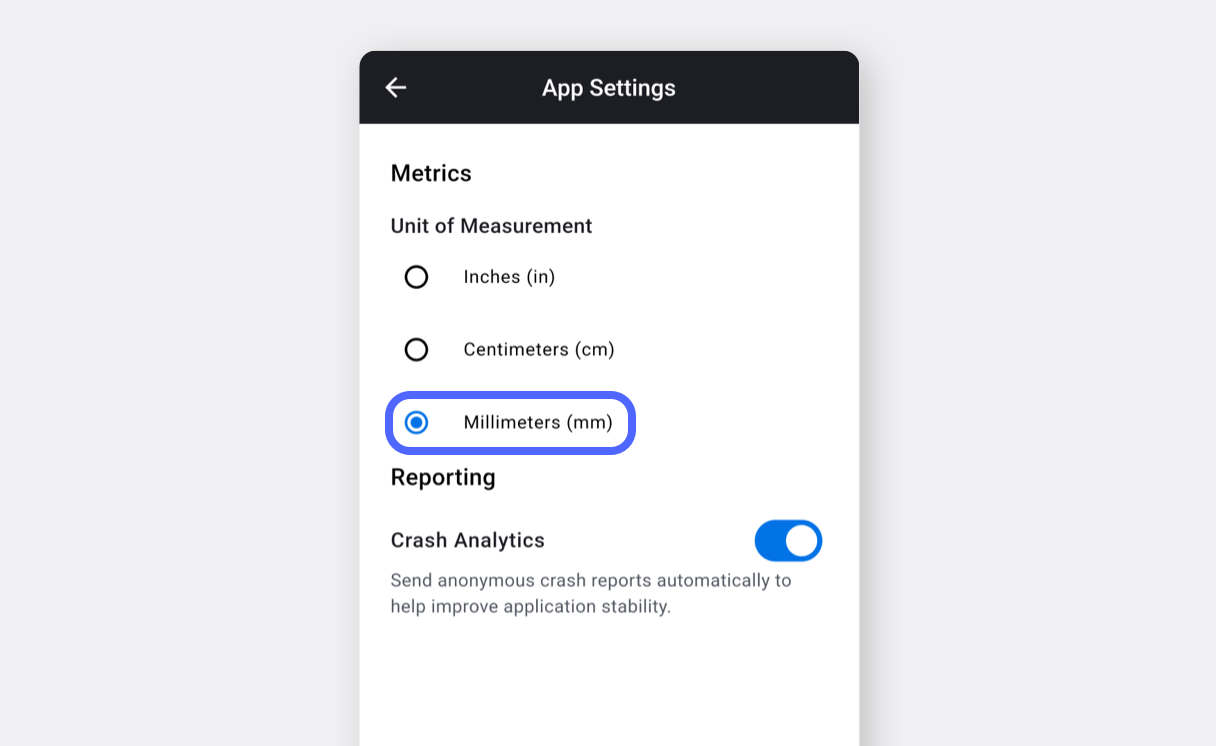
Change the unit of measurement to **millimeters (mm)** and return to the previous screen.

<figure><img src="/files/FCpdyfOZOyopbJlYyTO8" alt=""><figcaption></figcaption></figure>
{% endstep %}

{% step %}
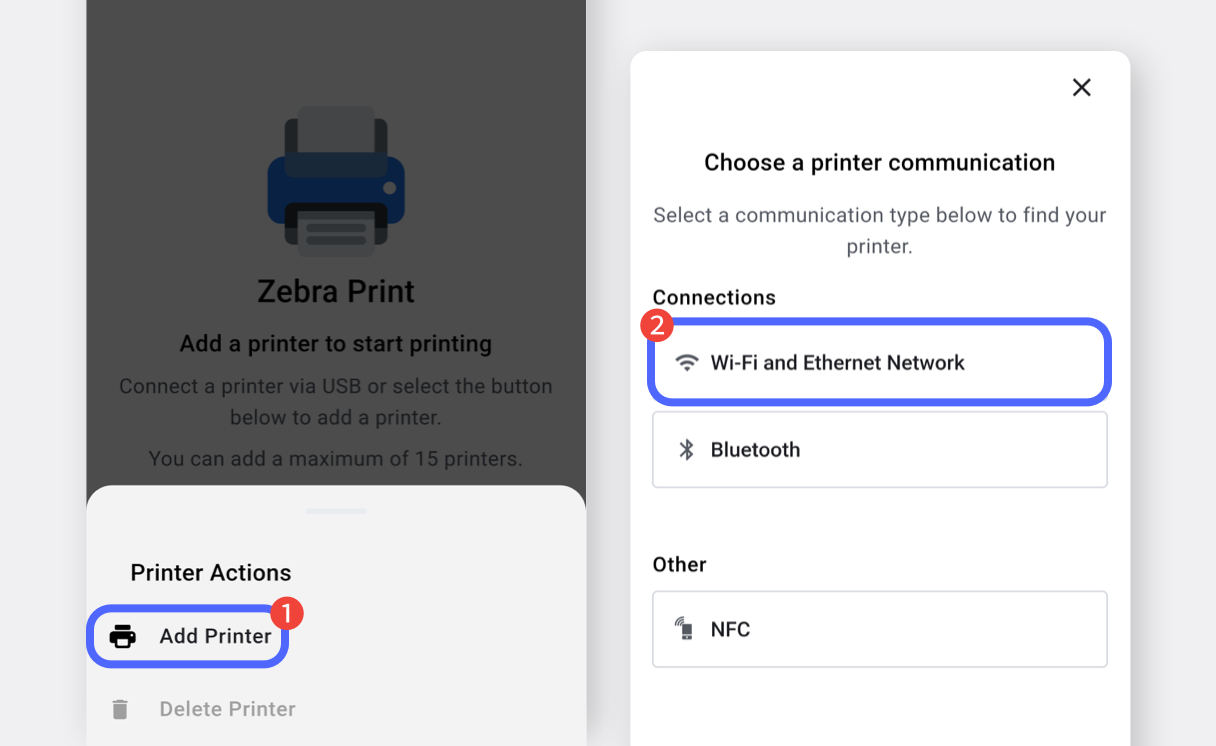
Tap the `...` button at the bottom and select `Add Printer`.\
Choose `Wi-Fi & Ethernet Network` as the connection method.

<figure><img src="/files/8EeHdT8pGVNLwDNcUWjL" alt=""><figcaption></figcaption></figure>
{% endstep %}

{% step %}
Tap `Open Settings` and select your Wi-Fi network.\
(Skip this step if already connected to Wi-Fi.)
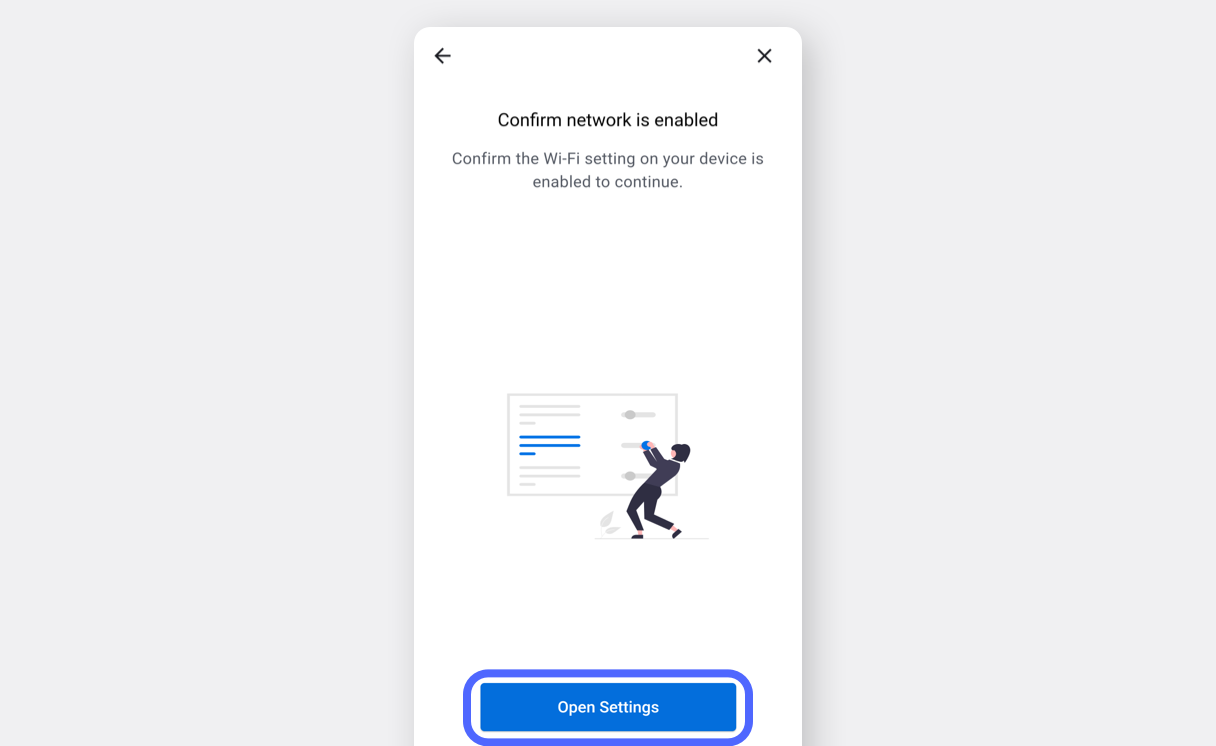
<figure><img src="/files/LQh13DuC4XPUQu3qDm6E" alt=""><figcaption></figcaption></figure>
{% endstep %}

{% step %}
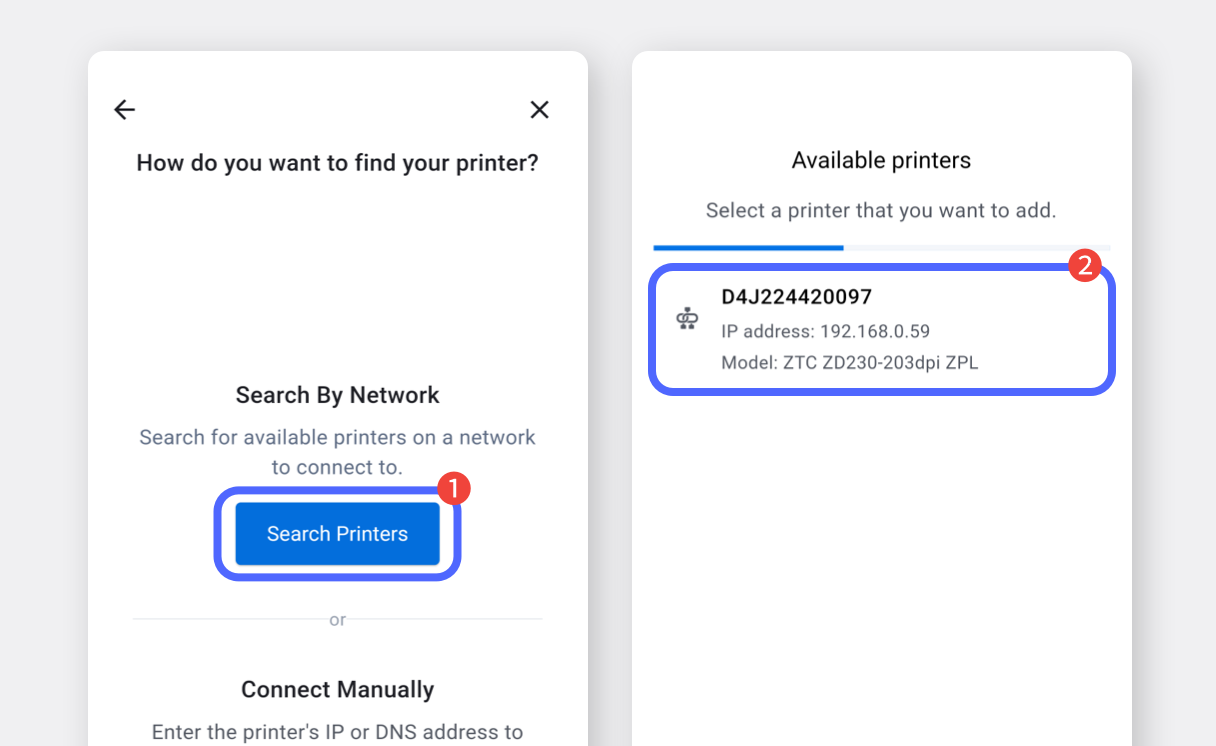
Tap `Search Printers` and select your printer.

<figure><img src="/files/YK2BzcuUni7l9mjf2pD5" alt=""><figcaption></figcaption></figure>
{% endstep %}

{% step %}
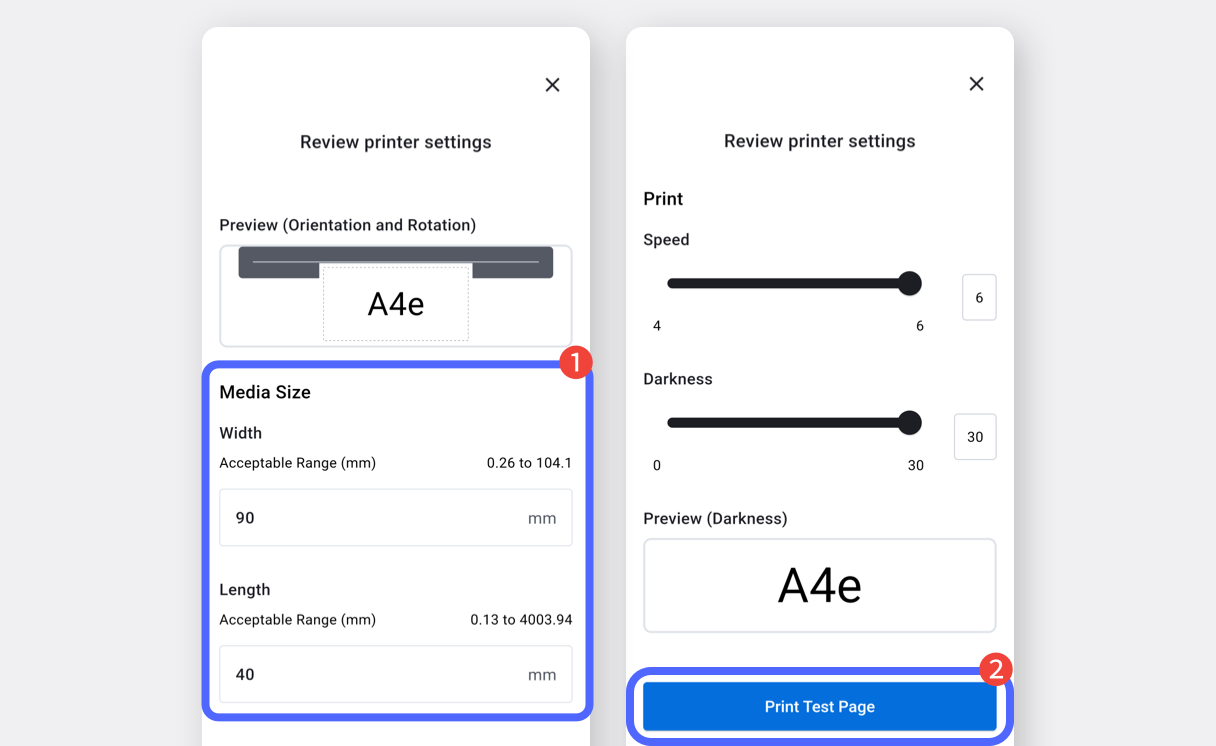
Enter the label size and tap `Print Test Page` to verify label output.

<figure><img src="/files/HDpjVKNqZquNpqI0uLeL" alt=""><figcaption></figcaption></figure>
{% endstep %}
{% endstepper %}

## II. Label Printing

Once the Zebra Print app is set up, you can print labels from BoxHero.

{% stepper %}
{% step %}
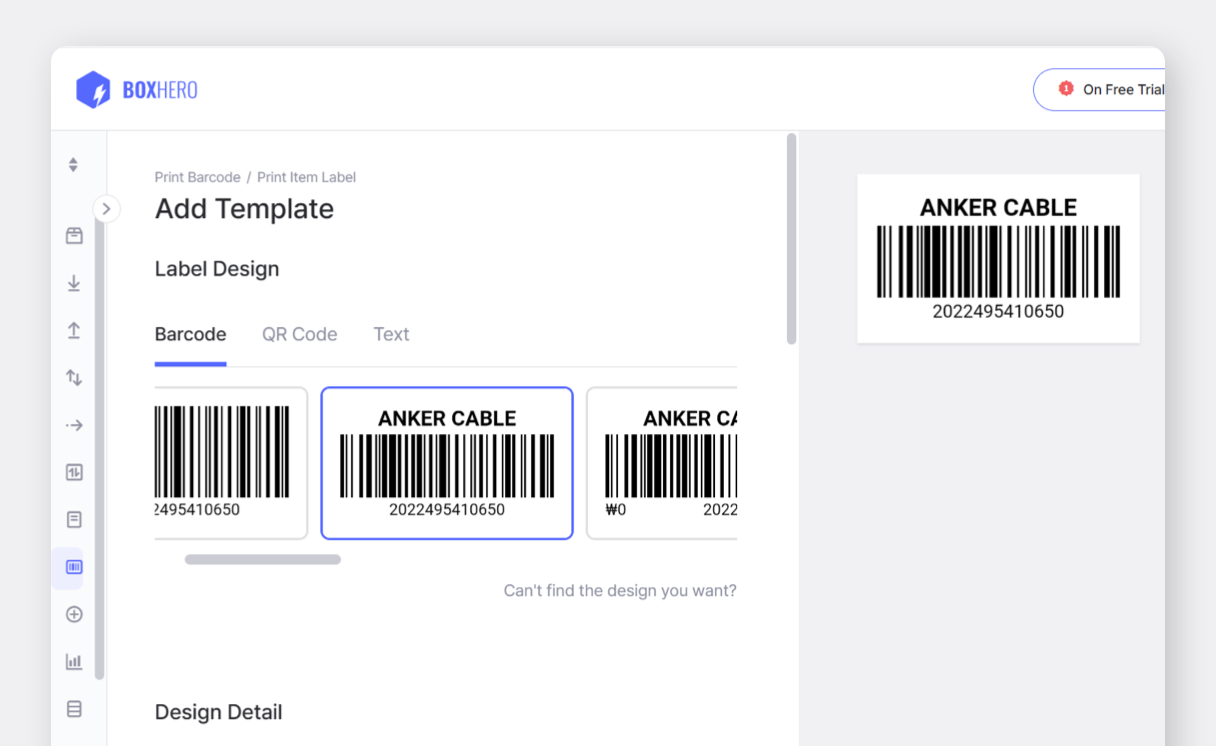
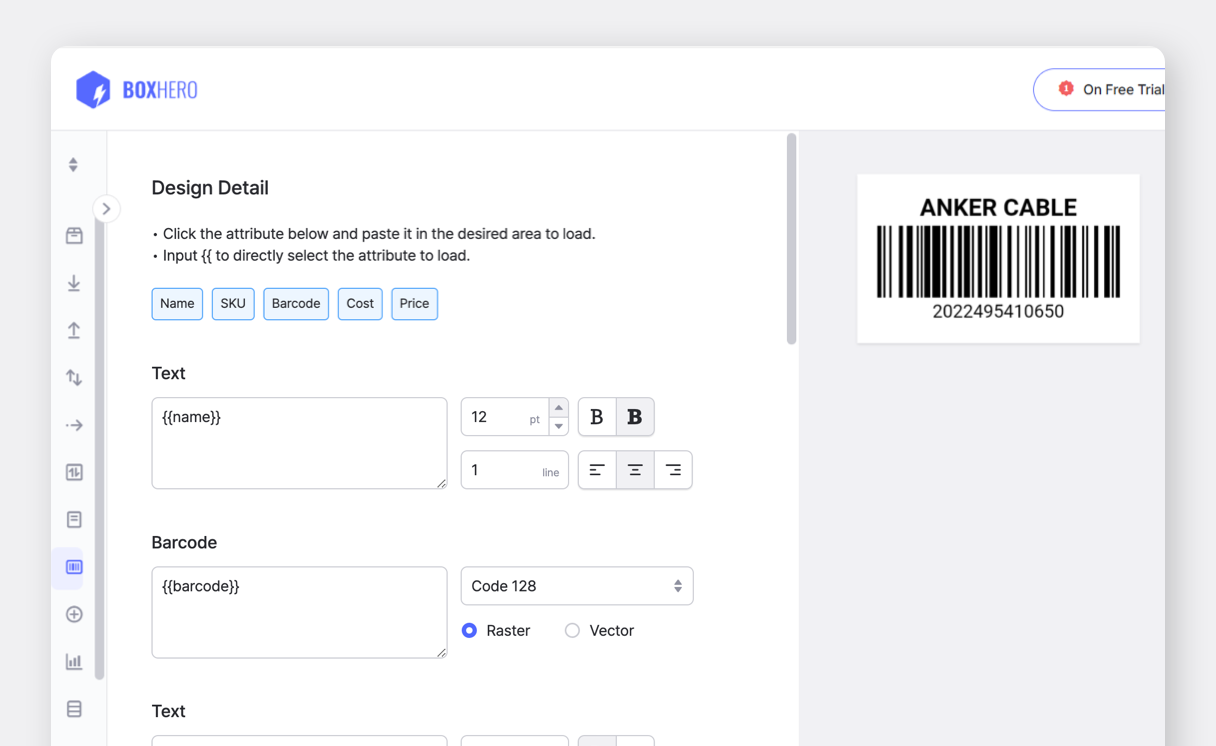
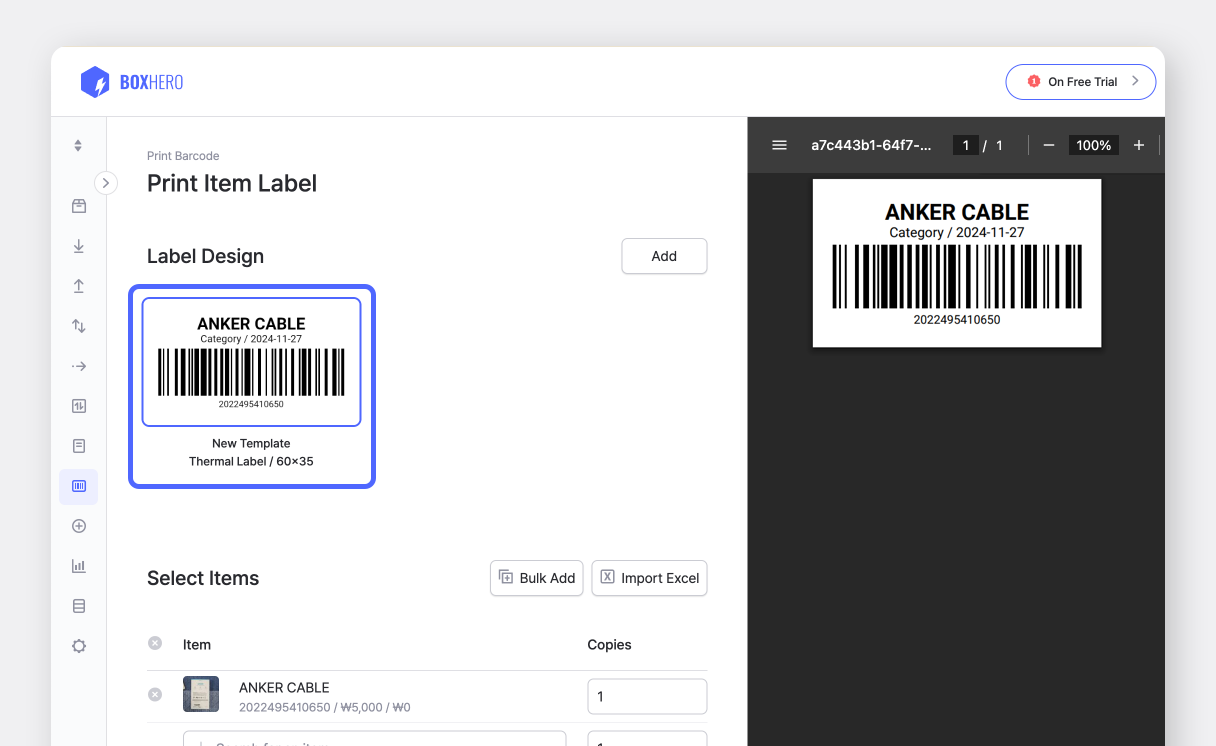
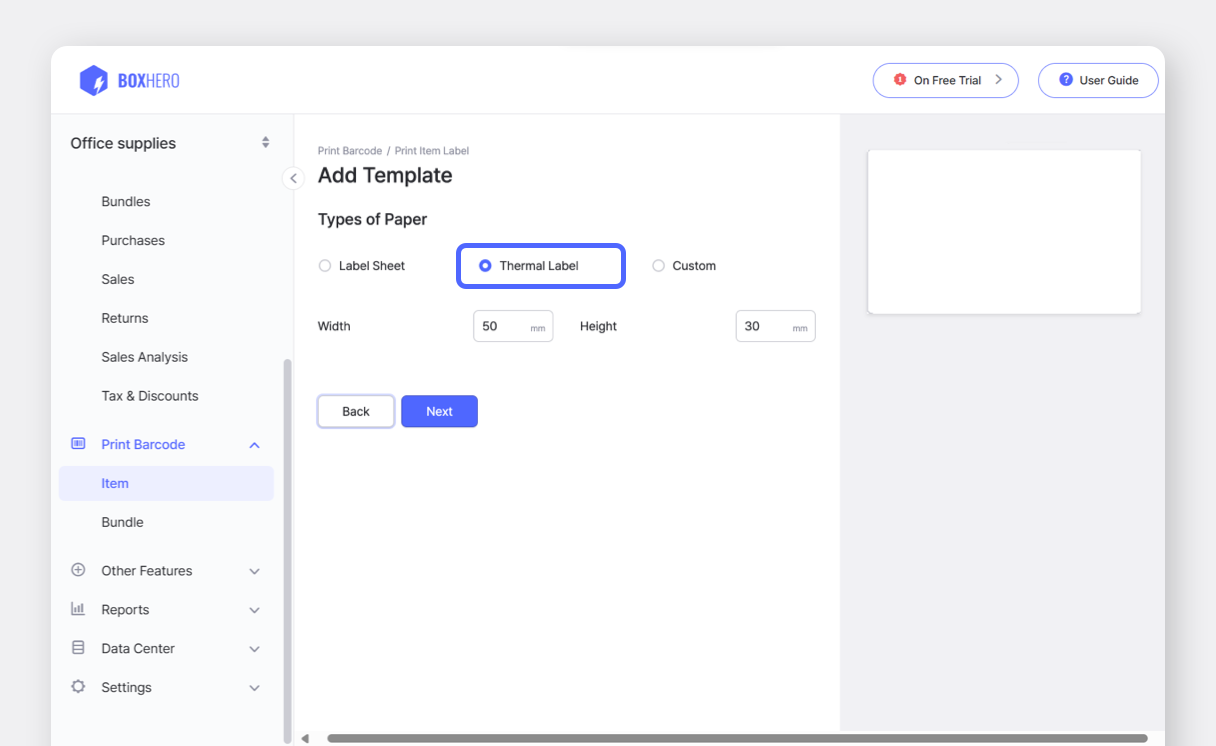
Create barcode labels on the BoxHero [web platform](http://app.boxhero.io/) (desktop), which can then be used on your mobile device.
<figure><img src="/files/gayF3rrHcwKLLxm6jwha" alt=""><figcaption></figcaption></figure>

<figure><img src="/files/pczVKSPnXhsz2xR8yx8n" alt=""><figcaption></figcaption></figure>

<figure><img src="/files/m0IW2qYKwfxmv1k28emg" alt=""><figcaption></figcaption></figure>

<figure><img src="/files/i8C9tEtnrLOLkgmTMJCT" alt=""><figcaption></figcaption></figure>

{% hint style="success" %}
Learn more about designing barcode labels [here](https://www.boxhero.io/docs/key-features/print-barcode#create-barcode-labels).
{% endhint %}
{% endstep %}

{% step %}
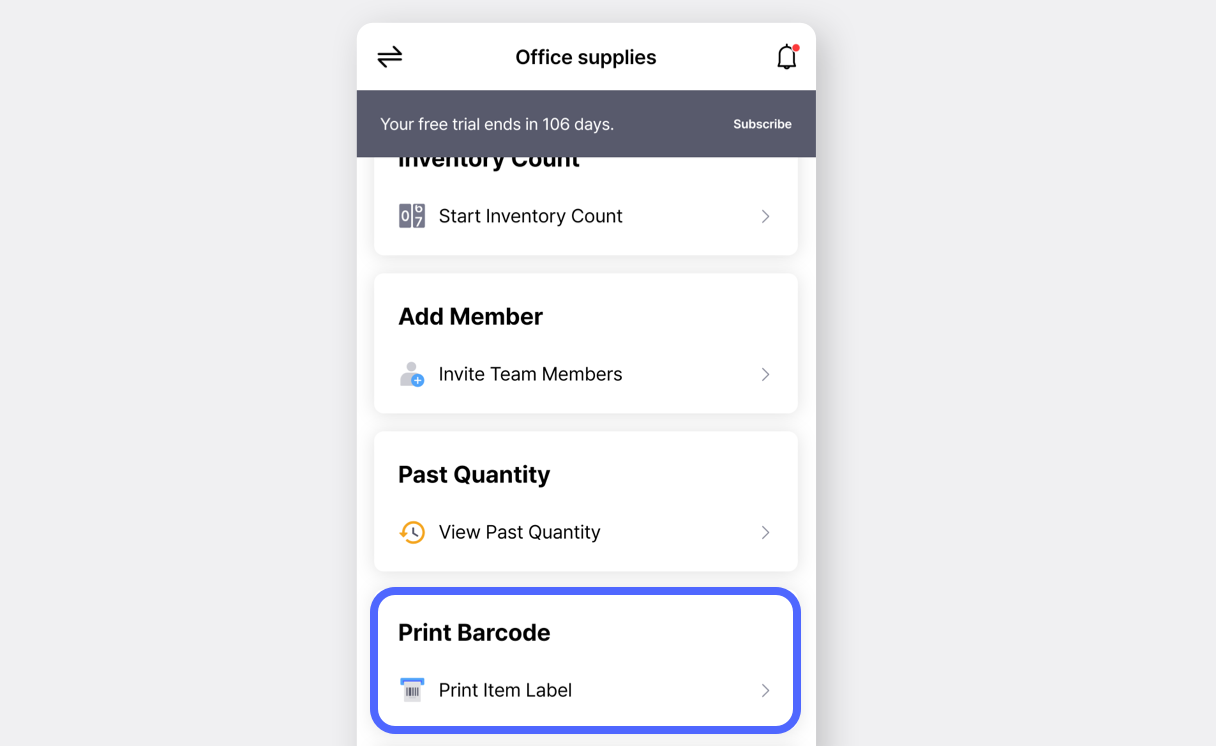
Open the [BoxHero app](https://docs-en.boxhero.io/getting-started#get-the-mobile-app) on your mobile device and tap <mark style="color:$primary;">`Print Barcode`</mark> on the home screen.

<figure><img src="/files/VaLG0thPFfCimvrx0naZ" alt=""><figcaption></figcaption></figure>
{% endstep %}

{% step %}
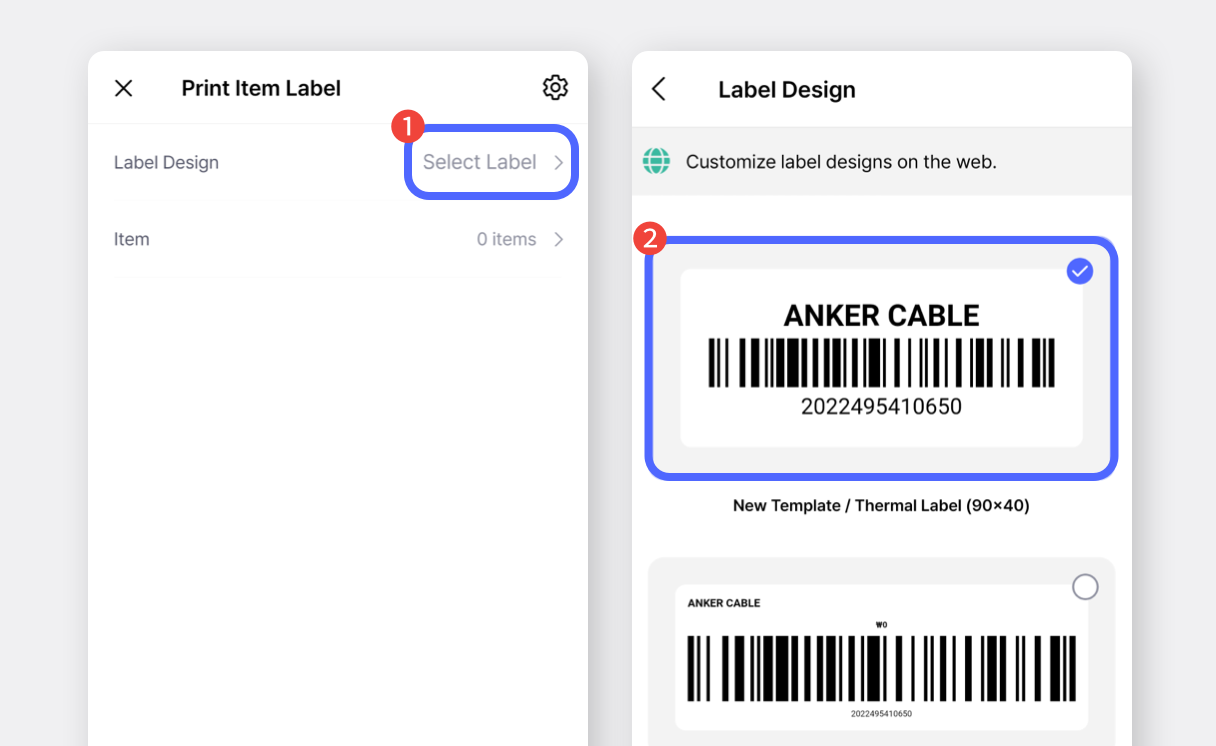
Tap <mark style="color:$primary;">`Select Label`</mark> and choose your design.

<figure><img src="/files/5mVa6VDRYXsktVpmY67z" alt=""><figcaption></figcaption></figure>
{% endstep %}

{% step %}
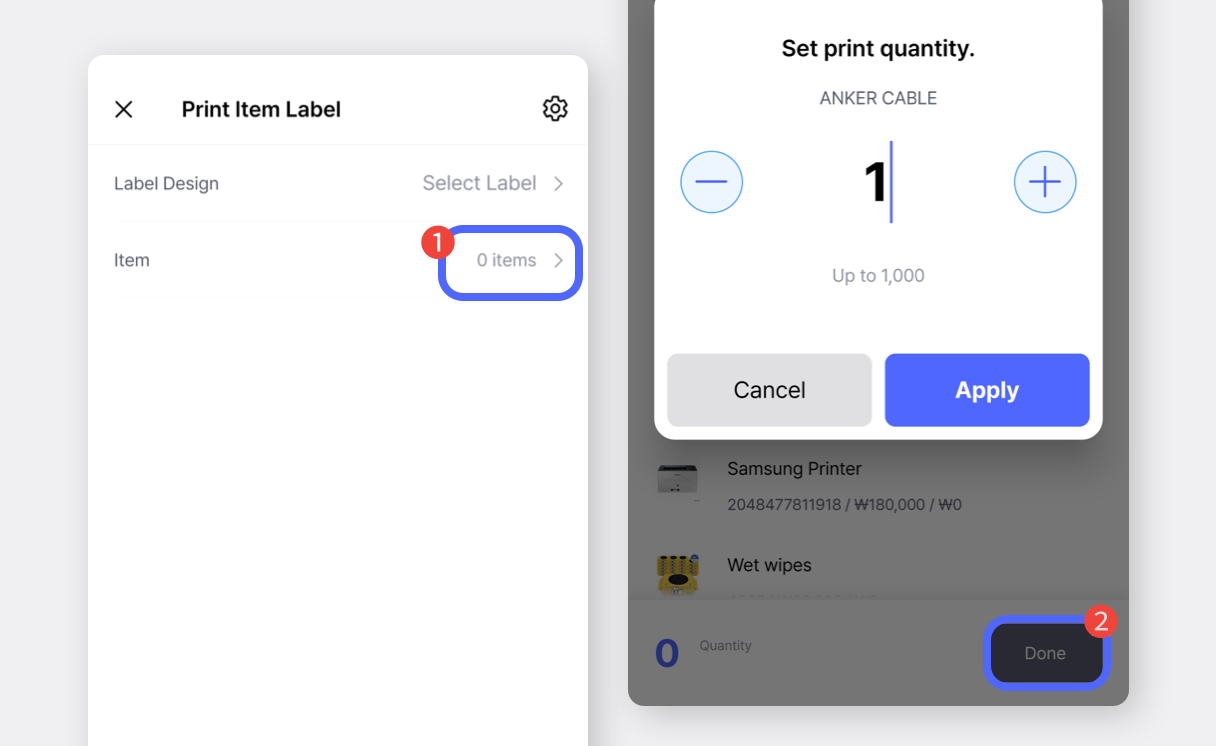
Select the items to print, enter the print quantity, and tap <mark style="color:$primary;">`Done`</mark>.

<figure><img src="/files/pD0F2UTC6300A5dAUG1N" alt=""><figcaption></figcaption></figure>
{% endstep %}

{% step %}
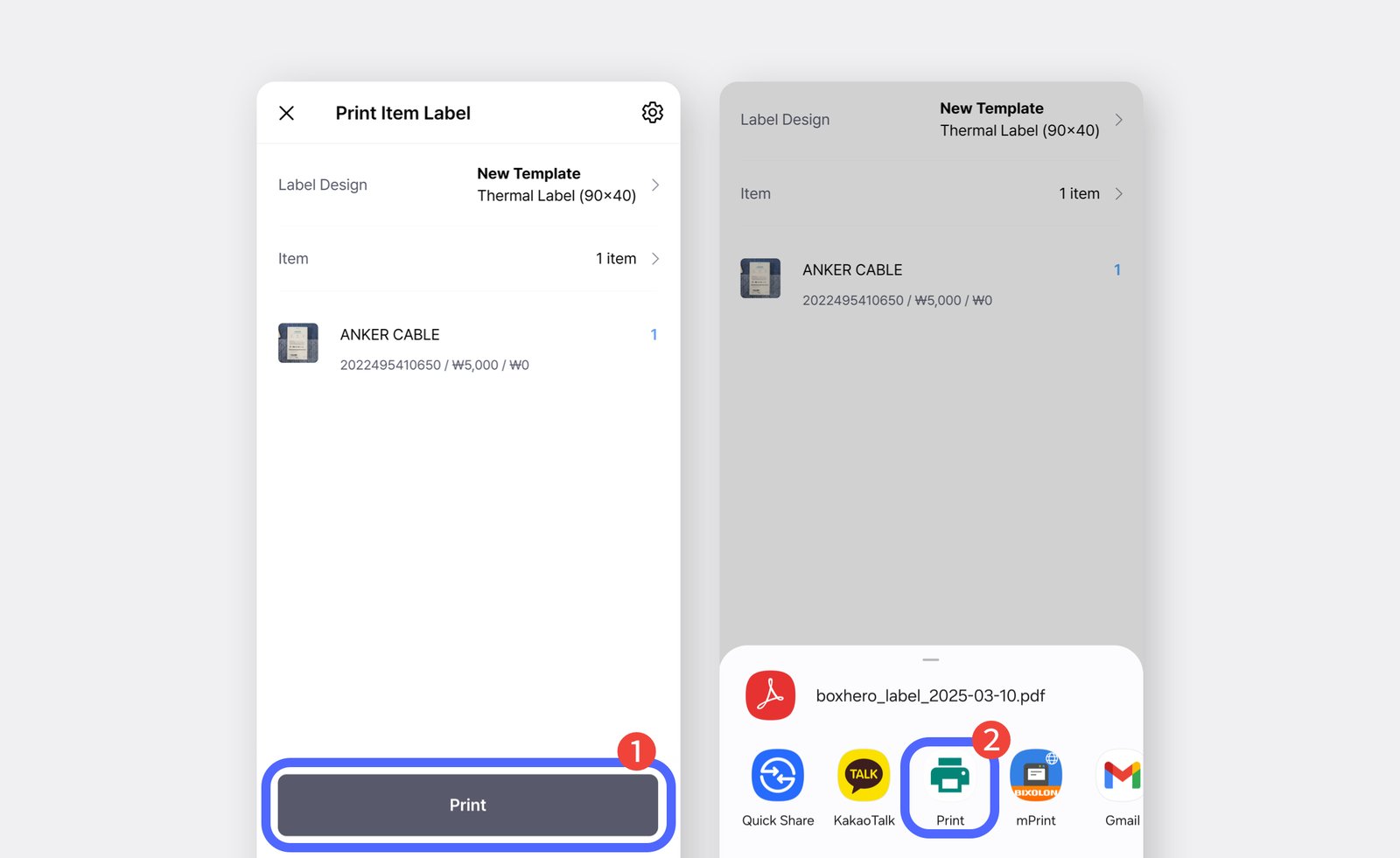
Tap the <mark style="color:$primary;">`Print`</mark> button and select <mark style="color:$primary;">`Print`</mark> again in the pop-up.\
(If the printer is not listed, tap “**More / More Options**.”)

<figure><img src="/files/3SYop3cLhdyPqgiFvaUB" alt=""><figcaption></figcaption></figure>
{% endstep %}

{% step %}
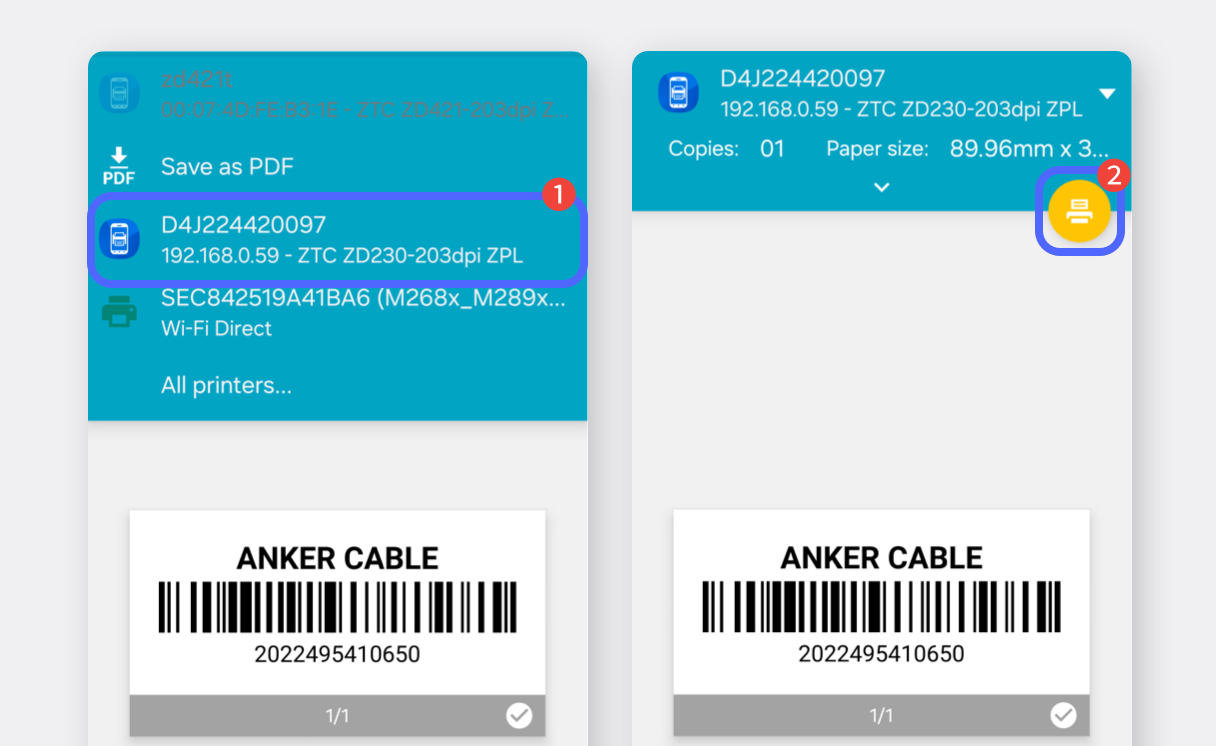
Choose your printer and tap the **print** **icon** on the next screen to confirm printing.
<figure><img src="/files/BsSfAawZhYVGY6WaY1u5" alt=""><figcaption></figcaption></figure>

<figure><img src="/files/L90kjkA88j63DpBM8RQb" alt=""><figcaption></figcaption></figure>
{% endstep %}
{% endstepper %}