
Purchases & Sales
Streamline your inventory and order management, from purchasing and receiving to selling and shipping. You can manage your orders, track inventory, and analyze your sales.
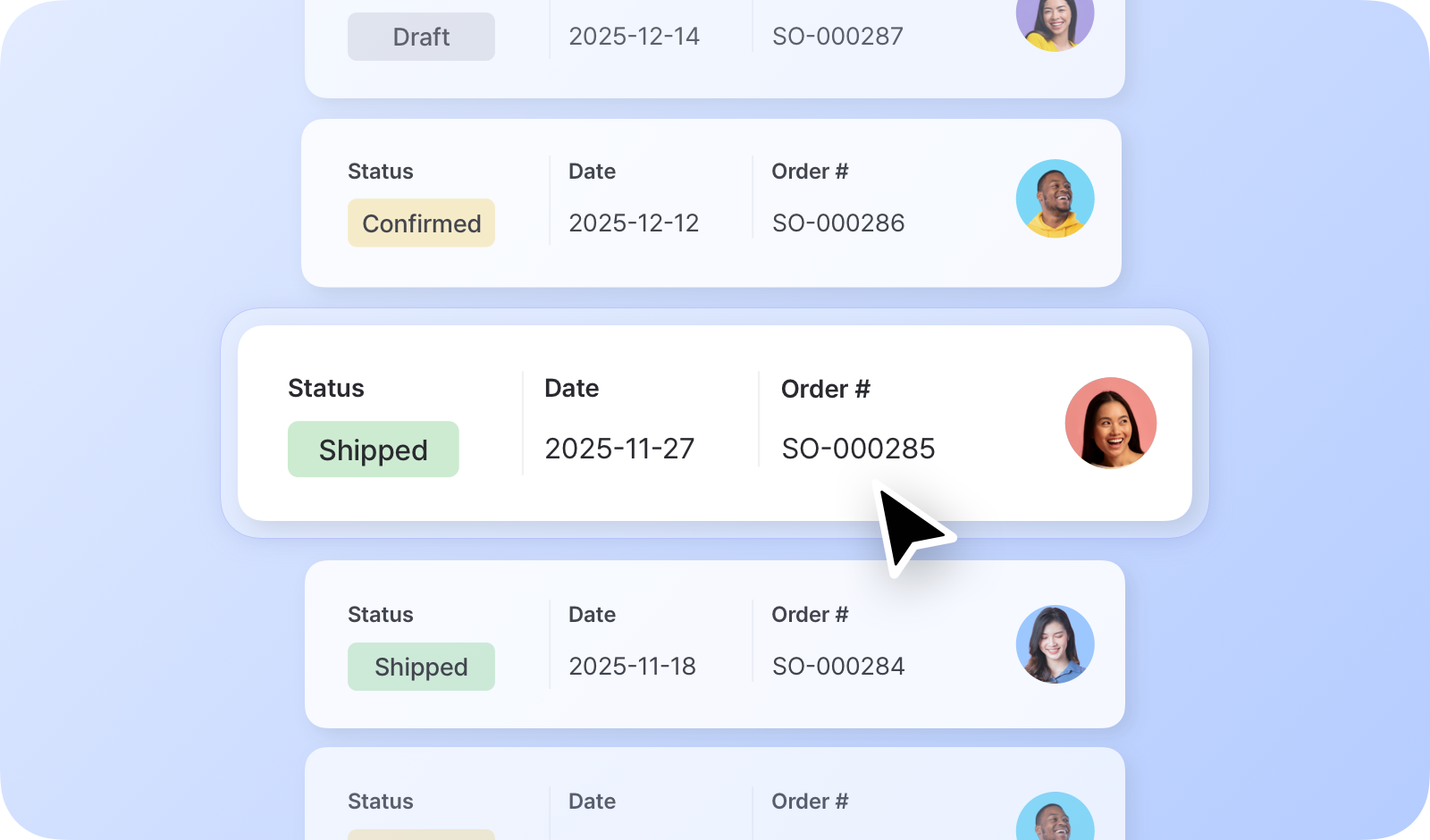
Key Highlights
Section titled “Key Highlights”- Order Management: Create and manage purchase orders and sales orders.
- Status Tracking: Monitor order progress with clear status labels.
- Invoicing: Send invoices to partners via email or export to PDF for printing.
- Bundled Items: Simplify grouped items by creating bundles.
- Custom Pricing: Set custom prices for specific orders, and apply taxes/discounts.
- Returns Management: Manage returns and refunds for specific orders.
- Sales Reports: Analyze your sales data with detailed reports.
Purchases
Section titled “Purchases”Go to Purchases & Sales > Purchases to create and manage purchase orders.
Purchase Order Status
Section titled “Purchase Order Status”| PO Status | Description | Updates inventory? | Included in Sales Reports? |
|---|---|---|---|
| Draft | Saved, but not yet sent to the supplier | No | No |
| Ordered | Placed with the supplier; awaiting delivery | No | Yes |
| Partially Received | Some items received, others still pending | Yes | Yes |
| Received | All items received | Yes | Yes |
Receiving Items with a Purchase Order
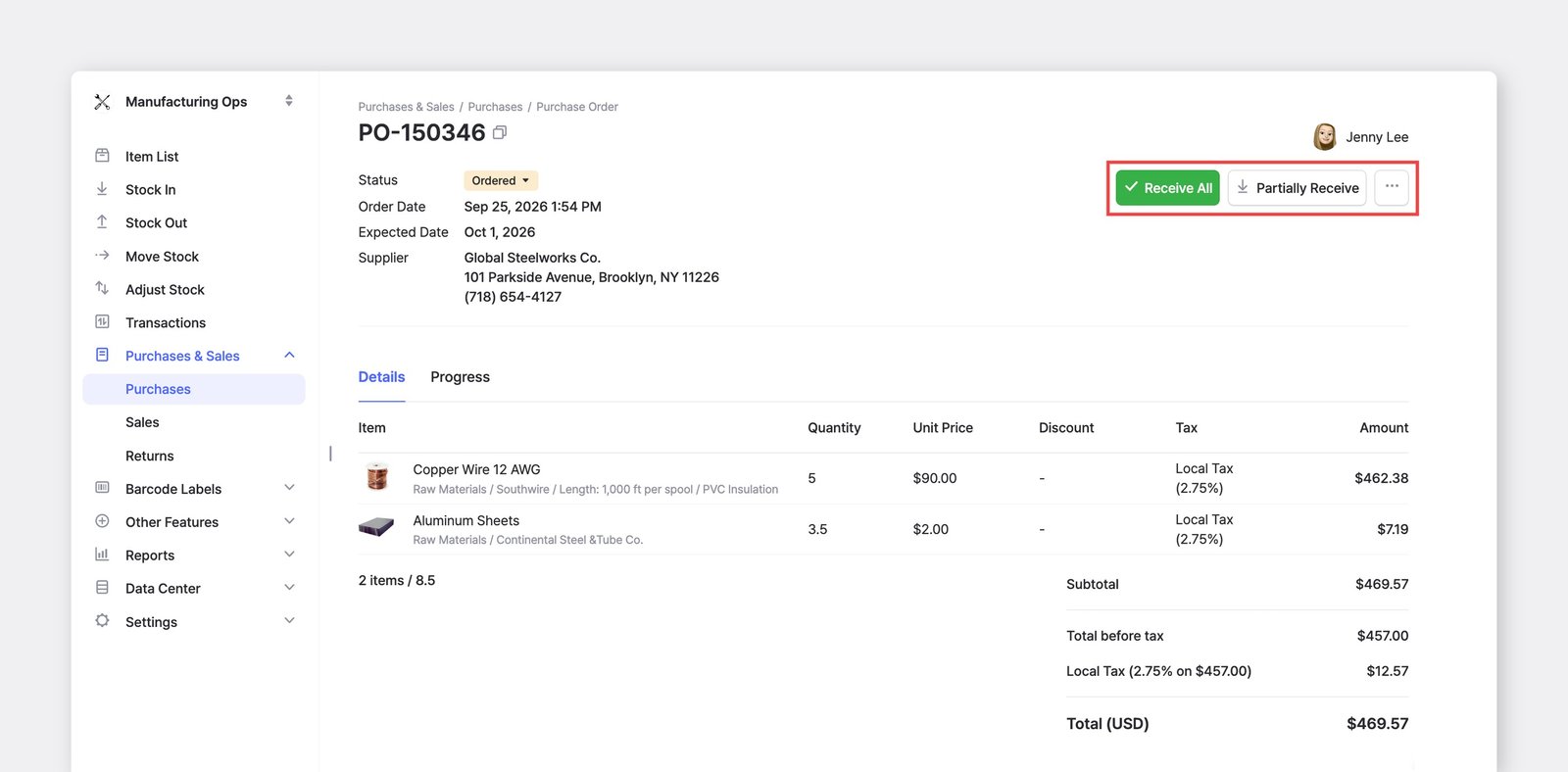
Section titled “Receiving Items with a Purchase Order”When your items arrive, open the purchase order to process the Stock In.
- To receive the entire ordered quantity at once, click
Receive All. - To receive items in batches as they arrive, click
Partially Receive.
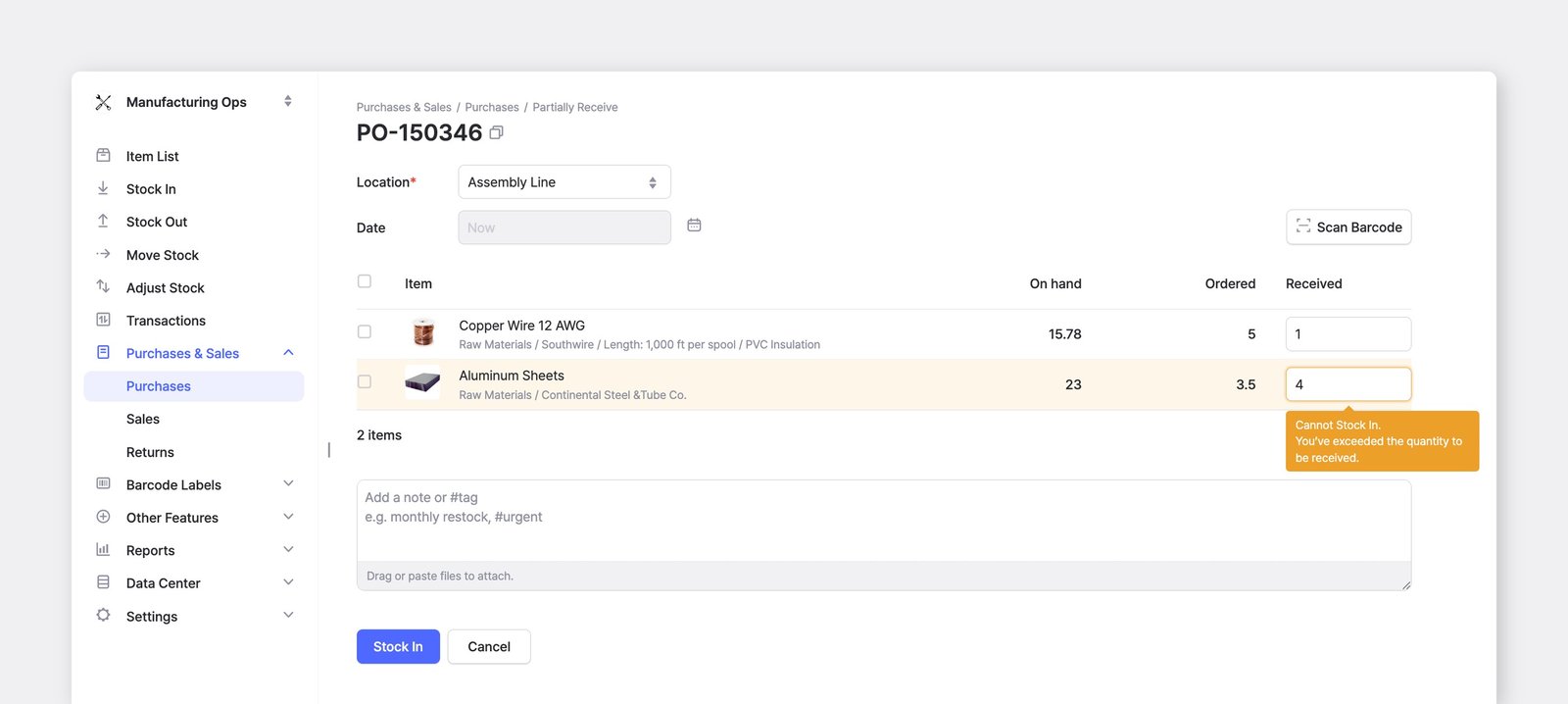
Clicking Partially Receive opens a screen where you can record the quantity received for each item. If you ordered 5 units but only 1 arrived, enter 1 — the order status will show as Partially Received until the remaining items are stocked in.
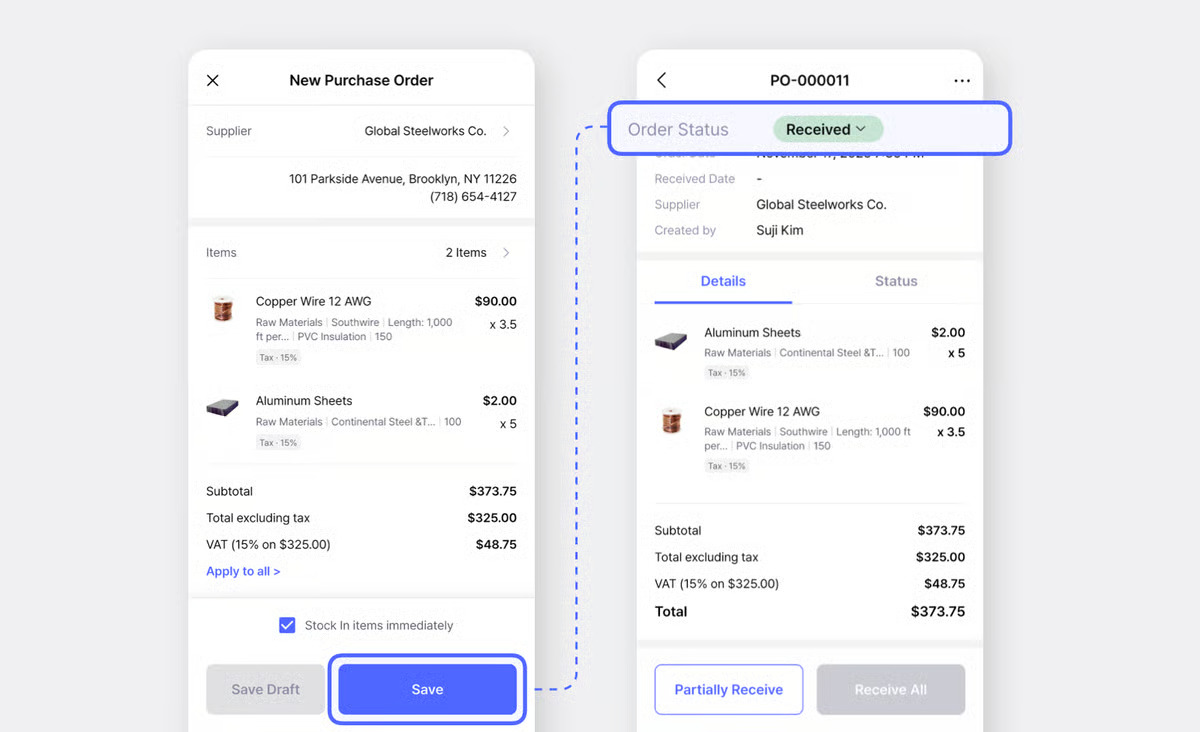
If the items have already arrived when you're creating the purchase order, check "Stock in items now" at the bottom of the order screen. The order will be saved with the Received status, and your inventory will be updated right away.
Go to Purchases & Sales > Sales to create and manage sales orders.
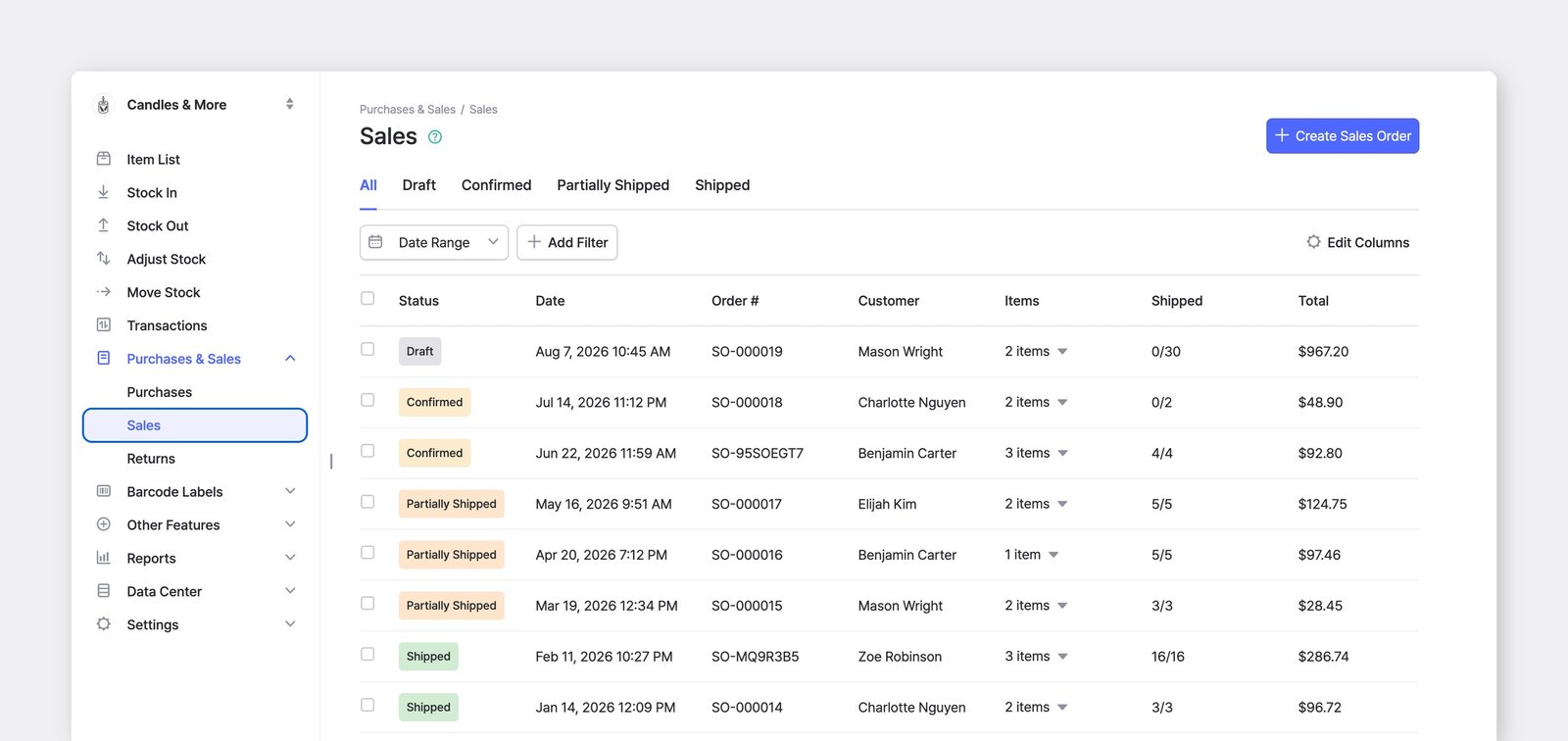
Sales Order Status
Section titled “Sales Order Status”| SO Status | Description | Updates inventory? | Included in Sales Reports? |
|---|---|---|---|
| Draft | Saved, but not yet confirmed | No | No |
| Confirmed | Confirmed; awaiting shipment | No | Yes |
| Partially Shipped | Some items shipped, others still pending | Yes | Yes |
| Shipped | All items shipped | Yes | Yes |
Shipping Items with a Sales Order
Section titled “Shipping Items with a Sales Order”When you're ready to send out items, open the sales order to process the Stock Out. To ship the entire sold quantity at once, click Ship All. To ship items in batches, click Partially Ship.
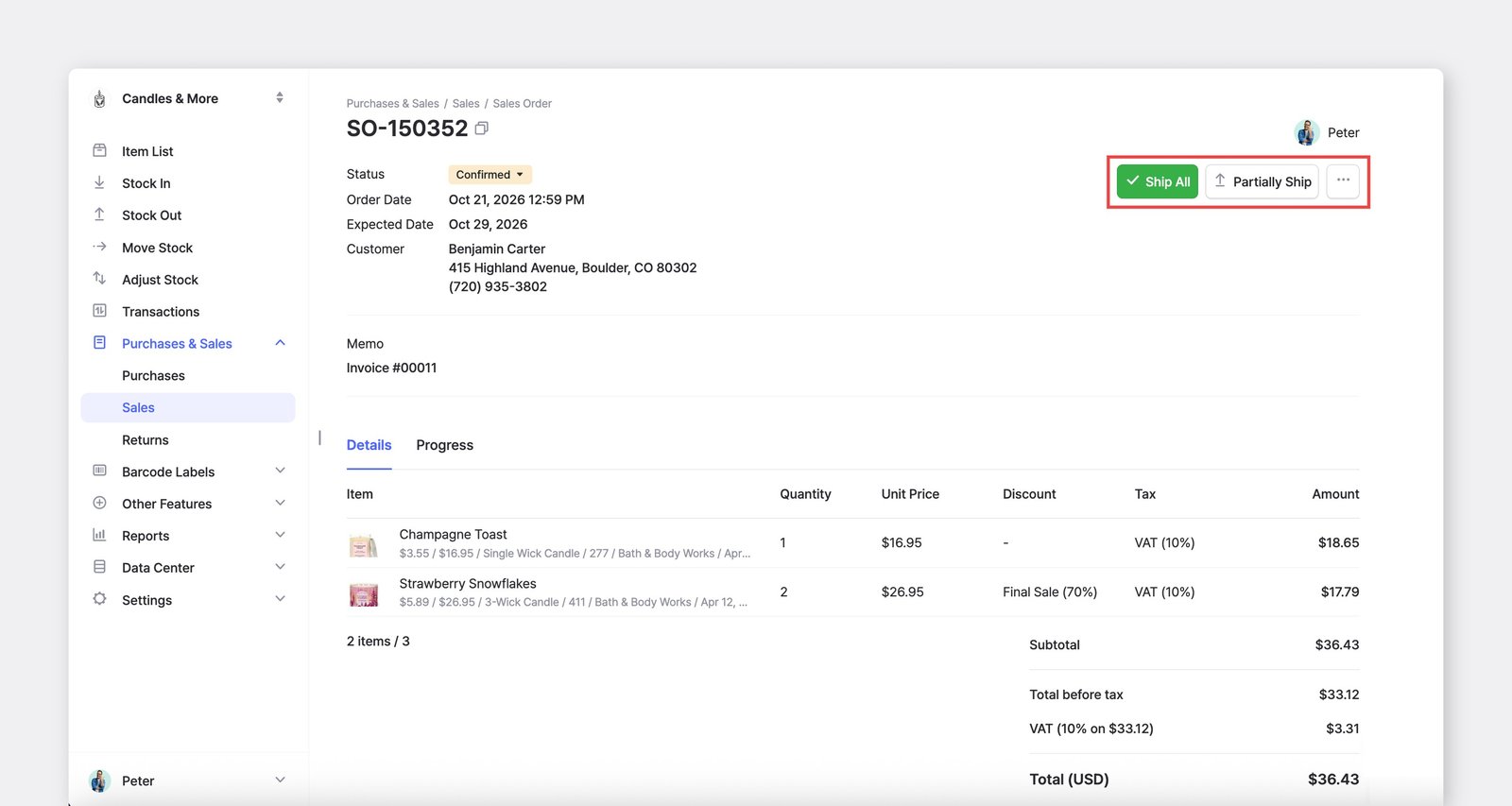
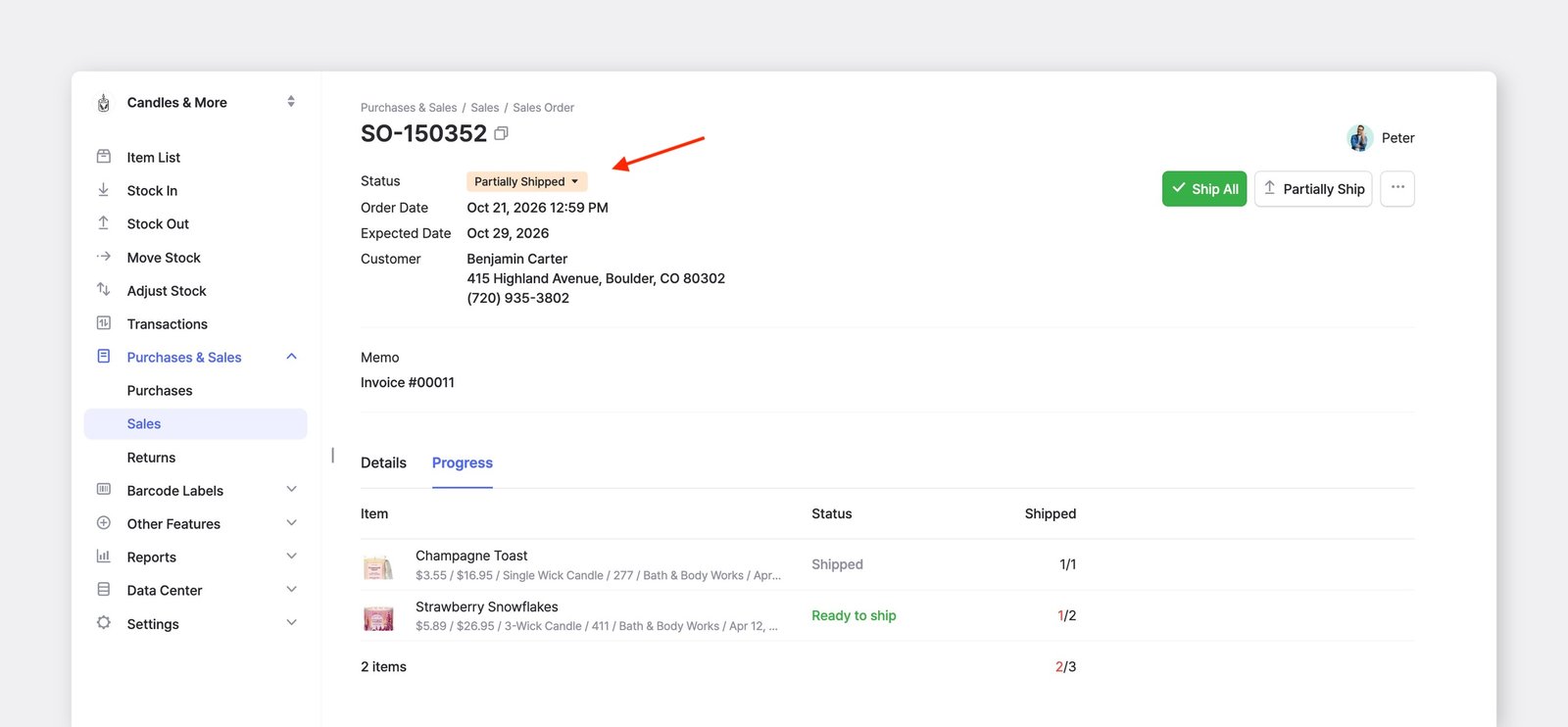
Clicking Partially Ship allows you to enter the shipped quantity for each item — simply enter the quantity you're actually sending. The order status will show as Partially Shipped until all items are shipped out.
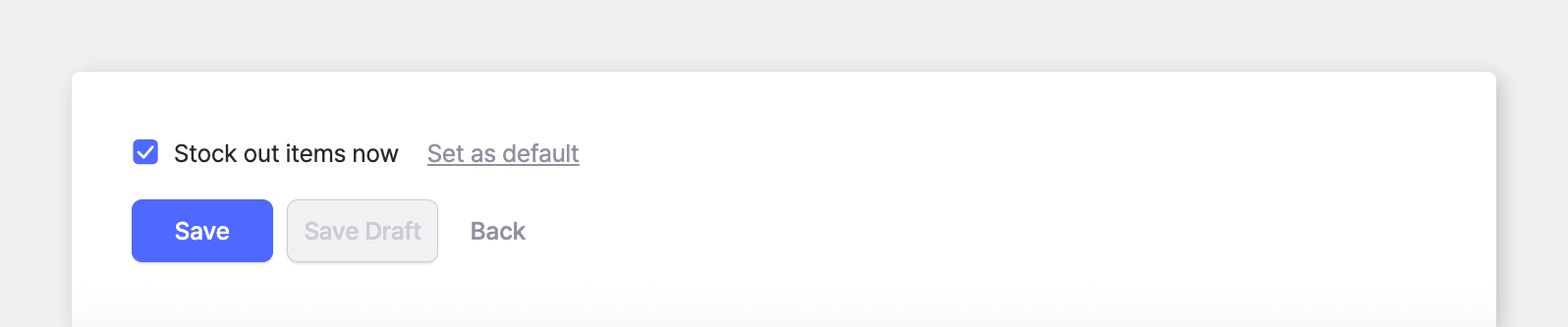
If the items have already been shipped when you're creating the sales order, check "Stock out items now" at the bottom of the order screen. The order will be saved with the Shipped status, and your inventory will be updated right away.
Returns
Section titled “Returns”You can streamline customer returns by linking them directly to your original sales orders.
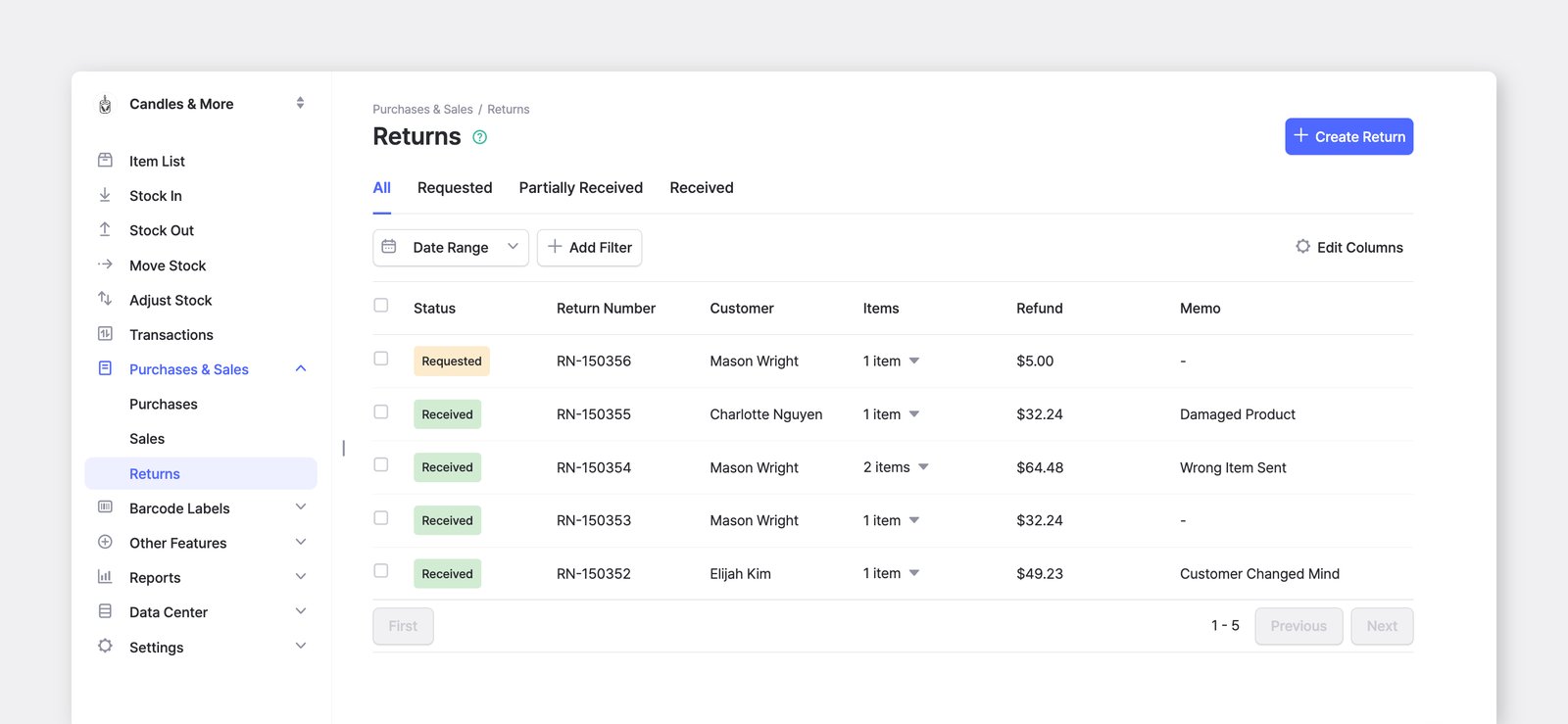
Return Status
Section titled “Return Status”- Requested: The return request has been initiated, but the items have not yet arrived at the location.
- Partially Received: Some items from the original sales order have arrived, while others are still pending.
- Received: All items in the return have been physically received and added back into inventory.
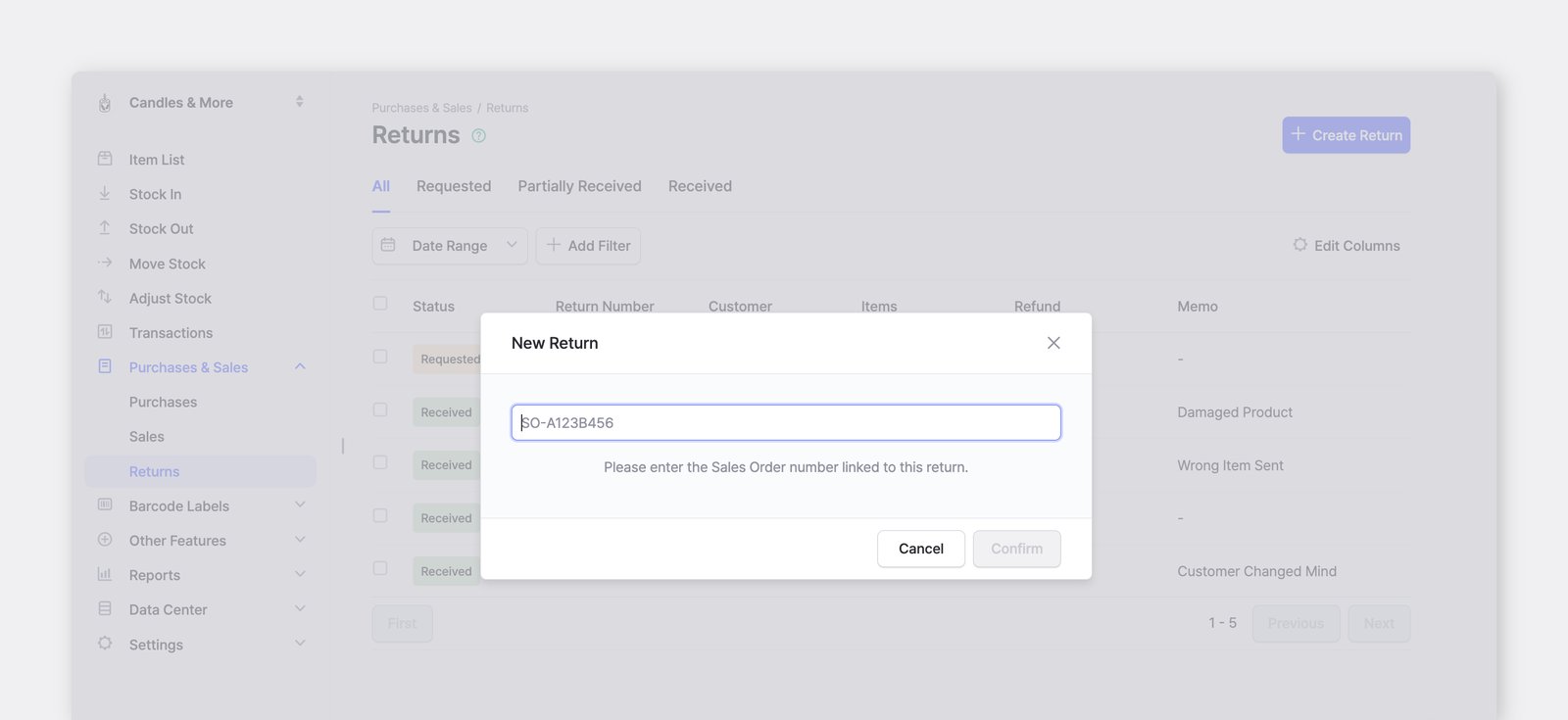
Option 1: Create a Return by Order Number
Section titled “Option 1: Create a Return by Order Number”Use this method if you have the customer's receipt or invoice handy.
- Navigate to
Purchases & Sales>Returnsin the sidebar. - Create a new return.
- Enter the Sales Order Number in the search field. The system will automatically pull up the original item details.
- Select the items being returned and save the order.
Option 2: Create a Return from the Sales List
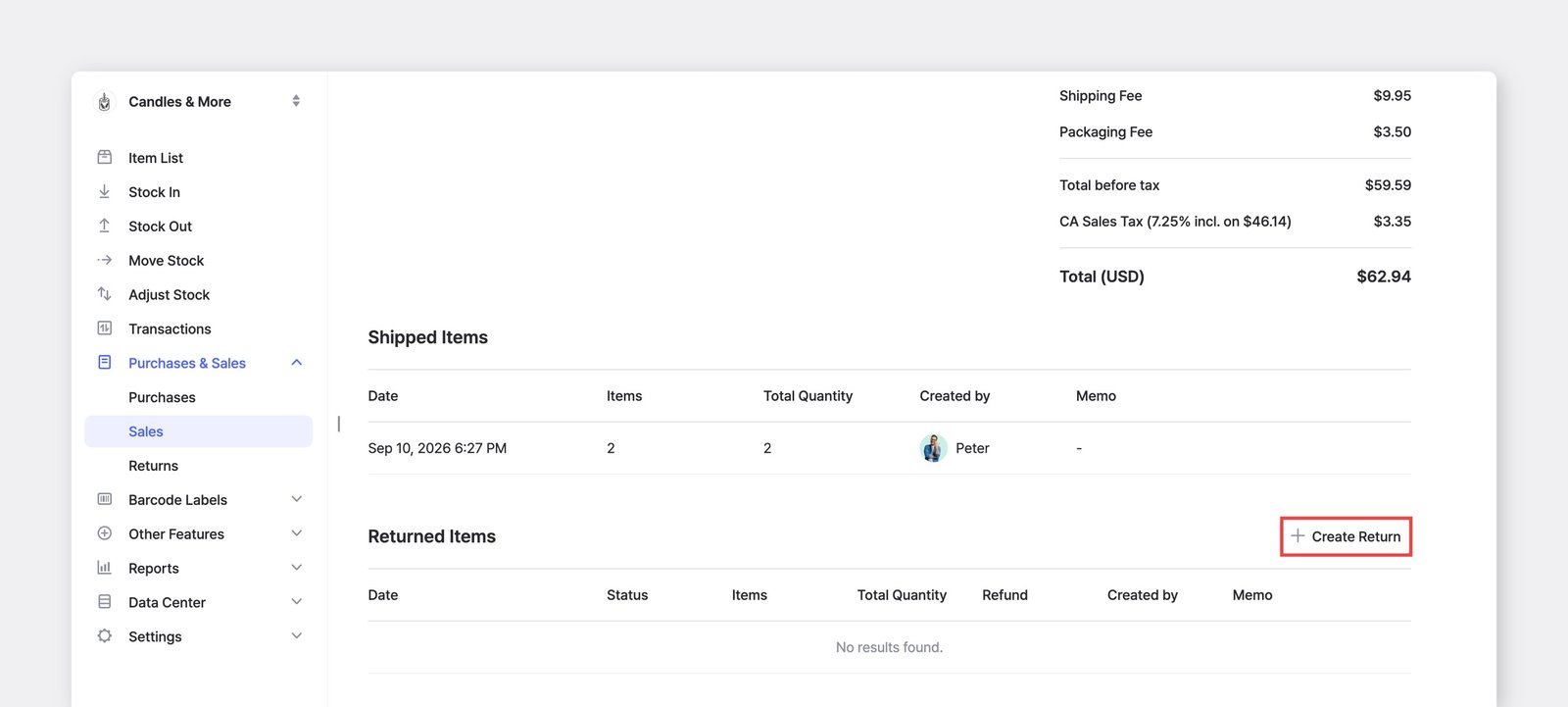
Section titled “Option 2: Create a Return from the Sales List”Use this method if you need to browse for the original transaction first.
- Go to
Purchases & Sales>Salesand locate the order the customer wants to return. - Click on the order to open the Details view.
- Click the
+ Create Returnbutton under the Returned Items section.
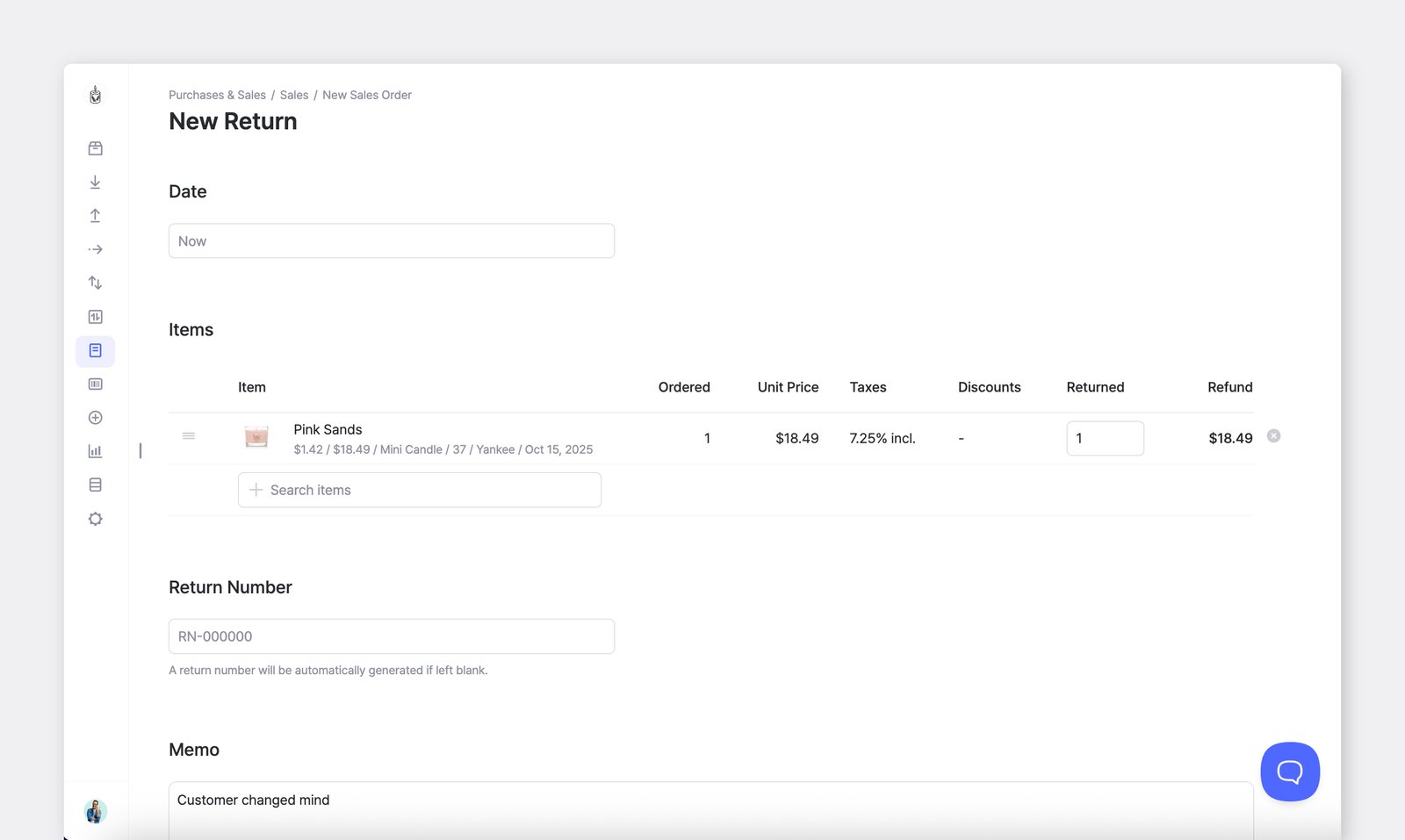
- (Optional) Enter return details in the Memo field for better tracking and team communication (e.g., "Customer changed mind").
Order Settings
Section titled “Order Settings”Sharing and Printing Orders
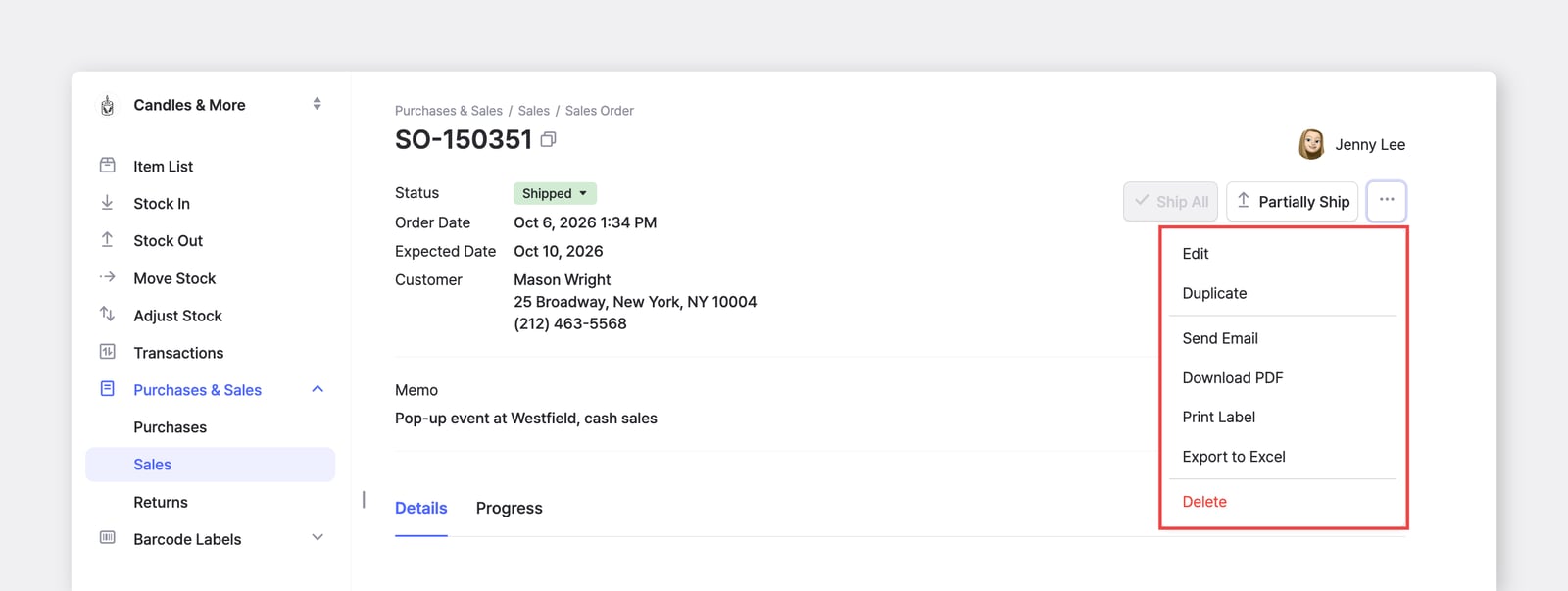
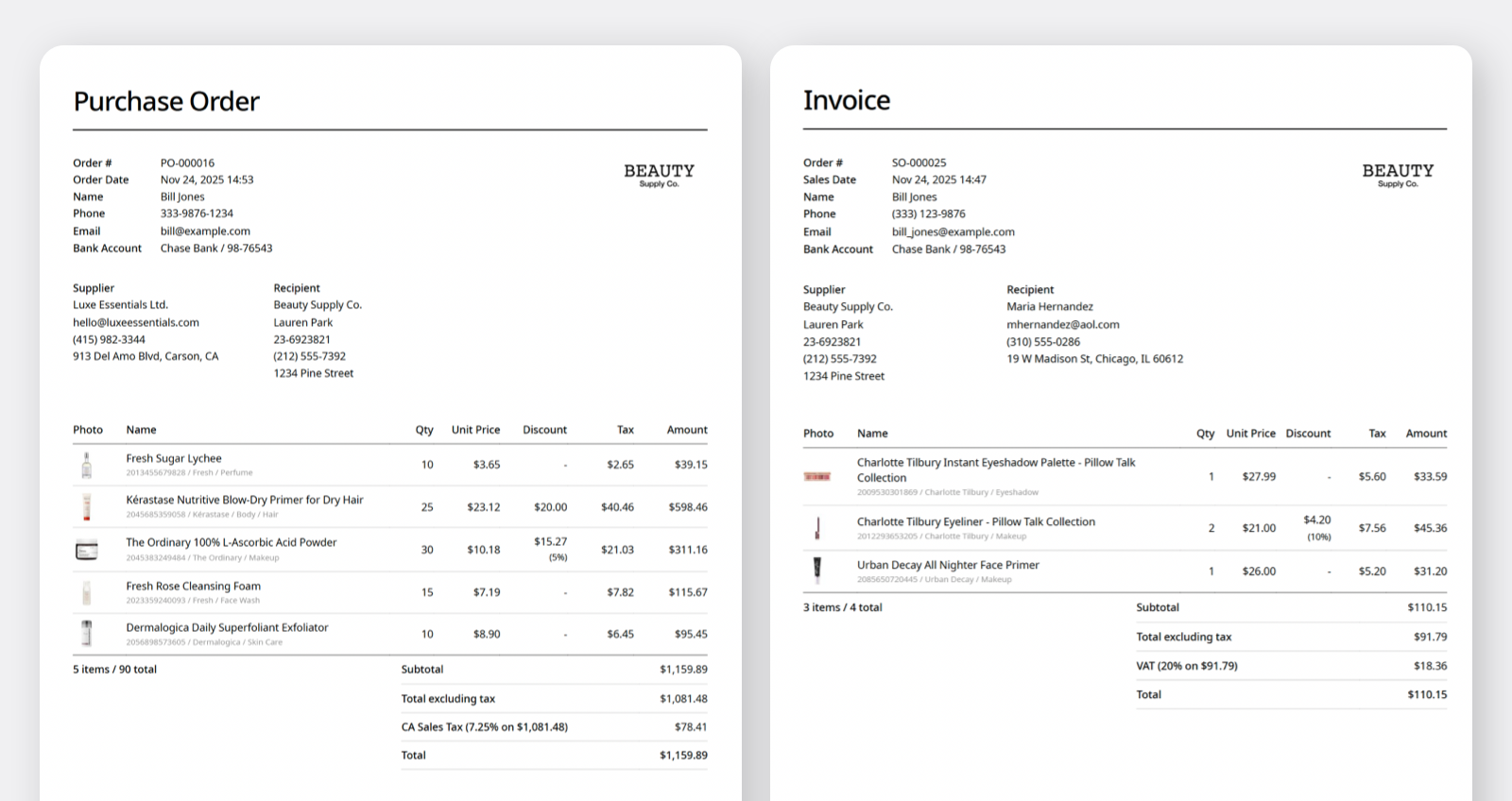
Section titled “Sharing and Printing Orders”You can send your orders via email, print them, or save them as PDFs. Click the ... menu in the top right corner and select your option.
Managing Order Information
Section titled “Managing Order Information”- Add or edit supplier and customer information in
Data Center>Partners. - Update your company information in
Settings>Team.
A. Print Layout
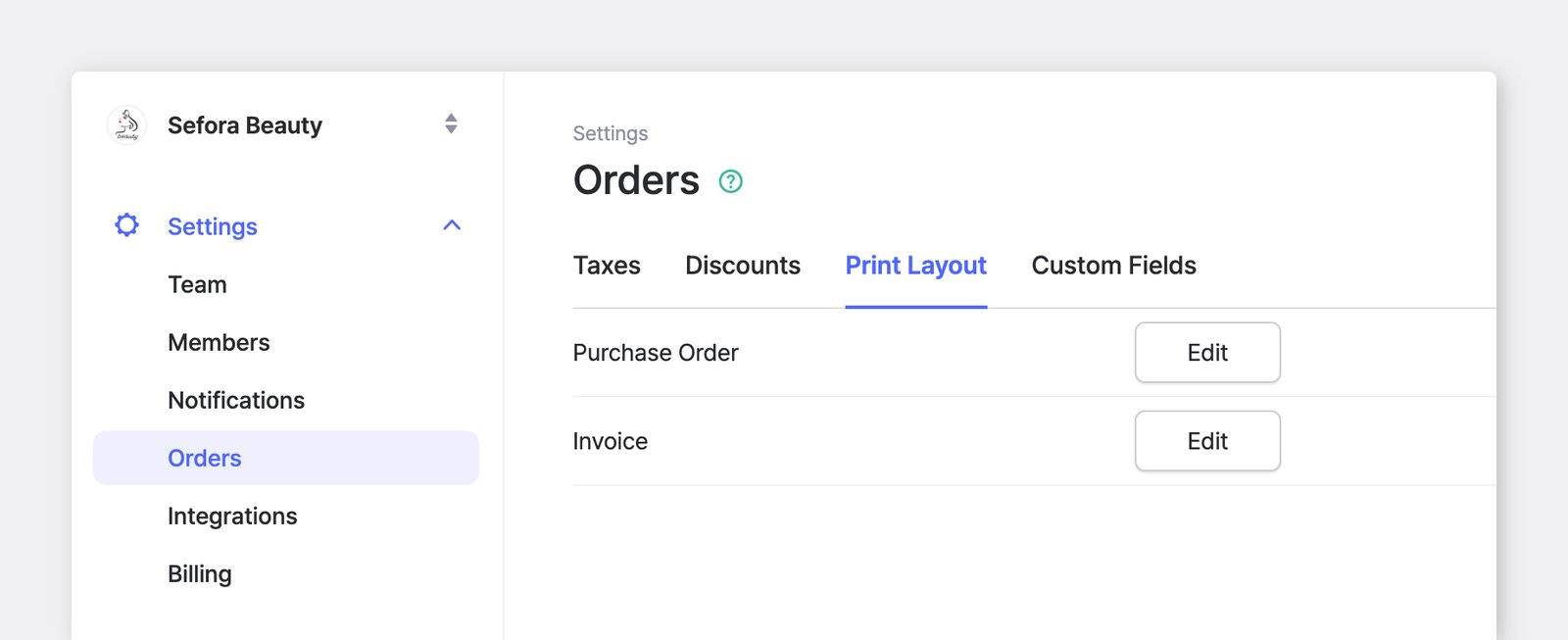
Section titled “A. Print Layout”Customize what information appears on your purchase orders and sales invoices. You can set different layout templates for each document type.
Go to: Settings > Orders > Print Layout
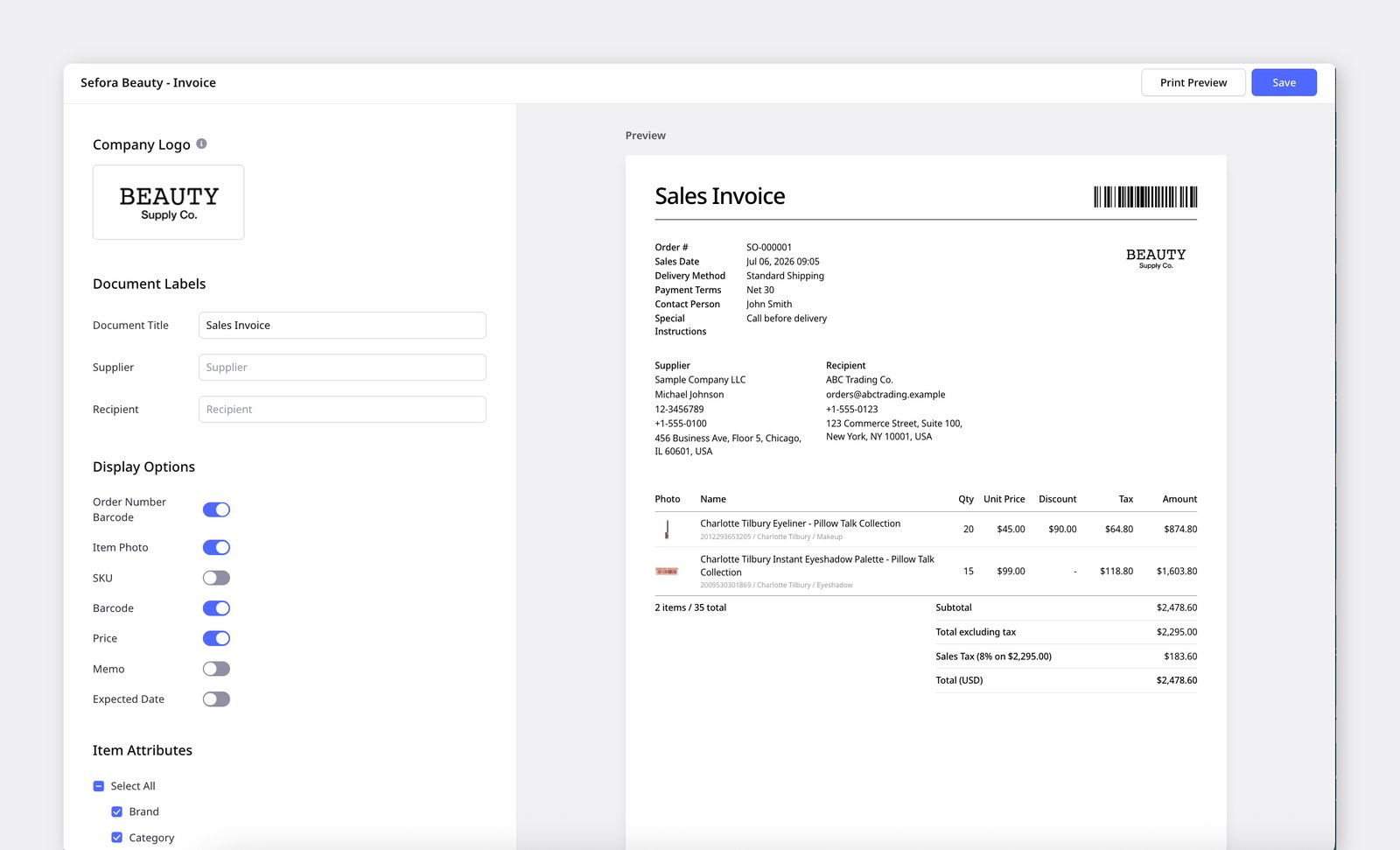
Layout Settings
Section titled “Layout Settings”- Company Logo — Add your brand image to the top right of the document.
- Document Labels — Change the terms shown on the document.
- Document Title (e.g. Purchase Order, Invoice, Packing Slip, Delivery Note)
- Supplier (e.g. Vendor, Seller, From)
- Recipient (e.g. Customer, Bill To, Ship To, Buyer)
- Display Options — Choose which fields to include on the document.
- Available options: Order number barcode, Item photo, SKU, Barcode, Pricing, Memo, Expected Date (Stock In/Stock Out)
- Item Attributes — Select which item attributes to display in the item details section of the document.
- Footer — Add fixed text to the bottom of the document (e.g. a greeting, standard terms, or a signature line). Line breaks and spacing are supported, so you can format it as needed.
B. Custom Fields
Section titled “B. Custom Fields”If you need additional fields such as a shipping method or payment information, you can add Custom Fields while creating a purchase order or sales order.
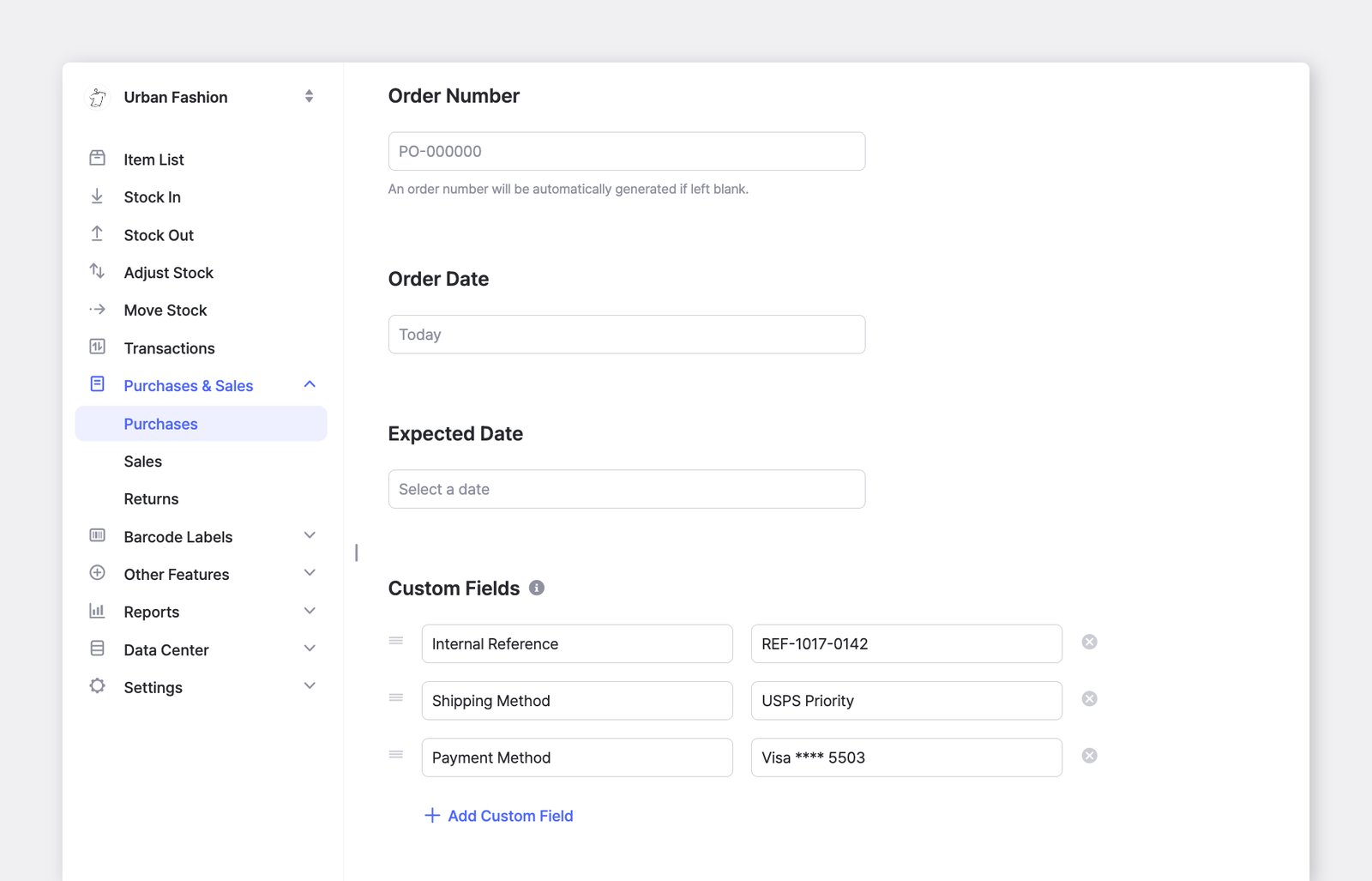
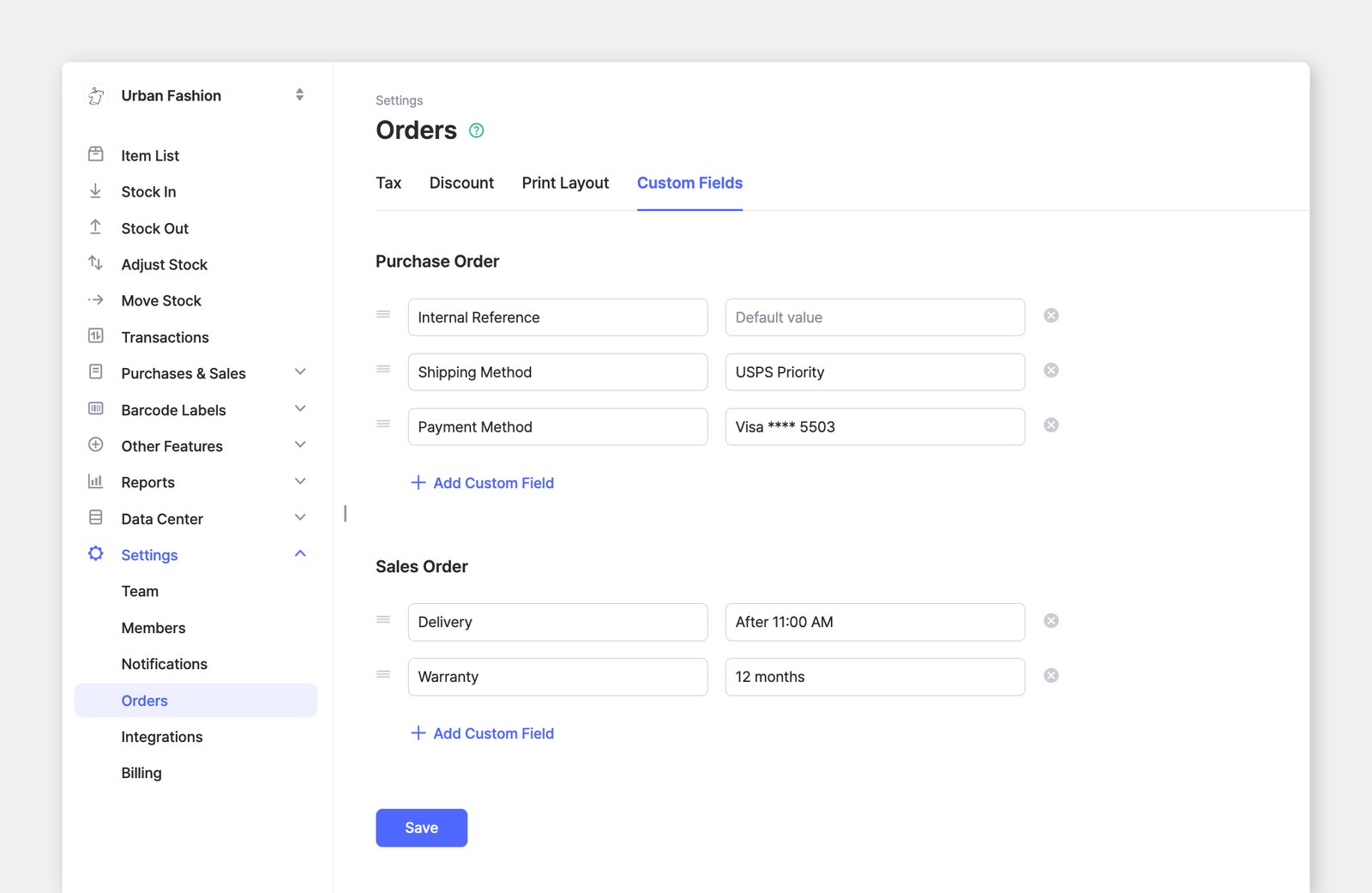
If you frequently use the same fields, save them as a template.
Go to: Settings > Orders > Custom Fields to add a new custom field, and any saved fields and their values will appear automatically whenever you create a new order.
C. Taxes
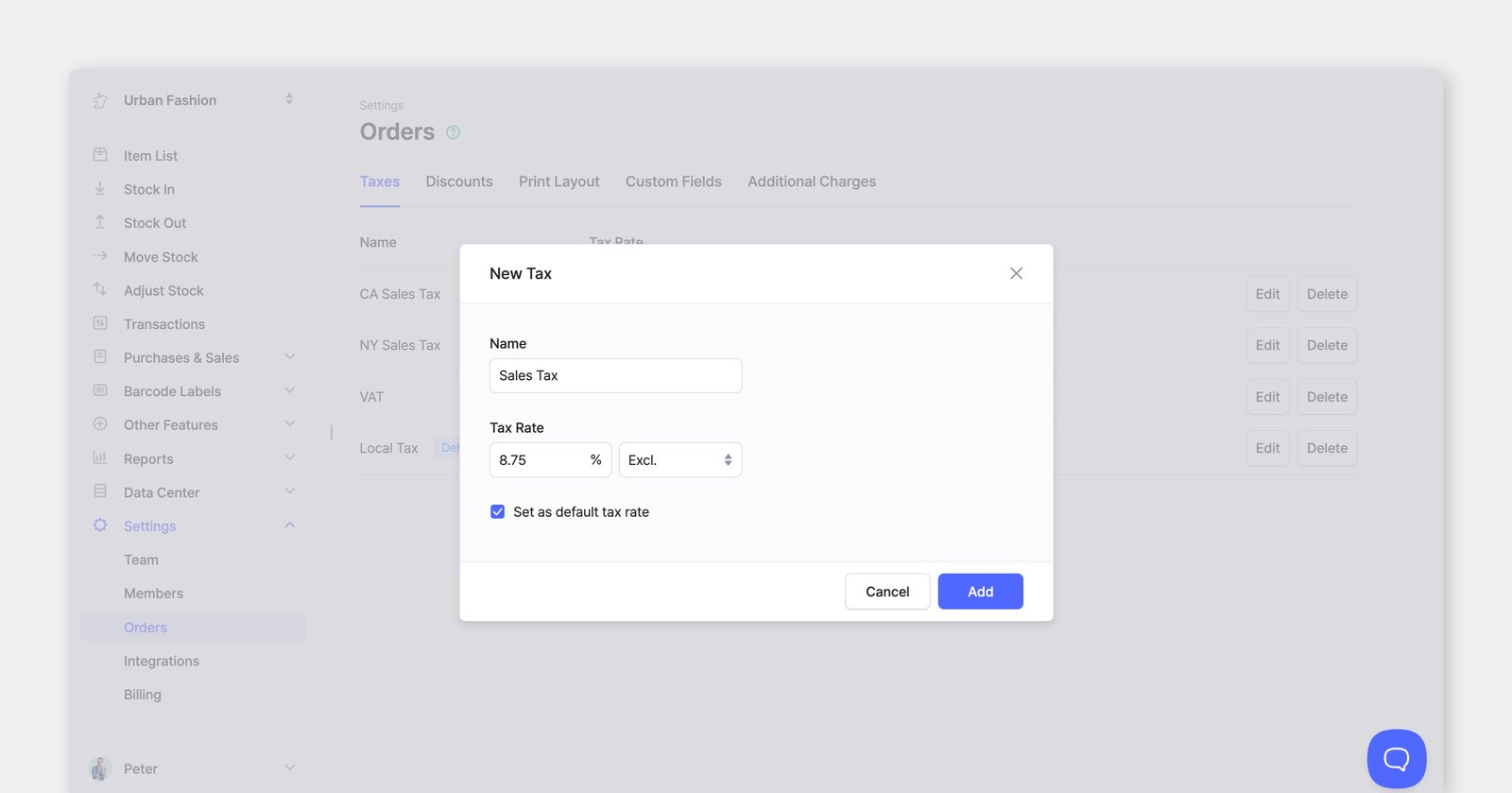
Section titled “C. Taxes”You can apply taxes to your orders and choose how they're calculated:
- Inclusive: The tax is already included in the item price.
- Exclusive: The tax is added on top of the item price.
D. Discounts
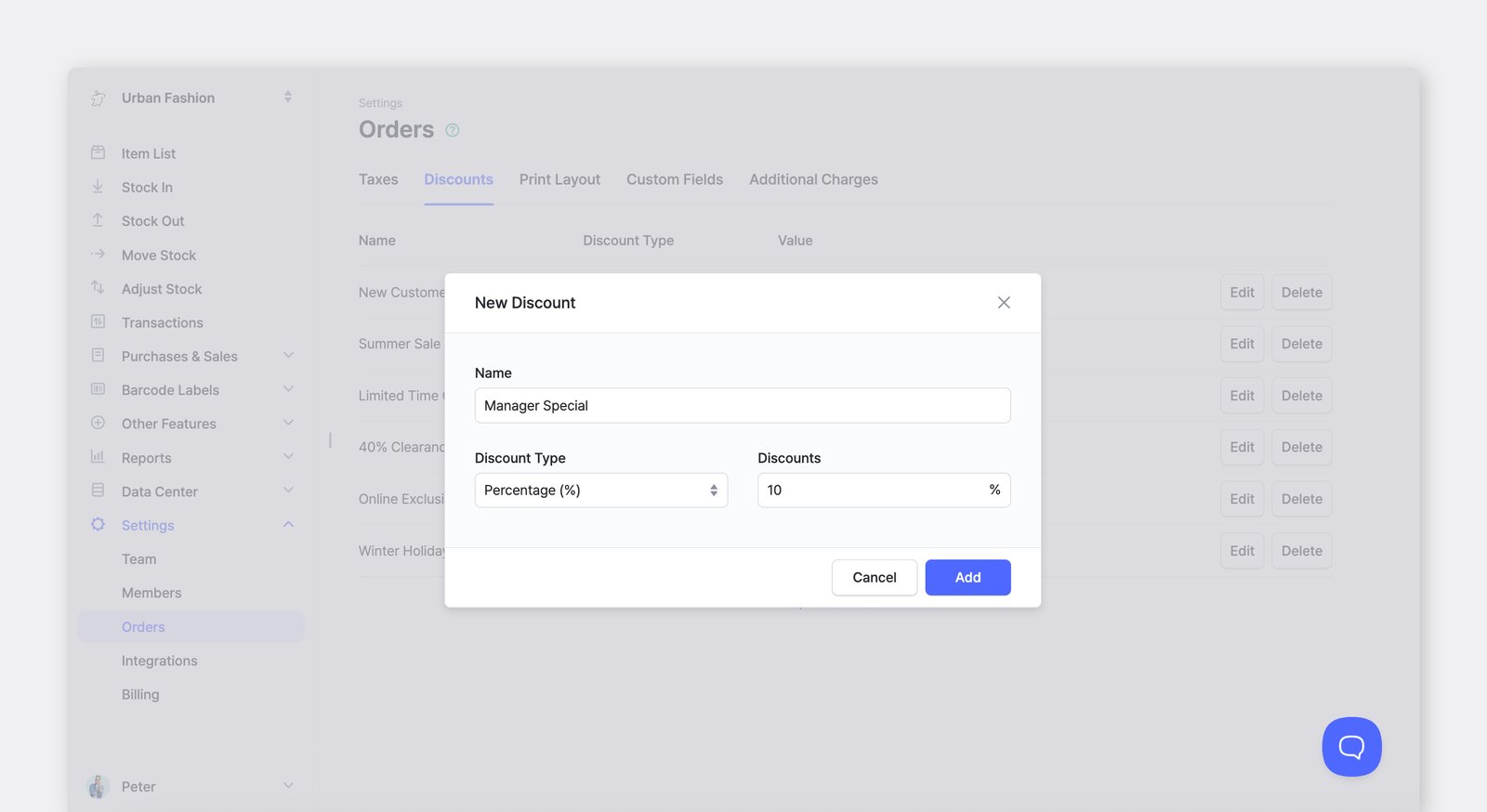
Section titled “D. Discounts”You can also apply discounts to your orders:
- Percentage (e.g., 10% off)
- Fixed Amount (e.g., $5 off)
E. Additional Charges
Section titled “E. Additional Charges”You can add extra costs beyond the item price, such as shipping fees or handling charges, when creating a purchase order or sales order. Each charge is added to the order total.
To add a charge to a single order, select + Add Charge under the order summary, then enter a name and amount.
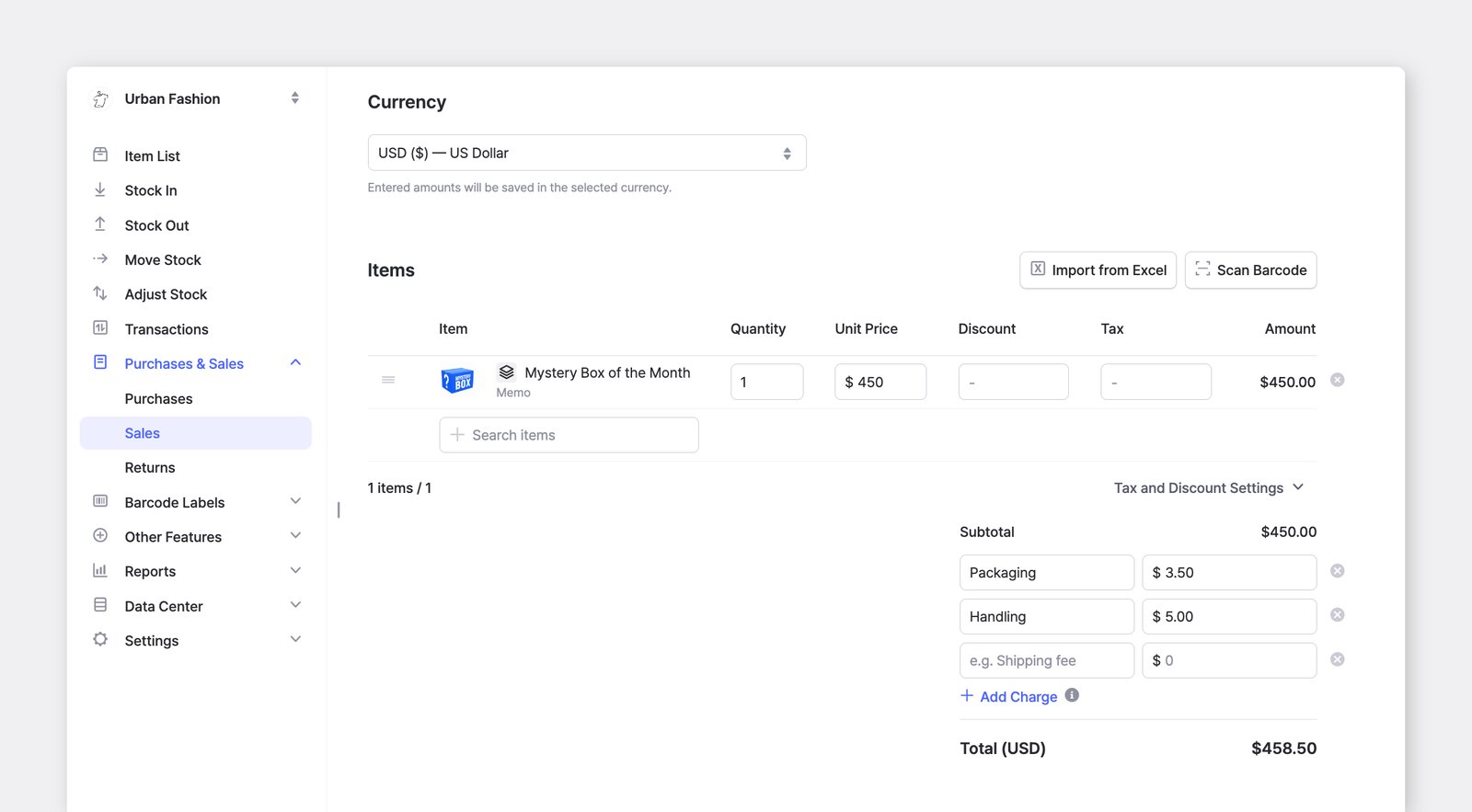
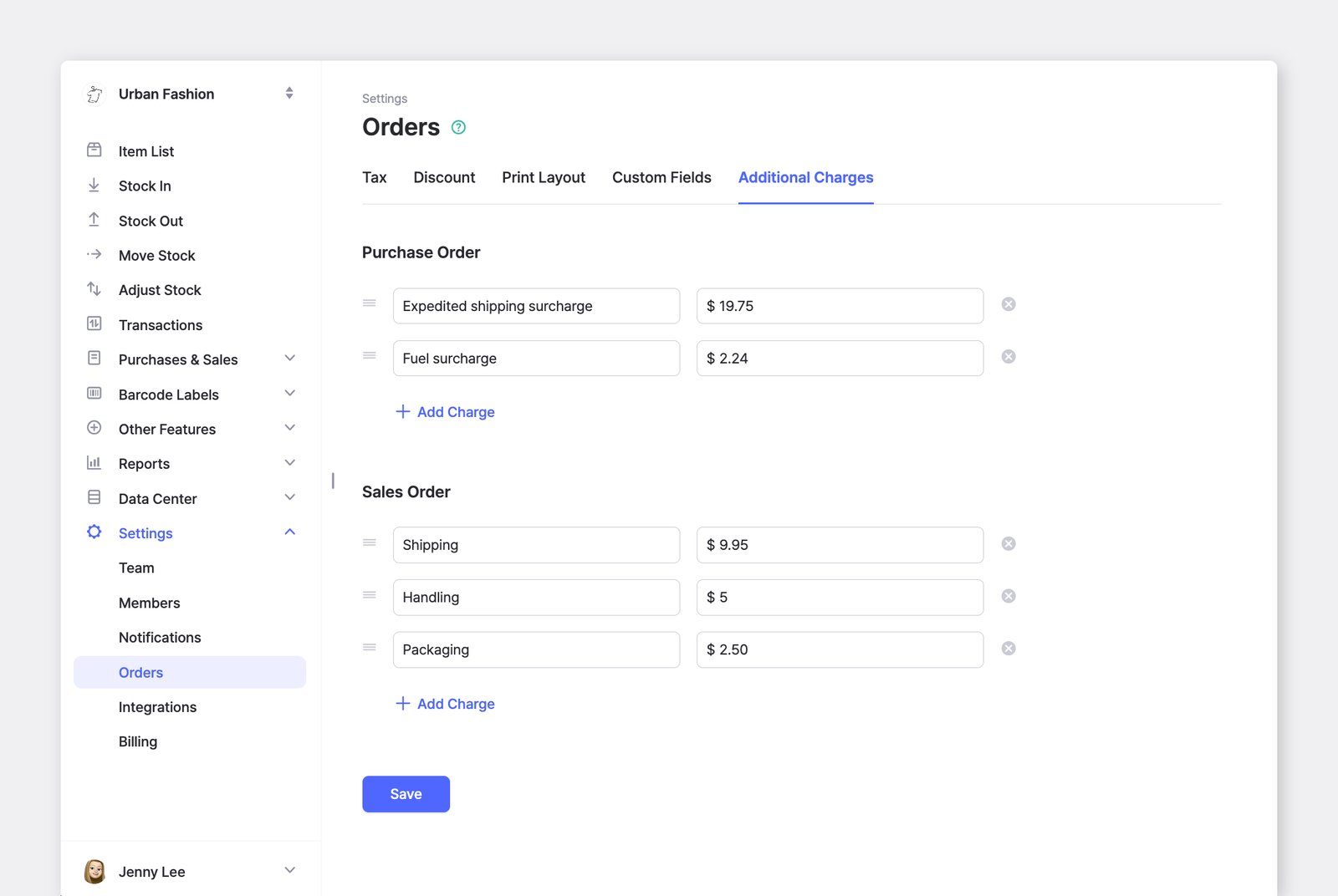
If you frequently use the same charges, you can save them for reuse.
Go to: Settings > Orders > Additional Charges to register a charge, and any saved charges will appear automatically whenever you create a new order. Charges can be set separately for purchase orders and sales orders, and you can still edit or remove them on an individual order.
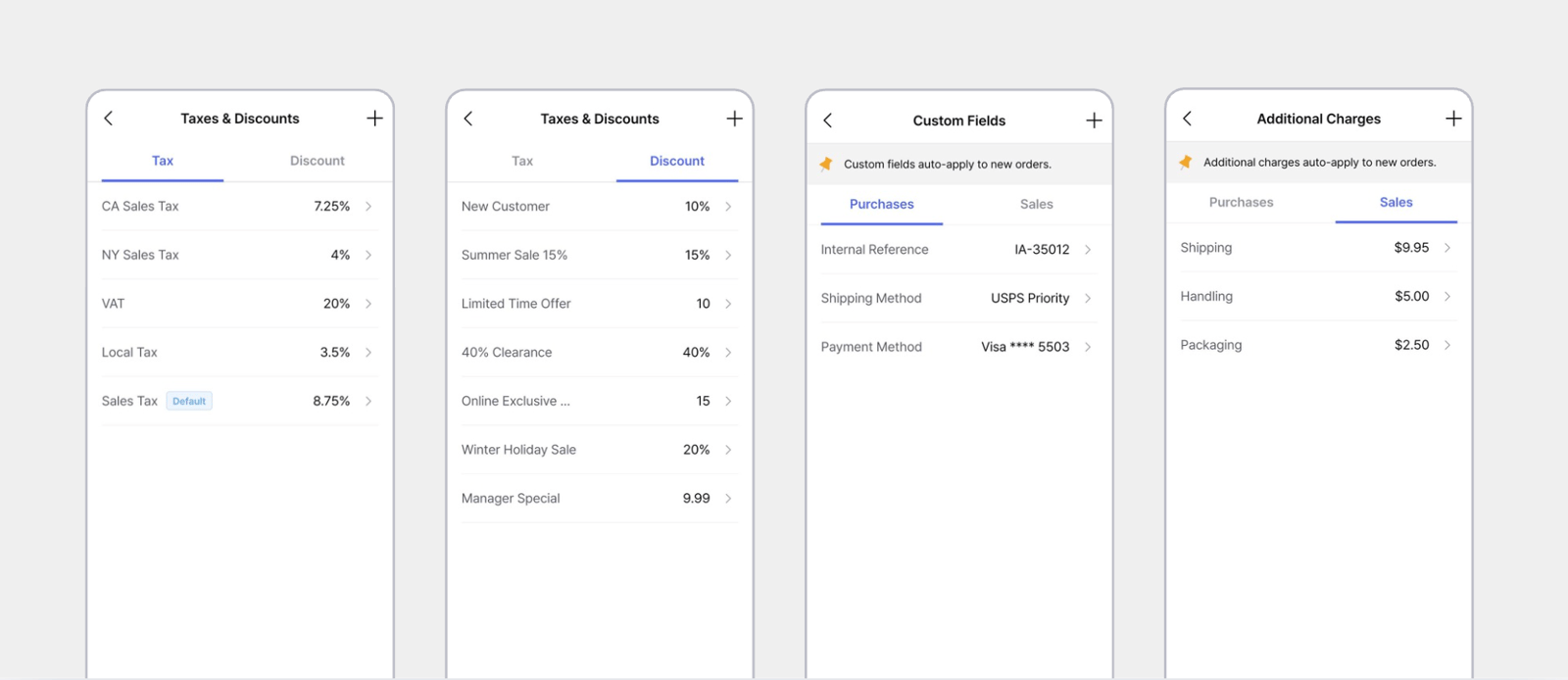
You can access the same order settings from the BoxHero mobile app.
Price Lists
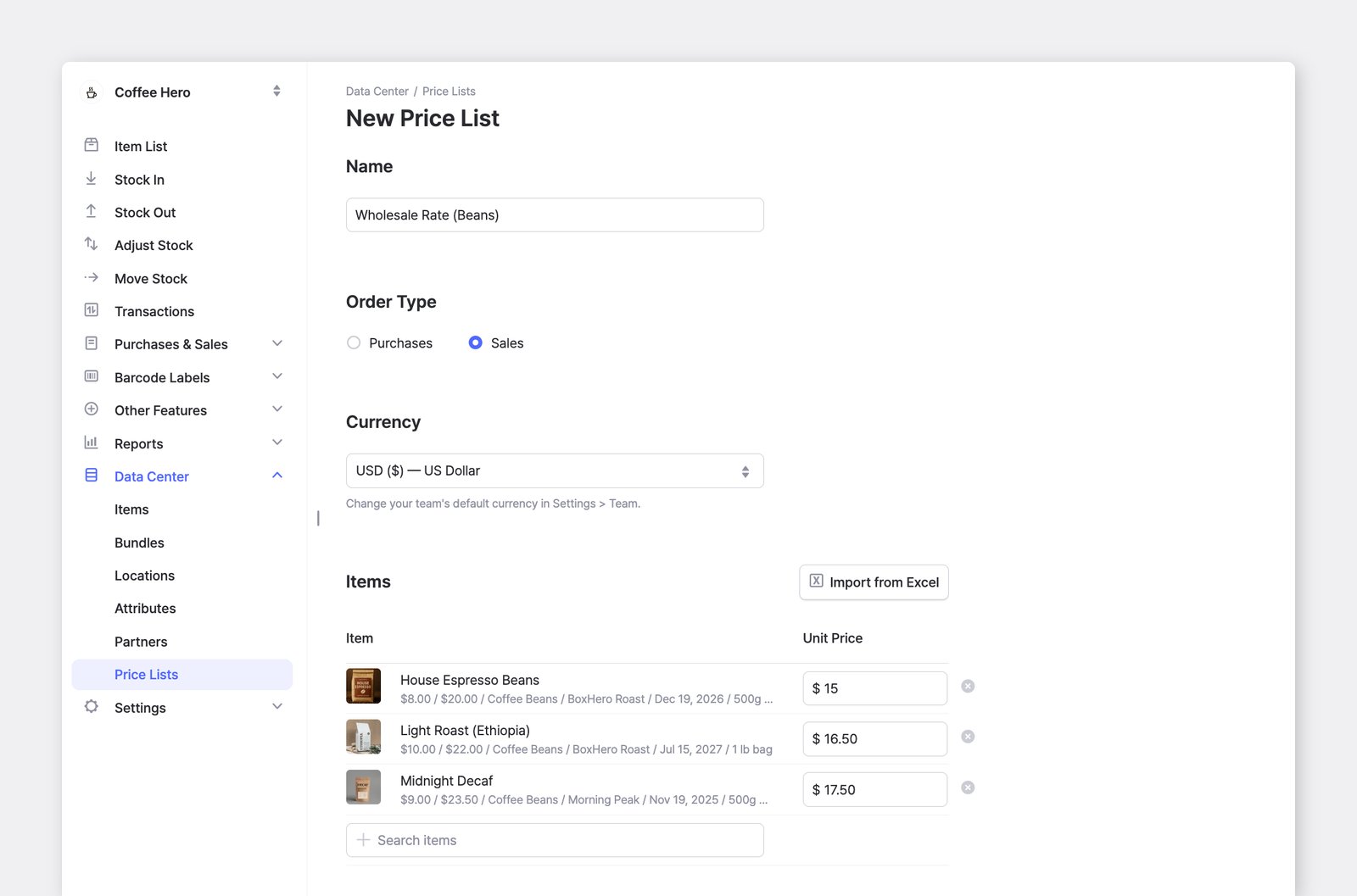
Section titled “Price Lists”Price Lists let you save different prices for specific clients, promotions, or special agreements. Along with your default cost and sale price, you can create additional price sets and apply them when you create a purchase order or sales order.
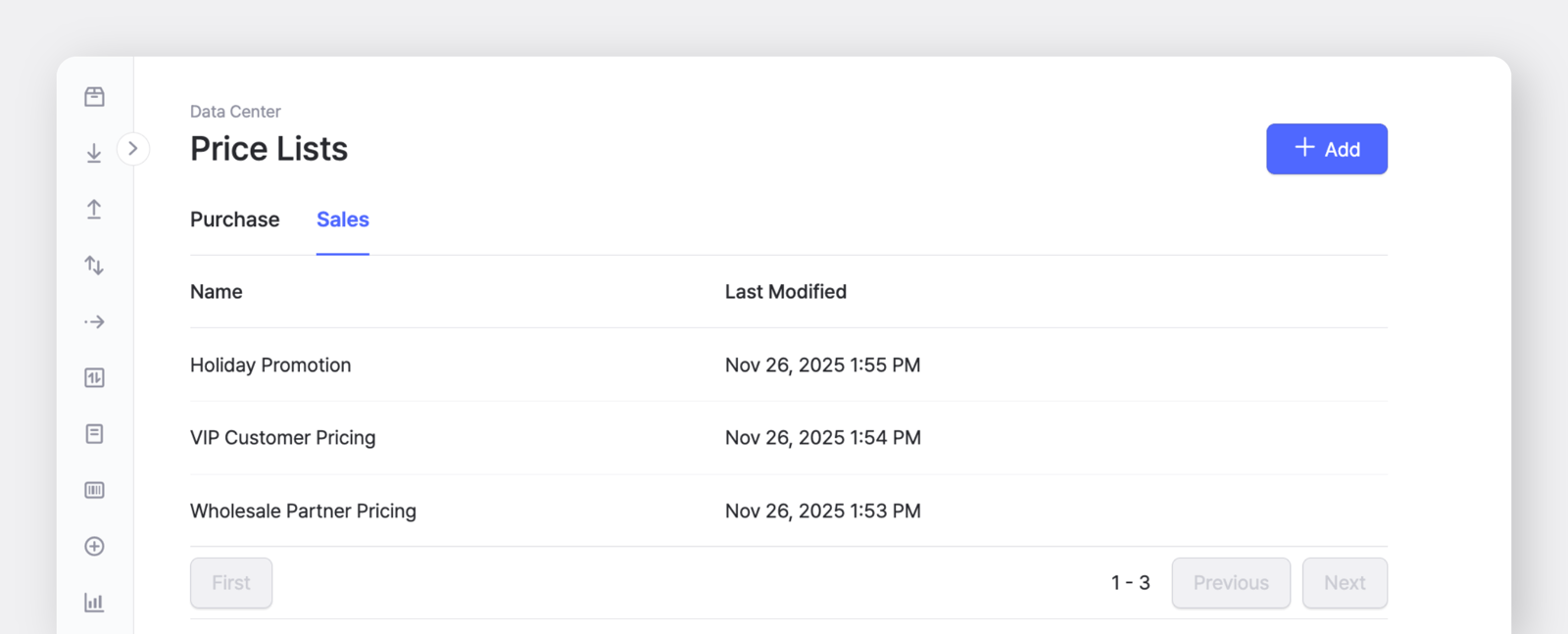
You can create a price list under Data Center > Price Lists.
Price lists can be set up separately for purchase and sales types. Add item prices manually or upload them all at once using an Excel file.
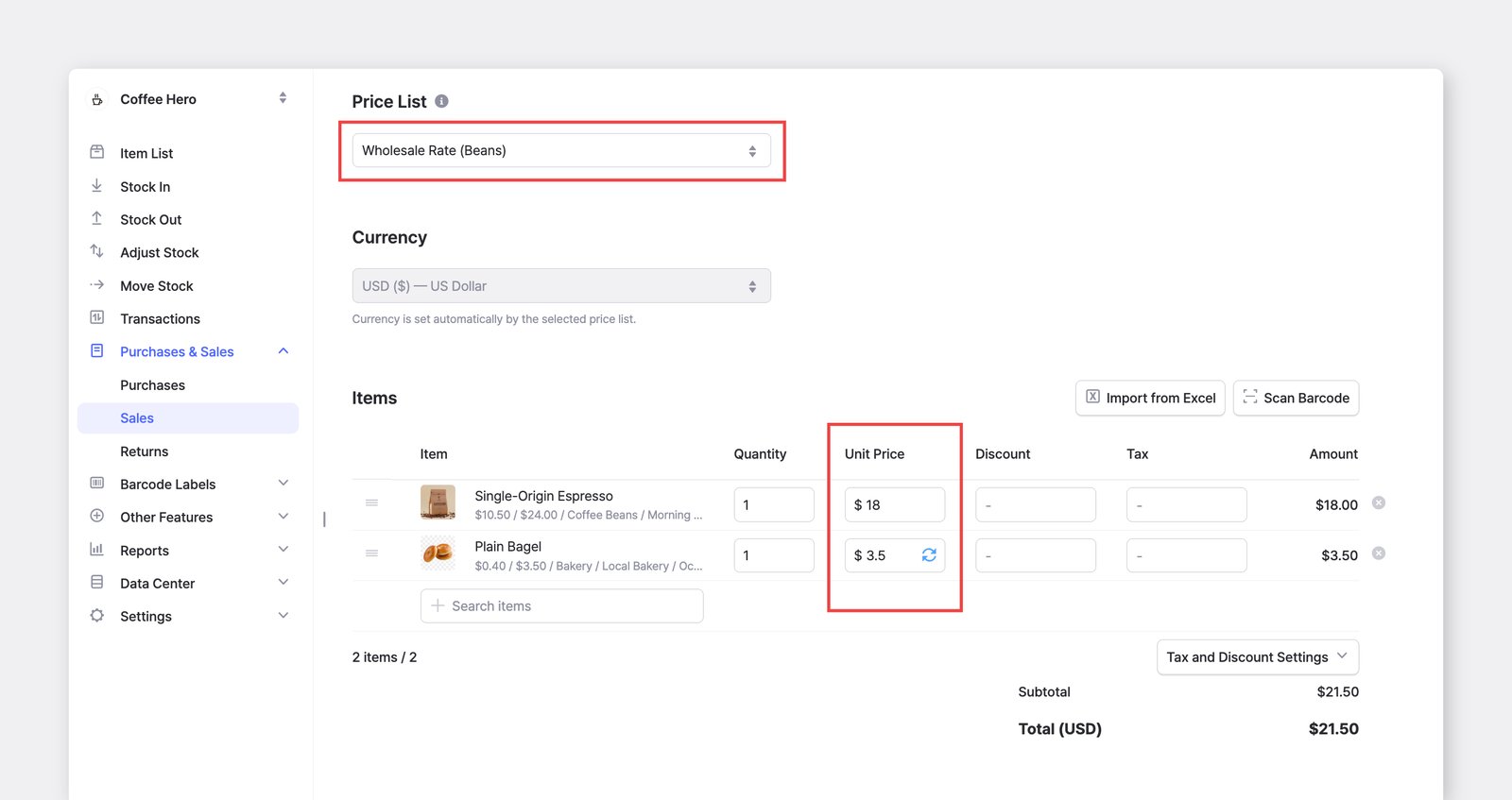
When you create an order, click on the Unit Price field to choose a price list. If you switch to another price list while editing, the unit prices will update based on the one you selected.
If you enter a price that differs from the one saved in the applied list, an update icon (🔄) appears next to the Unit Price field. Click it to save the new price back to the list and keep your price lists up to date.
Currency
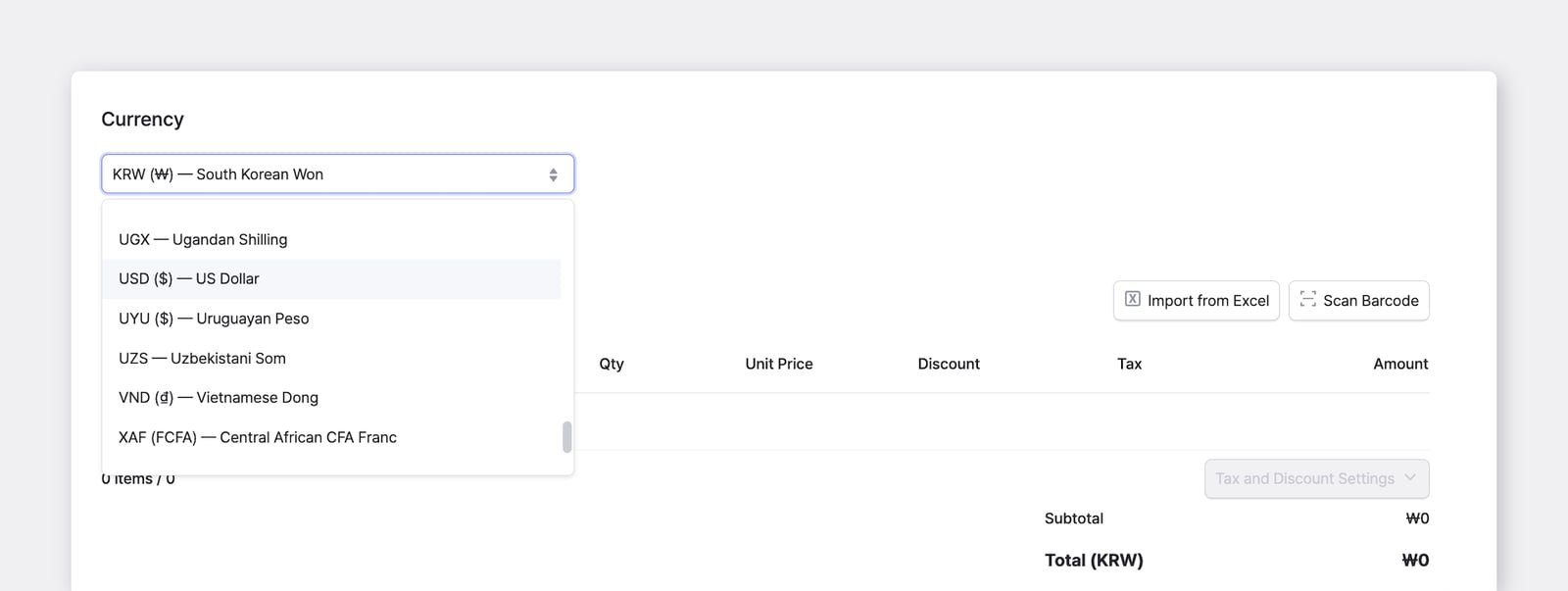
Section titled “Currency”You can set a separate currency for each Purchase Order and Sales Order when needed — independent of your team settings.
- When you set a default currency for your team, it's auto-selected on every new order.
- You can switch to a different currency directly from the order screen.
Exchange Rates
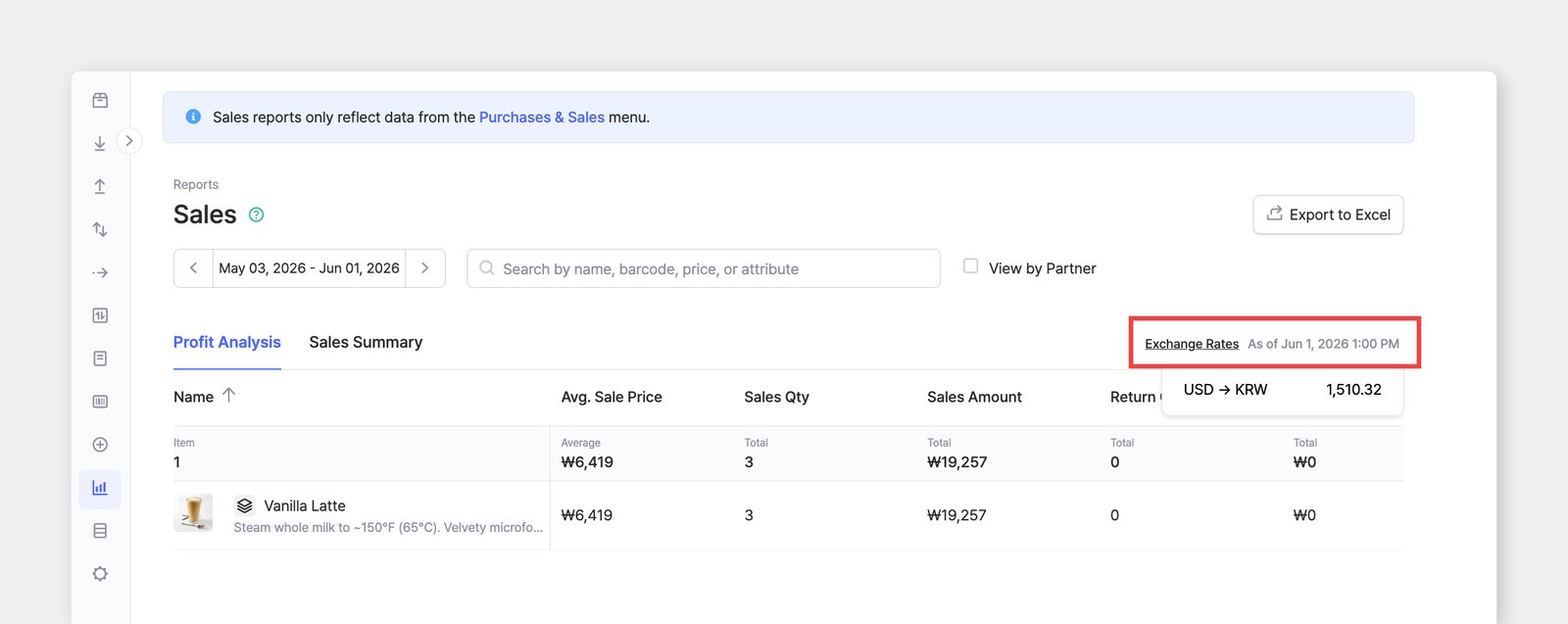
Section titled “Exchange Rates”Each order is converted from the currency it was created in into your display currency using the latest exchange rate in the Sales Report.
The rate applied appears in the Exchange Rates indicator at the top of the report, labeled with the date and time it was retrieved (for example, "As of Jun 1, 2026 1:00 PM").
Feature Highlights
Section titled “Feature Highlights”Explore additional features in Purchases & Sales to get the most out of your orders.
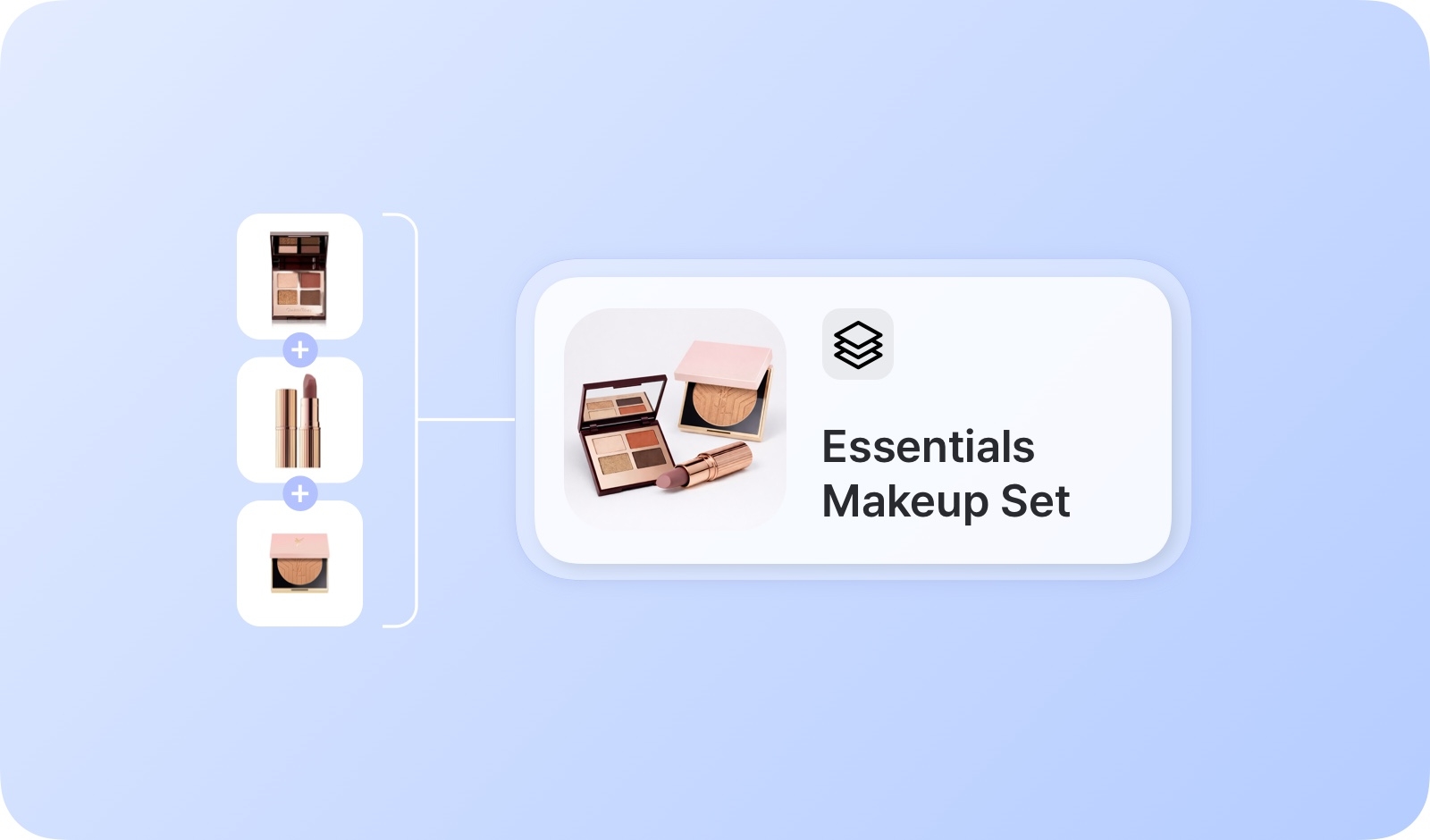 BundlesGroup multiple items into a single unit for streamlined purchase and sales orders.
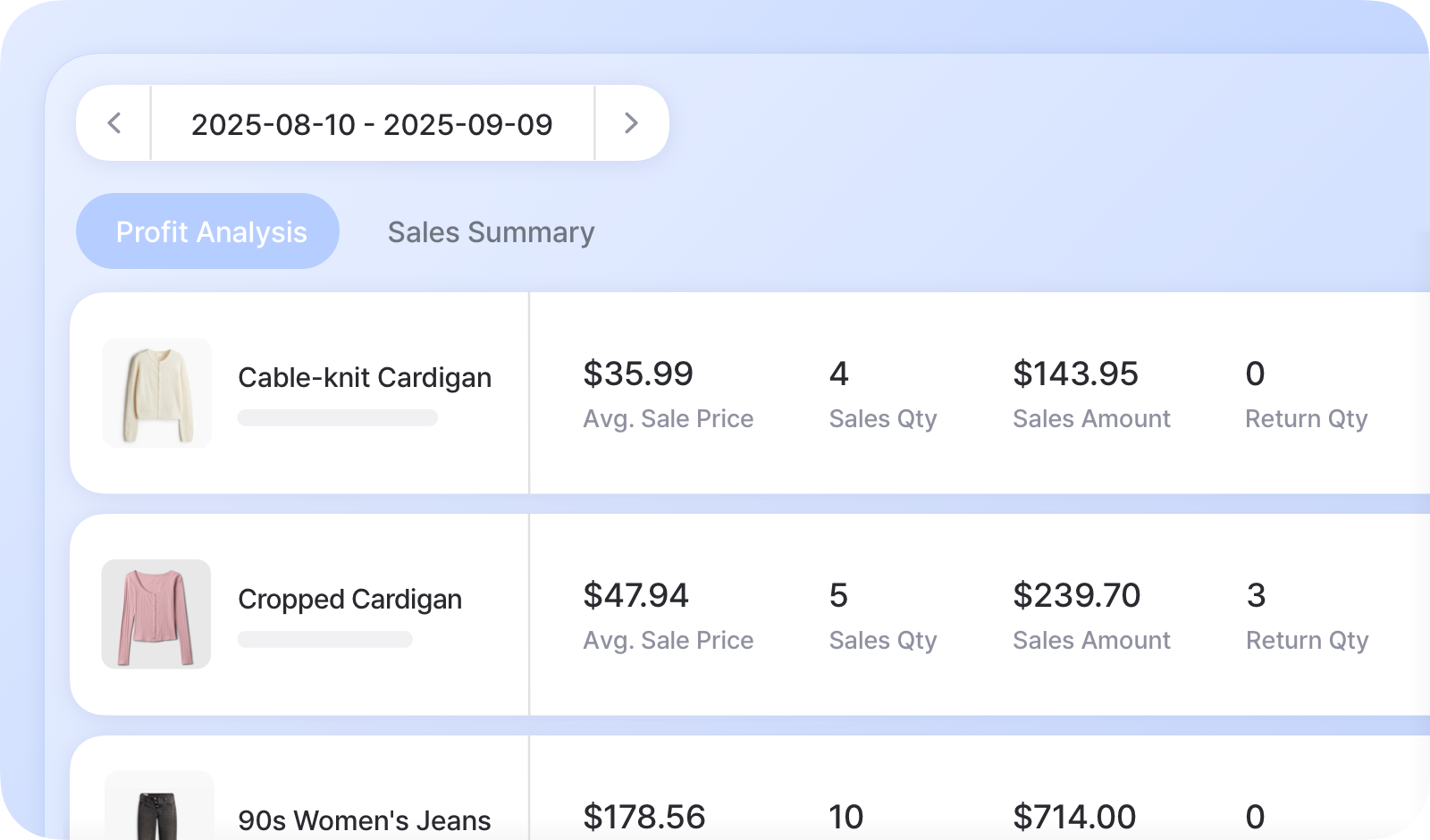 Sales ReportsTrack profit analysis and sales performance to gain insights into your business.
Frequently Asked Questions
Section titled “Frequently Asked Questions”Have questions on Purchases & Sales? Check out our FAQ: