> For the complete documentation index, see [llms.txt](https://www.boxhero.io/docs/llms.txt). Markdown versions of documentation pages are available by appending `.md` to page URLs; this page is available as [Markdown](https://www.boxhero.io/docs/resources/guides/zebra-tc21.md).

# ZEBRA TC21

***

{% hint style="warning" %}
**Note:** These steps use Zebra's DataWedge app, which is pre-installed on all Zebra devices, so the same setup applies to other Zebra Android models as well.
{% endhint %}

## PDA Setup

{% stepper %}
{% step %}

### Open DataWedge

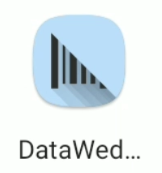
DataWedge comes pre-installed on every Zebra device. Search your apps for **"DataWedge"** and open it.

<figure><img src="/files/sjJYBAZAZonVtmkWS0gP" alt=""><figcaption></figcaption></figure>

{% endstep %}

{% step %}

### Create a Profile

A profile tells the scanner how to behave inside a specific app.

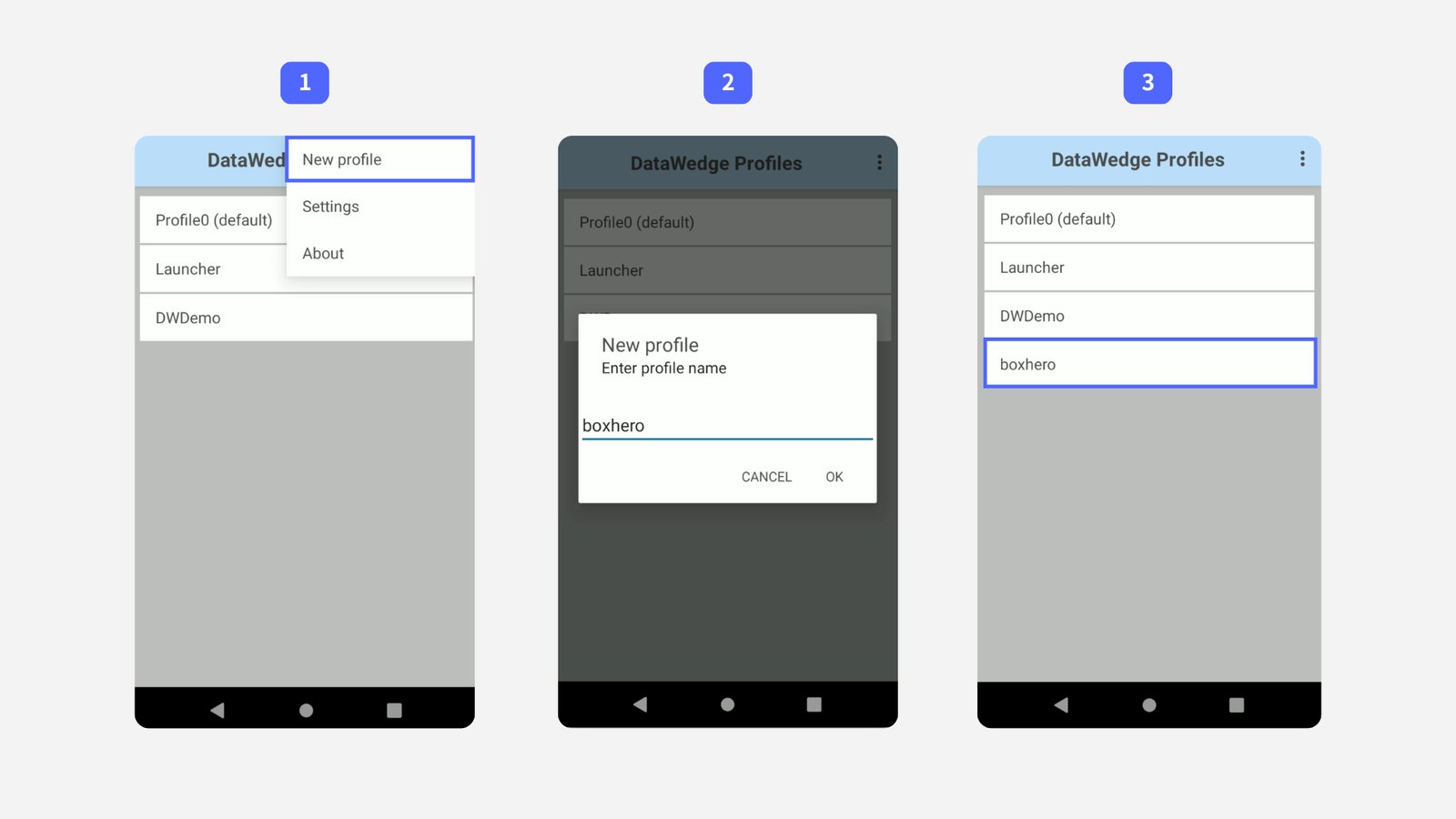
1. Tap the `...` menu in the top-right corner and select `New profile`.
2. Enter "BoxHero" as the name and tap `OK`.
3. Select the new `BoxHero` profile from the list.

<figure><img src="/files/bmQ6u4FanBthOOoMPhlu" alt=""><figcaption></figcaption></figure>

{% endstep %}

{% step %}

### Link the BoxHero App

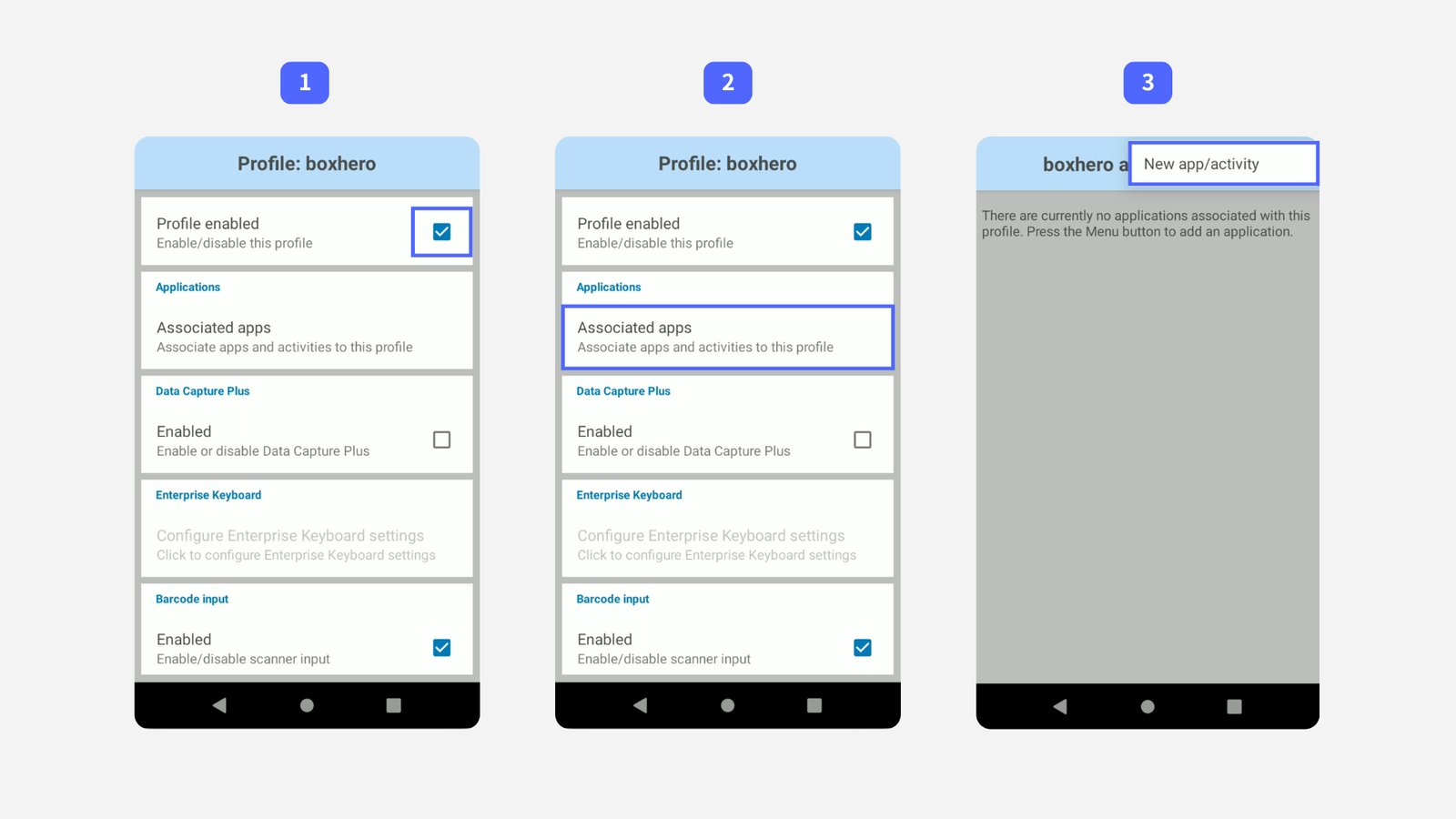
1. Check `Profile enabled`.
2. Tap `Associated apps`.
3. Tap the `...` menu in the top-right corner and select `New app/activity`.
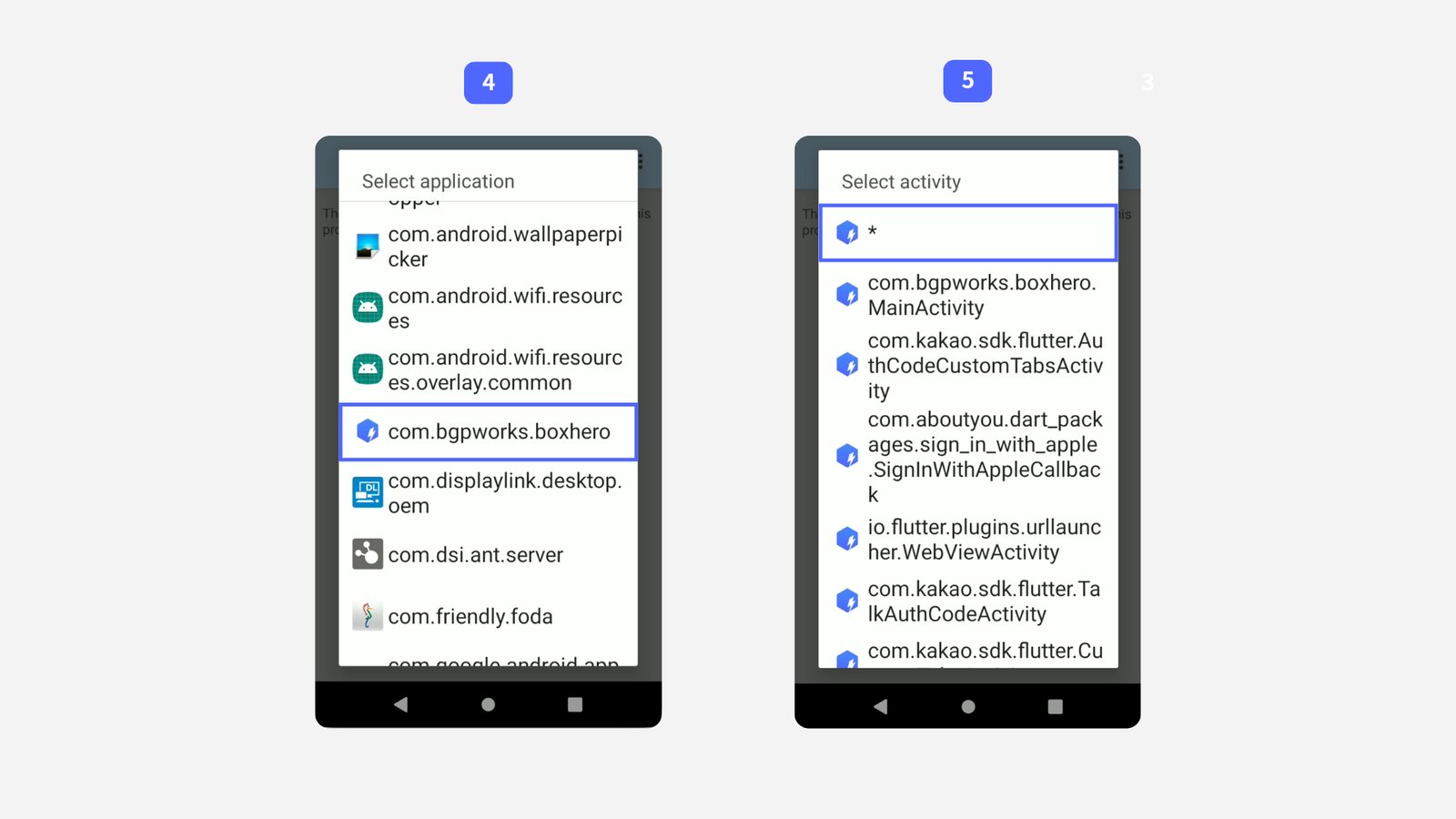
4. Select `com.bgpworks.boxhero` from the list.
5. Select `*` to apply the profile to all activities within the app.
<figure><img src="/files/dZowcHBc1lDOs6ZYE8qI" alt=""><figcaption></figcaption></figure>

<figure><img src="/files/hXLjP5kQl4n4niT1W2AR" alt=""><figcaption></figcaption></figure>

{% endstep %}

{% step %}

### Configure Output

Press the back button at the bottom of the device to return to the main **profile screen**, then scroll down to the `Keystroke output` section.

For BoxHero to read scanned barcodes, all three of these settings must be turned on:

1. Check `Enabled`.
2. Open `Key event options` and check `Send Characters as Events`.
3. Open `Basic data formatting` and check `Enable`, `Send data`, and `Send ENTER key`.

{% endstep %}

{% step %}

### Test the Setup

Confirm everything works from inside the BoxHero app:

Go to <mark style="color:$primary;">`Stock In`</mark>, select <mark style="color:$primary;">`Scan Barcode`</mark>, set the scan method to <mark style="color:$primary;">`External Barcode Scanner`</mark>, then scan an item.

{% endstep %}
{% endstepper %}

## Troubleshooting

**Barcodes aren't scanning?** Go back through each step above and check for anything that was skipped or set incorrectly. If the problem continues, try closing the BoxHero app and reopening it.


---

# Agent Instructions
This documentation is published with GitBook. GitBook is the documentation platform designed so that both humans and AI agents can read, navigate, and reason over technical content effectively. Learn more at gitbook.com.

## Querying This Documentation
If you need additional information that is not directly available in this page, you can query the documentation dynamically by asking a question.

Perform an HTTP GET request on the current page URL with the `ask` query parameter, and the optional `goal` query parameter:

```
GET https://www.boxhero.io/docs/resources/guides/zebra-tc21.md?ask=<question>&goal=<endgoal>
```

`ask` is the immediate question: it should be specific, self-contained, and written in natural language.
`goal` is optional and describes the broader end goal you are ultimately trying to accomplish on behalf of the user. GitBook uses it to tailor the answer towards what is most useful for that goal.

The response will contain a direct answer to the question and relevant excerpts and sources from the documentation.

Use this mechanism when the answer is not explicitly present in the current page, you need clarification or additional context, or you want to retrieve related documentation sections.