
Custom Analytics
Ask the AI Assistant for the inventory data you need and build custom reports beyond standard reports. Visualize as charts, save to rerun, or export to Excel.

Key Highlights
Section titled “Key Highlights”- Ask the AI Assistant for the inventory data you need using plain language.
- Build custom reports by combining conditions such as item, attribute, price, date range, partner, and more.
- Save frequently used reports so you can access them again anytime.
- Restore earlier versions of a report with built-in version history.
- Visualize your data with charts or export it to Excel.
Use Cases
Section titled “Use Cases”The standard Inventory Reports feature provides a quick view of key metrics like average stock quantity and inventory turnover for a selected period. Since these reports use predefined variables and formulas, they may not cover every type of report your team needs.
Custom Analytics gives you more flexibility to work with your inventory data. Ask the AI Assistant for the data you need, including the conditions and columns you want, and get a custom report in seconds. It's especially useful when:
- You can't get the data you need from standard inventory reports
- You want to break data out by detailed conditions such as item, supplier, customer, or team member
- You need to compare data across different time periods, such as monthly, quarterly, or year-over-year
- You need specific data to support reporting or decision-making
How to Use Custom Analytics
Section titled “How to Use Custom Analytics”1. Open the AI Assistant
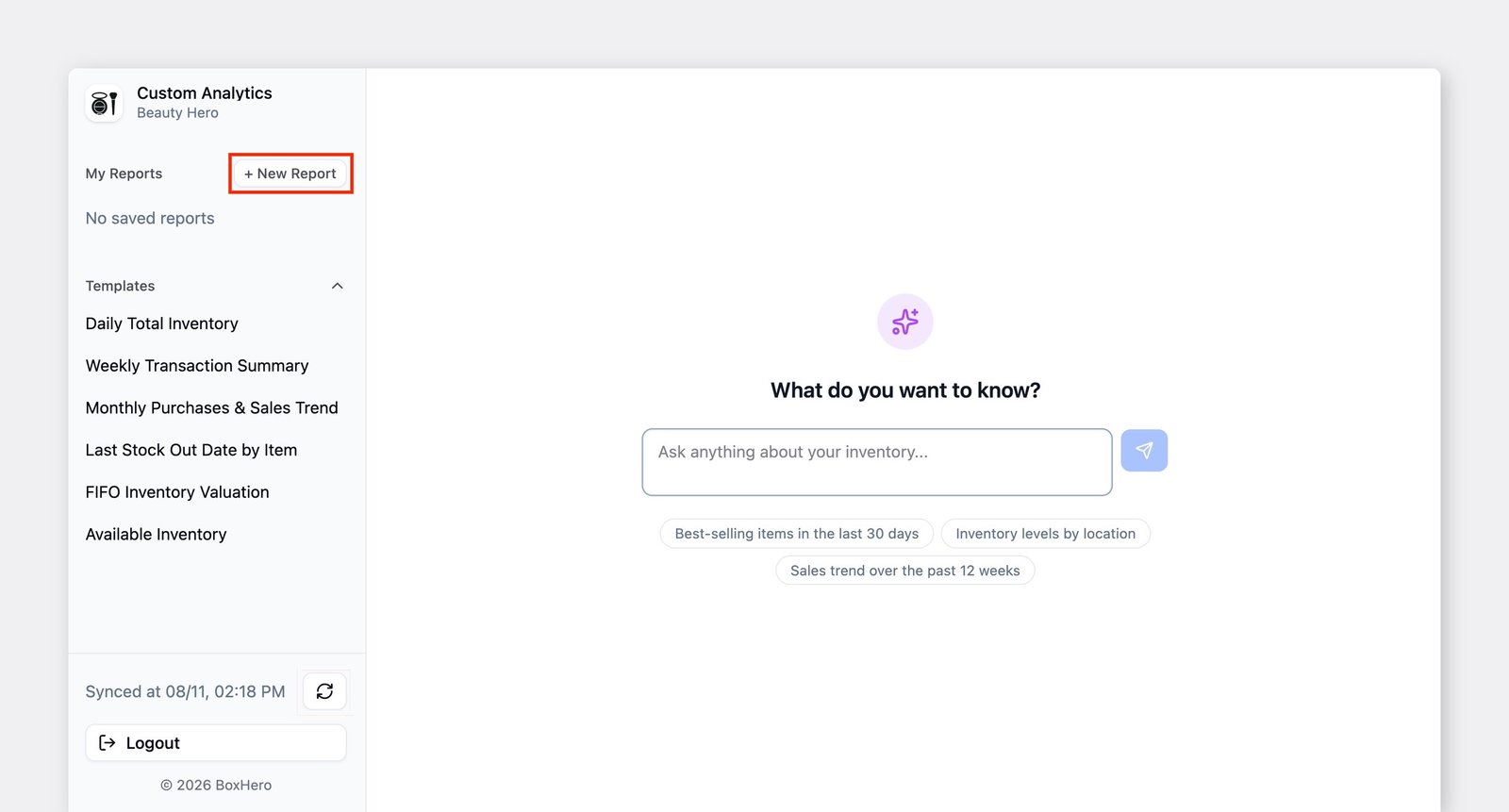
Section titled “1. Open the AI Assistant”Go to Reports > Custom Analytics.
If it's your first time, the AI Assistant will open automatically. Otherwise, click + New Report to start a new report and ask the AI Assistant for the data you need.
2. Request Your Data
Section titled “2. Request Your Data”Ask the AI Assistant for the data you need in plain language.
For example, enter: "Show me last week's stock levels by category" and the assistant will create a report based on your request.
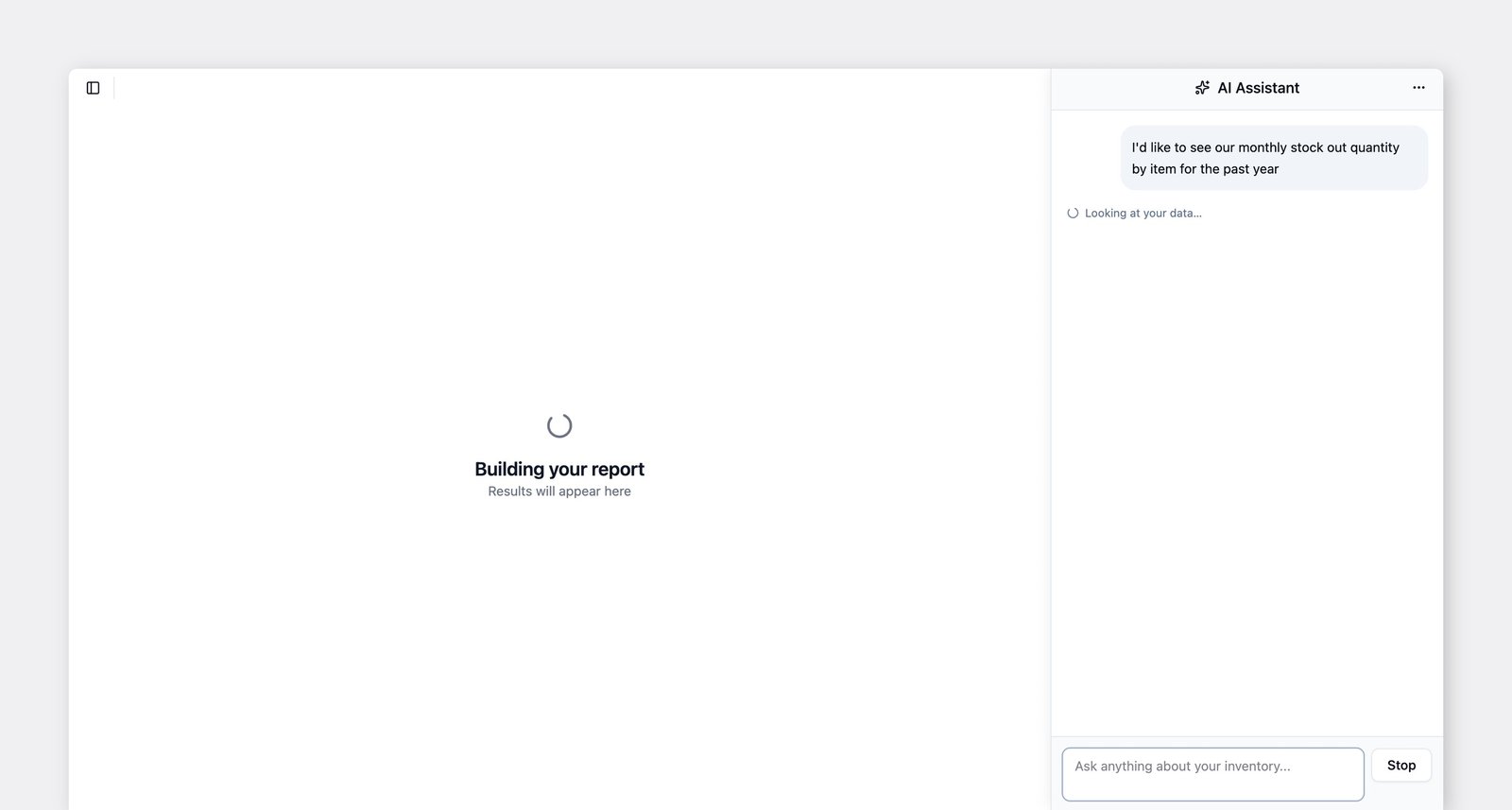
"Show me last month's sales data."
"Show total units sold and sales revenue by item for last month, top 10 by revenue."
If you run the same report repeatedly with different search values, ask the AI Assistant to add an input field. Once added, you can enter new values each time without creating the report again.
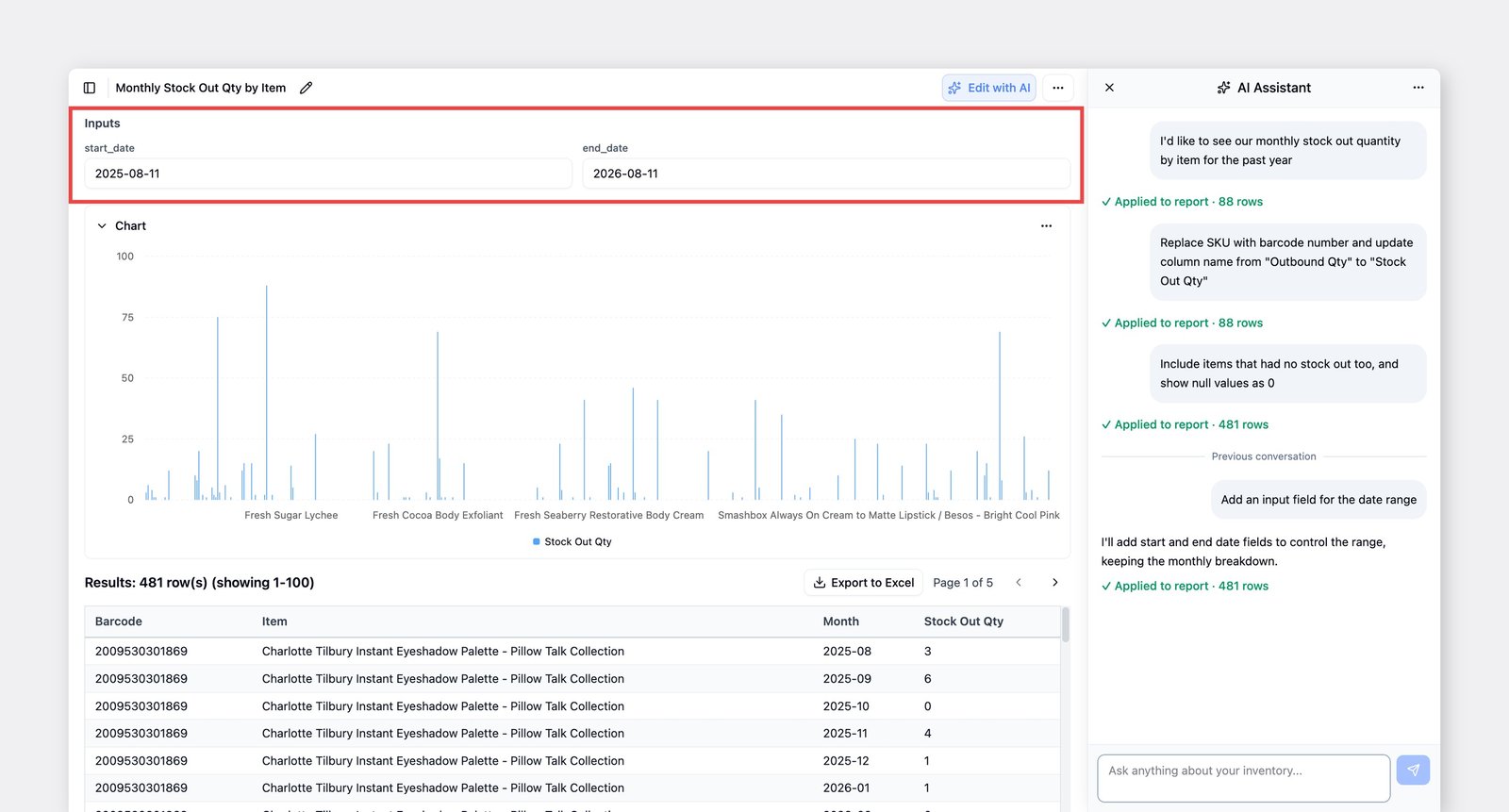
Use input fields for values that change often, such as item names, dates, or suppliers.
3. Use Your Data
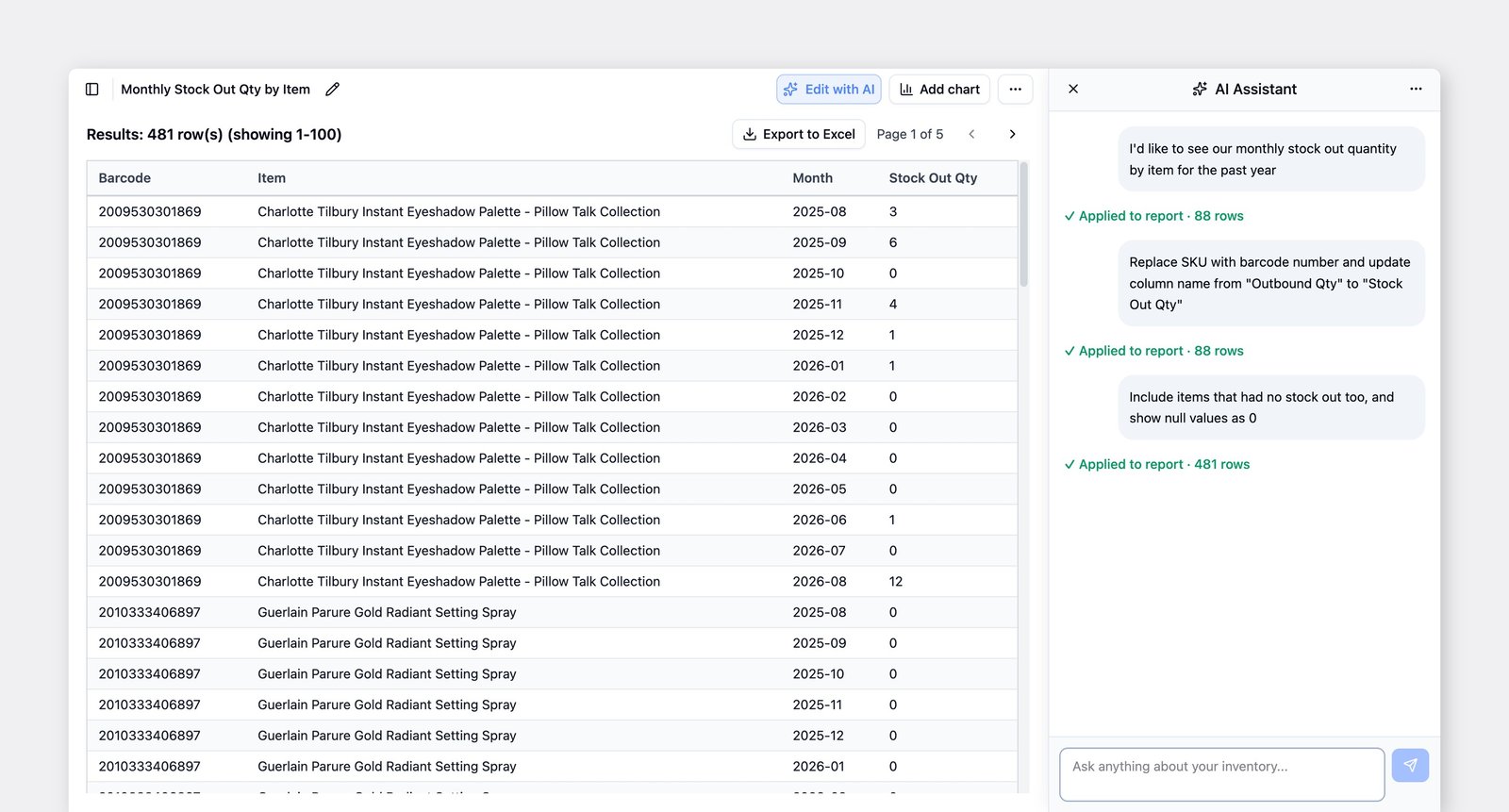
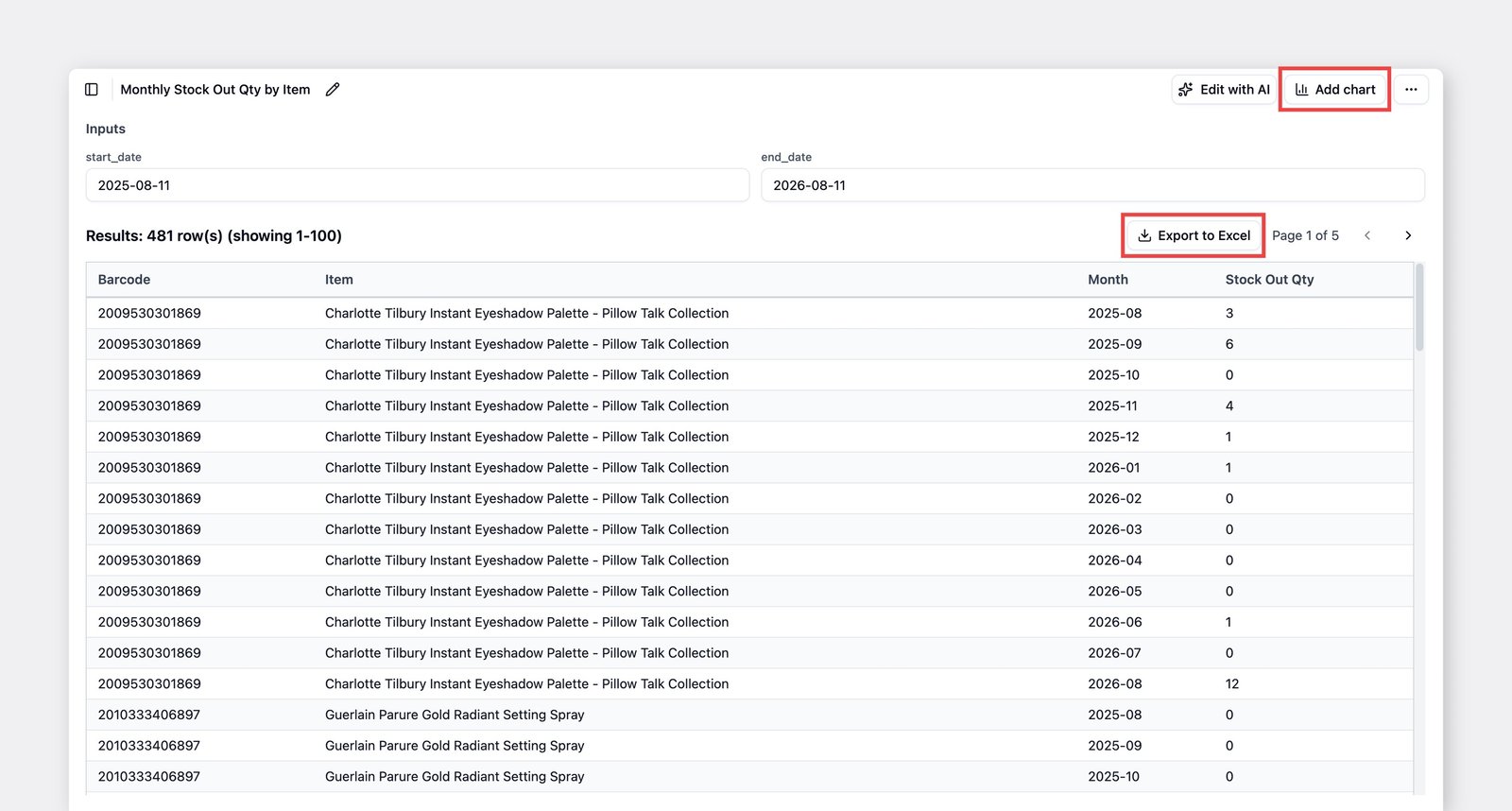
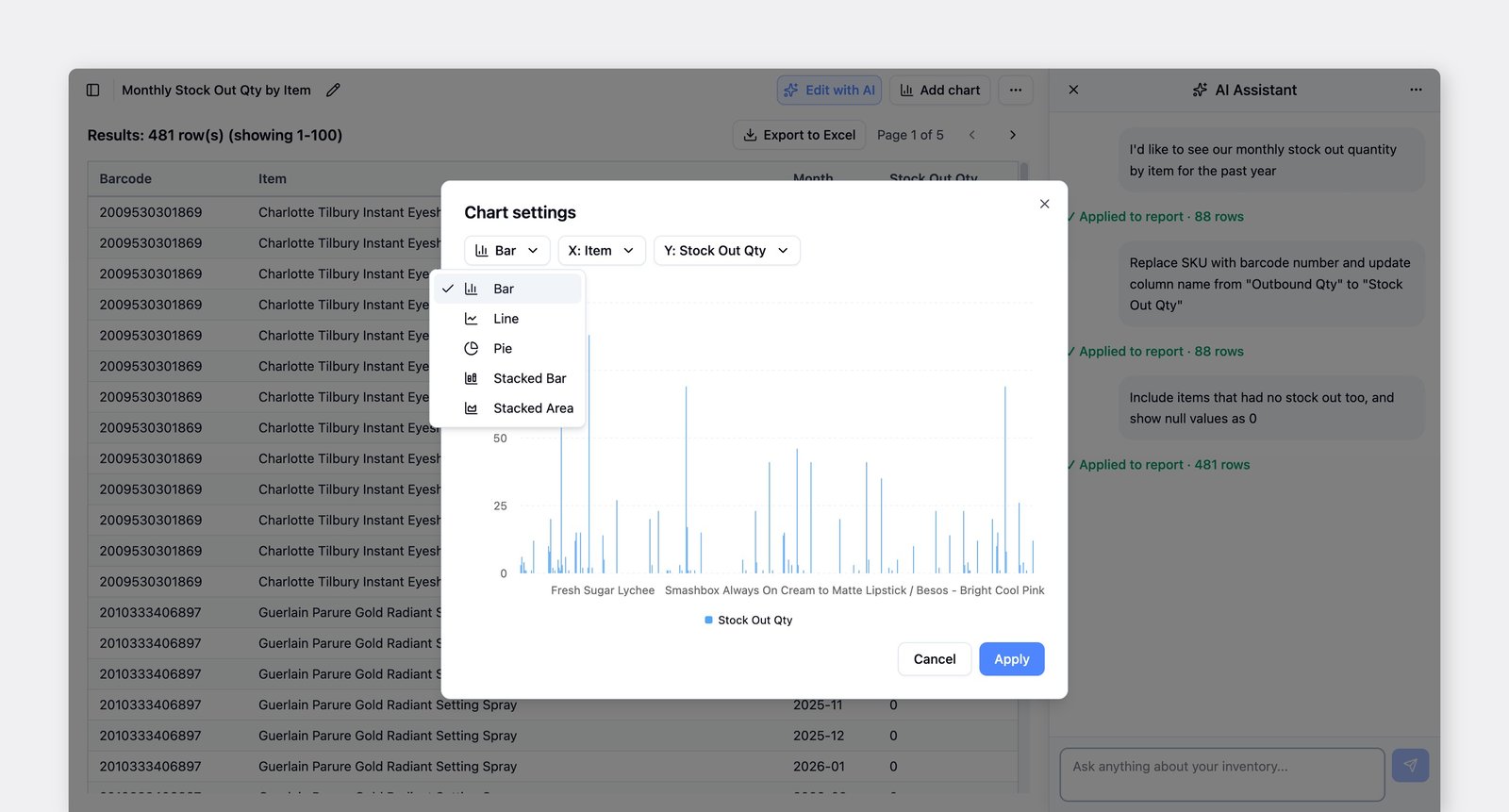
Section titled “3. Use Your Data”Results appear in a table. Click Export to Excel to download them, or click Add Chart to visualize them as a graph — bar, line, pie, stacked bar, and stacked area are all supported.
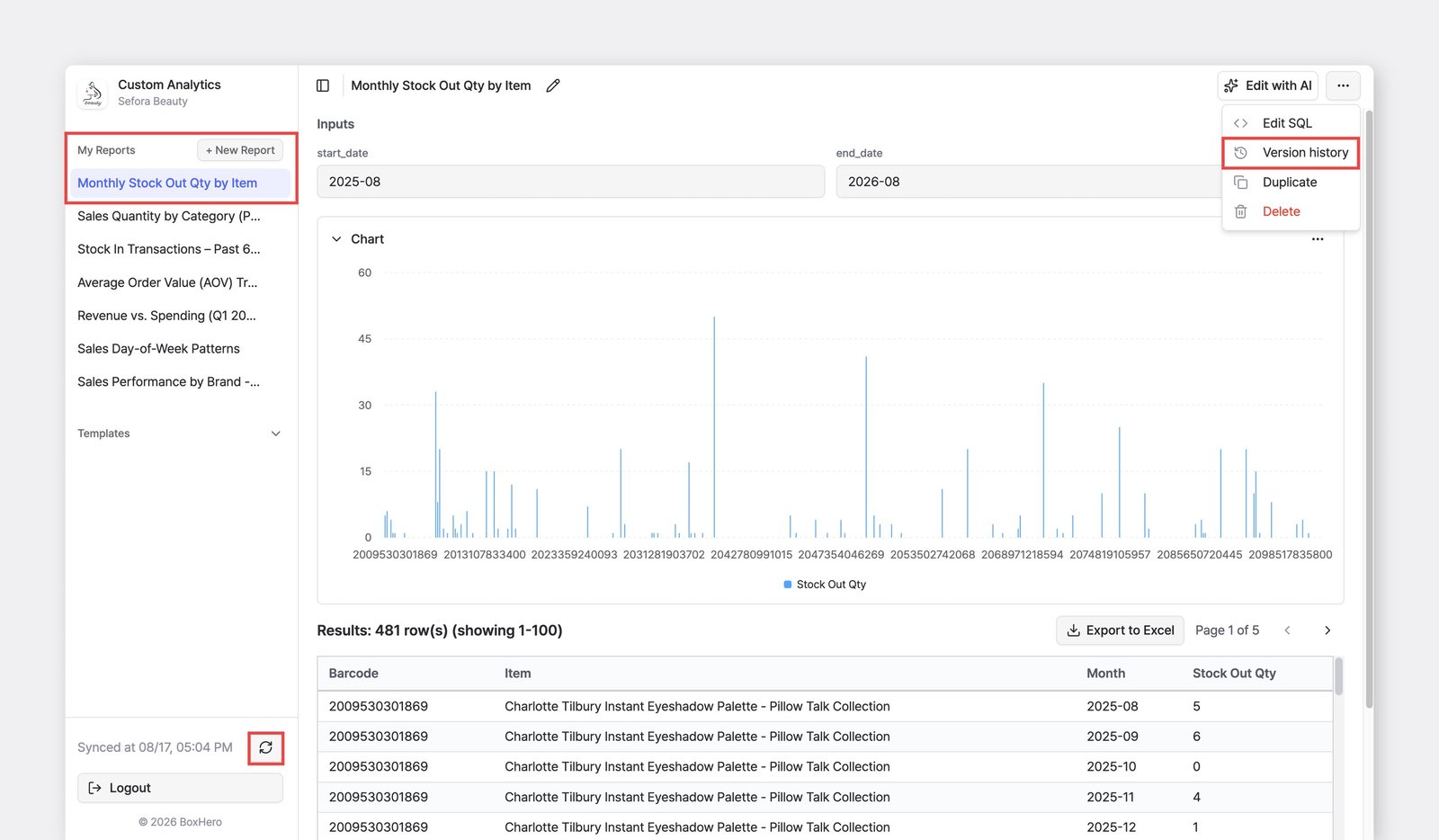
Results are automatically saved to My Reports, so you can open and run them again anytime. If you make a change you didn't mean to, you can roll the report back to an earlier version — click ··· (more) > Version history.
Templates
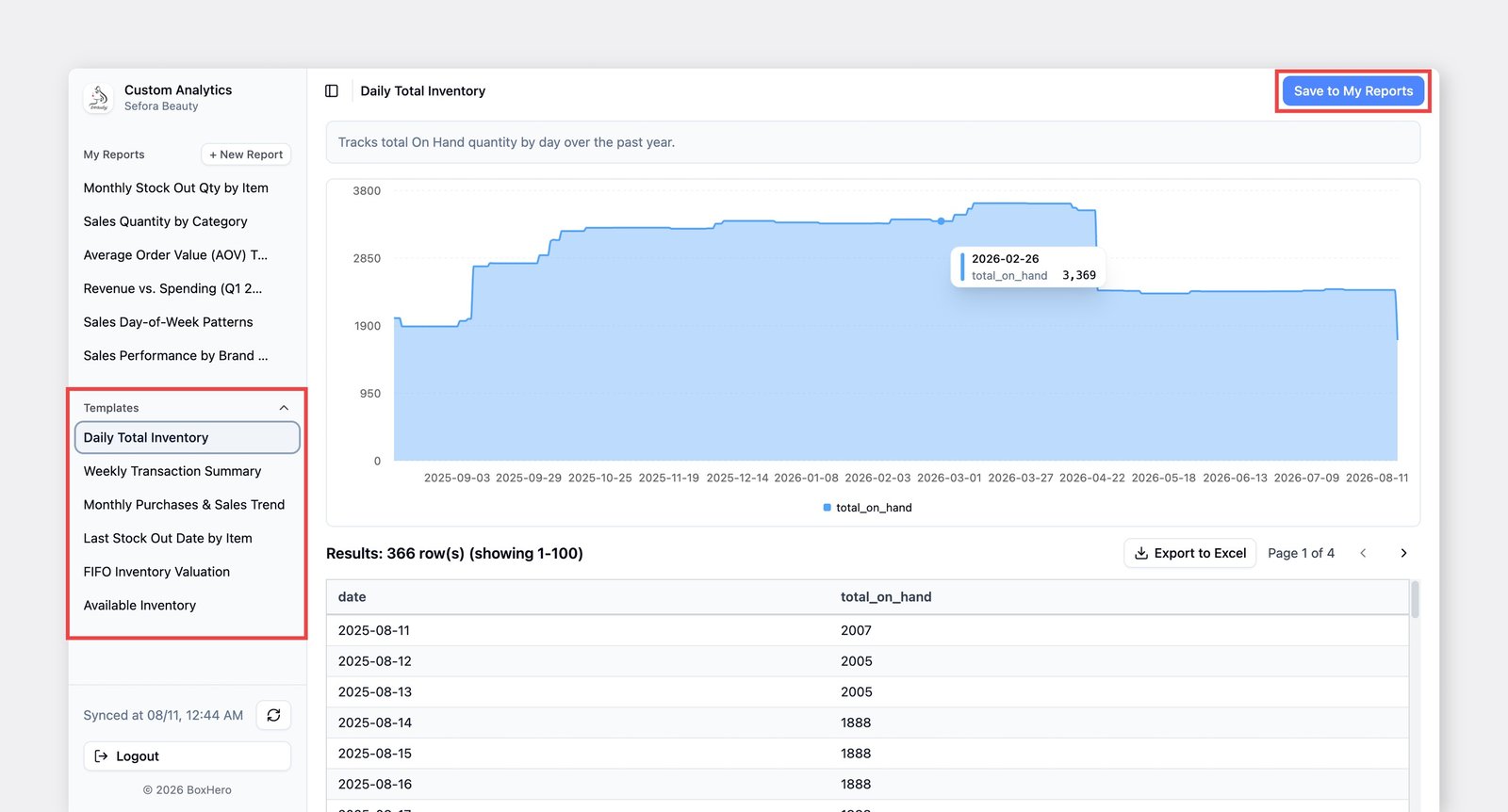
Section titled “Templates”Custom Analytics includes built-in templates that you can run right away. Try a template to see the results. If you find one useful, click Save to My Reports and adjust it to fit your needs.
Examples
Section titled “Examples”- Daily Total Inventory
- Weekly Transaction Summary
- Monthly Purchases & Sales Trend
- Last Stock Out Date by Item
- FIFO Inventory Valuation
- Available Inventory
SQL Editing
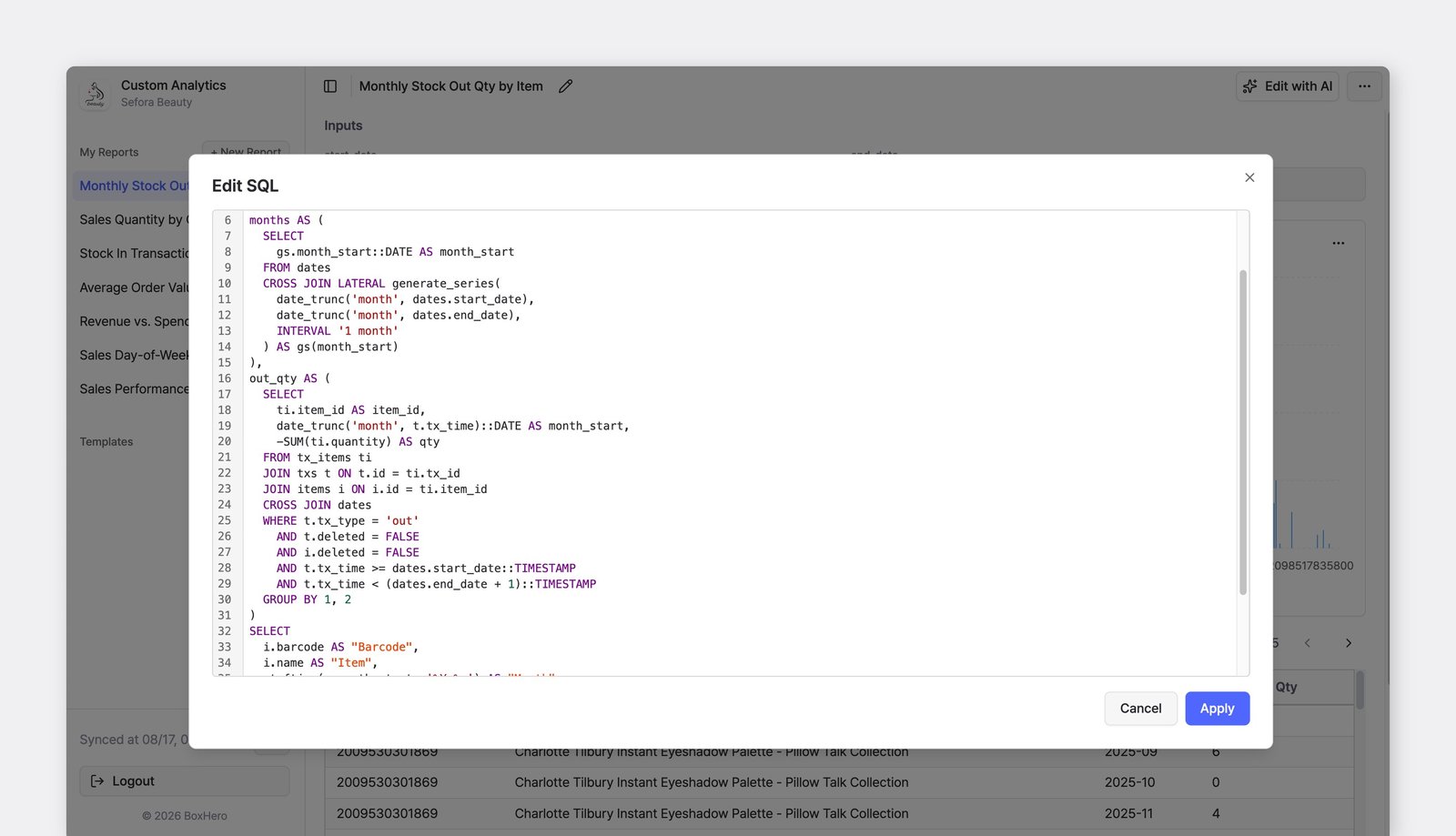
Section titled “SQL Editing”If you're comfortable with SQL, you can edit queries directly using DuckDB SQL syntax to customize a report exactly how you want.
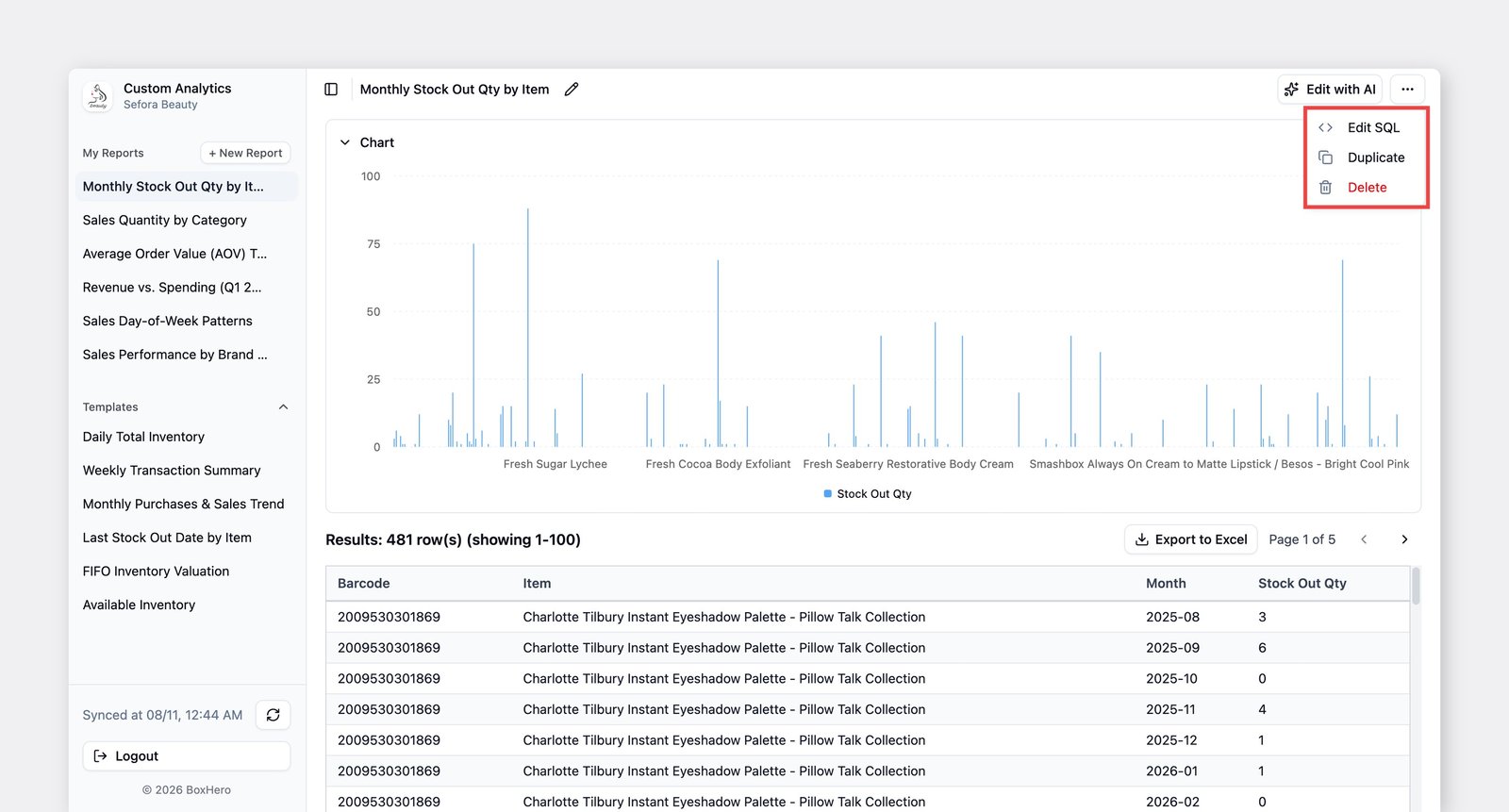
Select a report, click the ··· (more) button in the top-right corner, and choose Edit SQL.
You can also add an input field by including {{variable_name}} in your query. For example:
select sku, namefrom itemswhere name ilike '%' || {{item_name}} || '%';This creates an input field named item_name. Enter a keyword such as sweater, and the results will show every item with "sweater" in its name.
Frequently Asked Questions
Section titled “Frequently Asked Questions”Still have questions? Check out our Custom Analytics FAQ: