Mobile Printing
Printing from your mobile device after completing Zebra ZD421T setup.
I. Device Setup
Section titled “I. Device Setup”Install Zebra Print from the Google Play Store.
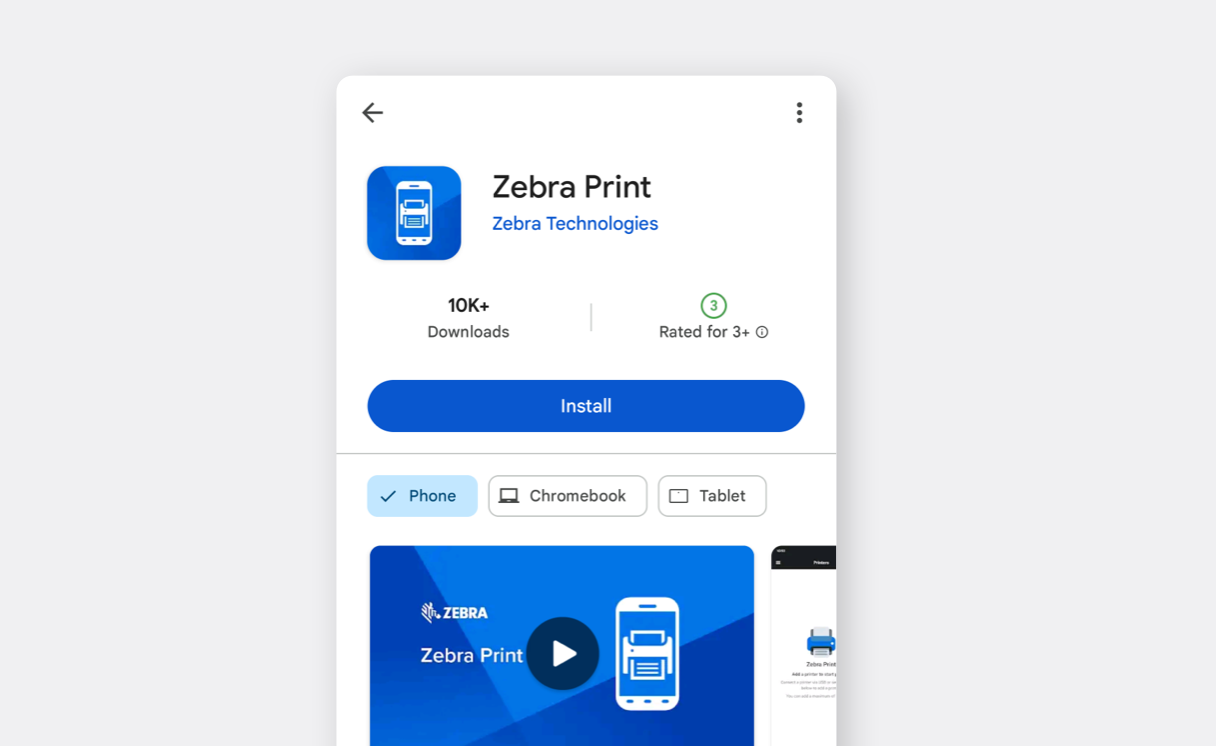
Open the app and select the
navigation menu (☰)and tapApp Settings.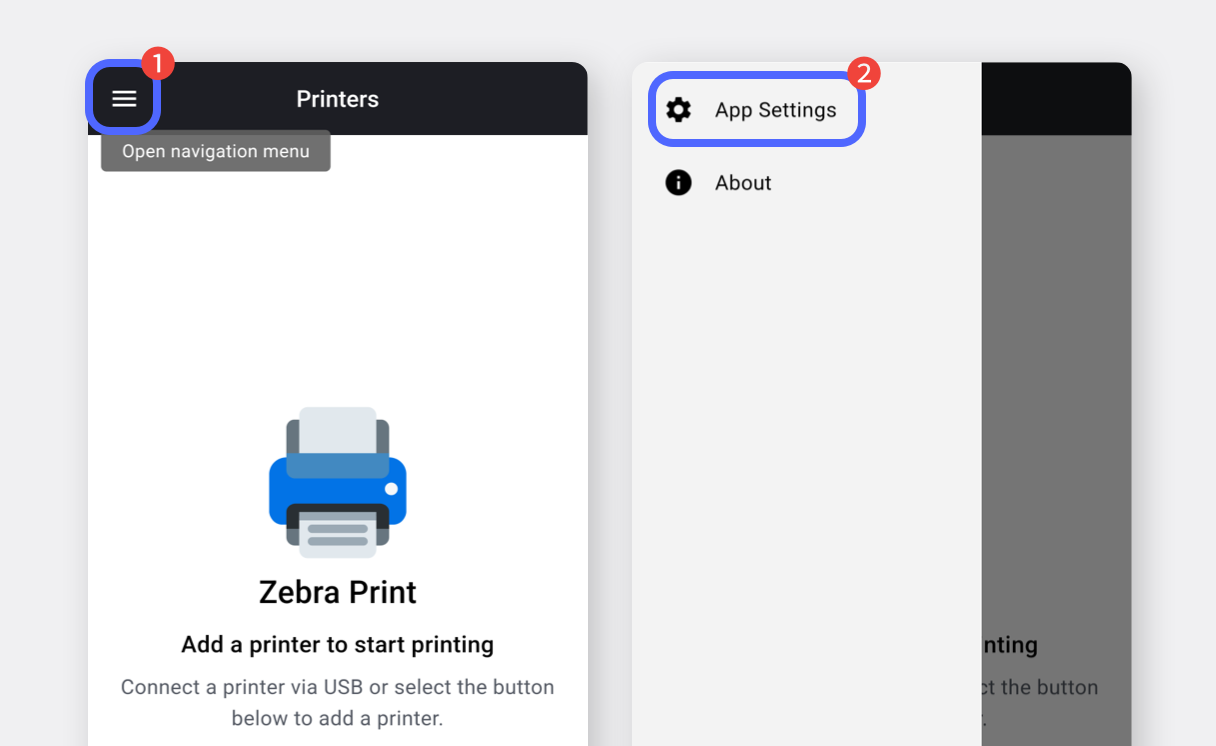
Change the unit of measurement to millimeters (mm) and return to the previous screen.
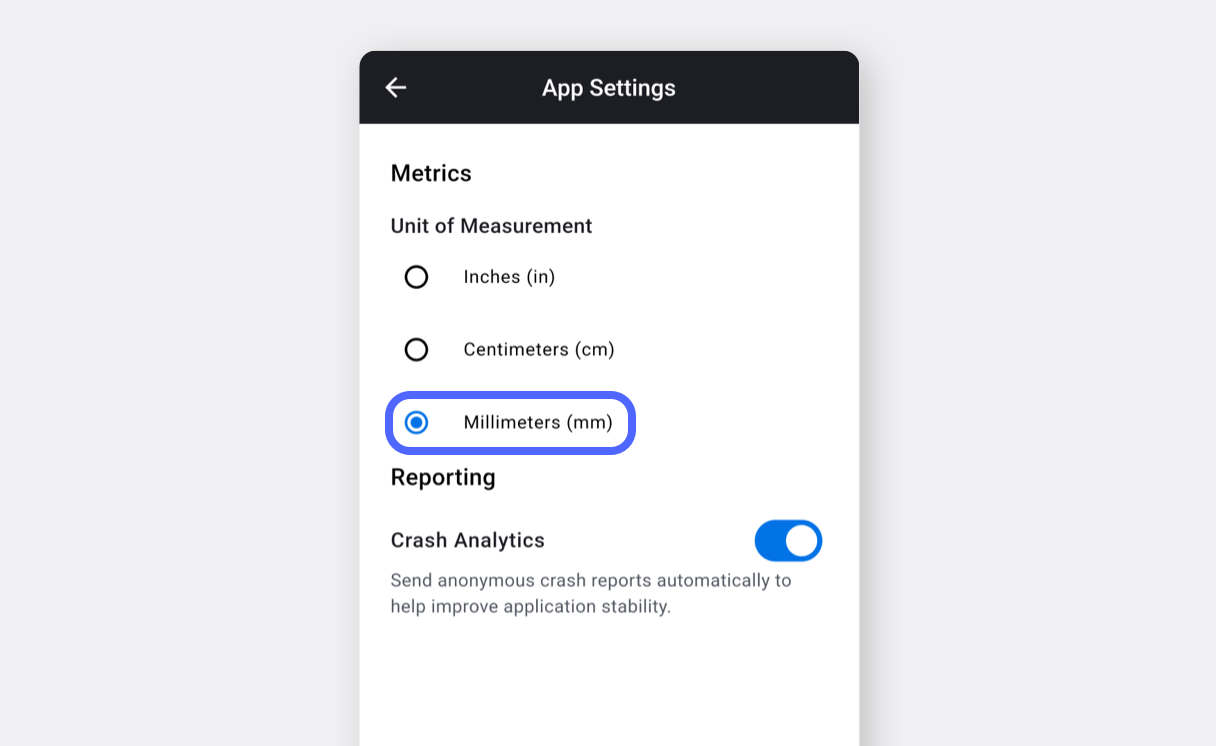
Tap the
···(more) button at the bottom and selectAdd Printer.
ChooseBluetoothas the connection method.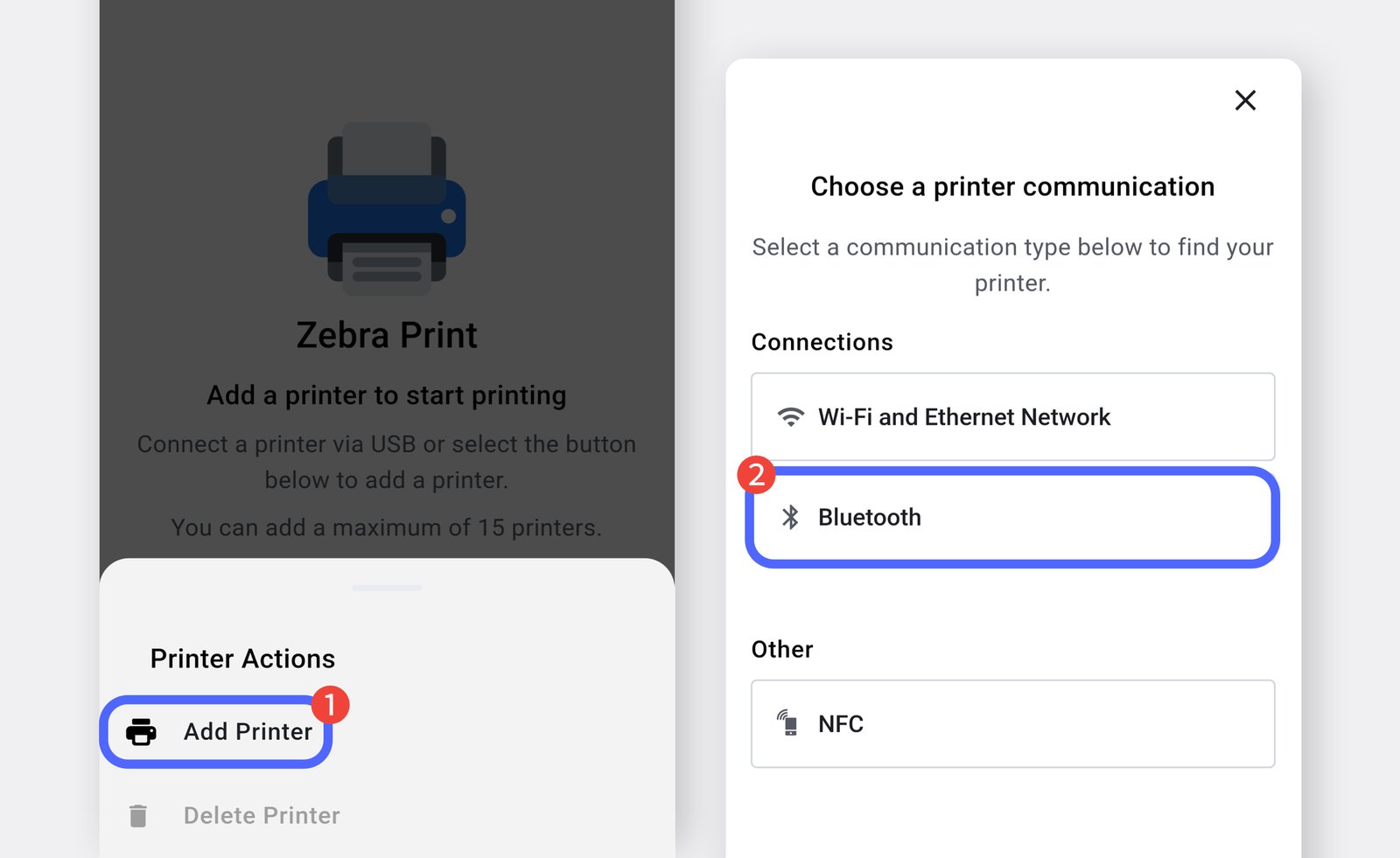
Tap
Search Printersand select your printer (ZD421T).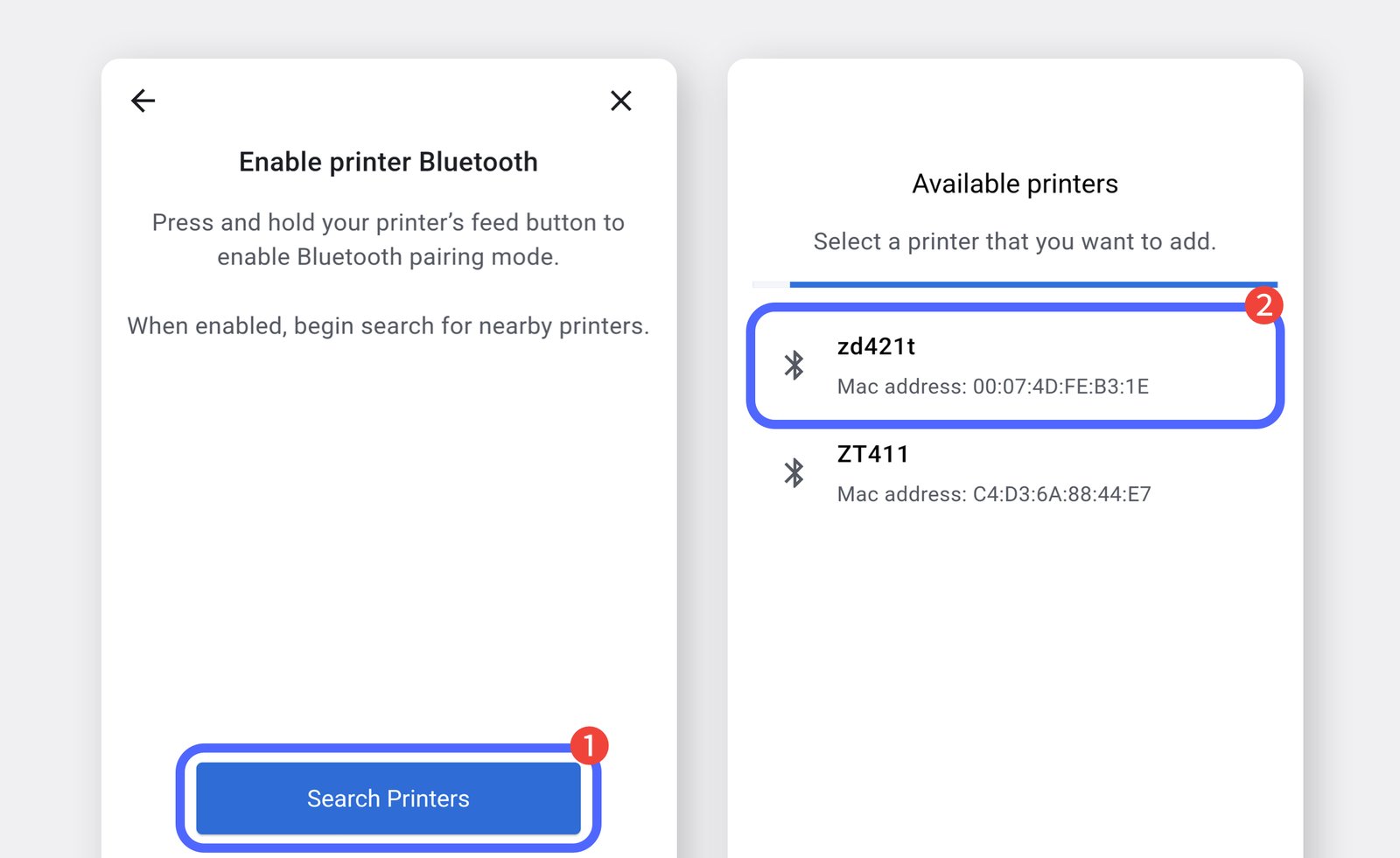
Enter the label size and tap
Print Test Pageto verify label output.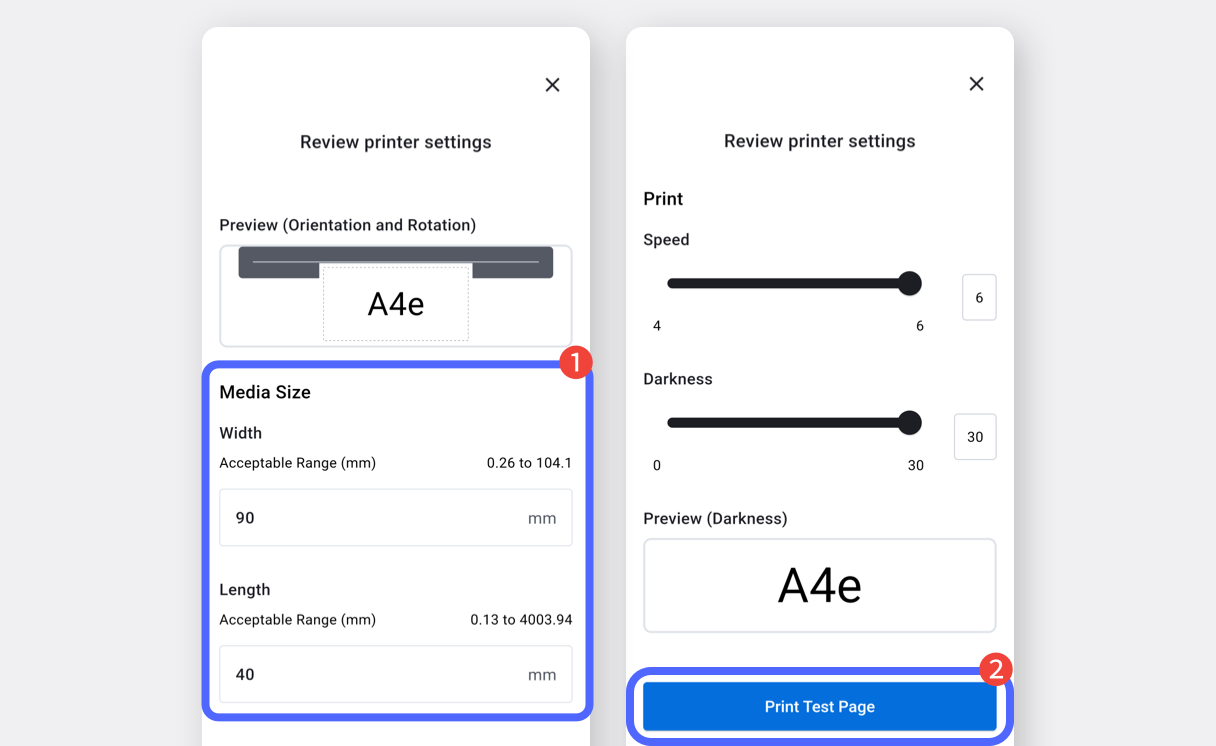
II. Label Printing
Section titled “II. Label Printing”Once the Zebra Print app is set up, you can print labels from BoxHero.
Create barcode labels on the BoxHero web platform (desktop), which can then be used on your mobile device.
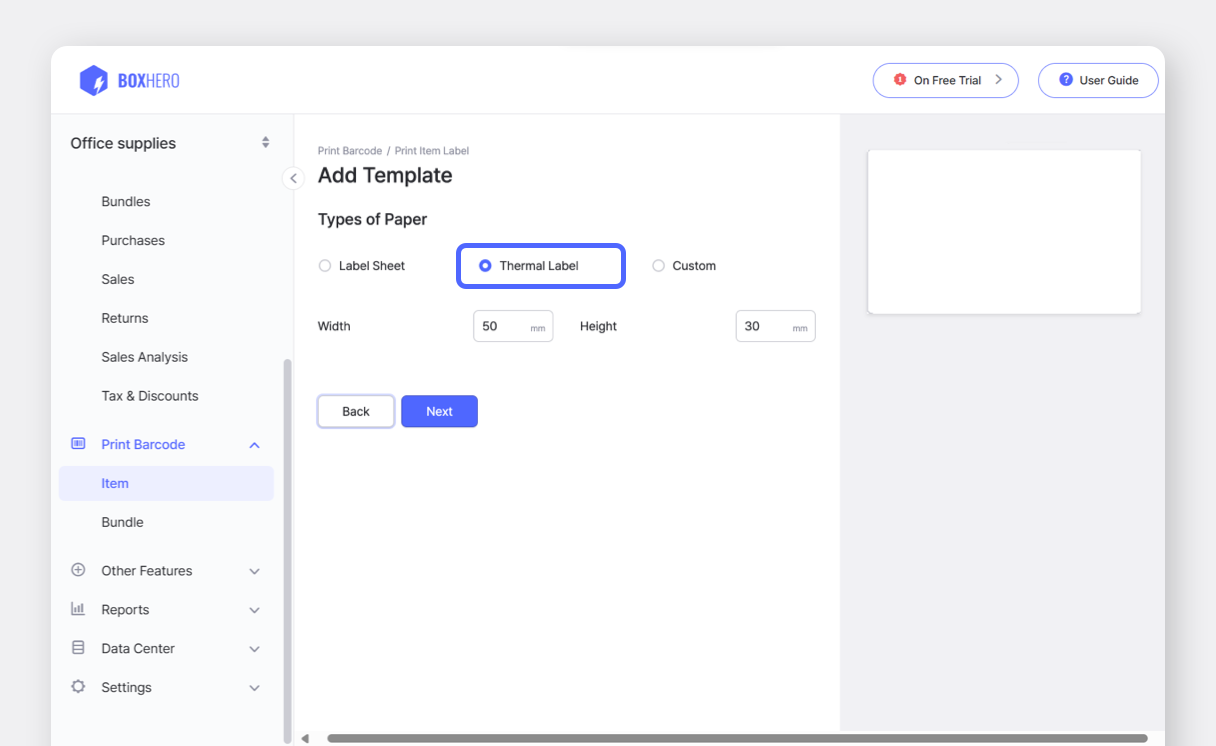
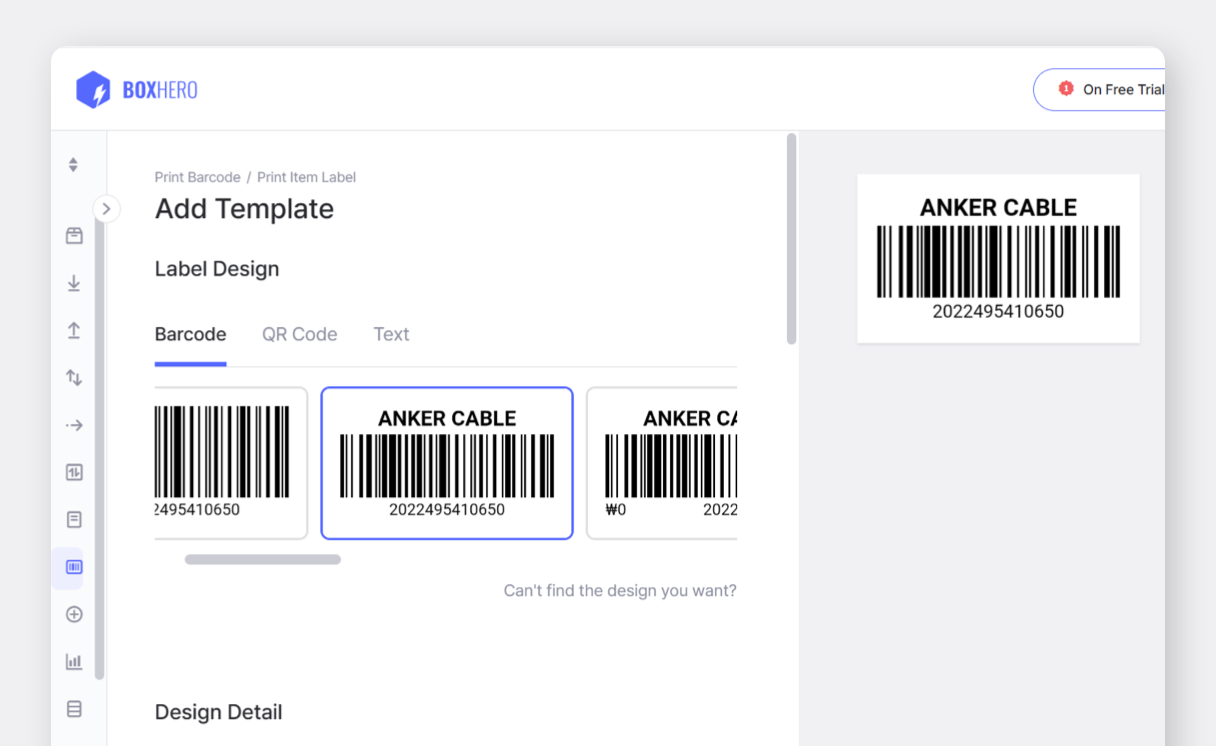
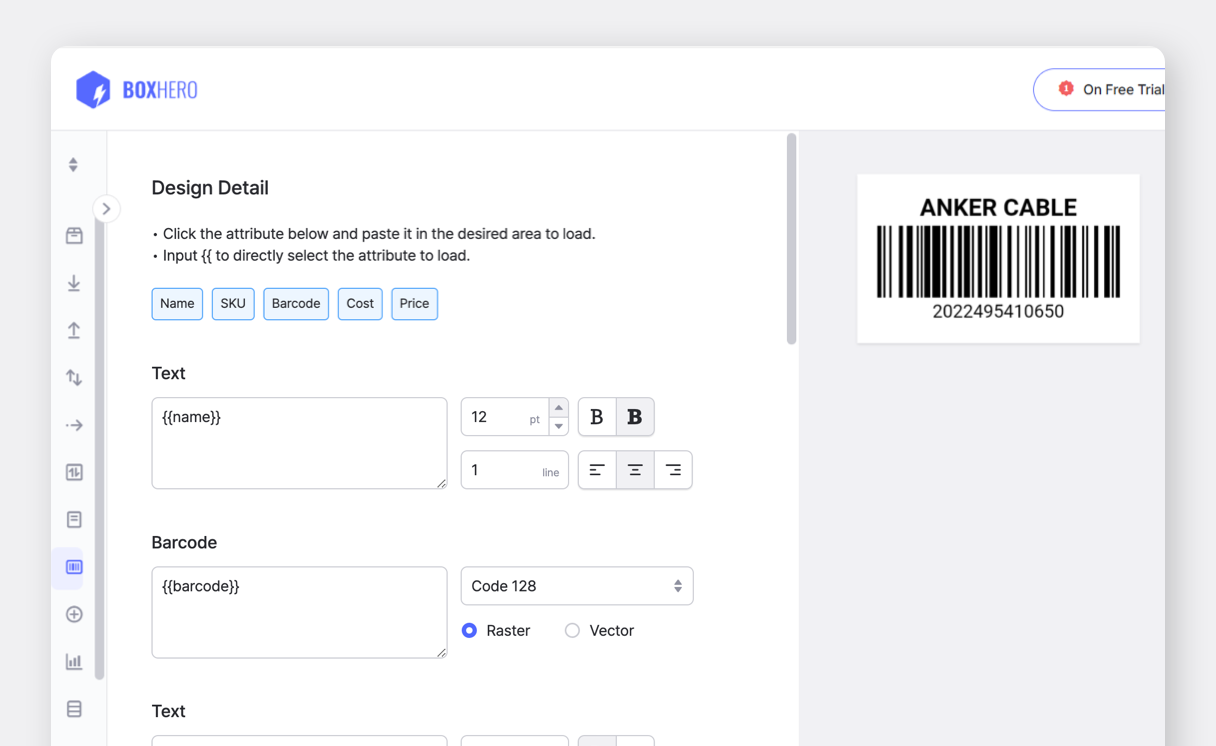
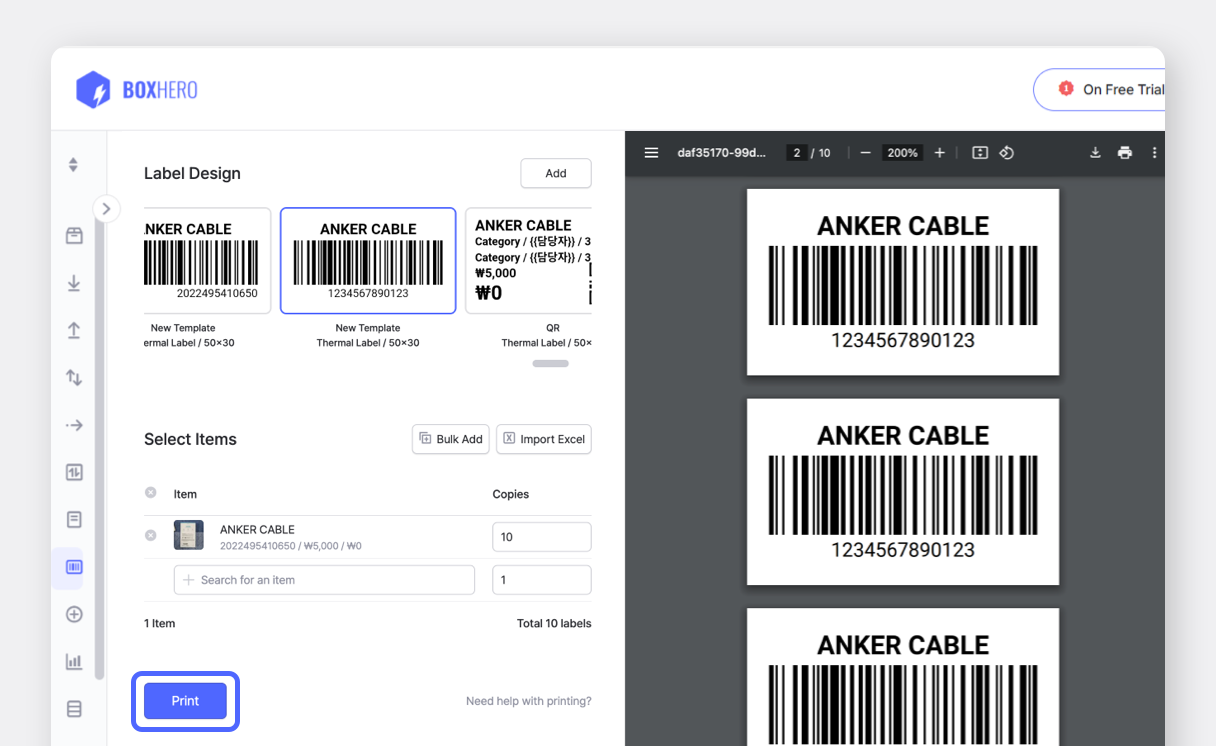
For design options, see Create Barcode Labels.
Open the BoxHero app on your mobile device and tap
Print Item Labelin theBarcode Labelscard on the home screen.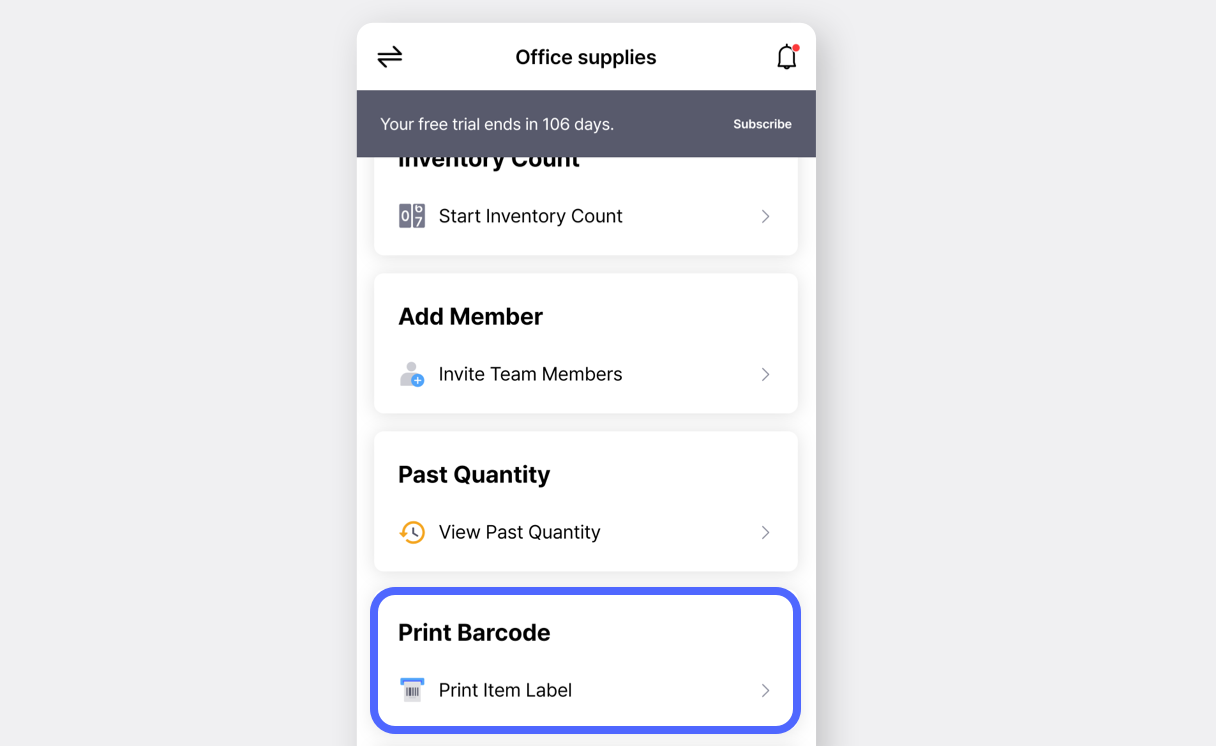
Tap
Label Design>Select Templateand choose your design.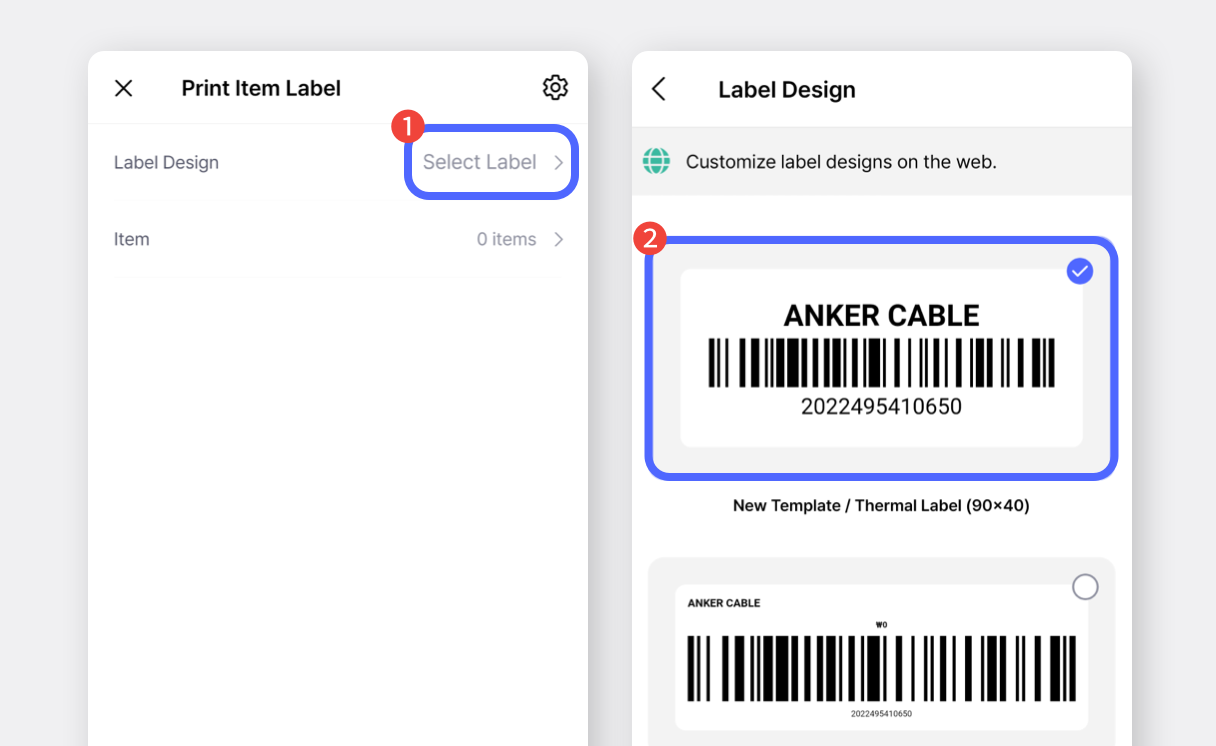
Select the items to print, enter the print quantity, and tap
Done.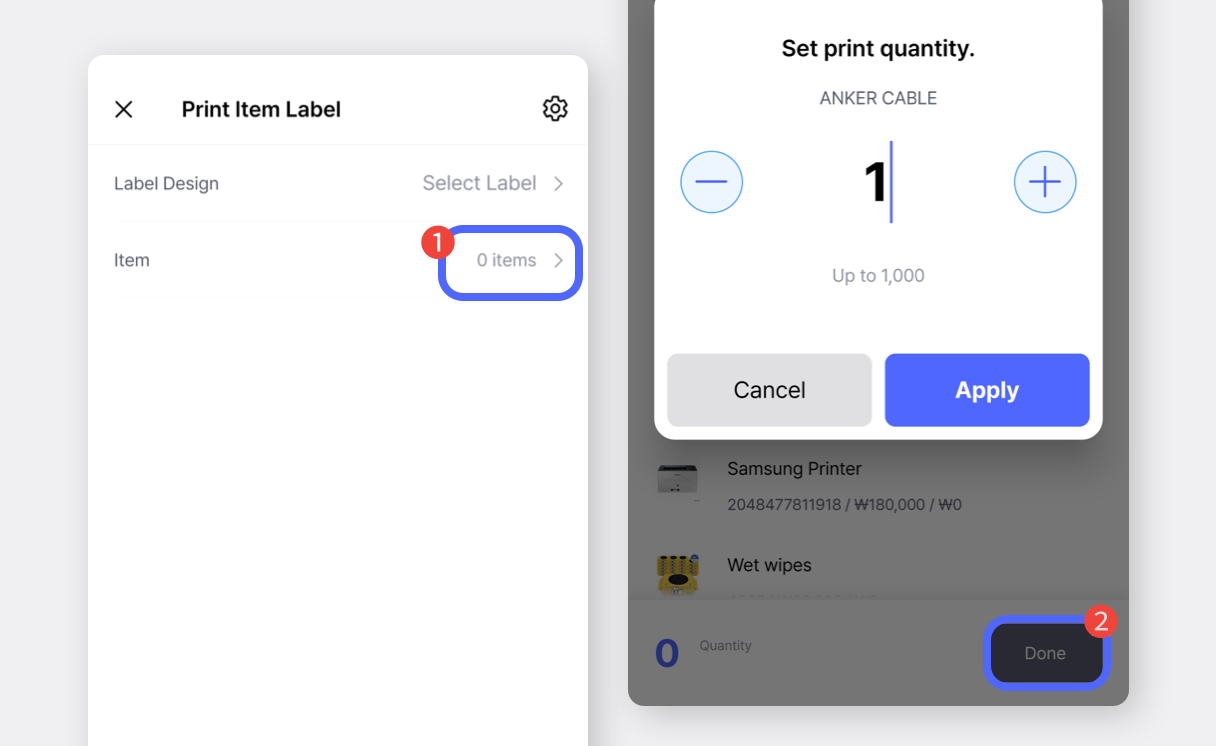
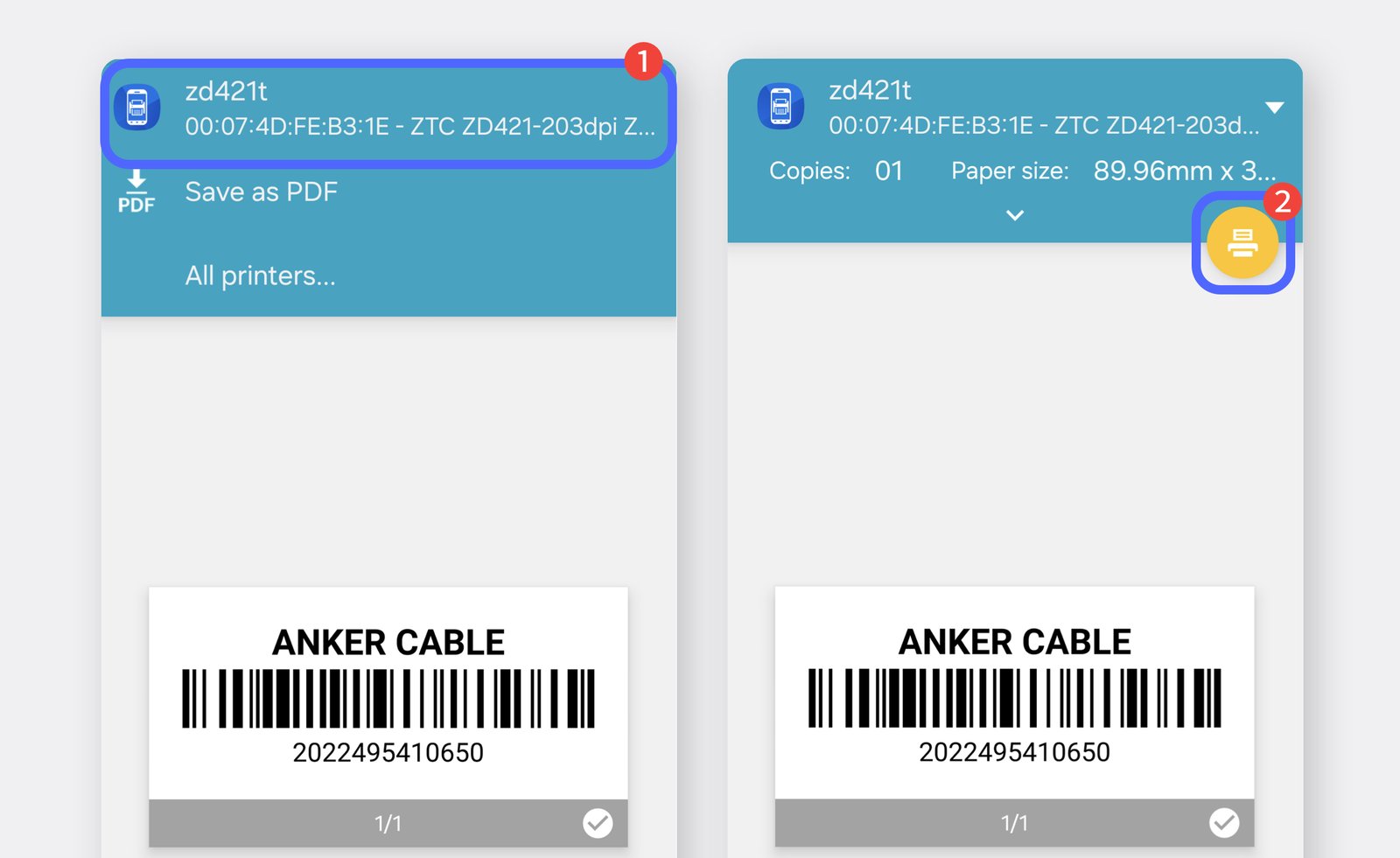
Tap the
Printbutton and selectPrintagain in the pop-up.
(If the printer is not listed, tap "More / More Options.")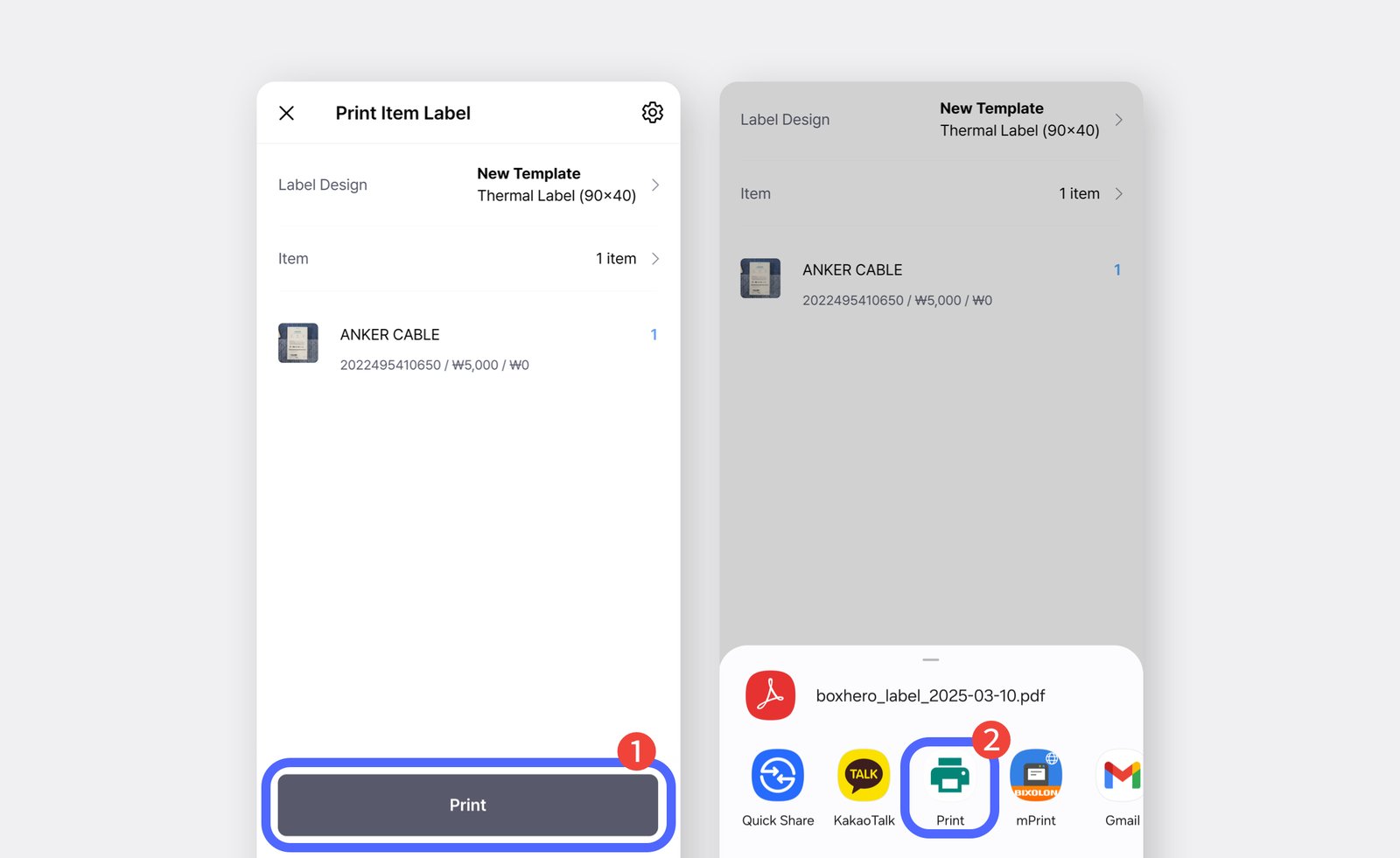
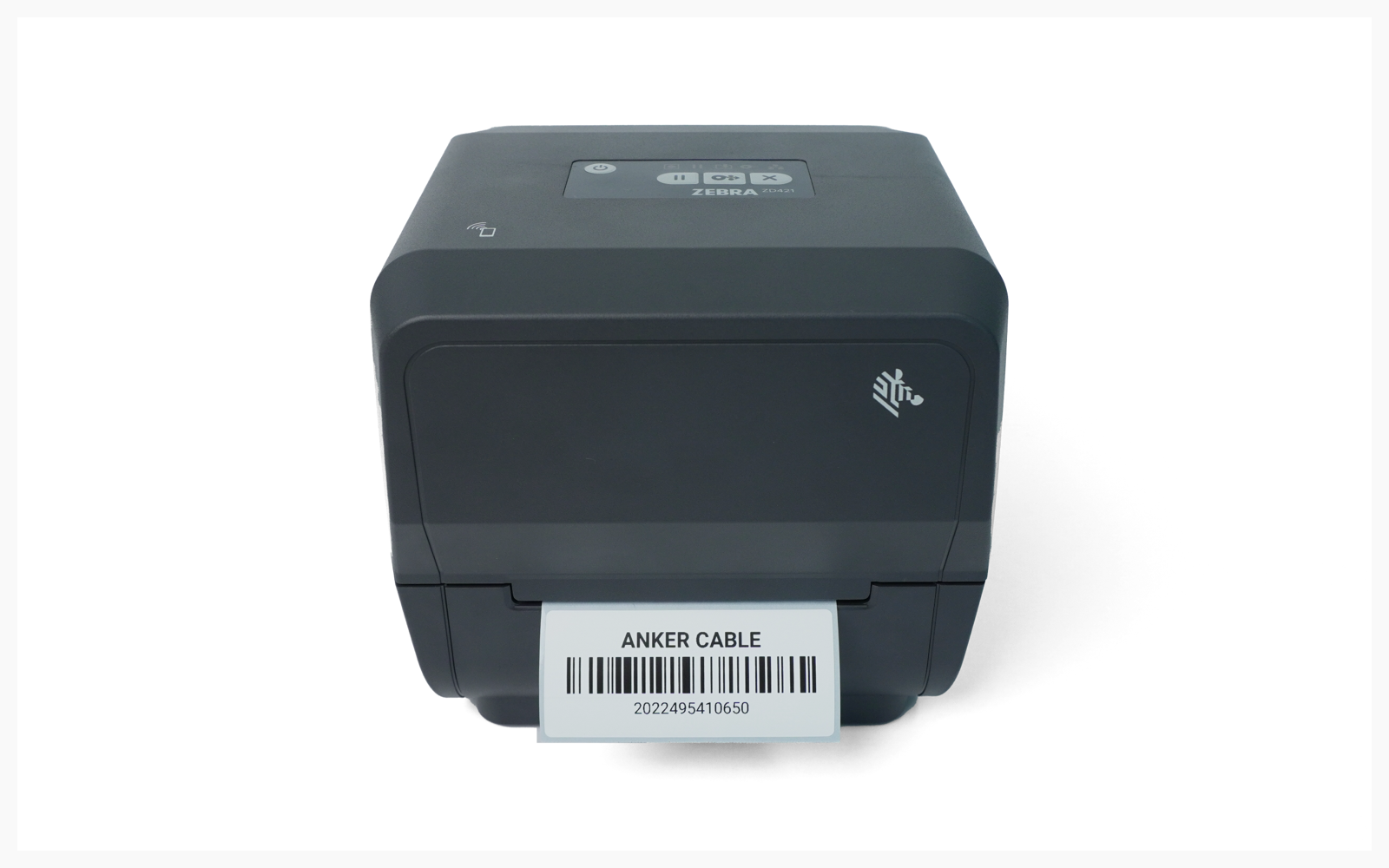
Choose your ZD421T printer and tap the print icon on the next screen to confirm printing.