# Attributes

<figure><img src="https://687823928-files.gitbook.io/~/files/v0/b/gitbook-x-prod.appspot.com/o/spaces%2FlRf1QqJGoevCQqGbfI80%2Fuploads%2Fgit-blob-1a0dc5778868f1cfb7fc992f9c6c8afc6090f5b3%2F%E1%84%89%E1%85%A9%E1%86%A8%E1%84%89%E1%85%A5%E1%86%BC.png?alt=media" alt=""><figcaption></figcaption></figure>

***

## How to Add Attributes

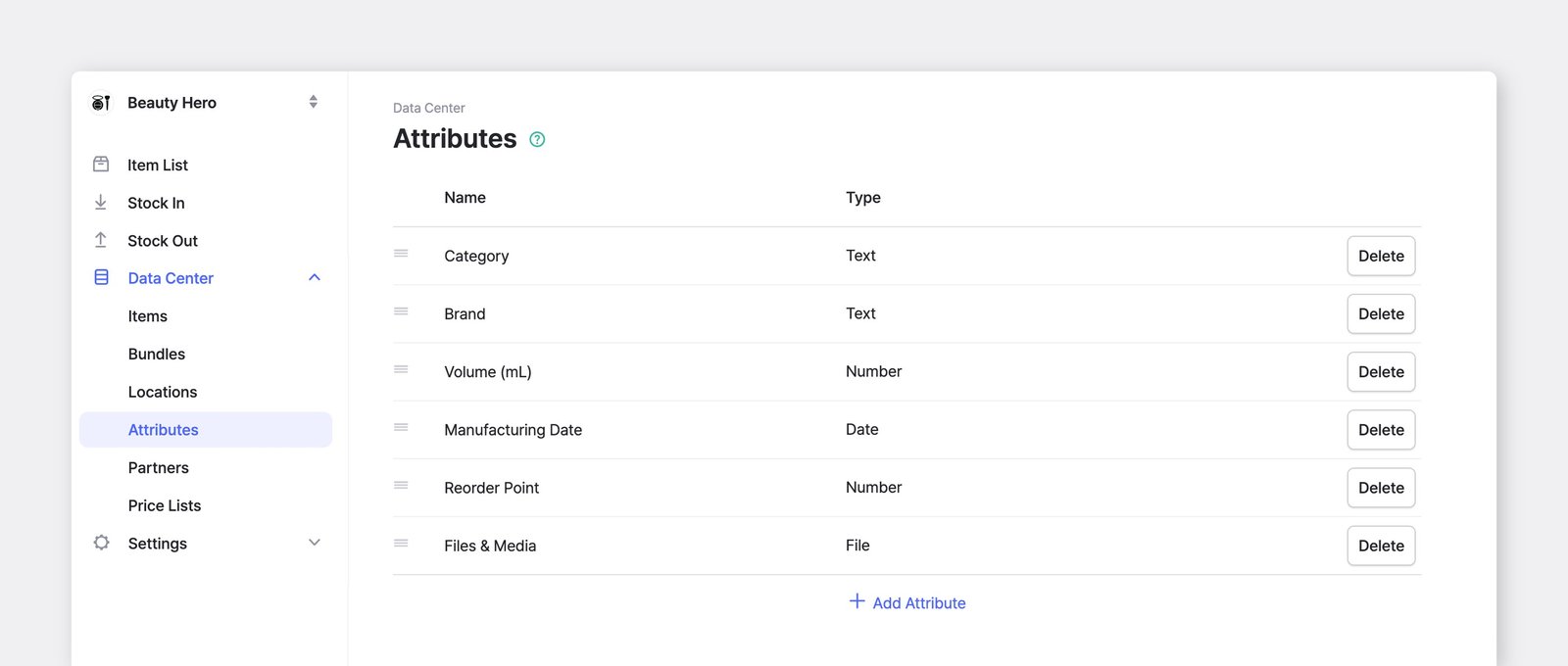
To add and manage your item attributes, go to <mark style="color:blue;">**`Data Center`**</mark> > <mark style="color:blue;">**`Attributes`**</mark>.

<figure><img src="https://687823928-files.gitbook.io/~/files/v0/b/gitbook-x-prod.appspot.com/o/spaces%2FlRf1QqJGoevCQqGbfI80%2Fuploads%2Fgit-blob-d4a39d35d3a52d414d13c14323b89e1423a93454%2Fframeit_2026-03-26T15-58-11.jpg?alt=media" alt=""><figcaption></figcaption></figure>

### Types of Attributes

* **Text**: Enter general text or numbers.
* **Number**: Enter whole or decimal numbers.
* **Date**: Enter a date (e.g., 2027-10-08).
* **Barcode**: Enter alphanumeric characters for barcode printing and scanning.
* **File:** Upload images, documents, and other files to your items (Max: 10 MB).
<figure><img src="https://687823928-files.gitbook.io/~/files/v0/b/gitbook-x-prod.appspot.com/o/spaces%2FlRf1QqJGoevCQqGbfI80%2Fuploads%2Fgit-blob-7742746de5d65adfc52ec2a24a38e01c1f63eb20%2Fframeit_2026-03-26T15-53-05.jpg?alt=media" alt=""><figcaption></figcaption></figure>

{% hint style="warning" %}
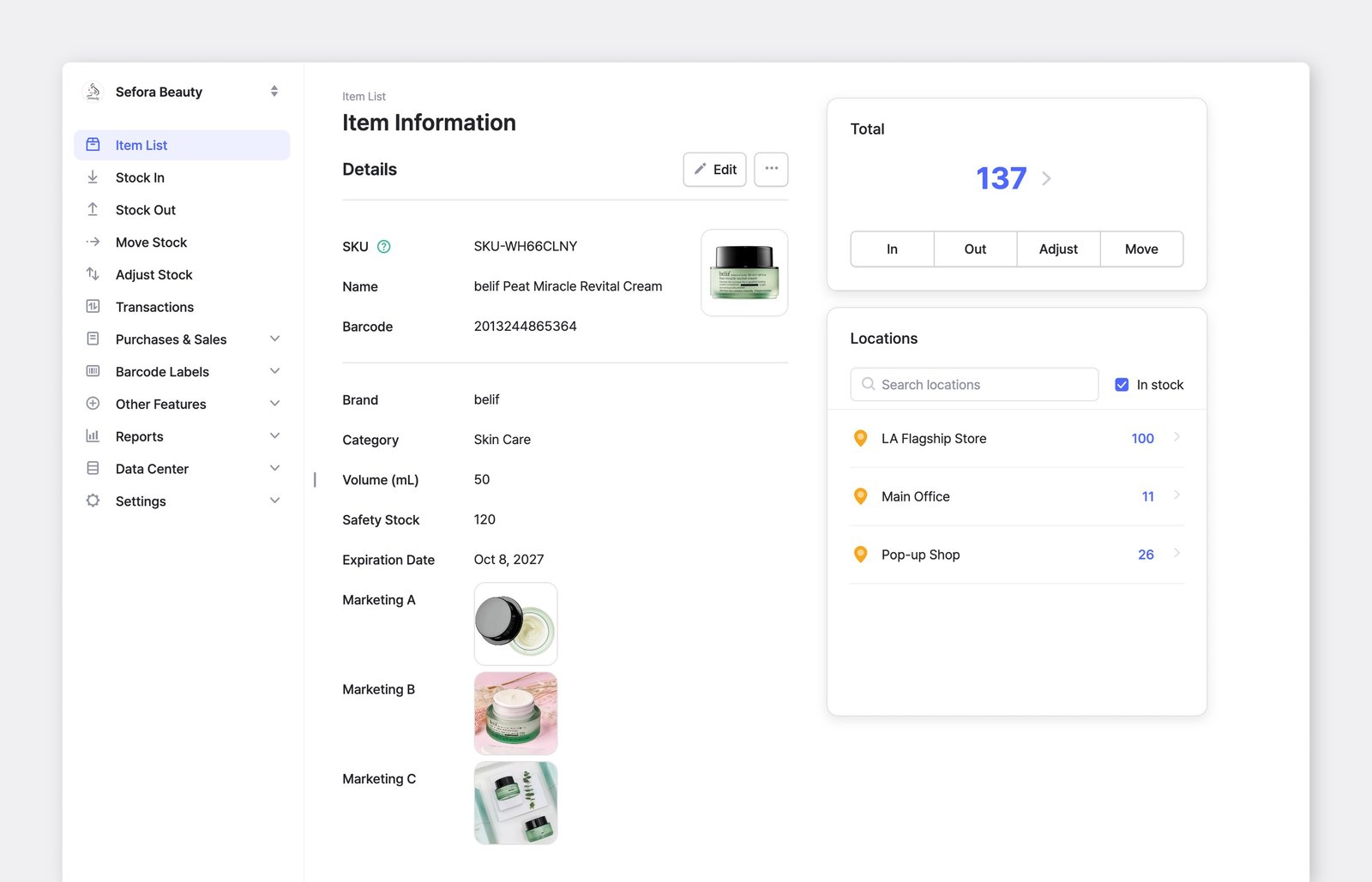
**Note**: Unlike custom attributes, an item's *name*, *SKU*, *barcode*, *cost*, and *price* are **fixed** fields that cannot be renamed or deleted.
{% endhint %}

### Enter Attribute Data

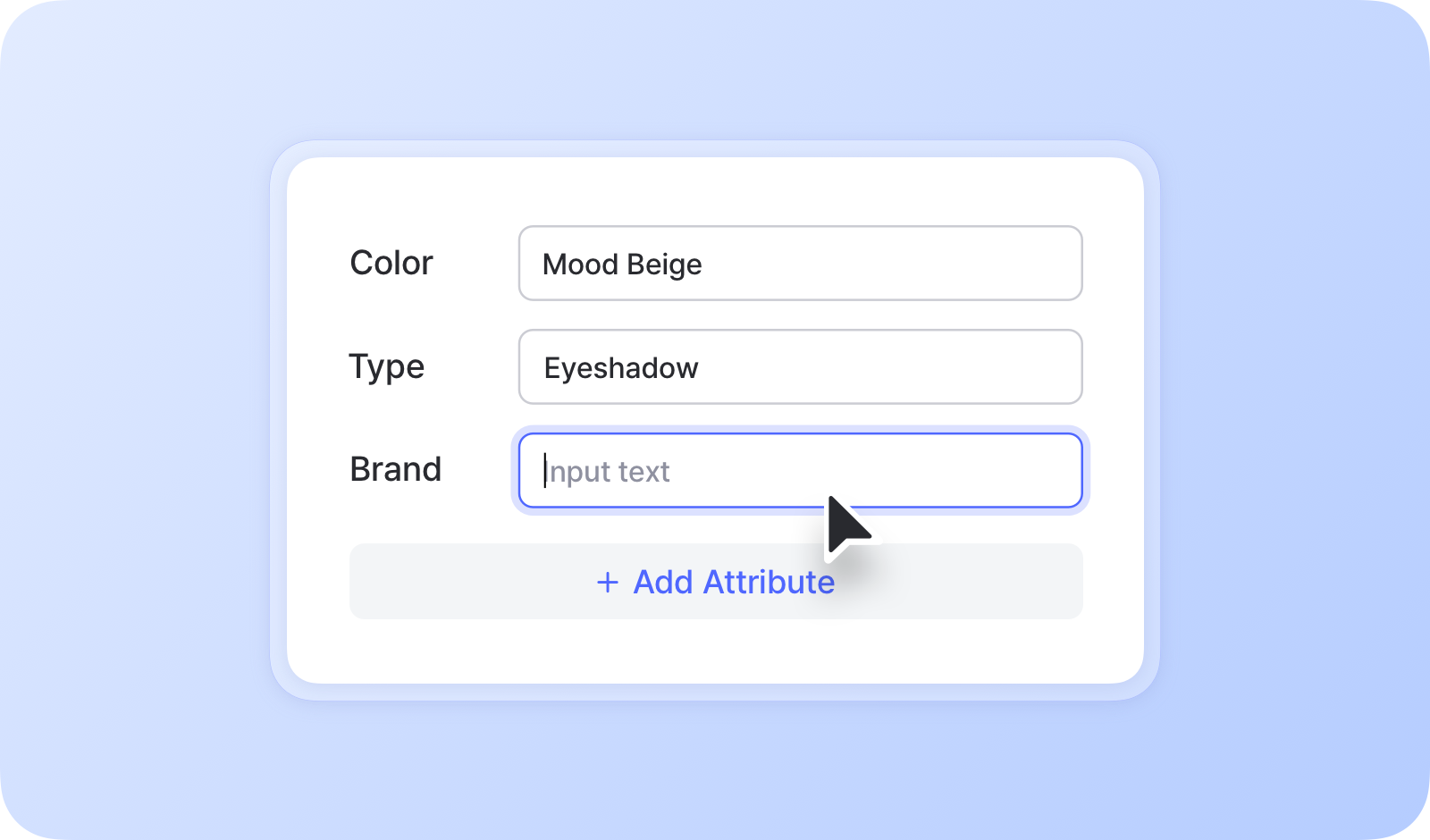
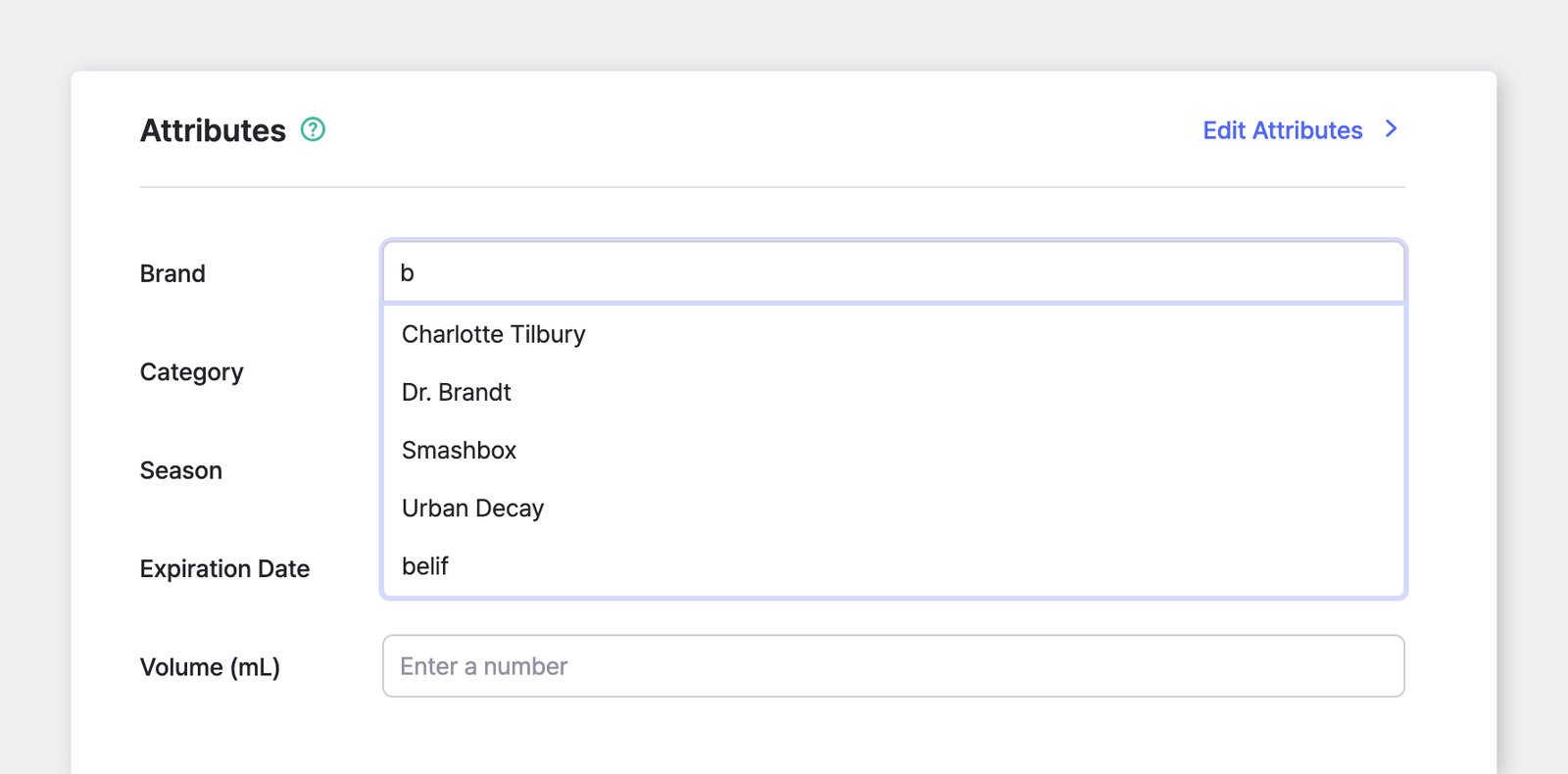
Once you’ve added attributes, you can enter the relevant data for each one during the item registration process.
<figure><img src="https://687823928-files.gitbook.io/~/files/v0/b/gitbook-x-prod.appspot.com/o/spaces%2FlRf1QqJGoevCQqGbfI80%2Fuploads%2Fgit-blob-b56735297472ed20d52c5312eacdb61b53f60ebc%2Fadd-attributes-input-text.png?alt=media" alt=""><figcaption></figcaption></figure>

{% hint style="success" %}
When you select an attribute, you’ll see a list of suggestions (i.e. autocomplete list) based on what you’ve entered before.
{% endhint %}

***

## Grouping & Sorting

Items can be grouped and viewed based on attributes. For example, you can view items by color or brand.

### A. On Your Computer

{% embed url="<https://customer-0jrbilsa8yt3k758.cloudflarestream.com/d60efe795b738bcf680779aa3304d256/iframe?autoplay=true&controls=false&letterboxColor=transparent&loop=true&muted=true&poster=https://customer-0jrbilsa8yt3k758.cloudflarestream.com/d60efe795b738bcf680779aa3304d256/thumbnails/thumbnail.jpg?height=1080&preload=true>" %}

#### Group by

You can **group items multiple times** and create nested categories. For example, you can first group by type, then further group by *brand*, and then by *name*, for a more detailed and organized structure.
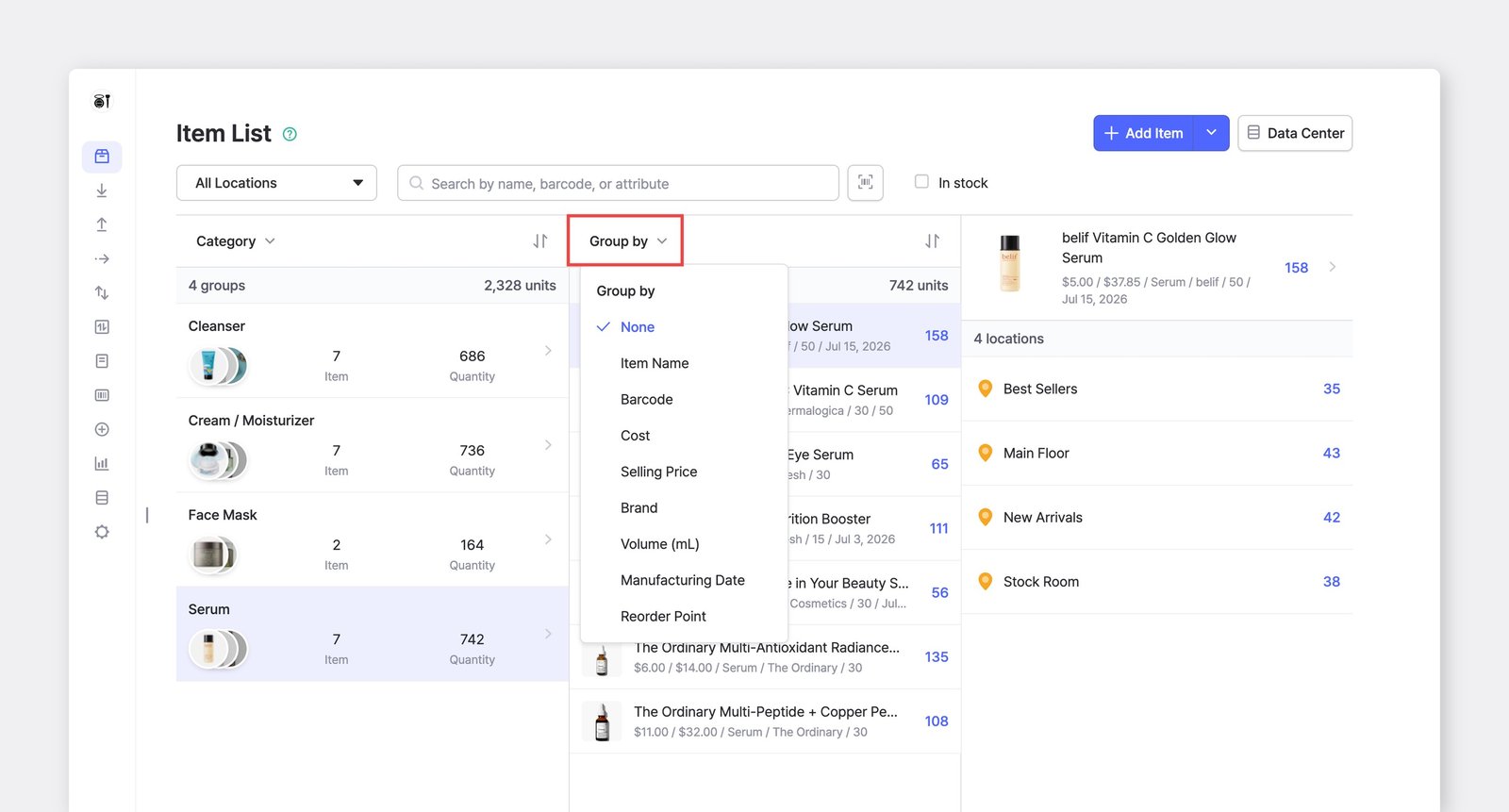
<figure><img src="https://687823928-files.gitbook.io/~/files/v0/b/gitbook-x-prod.appspot.com/o/spaces%2FlRf1QqJGoevCQqGbfI80%2Fuploads%2Fgit-blob-a4d725b101ab8dd074bcff4190fca0cadf391f85%2Fgroup-by-three-times.png?alt=media" alt=""><figcaption><p>Group items by <em>Type</em> > <em>Brand</em> > <em>Item Name</em></p></figcaption></figure>

#### Sorting Options

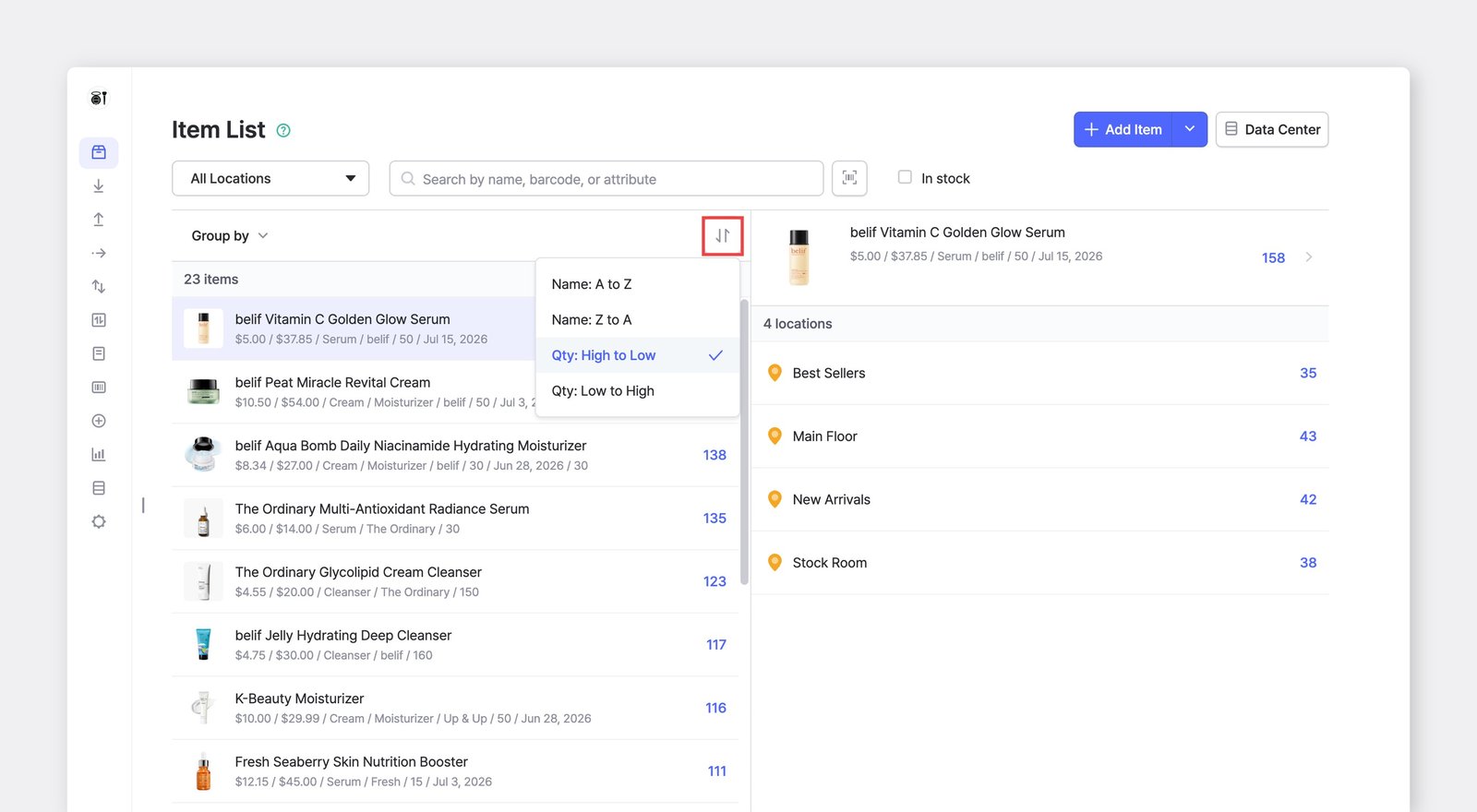
You can also **sort** **items** alphabetically (A to Z) or by stock quantity, either from largest to smallest or vice versa.
<figure><img src="https://687823928-files.gitbook.io/~/files/v0/b/gitbook-x-prod.appspot.com/o/spaces%2FlRf1QqJGoevCQqGbfI80%2Fuploads%2Fgit-blob-df9a46e239577dab8aff43369ca2e1fb4bedc8d5%2FItem%20List-Sorting.png?alt=media" alt="Sort items by Name or Quantity"><figcaption></figcaption></figure>

### B. On Your Phone

You can group, filter, and sort items in the same way on the mobile app.

{% embed url="<https://customer-0jrbilsa8yt3k758.cloudflarestream.com/3c04d31f6503477b941b88951f0d4984/iframe?autoplay=true&controls=false&letterboxColor=transparent&loop=true&muted=true&poster=https://customer-0jrbilsa8yt3k758.cloudflarestream.com/3c04d31f6503477b941b88951f0d4984/thumbnails/thumbnail.jpg?height=1080&preload=true>" %}

More tips on **organizing your items with attributes**:

{% embed url="<https://www.boxhero.io/en/blog/how-to-organize-inventory-with-attributes>" %}

***

## Frequently Asked Questions (FAQ)

### I accidentally deleted an item attribute. What should I do?

Please contact [Support](https://www.boxhero.io/docs/resources/contact), and we'll help you restore it.

### How many attributes can I add?

You can add as many attributes as you need on BoxHero—there are no limits!

### Can I change my attribute type?

Please create a new attribute with the desired type and use the [**Edit via Excel**](https://www.boxhero.io/docs/items#id-3.-edit-items-via-excel) feature to copy the data from the existing attribute to the new one. Once the data has been successfully transferred, delete the old attribute.

### Can I add an attribute for locations?

You can add an attribute for locations, but we recommend using the dedicated [**Locations**](https://www.boxhero.io/docs/concepts/locations) feature instead. It’s designed to track physical sites like warehouses or stores and lets you update item locations easily as they move between places.

Attributes, on the other hand, are better suited for details that don’t change often.

### What happens to my transactions if I change or delete attributes?

If you update an item’s details such as its name, attributes, or price, those changes will automatically apply to all past transactions. Your <mark style="color:blue;">**`Transactions`**</mark> history will always display the most up-to-date item information to ensure consistency across your inventory.

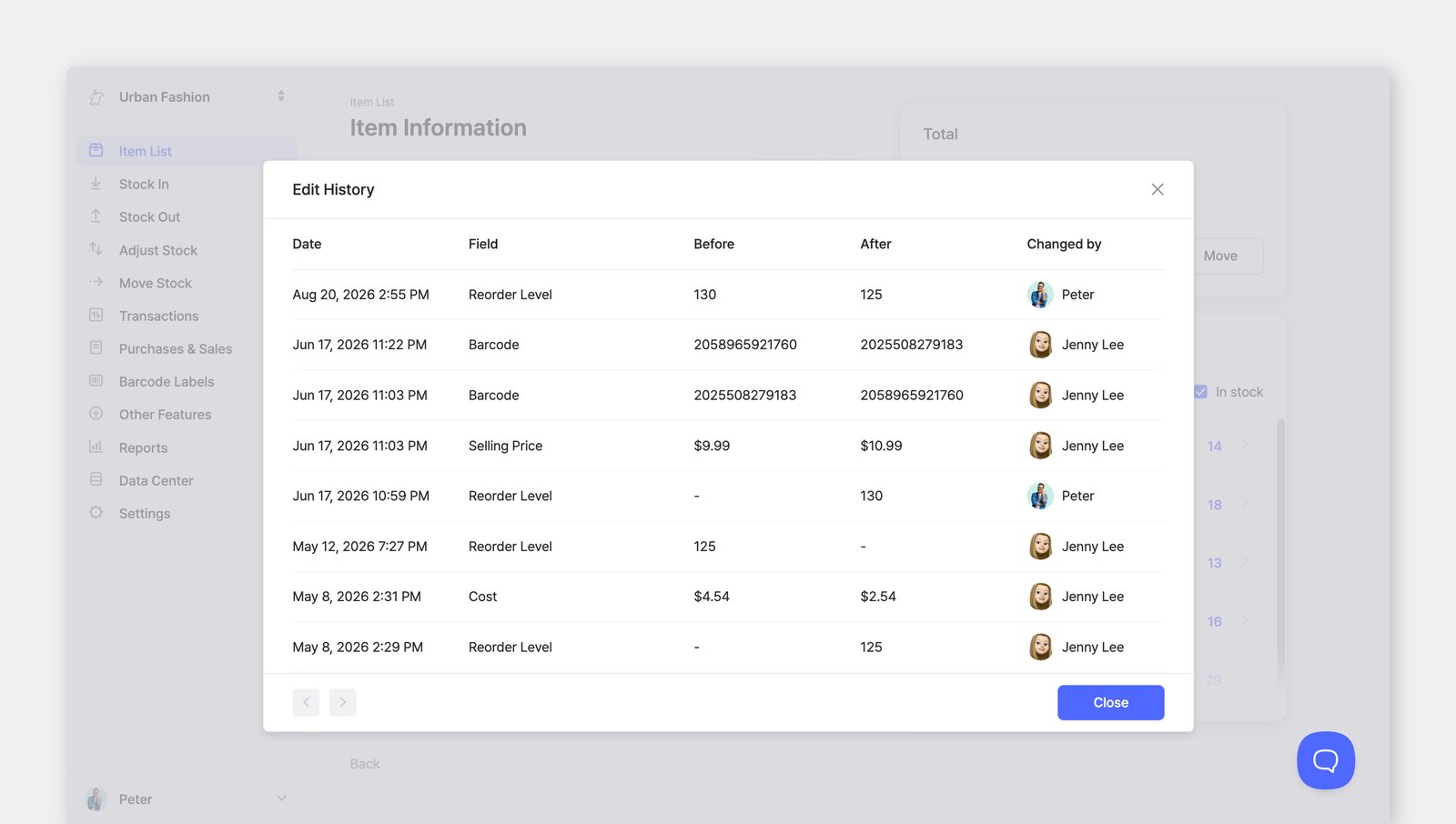
If you need to audit when a specific detail was changed, you can view the history directly from the item page: Go to more  <mark style="color:blue;">**`...`**</mark> button > <mark style="color:blue;">**`Attribute Change Log`**</mark> from the dropdown menu.

<figure><img src="https://687823928-files.gitbook.io/~/files/v0/b/gitbook-x-prod.appspot.com/o/spaces%2FlRf1QqJGoevCQqGbfI80%2Fuploads%2Fgit-blob-638e355436ed4e0546bf0fdc0d49e0f33af8ff48%2Fframeit_2026-03-11T14-08-24.jpg?alt=media" alt=""><figcaption></figcaption></figure>


---

# Agent Instructions: Querying This Documentation

If you need additional information that is not directly available in this page, you can query the documentation dynamically by asking a question.

Perform an HTTP GET request on the current page URL with the `ask` query parameter:

```
GET https://www.boxhero.io/docs/concepts/attributes.md?ask=<question>
```

The question should be specific, self-contained, and written in natural language.
The response will contain a direct answer to the question and relevant excerpts and sources from the documentation.

Use this mechanism when the answer is not explicitly present in the current page, you need clarification or additional context, or you want to retrieve related documentation sections.