
Inventory Transactions
Record every inventory change with Stock In, Out, Move, and Adjust. Accurate records for each transaction type keep inventory easy to manage.
Types of Inventory Transactions
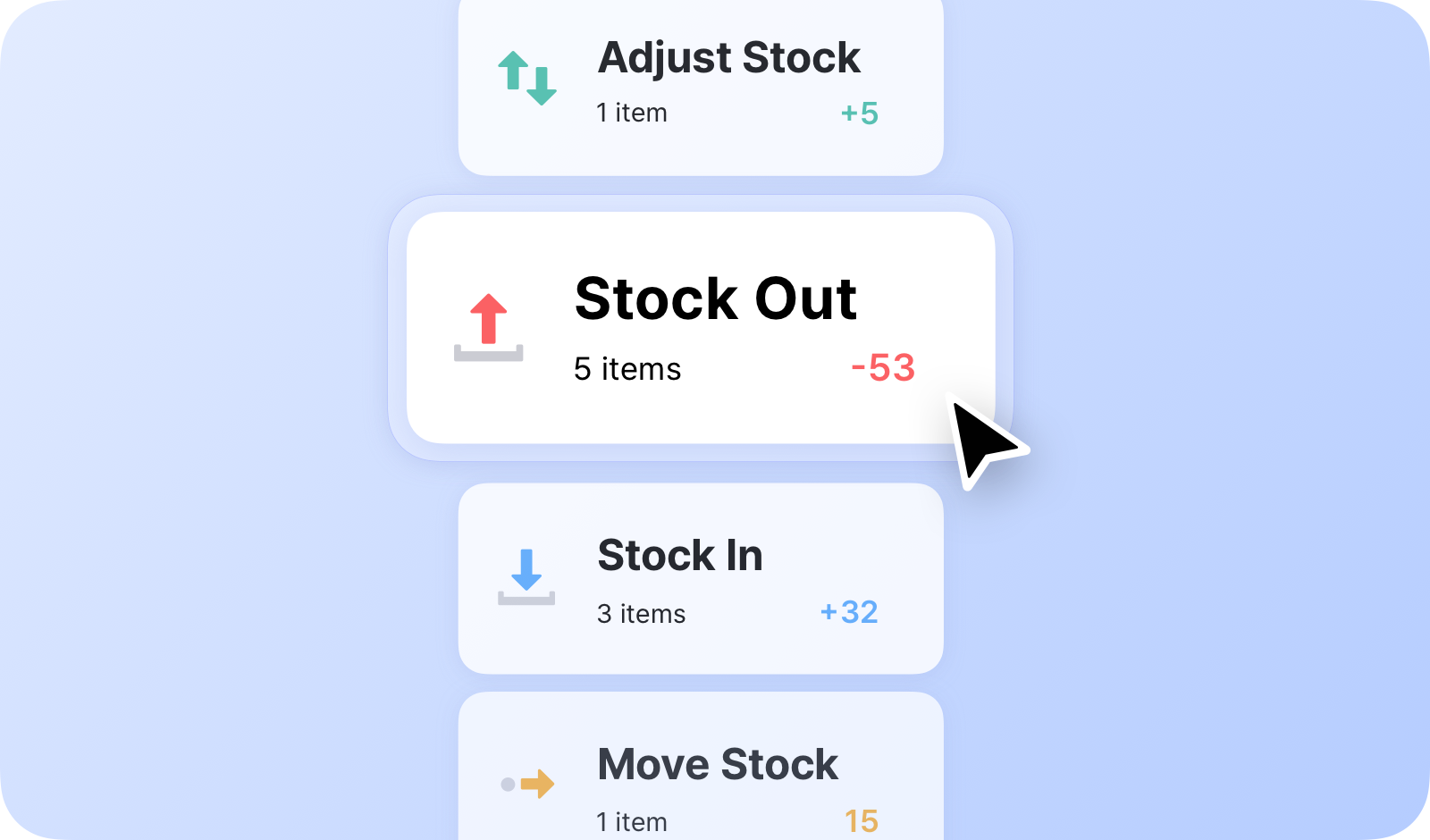
Section titled “Types of Inventory Transactions”You can manage your inventory quantities with BoxHero's four key inventory transactions:
- Stock In: Record items entering your inventory.
- Stock Out: Record items leaving your inventory.
- Move Stock: Transfer inventory between locations.
- Adjust Stock: Modify inventory quantities (for damage, loss, etc.)
Purchases & Sales
Consider Purchases & Sales instead if you need to:
- Track unit prices alongside quantities
- Send purchase orders or invoices to your partners
- Have one person place orders and another receive or ship them
- Sell several items together as a bundle
Stock In
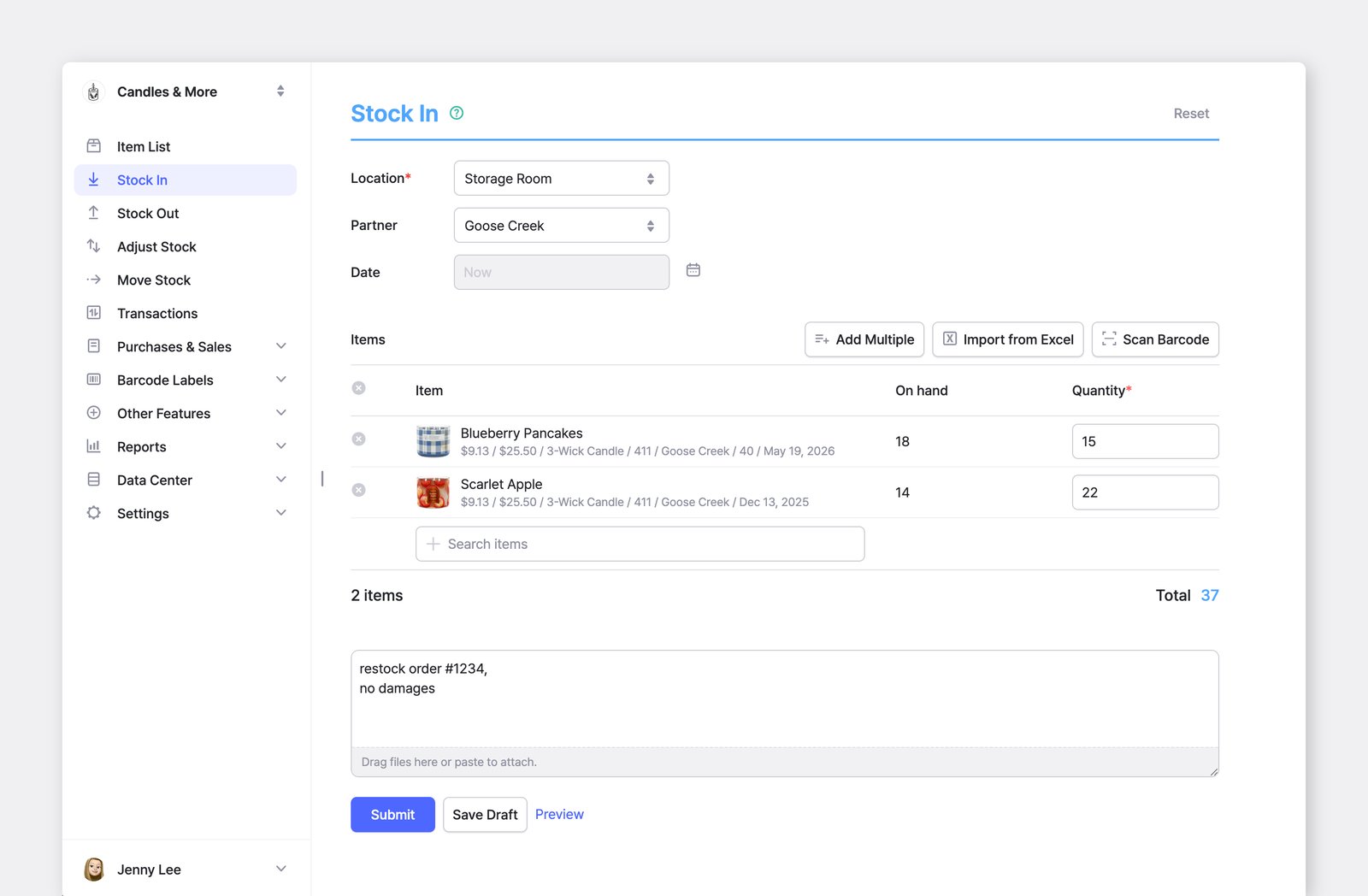
Section titled “Stock In”Use the Stock In menu to add incoming inventory, such as new purchases or returned items.
Stock Out
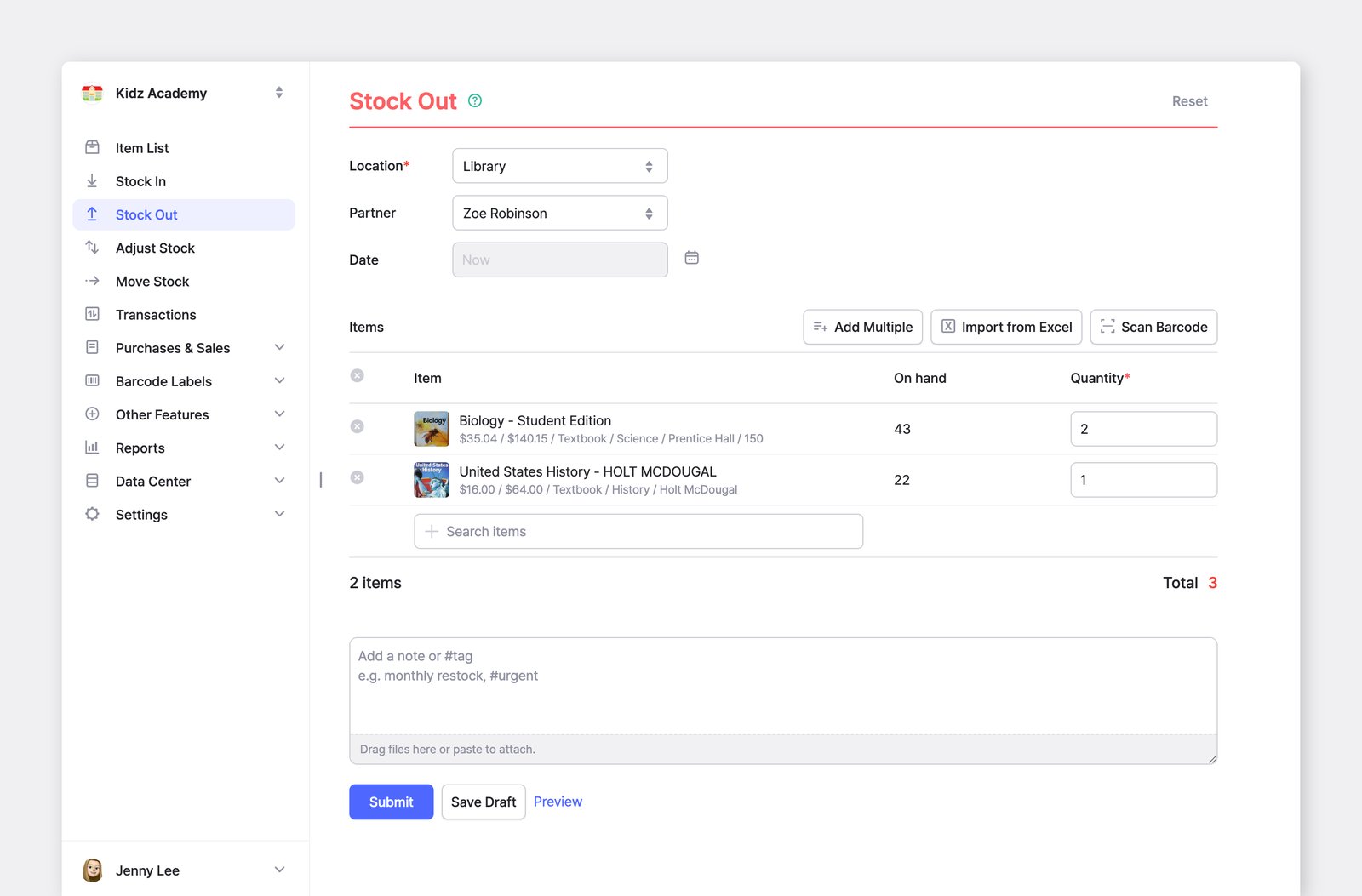
Section titled “Stock Out”Use the Stock Out menu to record outgoing inventory, like sales, shipments, or disposals.
Move Stock
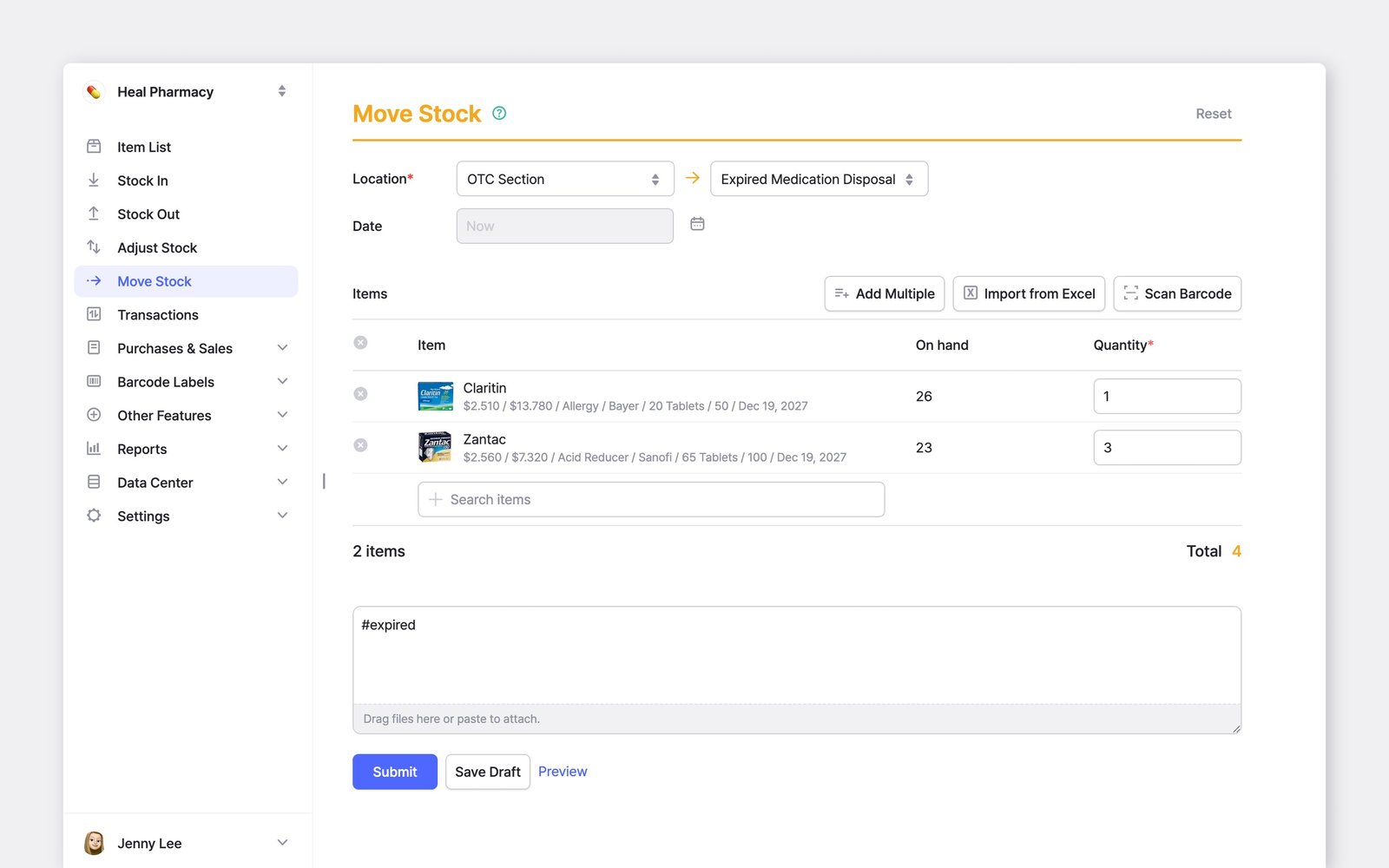
Section titled “Move Stock”Use the Move Stock menu to transfer inventory between one or more locations.
Adjust Stock
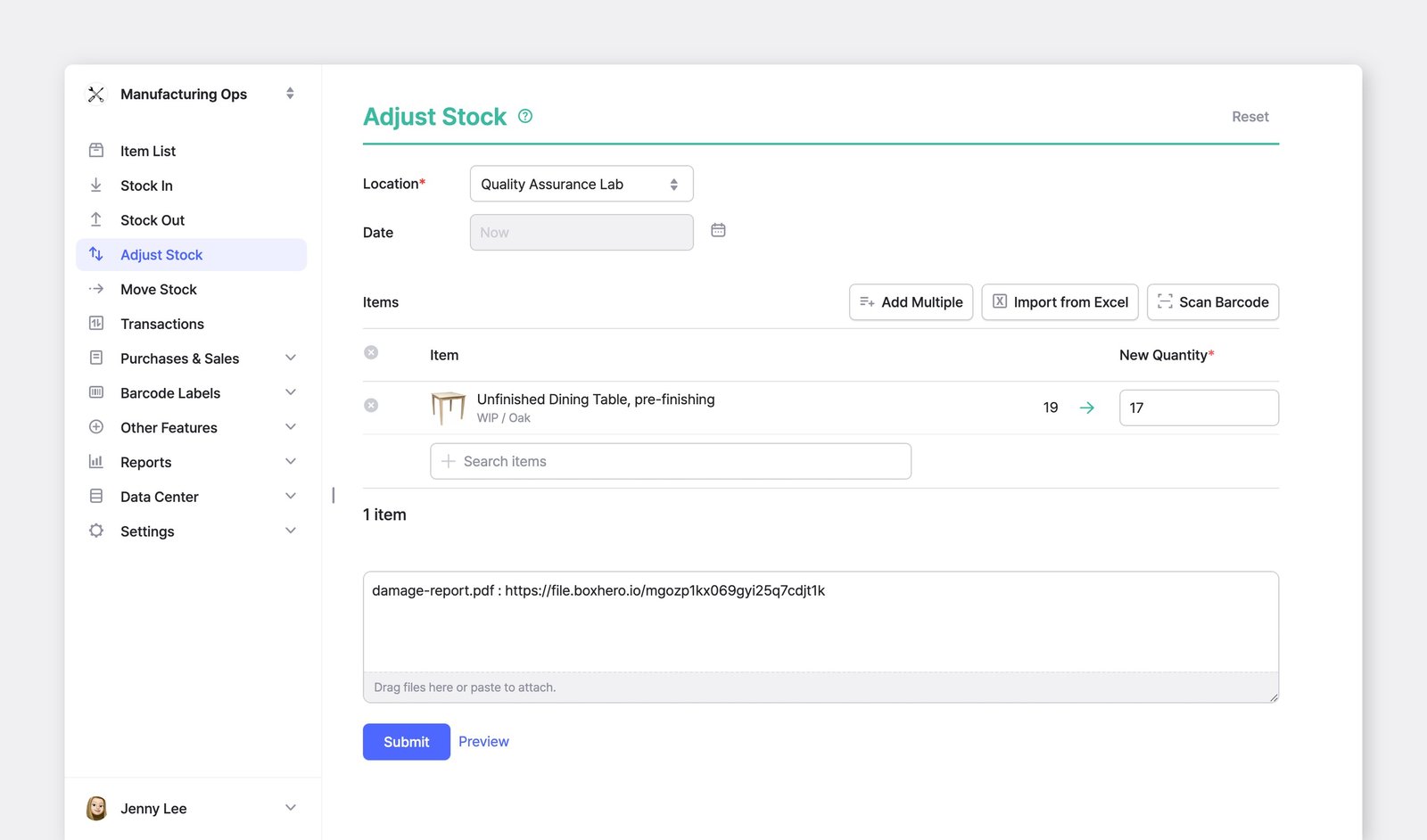
Section titled “Adjust Stock”Use the Adjust Stock menu to update stock counts to correct errors or reflect changes like damaged or lost items.
Unlike Stock In and Stock Out, Adjust Stock sets the quantity you enter as the new on-hand quantity. For example, entering "60" changes the current quantity to 60, no matter what it was before.
Transaction Details
Section titled “Transaction Details”If you don't pick a date, the transaction is recorded with the current date and time. Only set a date when you're recording a past transaction.
Memos & Tags
Section titled “Memos & Tags”Use the memo to note why the quantity changed. You can attach photos and files to share receipts, proof of delivery, or reference images with your team.
- Search memos: In
Transactions, add the memo filter and enter at least 2 characters. - Tags: Add keywords starting with a hashtag (e.g., #marketing, #sample, #lost). In
TransactionsandSummary, you can filter by an exact tag to group related activity.
How to Update Item Quantity
Section titled “How to Update Item Quantity”BoxHero gives you a few ways to speed up a new transaction.
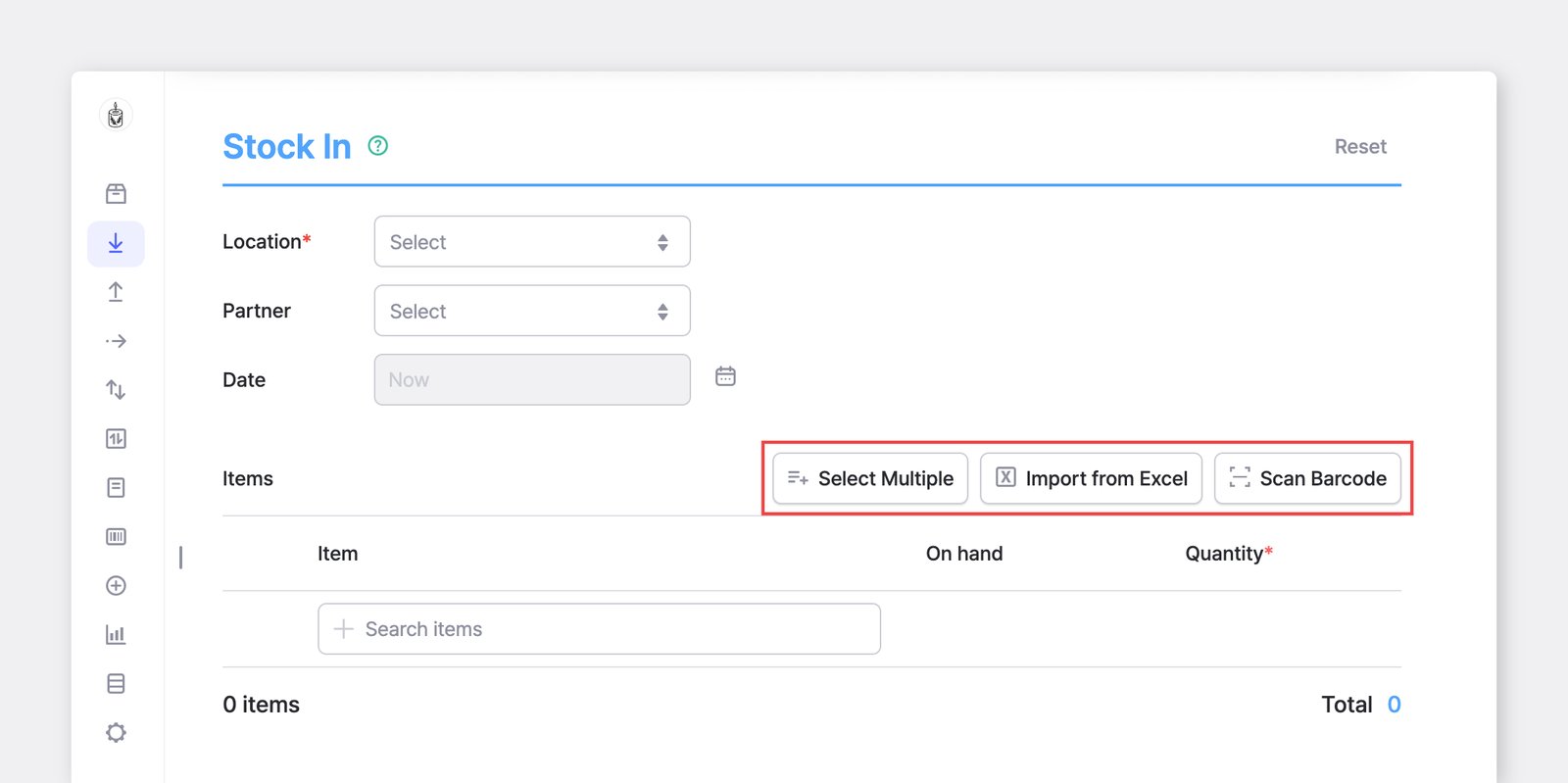
Once you've chosen a transaction type (Stock In, Stock Out, Move Stock, Adjust Stock) and set the location and date, you'll find three shortcuts for adding items:
- Select Multiple
- Import from Excel
- Scan Barcode
Select Multiple
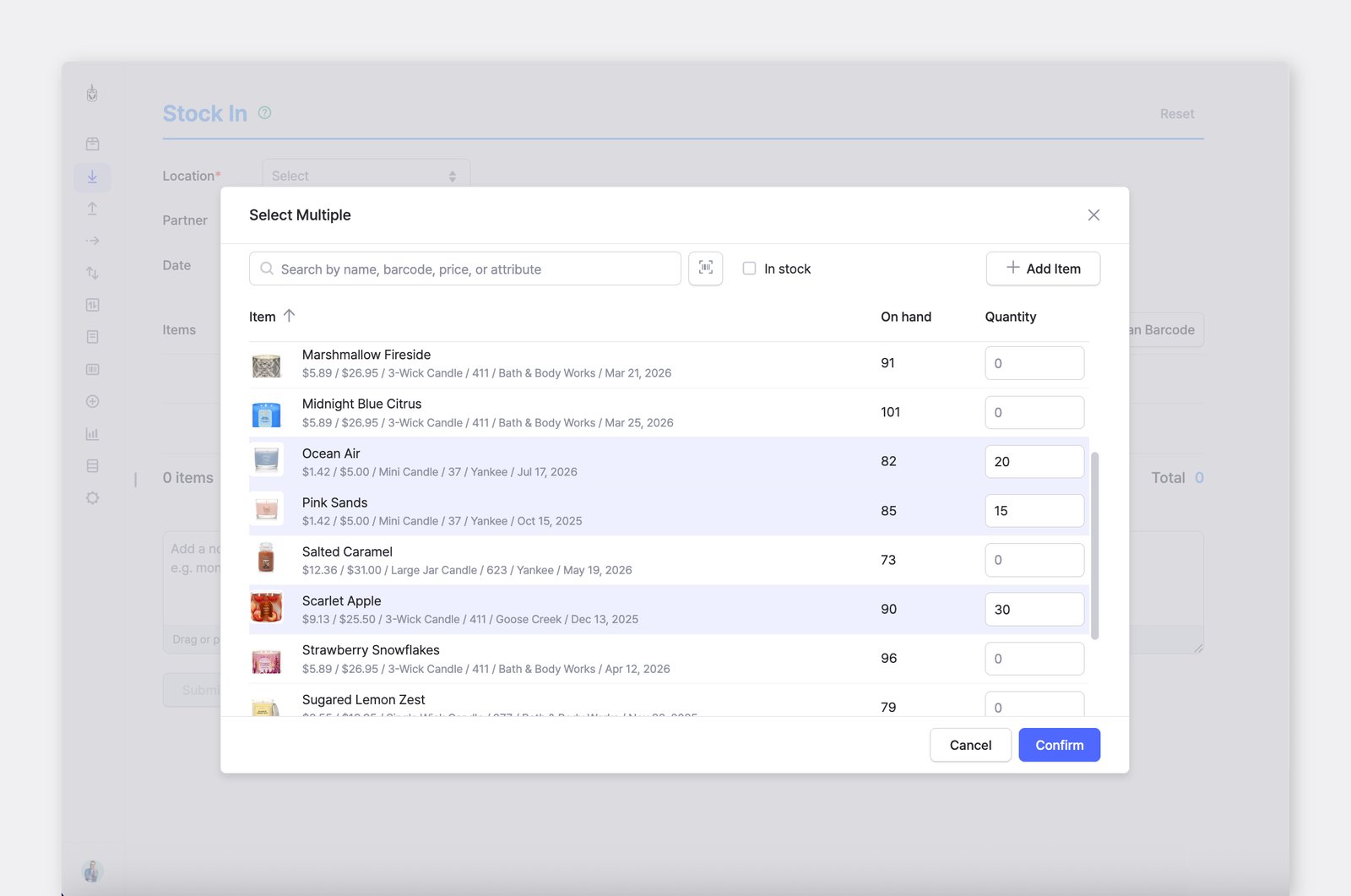
Section titled “Select Multiple”Click Select Multiple to add several items from a single searchable list. Search by name, barcode, price, or attribute. Enter a quantity for each item and click Confirm.
Import from Excel
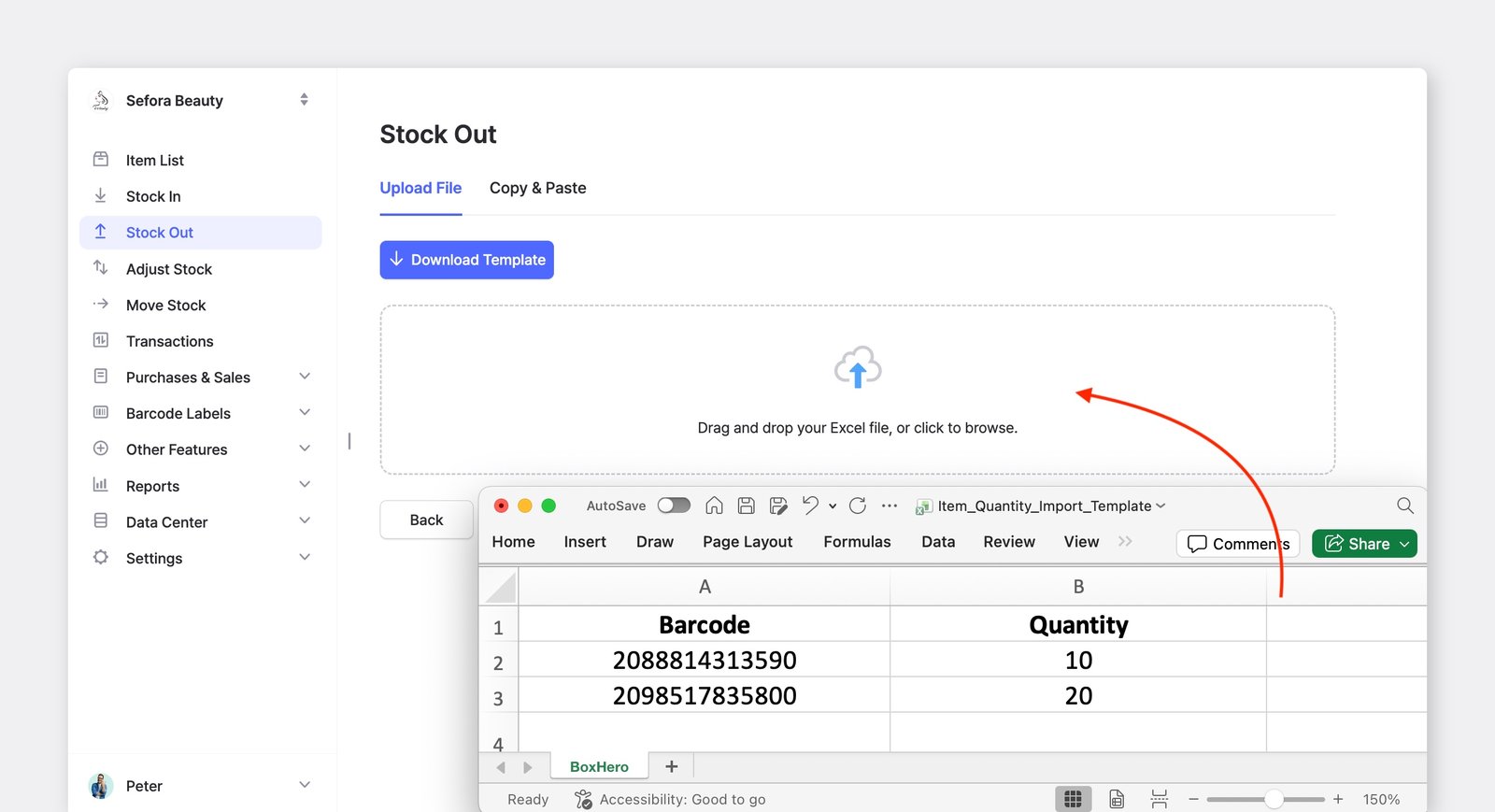
Section titled “Import from Excel”- Click
Import from Excelto update many items at once from a spreadsheet. - Then,
Download Templateto get the correct format and fill in the two columns — Barcode (or SKU) and Quantity — following the Excel file guidelines. - Drag and drop your file into the upload area or switch to the
Copy & Pastetab to paste your rows directly.
Scan Barcode
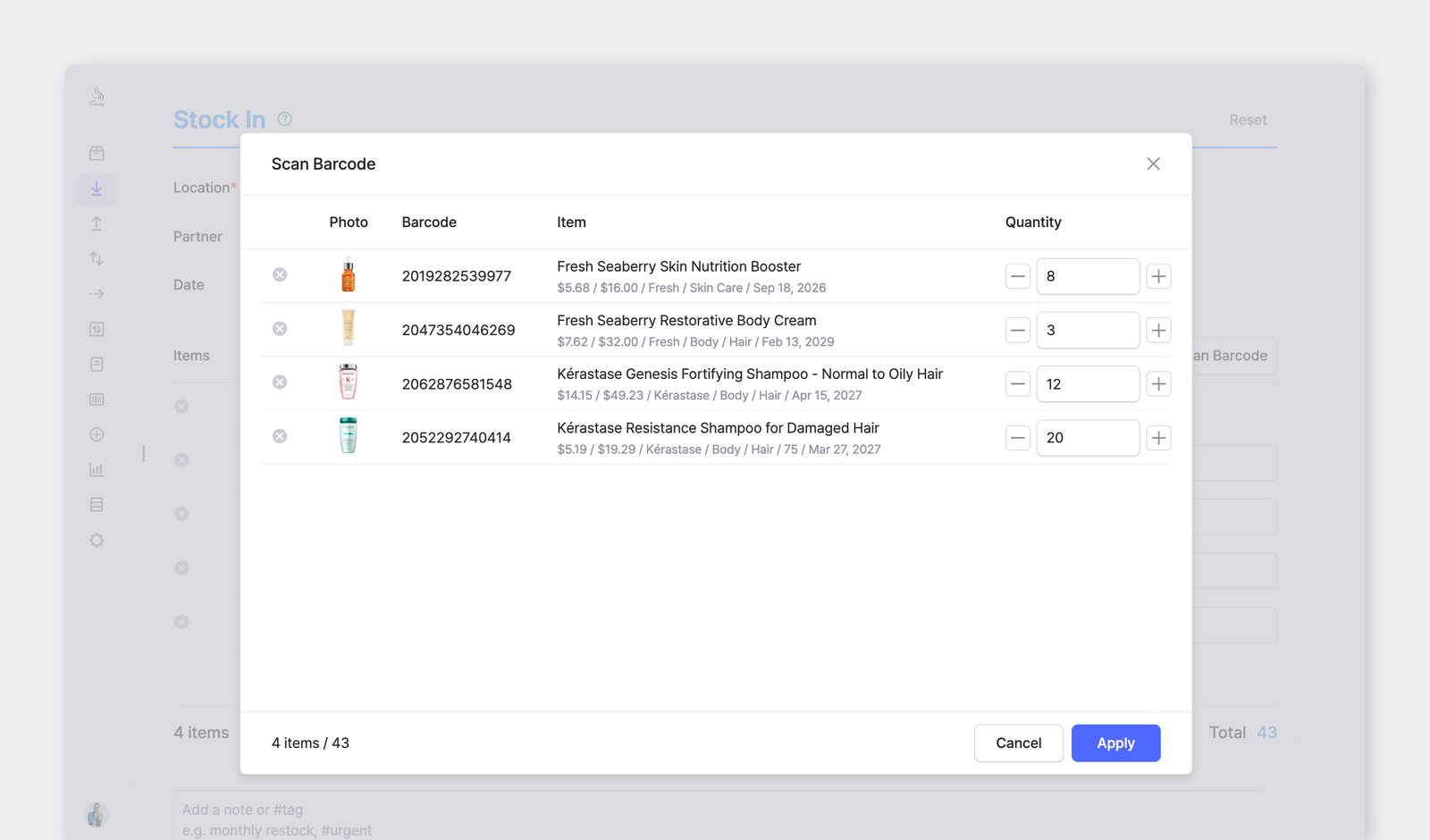
Section titled “Scan Barcode”- Click
Scan Barcodeto add items with a connected barcode scanner. - Point your scanner at a barcode to begin. Each scan adds the item to the list, and you can scan again or use the
+/–controls to set the quantity. - When you're done, click
Applyto add everything to your transaction. - In the BoxHero mobile app, you can scan barcodes with your phone's camera.
Transactions
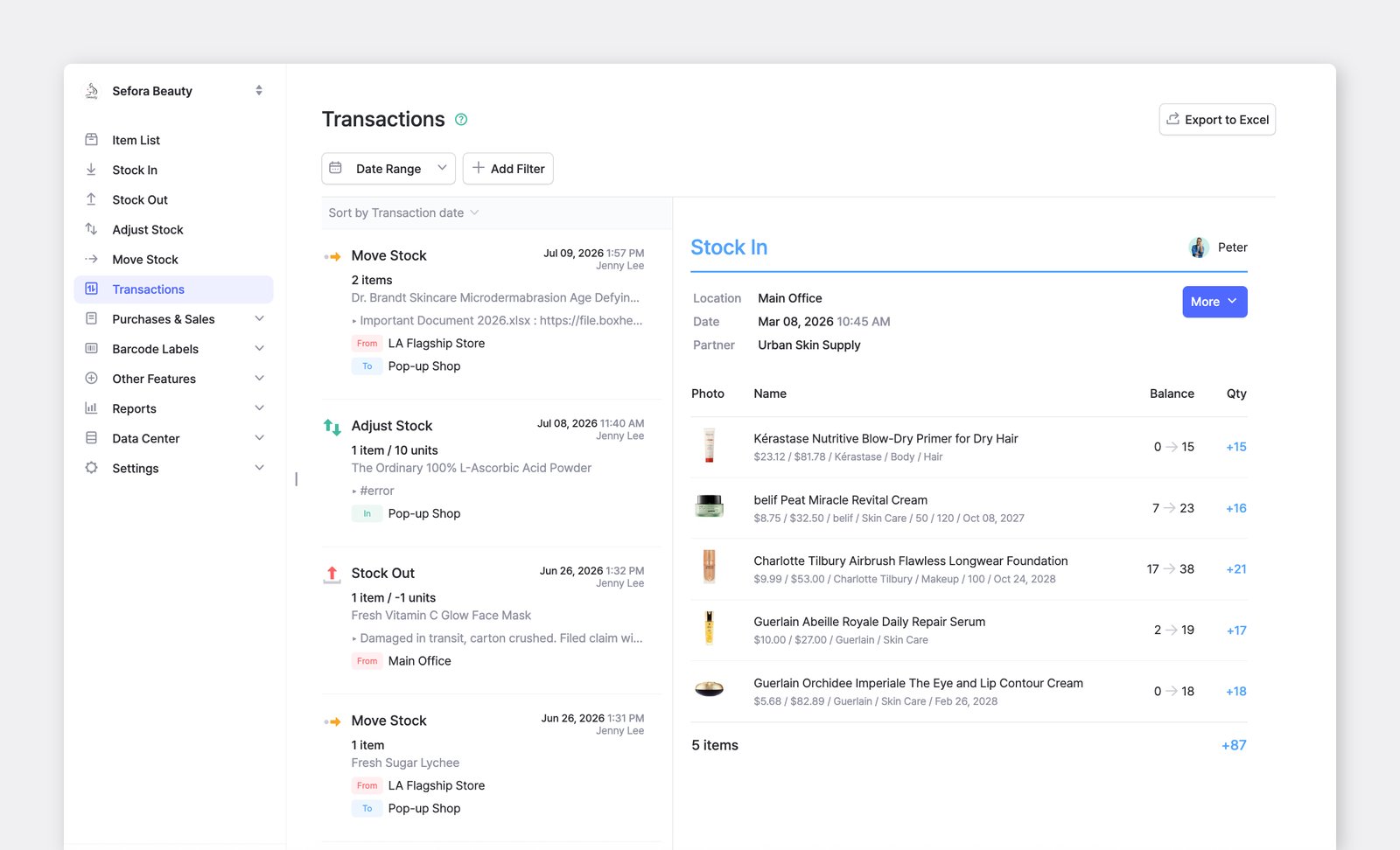
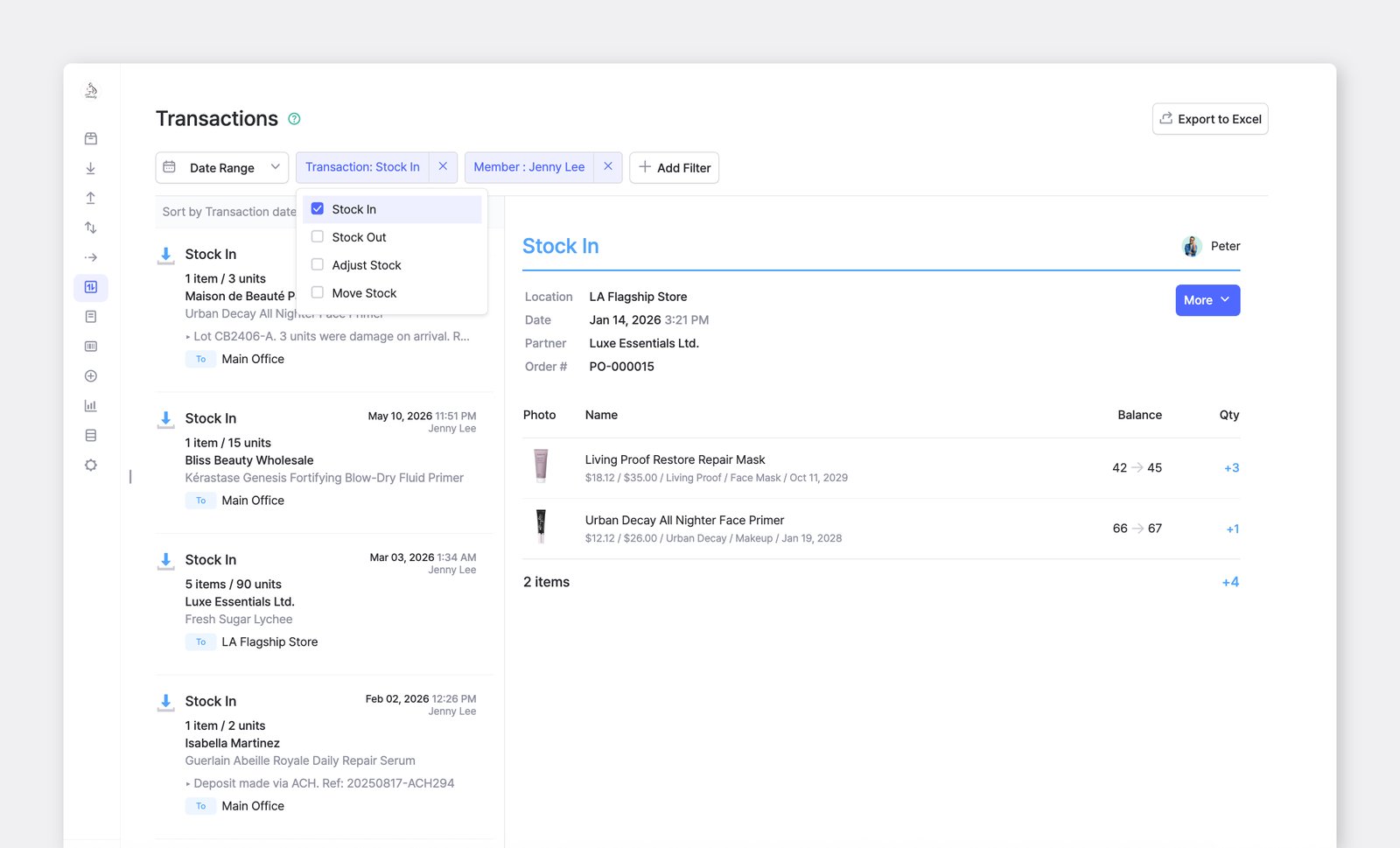
Section titled “Transactions”Any changes to your inventory quantity made through the four inventory transactions will be recorded in the Transactions menu. Here, you can view the complete history of all past inventory activities.
Transaction history isn't just a log — it's the data BoxHero uses to calculate your current stock. Changing the quantity or date of a past transaction recalculates everything after it, which can change your current quantities.
A. Filter Transactions
Section titled “A. Filter Transactions”To find specific transactions, select the applicable date range or add other filters (e.g., transaction type, partner, location).
B. Print Transactions
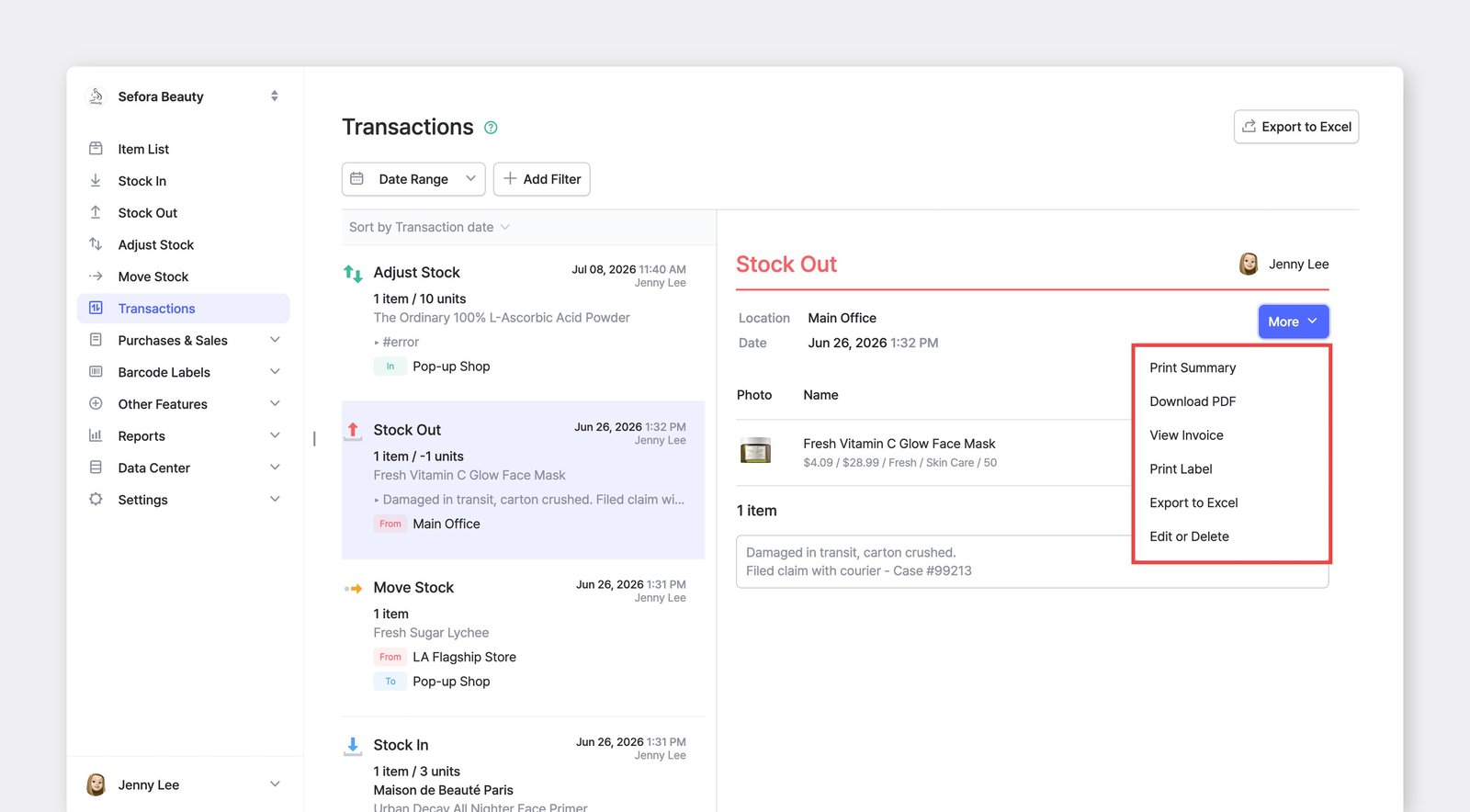
Section titled “B. Print Transactions”You can print your inventory transactions by clicking More > Print Summary or Download PDF.
C. Delete Transactions
Section titled “C. Delete Transactions”If a transaction is incorrect, you can modify or delete it.Transactions > More > Edit or Delete.
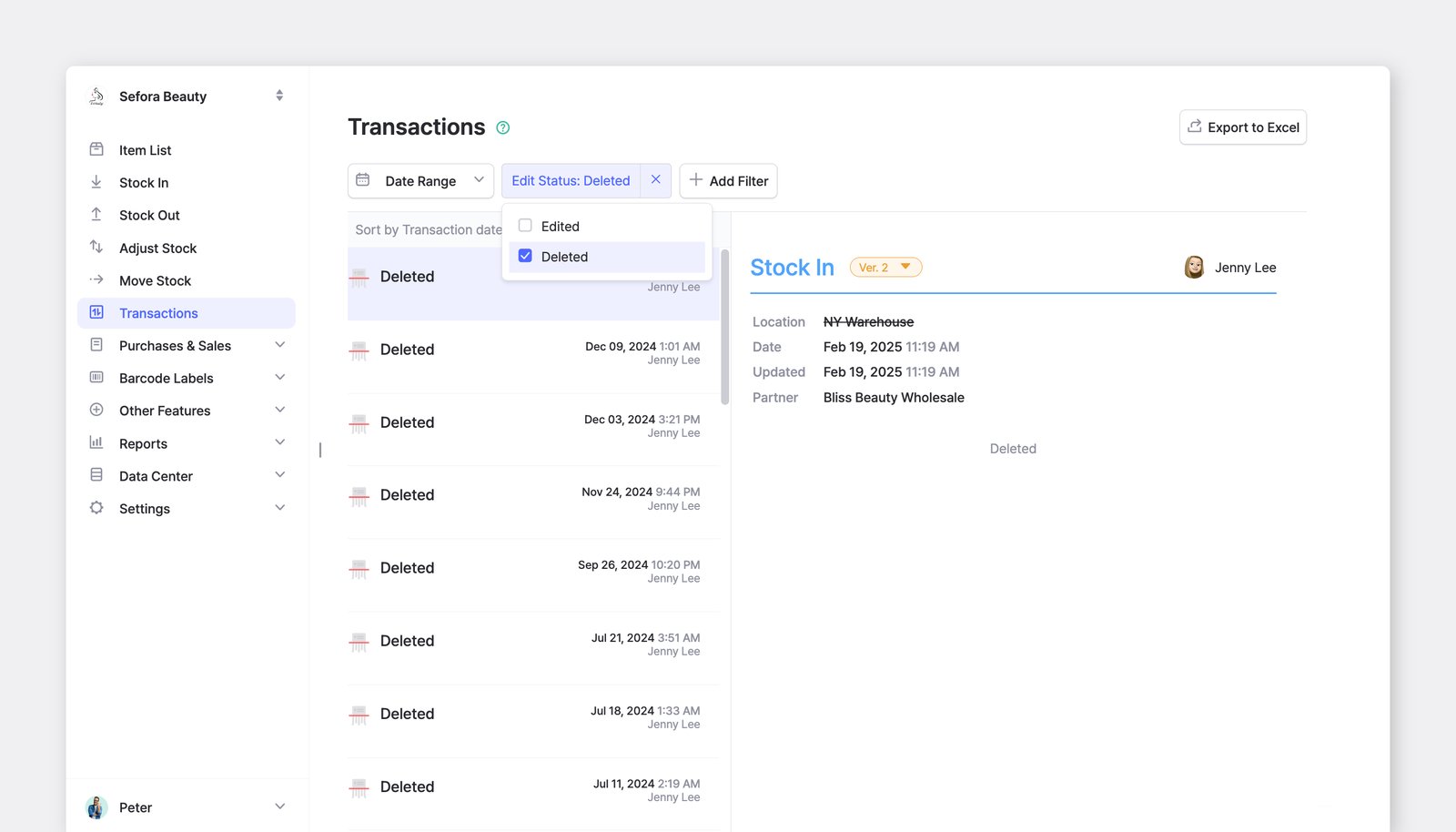
D. Edit Transactions
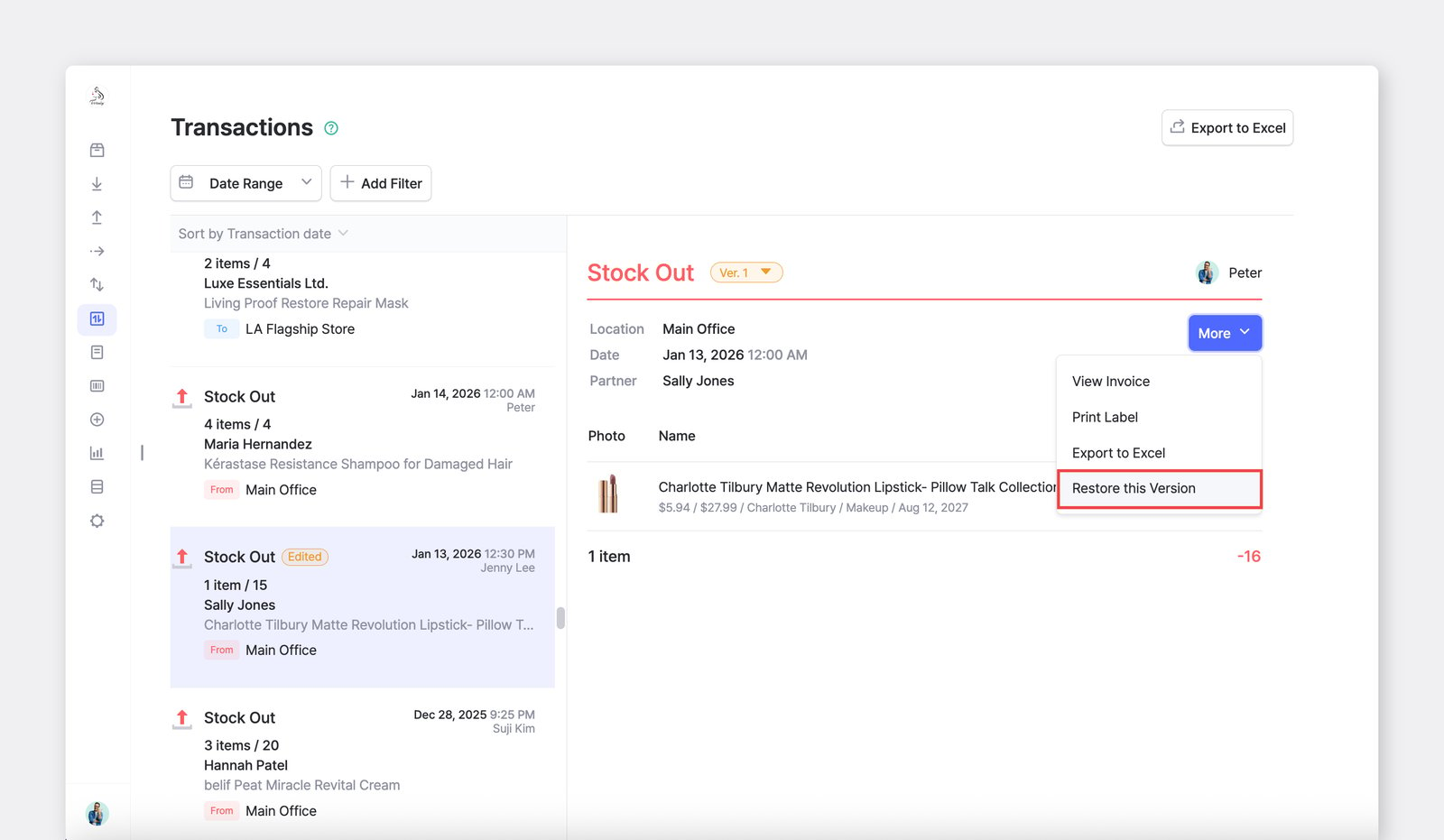
Section titled “D. Edit Transactions”When a transaction is edited, it's marked with an orange "Edited" badge and displays its version number.
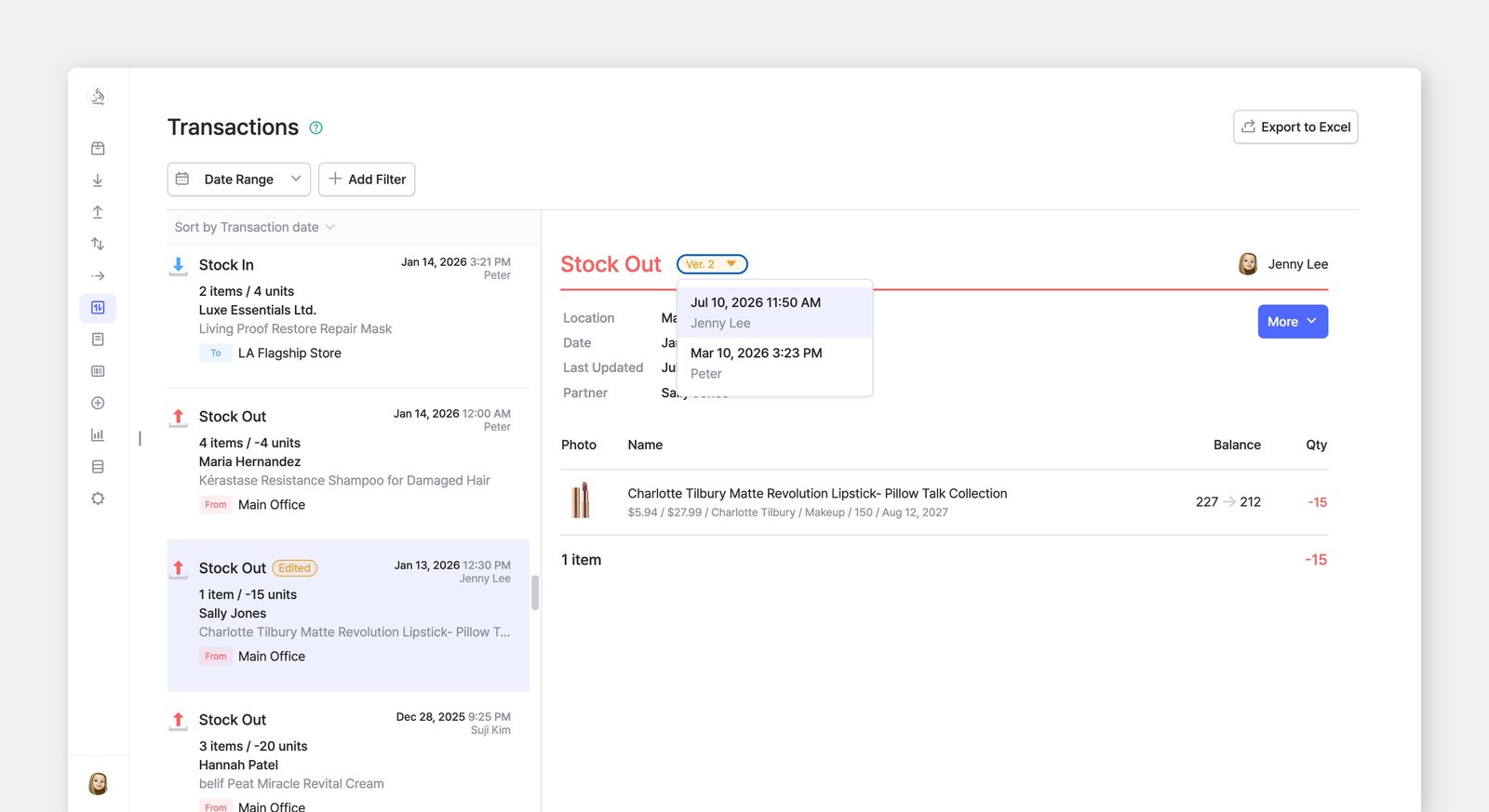
To restore a previous version, select the one you want and click More > Restore this Version.
E. Draft Transactions
Section titled “E. Draft Transactions”Save a transaction as a draft before you finalize it. Drafts appear in the stock transaction menu in the sidebar, so you can pick up where you left off — or ignore them and start a new transaction anytime.
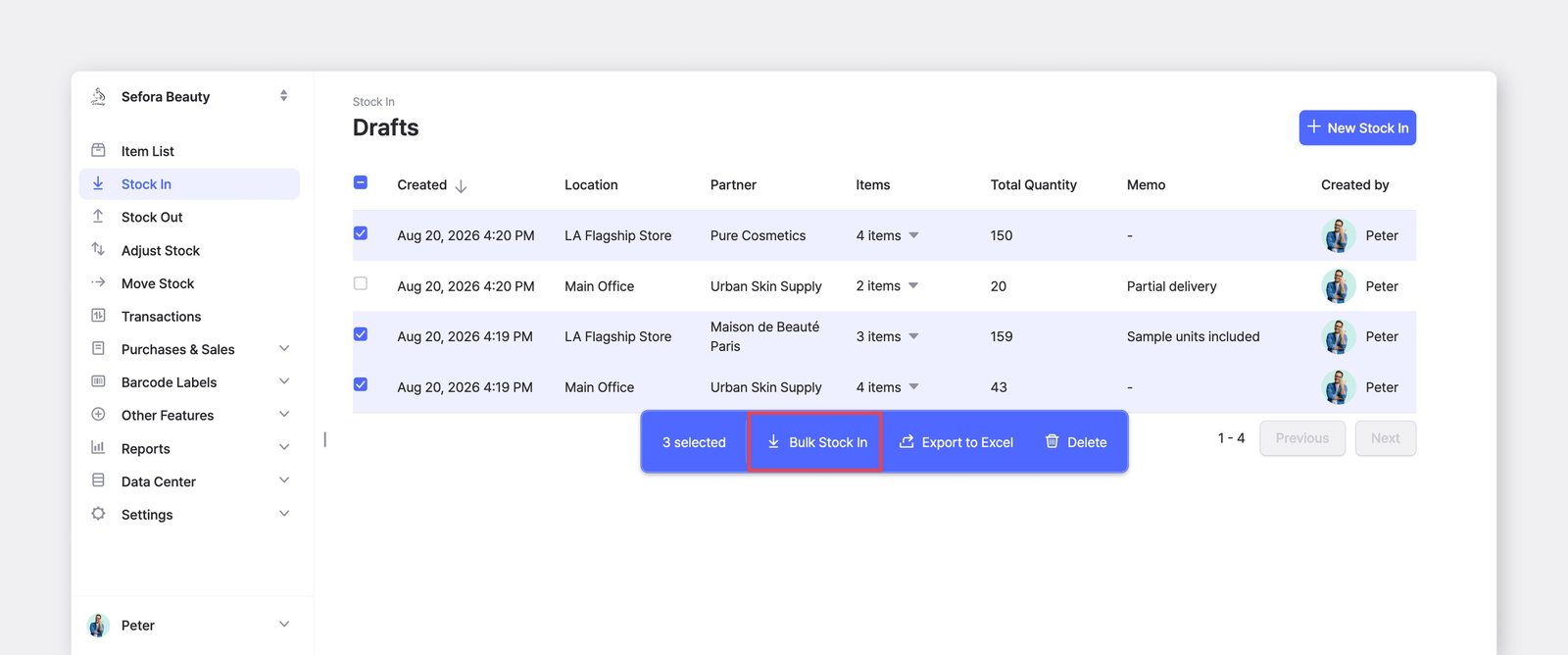
- When drafts exist, opening
Stock In,Stock Out, orMove Stockshows the draft list first. If you have multiple saved drafts, you can process several at once. - To start a separate transaction instead, use the
+ Newbutton in the top-right corner to create a new one.
Frequently Asked Questions
Section titled “Frequently Asked Questions”Have questions about transactions? Check out our FAQ: