# Locations

<figure><img src="/files/J5W6WD44pbIaayhWFPtr" alt=""><figcaption></figcaption></figure>

***

## When to Use Locations

* **When storing the same item in different places**
  * Example: Main warehouse, Floor 3 / Shelf B, retail store
* **When tracking the same item by status or condition**
  * Example: Ready for sale, defective, refurbished
<figure><img src="/files/4ZKFVr01bWzBqaJ2c1iO" alt=""><figcaption></figcaption></figure>

{% hint style="info" %}
**Note**: If you only have one storage location, using the [Attributes](/docs/concepts/attributes.md) feature might be a simpler option. You can add a "Location" attribute to track where each item is stored.
{% endhint %}

## How to Add Locations

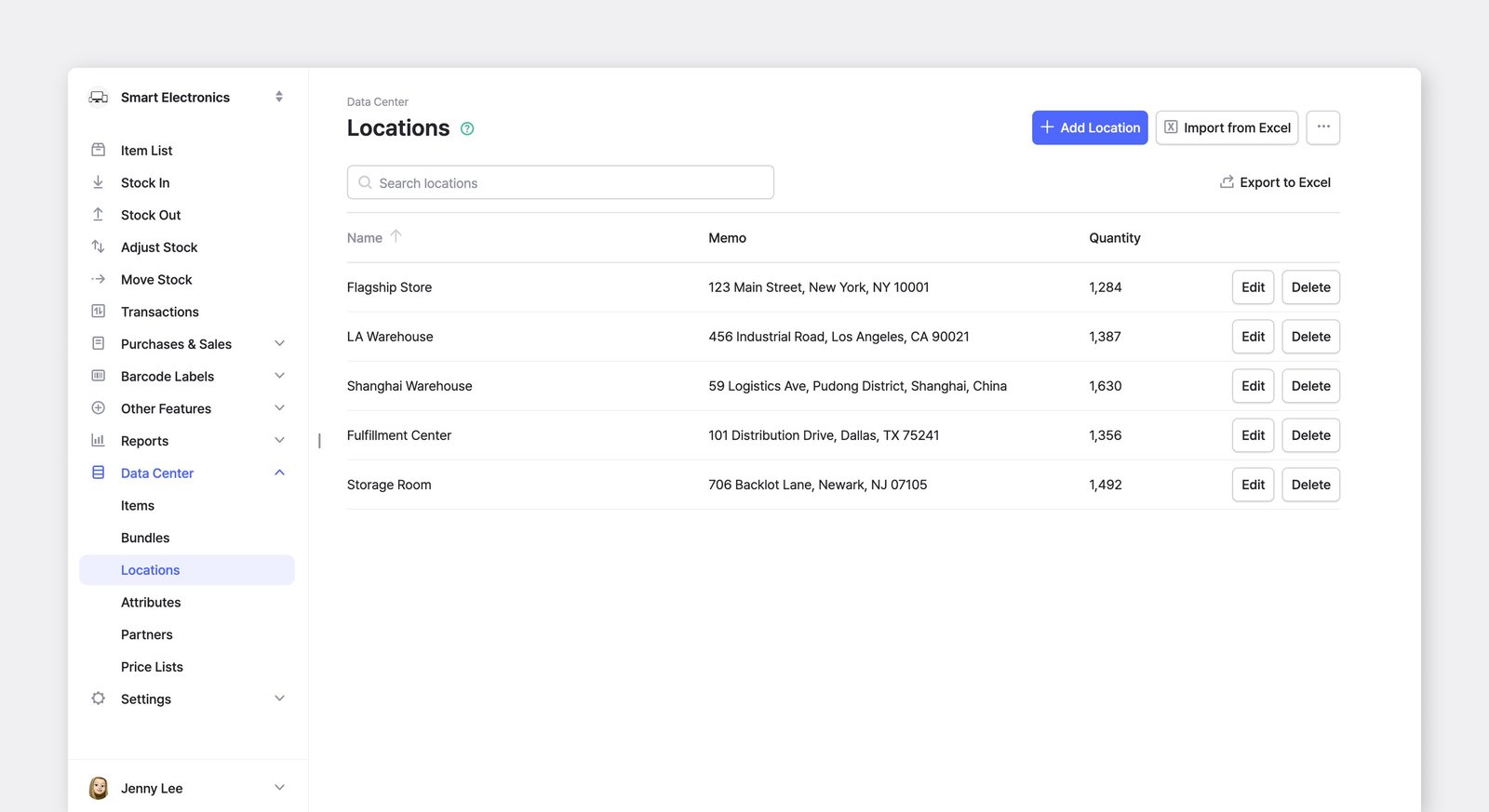
To add and manage your team's locations, go to <mark style="color:$primary;">`Data Center`</mark> > <mark style="color:$primary;">`Locations`</mark>.

<figure><img src="/files/d0lkSxYKKhr4mVbzR8t4" alt=""><figcaption></figcaption></figure>

{% hint style="warning" %}
When you first set up a team in BoxHero, *one* location is created by default.

Adding locations is only available on the [Business Plan](/docs/pricing.md#business-plan), which includes up to 3 locations. If you need more locations, you can upgrade your plan by going to <mark style="color:$primary;">`Settings`</mark> > <mark style="color:$primary;">`Billing`</mark>.
{% endhint %}

***

## Managing Items by Location

### Item List

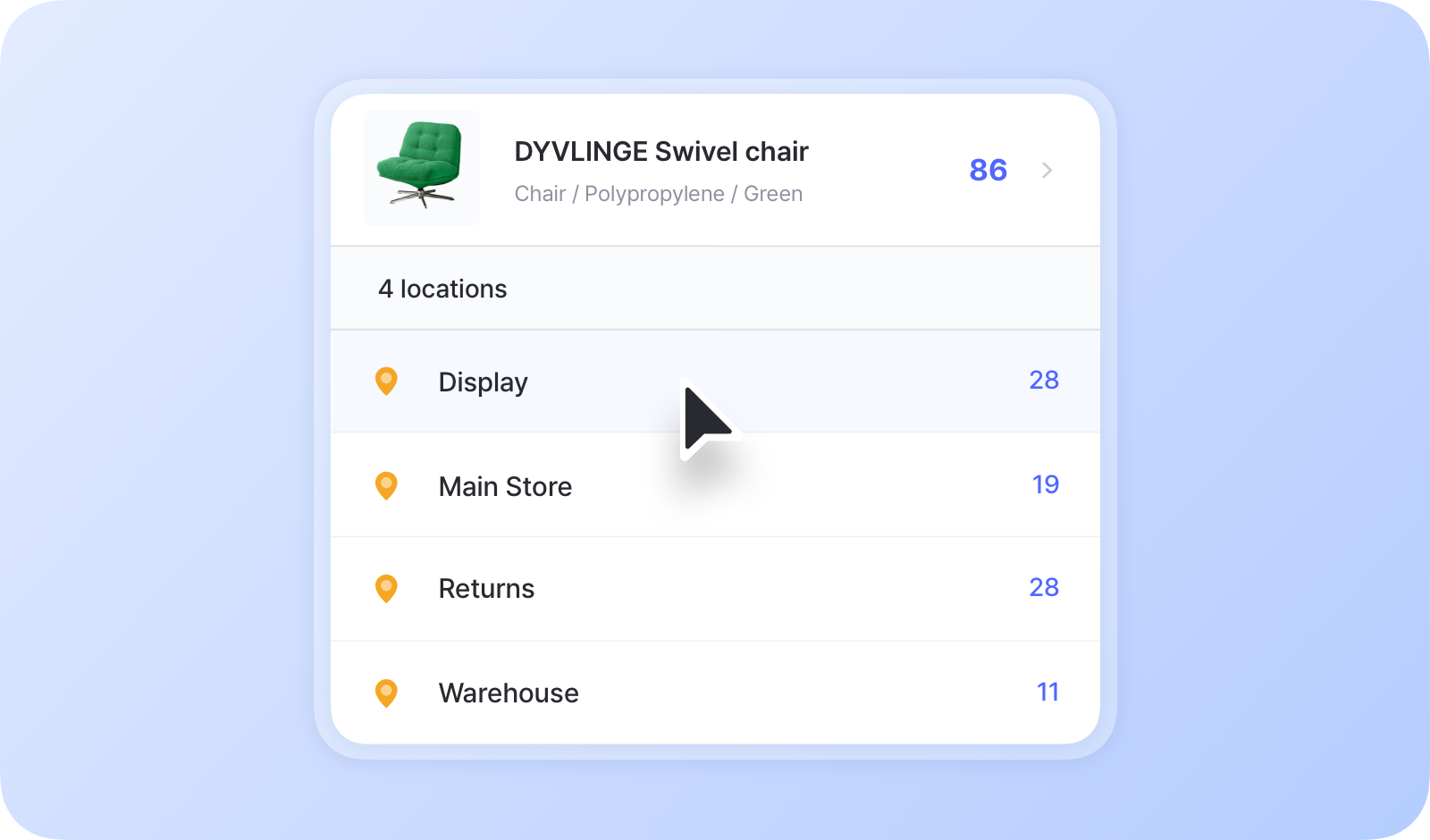
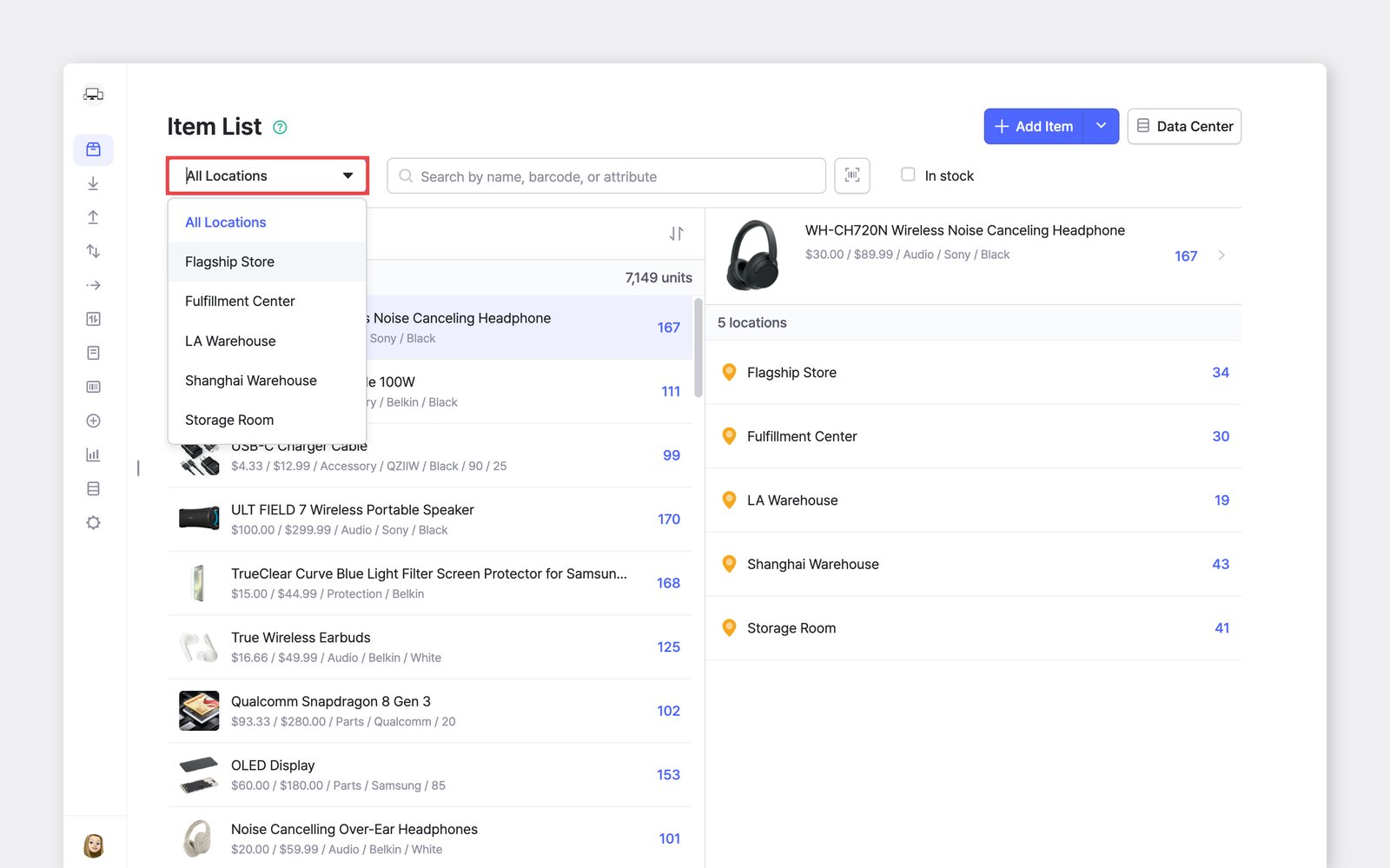
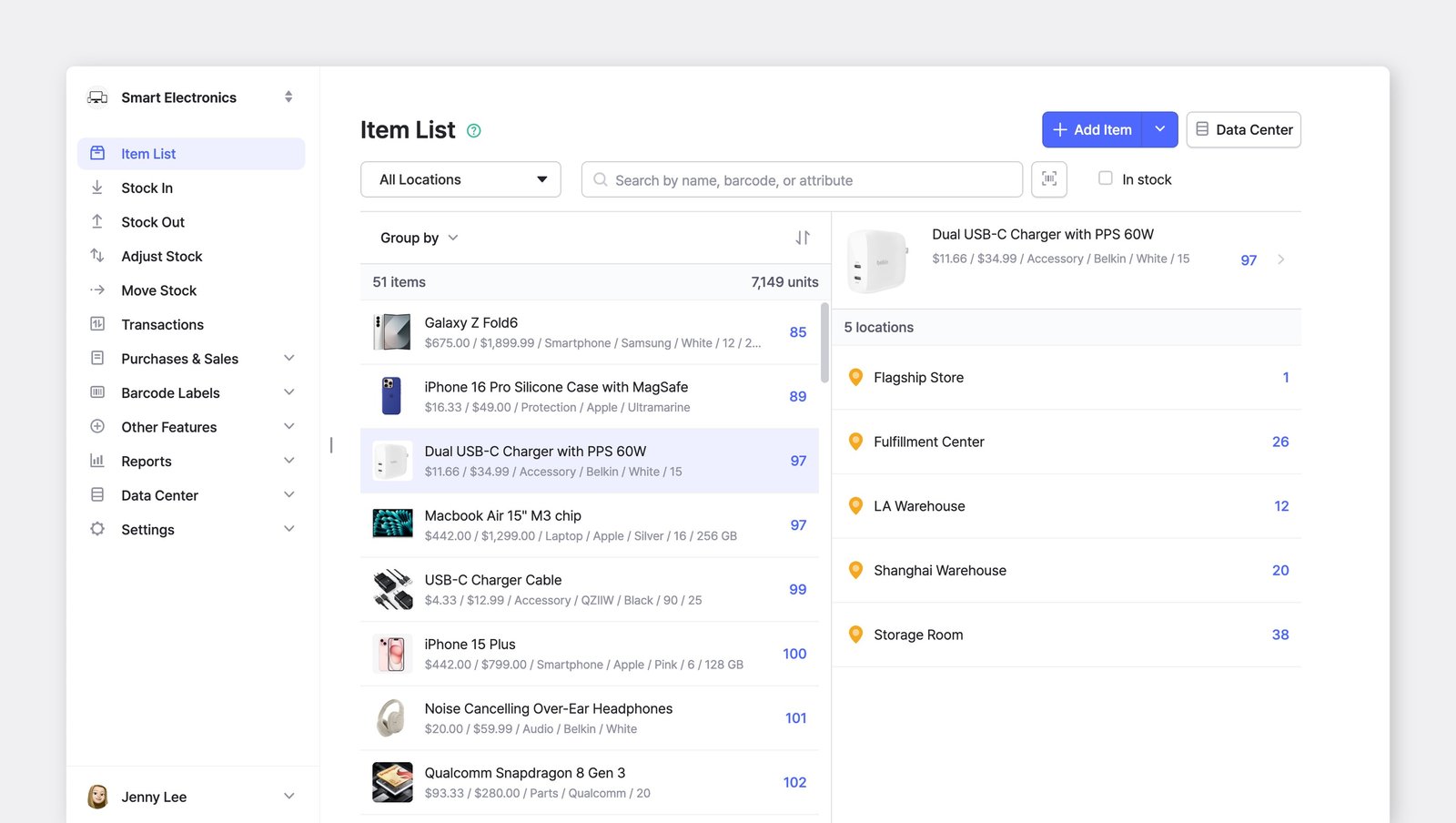
You can see the total quantity of each item, as well as how many are stored in each location.

<figure><img src="/files/fzl9pTBXFZAyD4PqZaY6" alt=""><figcaption></figcaption></figure>

### Grouping & Sorting

You can use the **Group** **by** function to organize items by location or other attributes.&#x20;

<figure><img src="/files/wHtE6x9aC6qmHvbsJDpd" alt=""><figcaption></figcaption></figure>

You can also **sort** them alphabetically (A to Z) or by stock quantity, either from largest to smallest or vice versa.

<figure><img src="/files/kBJzureUtHfq8gjkwHWM" alt=""><figcaption></figcaption></figure>

***

## Locations in Transactions

### Move Stock

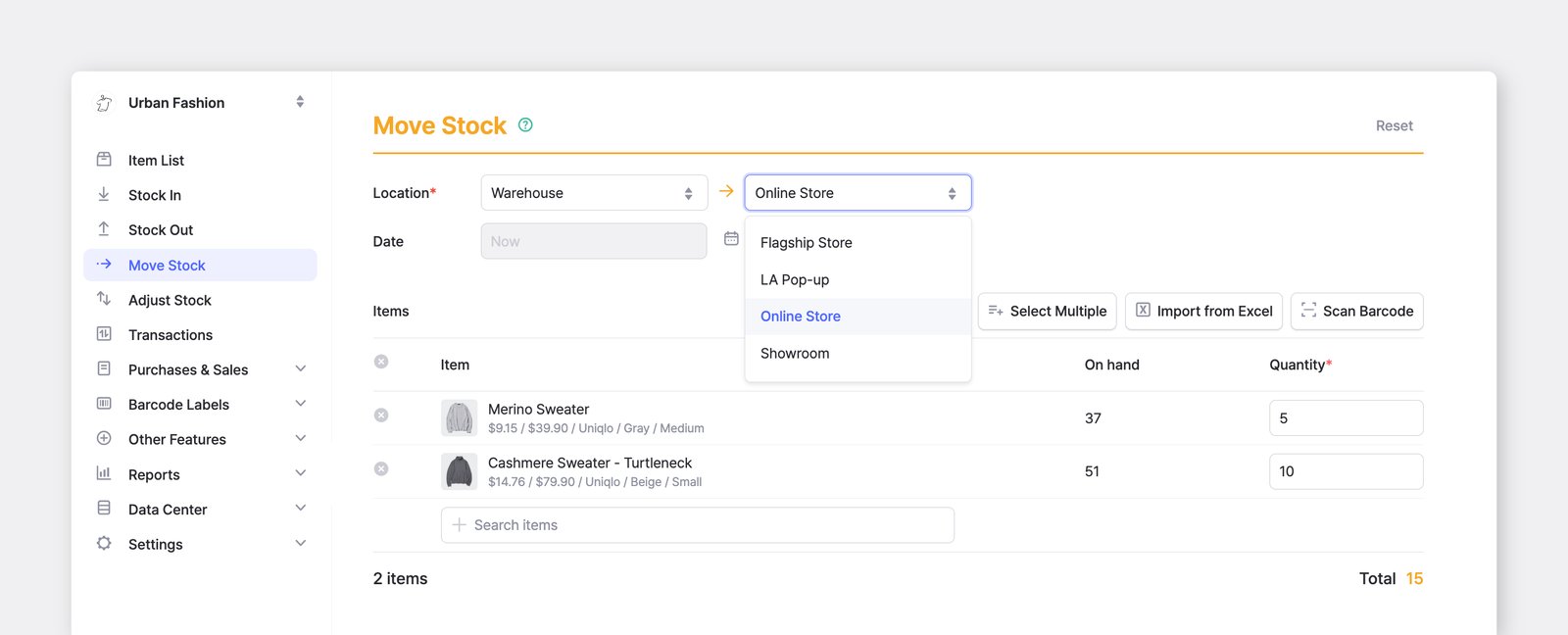
You can transfer items from one location to another and manage your items across multiple sites.
<figure><img src="/files/SBXAQTKcRA1oszPbJWYD" alt=""><figcaption></figcaption></figure>

{% hint style="warning" %}
**Note:** The <mark style="color:$primary;">`Move Stock`</mark> feature is disabled if you only have *one* location.
{% endhint %}

#### On the Mobile App

{% embed url="<https://customer-0jrbilsa8yt3k758.cloudflarestream.com/4c6612e76cbe4531adaa3e0702f75255/iframe?autoplay=true&controls=false&letterboxColor=transparent&loop=true&muted=true&poster=https://customer-0jrbilsa8yt3k758.cloudflarestream.com/4c6612e76cbe4531adaa3e0702f75255/thumbnails/thumbnail.jpg?height=1080&preload=true>" %}
Moving stock works the same way in the mobile app.
{% endembed %}

### Other Inventory Transactions

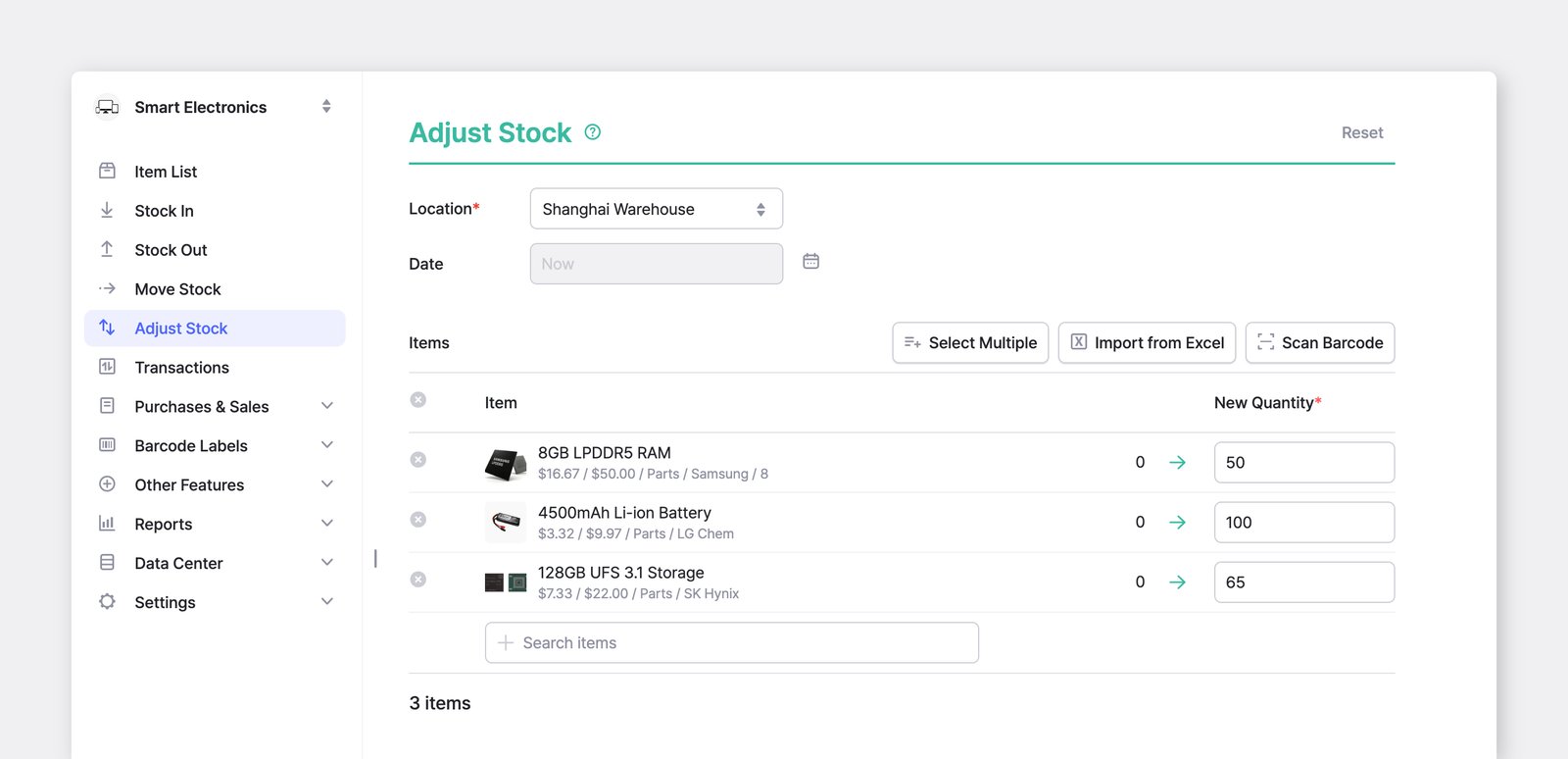
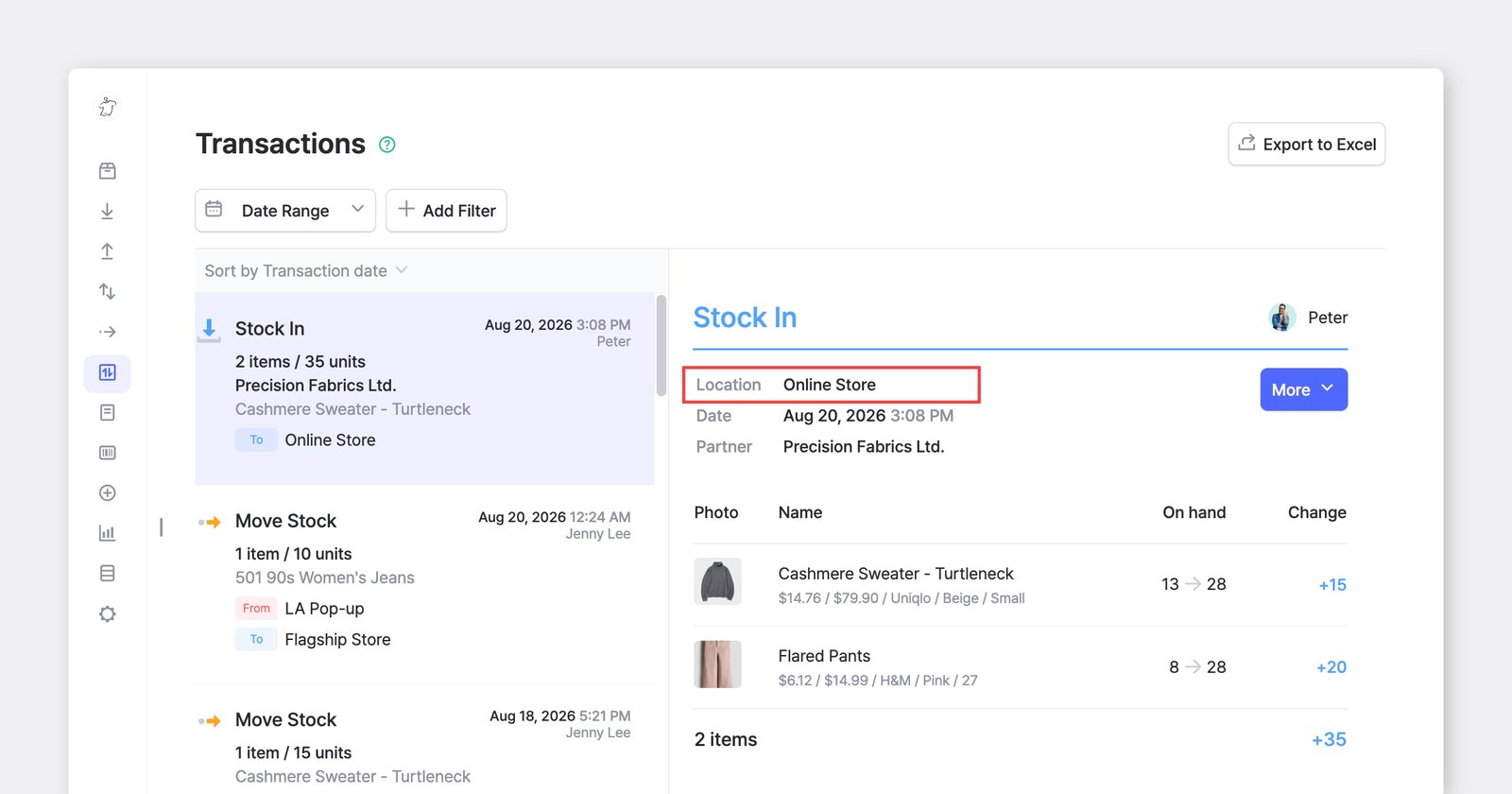
For all other inventory actions—**Stock** **In**, **Stock** **Out**, and **Adjust** **Stock**—you’ll still need to select a location before completing the transaction.
<figure><img src="/files/VyurRGzE7rYQOhX3Br12" alt=""><figcaption></figcaption></figure>

{% hint style="info" %}
**Note:** If you only have one location, it will be selected by default — no need to choose it manually.
{% endhint %}

***

**Have questions about locations?** Check out our FAQ.

{% content-ref url="/spaces/mkYNU2xLl20GSI6NQQ6q/pages/ejcKBJYpxOcwMupn8PQA" %}
[Locations](/docs/faq/inventory-and-transactions/locations.md)
{% endcontent-ref %}


---

# Agent Instructions: Querying This Documentation

If you need additional information that is not directly available in this page, you can query the documentation dynamically by asking a question.

Perform an HTTP GET request on the current page URL with the `ask` query parameter:

```
GET https://www.boxhero.io/docs/concepts/locations.md?ask=<question>
```

The question should be specific, self-contained, and written in natural language.
The response will contain a direct answer to the question and relevant excerpts and sources from the documentation.

Use this mechanism when the answer is not explicitly present in the current page, you need clarification or additional context, or you want to retrieve related documentation sections.