> For the complete documentation index, see [llms.txt](https://www.boxhero.io/docs/llms.txt). Markdown versions of documentation pages are available by appending `.md` to page URLs; this page is available as [Markdown](https://www.boxhero.io/docs/concepts/partners.md).
# Partners
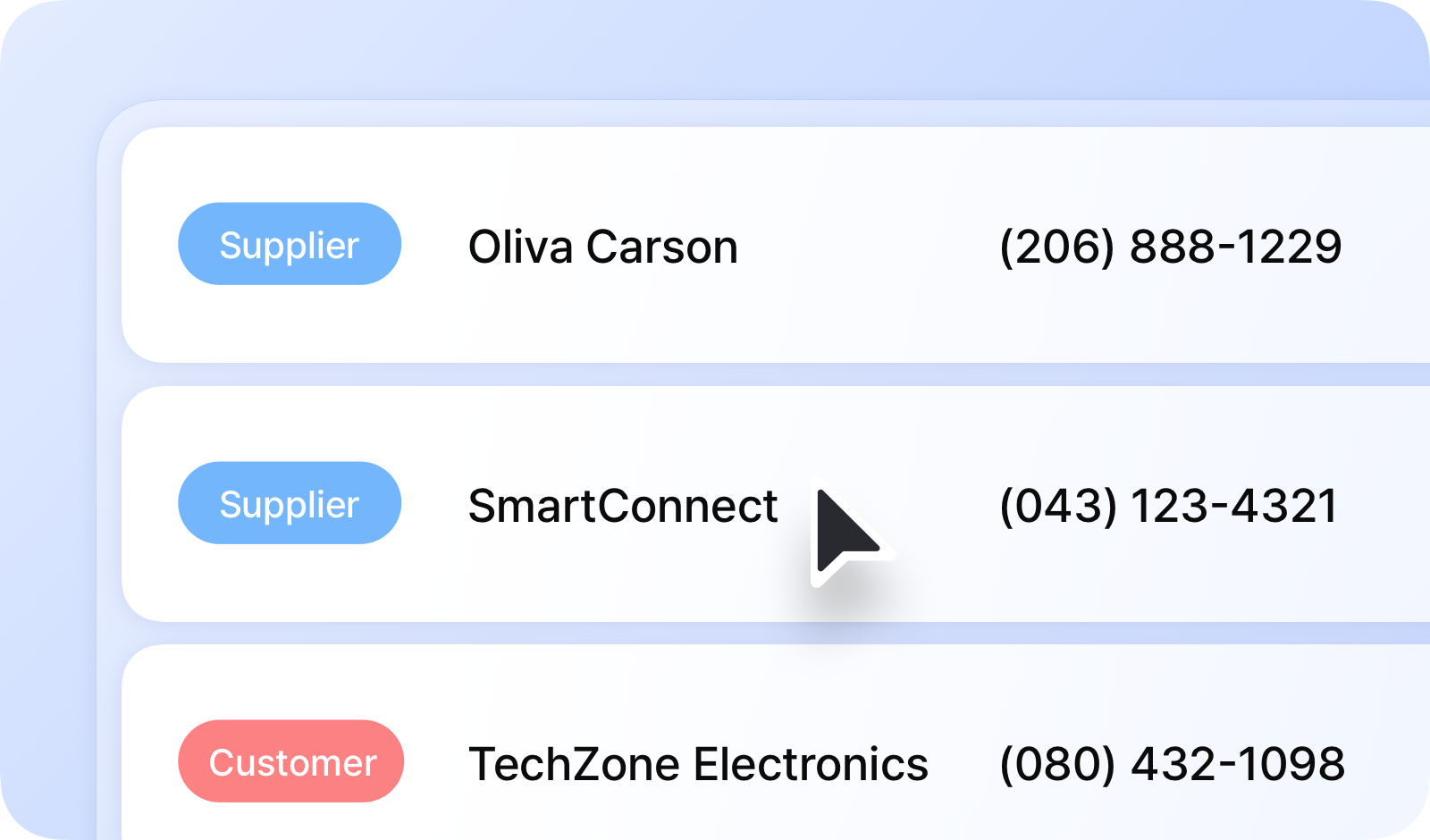
Manage your partners — both the suppliers and customers you work with — to track inventory orders. You can save and access details like their names and contact information.
***
## Definitions
A **Supplier** is a partner who provides items to your inventory. \
Suppliers are linked to `Stock In` transactions and can be used to track purchase orders.
A **Customer** is a partner who receives items from your inventory. \
Customers are linked to `Stock Out` transactions and can be used to track sales orders.
{% hint style="success" %}
The `Data Center` is one of the main tabs on BoxHero’s menu bar that allows users to manage data like items, attributes, and partners.
{% endhint %}
***
## Adding Partners
### On Your Computer
1. Navigate to `Data Center` > `Partners`.
2. Click `Add Partner` in the top-right corner.
3. Choose between **Supplier** or **Customer**.
4. Enter the partner's details.
5. Click `Add`.
{% embed url="" %}
### On Your Phone
You can add partners in the same way on the mobile app.
1. Go to `Settings` > `Data Center` > `Partners`.
2. Click the `+` (add) button in the top-right corner.
3. Choose between **Supplier** or **Customer**.
4. Enter the partner's details.
5. Click `Save`.
{% embed url="" %}
### Add Multiple Partners
You can also add multiple partners at once using an Excel file by selecting one of the following under the “**Add Partner**” dropdown:
* `Add Suppliers via Excel`
* `Add Customers via Excel`
Make sure to download the template for reference. Your Excel file should include these columns:
* Name
* Phone Number
* Email
* Address
* Memo
* Language
***
## Inventory Transactions for Partners
### A. Stock Out to Customers
When recording a `Stock Out` transaction, you can select one of the registered customers from your *Partners* list.
### B. Stock In from Suppliers
For a `Stock In` transaction, you can select one of the registered suppliers from your *Partners* list.
{% hint style="info" %}
**Note:** If you don’t need to add a partner, you can skip this step and continue.
{% endhint %}
***
## Managing Orders for Partners
### A. Sales Orders for Customers
You can create a Sales Order (SO) for a specific customer and keep track of your orders.
1. Go to `Purchases & Sales` > `Sales`.
2. Select **Customer** from the dropdown.
3. The system will auto-fill the customer’s saved address and phone number from your **Partners** list.
{% embed url="" %}
#### Send a Sales Invoice
You can also email the invoice directly to this customer.
* Go to the completed sales order and click the `...` (more) button > `Send Email`.
* The customer’s saved email information will be used automatically.
### B. Purchase Orders for Suppliers
You can also create a Purchase Order (PO) for a specific supplier.
Go to `Purchases & Sales` > `Purchases`, where you can edit, delete, print, or save the PO as a PDF. To change how it looks, adjust the [print layout settings](https://www.boxhero.io/docs/concepts/pages/sxVUqKpmJS07Fpz3Bb7q#a.-print-layout).
***
## Filtering by Partner
You can filter by partner to streamline your view across these BoxHero features:
* Transactions
* Purchases
* Sales
* Returns
* Sales Reports
* Summary
Filter Transactions by specific partners
Filter Summary by specific partners
{% hint style="success" %}
To share inventory details with your partners in real time, use the [**Inventory Link**](/docs/other-features/inventory-link.md) feature.
{% endhint %}