# ZEBRA ZD230D

## Printer Setup

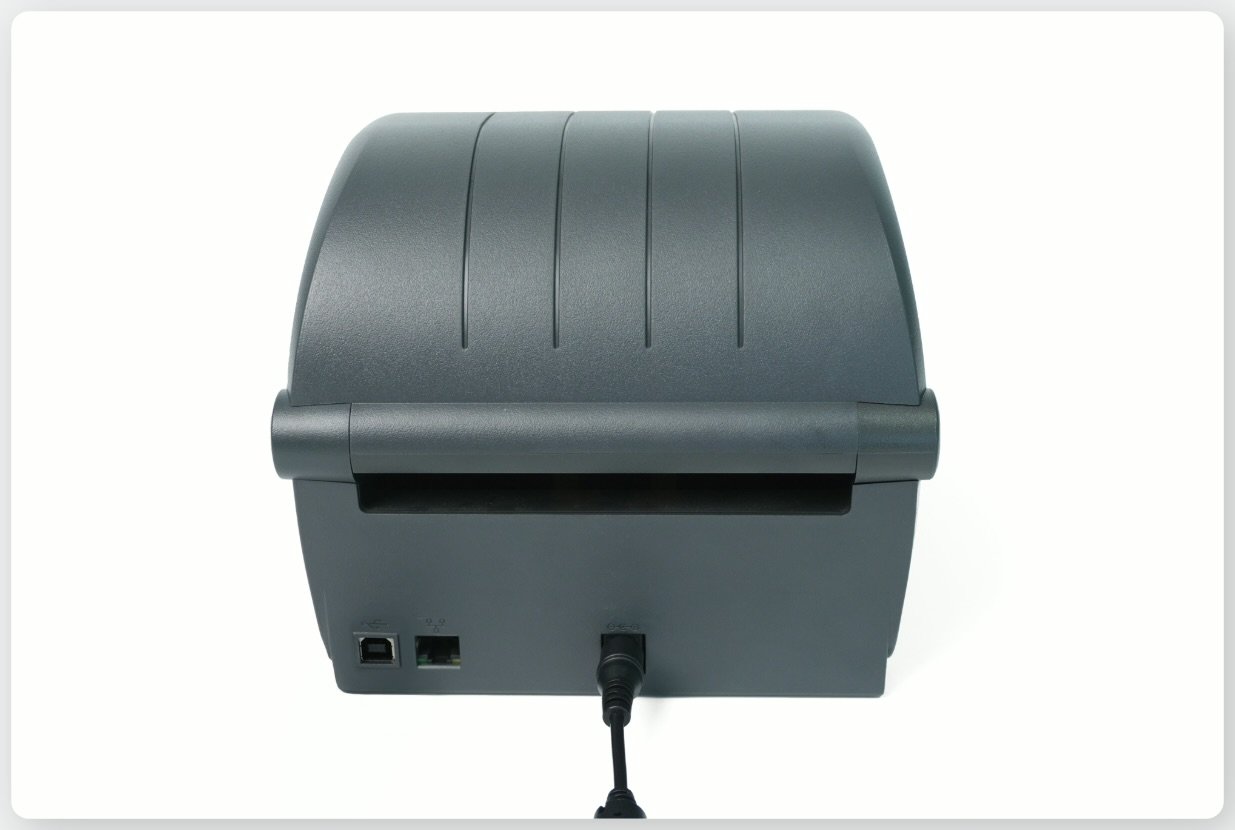
1. Connect the **power cable** to the printer.

<figure><img src="https://687823928-files.gitbook.io/~/files/v0/b/gitbook-x-prod.appspot.com/o/spaces%2FlRf1QqJGoevCQqGbfI80%2Fuploads%2Fgit-blob-1bcbf617acc3ef6f6a682ba8acddf71744a0304d%2Fzd230d-printer-setup-1.avif?alt=media" alt=""><figcaption></figcaption></figure>

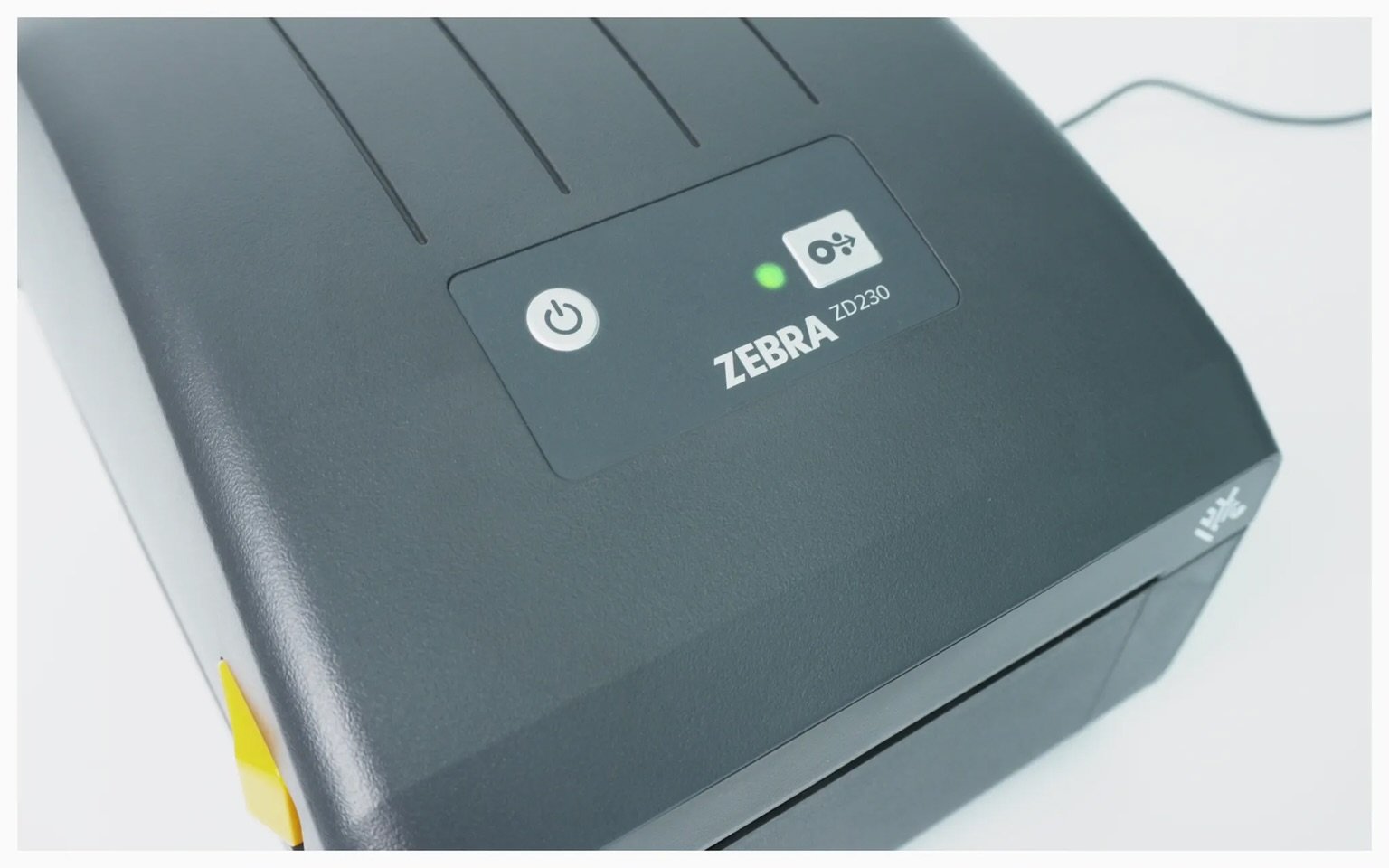
2. Press the power button and wait for the **status LED** to turn green.

<figure><img src="https://687823928-files.gitbook.io/~/files/v0/b/gitbook-x-prod.appspot.com/o/spaces%2FlRf1QqJGoevCQqGbfI80%2Fuploads%2Fgit-blob-ca6adc686ca43a842e5271e6d55c67a3e43f0767%2Fzd230d-printer-setup-2.avif?alt=media" alt=""><figcaption></figcaption></figure>

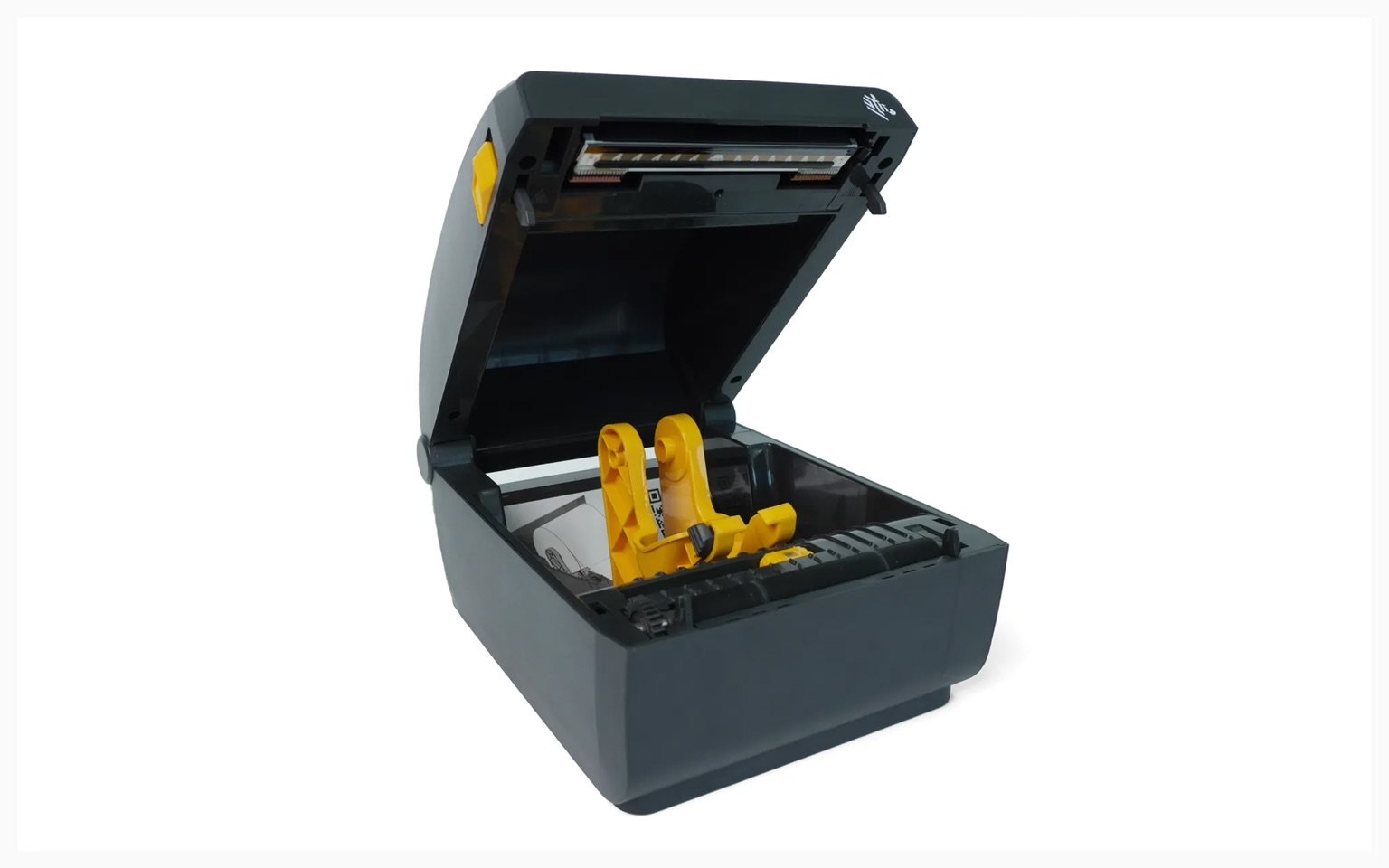
3. Pull the **yellow buttons** on both sides to open the cover.

<figure><img src="https://687823928-files.gitbook.io/~/files/v0/b/gitbook-x-prod.appspot.com/o/spaces%2FlRf1QqJGoevCQqGbfI80%2Fuploads%2Fgit-blob-66a35eb752f7cedd92d7a4fb872ae07655bed022%2Fzd230d-printer-setup-3.avif?alt=media" alt=""><figcaption></figcaption></figure>

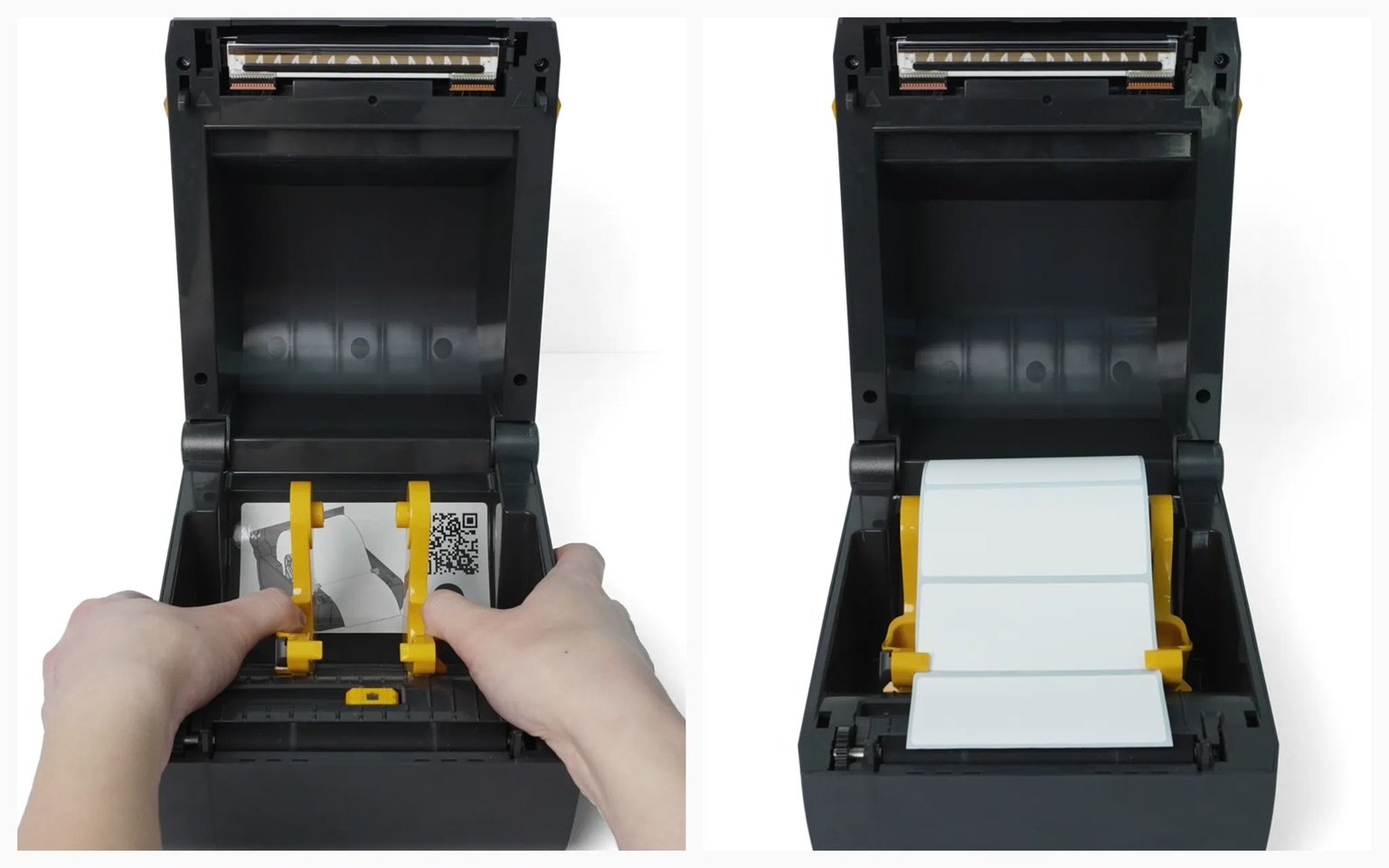
4. Load the **label roll** between the media holders.

<figure><img src="https://687823928-files.gitbook.io/~/files/v0/b/gitbook-x-prod.appspot.com/o/spaces%2FlRf1QqJGoevCQqGbfI80%2Fuploads%2Fgit-blob-e029227a0ee9baac678097fca5d3e11f42f27bd7%2Fzd230d-printer-setup-4.avif?alt=media" alt=""><figcaption></figcaption></figure>

5. Press the **FEED** **button** to check if the labels feed correctly.
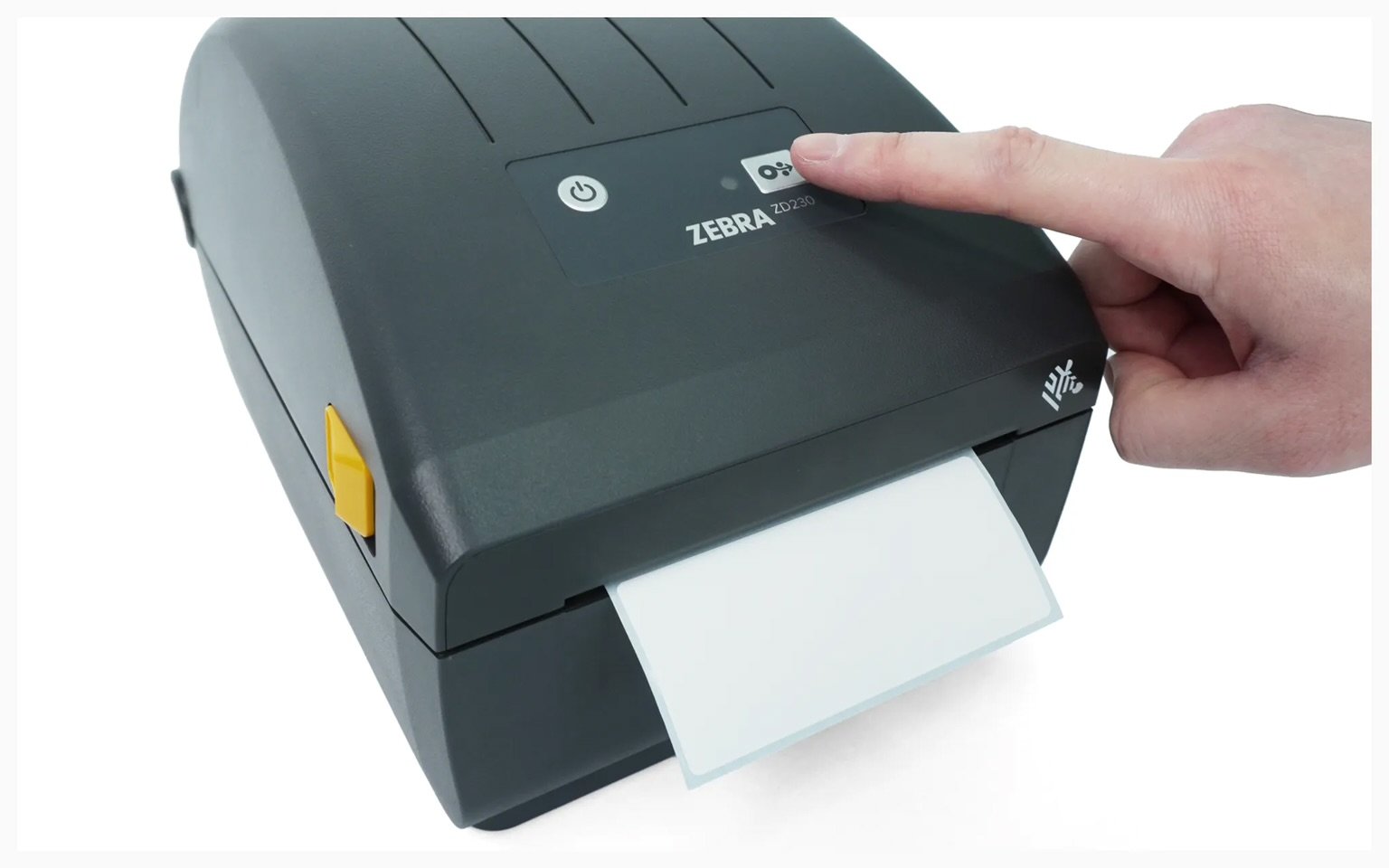
<figure><img src="https://687823928-files.gitbook.io/~/files/v0/b/gitbook-x-prod.appspot.com/o/spaces%2FlRf1QqJGoevCQqGbfI80%2Fuploads%2Fgit-blob-a7de9140e4ede4420462a1d903d58594668e60e6%2Fzd230d-printer-setup-5.avif?alt=media" alt=""><figcaption></figcaption></figure>

***

## Connecting the Printer

{% tabs %}
{% tab title="Mobile" %}

#### **I. Device Setup**

{% hint style="warning" %}
**Note**: ZEBRA mobile printing is only supported on *Android* devices.
{% endhint %}

{% stepper %}
{% step %}
Connect the power cable and LAN cable to the printer.

<figure><img src="https://687823928-files.gitbook.io/~/files/v0/b/gitbook-x-prod.appspot.com/o/spaces%2FlRf1QqJGoevCQqGbfI80%2Fuploads%2Fgit-blob-1de621fca3216442b8ec4b661c181b7b5c8d678d%2Fzebra-zd230d-mobile-setup-1.avif?alt=media" alt=""><figcaption></figcaption></figure>
{% endstep %}

{% step %}
Install [Zebra Print](https://play.google.com/store/apps/details?id=com.zebra.channelaps\&utm_source=na_Med) from the Google Play Store.

<figure><img src="https://687823928-files.gitbook.io/~/files/v0/b/gitbook-x-prod.appspot.com/o/spaces%2FlRf1QqJGoevCQqGbfI80%2Fuploads%2Fgit-blob-a2cd42ba766902338962f3b5502a77aa572b98e3%2F0%20(3).png?alt=media" alt=""><figcaption></figcaption></figure>
{% endstep %}

{% step %}
Open the app and select the **navigation menu (☰)** and tap **`App Settings`**.

<figure><img src="https://687823928-files.gitbook.io/~/files/v0/b/gitbook-x-prod.appspot.com/o/spaces%2FlRf1QqJGoevCQqGbfI80%2Fuploads%2Fgit-blob-82bd273537bd0d71224b2492787fbb28ed77c771%2F1%20(4).png?alt=media" alt=""><figcaption></figcaption></figure>
{% endstep %}

{% step %}
Change the unit of measurement to **millimeters (mm)** and return to the previous screen.

<figure><img src="https://687823928-files.gitbook.io/~/files/v0/b/gitbook-x-prod.appspot.com/o/spaces%2FlRf1QqJGoevCQqGbfI80%2Fuploads%2Fgit-blob-0b8955b6b6ce31998834abe9ae19e9a5199af5ac%2F2%20(5).png?alt=media" alt=""><figcaption></figcaption></figure>
{% endstep %}

{% step %}
Tap the **`...`** button at the bottom and select **`Add Printer`**.\
Choose **`Wi-Fi & Ethernet Network`** as the connection method.

<figure><img src="https://687823928-files.gitbook.io/~/files/v0/b/gitbook-x-prod.appspot.com/o/spaces%2FlRf1QqJGoevCQqGbfI80%2Fuploads%2Fgit-blob-1aae23f085796bb2c95c05ccb313a508ae01d2c3%2F3%20(2).png?alt=media" alt=""><figcaption></figcaption></figure>
{% endstep %}

{% step %}
Tap **`Open Settings`** and select your Wi-Fi network.\
(Skip this step if already connected to Wi-Fi.)

<figure><img src="https://687823928-files.gitbook.io/~/files/v0/b/gitbook-x-prod.appspot.com/o/spaces%2FlRf1QqJGoevCQqGbfI80%2Fuploads%2Fgit-blob-753acc45bb22ccd978dbd0d99a8fba44daa3ed18%2F4%20(1).png?alt=media" alt=""><figcaption></figcaption></figure>
{% endstep %}

{% step %}
Tap **`Search Printers`** and select your printer.

<figure><img src="https://687823928-files.gitbook.io/~/files/v0/b/gitbook-x-prod.appspot.com/o/spaces%2FlRf1QqJGoevCQqGbfI80%2Fuploads%2Fgit-blob-510ea459dc0f7107933accc81e1581c27815b2dd%2F5%20(4).png?alt=media" alt=""><figcaption></figcaption></figure>
{% endstep %}

{% step %}
Enter the label size and tap **`Print Test Page`** to verify label output.

<figure><img src="https://687823928-files.gitbook.io/~/files/v0/b/gitbook-x-prod.appspot.com/o/spaces%2FlRf1QqJGoevCQqGbfI80%2Fuploads%2Fgit-blob-e128759d2bbe9e4606997602fa6a00f9c7878f6e%2F6%20(4).png?alt=media" alt=""><figcaption></figcaption></figure>
{% endstep %}
{% endstepper %}

#### **II. Printing Labels**

{% hint style="success" %}
Once the **Zebra Print** app is set up, you can print labels from **BoxHero**.
{% endhint %}

{% stepper %}
{% step %}
Create barcode labels on the BoxHero [web platform](http://app.boxhero.io/) (desktop), which can then be used on your mobile device.

<figure><img src="https://687823928-files.gitbook.io/~/files/v0/b/gitbook-x-prod.appspot.com/o/spaces%2FlRf1QqJGoevCQqGbfI80%2Fuploads%2Fgit-blob-b3b4ee90eab2d445a76283779a13f921e46bc96d%2F11%20(1).png?alt=media" alt=""><figcaption></figcaption></figure>

<figure><img src="https://687823928-files.gitbook.io/~/files/v0/b/gitbook-x-prod.appspot.com/o/spaces%2FlRf1QqJGoevCQqGbfI80%2Fuploads%2Fgit-blob-26535e61af2eb8654f2306e4b71e040580941baa%2F12%20(2).png?alt=media" alt=""><figcaption></figcaption></figure>

<figure><img src="https://687823928-files.gitbook.io/~/files/v0/b/gitbook-x-prod.appspot.com/o/spaces%2FlRf1QqJGoevCQqGbfI80%2Fuploads%2Fgit-blob-dfe40312b4414c50847a4a263cd559de62bcd627%2F13%20(1).png?alt=media" alt=""><figcaption></figcaption></figure>

<figure><img src="https://687823928-files.gitbook.io/~/files/v0/b/gitbook-x-prod.appspot.com/o/spaces%2FlRf1QqJGoevCQqGbfI80%2Fuploads%2Fgit-blob-cea9f049227f8db97e22541b1bc608567eadb1df%2F15.png?alt=media" alt=""><figcaption></figcaption></figure>

{% hint style="info" %}
Learn more about designing barcode labels [here](https://www.boxhero.io/docs/key-features/print-barcode#create-barcode-labels).
{% endhint %}
{% endstep %}

{% step %}
Open the [BoxHero app](https://docs-en.boxhero.io/getting-started#get-the-mobile-app) on your mobile device and tap **`Print Barcode`** on the home screen.

<figure><img src="https://687823928-files.gitbook.io/~/files/v0/b/gitbook-x-prod.appspot.com/o/spaces%2FlRf1QqJGoevCQqGbfI80%2Fuploads%2Fgit-blob-154d157be39f8a2fd341f1c3b3ebad18dc9b0a95%2F7%20(3).png?alt=media" alt=""><figcaption></figcaption></figure>
{% endstep %}

{% step %}
Tap **`Select Label`** and choose your design.

<figure><img src="https://687823928-files.gitbook.io/~/files/v0/b/gitbook-x-prod.appspot.com/o/spaces%2FlRf1QqJGoevCQqGbfI80%2Fuploads%2Fgit-blob-3a78c10e217732bf0ec4dd6bb7f24c3470439c05%2F9%20(2).png?alt=media" alt=""><figcaption></figcaption></figure>
{% endstep %}

{% step %}
Select the items to print, enter the print quantity, and tap **`Done`**.

<figure><img src="https://687823928-files.gitbook.io/~/files/v0/b/gitbook-x-prod.appspot.com/o/spaces%2FlRf1QqJGoevCQqGbfI80%2Fuploads%2Fgit-blob-b932b30cec4f5e8839ba6bae5aec0b9084b43b02%2F8%20(2).png?alt=media" alt=""><figcaption></figcaption></figure>
{% endstep %}

{% step %}
Tap the **`Print`** button and select **`Print`** again in the pop-up.\
(If the printer is not listed, tap “**More / More Options**.”)

<figure><img src="https://687823928-files.gitbook.io/~/files/v0/b/gitbook-x-prod.appspot.com/o/spaces%2FlRf1QqJGoevCQqGbfI80%2Fuploads%2Fgit-blob-2452f6efc0bd80643fb53e70169d6c706fb4ccc0%2F10%20(2).png?alt=media" alt=""><figcaption></figcaption></figure>
{% endstep %}

{% step %}
Choose your printer and tap the **print** **icon** on the next screen to confirm printing.

<figure><img src="https://687823928-files.gitbook.io/~/files/v0/b/gitbook-x-prod.appspot.com/o/spaces%2FlRf1QqJGoevCQqGbfI80%2Fuploads%2Fgit-blob-e6205013384bf1eed227c38065d10b708913acb2%2F11%20(3).png?alt=media" alt=""><figcaption></figcaption></figure>

<figure><img src="https://687823928-files.gitbook.io/~/files/v0/b/gitbook-x-prod.appspot.com/o/spaces%2FlRf1QqJGoevCQqGbfI80%2Fuploads%2Fgit-blob-95a0b78362cb002f08eb8b6292efd796b875726e%2F12%20(3).png?alt=media" alt=""><figcaption></figcaption></figure>
{% endstep %}
{% endstepper %}
{% endtab %}

{% tab title="Desktop" %}

#### **I. Installing the Driver**

{% stepper %}
{% step %}
Search for your printer model on the official [ZEBRA website](https://www.zebra.com/us/en/support-downloads.html) and download the driver.

<figure><img src="https://687823928-files.gitbook.io/~/files/v0/b/gitbook-x-prod.appspot.com/o/spaces%2FlRf1QqJGoevCQqGbfI80%2Fuploads%2Fgit-blob-5fe01417dd95498e54d9ca7116478b024265f9a3%2F0.png?alt=media" alt=""><figcaption></figcaption></figure>

<figure><img src="https://687823928-files.gitbook.io/~/files/v0/b/gitbook-x-prod.appspot.com/o/spaces%2FlRf1QqJGoevCQqGbfI80%2Fuploads%2Fgit-blob-7d3fbb8ad8129944e16f90b493807f93a3e79bfb%2F1%20(1).png?alt=media" alt=""><figcaption></figcaption></figure>

<figure><img src="https://687823928-files.gitbook.io/~/files/v0/b/gitbook-x-prod.appspot.com/o/spaces%2FlRf1QqJGoevCQqGbfI80%2Fuploads%2Fgit-blob-63b2d41bed7166804a348d076bc8cef1fcf103c3%2F2%20(2).png?alt=media" alt=""><figcaption></figcaption></figure>
{% endstep %}

{% step %}
Run the driver file to begin installation.

<figure><img src="https://687823928-files.gitbook.io/~/files/v0/b/gitbook-x-prod.appspot.com/o/spaces%2FlRf1QqJGoevCQqGbfI80%2Fuploads%2Fgit-blob-3efe4acfa12c879144c6a3f7cceb5b03881eea48%2Fzebra-zd230d-pc-printing-driver-2png.png?alt=media" alt=""><figcaption></figcaption></figure>
{% endstep %}

{% step %}
On the final screen, check **Run the printer installation wizard** and click **`Finish.`**

<figure><img src="https://687823928-files.gitbook.io/~/files/v0/b/gitbook-x-prod.appspot.com/o/spaces%2FlRf1QqJGoevCQqGbfI80%2Fuploads%2Fgit-blob-c670f71b6df8bf4cf11e0733507d5c5ee0c86d59%2Fzebra-zd230d-pc-printing-driver-3.png?alt=media" alt=""><figcaption></figcaption></figure>
{% endstep %}

{% step %}
Pause the process and prepare a USB cable to connect your PC and printer.\
(Don't connect it yet.)

<figure><img src="https://687823928-files.gitbook.io/~/files/v0/b/gitbook-x-prod.appspot.com/o/spaces%2FlRf1QqJGoevCQqGbfI80%2Fuploads%2Fgit-blob-3228066b60c1856c85701fd75eed39f5a11acfbc%2Fzd230.png?alt=media" alt=""><figcaption></figcaption></figure>
{% endstep %}

{% step %}
Continue with the printer installation wizard.

<figure><img src="https://687823928-files.gitbook.io/~/files/v0/b/gitbook-x-prod.appspot.com/o/spaces%2FlRf1QqJGoevCQqGbfI80%2Fuploads%2Fgit-blob-0bd86345098af32220063f1eec1403723bb65a3e%2F3.png?alt=media" alt=""><figcaption></figcaption></figure>

<figure><img src="https://687823928-files.gitbook.io/~/files/v0/b/gitbook-x-prod.appspot.com/o/spaces%2FlRf1QqJGoevCQqGbfI80%2Fuploads%2Fgit-blob-9de3355cc3dcfda88f879dfbd8e3ea0fa69883be%2F5%20(2).png?alt=media" alt=""><figcaption></figcaption></figure>
{% endstep %}

{% step %}
When prompted, connect the USB cable to both the printer and computer. If the screen doesn't advance, try disconnecting and reconnecting the USB cable.

<figure><img src="https://687823928-files.gitbook.io/~/files/v0/b/gitbook-x-prod.appspot.com/o/spaces%2FlRf1QqJGoevCQqGbfI80%2Fuploads%2Fgit-blob-3beb9e4cf9c0cd1ae183e68a45c0644ed4f23d8b%2F6%20(1).png?alt=media" alt=""><figcaption></figcaption></figure>
{% endstep %}

{% step %}
Click **`Next`** to complete the installation.

<figure><img src="https://687823928-files.gitbook.io/~/files/v0/b/gitbook-x-prod.appspot.com/o/spaces%2FlRf1QqJGoevCQqGbfI80%2Fuploads%2Fgit-blob-a6125644cb72d0d83c23d469bbe6610f89ac5aa7%2F7%20(1).png?alt=media" alt=""><figcaption></figcaption></figure>
{% endstep %}

{% step %}
Now you need to set the paper size in the printer settings. Go to **`Bluetooth & devices`** > **`Printers & scanners`**.

<figure><img src="https://687823928-files.gitbook.io/~/files/v0/b/gitbook-x-prod.appspot.com/o/spaces%2FlRf1QqJGoevCQqGbfI80%2Fuploads%2Fgit-blob-3819f215ddd021d5ee341cc0724d5f994a852983%2F8%20(1).png?alt=media" alt=""><figcaption></figcaption></figure>

<figure><img src="https://687823928-files.gitbook.io/~/files/v0/b/gitbook-x-prod.appspot.com/o/spaces%2FlRf1QqJGoevCQqGbfI80%2Fuploads%2Fgit-blob-f42d61b7da6a55cc5e6059b5478090b322d6d718%2F9%20(1).png?alt=media" alt=""><figcaption></figcaption></figure>

<figure><img src="https://687823928-files.gitbook.io/~/files/v0/b/gitbook-x-prod.appspot.com/o/spaces%2FlRf1QqJGoevCQqGbfI80%2Fuploads%2Fgit-blob-6e5d899f7403d0f3e5a5b0f78a7b2b89fc48ebc3%2F10%20(1).png?alt=media" alt=""><figcaption></figcaption></figure>

{% hint style="danger" %}
If the paper size is not set correctly in the printer settings, the printout may not align properly.
{% endhint %}
{% endstep %}
{% endstepper %}

#### **II. Printing Labels**

{% hint style="success" %}
Once the driver is installed and paper size is set, you can print labels from BoxHero.
{% endhint %}

{% stepper %}
{% step %}
Log into BoxHero on your PC and navigate to the **`Print Barcode`** section.\
Select **Thermal Label** and enter the paper size you'll be using.

<figure><img src="https://687823928-files.gitbook.io/~/files/v0/b/gitbook-x-prod.appspot.com/o/spaces%2FlRf1QqJGoevCQqGbfI80%2Fuploads%2Fgit-blob-b3b4ee90eab2d445a76283779a13f921e46bc96d%2F11%20(2).png?alt=media" alt=""><figcaption></figcaption></figure>
{% endstep %}

{% step %}
Choose your desired template: **Barcode** or **QR Code**.

<figure><img src="https://687823928-files.gitbook.io/~/files/v0/b/gitbook-x-prod.appspot.com/o/spaces%2FlRf1QqJGoevCQqGbfI80%2Fuploads%2Fgit-blob-26535e61af2eb8654f2306e4b71e040580941baa%2F12%20(2).png?alt=media" alt=""><figcaption></figcaption></figure>

{% hint style="info" %}
The preview screen on the right will display one of your registered items for reference.
{% endhint %}
{% endstep %}

{% step %}
In the **Design Details** section at the bottom of the page, set up the item information you want to display on the label.

<figure><img src="https://687823928-files.gitbook.io/~/files/v0/b/gitbook-x-prod.appspot.com/o/spaces%2FlRf1QqJGoevCQqGbfI80%2Fuploads%2Fgit-blob-dfe40312b4414c50847a4a263cd559de62bcd627%2F13.png?alt=media" alt=""><figcaption></figcaption></figure>

{% hint style="warning" %}
Need help with design settings? Click [here](https://www.boxhero.io/docs/key-features/print-barcode#create-barcode-labels) for detailed instructions.
{% endhint %}
{% endstep %}

{% step %}
Select "**Vector**” for barcode format and click **`Save`**.

<figure><img src="https://687823928-files.gitbook.io/~/files/v0/b/gitbook-x-prod.appspot.com/o/spaces%2FlRf1QqJGoevCQqGbfI80%2Fuploads%2Fgit-blob-383580edec925c32ffbb32c75ab4fb745e07bc30%2F14%20(1).png?alt=media" alt=""><figcaption></figcaption></figure>
{% endstep %}

{% step %}
Add the items you want to print to the list, then click the **`Print`** button at the bottom.

<figure><img src="https://687823928-files.gitbook.io/~/files/v0/b/gitbook-x-prod.appspot.com/o/spaces%2FlRf1QqJGoevCQqGbfI80%2Fuploads%2Fgit-blob-d3abf97482967507a469742cf27ec74aaf8932f7%2F15%20(1).png?alt=media" alt=""><figcaption></figcaption></figure>
{% endstep %}

{% step %}
Select the printer you want to use and click **`Print`** to start the printing.

<figure><img src="https://687823928-files.gitbook.io/~/files/v0/b/gitbook-x-prod.appspot.com/o/spaces%2FlRf1QqJGoevCQqGbfI80%2Fuploads%2Fgit-blob-6ecbfe4b1c2cd6159ee948b5693dc03e03636a5a%2F16%20(1).png?alt=media" alt=""><figcaption></figcaption></figure>

<figure><img src="https://687823928-files.gitbook.io/~/files/v0/b/gitbook-x-prod.appspot.com/o/spaces%2FlRf1QqJGoevCQqGbfI80%2Fuploads%2Fgit-blob-95a0b78362cb002f08eb8b6292efd796b875726e%2F12%20(3).png?alt=media" alt=""><figcaption></figcaption></figure>
{% endstep %}
{% endstepper %}
{% endtab %}
{% endtabs %}


---

# Agent Instructions: Querying This Documentation

If you need additional information that is not directly available in this page, you can query the documentation dynamically by asking a question.

Perform an HTTP GET request on the current page URL with the `ask` query parameter:

```
GET https://www.boxhero.io/docs/resources/guides/zebra-zd230d.md?ask=<question>
```

The question should be specific, self-contained, and written in natural language.
The response will contain a direct answer to the question and relevant excerpts and sources from the documentation.

Use this mechanism when the answer is not explicitly present in the current page, you need clarification or additional context, or you want to retrieve related documentation sections.