# Locations

<figure><img src="https://687823928-files.gitbook.io/~/files/v0/b/gitbook-x-prod.appspot.com/o/spaces%2FlRf1QqJGoevCQqGbfI80%2Fuploads%2Fgit-blob-db4b44edb35d2ef8db4792e8a909640ed89d9d33%2F%E1%84%8B%E1%85%B1%E1%84%8E%E1%85%B5.png?alt=media" alt=""><figcaption></figcaption></figure>

***

## When to Use Locations

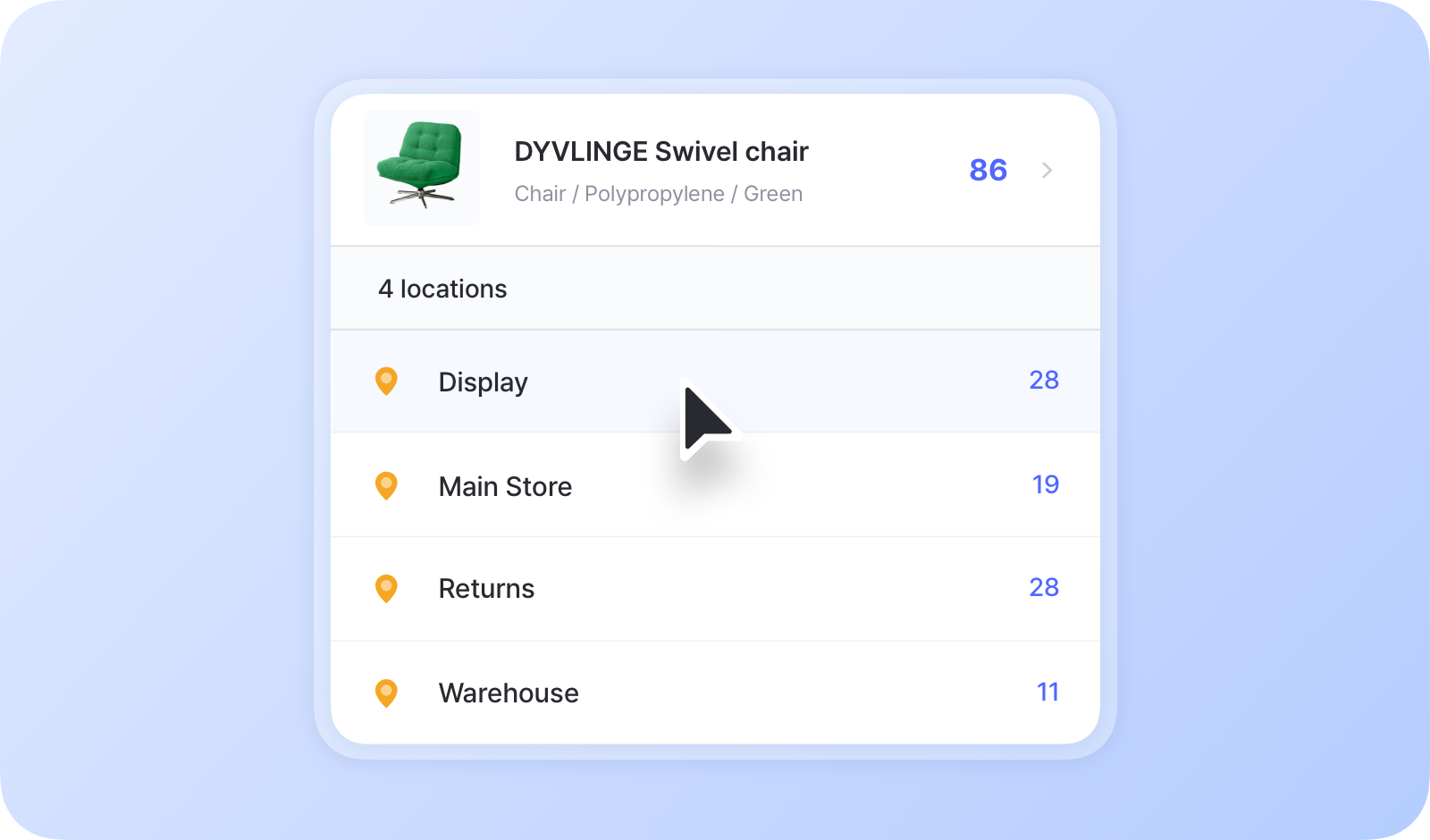
* **When storing the same item in different places**
  * Example: Main warehouse, Floor 3 / Shelf B, retail store
* **When tracking the same item by status or condition**
  * Example: Ready for sale, defective, refurbished
<figure><img src="https://687823928-files.gitbook.io/~/files/v0/b/gitbook-x-prod.appspot.com/o/spaces%2FlRf1QqJGoevCQqGbfI80%2Fuploads%2Fgit-blob-07058713c6ab519b8533f2fed6b77449093a39a7%2Flocations-preview.png?alt=media" alt=""><figcaption></figcaption></figure>

{% hint style="info" %}
**Note**: If you only have one storage location, using the [Attributes](https://www.boxhero.io/docs/data-center/attributes) feature might be a simpler option. You can add a "Location" attribute to track where each item is stored.
{% endhint %}

## How to Add Locations

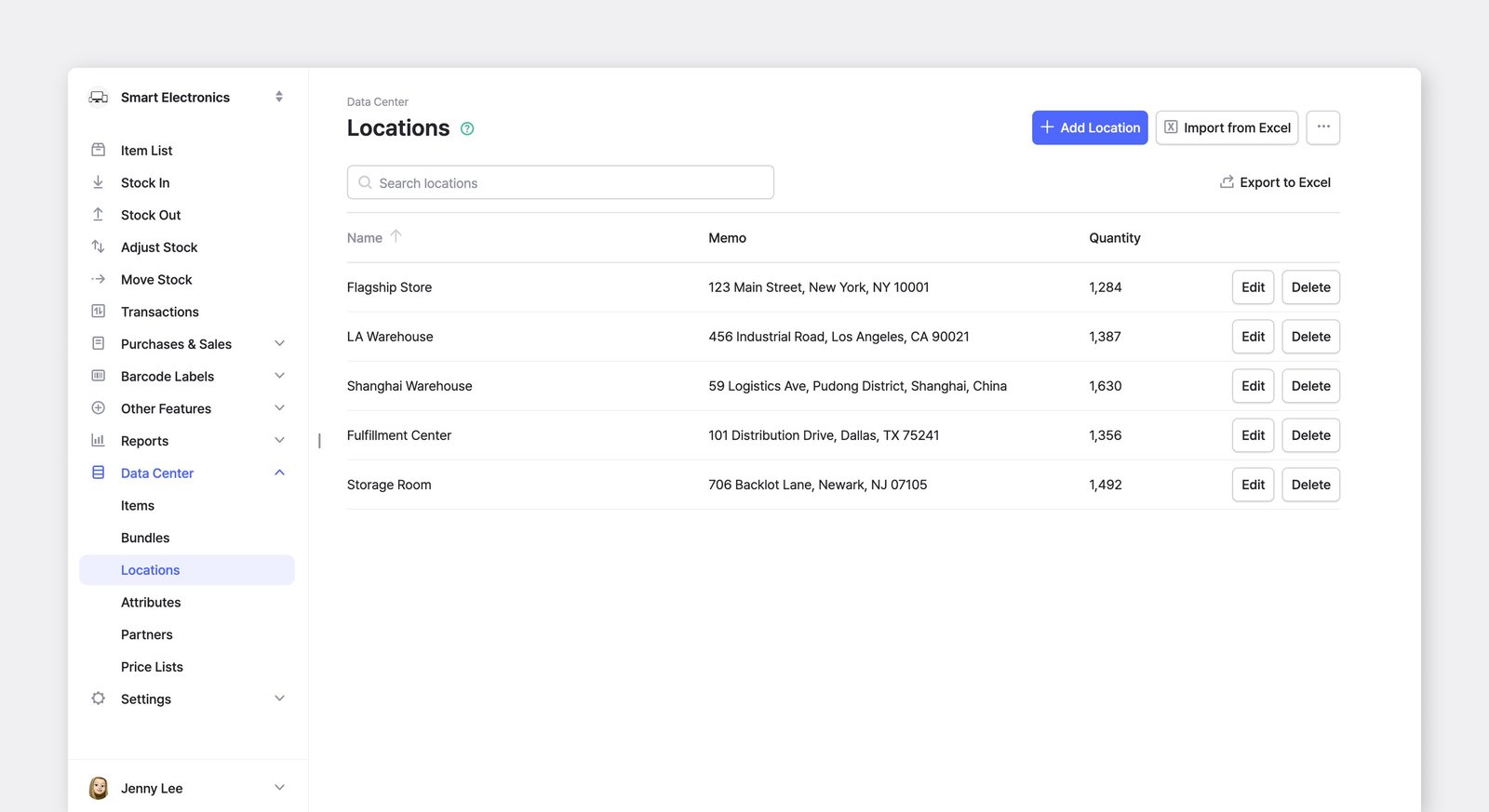
To add and manage your team's locations, go to <mark style="color:blue;">**`Data Center`**</mark> > <mark style="color:blue;">**`Locations`**</mark>.

<figure><img src="https://687823928-files.gitbook.io/~/files/v0/b/gitbook-x-prod.appspot.com/o/spaces%2FlRf1QqJGoevCQqGbfI80%2Fuploads%2Fgit-blob-aa77ba85c083efddf8660870aa8496bea7790189%2Fframeit_2026-03-11T13-53-24.jpg?alt=media" alt=""><figcaption></figcaption></figure>

{% hint style="warning" %}
When you first set up a team in BoxHero, *one* location is created by default.

Adding locations is only available on the [Business Plan](https://www.boxhero.io/en/pricing), which includes up to 3 locations. If you need more locations, you can upgrade your plan by going to <mark style="color:blue;">**`Settings`**</mark> > <mark style="color:blue;">**`Billing`**</mark>.
{% endhint %}

***

## Managing Items by Location

### Item List

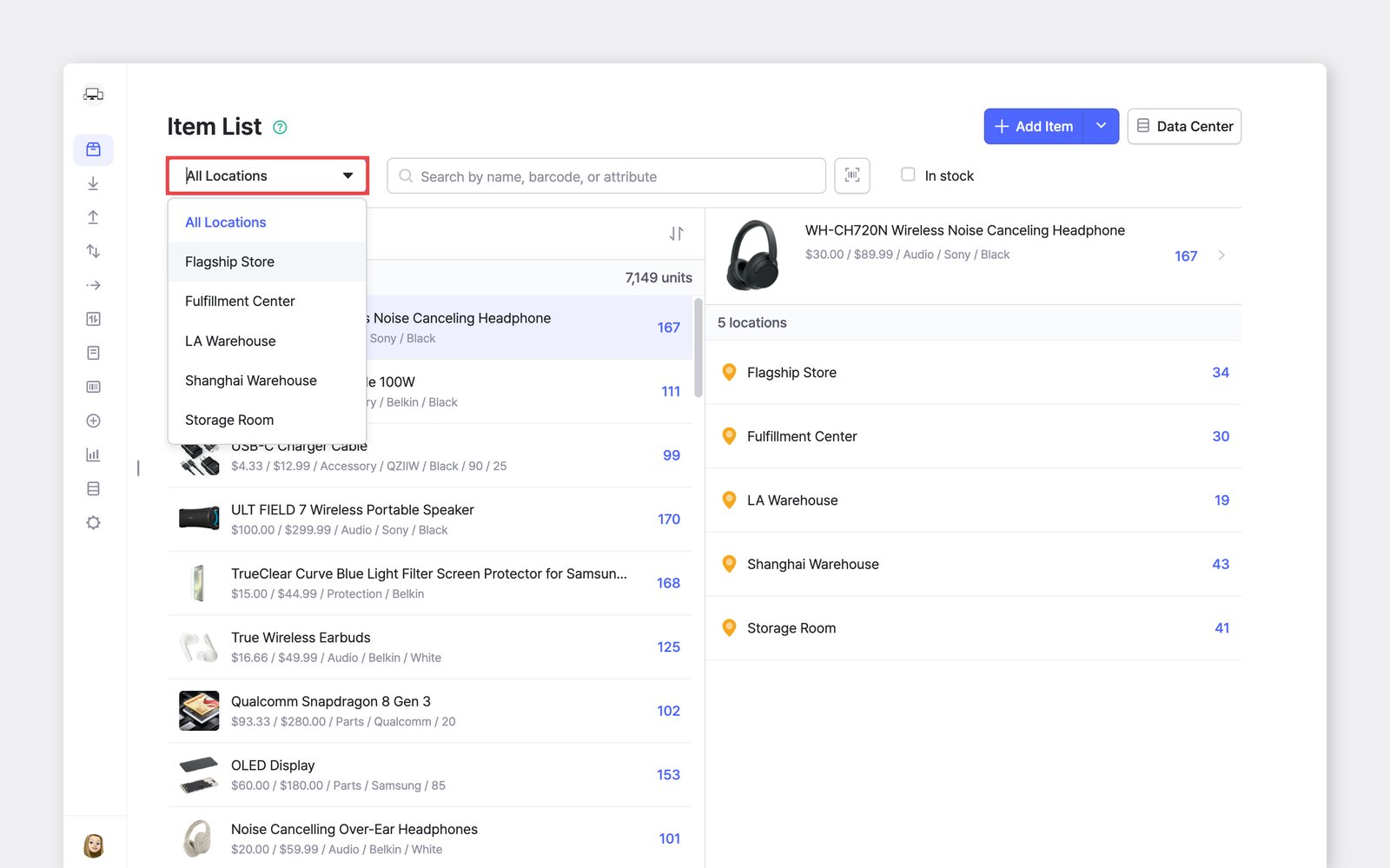
You can see the total quantity of each item, as well as how many are stored in each location.

<figure><img src="https://687823928-files.gitbook.io/~/files/v0/b/gitbook-x-prod.appspot.com/o/spaces%2FlRf1QqJGoevCQqGbfI80%2Fuploads%2Fgit-blob-9005120da4fb1f2325e150f494d29e55bcd7c221%2Fframeit_2026-03-11T13-57-07.jpg?alt=media" alt=""><figcaption></figcaption></figure>

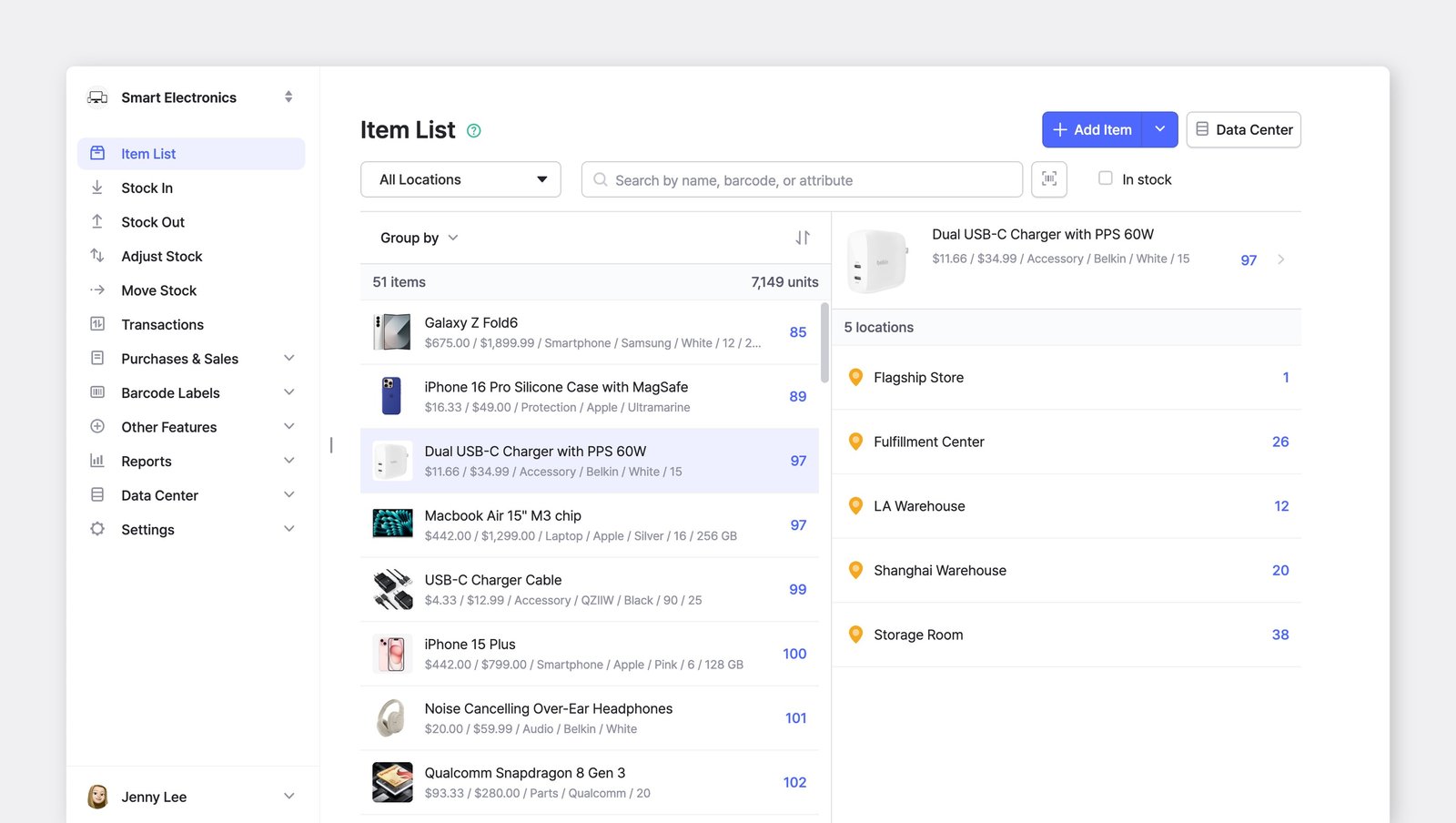
### Group by Location

You can use the **group by** filter to organize items by location or other attributes.&#x20;

<figure><img src="https://687823928-files.gitbook.io/~/files/v0/b/gitbook-x-prod.appspot.com/o/spaces%2FlRf1QqJGoevCQqGbfI80%2Fuploads%2Fgit-blob-417c3b6ebd3696120eacfe40a9e629cdcd8bac34%2Fframeit_2026-03-11T13-57-20.jpg?alt=media" alt=""><figcaption></figcaption></figure>

You can also **sort** them alphabetically (A to Z) or by stock quantity, either from largest to smallest or vice versa.

<figure><img src="https://687823928-files.gitbook.io/~/files/v0/b/gitbook-x-prod.appspot.com/o/spaces%2FlRf1QqJGoevCQqGbfI80%2Fuploads%2Fgit-blob-625a6ee8b3ed0bbdebc65cfe9e84ea8f6ff7344f%2Fframeit_2026-03-11T13-59-33.jpg?alt=media" alt=""><figcaption></figcaption></figure>

### Move Stock

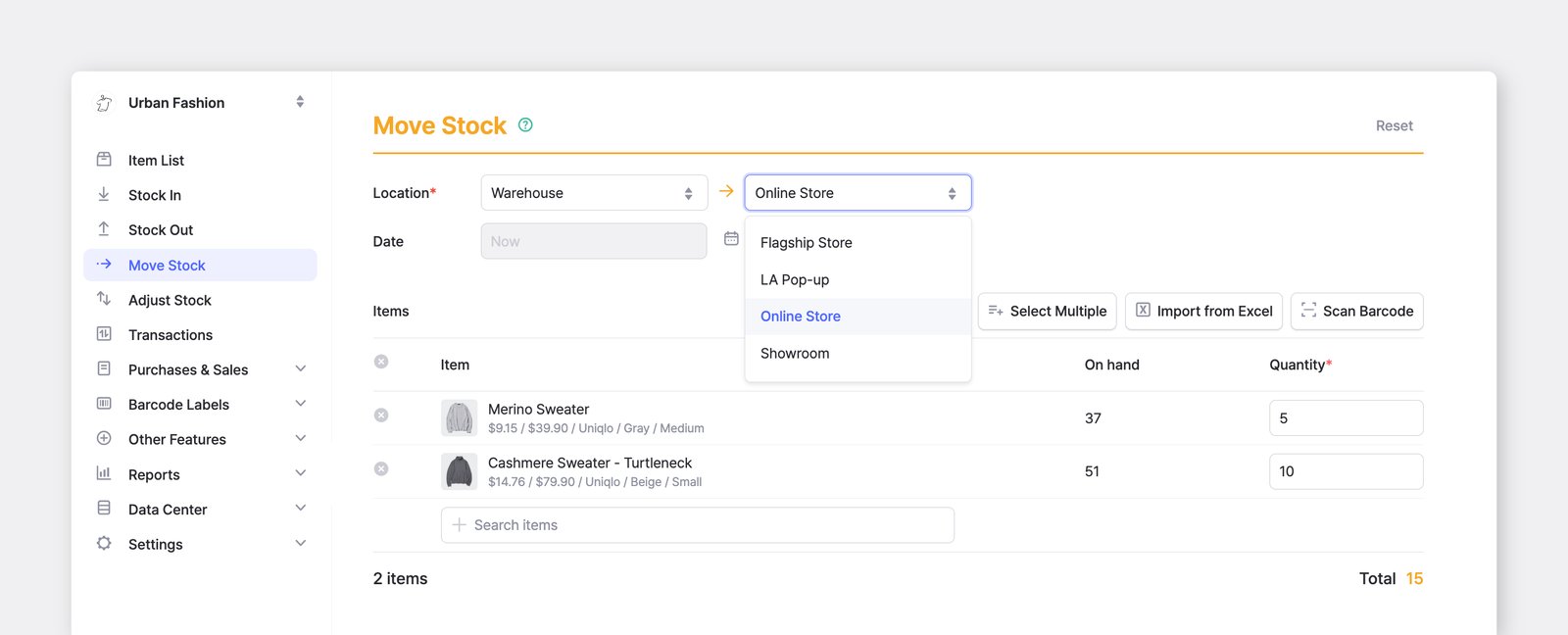
You can transfer items from one location to another and manage your items across multiple sites.
<figure><img src="https://687823928-files.gitbook.io/~/files/v0/b/gitbook-x-prod.appspot.com/o/spaces%2FlRf1QqJGoevCQqGbfI80%2Fuploads%2Fgit-blob-f1355385f66ada436a559bdc286c225d1fcb7d07%2Fframeit_2026-03-11T13-57-32.jpg?alt=media" alt=""><figcaption></figcaption></figure>

{% hint style="warning" %}
**Note:** The <mark style="color:blue;">**`Move Stock`**</mark> feature is disabled if you only have *one* location.
{% endhint %}

#### On the Mobile App

{% embed url="<https://customer-0jrbilsa8yt3k758.cloudflarestream.com/4c6612e76cbe4531adaa3e0702f75255/iframe?autoplay=true&controls=false&letterboxColor=transparent&loop=true&muted=true&poster=https://customer-0jrbilsa8yt3k758.cloudflarestream.com/4c6612e76cbe4531adaa3e0702f75255/thumbnails/thumbnail.jpg?height=1080&preload=true>" %}
Moving stock works the same way in the mobile app.
{% endembed %}

### Other Inventory Transactions

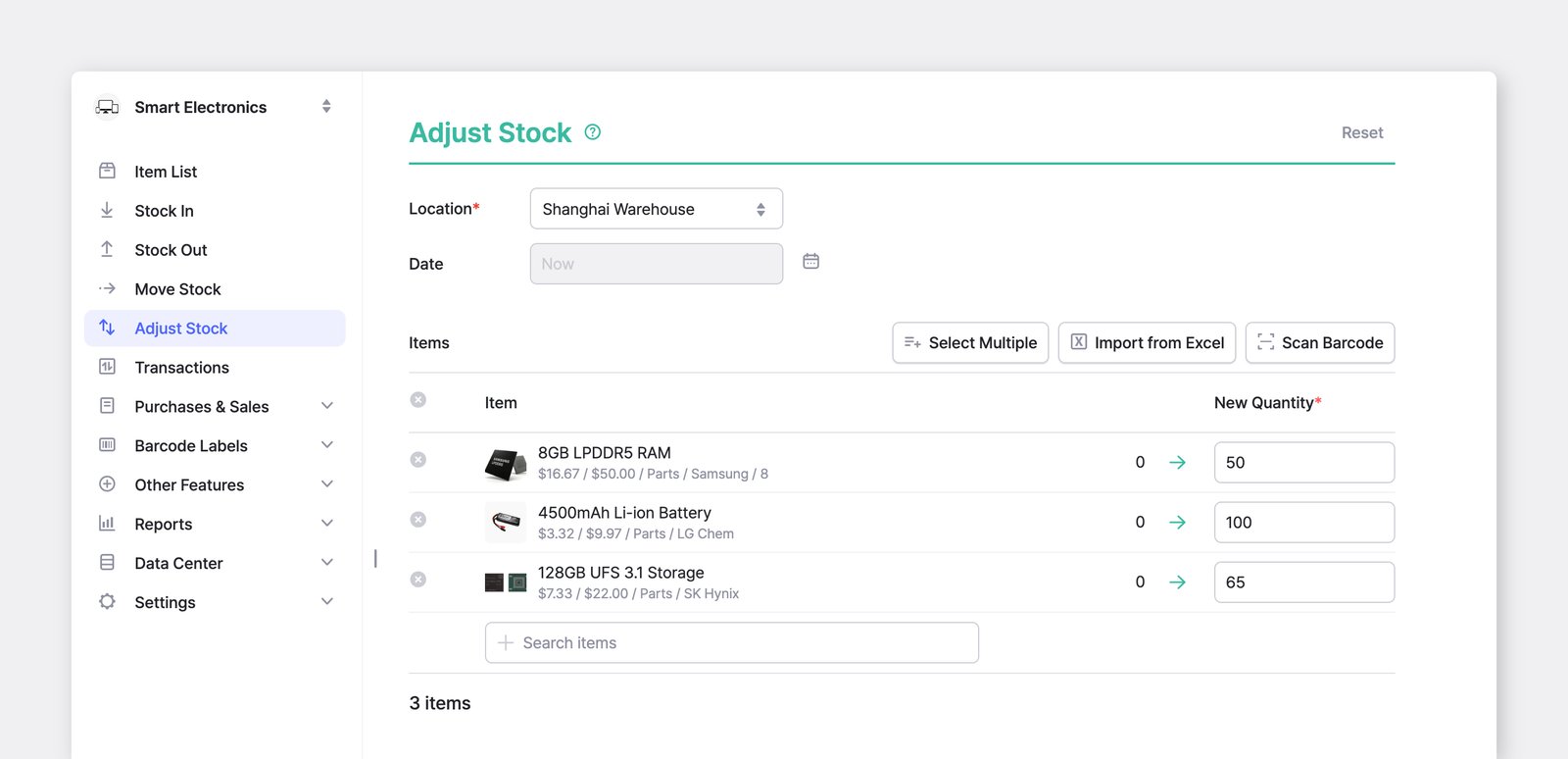
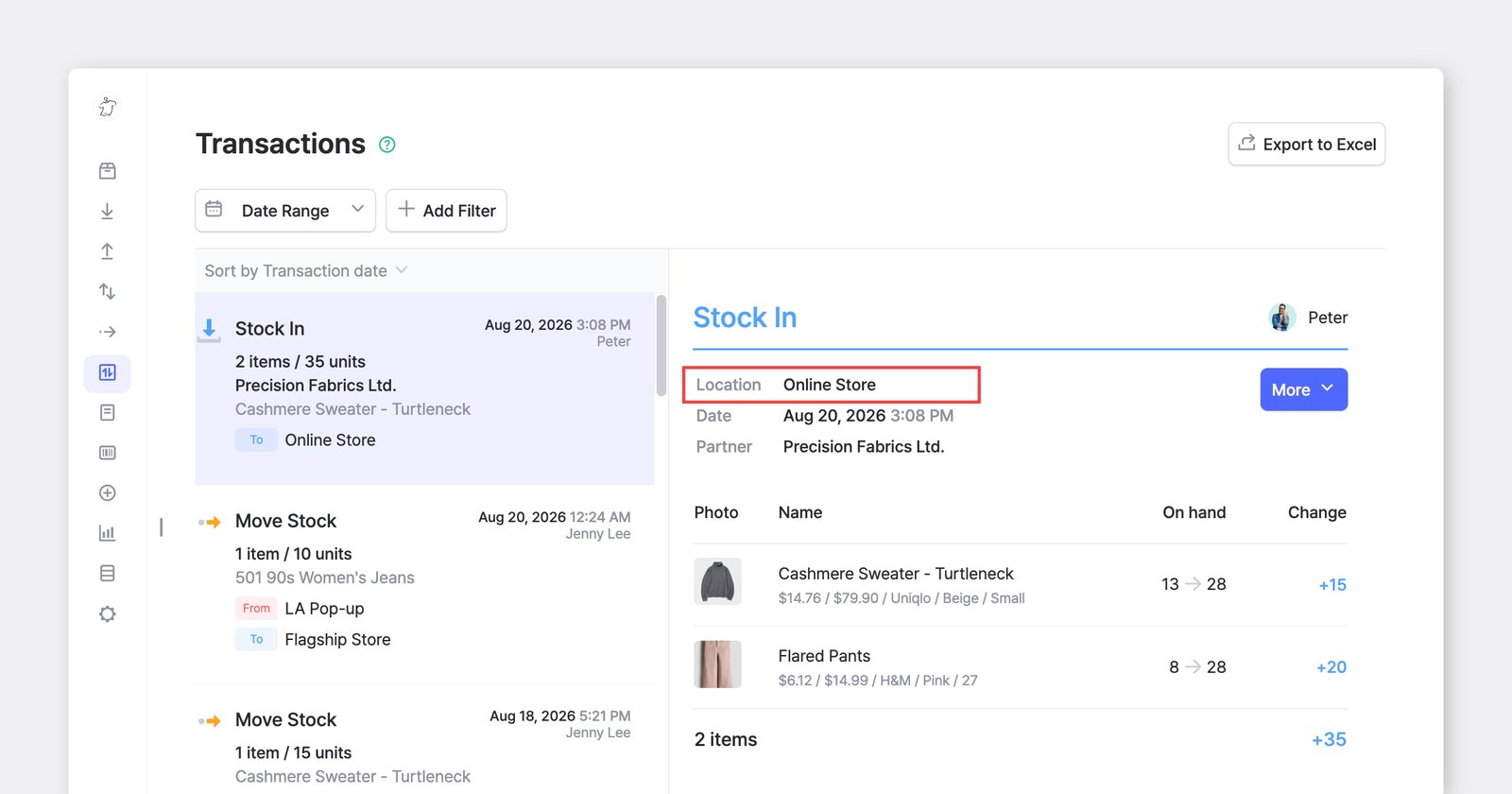
For all other inventory actions—**Stock** **In**, **Stock** **Out**, and **Adjust** **Stock**—you’ll still need to select a location before completing the transaction.
<figure><img src="https://687823928-files.gitbook.io/~/files/v0/b/gitbook-x-prod.appspot.com/o/spaces%2FlRf1QqJGoevCQqGbfI80%2Fuploads%2Fgit-blob-41b79377939930a1d438f7df969ea517e2738e9b%2Fframeit_2026-03-11T14-03-39.jpg?alt=media" alt=""><figcaption></figcaption></figure>

{% hint style="info" %}
**Note:** If you only have one location, it will be selected by default — no need to choose it manually.
{% endhint %}

***

## Frequently Asked Questions

### Can I restrict members from viewing certain locations?

Location-specific user access permissions are not yet available. Currently, all team members can view all locations within a team. If you need to restrict access to certain locations, we recommend creating [separate teams](https://www.boxhero.io/docs/getting-started#create-a-team) for each location.

### Can I receive low stock alerts for a specific location?

Yes! You can receive [low stock alerts](https://www.boxhero.io/docs/other-features/low-stock-alert) for specific locations, and each member can set their own notification settings.

<figure><img src="https://687823928-files.gitbook.io/~/files/v0/b/gitbook-x-prod.appspot.com/o/spaces%2FlRf1QqJGoevCQqGbfI80%2Fuploads%2Fgit-blob-d48a0c253d99f4fba1f2b096882dfe82d40db512%2Flow-stock-alert-by-location.png?alt=media" alt=""><figcaption></figcaption></figure>

### Can I transfer inventory between locations in different teams?

No, inventory transfers are only possible within the *same* team. Each team operates independently, so you cannot move inventory between locations belonging to *different* teams.

### What's the difference between a team and a location?

* A "*team*" is virtual workspace in BoxHero where all inventory items are managed collectively.
* A "*location*" is a specific place within a team (e.g., storage areas, warehouses) where items can be stored or moved.

The standard **Business Plan** includes up to 3 locations within a single team, with the option to add more locations at an additional cost.

<figure><img src="https://687823928-files.gitbook.io/~/files/v0/b/gitbook-x-prod.appspot.com/o/spaces%2FlRf1QqJGoevCQqGbfI80%2Fuploads%2Fgit-blob-1a4c1af1ccfca72764d9ead1f6496142c1b9d627%2Fboxhero%20multiple%20teams.png?alt=media" alt="Inventory is separate by team. Locations organize your items inside each team."><figcaption><p>You can manage multiple teams in BoxHero, but each team has its own separate inventory.</p></figcaption></figure>

### Can I manage multiple inventory categories in one account?

You can use BoxHero's <mark style="color:blue;">**`Locations`**</mark> feature to manage multiple inventory categories within a single team. For example, you could create two locations—one for hats and another for gloves—within the same team. However, please note that this setup is a workaround and not the recommended approach.

Keep in mind that all inventory within a team is *shared*, so items from all locations will be visible in the <mark style="color:blue;">**`Item List`**</mark>. If you need to manage inventory categories separately or control access to specific locations, we recommend creating separate *teams* for each category.