# Items

<figure><img src="https://687823928-files.gitbook.io/~/files/v0/b/gitbook-x-prod.appspot.com/o/spaces%2FlRf1QqJGoevCQqGbfI80%2Fuploads%2Fgit-blob-138433d2822591fa25839afedf00b983adee31fb%2F%E1%84%8C%E1%85%A6%E1%84%91%E1%85%AE%E1%86%B7.png?alt=media" alt=""><figcaption></figcaption></figure>

***

## How to Add Items

### A. On Your Computer

* You can add a new item from the <mark style="color:blue;">**`Item List`**</mark> by clicking  <mark style="color:blue;">**`Add Item`**</mark>.&#x20;
* Alternatively, you can go to <mark style="color:blue;">**`Data Center`**</mark> > <mark style="color:blue;">**`Items`**</mark> and click <mark style="color:blue;">**`Add Item`**</mark>.&#x20;

{% embed url="<https://customer-0jrbilsa8yt3k758.cloudflarestream.com/5c73fe4cc8e74f9caea74fc194c2c1d2/iframe?autoplay=true&controls=false&letterboxColor=transparent&loop=true&muted=true&poster=https://customer-0jrbilsa8yt3k758.cloudflarestream.com/5c73fe4cc8e74f9caea74fc194c2c1d2/thumbnails/thumbnail.jpg?height=1080&preload=true>" %}

#### Item Details

* [**SKU**](https://www.boxhero.io/en/blog/what-is-sku-stock-keeping-unit/)**:** A unique code used to identify your item. For new items, an SKU is automatically generated, but you can also enter your own SKU details.
* **Name:** This is a required field when adding items to your team.
* **Barcode:** Use an existing barcode or generate a random barcode number.
* **Photo:** You can upload an item photo (up to 3MB).
* [**Attribute**](https://www.boxhero.io/docs/data-center/attributes)**:** You can add custom attributes like brand, size, color, and more.
* **Quantity:** Enter the initial stock quantity. You can update the quantity later through inventory transactions.

### B. On Your Phone

* In the bottom menu, tap <mark style="color:blue;">**`Items`**</mark>. Then tap the black <mark style="color:blue;">**`+`**</mark> icon in the bottom-right corner.&#x20;
* On the next screen, enter your item details and set the initial quantity. Tap <mark style="color:blue;">**`Save`**</mark>.

{% embed url="<https://customer-0jrbilsa8yt3k758.cloudflarestream.com/9b9ced45179f4fb7b515a2fda2c153af/iframe?autoplay=true&controls=false&letterboxColor=transparent&loop=true&muted=true&poster=https://customer-0jrbilsa8yt3k758.cloudflarestream.com/9b9ced45179f4fb7b515a2fda2c153af/thumbnails/thumbnail.jpg?height=1080&preload=true>" %}

{% hint style="warning" %}
**Note**: There is a limit to the number of items you can register in your team.\
Please refer to our [pricing](https://www.boxhero.io/docs/pricing) to choose the plan that works best for you.
{% endhint %}

***

## Add Items via Excel

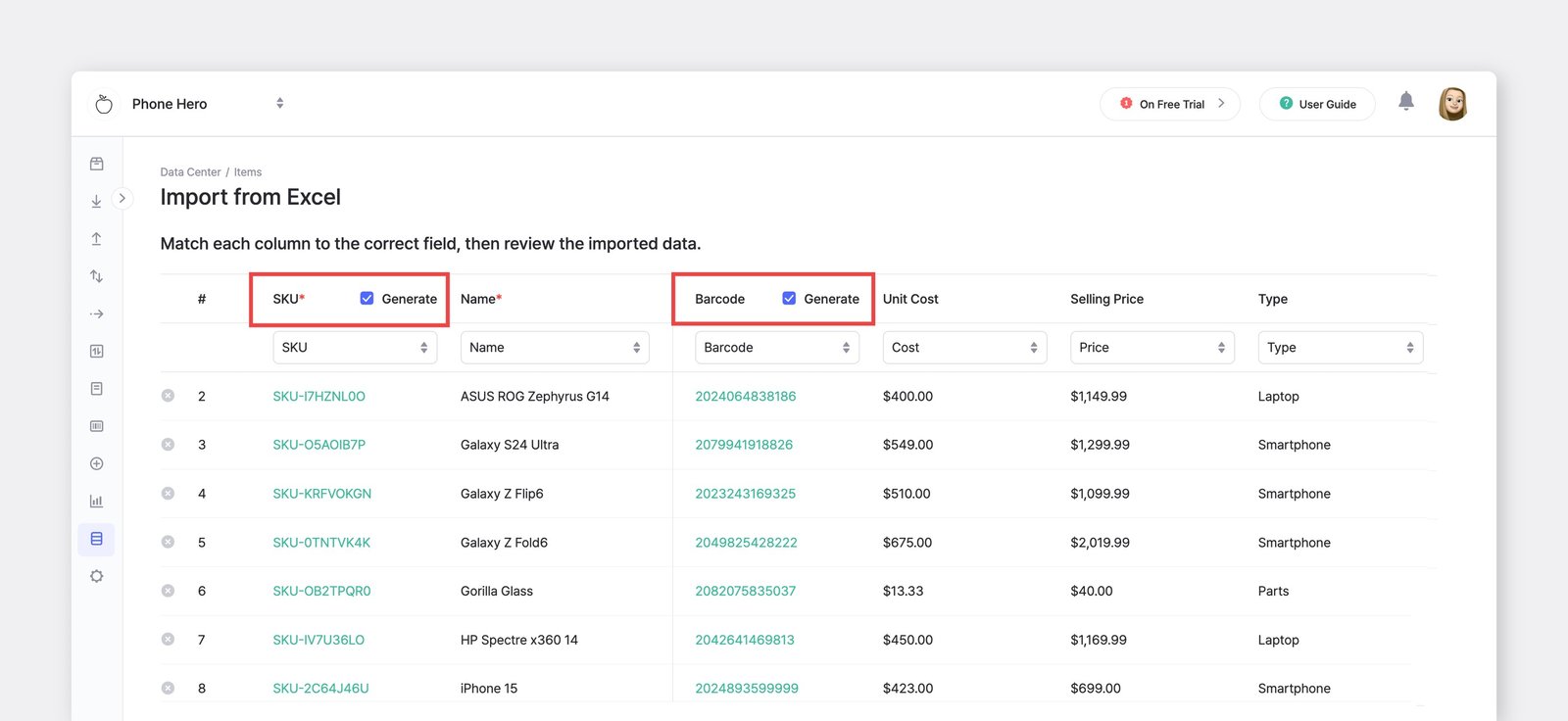
If you already have an Excel file with your item details, you can upload it to BoxHero and add multiple items at once using the **Bulk Add** function.

<figure><img src="https://687823928-files.gitbook.io/~/files/v0/b/gitbook-x-prod.appspot.com/o/spaces%2FlRf1QqJGoevCQqGbfI80%2Fuploads%2Fgit-blob-a83072bd563062422a190fd1e0854d45ce23478d%2Ffilename%20(7).png?alt=media" alt=""><figcaption></figcaption></figure>

### Import From Excel

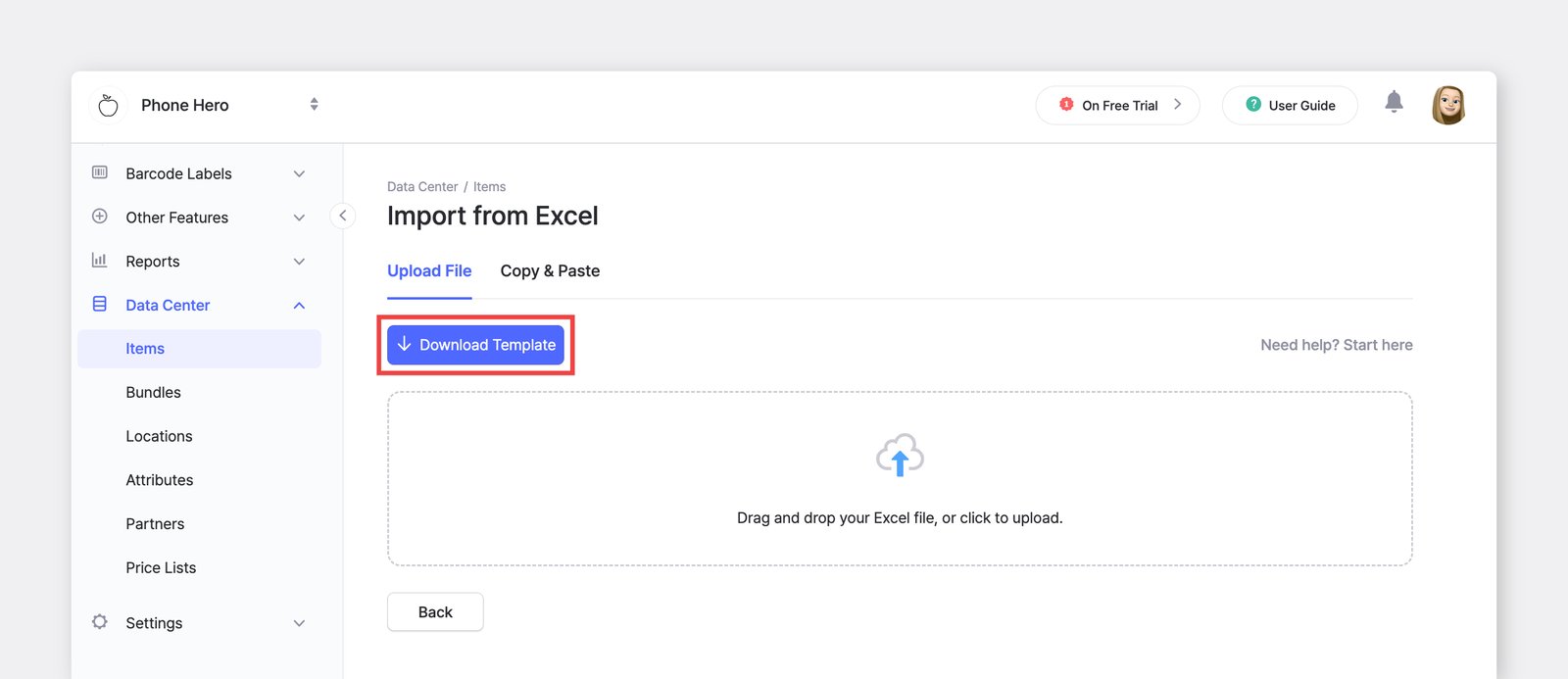
1. Go to <mark style="color:blue;">**`Data Center`**</mark> > <mark style="color:blue;">**`Items`**</mark>.
2. On the top right, click <mark style="color:blue;">**`Import from Excel`**</mark> > <mark style="color:blue;">**`Add via Excel`**</mark> to upload your file.
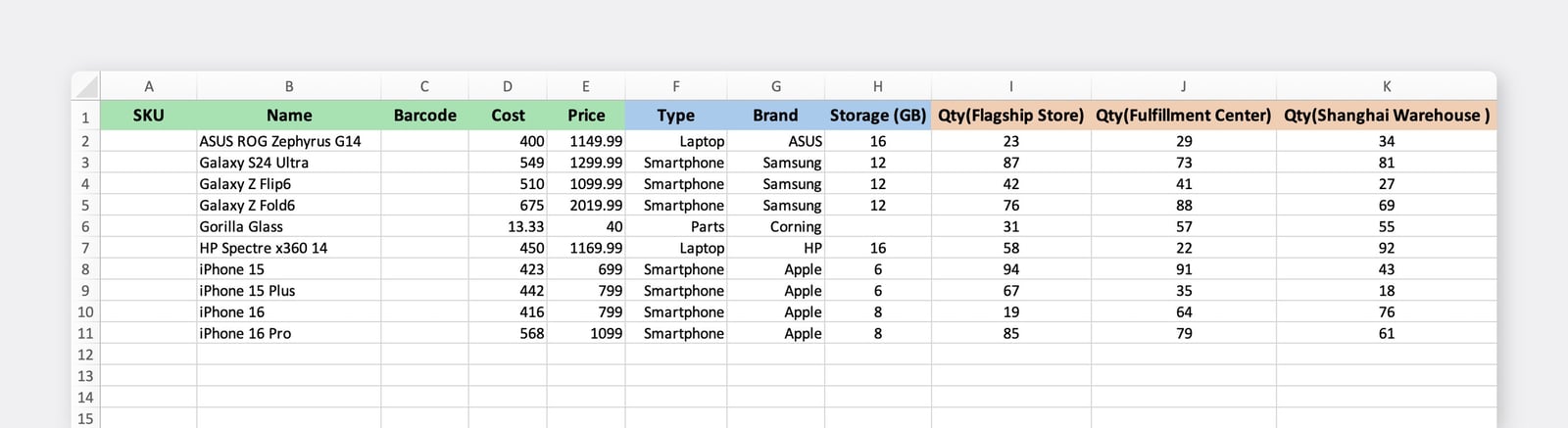
3. Download the template and check that the column names in your Excel file match.
4. After reviewing the items to be added, click <mark style="color:blue;">**`Done`**</mark> at the bottom to finish the process.

<figure><img src="https://687823928-files.gitbook.io/~/files/v0/b/gitbook-x-prod.appspot.com/o/spaces%2FlRf1QqJGoevCQqGbfI80%2Fuploads%2Fgit-blob-8cb04a982603ed7a2b9803176435517fcf921884%2F05.png?alt=media" alt=""><figcaption></figcaption></figure>

#### **Excel Columns**

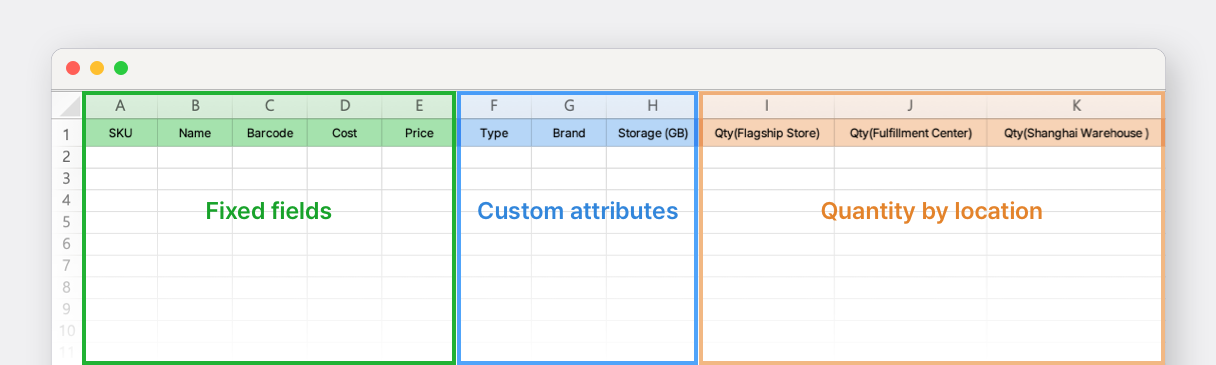
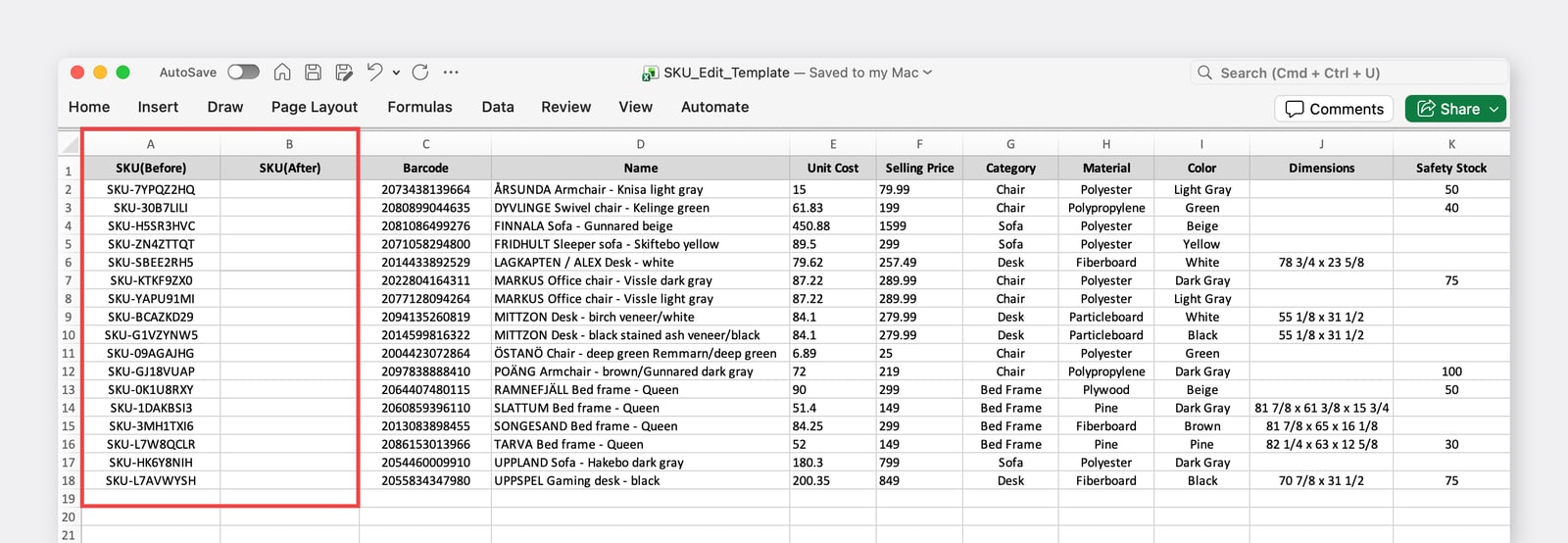
* **Fixed fields:** Built-in fields that can’t be renamed or deleted (*SKU, Item Name, Barcode, Cost, and Price*).
* **Custom attributes**: These are attributes you set up under <mark style="color:blue;">**`Data Center`**</mark> > <mark style="color:blue;">**`Attributes`**</mark>. If you need additional attributes for your data, be sure to add them before working with Excel.
* **Quantity by location**: These are locations you set up under <mark style="color:blue;">**`Data Center`**</mark> > <mark style="color:blue;">**`Locations`**</mark>. If you haven’t added any locations yet, only the **Qty (Default Location)** column will be shown.

{% embed url="<https://customer-0jrbilsa8yt3k758.cloudflarestream.com/4bdc5fa3b2684cb0a34950da12f02d67/iframe?autoplay=true&controls=false&letterboxColor=transparent&loop=true&muted=true&poster=https://customer-0jrbilsa8yt3k758.cloudflarestream.com/4bdc5fa3b2684cb0a34950da12f02d67/thumbnails/thumbnail.jpg?height=1080&preload=true>" %}

#### **Things to Note**

* Item name is *required*. All other fields will be saved as blank if you leave them empty.
* To automatically generate SKUs and barcodes, leave those fields blank in your Excel file.
* If you aren’t using the [Purchases & Sales](https://www.boxhero.io/docs/key-features/purchase-and-sales) feature, you can leave the "Cost" and "Price" empty.
* If you don’t enter a quantity, it will be saved as 0.

{% hint style="warning" %}
BoxHero’s **Excel** feature identifies items using *SKUs*.

If you prefer to work based on *barcodes*, go to <mark style="color:blue;">**`Settings`**</mark> > <mark style="color:blue;">**`Team`**</mark> > <mark style="color:blue;">**`Excel Import Settings`**</mark> and update the **Item Identifier**.
{% endhint %}

<figure><img src="https://687823928-files.gitbook.io/~/files/v0/b/gitbook-x-prod.appspot.com/o/spaces%2FlRf1QqJGoevCQqGbfI80%2Fuploads%2Fgit-blob-1afc25e18c416d8988174cf7d0c8d5895d3d81e4%2Ffilename%20(2)%20(1).png?alt=media" alt=""><figcaption></figcaption></figure>

#### Having Trouble?

{% embed url="<https://www.boxhero.io/en/blog/import-excel-boxhero-guide/>" %}

***

## How to Add Item Variants

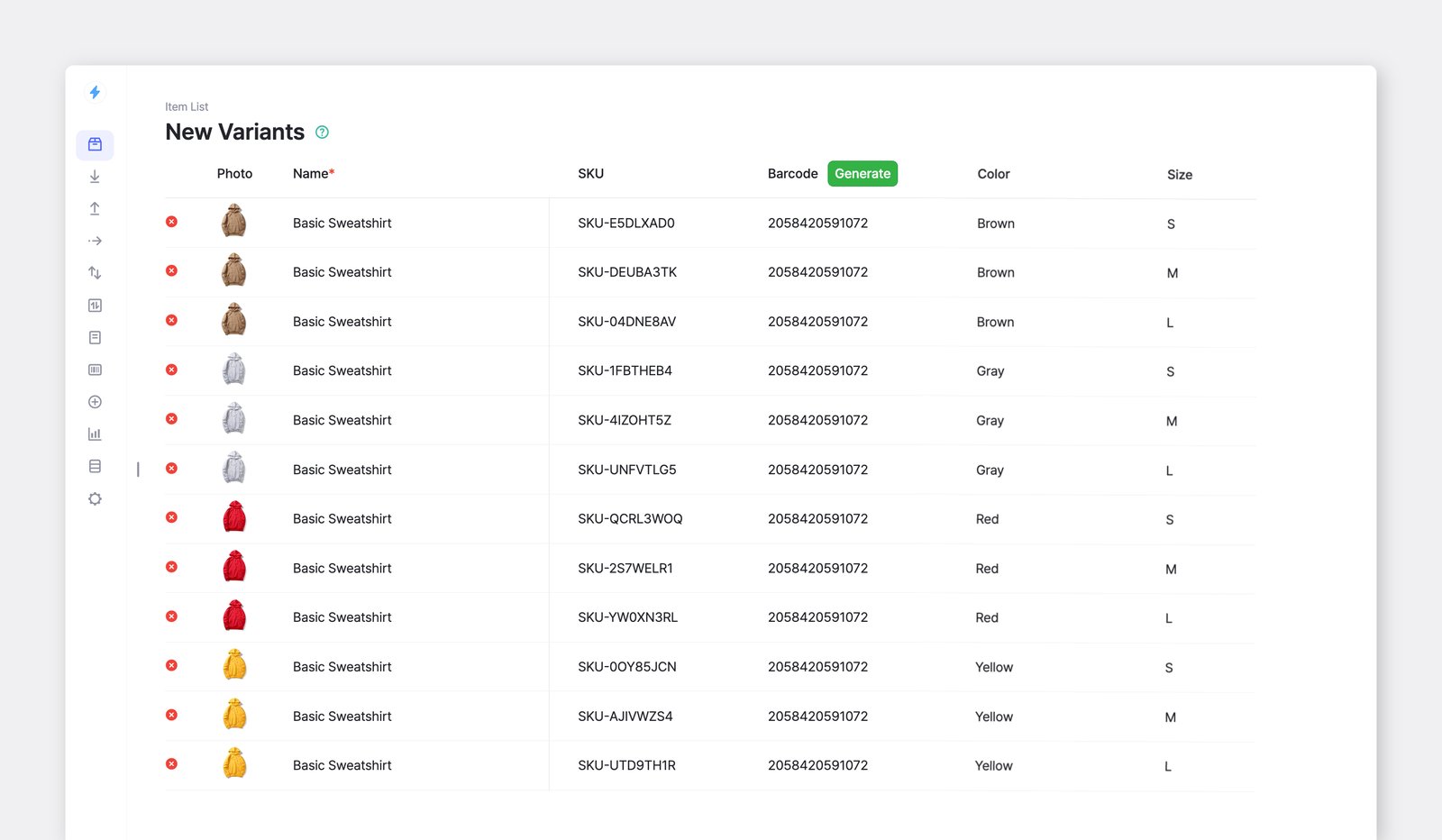
If you have items with different options like size or color, you can add them to your BoxHero team with <mark style="color:blue;">**`Item Variants`**</mark>. This feature allows you to quickly create multiple versions of the same item.

<figure><img src="https://687823928-files.gitbook.io/~/files/v0/b/gitbook-x-prod.appspot.com/o/spaces%2FlRf1QqJGoevCQqGbfI80%2Fuploads%2Fgit-blob-fede0faa3e2a7872841932066639beae06e0955a%2Fnew-variants-sweatshirts.png?alt=media" alt=""><figcaption></figcaption></figure>

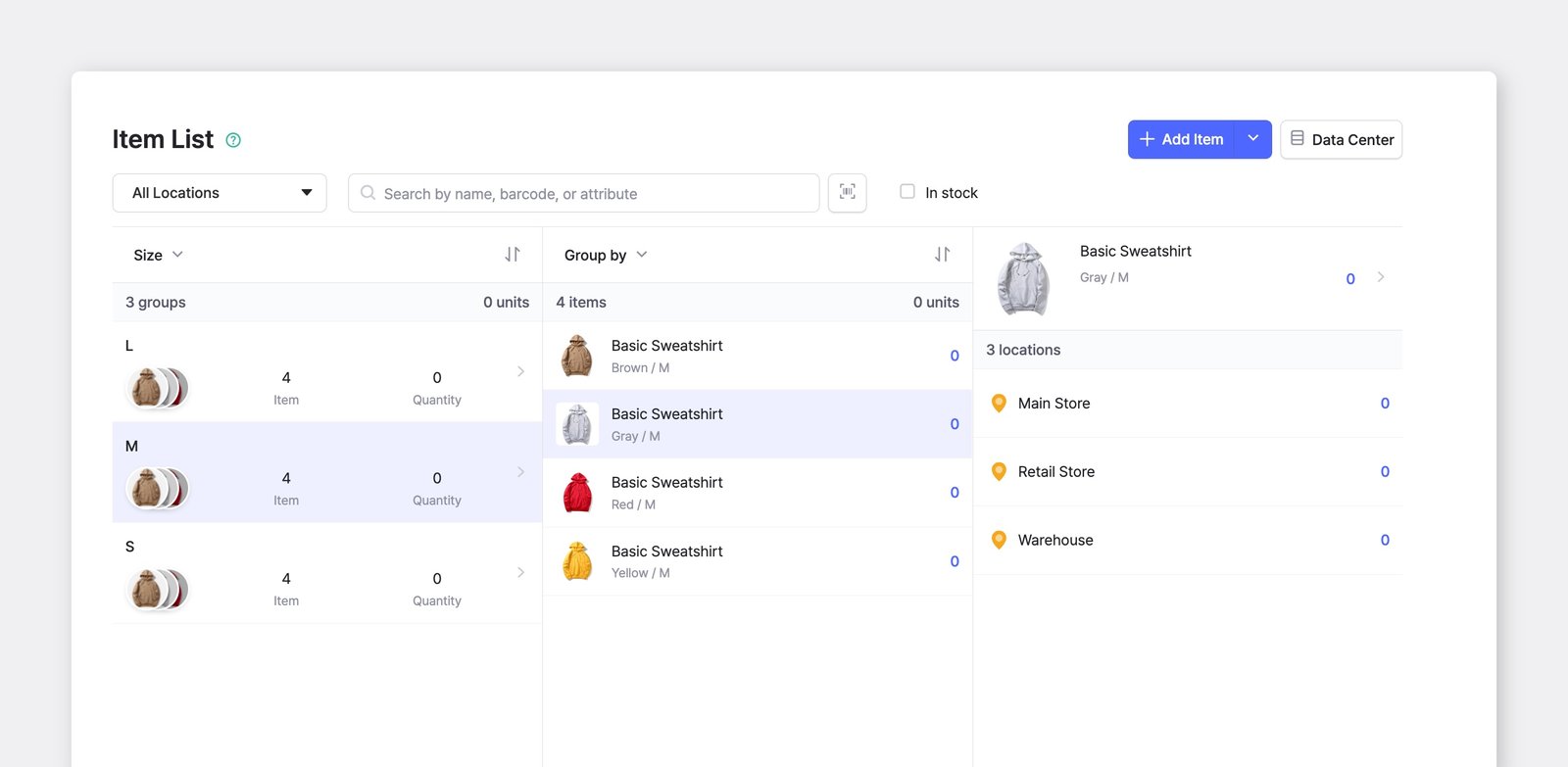
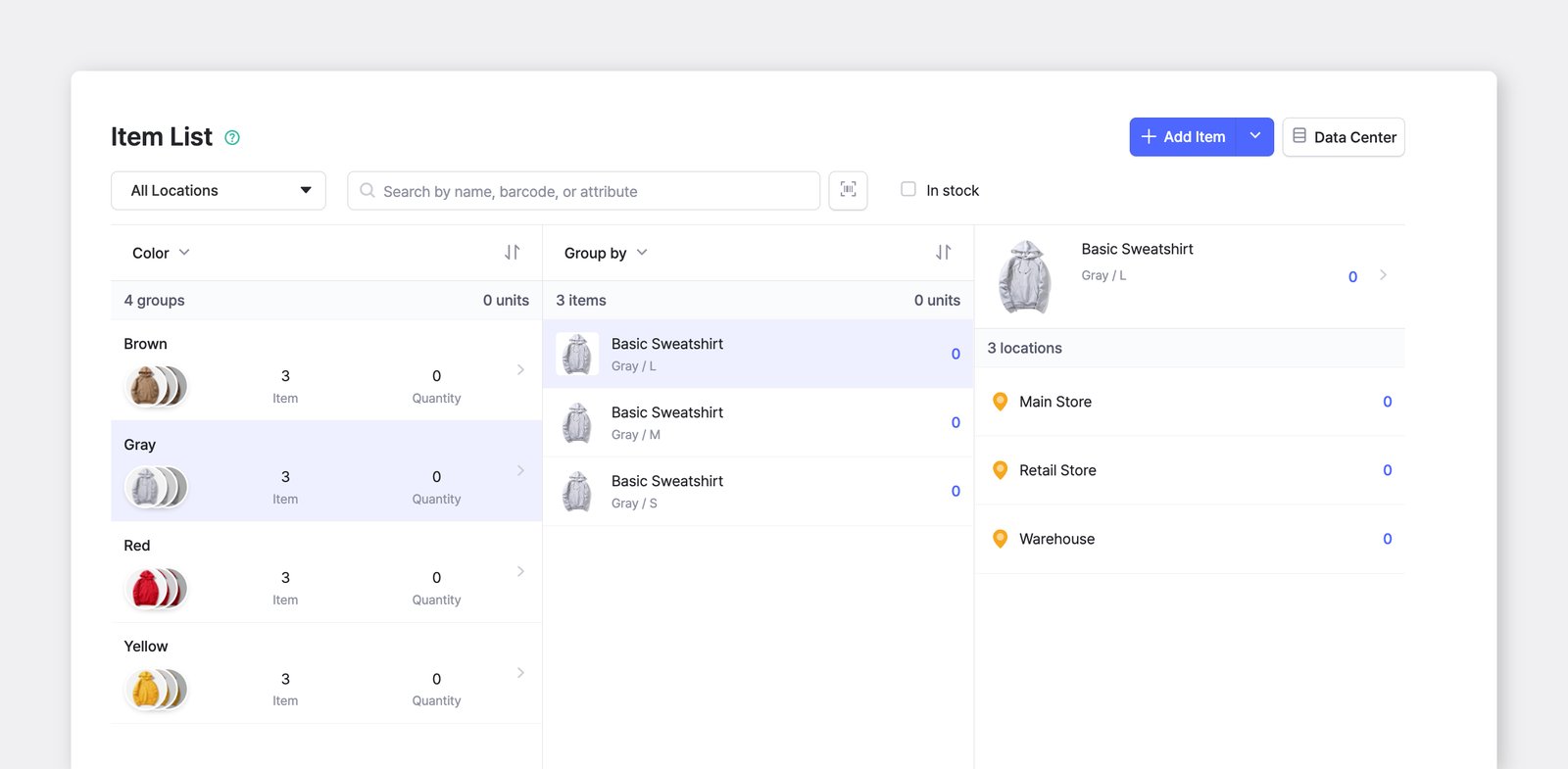
For example, if a sweatshirt comes in **four colors** and **three sizes**, you can add all variations by going to <mark style="color:blue;">**`Item List`**</mark> > <mark style="color:blue;">**`Add Item`**</mark> > <mark style="color:blue;">**`Add Item Variants`**</mark>.

You’ll have **12 different combinations** of the same sweatshirt in your inventory:

| Brown | Yellow | Gray | Red |
| ----- | ------ | ---- | --- |
| S     | S      | S    | S   |
| M     | M      | M    | M   |
| L     | L      | L    | L   |

{% embed url="<https://customer-0jrbilsa8yt3k758.cloudflarestream.com/3d92a7cda7da468aad350a9942dd6a41/iframe?autoplay=true&controls=false&letterboxColor=transparent&loop=true&muted=true&poster=https://customer-0jrbilsa8yt3k758.cloudflarestream.com/3d92a7cda7da468aad350a9942dd6a41/thumbnails/thumbnail.jpg?height=1080&preload=true>" %}

You can check out the full guide on managing **item** **variants** [here](https://www.boxhero.io/en/blog/add-item-variants).

***

## How to Update Item Details

### 1. Update Each Item

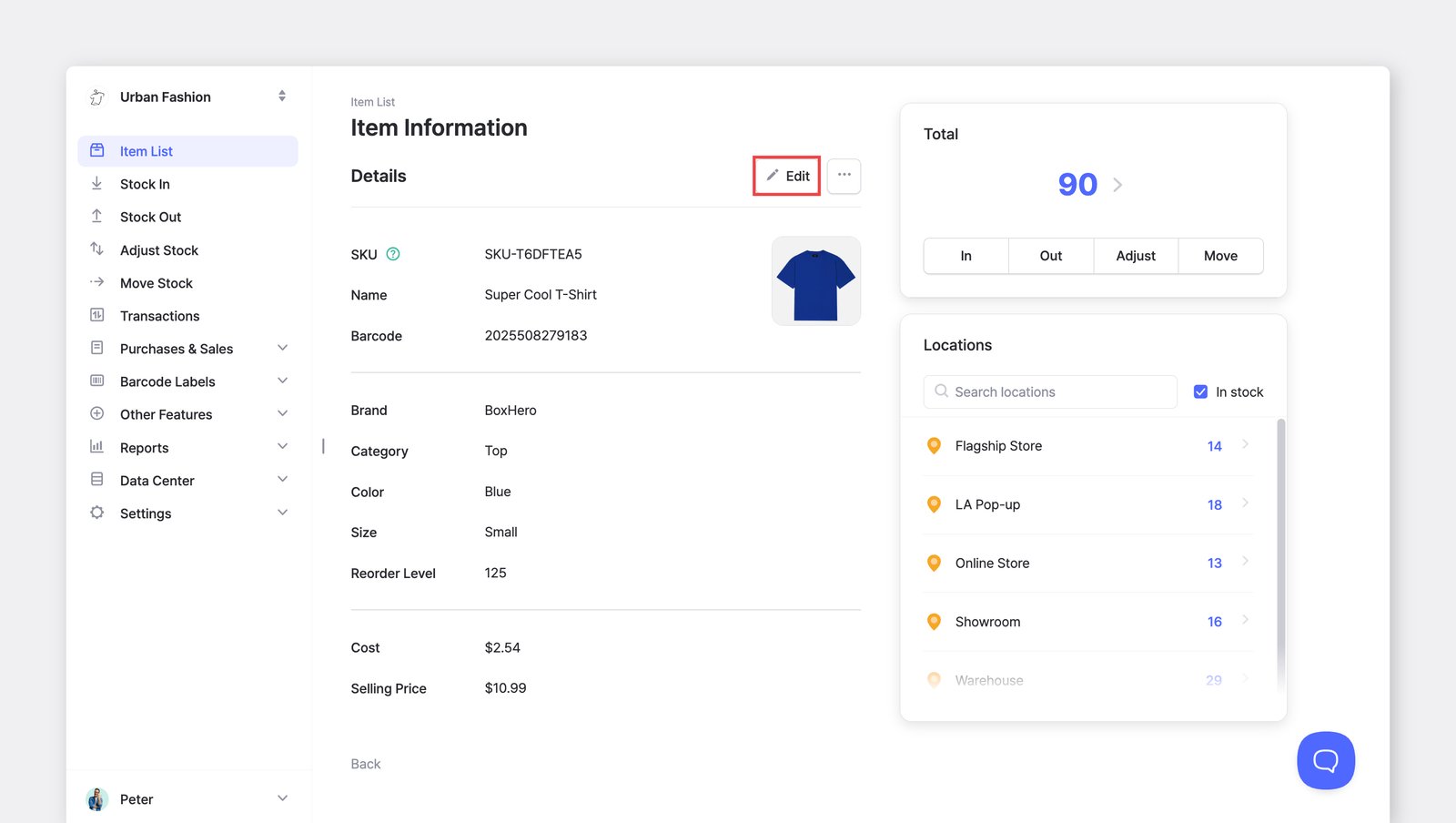
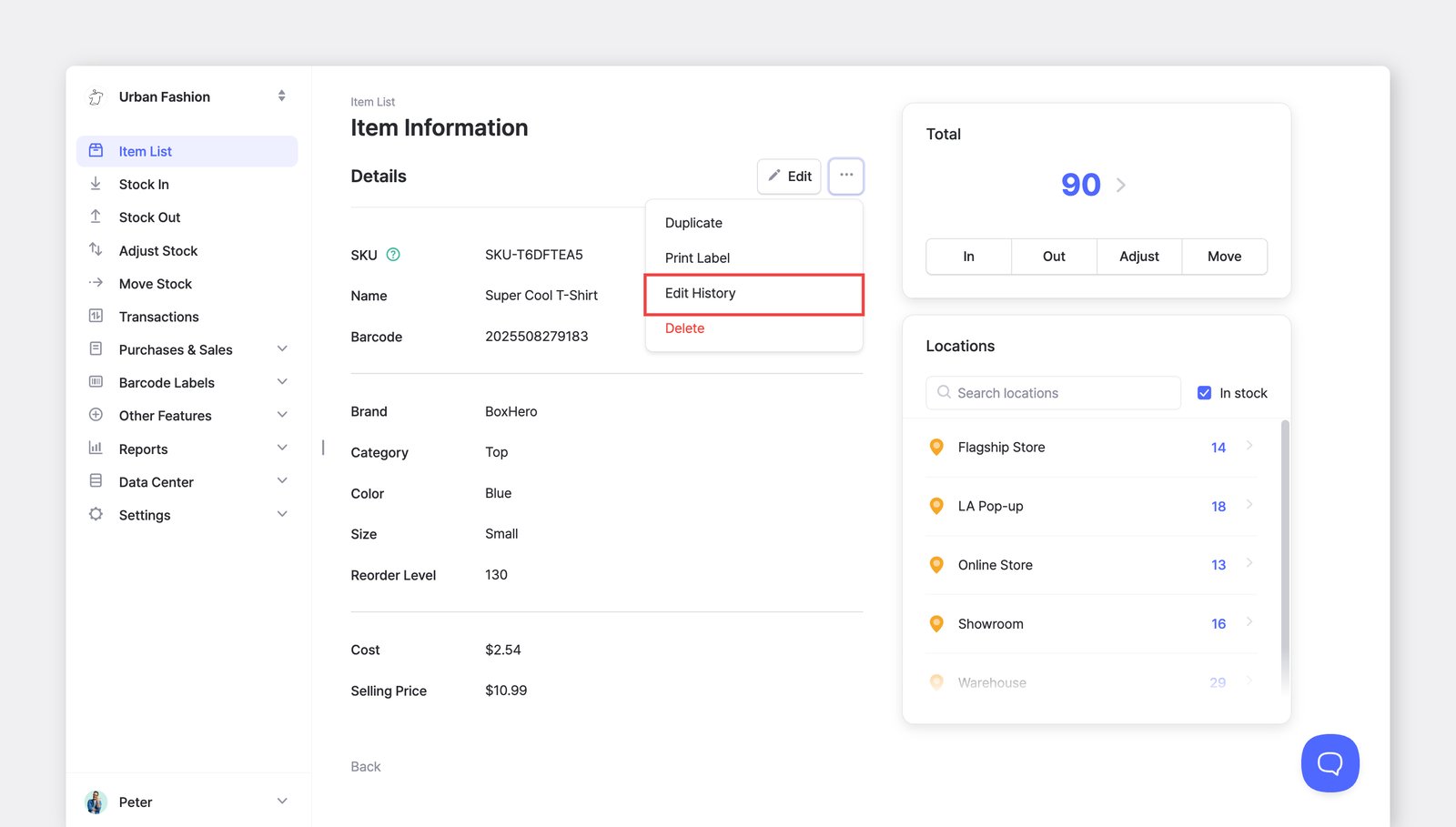
Select an item from the <mark style="color:blue;">**`Item List`**</mark> and click the <mark style="color:blue;">**`Edit`**</mark> or <mark style="color:blue;">**`...`**</mark> button to make changes.

<figure><img src="https://687823928-files.gitbook.io/~/files/v0/b/gitbook-x-prod.appspot.com/o/spaces%2FlRf1QqJGoevCQqGbfI80%2Fuploads%2Fgit-blob-238d67b74c98f46d41e3d3f7734554a226119702%2Ffilename%20(1)%20(2).png?alt=media" alt=""><figcaption></figcaption></figure>

### 2. Select Multiple Items

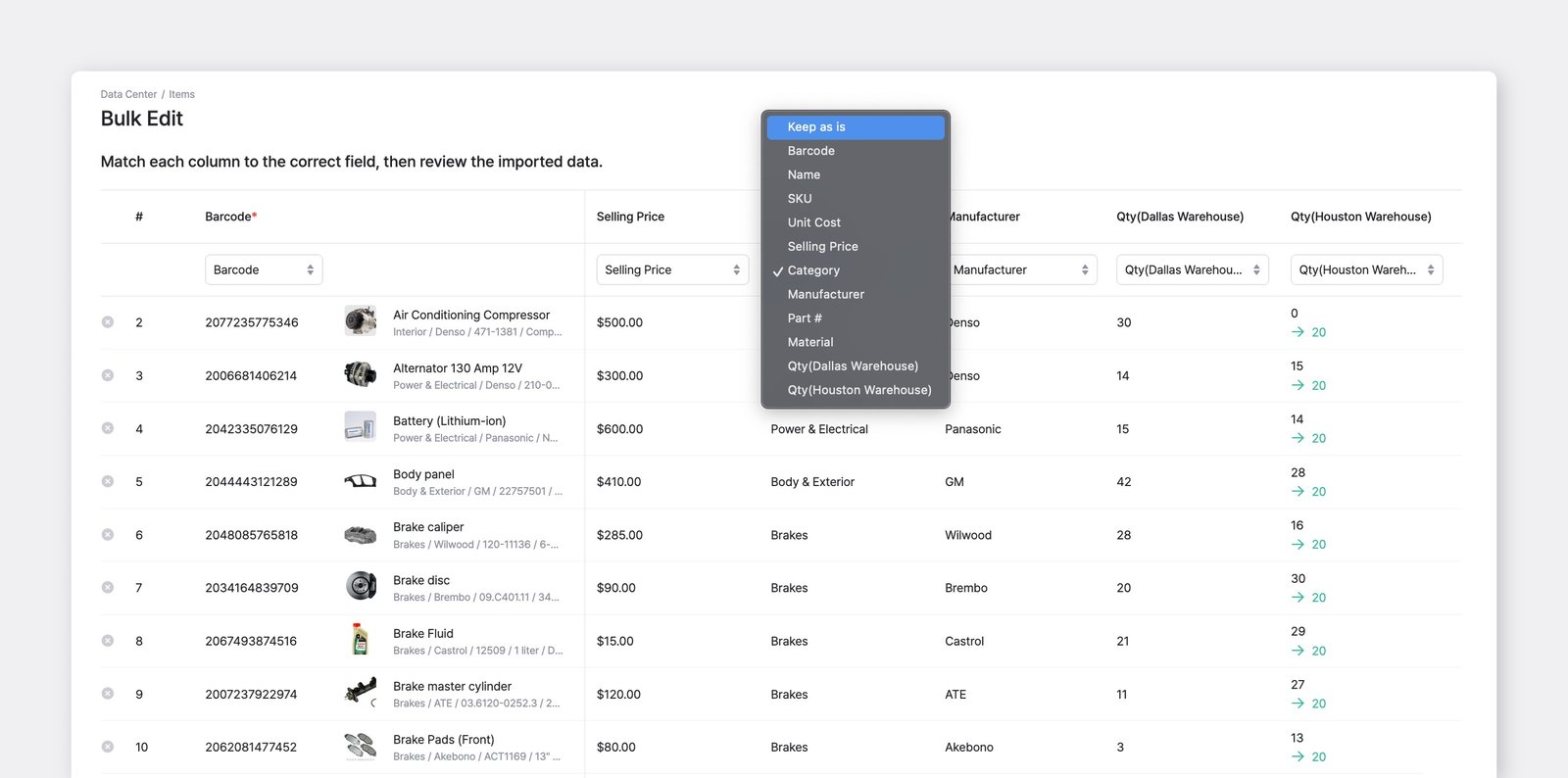
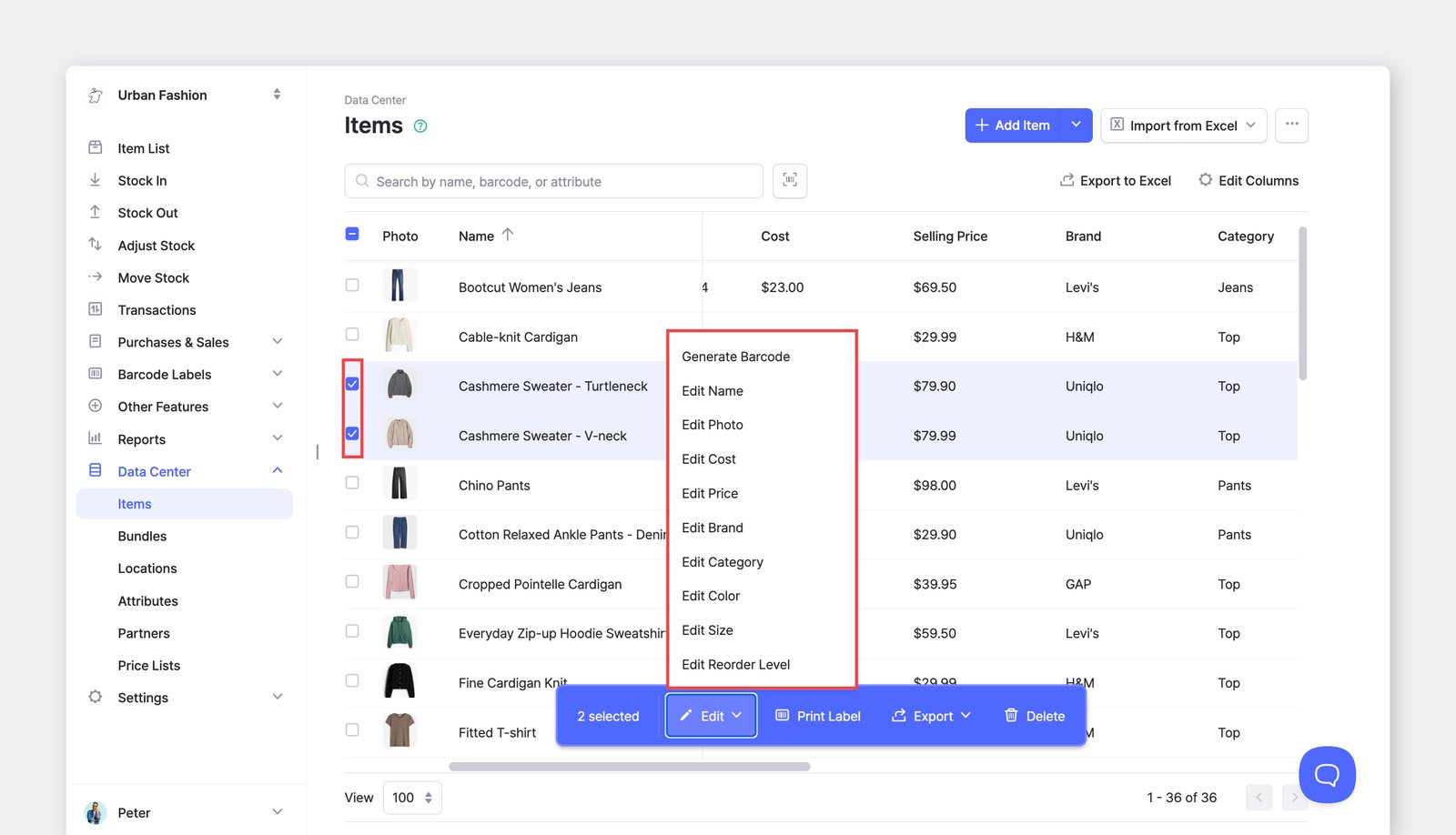
You can update multiple items by going to <mark style="color:blue;">**`Data Center`**</mark> > <mark style="color:blue;">**`Items`**</mark>. This is helpful when adding or modifying attributes a large group of items.

{% embed url="<https://customer-0jrbilsa8yt3k758.cloudflarestream.com/5dd42973ad6f40dd847c7691c560b598/iframe?autoplay=true&controls=false&letterboxColor=transparent&loop=true&muted=true&poster=https://customer-0jrbilsa8yt3k758.cloudflarestream.com/5dd42973ad6f40dd847c7691c560b598/thumbnails/thumbnail.jpg?height=1080&preload=true>" %}

### 3. Edit Items via Excel

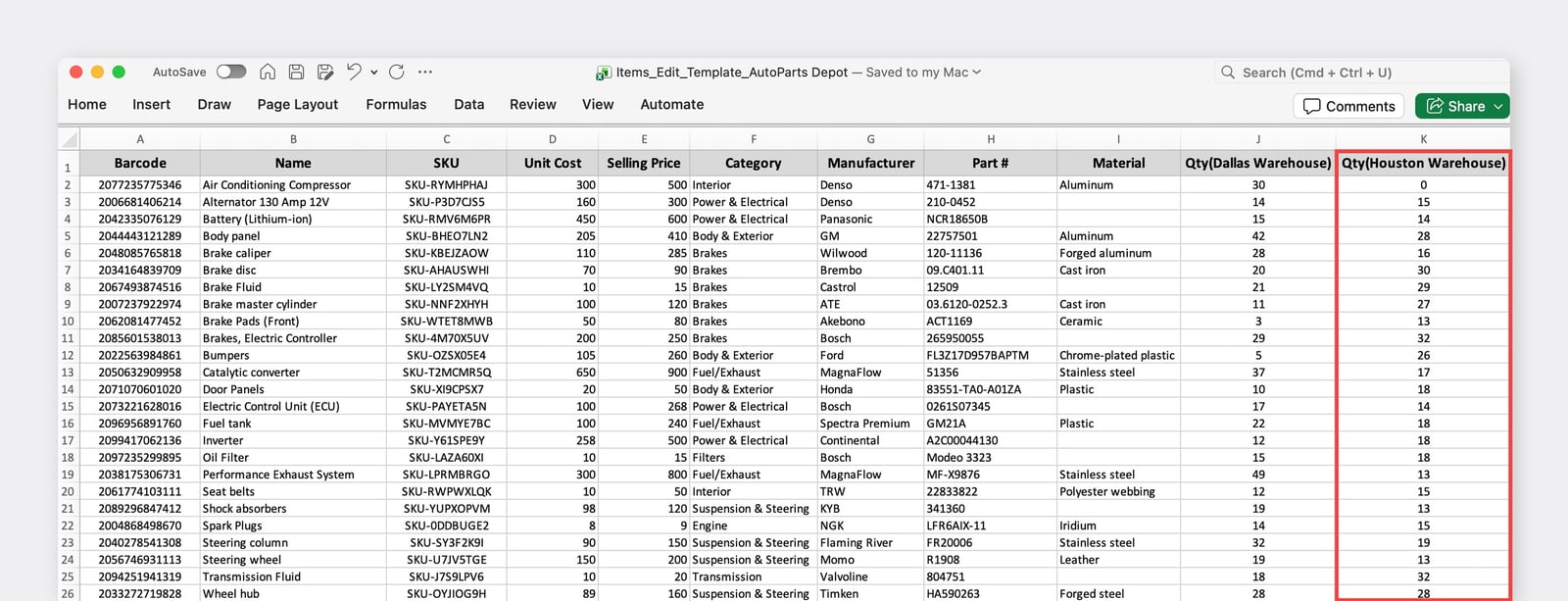
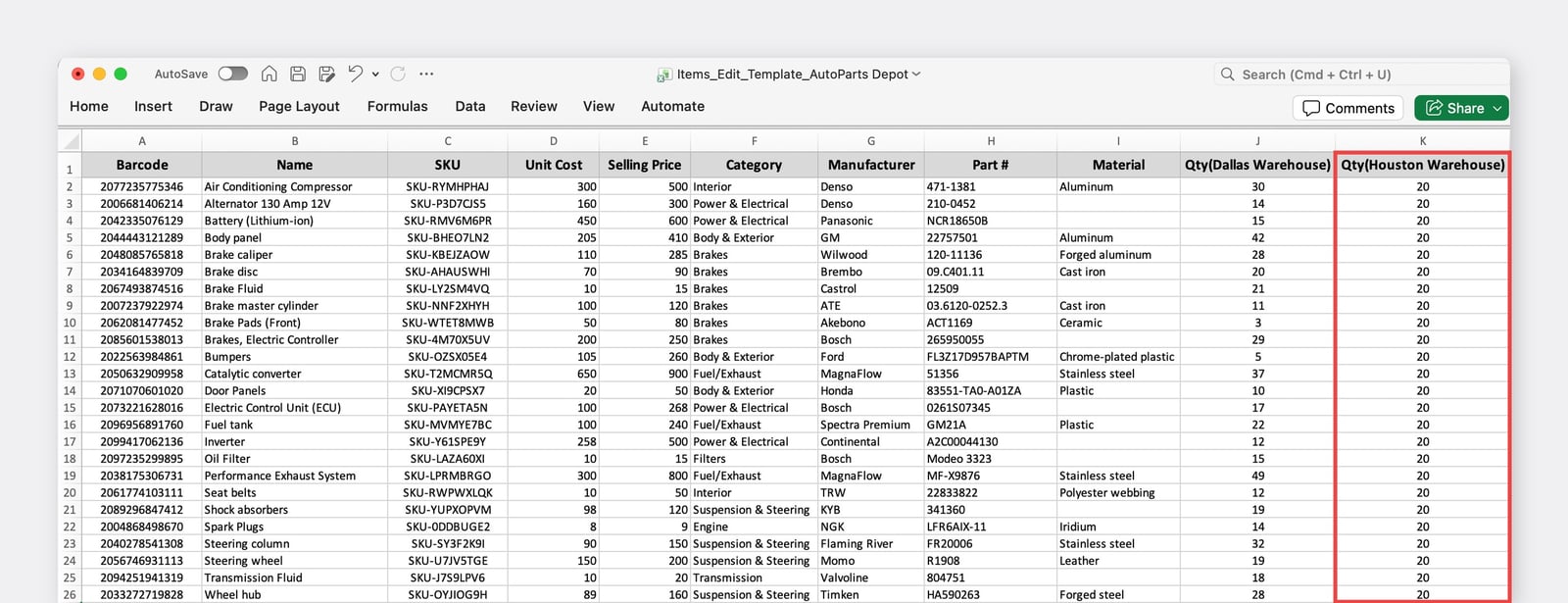
Make bulk changes to your item data via Excel.

* Go to <mark style="color:blue;">**`Data Center`**</mark> > <mark style="color:blue;">**`Items`**</mark>.
* On the the top right, click <mark style="color:blue;">**`Import from Excel`**</mark> > <mark style="color:blue;">**`Edit via Excel`**</mark> to modify item info in bulk.

<figure><img src="https://687823928-files.gitbook.io/~/files/v0/b/gitbook-x-prod.appspot.com/o/spaces%2FlRf1QqJGoevCQqGbfI80%2Fuploads%2Fgit-blob-54f9e04bbb760e51aaf4f5782ccebf3f602e5497%2Ffilename%20(3)%20(1).png?alt=media" alt=""><figcaption></figcaption></figure>

***

## How to Delete Items

### Delete Multiple Items

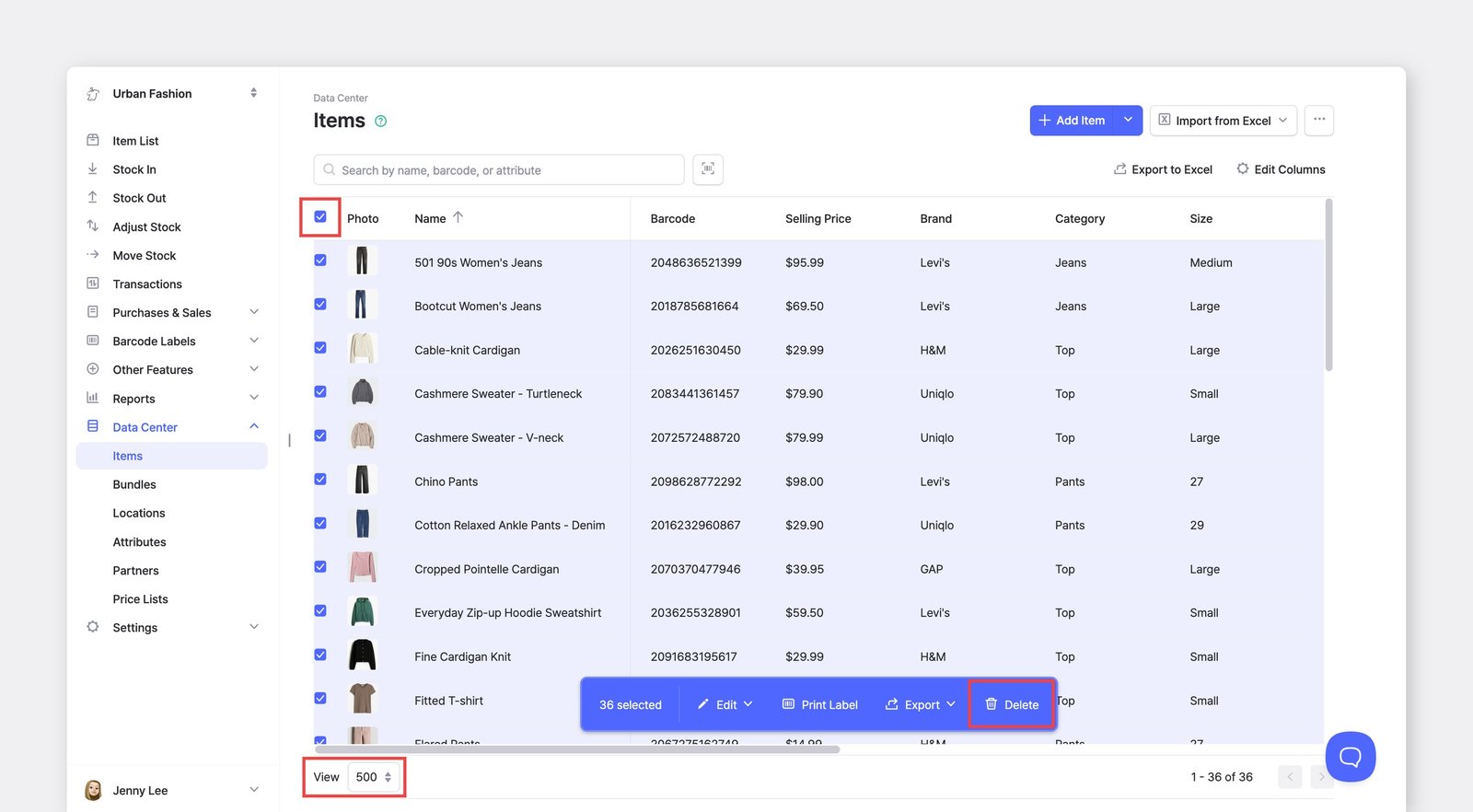
To delete multiple items, go to <mark style="color:blue;">**`Data Center`**</mark> > <mark style="color:blue;">**`Items`**</mark>.

You can change the <mark style="color:blue;">**`View`**</mark> settings at the bottom to display **500** items per page, select all, and delete them in batches of 500.

<figure><img src="https://687823928-files.gitbook.io/~/files/v0/b/gitbook-x-prod.appspot.com/o/spaces%2FlRf1QqJGoevCQqGbfI80%2Fuploads%2Fgit-blob-1decd99865edc2ff4a840c5955b824715bed4946%2Ffilename%20(4)%20(1).png?alt=media" alt=""><figcaption></figcaption></figure>

### Recover Deleted Items

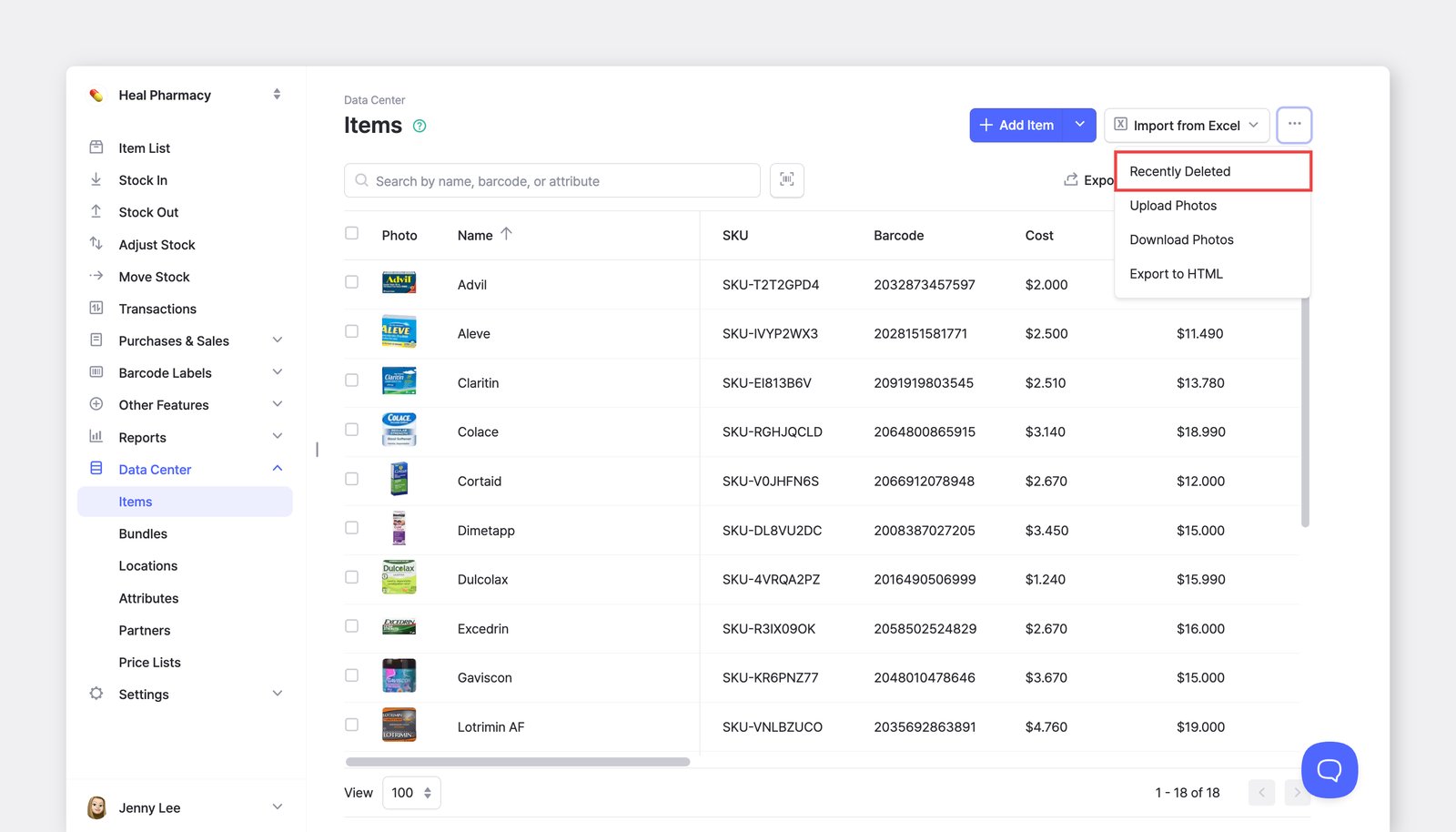
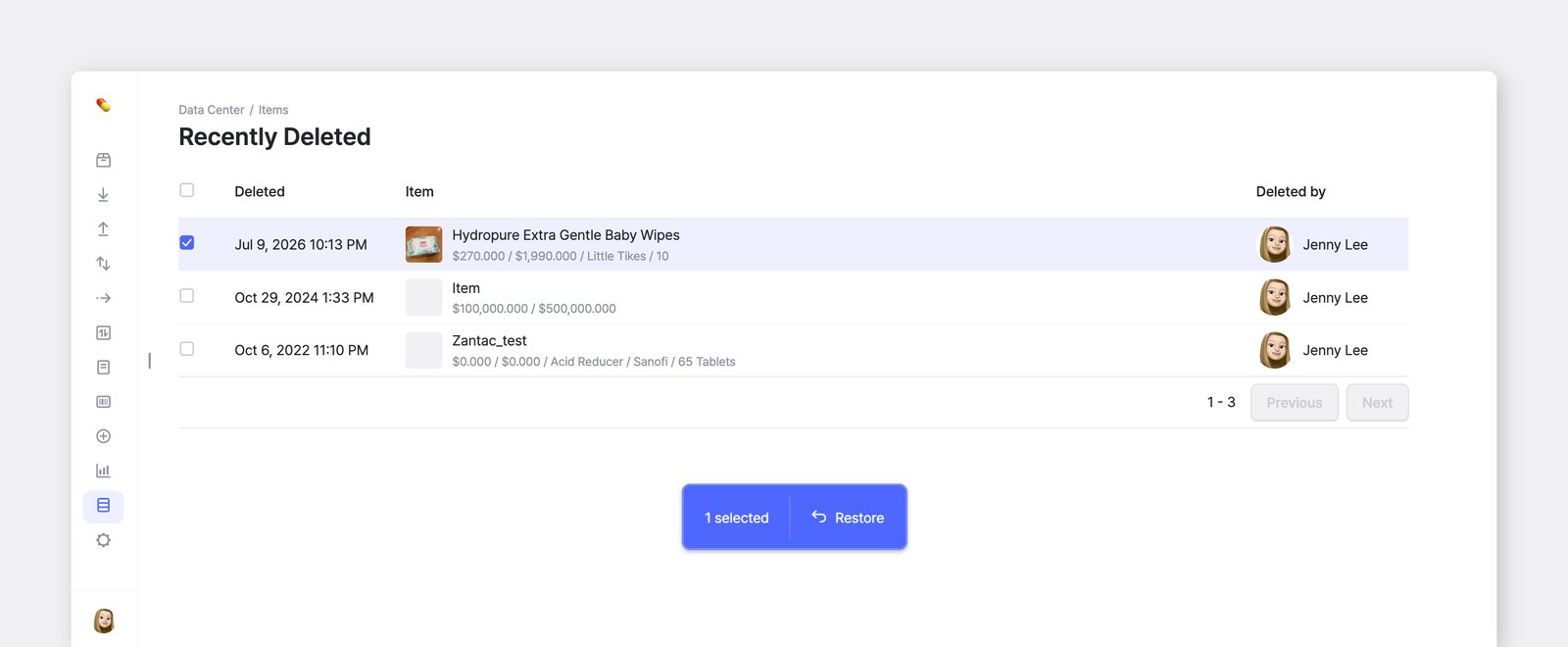
If you accidentally deleted an item, you can recover it by going to <mark style="color:blue;">**`Data Center`**</mark> > <mark style="color:blue;">**`Items`**</mark> > <mark style="color:blue;">**`...`**</mark> > <mark style="color:blue;">**`Recently Deleted`**</mark> > <mark style="color:blue;">**`Restore`**</mark>.

<figure><img src="https://687823928-files.gitbook.io/~/files/v0/b/gitbook-x-prod.appspot.com/o/spaces%2FlRf1QqJGoevCQqGbfI80%2Fuploads%2Fgit-blob-a27d4a914cb22b66cb576d32666cda1ba4084b1f%2Fitems-recently%20deleted.png?alt=media" alt="How to recover recently deleted items in boxhero via the data center"><figcaption></figcaption></figure>

***

## How to Manage Item Photos

### Upload Photos in Bulk

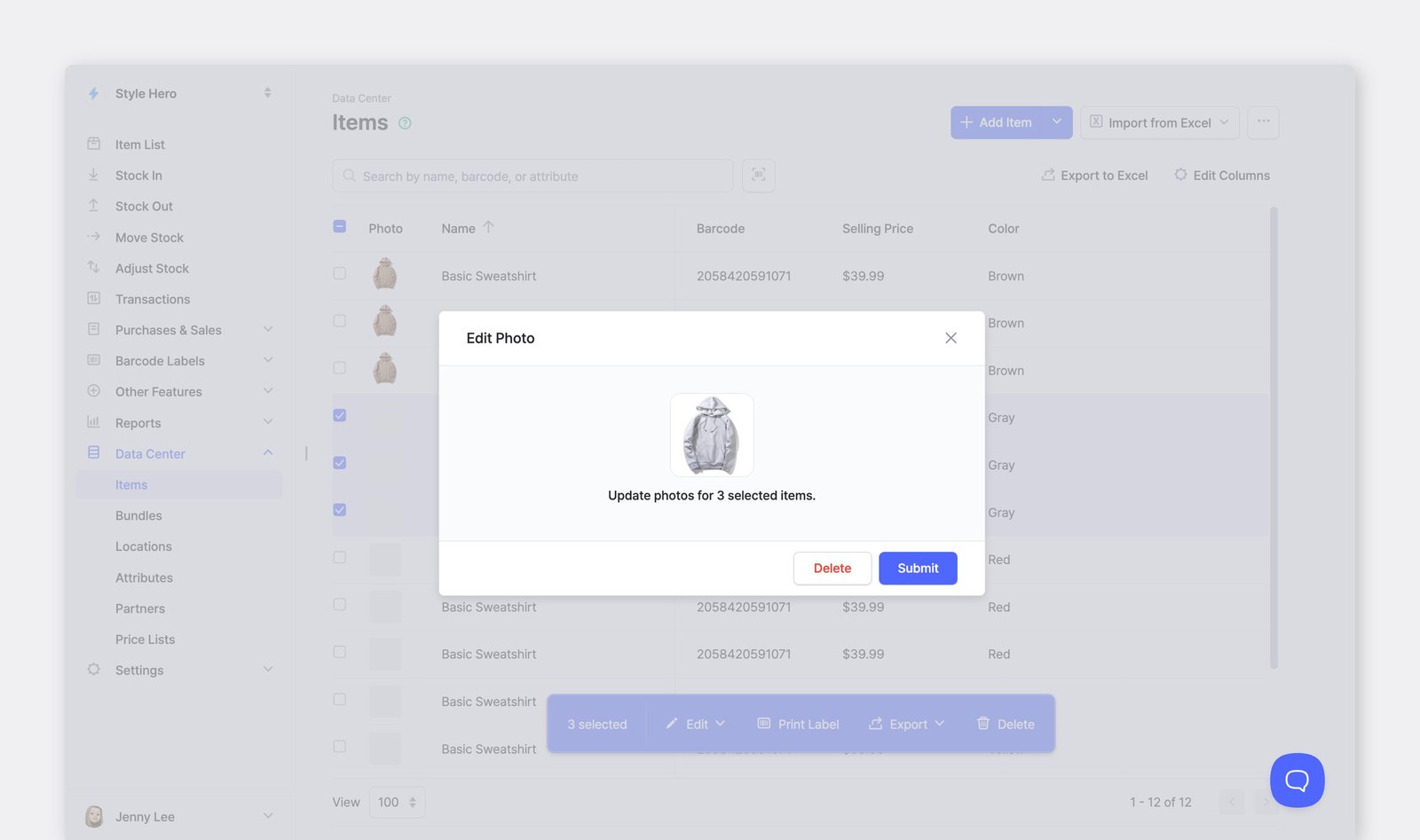
You can upload multiple item photos at once by going to <mark style="color:blue;">**`Data Center`**</mark> > <mark style="color:blue;">**`Items`**</mark> > <mark style="color:blue;">**`...`**</mark> > <mark style="color:blue;">**`Upload Photos`**</mark>.

{% embed url="<https://customer-0jrbilsa8yt3k758.cloudflarestream.com/f4a81299475542228d2c0568e12c1781/iframe?autoplay=true&controls=false&letterboxColor=transparent&loop=true&muted=true&poster=https://customer-0jrbilsa8yt3k758.cloudflarestream.com/f4a81299475542228d2c0568e12c1781/thumbnails/thumbnail.jpg?height=1080&preload=true>" %}

1. Make sure that the **file names match the SKUs** of the items.
2. Drag and drop the photo files to BoxHero.
3. Click the **Submit** button to complete the process.

### Download Photos in Bulk

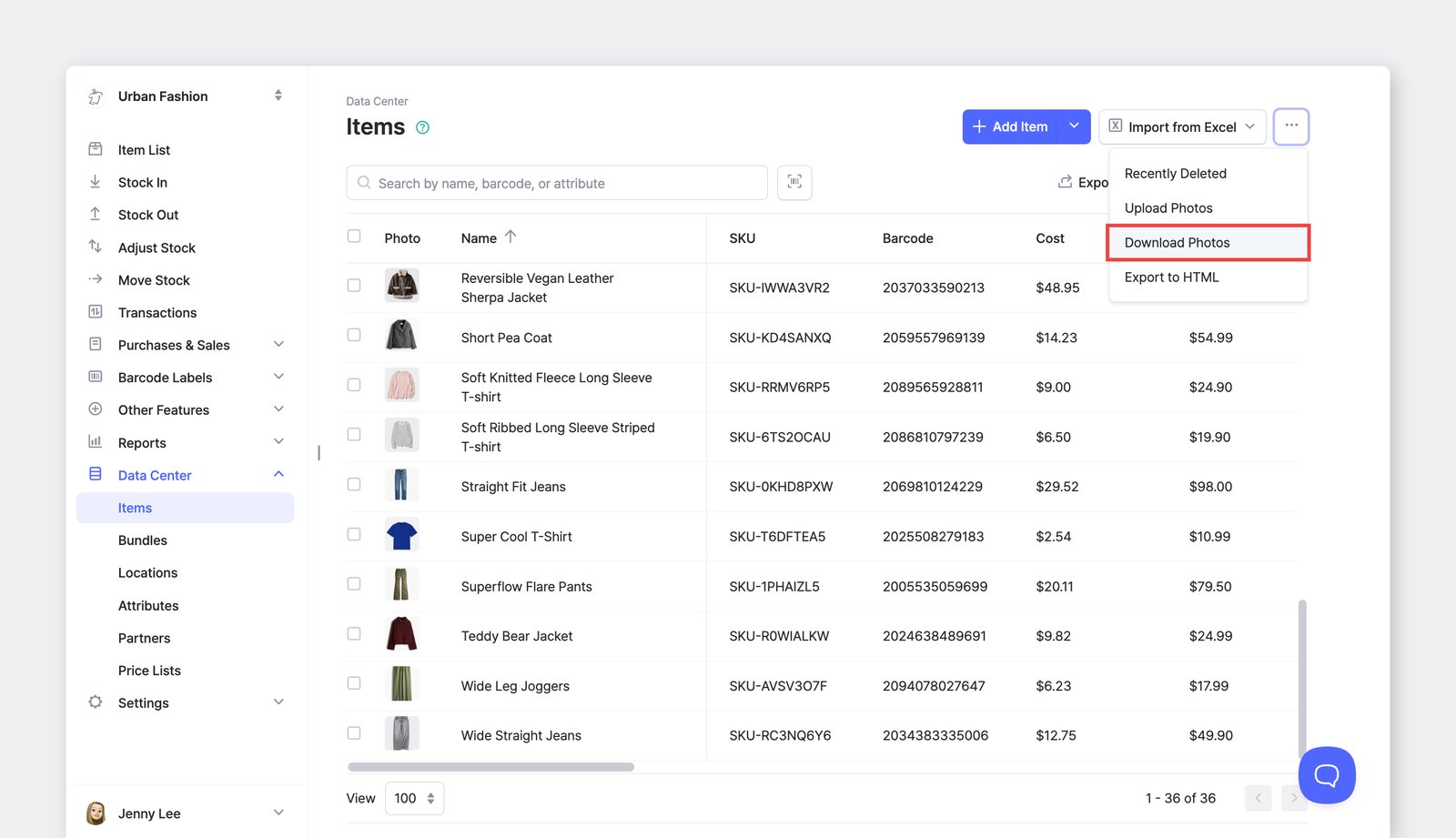
You can download all item photos compressed into a single file at <mark style="color:blue;">**`Data Center`**</mark> > <mark style="color:blue;">**`Items`**</mark> > <mark style="color:blue;">**`...`**</mark> > <mark style="color:blue;">**`Download Photos`**</mark>.

<figure><img src="https://687823928-files.gitbook.io/~/files/v0/b/gitbook-x-prod.appspot.com/o/spaces%2FlRf1QqJGoevCQqGbfI80%2Fuploads%2Fgit-blob-d45a07b5ad3d626d0cd781335a307e7cb2cdfcfd%2Fdownload-phbotos.png?alt=media" alt=""><figcaption></figcaption></figure>

***

## Exporting Items

### Export Item Details

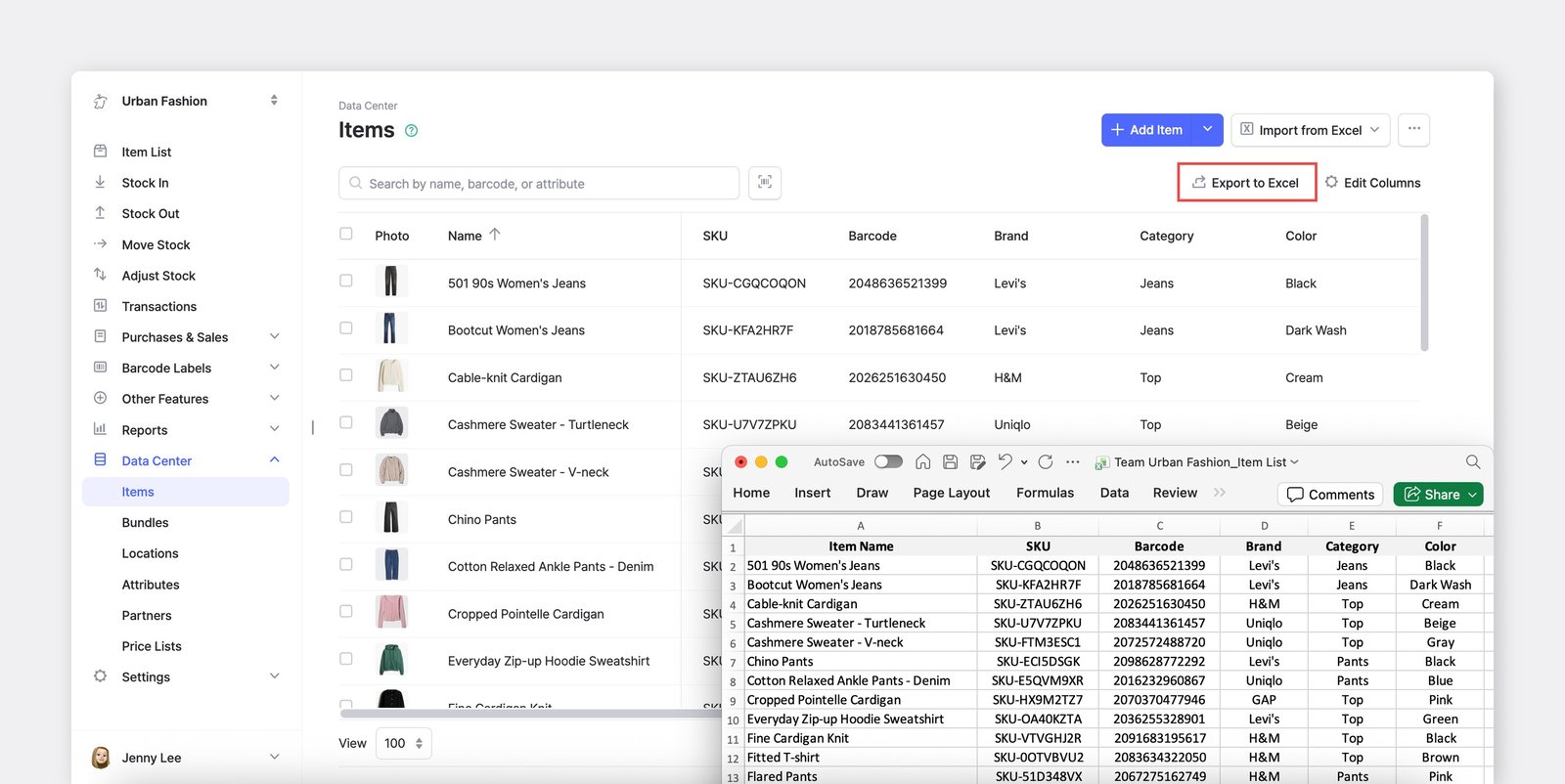
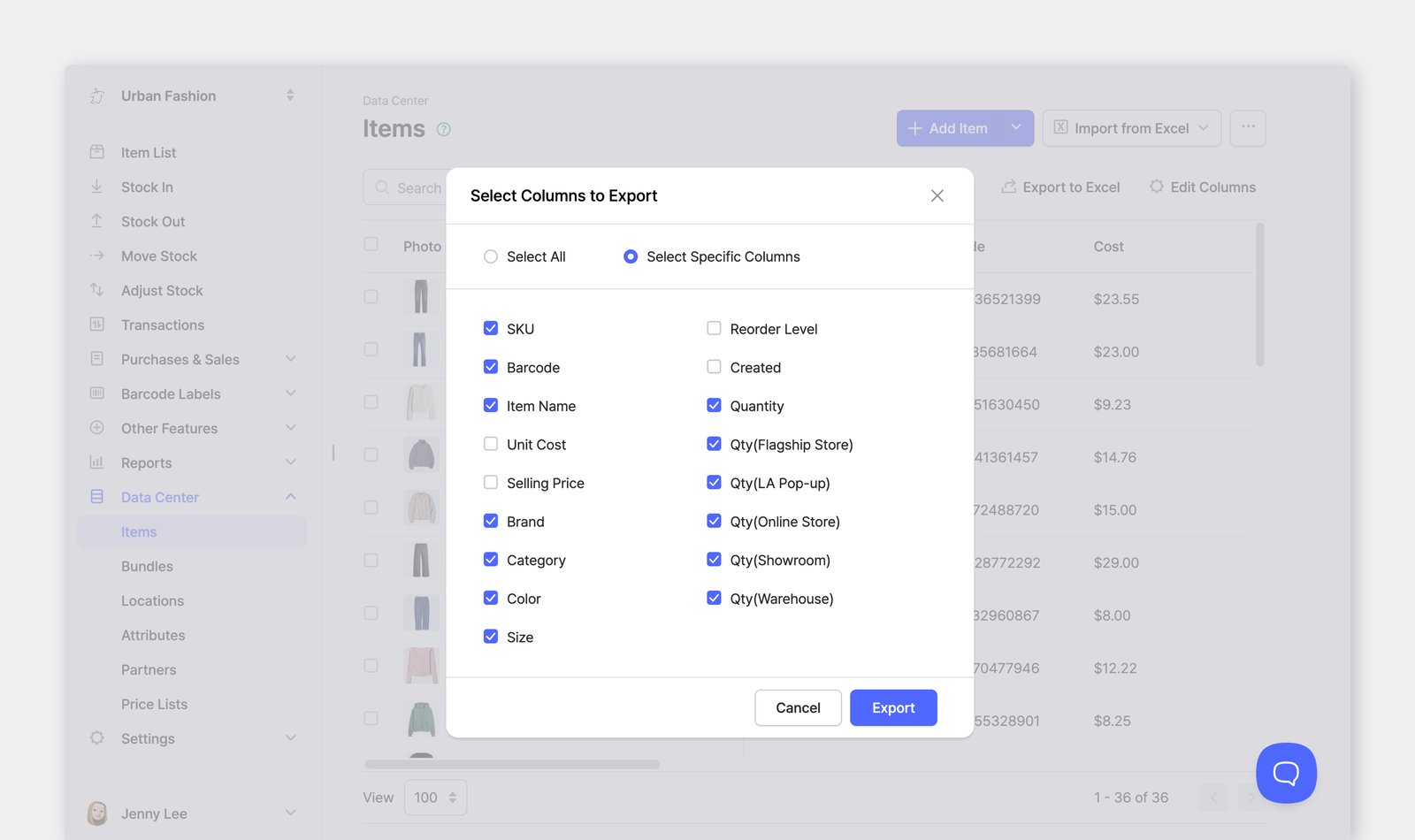
Download your item data into an Excel file by going to <mark style="color:blue;">**`Data Center`**</mark> > <mark style="color:blue;">**`Items`**</mark> > <mark style="color:blue;">**`Export to Excel`**</mark>.

<figure><img src="https://687823928-files.gitbook.io/~/files/v0/b/gitbook-x-prod.appspot.com/o/spaces%2FlRf1QqJGoevCQqGbfI80%2Fuploads%2Fgit-blob-2705a1d495f35af0410ee467eacb5c99a3992b29%2Fdata-center-export%20to%20excel.png?alt=media" alt=""><figcaption></figcaption></figure>

{% hint style="success" %}
In addition to your item information, you can export data such as your team’s **Inventory Reports** and **Transactions** history. Just look for the “Export to Excel” button in the top-right corner of each page.
{% endhint %}

### Export Item Photos

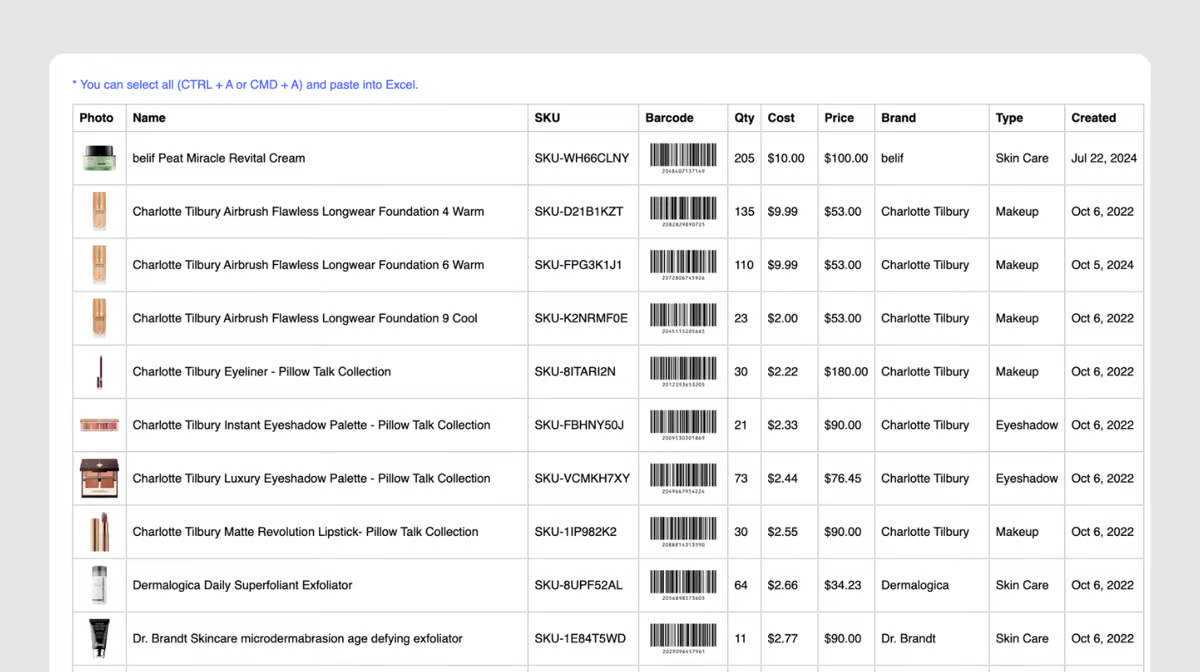
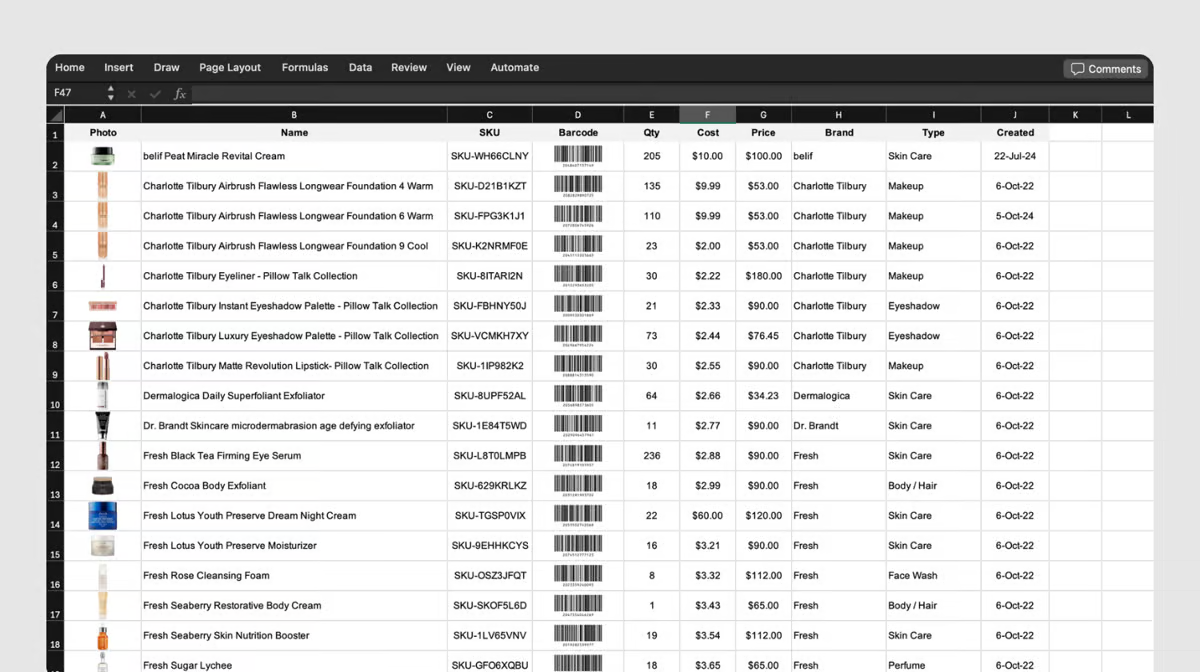
To export your inventory list with item photos and barcode images, navigate to <mark style="color:blue;">**`Data Center`**</mark> > <mark style="color:blue;">**`Items`**</mark> > <mark style="color:blue;">**`...`**</mark> on the top right > <mark style="color:blue;">**`Export to HTML`**</mark>.

<figure><img src="https://687823928-files.gitbook.io/~/files/v0/b/gitbook-x-prod.appspot.com/o/spaces%2FlRf1QqJGoevCQqGbfI80%2Fuploads%2Fgit-blob-f72e9ab525696ad257e0c4c9f86923154068764e%2Fhtml-photo-1.png?alt=media" alt=""><figcaption></figcaption></figure>

1. Press <mark style="color:$primary;">`Ctrl + A`</mark> to select all items. *(Mac: Command + A)*
2. Press <mark style="color:$primary;">`Ctrl + C`</mark> to copy the data. *(Mac: Command + C)*
3. Open an Excel file and press <mark style="color:$primary;">`Ctrl + V`</mark> to paste the data. *(Mac: Command + V)*
4. Save your Excel file, which will now include item photos and barcode images.

<figure><img src="https://687823928-files.gitbook.io/~/files/v0/b/gitbook-x-prod.appspot.com/o/spaces%2FlRf1QqJGoevCQqGbfI80%2Fuploads%2Fgit-blob-685fb72aeecfb8a22688899841182a933d12b839%2Fhtml-photo-2.png?alt=media" alt=""><figcaption></figcaption></figure>

{% hint style="info" %}
You can **filter** and **select specific data** to save in Excel by searching for items in <mark style="color:blue;">**`Data Center`**</mark> and using the <mark style="color:blue;">**`Export as HTML`**</mark> feature.
{% endhint %}

***

## Frequently Asked Questions (FAQ)

### How can I set item units?

Go to <mark style="color:blue;">**`Data Center`**</mark> > <mark style="color:blue;">**`Attributes`**</mark> to add a new attribute called “Unit,” and then enter the unit information (e.g., box, lb, kg, ml) for each item.

<figure><img src="https://687823928-files.gitbook.io/~/files/v0/b/gitbook-x-prod.appspot.com/o/spaces%2FlRf1QqJGoevCQqGbfI80%2Fuploads%2Fgit-blob-62b3be03730a7b9b025a1cf5a02572d6cbd7fd13%2Fitem-details-unit.png?alt=media" alt=""><figcaption></figcaption></figure>

### Can I upload more than one photo for an item?

Yes, you can add multiple file-type attributes to the same item. For example, you could create separate attributes for "Front View," "Side View," and "Spec Sheet," each with its own uploaded file. To add more, go to <mark style="color:blue;">**`Data Canter`**</mark>  > <mark style="color:blue;">**`Attributes`**</mark>  and create additional attributes with the **File** type.

{% content-ref url="attributes" %}
[attributes](https://www.boxhero.io/docs/data-center/attributes)
{% endcontent-ref %}

### Why isn’t my item quantity updating when I bulk edit with Excel?

Please use the "**Adjust Stock**" feature to modify item quantities. You can upload the Excel file at <mark style="color:blue;">**`Adjust Stock`**</mark> > <mark style="color:blue;">**`Import from Excel`**</mark> to make changes.

### What happens if I try to take out more stock than I have?

If you try to record a **Stock Out** transaction that’s higher than your available quantity, BoxHero will show a pop-up letting you know there isn’t enough stock to complete the action. If you choose to proceed, the item’s quantity will go into negative inventory.

If your physical count is different from what’s shown in the system, you can update the quantity using **Adjust Stock**. After the adjustment, you’ll be able to record the **Stock Out** transaction as needed.

<figure><img src="https://687823928-files.gitbook.io/~/files/v0/b/gitbook-x-prod.appspot.com/o/spaces%2FlRf1QqJGoevCQqGbfI80%2Fuploads%2Fgit-blob-cb73dc62a3b6e990310f70de50148e59b978ba3e%2Fitems%20exceel%20avail%20stock%20qty%20warning.png?alt=media" alt="BoxHero Warning Pop-up: Some items exceed available stock quantity"><figcaption></figcaption></figure>

### Will my transaction history change if I update an item?

If you update item details such as the name, cost, price, or attributes, those changes will automatically apply to all past transactions. The <mark style="color:blue;">**`Transactions`**</mark> menu will always show the most up-to-date item information.

### Why am I seeing an error in my item name when using Excel?

Check your item identifier under <mark style="color:blue;">**`Settings`**</mark> > <mark style="color:blue;">**`Team`**</mark> > <mark style="color:blue;">**`Import Excel`**</mark> > <mark style="color:blue;">**`Item Identifier`**</mark>. If you’re not using barcodes, switch the identifier to SKU.

<figure><img src="https://687823928-files.gitbook.io/~/files/v0/b/gitbook-x-prod.appspot.com/o/spaces%2FlRf1QqJGoevCQqGbfI80%2Fuploads%2Fgit-blob-12140b67c4a4dc950daa32f17be8cd48828d9070%2Fidentifier.png?alt=media" alt=""><figcaption></figcaption></figure>

If the issue persists, please contact [Support](https://www.boxhero.io/docs/resources/contact) with a screenshot of the error.